Viewer Services
Overview and instructions for creating digital resources and adding representations.
If you are an NDE user, see the NDE Viewer.
Viewing Digital Representations
You can view digital representations that you discover when searching the repository.
- Perform a search in the repository for digital titles.Alma attempts to display a thumbnail image for the titles. If the title has a digital file, a thumbnail of that file appears. If no thumbnail is available, a generic image of the material type (book, video, music, etc.) appears.
- Alma viewers cannot dislpay files larger than 1GB. Files larger than 1GB will increase delivery time and cause the viewer to time out before previewing the file.
- Alma is not always successful in generating thumbnails from Microsoft Office documents, due to the technical limitations of the third-party tool being used for this.
- Files of auxiliary representations are not taken into account for thumbnail generation. If a title has only auxiliary representations, the standard thumbnail service for a non-digital title is applied, as described in Customizing the Thumbnail Display. The user can choose the thumbnail for each representation by selecting a thumbnail from file.
- Select View It for a title. For each representation, the number of files and the file type appear.
- You can configure if representations are grouped by available viewers or listed separately. For more information, see Configure How Representations are Grouped in ViewIt/Primo.
- The results that appear in the View It tab are determined according to the display logic rules for the representation delivery service. For more information, see Configuring Display Logic Rules for the Representation Delivery Service.
If you do not have access rights to the representation, a notification appears.
This message is customizable when configuring the access rights for the representation.If you have copyrights configured for the representation, an icon appears when selecting View It. This can be configured: for Primo at Configuration > Fulfillment > Discovery Interface Display Logic > Labels and for Primo VE at Configuration > Discovery > Display Configuration > Labels > View Labels.
Primo VE Viewers
Institutions using Primo VE can make digital resources available through one of several supported viewers. The available viewer depends on your institution's configuration and delivery requirements.
Primo VE supports the following viewers:
-
Alma Viewer
-
Universal Viewer
-
Internet Archive Book Reader
For information about configuring viewer services and selecting the appropriate viewer, see Digital Services.
The NDE Viewer
The Next Discovery Experience Viewer provides a streamlined and modern way for institutions to explore digital content. Designed to align with the updated NDE interface, this viewer enhances the user experience by offering direct access to supported digital formats, reducing reliance on external viewers, and simplifying navigation across representations. Clients benefit from improved consistency, faster access to content, and a more intuitive interface for exploring digital resources. For information on configuring Alma to use the new viewer, see Configuring Viewer Services.
The NDE Viewer builds on the legacy version, with the following enhancements:
-
Full Text Display — the new viewer can display a full text file along with the digital one. To expand the pane with the full text, select the separator on the left side of the pane. To hide the full text file, select the Hide full text check box in the Digital Viewer configuration (Configuration > Fulfillment > Discovery Interface Display Logic > Viewer Services > Digital Viewer).
-
File-level Delivery — when selecting Share Focused File for a file in the new viewer and clicking Copy URL, the link provided opens to the selected file of the representation. Note that the Share Focused File checkbox appears only when there are multiple files in the representation.
-
Captions and subtitiles — select a captions language from the closed captions icon at the bottom of the viewer to display captions in that language. To turn off captions, select Captions Off.
For information about configuring captions for video files, see Managing Digital Files from the Digital Representation Resource Editor.
Supported Formats
The NDE viewer supports a set of digital formats most commonly used in archiving, as well as basic MS Office files:
Images: JPEG, JP2, PNG, TIFF
Videos: MP4, MP3, M4A, WEBM, AAC, OGG, WAV
Audio: WAV
Documents: PDF, TXT, DOCX (up to 100MB), PPTX (up to 100MB), XLSX (up to 25MB)
Office files are rendered using an external viewing service and displayed as read-only within the NDE Viewer.
Viewer Behavior
The viewer is embedded directly into the Full Display page, and can be expanded or collapsed. The default state of the Viewer can be configured in Configuration Menu > Fulfillment > Discovery Interface Display Logic > Display Logic Rules. If the Viewer is collapsed, select the "Digital Content" section to preview the content.
When a user selects a digital item from search results, the viewer automatically loads if the content is in a supported format, and the content is displayed in the viewer.
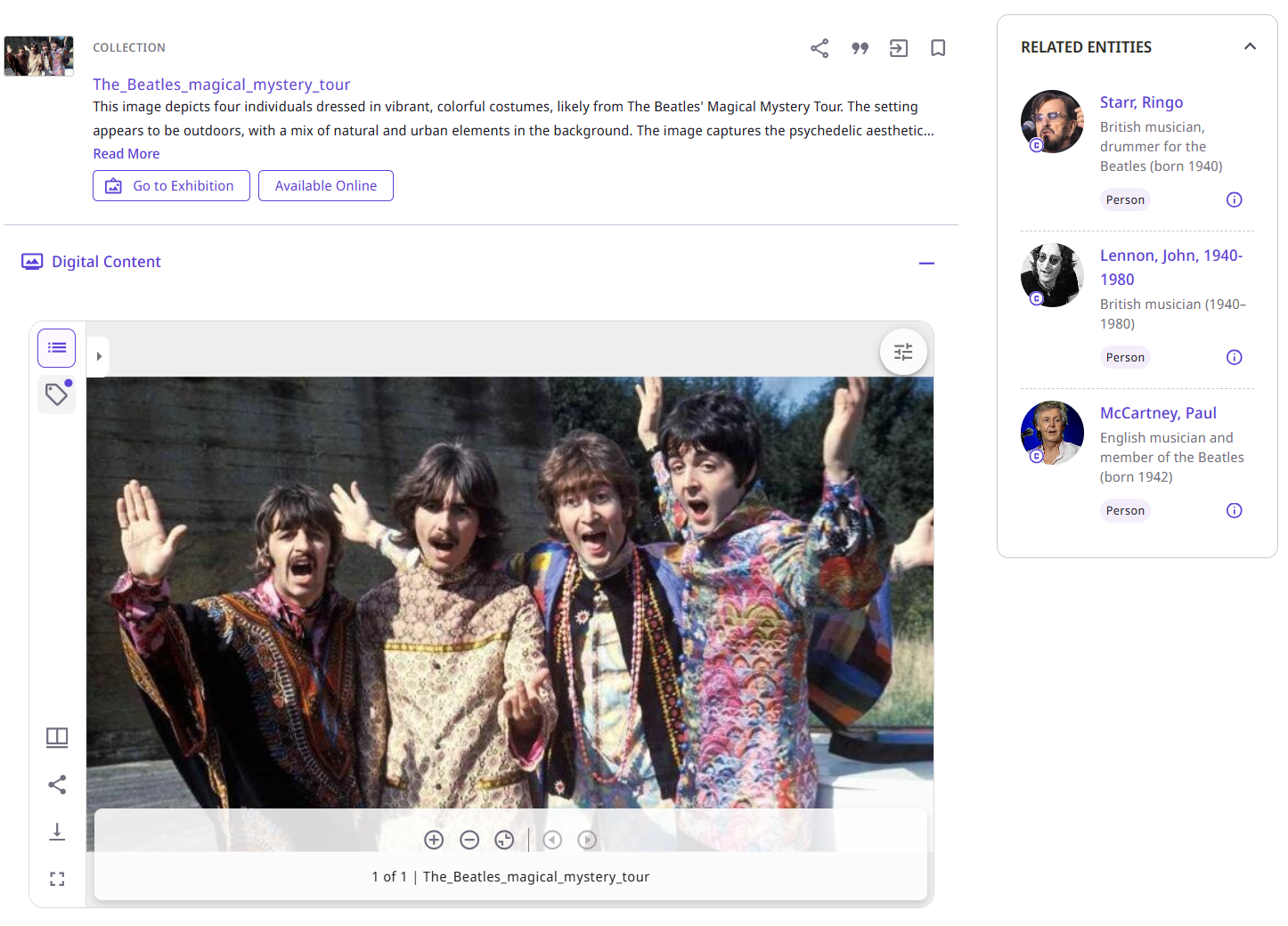
The viewer can be set to not display files larger than a certain threshold. If a file exceeds the threshold, the viewer will provide a download option for it. This feature is turned off by default and needs to be turned on in the Configuration Menu > Fulfillment > Discovery Interface Display Logic > Display Logic Rules.
The viewer may initially be expanded or collapsed for an item, depending on the configuration of Discovery Interface Display Logic rules (Configuration Menu > Fulfillment > Discovery Interface Display Logic > Display Logic Rules): if Representation Quick Access is configured to hide the item, the viewer is initially collapsed. Otherwise, it is initially expanded. When the digital item has multiple representations, if all the representations are configured to have the viewer initially collapsed, it is initially collapsed. If one or more of the representations is not configured to have the viewer initially collapsed, the viewer is initially expanded and the first representation of this kind is displayed in it. For information about configuring the Discovery Interface Display Logic rules, see Configuring Discovery Interface Display Logic for Primo VE.
By default, the title of the viewer is Digital Content. This title can be configured in the nde.digital.viewer.digital Content label (Discovery > Display Configuration > Labels).
If the content is not supported, the system provides a link to an external viewer in which the user can view the resource. Institutions should configure a fallback viewer for this purpose during setup to ensure all formats are properly redirected. Formats that are not supported by the NDE embedded viewer as well as any of your defined fallback viewers, a download option will be made available, assuming download is enabled for this file.
The viewer offers different ways to preview the content:
-
Single: A single page is shown
-
Book: Two pages are shown side-by-side to improve the reading experience
-
Gallery: View all the pages as images on a single screen
-
Scroll: View all files as a horizontal scroll
Displaying Multiple Representations
When a title contains multiple representations, end-users can navigate between Representations via the "Digital Versions" sections.
Entity Highlighting
For images that contain extracted face or object entities, the NDE Digital Viewer can display entity locations directly on the image. When users hover over a highlighted area, the Viewer displays the entity name in a tooltip. On mobile devices, users can tap an entity to view the same information.
This functionality enables users to discover and explore entities directly from the image without opening the entity panel, providing faster access to related content and entity records.
-
Entity highlighting is available only for images that contain extracted face or object entities.
-
On touch-enabled devices, tap is used instead of hover interactions.
Downloading Items
When viewing image content in the embedded viewer, users can download available image versions directly from the Download menu. To provide a simpler and more consistent experience, the viewer displays a limited set of image download options based on pre-generated image sizes. Depending on the image and the IIIF Image API compliance level, the viewer will construct and present numerous download links at varying resolutions. These options are displayed from the largest size to the smallest size.
Example download menu:
-
Large
-
Medium
-
Small
-
Original Source File (if enabled)
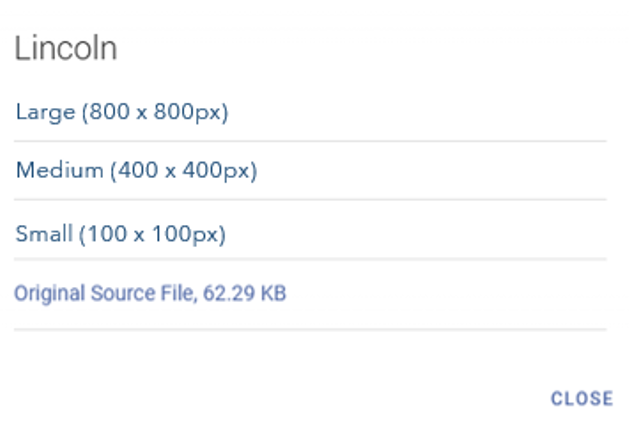
If the institution has enabled the Original Source File option, an additional download link appears at the bottom of the list, allowing users to download the original image file. Download availability continues to follow existing access rights and download permissions defined by the institution. This functionality applies to image files displayed in the embedded viewer and does not affect downloads of other file types.
Video and Audio Previewing
The Viewer enables you to play video and audio files. You can even upload captions and display them along the clip and as transcripts in its own pane. When previewing video resources, the viewer provides some additional features like:
- Captions enhancement (e.g. changing the size and color of the captions)
- Multilingual caption support
- Transcript enhancement (e.g. navigate the video with the transcript)
When captions are available, the Viewer displays them in the clip as well as in a dedicated Transcript pane alongside the audio or video player. Users can search the transcript, navigate to specific points in the recording, and follow synchronized transcript playback when timestamps are available. If multiple caption or subtitle languages are available, the transcript automatically updates to match the selected language. Transcript functionality is supported for both audio and video content. For information about configuring captions for video files, see Managing Digital Files from the Digital Representation Resource Editor.
To display a transcript, open the Transcript pane in the Viewer. The pane is available only when a caption(VTT) file has been uploaded for the resource. Close the pane at any time to hide the transcript and return to the media view.
Limitations:
- Transcripts are available only when a VTT caption file has been uploaded.
- Synchronization and timestamp navigation require timestamped caption files.
- Transcript support is available only for audio and video resources.
Representations
The viewer initially displays the first supported representation of a digital item.
If multiple representations exist, or the only representation is not in a supported format, these representations can be accessed from the Digital Versions section below the viewer, as follows:
-
Representations that can be opened in the viewer have a button (
 ). If the representation is not currently open in the viewer, select the button (or the file name) to open it.
-
If there are multiple representations, the user can turn through them directly in the right-hand side panel.
-
-
Representations in formats that are not supported by the viewer are identified by an arrow icon (
 ). Select the arrow (or the file name) to open the representation in an external viewer.
 -
If you are not logged into Primo VE, representations that can only be opened by logged-in users are identified by a lock icon (
 ) and the label, You do not have permission to view this object.
The Digital Versions section may be hidden in the Full Display of an item, depending on the configuration of Discovery Interface Display Logic rules (Configuration Menu > Fulfillment > Discovery Interface Display Logic > Display Logic Rules): if Representation Delivery Service is configured to hide the item, the section is hidden. Otherwise, it is included in the page. When the digital item has multiple representations, if all the representations are configured to have the Digital Versions section hidden, it is hidden. If one or more of the representations is not configured to have the section hidden, the section is displayed, but only those representations that are not configured to be hidden appear in it.
Titles with multiple representations in the Alma backend, users can page between all available representations directly within the RHS (Right-Hand Side).
Preview Features
Zoom controls: Use the zoom in  or zoom out
  buttons in the viewer, or mouse scroll up or down while hovering on the representation to zoom in or out on the previewed resource. To reset the zoom to its original size, select the reset zoom button
  in the viewer's control panel.
Scroll preview: Move through representations by selecting the next item  and previous item
  buttons in the viewer.
Download option: download the resource in the represented format by selecting the download button  on the left-hand side of the viewer.
Expand to full-screen view: To view the resource across the entire screen, select the full-screen button  on the left-hand side of the viewer.
Preview layout: Users can change between single tile, gallery, page, book, or scroll view by selecting the views icon  on the left-hand side of the viewer. The Book view previews two pages at a time, for an optimal viewing experience. The Scroll view enables the continuous scroll, and is suitable for large IIIF resources.
Content Exploration Features
Index: The index option shows all the resources tied to the title that are available for viewing. To view the list of resources, select the Content button  in the viewer.
Search: Primo NDE viewer supports in-image text search if the institution has uploaded full text for their digital content. To search for text in the resource, select the search button  in the viewer. For more information, see Tesseract OCR Extraction and ALTO Generation.
Copyright: Primo NDE Viewer enables the user to preview resource copyright limitations. To view the copyrights, select the copyrights button  on the left-hand side of the viewer.
Additional Features
Sharing: Share the resource by selecting the Share button  on the upper right-hand side above the viewer and choosing the method of sharing.
Citation: Create citations for the record in various formats by selecting the Citation button  on the upper right-hand side above the viewer and choosing the citation format from the dropdown.
Export: To export the resource, select the Export button  on the upper right-hand side above the viewer and choose the export format.
Saving: Add the representation to saved records by selecting the Add to Saved Records button  on the upper right-hand side above the viewer.
Usage OBI Analytics: The viewers' actions: view, download and share in Primo NDE are now tracked via the OBI Analytics for digital content.
Accessibility: Options include: rotate, flip, brightness, contrast, greyscale, saturation, invert colors, and revert image. You can also select the view layout: single title, book, or gallery layout.

Page tags: article:topicproduct:almacontent:Documentationlang:englishdigital representationcreate digital resourcerepresentation
