August 2026
New Specto Menu
Beginning with the August release, the new Specto menu will transition from opt-in to opt-out, meaning it will be enabled by default for all Alma customers unless you choose to disable it. General availability is planned for the November Release for all Alma customers.
The new Specto menu centralizes actions related exclusively to digital cataloging and digital content management.
The menu does not contain any new actions, but rather is a consolidation of the existing actions that relate to digital asset management.
All digital-only actions have been relocated to the new Specto menu, and any actions that are used for other use-cases have been duplicated into the Specto menu. The purpose is to simplify the workflows for those managing digital content, and to remove those actions from areas where they are not relevant.
To view the full list of the Alma Roles to which this menu will be available, see Specto Starter Menu Roles.
Metadata Pane in the Embedded Viewer
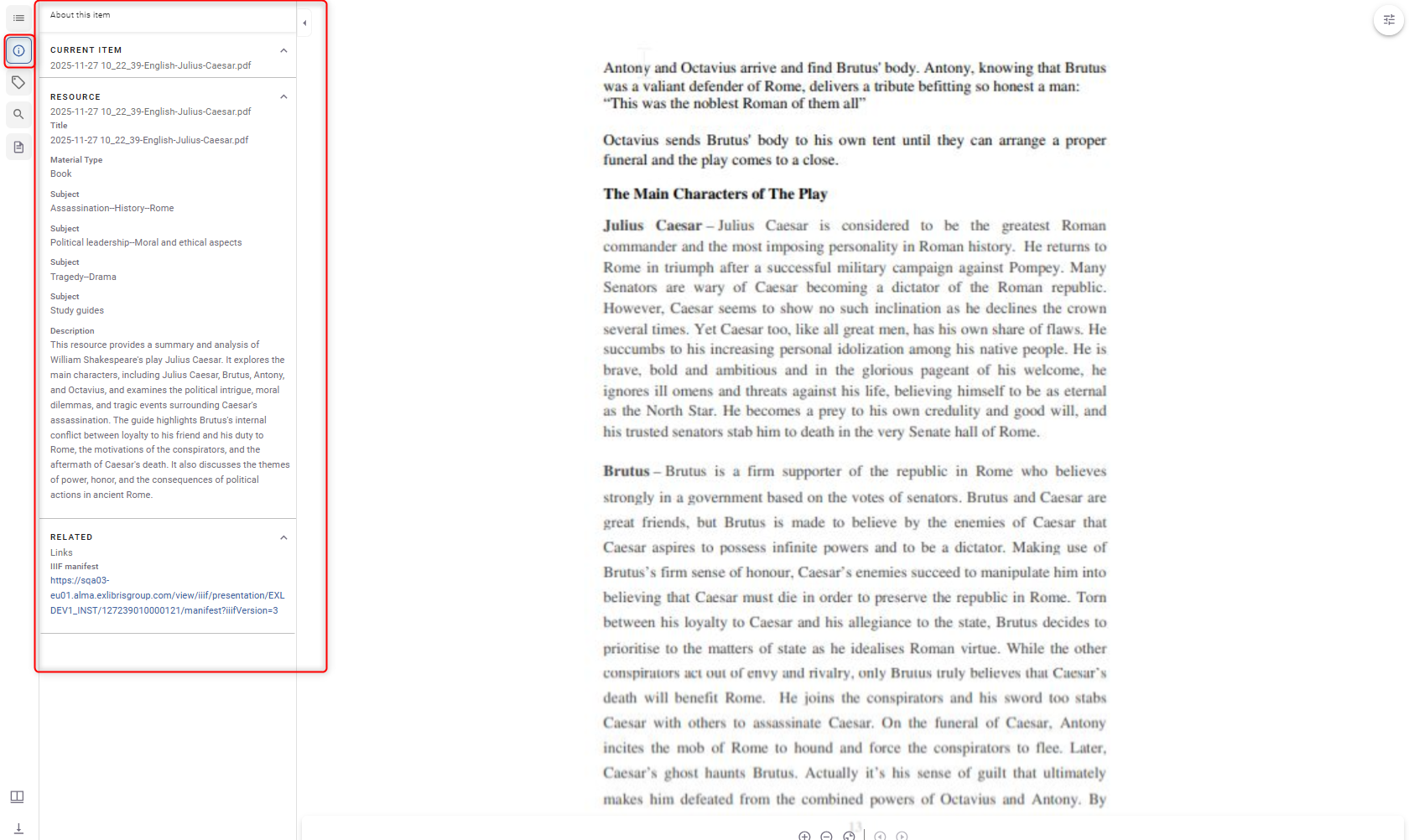
A new Metadata pane is now available in the embedded viewer, enabling users to view descriptive metadata directly within the viewer while examining a digital resource. The metadata pane is accessed from the Information (i) icon in the viewer's left sidebar and is closed by default. Metadata displayed in the pane uses the same normalized and formatted metadata presented in Primo, ensuring a consistent experience across discovery and viewing workflows. This enhancement is available for end users in the Primo NDE interface and for staff users working in Alma. To learn more, see Viewer Servies.
Impact:
-
View descriptive metadata without leaving the viewer or scrolling to another part of the page.
-
Gain immediate context about a digital resource while examining its content.
-
More easily identify and evaluate digital materials by keeping descriptive information available alongside the resource.
-
Move between discovery and viewing workflows with a consistent metadata experience across Primo and the embedded viewer.
NDE Digital Viewer Configuration in Viewer Services
A new NDE Digital Viewer section has been added to Viewer Services, enabling Digital Managers to configure how the Mirador-based viewer displays and behaves when presenting digital content in NDE.
Available configuration options include:
-
Default display layout (Single Page, Book, Thumbnail, or Scroll)
-
PDF zoom behavior
-
Paging direction based on content language
-
Display of the original image download link
In addition, Digital Managers can create rules that automatically apply Book View for content that matches defined criteria, such as a specific material type.
The configuration is managed from a dedicated NDE Digital Viewer section within the existing Viewer Services page.
Impact
-
Tailor the digital viewing experience to different types of content without requiring development changes.
-
Automatically present content in the most appropriate layout, such as opening books in Book View.
-
Control what information and viewing options are available to end users.
-
Provide a more consistent and optimized viewing experience based on the characteristics of the displayed content.
Download Restrictions for Staff Users in the Back Office
You can now enforce download restrictions for staff users in Alma back office, ensuring that access rights are respected when downloading digital content.
A new Enforce Download Restrictions for Staff Users setting has been added to Fulfillment > Discovery Interface Display Logic > Other Settings. When enabled, Alma applies access-rights checks before allowing staff users to download digital content.
If a staff user does not have the required permissions, the download is blocked. Depending on the access point, Alma either displays a message indicating that the user does not have permission to download the content or removes the download option entirely.
The restriction applies to download actions throughout the back office, including file lists, search results, the Digital Resource Editor, and the Download Digital Titles Inventory job.
To enable download restrictions for staff users:
-
Navigate to Fulfillment > Discovery Interface Display Logic > Other Settings.
-
Select Enforce Download Restrictions for Staff Users.
-
Save your changes.
After the setting is enabled, Alma verifies staff access rights before allowing digital content to be downloaded.
User Interface Changes
-
Added the Enforce Download Restrictions for Staff Users setting to Other Settings.
-
Staff users without the required permissions receive a message when attempting to download restricted content.
-
In the Mirador viewer, download options are hidden when the user does not have permission to download the file.
-
The Download Digital Titles Inventory job now validates download permissions before processing files. If a restricted file is detected, the job is canceled and a message is added to the job report.
Impact
-
Protect sensitive digital content by enforcing existing access-rights policies in the back office.
-
Prevent unauthorized staff users from downloading restricted files.
-
Help ensure that staff access to digital content aligns with institutional policies.
-
Reduce the risk of unintended access to restricted materials.
-
Provide a more consistent permissions experience across staff and end-user workflows.
