Configuring Loans
Configure physical fulfillment rules.
This page describes how to configure loans including automatic loan renewal rules, overdue and lost loan profiles, etc. For links to all the main fulfillment documentation pages see Fulfillment.
Configuring Block Preferences
- General System Administrator
- Fulfillment Administrator
Watch the Overdue and Lost Loan Profiles video.
Block preferences let you control how various scenarios are handled at circulation desks within the institution based on an item's or user's status. For more information on blocking users, see Blocking and Unblocking Users. When an item is blocked it can't be loaned to (or requested by) the user; see Creating a Request from the Institution. For details on policies for loan recall requests, see here.
A typical scenario may be as follows:
A patron brings a book to a circulation desk and attempts to borrow the book. When the circulation desk operator enters the book's ID into the system, it is discovered that the book was requested by another patron, preventing the user from borrowing it. Depending on the block preferences and the staff member's permissions, the block may be overridden.
For configuring user blocks including demerits, consortial blocks, overdue loans, etc., see Configuring User Blocks.
The block preferences that are defined for the institution appear on the Block Preferences page (Configuration Menu > Fulfillment > Physical Fulfillment > Block Preferences).
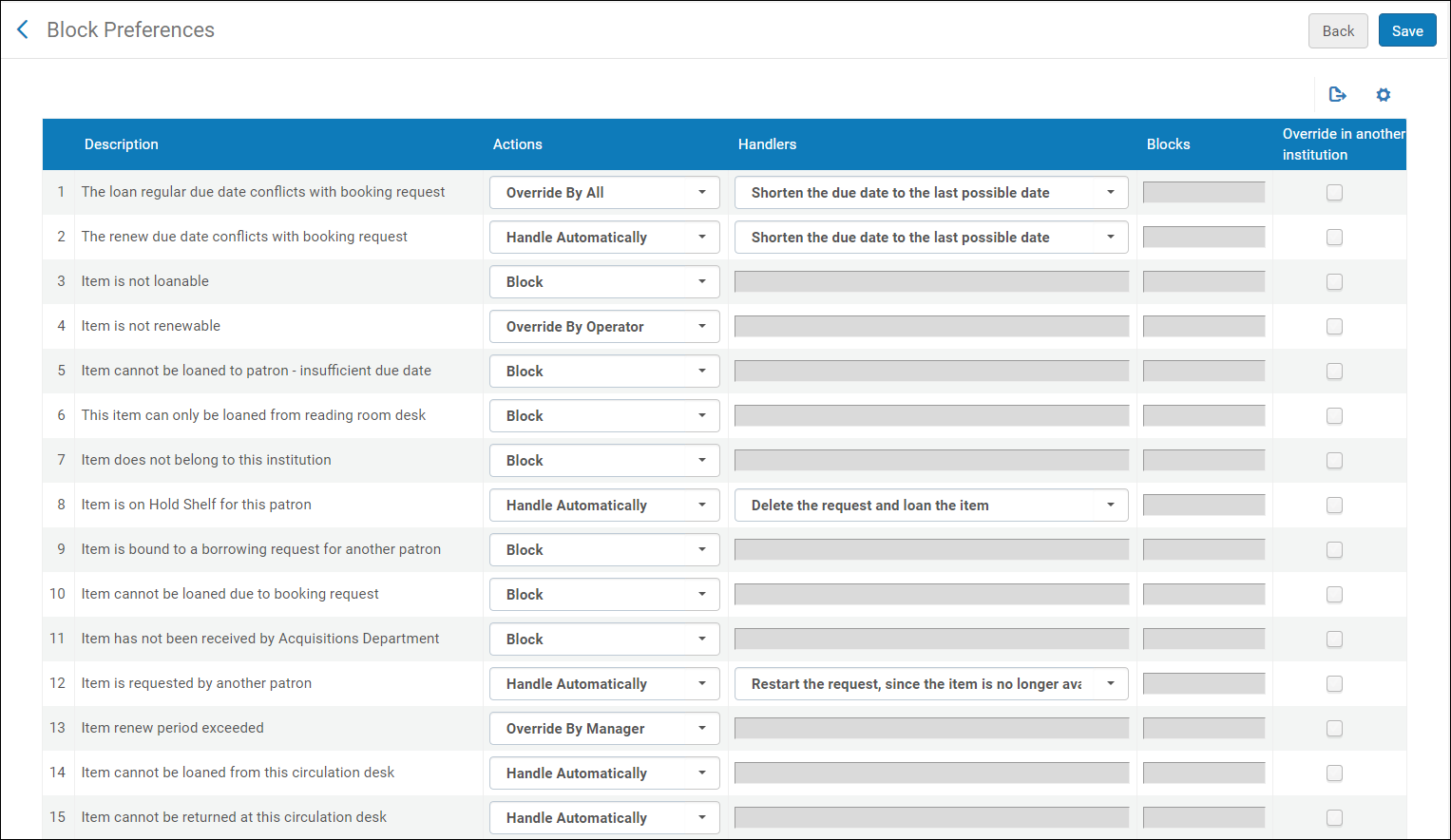
- Block preferences can be configured at the institution level only. Select the required institution from the Configuring filter on the Fulfillment Configuration page.
- The Not Renewable – Item Has Request(s) entry indicates the system behavior when there are title level requests on the renewed item. Select Handle Automatically to permit request renewal when title level requests exist for the loaned item that is being renewed. Select any other option to reject loan renewal when title level requests exist for the loaned item that is being renewed. This parameter also controls the system behavior when attempting to renew material that was shipped for a lending resource sharing request (using resource sharing request renew), and there are title level requests for the resource. If you select Handle Automatically, it means that renewal requests are automatically accepted and the shipped material is automatically renewed to the requested new due date even though there are title level requests for the resource. Select any other option to reject the renewal requests.
- The Item cannot be loaned to patron – insufficient due date block indicates that the item cannot be loaned because the due date does not allow the item to be returned. For example, this block appears when an item's due date is in the past, or when an item is due tomorrow but delivery of the item cannot be completed for three days.
The list of block preferences is predefined. You cannot add or delete a block preference, but you can modify a block preference's settings. The preferences that you set apply to all libraries within the institution.
Editing Block Preferences
The details that you can modify are configured with the following fields on the Workbench Preferences page:
Actions – Defines the global action to perform in a given scenario
- Handlers – Defines the action to perform automatically when the Action field is set to Handle Automatically or one of the Override by optionsHandlers can be edited only when there is more than one option to choose from for an action.
- Blocks – Defines which types of transactions to block (Loan,Renew, or Both)
The available actions are:
- Block – The item is blocked, and the patron cannot borrow the item.
- Override by Manager – The block on the item can be overridden only by a staff member with the Circulation Desk Manager role at the current circulation desk.
- Override by Operator – The block on the item can be overridden only by a staff member with the Circulation Desk Manager or Circulation Desk Operator role at the current circulation desk.
- Override by All – The block on the item can be overridden by any staff member with either the Circulation Desk Manager, Circulation Desk Operator, or Circulation Desk Operator –Limited role at the current circulation desk.
- Override in Another Institution- This option may be used by Fulfillment Network members to configure whether the block may be overridden by staff in another institution if the block happens when the member's item is being loaned at the circulation desk of another member institution.
- Handle Automatically – Specific actions are to be performed by Alma. In some cases, these actions are specified in the Handler field, and are predefined by Ex Libris. Handler options can be configured only if you select Handle Automatically or one of the Override by options. In other cases, such as for block descriptions “Item cannot be loaned from this circulation desk” and “Item cannot be returned at this circulation desk”, the Handler field is empty. When the Handler field is empty, choosing Handle Automatically enables the activity to occur with no block. For example, if “Item cannot be loaned from this circulation desk” is defined with the Handle Automatically action, then an item from Library B which is not defined as “Circulate For” in Library A can be loaned (with no block) while at a circulation desk of Library A.
- The block preferences Item has not been received by Acquisitions Department,Item cannot be loaned due to booking request,Item cannot be loaned to patron - insufficient due date,A resource sharing request must be renewed by the resource sharing library, and Item does not belong to this institution contain only a single Action (Block), which cannot be overridden.
- The block preference Not Renewable - Item has Requests is relevant only if PATRON_PHYSICAL = Yes on the Loan Recalls Mapping Table page (see Configuring Loan Recall Requests).
- When working with external users, the block preference Patron is Expired indicates that the patron has expired in the external system, and the block preference Patron is not Active indicates that the patron is not active in the external system.
- When selecting Item cannot be loaned from this circulation desk,Item cannot be returned at this circulation desk, or Not Renewable – Item has Requests, no Handler options are available when Handle automatically is selected. In these cases, Alma ignores the block and the item is loanable.
- Selecting an override action for the Item is Not Renewable preference causes the Override button to appear on the warning box from the Renew option on the Action button of the Manage Patron Services Loan tab. It does not affect the Renew Selected or Renew All buttons.
The block preferences descriptions are:
| Block Name | Description | Available Actions | Handlers |
|---|---|---|---|
|
The loan regular due date conflicts with booking request
|
Checkout is blocked when the normal due date (as determined by the TOU, for example) conflicts with the start of an existing booking request.
|
|
Shorten the due date to the last possible date
|
|
The renew due date conflicts with booking request
|
Renewal of an existing loan is blocked when the normal renewed due date (as determined by the TOU, for example) conflicts with the start of an existing booking request.
|
|
Shorten the due date to the last possible date
|
|
Item is not loanable
|
Checkout of an item is blocked as a result of the fulfillment configuration. The applicable Terms of Use contains an Is Loanable policy with value False.
|
|
|
|
Item is not renewable
|
Loan renewal is blocked as a result of the fulfillment configuration. The applicable Terms of Use contains an Is Renewable policy with value False.
|
|
|
|
Item cannot be loaned to patron - insufficient due date
|
Block
|
||
|
This item can only be loaned from reading room desk
|
If an item's Is Loanable policy has a value of In Reading Room Only, and the loan is attempted from a circulation desk not defined as a reading room desk, checkout is blocked.
|
|
|
|
Item does not belong to this institution
|
Block
|
||
|
Item is on Hold Shelf for this patron
|
Checkout is blocked for an item when the item is on the hold shelf.
|
|
Delete the request and loan the item
|
|
Item is bound to a borrowing request for another patron
|
Checkout is blocked for an item because it was already requested by a different patron via Resource Sharing.
|
|
|
|
Item cannot be loaned due to booking request
|
Block
|
||
|
Item has not been received by Acquisitions Department
|
Block
|
||
|
Item is requested by another patron
|
Checkout of an item to a patron is blocked when there is an active request for the item by another patron. The block has no effect if the request is not active. The block also has no effect if the item is in another process, for example, a loan.
|
|
Restart the request, since the item is no longer available.
|
|
Item is requested by the library
|
Checkout is blocked for an item that is requested for an internal library process.
|
|
Restart the request, since the item is no longer available
|
|
Item renew period exceeded
|
Renewal of a loan is blocked as a result of the fulfillment configuration. The applicable Terms of Use contains a value for the Maximum Renewal Period policy which has already been reached for this loan.
|
|
|
|
Item cannot be loaned from this circulation desk
|
|
|
|
|
Item cannot be returned at this circulation desk.
|
|
|
|
|
An item of the same title (items attached to the same bib record) was recently loaned to this patron
|
Reloaning an item is blocked as a result of the fulfillment configuration. The applicable Terms of Use contains a Reloan Limit policy with value Other.
|
|
|
|
Item of the same title (items attached to the same bib record) is already on loan for this patron
|
Loaning an item is blocked as a result of the fulfillment configuration. The applicable Terms of Use contains a Reloan Limit policy with value Other.
|
|
|
|
The loan cannot be renewed due to the loan status
|
Renewal of a loan is blocked when the loan status is Lost, Claimed Returned, or Recalled. Note that blocks for lost items cannot be overridden.
|
|
|
|
Item is on hold shelf for another patron
|
Checkout is blocked for an item that is currently on the hold shelf for a different patron. If the ‘On Hold Shelf’ workflow step of the request has already expired, the request will be canceled (the Cancellation Reason will be “Time to pick up resource from hold shelf has passed”) and the item will be checked out to the new patron.
|
|
Restart the request, since the item is no longer available
|
|
Item is on expired hold shelf for another patron'
|
Checkout is blocked for an item that is currently on the hold shelf for a different patron, although it is expired.
|
|
Cancel the expired request to enable the loan
|
|
Item of the same title (items attached to the same bib record) is already on loan for this patron. Parallel loan is prohibited.
|
Loaning an item is blocked as a result of the fulfillment configuration. The applicable Terms of Use contains a Reloan Limit policy with value Parallel.
|
|
Cancel the request, since the item is no longer available
|
|
Lender policy does not support renewal
|
Resource sharing loan cannot be renewed because the lender's policy does not allow renewals.
|
|
|
|
Patron cash limits has exceeded
|
Loaning and/or renewing an item is blocked for a patron with a current bill that exceeds the allowed limit for that patron group (as configured in the Users tab). Select the desired action(s) to block from the Blocks column: Loan, Renew, or Both.
|
|
|
|
Patron's card has expired
|
Loaning an item is blocked for a patron with an expired user record.
|
|
|
|
Patron is not active
|
Loaning an item is blocked for a patron with an inactive user record.
|
|
|
|
Patron loan limit exceeded
|
Loaning an item is blocked for a patron with current loans that exceed the allowed number for that patron group (as configured in the Users tab).
|
|
|
|
Patron overdue limits exceeded
|
Loaning and/or renewing an item is blocked for a patron with overdue loans that exceed the allowed number for that patron group (as configured in the Users tab). Select the desired action(s) to block from the Blocks column: Loan, Renew, or Both.
|
|
|
|
Patron overdue recalls limit exceeded
|
Blocks loaning and/or renewing an item to a patron with overdue recalled loans that exceed the allowed number for that patron group (as configured in the Users tab). Select the desired action(s) to block from the Blocks column: Loan, Renew, or Both.
|
|
|
|
Not Renewable – Item has Request(s)
|
Blocks renewal of additional copies of an item that has been recalled.
|
|
|
|
Item is currently on loan by another patron
|
|
For self-check machines, the loan is blocked as if the block preference is set to block.
See also Waiving Fines and Fees.
|
|
|
A resource sharing request must be renewed by the resource sharing library
|
Block
|
||
|
Item has not been received by resource sharing operator
|
|
Perform automatic resource sharing receive
|
|
|
Time frame when loan renewal is allowed not reached
|
Renewal is blocked. The ‘Time frame when loan renewal is allowed' policy allows renewals only when near the due date.
|
|
|
|
User does not have a patron role or the role has expired
|
|
Note that requests are not blocked in Alma. The rationale behind this is to allow patrons to place the request, but when they come to pick up the item, to force them to pay/return/solve the reason for their blockage before receiving the requested item. However, you can still create blocks on requests by creating blocks manually: when configuring a block manually, you choose which actions are blocked.
The Block Preferences page contains the following similar settings:
- The loan cannot be renewed due to the loan status – Used when an item's status is Lost,Claimed Returned, or Recalled.
- Not Renewable - Item has Request(s) – When multiple copies of an item are checked out and a recall request recalls only one of the items, the other items that have not been recalled cannot be renewed.
- On the Block Preferences page (Configuration Menu > Fulfillment > Physical Fulfillment > Block Preferences), locate the block preference that you want to edit.
- In the Actions column, select a different action, as needed. The lists of available actions are predefined, and vary from scenario to scenario. Note that many scenarios have only one action,Block.
- In the Handlers column, select a different handler, as needed. The lists of available handlers are predefined, and vary from scenario to scenario. Note that not all scenarios have handler options. A handler is displayed only if the Handle automatically action or one of the Override by actions is selected.
- In the Blocks column, select the type of transactions that you want to block (Loan,Renew, or Both). Note that many scenarios do not allow this option, and blocks apply to both loans and renewals.
- Select Save to store the modified block preferences in the system.
Configuring Automatic Loan-Renewal Rules
- General System Administrator
- Fulfillment Administrator
Automatic loan-renewal rules define the conditions under which items are renewed by the Notifications - Send Courtesy Notices and Handle Loan Renewals job. Also see the parameter auto_renew_loan_days(see Configuring Other Settings), which sets the number of days before a loan is due that an automatic renewal attempt triggers.
The Notifications - Send Courtesy Notices and Handle Loan Renewals job attempts to renew loans according to the defined auto-renewal rules. Whether the loan is successfully renewed depends on additional conditions, such as the terms of use and existing recalls.
If the Notify Automatic Renewals checkbox (Configuration > Fulfillment > Fulfillment Jobs Configuration) is marked, then the Automatic Loans Renew Notice is sent for the renewals (see Letters).
Even where the rules allow for renewal, the renewal may still be prevented in situations such as the following:
- The user does not have a patron role, or the role has expired.
- The user record expires before the renewal date.
- The due date is already set to the renewed due date.
- The patron is inactive.
- The patron's card has expired.
- The patron has exceeded the limit of overdue recalls.
- The patron has exceeded the limit of cash.
- The item is not renewable.
- The item has a status that prevents renewal.
- The item renew period has been exceeded.
- Renewing the loan conflicts with a booking request, and the due date must be shortened.
- The item cannot be loaned due to a booking request.
- The item cannot be renewed due to a request for the item.
- The auto-renewal rule is set to false.
- A general error caused the renewal failure.
Loans that are not renewed because of pending requests are automatically renewed when the blocking requests are canceled or fulfilled by another item, if library policies and the patron status enables the renewal to take place. Loans that are a result of resource sharing borrowing requests cannot be renewed using this job.
If a loan was handled by this job but renewal was prevented due to one of the other reasons mentioned above, it is not included in future instances of the Notifications - Send Courtesy Notices and Handle Loan Renewals job, unless its due date has changed.
For details, see Notifications – Send Courtesy Notices and Handle Loan Renewals.
You configure automatic loan-renewal rules from the Automatic Loan Renewal Rules page (Configuration Menu > Fulfillment > Physical Fulfillment > Auto Loan Renewal Rules).
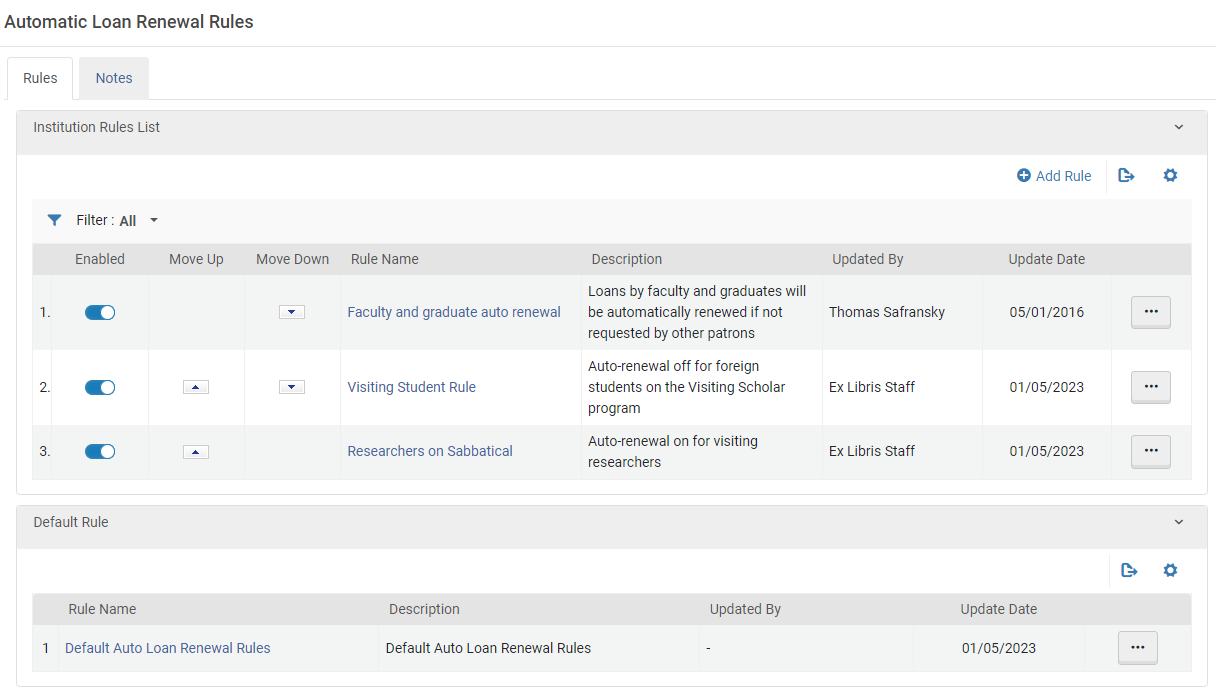
The following actions can be performed on this page:
- Adding automatic loan-renewal rules (see Adding Automatic Loan-Renewal Rules, below)
- Editing automatic loan-renewal rules (select Edit from the row actions).
- Enabling or disabling loan-renewal rules
- Duplicating automatic loan-renewal rules (select Duplicate from the row actions and modify the relevant fields)
- Deleting automatic loan-renewal rules (select Delete from the row actions).You cannot delete or disable the default automatic loan-renewal rule.
Adding Automatic Loan-Renewal Rules
You can add new automatic loan-renewal rules definitions to an institution. These are applied to all the libraries within the institution.
Alternatively, select Duplicate in the row actions list to duplicate an existing rule and then edit it (select Edit from the row actions).
- On the Automatic Loan Renewal Rules page (Configuration Menu > Fulfillment > Physical Fulfillment > Auto Loan Renewal Rules), select Add Rule. The Automatic Loan Renewal Rule Editor page appears.
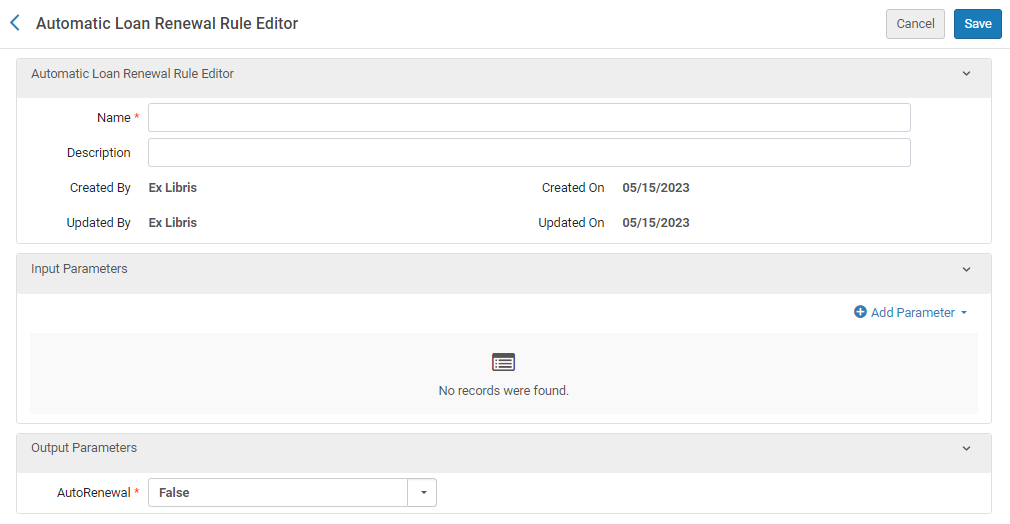
- Enter a name (required) and a description (optional) for the new rule.
- In the Input Parameters section, select Add Parameter. A parameter-configuration box opens.
- Under Name, select one of the categories of input parameters for which you want to specify conditions that must be met in order for this rule to apply. You can only create one set of conditions for each category of input parameter, but you can include many values for each parameter. For example, for the Location parameter, you can select multiple locations in a number of different libraries, or include all locations except for the law library and the art library. The following parameter categories are available:
- Library – The library that owns the item
- Location – The location of the item within the library, such as the Asian collection or the multimedia center
- User Group – The user group of the patron who has the item on loan
- User Statistical Category – A statistical category that is attached to the user (see Managing Users)
- Under Operator, select the required Operator. (Select InList or NotInList if you want to select multiple values for the parameter.)
- If the Value field appears, select the value or values of the parameter that define the condition that must be met.
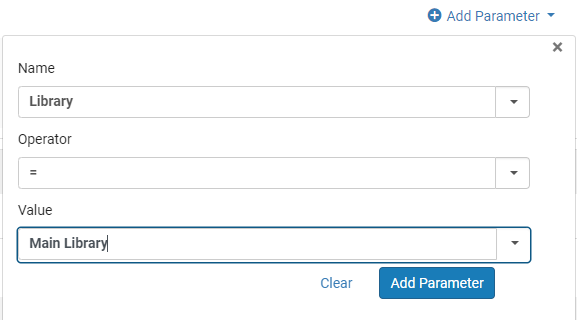
- Select Add Parameter. The parameter is added to the list of input parameters for the rule.
- To add additional input parameters for the rule, in the Input Parameters section, select Add Parameter, and then repeat the previous steps. When you are finished, a set is created between one and four parameters. For example, a set of input parameters may look like this:Item owner = Art Library; User group = Graduate student. In this case, the auto renewal rule would apply only for Art Library items on loan to graduate students.All the input-parameter conditions must be fulfilled for the rule to be applied. If they are not, the default rule is applied.
- Under Output Parameters, select whether auto renewal should be implemented (True) or not (False).
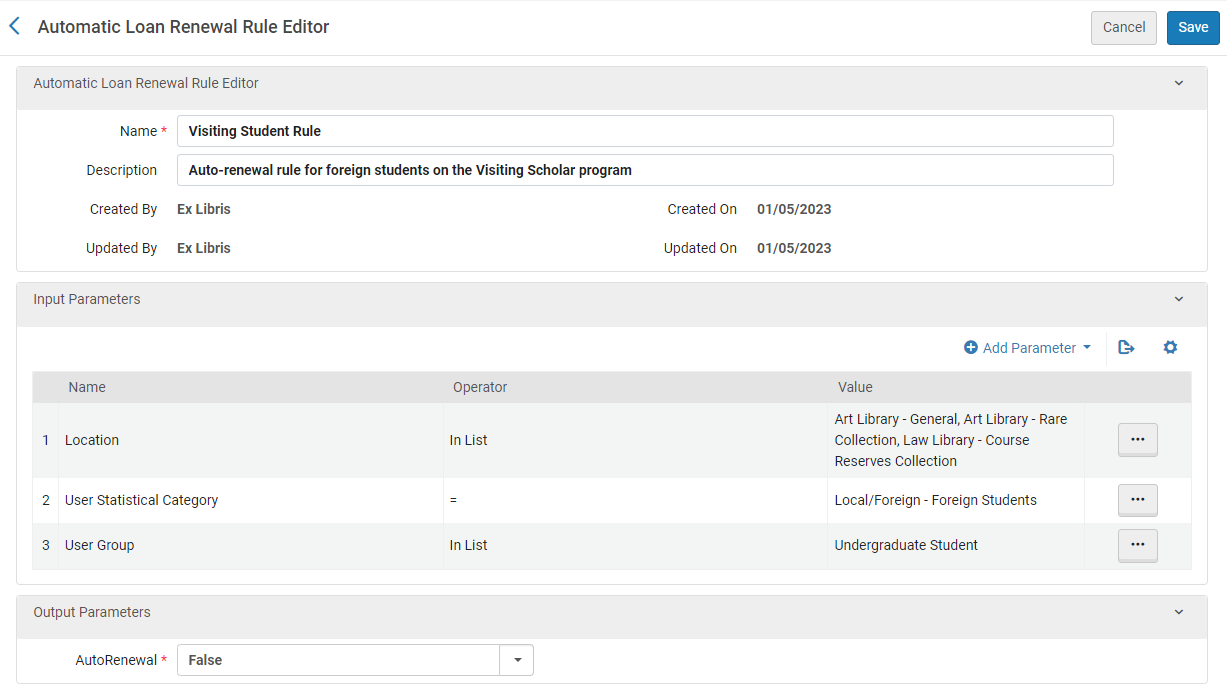
- Select Save.
- If you have defined more than one rule, on the Automatic Loan Renewal Rules page, you can use the Move Up and Move Down arrows to set the order of the rules. The order of the rules is relevant in that the system applies the first (and only the first) valid, enabled rule. If no appropriate rule is found, the system uses the default rule.
Configuring Overdue and Lost Loan Profiles
- General System Administrator
- Fulfillment Administrator
This configuration is applicable to institutions!
The overdue and lost loan profiles monitor long overdue loans and turn them into lost loans when applicable. The profiles send progressive reminders to the patron as well as create fees and user blocks. The profile setup allows for flexibility to apply the rules based on the type of loan and the amount of time that the loan is overdue. The notifications may be configured, with up to five different letters able to be easily created within the profile. If the profile is set to create a fine, the amount for the fine is set by the profile type and the applicable Terms of Use policy.
The profiles may be configured with one or more of the following options:
- Execution is based on the number of days after either the due date or a specific status change.
- Loans may be selected by particular statuses, materials, or location types.
- Notifications sent are determined by the letter send format.
- Up to five notification types can be sent out by default, though more can be created if necessary.
For more information on use cases and configuration options for overdue and lost loans, see Managing Patron Services at a Circulation Desk.
You can configure the criteria according to which Alma:
- Sends a warning to a patron that he or she has an overdue loan
- Marks overdue loans as lost
You configure these criteria and their associated actions using profiles. Alma runs a daily job (Loans - Overdue and Lost Item) to process overdue and lost loans, which, according to the list of profiles, determines the loans for which warnings are sent and those that are defined as lost.
The letter sent depends on the setting of the switch_to_overdue_and_lost_loan_new_job customer parameter. When this parameter is set to true, the notification sent is the Ful Overdue and Lost Loan Notification Letter. In this case, a single notification is sent to each patron for all overdue items whose criteria match a particular profile, listing all of the overdue items in that profile. For example:
- Notification Profile 1 sends a notification message for all items that are three days overdue.
- Notification Profile 2 sends a notification message for all items that are five days overdue.
When the Loans - Overdue and Lost Item job runs, the notification is sent, once after three days and again after five days (once for each matching profile).
If the switch_to_overdue_and_lost_loan_new_job customer parameter is set to false, the notification sent is the Ful Lost Loan Letter, and a separate letter is sent for each overdue item.
The switch_to_overdue_and_lost_loan_new_job customer parameter must be set to true for user blocks to be applied. For more information, see Configuring Other Settings.
For information about configuring these letters, see Configuring Alma Letters.
You configure overdue and lost loan profiles on the Overdue and Lost Loan Profile List page (Configuration Menu > Fulfillment > Physical Fulfillment > Overdue and Lost Loan Profile).
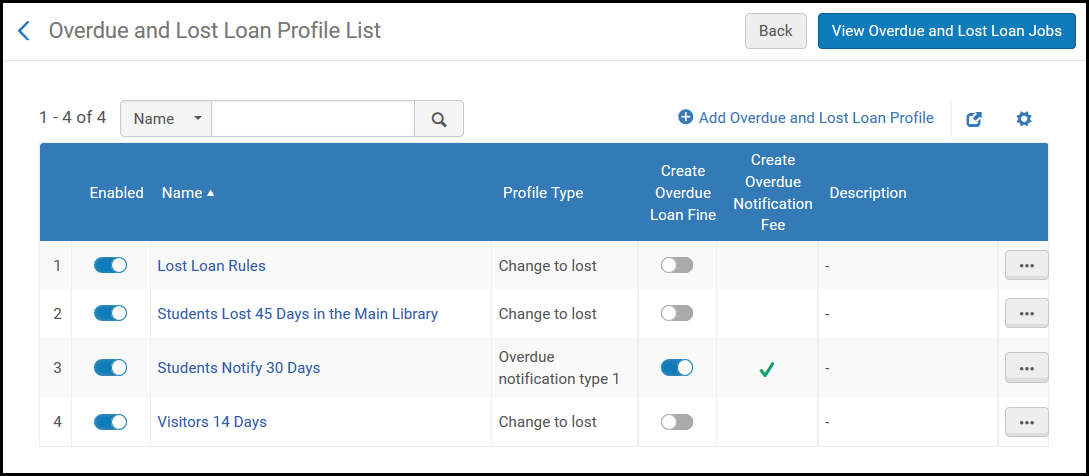
The following actions can be performed on this page:
- Add an Overdue and Lost Loan Profile (see Adding an Overdue and Lost Loan Profile).
- Add an Overdue and Lost Loan Notification Profile (see Adding an Overdue and Lost Loan Notification).
- Edit a profile (select Edit from the row actions list).
- Duplicate a profile (select Duplicate from the row actions list and modify the relevant fields).
- Delete a profile (select Delete from the row actions list).
- Run a profile (select Run Now from the row actions list) to create the overdue or lost loan notifications on demand.
- Run a status update (select Status Update from the row actions list). This process runs the profile without sending a notification and without applying fees or blocks. This is used during a migration to Alma or when adding a new Overdue and Lost Loan Profile step. The status update does not mark any loans as lost. In the case of a migration where notifications were sent from another system, the affected loans are marked to prevent them from getting the same notifications a second time when the job runs again. For example, if you create a new rule that sends a notice to loans that are three days overdue, the new profile catches all loans that are already three or more days overdue, including loans that may be 30 days overdue. To prevent this and ensure the profile sends notices only for loans that become three days overdue after the profile has been created, use this option when defining the new profile. (See also Loans Overdue Notification Status Update below.)
- Enable or disable overdue and lost loan profiles.
Adding an Overdue and Lost Loan Notification
You can add overdue and lost loan warning profiles to an institution. These profiles determine the criteria by which the system sends overdue warnings for loans. The warnings do not affect the loan status; they inform the patron of the number of days upon which the loan is considered lost. A single overdue or lost item notification per notification type may be sent to the patron listing all of the patron's overdue or lost loans.
You can configure 5 types of notifications and their corresponding letters. After configuring the notification types, you then configure the profiles that triggers these notification types.
- On the Terms of Use Management page (Configuration Menu > Fulfillment > Physical Fulfillment > Terms of Use and Policies), filter by Terms of Use Type = Loan.
- Select Edit from the row actions list for the relevant Terms of Use. The Terms of Use Details page appears.
- Locate the relevant Overdue Notification Fine Type entry on the bottom of the page, and select Add Policy from the row actions list. The Policy Details page appears.
- Enter a Name and Value in the relevant fields, and ensure that Value Type = Other.
- Select Save. The policy is added to the notification fine type on the Terms of Use Details page.Additionally, the configured Terms of Use appears on the Fulfillment Configuration Utility page (Fulfillment > Advanced Tools > Fulfillment Configuration Utility) when you enter a Patron Identifier and Item Barcode.The amount configured for Overdue Notification Fine Type 1 is charged if a profile configured with Overdue Notification Fine Type 1 is triggered. The same applies for the other fine types.For details on configuring the Overdue and Lost Loan Notification Letter that is sent to patrons, see Configuring Letter Labels. Modify the fields additional_info_*_type1,inform_you_item_below_type1, and charged_with_fines_fees_type1 to change overdue notification type 1, and so forth.
Adding an Overdue and Lost Loan Profile
You can add an overdue and lost loan profile to an institution. This profile determines the criteria by which loans are considered lost. For these loans, Alma changes the status to Lost, creates the relevant fines and fees, and sends an invoice (for the replacement fee) to the borrowing patron.
- On the Overdue and Lost Loan Profile List page (Configuration Menu > Fulfillment > Physical Fulfillment > Overdue and Lost Loan Profile), select Add Overdue and Lost Loan Profile. The Overdue and Lost Loan Profile Record page appears.If you want to create a copy of an existing overdue and lost loan profile, select Duplicate from the row actions list. Once you have copied the profile, you can modify it as needed.
Overdue and Lost Loan Profile Record Page - Enter the profile name and a description of the profile (if desired), and specify the criteria by which an overdue loan is considered a lost loan. Note that if you do not select specific statuses, user groups, libraries, locations, item policies, and/or material types, the profile applies to all of the above.
- For the Loan Status field, the Loan status should not be used. The Normal status applies to a regular loan. For more information on loan statuses, see Viewing Loan History.
- The profile is activated for loans that meet all the conditions specified in the profile (that is, a Boolean AND operator operates between fields).
- If the profile is set to mark the loan as lost, the loan is considered a lost loan. If the profile is set to mark the loan as overdue, then a notice is sent and blocks/fines are created, as per the profile configuration.
- The Library field refers to the item's current location. If the item is in a temporary location, this is the temporary location. If the item is not in a temporary location, this is the permanent location.
- If a due date is changed on an already overdue loan, an overdue fine is created before the due date is updated (similar to the renewal process) to make sure that a potential overdue fine is not automatically dropped. This behavior is determined by the overdue_at_change_due_date parameter. See Configuring Other Settings.
- By default, the Overdue and Lost Loan Profile filters the loans by the User Group at the time of the loan. If you prefer that the job should use the current user group of the user, please contact Ex Libris Support.
- To enable the profile, select the Active checkbox. The lost loan job processes only active profiles. You can disable/enable the profile at any time on the Overdue and Lost Loan Profile List page.If an Overdue and Lost Loan profile is not enabled, you can still run it by selecting Run Now from the row actions list.
- For setting the criteria for a Lost profile, in the Profile Type field, select Change to Lost. The Send Notification,Create Fine and Create Block fields disappear (they are not relevant for this selection). For setting the criteria for notification profiles, in the Profile Type field, select an Overdue Notification type (1 through 5).
- For an overdue notification, select Send Notification to send the patron a notification letter matching the selected Profile type.
- For an overdue notification on an item that is overdue and not returned, select Create Overdue Loan Fine to apply an overdue fine for the item when the job runs. For the notification to be generated, the fine must also be created in the Terms of Use, under the relevant Overdue Notification type (1 through 5) policy.
This is a separate fine than the overdue fine policy which is applied upon returning the loaned item.
- For both overdue and lost notifications, select Create Overdue Notification Fee to enable a notification fee. This field is only visible and applicable when using the aggregated notification method (i.e. the switch_to_overdue_and_lost_loan_new_job parameter in the customer parameters mapping table is set to true). Selecting the checkbox enables your institution to charge a fee per warning letter, rather than per loan.
- For both overdue and lost notifications, enter Overdue Notification Fee Amount to set the notification fee. This field appears only when the Create Overdue Notification Fee checkbox is selected. When it appears, it is a mandatory field.
- For an overdue notification, select Create Block to impose a user block while the loan is overdue. When Create Block is selected, a Block Type appears. The values in this drop down are defined in the User Block Description page (see Configuring User Blocks Due to Overdue Loans). The block is removed when the item is returned or marked as lost, or the loan is deleted. Note that you cannot create a block on a loan with the lost status.
- In the Days After Due Date field, enter the number of days after the due date upon which the warning notification message is to be sent. Select either Days or Open Days to determine if the number of days is calculated by calendar days or by the days that the library is open.For example, if an item's due date is March 1,Days After Due Date= 14, and Days is selected, the item is considered lost on March 15. Keep in mind that 1 day = 24 hours, so that if an item's due date is March 1, Days After Due Date = 0, and Days is selected, the item is considered lost on March 2.
- In the Days After Status Date field, indicate the number of days after an update to the value of the Loan Status field that the item is considered lost. The Loan Status field refers to values such as Normal,Renewed,Automatic Renewal, and Overdue Notification. The number of days is calculated by calendar days.For example, if Loan Status is defined as Claim Returned and Days After Status Date is 5, then Alma checks that the current loan status is Claim Returned and that the last change of the item loan was to Claim Returned and more than five days have passed since the last item loan change. Therefore, if an item's loan status is updated on April 1 and Days After Status Date = 5, the item is considered lost on April 6. (Note that a value of 0 is the same as leaving the field empty.)The value of this field also applies to migrated loans, according to the loan's creation date.
- When you are done, select Save. The profile appears on the Overdue and Lost Loan Profile page.
All active Overdue and Lost Loan profiles are processed by the Overdue and Lost Item job. See Viewing All Scheduled Jobs. If the overdue profile contains an Overdue Notification Fee, the fee is recorded for each user with the profile type and names of all profiles that were aggregated. If profiles of the same overdue profile type have different Notification Fee Amounts, they are not aggregated. They are separated into two letters. Each one of those letters creates an Overdue Notification Fine.
When adding a new profile or modifying a profile name, a message is displayed to prompt the user to run the Status Update. It is recommended to run Status Update for the updated profile.
Loans Overdue Notification Status Update
The Loans Overdue Notification Status Update page (Fulfillment > Advanced Tools > Loans Overdue Notification Status Update) allows the user to run the Overdue and Lost Loan job without creating blocks or fines and fees, without changing the loan to lost, and without generating notifications. The affected loans are marked to prevent the overdue and lost loan profiles from being handled again - meaning a loan fitting the criteria of lost and/or overdue notification profiles at the time of the status update do not become lost by them or trigger their notifications when the Overdue and Lost Loan job runs again. Running this job irreversibly marks the loan records so they are not handled by the matching profiles again.
The Loans Overdue Notification Status Update page is only available in Alma if the 'switch_to_overdue_and_lost_loan_new_job' parameter is set to true.
Running the job displays a warning that the loan records are modified. Select Confirm to run the job.

If you want to run a status update only for a specific profile (e.g. notification profiles, but not profiles that set loans to lost), it is possible to apply the status update per profile from the Overdue and Lost Loan Profile List page (Configuration Menu > Fulfillment > Physical Fulfillment > Overdue and Lost Loan Profile) instead of using the job, which runs all profiles. To do so, in the row actions of the profile, select Status Update. (See also the list of profile actions above.)
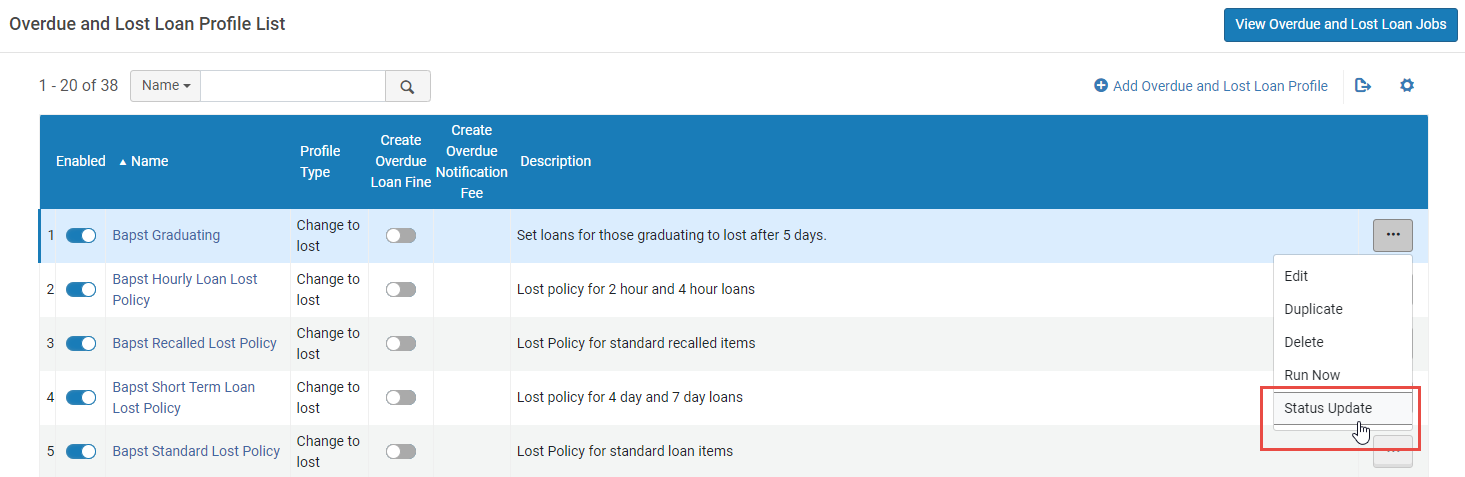
The status update job is designed mostly for post-migration handling, so when it runs it runs for all days, even if it's configured to run for open days only. The reason is that Alma doesn't have the calendar of the past for the newly migrated account.
Overdue and Lost Loan Notification Letter XSL Considerations
There are up to five notification types that may be used within the Ful Overdue and Lost Loan Notification Letter. Because the single letter format contains all five scenarios you may need to customize your letter with XSL if clauses. For example,
- inform_you_item_below_type1 belongs to Overdue notification type 1
- inform_you_item_below_type2 belongs to Overdue notification type 2
- inform_you_item_below_type3 belongs to Overdue notification type 3
- inform_you_item_below_type4 belongs to Overdue notification type 4
- inform_you_item_below_type5 belongs to Overdue notification type 5
To implement these types correctly in the letter, replace the following section in the letter:
With:
Similar for the additional_info_<1-5>, replace:
@@additional_info_1@@
<br />
@@additional_info_2@@with:
<table>
<xsl:choose>
<xsl:when test="notification_data/notification_type = 'OverdueNotificationType1' ">
<tr>
<td>
<font size="5">@@additional_info_1_type1@@</font><p><font size="2">@@additional_info_2_type1@@</font></p>
</td>
</tr>
</xsl:when>
<xsl:when test="notification_data/notification_type = 'OverdueNotificationType2' ">
<tr>
<td>
<font size="5">@@additional_info_1_type2@@</font><p><font size="2">@@additional_info_2_type2@@</font></p>
</td>
</tr>
</xsl:when>
<xsl:when test="notification_data/notification_type = 'OverdueNotificationType3' ">
<tr>
<td>
<font size="5">@@additional_info_1_type3@@</font><p><font size="2">@@additional_info_2_type3@@</font></p>
</td>
</tr>
</xsl:when>
<xsl:when test="notification_data/notification_type = 'OverdueNotificationType4' ">
<tr>
<td>
<font size="5">@@additional_info_1_type4@@</font><p><font size="2">@@additional_info_2_type4@@</font></p>
</td>
</tr>
</xsl:when>
<xsl:when test="notification_data/notification_type = 'OverdueNotificationType5' ">
<tr>
<td>
<font size="5">@@additional_info_1_type5@@</font><p><font size="2">@@additional_info_2_type5@@</font></p>
</td>
</tr>
</xsl:when>
</xsl:choose>
</table>
Configuring Short Loan Reminders and Blocks
Short term loans are any loan with a due date policy defined with minutes or hours. Short term loans act like regular loans, with a few differences as described below.
Short Term Loan Reminders
There are 2 specific reminders for short loans, i.e., a courtesy reminder and an overdue reminder. The behaviour of these reminders is controlled by the settings in the following parameters:
- short_loan_courtesy_reminder- If this parameter is set, a courtesy reminder is triggered. The sending time for this reminder is based on the due date time less the value of the parameter. It uses the existing FulUserLoansCourtesyLetter letter (see Courtesy Letter).
- short_loan_overdue_reminder- If this parameter is set, an overdue reminder is triggered. The sending time for this reminder is based on the due date time plus the value of the parameter. It uses the Ful Overdue And Lost Loan Notification Letter.
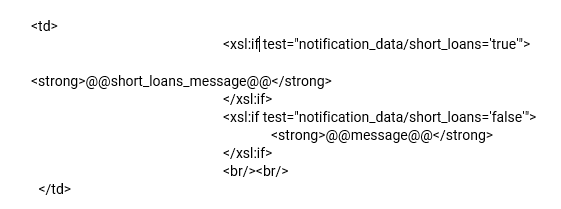
For both notifications, the letter is sent if the item was not returned and is not in Lost or Claim Return status. The loan due date time can change due to a renewal, recall, or manual change of due date. If there was a change in the due date, the new due date triggers the notification. The reminder is sent once (after the loan has been created). You can configure the courtesy letter with the short_loans_message label (see Configuring Alma Letters).

The letter templates include indicators for short term loans as shown in the example below (see Configuring Letter Templates).
See also the Short Loan Letter that is sent to a patron when loaning an item for a short period.
Short Term Loan Blocking Policy
When an overdue letter is issued, if the short_loan_overdue_block parameter is set to true, and a blocking policy is configured, an overdue block is set for the patron. For information on creating a blocking policy, see Configuring a Blocking Policy.
Lost Short Term Loans
Short term loans are changed to Lost after running the relevant Overdue and Lost Loan profile (Configuration > Fulfillment > Physical Fulfillment > Overdue and Lost Loan Profile), in the same way as for a regular loan.
Configuring Loan Recall Requests
- General System Administrator
- Fulfillment Administrator
You can configure Alma to send or not send a loan recall request during system actions. By default, recall requests are enabled for all actions. For an overview of recall requests in Alma, see Recall Requests.
You configure loan recall requests on the Request Configuration mapping table for loan recalls (Configuration Menu > Fulfillment > Physical Fulfillment > Loan Recalls Configuration). For more information about mapping tables, see Mapping Tables.
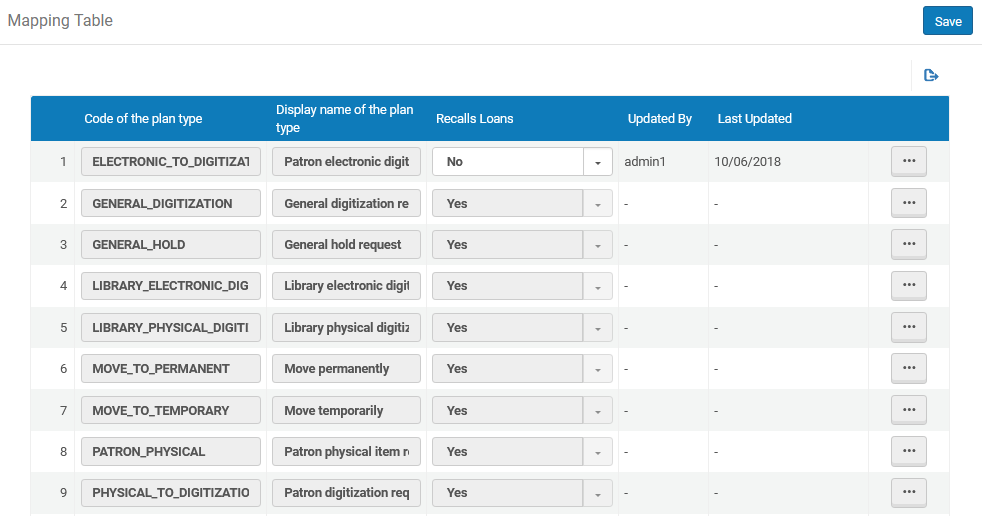
The definitions of the different types are as follows:
|
Code |
Type |
Meaning |
|---|---|---|
|
BOOKING |
Booking request |
Patron booking request |
|
ELECTRONIC_TO_DIGITIZATION |
Patron electronic digitization request |
Patron digitization request for electronic resource |
|
GENERAL_DIGITIZATION |
General digitization request |
Patron digitization request for item that is not catalogued |
|
GENERAL_HOLD |
General hold request |
Patron physical item request for item that is not catalogued |
|
LIBRARY_ELECTRONIC_DIGITIZATION |
Library electronic digitization request |
Digitization request from reading list for electronic resource |
|
LIBRARY_PHYSICAL_DIGITIZATION |
Library physical digitization request |
Digitization request from reading list for physical resource |
|
MOVE_TO_PERMANENT |
Move permanently |
Request for physical item to be moved to new location |
|
MOVE_TO_TEMPORARY |
Move temporarily |
Request for physical item to be temporarily moved to new location |
|
PATRON_PHYSICAL |
Patron physical item request |
Patron physical item request. See the Note below for some important points regarding this parameter. |
|
PHYSICAL_TO_DIGITIZATION |
Patron digitization request |
Patron digitization request for physical resource |
|
RESOURCE_SHARING_E2D_SHIPMENT |
Ship digitally from electronic |
Internal digitization request by resource sharing staff for electronic resource |
|
RESOURCE_SHARING_P2D_SHIPMENT |
Ship digitally |
Internal digitization request by resource sharing staff for physical resource |
|
RESOURCE_SHARING_PHYSICAL_SHIPMENT |
Ship physically |
Internal physical item request by resource sharing staff |
|
RESTORE |
Restore item |
Restore an item from temporary location |
|
STAFF_ELECTRONIC_DIGITIZATION |
Staff electronic digitization request |
Staff digitization request for electronic resource |
|
STAFF_PHYSICAL_DIGITIZATION |
Staff digitization request |
Staff digitization request for physical resource |
|
TRANSIT_FOR_RESHELVING |
Transit for reshelving |
Transit physical item for reshelving |
- If the Recalls Loans value is set as No in this table for the PATRON_PHYSICAL type of request and the applicable loan Terms of Use has Is Recallable defined as Yes, the loan is not recalled. Only if Recalls Loans = Yes is the Terms of Use policy applied.
- If PATRON_PHYSICAL = Yes and the Terms of Use fulfillment policy is No Recall, items are nevertheless marked as Recalled, to prevent renewals (although the loan due date is not changed).
- The block preference Not Renewable - Item has Requests is relevant only if PATRON_PHYSICAL = Yes(see Configuring Block Preferences).
- Loan recall requests can be configured at the institution level only. Select the required institution from the Configuring filter on the Fulfillment Configuration page.
- On the Request Configuration Mapping Table page for loan recalls (Configuration Menu > Fulfillment > Physical Fulfillment > Loan Recalls Configuration), select Customize from the row actions list for the relevant action.Customize is changed to Restore, and the Recalls Loans column is enabled for editing.
- Select No in the Recalls Loans column to disable loan recall requests for the specified action.
- Select Save. Loan recall requests are not sent during the specified action.To re-enable loan recall requests for an action, select Restore.
After configuring a loan recall request for a specified action, ensure that the institution/library's Terms of Use has set the loan policy Is Recallable = True for requested items to be recalled (see Adding Fulfillment Policies).
Configuring Loan Process Status Names
- General System Administrator
- Fulfillment Administrator
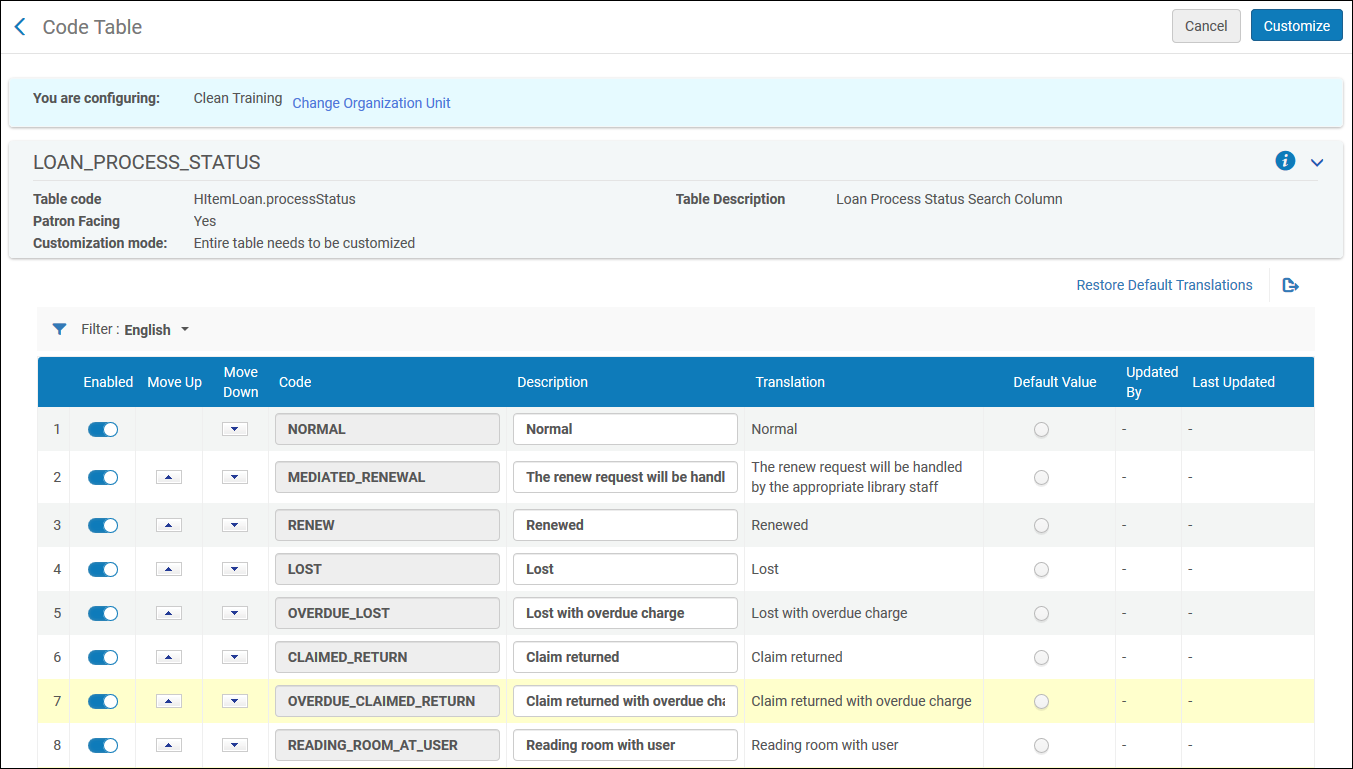
You can configure the loan process statuses that are displayed in Alma. To do this, open the Loan Status Name mapping table (Configuration Menu > Fulfillment > Physical Fulfillment > Loan Status Name). For more information about mapping tables, see Mapping Tables. You can edit the description. This is the description that displays throughout Alma on various loan displays.
Page tags: article:topicFulfillmentproduct:almacontent:Documentationlang:englishFulfillment policiesTerms of UseConfigure FulfillmentItem PoliciesFulfillment UnitBlock preferencesAutomatic loan renewal rulesOverdue and lost loan profileloan recall requestsconfigure request pickup rule
