
Cataloging Privileges
This page provides an overview of cataloging privileges and instructions for configuring permissions levels, assigning permission levels to users, assigning cataloging levels to individual records and a set of records, and searching for records by cataloging level.
- MD Editor
- Metadata import (new records are imported with the lowest level)
- Quick cataloging
- Normalization/set management (batch job assignment of a code level to a set of records)
Creating Cataloging Permission Levels
- Ensure that the Ex Libris staff has enabled cataloging permissions for your institution/consortium.
- On the Cataloger Permission Level code table (Configuration Menu > Resources > Cataloging > Cataloger Permission Level), select Add Row to add levels.Changing the 'Default' value in the Cataloger Permission Level table is not supported. The default remains the 00 level as long as it exists.

Cataloger Permissions Level Code Table - When you are done, select Customize.In a collaborative network, after the Network Zone administrator has completed entering the cataloging permission levels, the changes can be distributed to the member institutions by selecting Manage Table in Network and Save and Distribute. This submits a job to distribute these settings to the member institutions. In a member institution, these distributed settings appear where the cataloging levels are used such as the MD Editor (see Using Cataloging Permission Levels in the MD Editor) and user management (see Assigning Cataloging Permission Levels). Note that for an institution that is a member of a Network Zone, cataloging permission levels can only be enabled in the Network Zone.


Save and Distribute Cataloging Permission Levels
Assigning Cataloging Permission Levels
- Access the user records that you want to update (Admin > User Management > Manage Users).
- Select Edit from the row actions for the user record that you want to update. The User Details page appears.
- Select the level from the Cataloger level drop down list.

- Select Save.
Using Cataloging Permission Levels in the MD Editor
If your cataloging permission level is lower than the cataloging level assigned to the record, you can only view the record and perform a set of limited functions (see below). However, in a collaborative network, you can add and remove local fields, even with a lower cataloging permission level than the cataloging level assigned to the record in the Network catalog.
-
Open a bibliographic record in the MD Editor (Resources > Cataloging > Open Metadata Editor). The MD Editor displays the current cataloging level. Any user assigned this or higher cataloging level can edit the record. In addition, you can change the cataloging level for the record. You can set any cataloging level equal to or below your cataloging level as the cataloging level for the record.
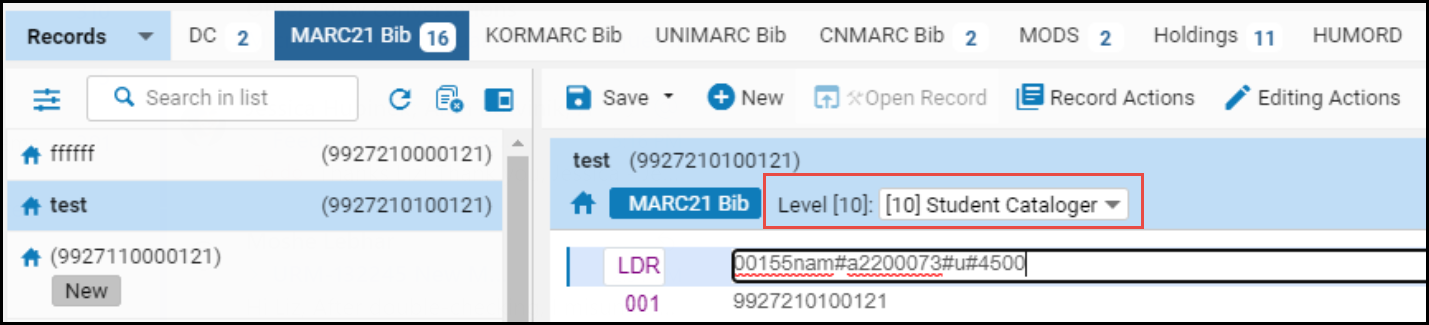 Cataloging Permission Levels in the MD Editor
 - Select a new cataloging level for the record from the dropdown list.
- Select Save. The current cataloging level of the record is updated to reflect your change.
| To display in the dropdown: | Do: |
|---|---|
| Your cataloging permissions level. | Set the use_record_cataloging_level_by_default customer parameter to False (default). |
| The record's current cataloging level. | Set the use_record_cataloging_level_by_default customer parameter to True. When this is set to True, an overt action on your part is required to change the cataloging level to a different level. If you are making record changes that do not affect the cataloging level, you may prefer this option. See use_record_cataloging_level_by_default for more information. |
| The cataloging level you selected most recently for a record. | Set the cataloging_level_user_preferences customer parameter to True. |
Working in the MD Editor with Cataloger Privileges Lower than the Bibliographic Record

- Add holdings
- Create PO line
- Suppress from Discovery
- Suppress from External Search
- Set Management Tags
- View versions
- Browse bibliographic headings
- View notes
- View inventory
- Add holdings
- Create PO line
- Suppress from Discovery
- Suppress from External Search
- Set Management Tags
- View versions
- Browse bibliographic headings
- View notes
- View inventory
- All of the above, except Suppress from Discovery, Suppress from External Search and Set Management Tags
- Add local fields (and Save options)
- Copy to Catalog
- Share with Network
When the customer parameter use_record_cataloging_level_by_default is set to True, the record's level is defaulted to basic level (00) when the record is copied to catalog or shared with Network.
Searching for Records Using the Cataloging Level
- Select
 Advanced Search.
 - Select Title from the drop-down list.
- Select Cataloger Level from the expanded drop-down list.
 Cataloging Level Advanced Search
 - Select Add Conditions.
- Select your cataloging level criteria.

Cataloging Level Search Criteria - Select Go. The search results display a list of records that have a cataloging level assignment matching the criteria that you selected.
Assigning Cataloging Levels to a Set of Records
- Set Bib Records Cataloging Level
- Set Authority Records Cataloging Level
Setting Cataloging Level User Preferences
Page tags: article:topicproduct:almacontent:Documentationlang:englishcataloger permission levelcataloger levelcatalog record levelcataloger privilegecatalog level search
