Customizing How Library and Location Appear
Overview and configuration instructions for the formatting of library and location information that is to appear in repository search results and the MD Editor holdings 852 form editor, either code, name, or code and name.
- Catalog Administrator
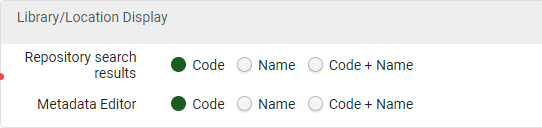
You can customize whether the library and location appear as a code only, name only, or both in the following areas:
- Repository Search Results
- MD Editor Editing Holdings Record - 852 Field Form
On the Library/Location Display page (Configuration Menu > Resources > General > Library/Location Display), for each area, select one of the options for how the library and location appear and select Save.
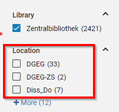
This configuration also applies to how the library/location appears in the Locations facet. See below for details.
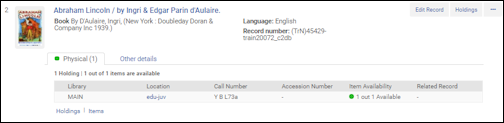
For example, here are search results with the location code only:
|
Search with Library/Location Code Only Configured,/p> |
Location code displayed in Location facet |
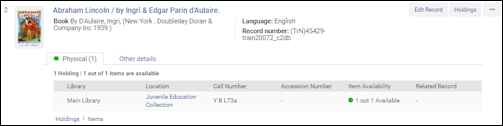
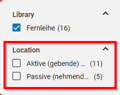
The following search results show the location name only:
|
Search with Library/Location Name Only Configured |
Location name displayed in Location facet |
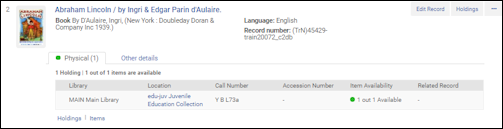
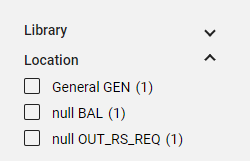
The following search results show the location code and name:
|
Search with Library/Location Code and Name Configured
|
Location code and name displayed in Location facet |
Page tags: article:topicConfiguring Resource Managementproduct:almacontent:Documentationlang:englishlibrary and location format in search resultslibrary/location display
