
Configuring Searching
Configure repository search for simple and advanced searches. This includes configuration for search indexes, index labels, external searches, default search tabs, and the thumbnails in search results.
You can configure the options available when searching and the available resources to search.
Configuring What Search Indexes Are Available
- Catalog Administrator
- General System Administrator
For a video on customizing search indexes, watch Customizing Available Search Indexes(4 minutes).
You can configure which indexes are available to select for a simple or advanced search (see Searching in Alma). You can configure whether an index is available for a simple search, advanced search, or both.
Only simple, free-text indexes can be active for Simple Search, whereas complex, rigid, or fixed-value indexes, such as those that are defined in code tables, are supported only for Advanced Search.
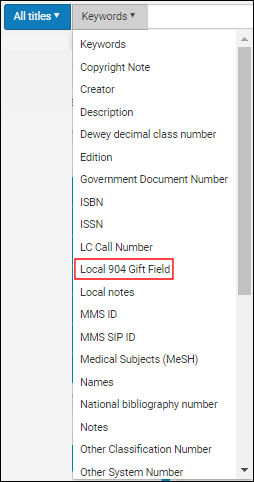
To customize the labels (display text) of the search indexes for local fields, see Configuring Search Index Labels.
Select the slider ( ) in the Enabled column to enable the search index.
Each locally customized MARC tag is indexed as a separate searchable field and all of its subfields are indexed and searchable when it is selected as a search option.
You configure which search indexes appear on the Search Indexes mapping table (Configuration Menu > Resources > Search Configuration > Search Indexes). For more information about mapping tables, see Mapping Tables.
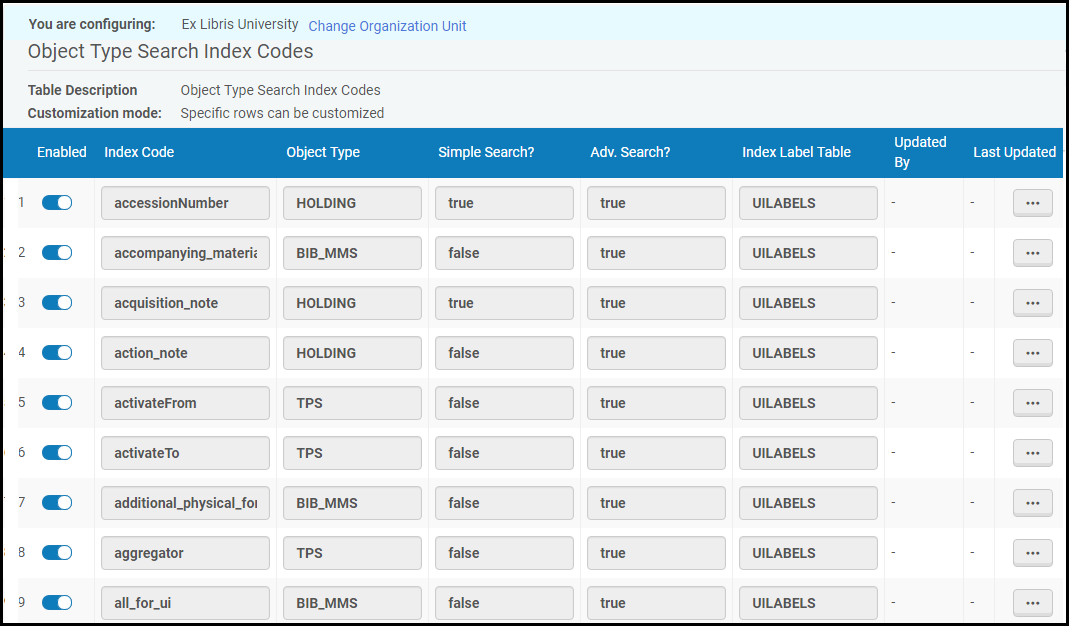
To have Alma display/hide a search index in the simple search, enter true/false in the Simple Search column.
To have Alma display/hide a search index in the advanced search, enter true/false in the Adv. Search column.
There is no option to reorder the search indexes in the drop-down list. Instead, you can search for specific indexes in the drop-down list by entering part or all of the index label.
The Index Codes to Search Index Labels Mapping table below maps the index codes in the Search Indexes mapping table to the index labels in Alma. For a list of the fields/subfields that are indexed for search, see Available Search Indexes.
The Object TPS is a type of "virtual layer" that enables the connection between the bibliographic record and the portfolio, the portfolio and the service, and the portfolio and the e-collection (and vice versa for each of these).
Changes to the Search Index Labels Mapping table require re-logging into Alma for the changes to take effect.
| Index Codes | Search Index Labels |
|---|---|
| Note that after you save your search index settings, you need to log out and then log back in again to view the changes affected by these configurations. | |
| accessionNumber | Accession Number |
| accompanying_material | Accompanying Material |
| acquisition_note | Acquisition Note |
| action_note | Action Note |
| action_note_authorization | Action Note Authorization |
| action_note_note | Action Note Note |
| activateFrom | Activate From |
| activateTo | Activate To |
| additional_physical_form_available_note | Additional physical form available notes |
| aggregator | Electronic Collection Type |
| all_for_ui | Keywords |
| alterCallNumber | Item call number |
| alternate_complete_edition | Edition |
| alternativeCallNumberType | Item call number type |
| ar_policy | AR policy name |
| arrivalDate | Receiving date |
|
attributes_person_corporate |
Attributes of Person or Corporate |
|
audience |
Audience |
| auth_classification | Classification |
| auth_classification_caption | Classification Caption |
| auth_classification_caption_hierarchy | Classification Caption Hierarchy |
| auth_classification_chronological | Chronological (Classification) |
| auth_classification_corporate_name | Corporate Name (Classification) |
| auth_classification_geographic_name | Geographic Name (Classification) |
| auth_classification_meeting_name | Meeting Name (Classification) |
| auth_classification_names | Names (Classification) |
| auth_classification_number | Classification Number |
| auth_classification_personal_names | Personal Names (Classification) |
| auth_classification_scheme | Classification Scheme |
| auth_classification_subjects | Subjects (Classification) |
| auth_classification_uniform_title | Uniform Title (Classification) |
| auth_corporate_name | Corporate Name |
| auth_date | Date |
| auth_event_name | Authorization Event Name |
| auth_genre_form | Authorization Genre Form |
| auth_geographic_area_code | Geographic Area Code |
| auth_meeting_name | Meeting Name |
| auth_mms_createDate | MMS Creation Date (Authorities) |
| auth_mms_id | MMS ID |
| auth_mms_modificationDate | MMS Modification Date (Authorities) |
| auth_mms_originatingSystem | Originating System |
| auth_mms_sip_id | MMS SIP ID (a number for a transitory set of records affected by a job)
Since this is a "transitory" set, the number of records may change if the records become part of another job. |
|
auth_modifying_agency |
Modifying Agency (Authorities) |
| auth_name_title | Name Title |
| auth_names | Names |
| auth_notes | Notes |
|
auth_original_cataloging_agency |
Original Cataloging Agency (Authorities) |
| auth_other_system_number_035 | Other System Number (for Authorities searches) |
| auth_personal_name | Personal Name |
| auth_subject | Subject |
|
auth_subject_category_code |
Subject Category Code |
| auth_uniform_title | Uniform Title |
| authority_id | Authority Id |
| authority_keywords | Authority Keywords |
| authority_vocabulary | Authority Vocabulary |
| available_for | Available for |
| available_for_group | Available for group |
| available_only_for | Available only for |
| available_only_for_group | Available only for group |
| barcode | Barcode |
| baseStatus | Base status |
| bib_level | Bibliographic level |
| binding_note | Binding Note |
| calis_control_number | CALIS Control Number |
| callNumberPrefix | Call number prefix |
| callNumberSuffix | Call number suffix |
| carrier_type_code | Carrier type code (Title) |
| carrier_type_term | Carrier type term (Title) |
| cartographic_mathematical_data | Cartographic Mathematical Data |
|
cataloguing_conventions |
Cataloging Conventions
|
|
cataloguing_institution |
Cataloging Institution
|
|
cataloguing_level |
Cataloging Level (GND)
|
|
category |
Category |
| category_of_material | Material Type |
| cdi_delivery | CDI delivery |
| chronologyI | Chronology I |
| chronologyJ | Chronology J |
| chronologyK | Chronology K |
| chronologyL | Chronology L |
| chronologyM | Chronology M |
| classification_part | Classification part |
| clc_class_number | CLC Classification Number |
| coded_cartographic_mathematical_data | Coded Cartographic Mathematical Data |
|
coll_available_for_group |
Collection Available for group |
|
coll_available_only_for_group |
Collection Available only for group |
| completeness | Completeness |
| content_related_data | Content Related Data |
| content_type_code | Content type code |
| content_type_term | Content type term |
| copyrightsId | Copyright ID |
| copyrights_note | Copyright Note |
|
corporate_name_associated_group |
Corporate Name, Associated Group |
| country_of_publication |
Country of publication The "Country of Publication" index enables to enter free text to search by non-standard country codes. This option is disabled by default. To configure it, set it to true. |
| country_of_publication_new |
Country of publication (New) The "Country of Publication (New)" index provides a predefined list of country names. The list represents the standard codes for MARC21 and UNIMARC. |
| coverageInUse | Coverage In Use |
| creating_job_id | Creating job ID |
| creator | Creator |
| creator_contributor_term | Creator contributor term |
| creatorName | Creator Name |
|
crossrefenabled |
Crossref enabled |
|
cultural_area |
Cultural Area |
| current_Library | Current library |
| current_Location | Current location |
|
date |
Date
|
| date_of_publication | Additional Publication Year |
| db_id | Database ID |
| dc_contributor | dc:contributor |
| dc_coverage | dc:coverage |
| dc_creator | dc:creator |
| dc_date | dc:date |
| dc_description | dc:description |
| dc_format | dc:format |
| dc_language | dc:language |
| dc_publisher | dc:publisher |
| dc_relation | dc:relation |
| dc_rights | dc:rights |
| dc_source | dc:source |
| dc_subject | dc:subject |
| dc_title | dc:title |
| dc_type | dc:type |
| degree_discipline | Degree discipline |
| degree_grantor | Degree grantor |
| degree_level | Degree level |
| degree_name | Degree name |
| deposit_id | Deposit ID |
| description | Description |
| dewey_decimal_class_number | Dewey decimal class number |
| digital_object_identifier | DOI - Digital Object Identifier |
| digitization_request_id | Request ID |
|
discipline_and_approach |
Discipline and Approach |
| elocation | Electronic location and note |
| encoding_level | Encoding level |
|
entity_code |
Entity Code (GND)
|
|
entity_type |
Entity Type (GND)
|
| enumerationA | Enumeration A |
| enumerationB | Enumeration B |
| enumerationC | Enumeration C |
| enumerationD | Enumeration D |
| enumerationE | Enumeration E |
| enumerationF | Enumeration F |
| enumerationG | Enumeration G |
| enumerationH | Enumeration H |
| esploro_asset_grantId | Esploro asset grant ID |
| esploro_asset_grantName | Esploro asset grant name |
| esploro_asset_person | Under construction |
| esploro_license_code | Esploro license code |
| esploro_relation_title | Esploro relation title |
| esploro_resource_subtype | Esploro resource subtype |
| esploro_resource_type | Under construction |
| event_date | Event Date |
| expectedArrivalDate | Expected receiving date |
| expectedReturnFromTempLocation | Due back from temp location |
| f561a | Ownership and Custodial History |
|
field_of_activity |
Field of Activity |
| file_fulltext | Fulltext format |
| file_label | File Label |
| file_pid | File PID |
| file_provenanceId | File provenance ID |
| fileExtension | Extension |
| fileSizeBytes | Size (bytes) |
|
form_and_type |
Form and Type |
| format_of_notated_music | Format of notated music |
| fulfilment_note | Fulfillment Note |
| general_note | Public note |
| general_retention_policy | General retention policy |
| generalNote | Public note |
| genre_form | Genre form |
|
geographic_area_code |
Geographic Area Code
|
|
geographical_name |
Geographical Name
|
|
geographical_name_associated_place |
Geographical Name, Associated Place |
| government_document_number | Government Document Number |
| granular_resource_type | Granular Resource Type |
| gti | TBD |
| has_inventory | Has inventory |
|
heading_info |
Under construction. |
| hol_control_number | Control number (Holdings) |
| hol_createDate | Create date (Holdings) |
| hol_modificationDate | Modification Date (Holdings) |
| hol_oclc_control_number_035_a | OCLC Control Number 035 a (Holdings) |
| hol_oclc_control_number_035_az | OCLC Control Number 035 az (Holdings) |
| hol_oclc_control_number_035_z | OCLC Control Number 035 z (Holdings) |
| hol_other_system_number_035_a | Other system number 035 a (Holdings) |
| hol_other_system_number_035_az | Other system number 035 az (Holdings) |
| hol_other_system_number_035_z | Other system number 035 z (Holdings) |
| hol_type_of_record | Type of record (Holdings) |
| hol_url | URL (Holdings) |
| hol_url_access_status | URL access status (Holdings) |
| hol_url_link_text | URL text link (Holdings) |
| hol_url_materials_specified | URL materials specified (Holdings) |
| hol_url_method | URL method (Holdings) |
| hol_url_non_public_note | URL non public note (Holdings) |
| hol_url_public_note | URL public note (Holdings) |
| holding_carrier_type_code | Carrier type code (Holdings) |
| holding_carrier_type_term | Carrier type term (Holdings) |
| holding_Library | Library (Holdings) |
| holding_media_type_code | Media type code (Holdings) |
| holding_media_type_term | Media type term (Holdings) |
| holding_Note | Holding note |
| holding_pid | Holding PID |
| holding_tagSuppressed | Tag Suppressed (Holdings) |
| identifier | dc:identifier |
| iec_external_system | External System |
| iec_external_system_id | External System Id |
| iec_label | Collection Name |
| iec_library | Library |
| iec_pid | Collection PID |
| ied_pid | IE PID (Intellectual Entity) |
|
iepa_accessType |
Collection Access Type |
|
iepa_activationDate |
Activation Date (Electronic Collection) |
| iepa_authenticationNote | Authentication Note |
| iepa_cdi_fulltext_rights | CDI Fulltext Rights (Electronic Collection) |
| iepa_cdi_linking | CDI Linking (Electronic Collection) |
| iepa_cdi_newspaper_search | CDI Newspaper Search (Electronic Collection) |
| iepa_cdi_private | CDI Private (Electronic Collection) |
| iepa_cdi_provider_coverage | CDI Provider Coverage (Electronic Collection) |
| iepa_cdi_search_rights | CDI Search Rights (Electronic Collection) |
| iepa_cdi_type | CDI Type (Electronic Collection) |
|
iepa_contributedBy |
Contributed By (Electronic Collection) |
|
iepa_counterPlatform |
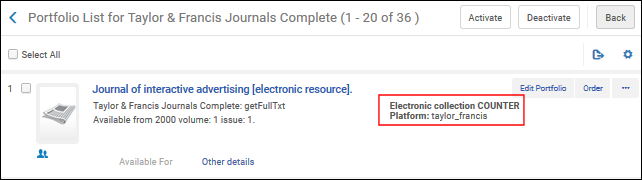
Use this index code to set your search options for the COUNTER Platform under electronic collections. See the following search results example:
When you use the Advanced Search after setting iepa_counterPlatform, the search criteria drop-down list is populated with the list of platforms, like the list in the Electronic Collection Editor and the Electronic Portfolio Editor. See Managing Electronic Resources for more information. |
| iepa_in_cdi | in CDI (Electronic Collection) |
| iepa_isFree | is Free (Electronic Collection) |
|
iepa_is_local |
Is Local (Electronic Collection) |
|
iepa_language |
Language (Electronic Collection) |
| iepa_Library | Library |
| iepa_pid | Electronic Collection PID |
| iepa_POLineID | Collection PO Line ID |
| iepa_proxyEnabled | Proxy Enabled (Electronic Collection) |
| iepa_selectiveIndication | Selective Indiciation (Electronic Collection) |
| iepa_suppressFromCdi | Suppress For CDI (Electronic Collection) |
| index_term_curriculum_objective | Index term curriculum objective |
| interfaceName | Interface Name |
| internal_note_1 | Internal note 1 |
| internal_note_2 | Internal note 2 |
| internal_note_3 | Internal note 3 |
| internalDescription | Internal Description |
| inventoryDate | Inventory date |
| inventoryNumber | Inventory number |
| is_linked | Is linked |
| is_standalone | Is Standalone |
| isbn | ISBN |
| isFree | Free |
| isMagnetic | Is Magnetic |
| ismn | Other Standard ID |
| isni_identifier | ISNI - International Standard Name Identifier |
| issn | ISSN |
| issn_link | ISSN link |
| issue | Issue |
| issueYear | Issue year |
| item_createDate | Creation Date (Title) |
| item_description | Item description |
| item_modificationDate | Modification Date (Physical Item) |
| item_pid | Item PID |
| itemIssueDate | Item Issue Date |
| itemLibrary | Item Library |
| itemPhysicalLocation | Item Physical Location |
| itemPolicy | Item policy |
| itemPOLineID | PO Line |
| itemSequenceNumber | Item sequence number |
| language | Language (Title) |
|
language_code |
Language Code
|
|
language_of_cataloging |
Language of Cataloging Use the Configuration icon |
| las_class_number | CAS Classification Number |
| lastShelfReportDate | Last Shelf Report Date |
| lc_class_number | LC Call Number |
| lccn | LC Control No. |
| lccn_prefix | LC Control No. Prefix |
| lcsh | Subjects (LC) |
| lending_policy | Lending Policy |
| link_inst | Linked Institution |
| linkage_number | Linkage Number |
| linkingLevel | Linking Level |
| linkResolverPlugin | Link Resolver Plugin |
| local_authority_call_number_090 | Local authority call number 090 |
| local_authority_call_number_091 | Local authority call number 091 |
| local_authority_call_number_092 | Local authority call number 092 |
| local_authority_call_number_093 | Local authority call number 093 |
| local_authority_call_number_094 | Local authority call number 094 |
| local_authority_call_number_095 | Local authority call number 095 |
| local_authority_call_number_096 | Local authority call number 096 |
| local_authority_call_number_097 | Local authority call number 097 |
| local_authority_call_number_098 | Local authority call number 098 |
| local_authority_call_number_099 | Local authority call number 099 |
| local_authority_field_900 | Local authority field 900 |
| local_authority_field_901 | Local authority field 901 |
| local_authority_field_902 | Local authority field 902 |
| local_authority_field_903 | Local authority field 903 |
| local_authority_field_904 | Local authority field 904 |
| local_authority_field_905 | Local authority field 905 |
| local_authority_field_906 | Local authority field 906 |
| local_authority_field_907 | Local authority field 907 |
| local_authority_field_908 | Local authority field 908 |
| local_authority_field_909 | Local authority field 909 |
| local_authority_field_910 | Local authority field 910 |
| local_authority_field_911 | Local authority field 911 |
| local_authority_field_912 | Local authority field 912 |
| local_authority_field_913 | Local authority field 913 |
| local_authority_field_914 | Local authority field 914 |
| local_authority_field_915 | Local authority field 915 |
| local_authority_field_916 | Local authority field 916 |
| local_authority_field_917 | Local authority field 917 |
| local_authority_field_918 | Local authority field 918 |
| local_authority_field_919 | Local authority field 919 |
| local_authority_field_920 | Local authority field 920 |
| local_authority_field_921 | Local authority field 921 |
| local_authority_field_922 | Local authority field 922 |
| local_authority_field_923 | Local authority field 923 |
| local_authority_field_924 | Local authority field 924 |
| local_authority_field_925 | Local authority field 925 |
| local_authority_field_926 | Local authority field 926 |
| local_authority_field_927 | Local authority field 927 |
| local_authority_field_928 | Local authority field 928 |
| local_authority_field_929 | Local authority field 929 |
| local_authority_field_930 | Local authority field 930 |
| local_authority_field_931 | Local authority field 931 |
| local_authority_field_932 | Local authority field 932 |
| local_authority_field_933 | Local authority field 933 |
| local_authority_field_934 | Local authority field 934 |
| local_authority_field_935 | Local authority field 935 |
| local_authority_field_936 | Local authority field 936 |
| local_authority_field_937 | Local authority field 937 |
| local_authority_field_938 | Local authority field 938 |
| local_authority_field_939 | Local authority field 939 |
| local_authority_field_940 | Local authority field 940 |
| local_authority_field_941 | Local authority field 941 |
| local_authority_field_942 | Local authority field 942 |
| local_authority_field_943 | Local authority field 943 |
| local_authority_field_944 | Local authority field 944 |
| local_authority_field_945 | Local authority field 945 |
| local_authority_field_946 | Local authority field 946 |
| local_authority_field_947 | Local authority field 947 |
| local_authority_field_948 | Local authority field 948 |
| local_authority_field_949 | Local authority field 949 |
| local_authority_field_950 | Local authority field 950 |
| local_authority_field_951 | Local authority field 951 |
| local_authority_field_952 | Local authority field 952 |
| local_authority_field_953 | Local authority field 953 |
| local_authority_field_954 | Local authority field 954 |
| local_authority_field_955 | Local authority field 955 |
| local_authority_field_956 | Local authority field 956 |
| local_authority_field_957 | Local authority field 957 |
| local_authority_field_958 | Local authority field 958 |
| local_authority_field_959 | Local authority field 959 |
| local_authority_field_960 | Local authority field 960 |
| local_authority_field_961 | Local authority field 961 |
| local_authority_field_962 | Local authority field 962 |
| local_authority_field_963 | Local authority field 963 |
| local_authority_field_964 | Local authority field 964 |
| local_authority_field_965 | Local authority field 965 |
| local_authority_field_966 | Local authority field 966 |
| local_authority_field_967 | Local authority field 967 |
| local_authority_field_968 | Local authority field 968 |
| local_authority_field_969 | Local authority field 969 |
| local_authority_field_970 | Local authority field 970 |
| local_authority_field_971 | Local authority field 971 |
| local_authority_field_972 | Local authority field 972 |
| local_authority_field_973 | Local authority field 973 |
| local_authority_field_974 | Local authority field 974 |
| local_authority_field_975 | Local authority field 975 |
| local_authority_field_976 | Local authority field 976 |
| local_authority_field_977 | Local authority field 977 |
| local_authority_field_978 | Local authority field 978 |
| local_authority_field_979 | Local authority field 979 |
| local_authority_field_980 | Local authority field 980 |
| local_authority_field_981 | Local authority field 981 |
| local_authority_field_982 | Local authority field 982 |
| local_authority_field_983 | Local authority field 983 |
| local_authority_field_984 | Local authority field 984 |
| local_authority_field_985 | Local authority field 985 |
| local_authority_field_986 | Local authority field 986 |
| local_authority_field_987 | Local authority field 987 |
| local_authority_field_988 | Local authority field 988 |
| local_authority_field_989 | Local authority field 989 |
| local_authority_field_990 | Local authority field 990 |
| local_authority_field_991 | Local authority field 991 |
| local_authority_field_992 | Local authority field 992 |
| local_authority_field_993 | Local authority field 993 |
| local_authority_field_994 | Local authority field 994 |
| local_authority_field_995 | Local authority field 995 |
| local_authority_field_996 | Local authority field 996 |
| local_authority_field_997 | Local authority field 997 |
| local_authority_field_998 | Local authority field 998 |
| local_authority_field_999 | Local authority field 999 |
| local_call_number_090 | Local call number 090 |
| local_call_number_091 | Local call number 091 |
| local_call_number_092 | Local call number 092 |
| local_call_number_093 | Local call number 093 |
| local_call_number_094 | Local call number 094 |
| local_call_number_095 | Local call number 095 |
| local_call_number_096 | Local call number 096 |
| local_call_number_097 | Local call number 097 |
| local_call_number_098 | Local call number 098 |
| local_call_number_099 | Local call number 099 |
| local_call_number_905 | Local call number 905 |
| local_call_numbers | Local call numbers |
| local_control_field_009 | Local Control Field 009 |
| local_dc_001 | Local dc field 1 |
| local_dc_002 | Local dc field 2 |
| local_dc_003 | Local dc field 3 |
| local_dc_004 | Local dc field 4 |
| local_dc_005 | Local dc field 5 |
| local_dc_006 | Local dc field 6 |
| local_dc_007 | Local dc field 7 |
| local_dc_008 | Local dc field 8 |
| local_dc_009 | Local dc field 9 |
| local_dc_010 | Local dc field 10 |
| local_dc_011 | Local dc field 11 |
| local_dc_012 | Local dc field 12 |
| local_dc_013 | Local dc field 13 |
| local_dc_014 | Local dc field 14 |
| local_dc_015 | Local dc field 15 |
| local_dc_016 | Local dc field 16 |
| local_dc_017 | Local dc field 17 |
| local_dc_018 | Local dc field 18 |
| local_dc_019 | Local dc field 19 |
| local_dc_020 | Local dc field 20 |
| local_dc_021 | Local dc field 21 |
| local_dc_022 | Local dc field 22 |
| local_dc_023 | Local dc field 23 |
| local_dc_024 | Local dc field 24 |
| local_dc_025 | Local dc field 25 |
| local_dc_026 | Local dc field 26 |
| local_dc_027 | Local dc field 27 |
| local_dc_028 | Local dc field 28 |
| local_dc_029 | Local dc field 29 |
| local_dc_030 | Local dc field 30 |
| local_dc_031 | Local dc field 31 |
| local_dc_032 | Local dc field 32 |
| local_dc_033 | Local dc field 33 |
| local_dc_034 | Local dc field 34 |
| local_dc_035 | Local dc field 35 |
| local_dc_036 | Local dc field 36 |
| local_dc_037 | Local dc field 37 |
| local_dc_038 | Local dc field 38 |
| local_dc_039 | Local dc field 39 |
| local_dc_040 | Local dc field 40 |
| local_dc_041 | Local dc field 41 |
| local_dc_042 | Local dc field 42 |
| local_dc_043 | Local dc field 43 |
| local_dc_044 | Local dc field 44 |
| local_dc_045 | Local dc field 45 |
| local_dc_046 | Local dc field 46 |
| local_dc_047 | Local dc field 47 |
| local_dc_048 | Local dc field 48 |
| local_dc_049 | Local dc field 49 |
| local_dc_050 | Local dc field 50 |
| local_field_899 | Local field 899 |
| local_field_900 | Local field 900 |
| local_field_901 | Local field 901 |
| local_field_902 | Local field 902 |
| local_field_903 | Local field 903 |
| local_field_904 | Local field 904 |
| local_field_905 | Local field 905 |
| local_field_906 | Local field 906 |
| local_field_907 | Local field 907 |
| local_field_908 | Local field 908 |
| local_field_909 | Local field 909 |
| local_field_910 | Local field 910 |
| local_field_911 | Local field 911 |
| local_field_912 | Local field 912 |
| local_field_913 | Local field 913 |
| local_field_914 | Local field 914 |
| local_field_915 | Local field 915 |
| local_field_916 | Local field 916 |
| local_field_917 | Local field 917 |
| local_field_918 | Local field 918 |
| local_field_919 | Local field 919 |
| local_field_920 | Local field 920 |
| local_field_921 | Local field 921 |
| local_field_922 | Local field 922 |
| local_field_923 | Local field 923 |
| local_field_924 | Local field 924 |
| local_field_925 | Local field 925 |
| local_field_926 | Local field 926 |
| local_field_927 | Local field 927 |
| local_field_928 | Local field 928 |
| local_field_929 | Local field 929 |
| local_field_930 | Local field 930 |
| local_field_931 | Local field 931 |
| local_field_932 | Local field 932 |
| local_field_933 | Local field 933 |
| local_field_934 | Local field 934 |
| local_field_935 | Local field 935 |
| local_field_936 | Local field 936 |
| local_field_937 | Local field 937 |
| local_field_938 | Local field 938 |
| local_field_939 | Local field 939 |
| local_field_940 | Local field 940 |
| local_field_941 | Local field 941 |
| local_field_942 | Local field 942 |
| local_field_943 | Local field 943 |
| local_field_944 | Local field 944 |
| local_field_945 | Local field 945 |
| local_field_946 | Local field 946 |
| local_field_947 | Local field 947 |
| local_field_948 | Local field 948 |
| local_field_949 | Local field 949 |
| local_field_950 | Local field 950 |
| local_field_951 | Local field 951 |
| local_field_952 | Local field 952 |
| local_field_953 | Local field 953 |
| local_field_954 | Local field 954 |
| local_field_955 | Local field 955 |
| local_field_956 | Local field 956 |
| local_field_957 | Local field 957 |
| local_field_958 | Local field 958 |
| local_field_959 | Local field 959 |
| local_field_960 | Local field 960 |
| local_field_961 | Local field 961 |
| local_field_962 | Local field 962 |
| local_field_963 | Local field 963 |
| local_field_964 | Local field 964 |
| local_field_965 | Local field 965 |
| local_field_966 | Local field 966 |
| local_field_967 | Local field 967 |
| local_field_968 | Local field 968 |
| local_field_969 | Local field 969 |
| local_field_970 | Local field 970 |
| local_field_971 | Local field 971 |
| local_field_972 | Local field 972 |
| local_field_973 | Local field 973 |
| local_field_974 | Local field 974 |
| local_field_975 | Local field 975 |
| local_field_976 | Local field 976 |
| local_field_977 | Local field 977 |
| local_field_978 | Local field 978 |
| local_field_979 | Local field 979 |
| local_field_980 | Local field 980 |
| local_field_981 | Local field 981 |
| local_field_982 | Local field 982 |
| local_field_983 | Local field 983 |
| local_field_984 | Local field 984 |
| local_field_985 | Local field 985 |
| local_field_986 | Local field 986 |
| local_field_987 | Local field 987 |
| local_field_988 | Local field 988 |
| local_field_989 | Local field 989 |
| local_field_990 | Local field 990 |
| local_field_991 | Local field 991 |
| local_field_992 | Local field 992 |
| local_field_993 | Local field 993 |
| local_field_994 | Local field 994 |
| local_field_995 | Local field 995 |
| local_field_996 | Local field 996 |
| local_field_997 | Local field 997 |
| local_field_998 | Local field 998 |
| local_field_999 | Local field 999 |
| local_holding_field_019 | Local holding field 019 |
| local_holding_field_029 | Local holding field 029 |
| local_holding_field_039 | Local holding field 039 |
| local_holding_field_049 | Local holding field 049 |
| local_holding_field_059 | Local holding field 059 |
| local_holding_field_069 | Local holding field 069 |
| local_holding_field_079 | Local holding field 079 |
| local_holding_field_089 | Local holding field 089 |
| local_holding_field_090 | Local holding field 090 |
| local_holding_field_091 | Local holding field 091 |
| local_holding_field_092 | Local holding field 092 |
| local_holding_field_093 | Local holding field 093 |
| local_holding_field_094 | Local holding field 094 |
| local_holding_field_095 | Local holding field 095 |
| local_holding_field_096 | Local holding field 096 |
| local_holding_field_097 | Local holding field 097 |
| local_holding_field_098 | Local holding field 098 |
| local_holding_field_099 | Local holding field 099 |
| local_holding_field_109 | Local holding field 109 |
| local_holding_field_119 | Local holding field 119 |
| local_holding_field_129 | Local holding field 129 |
| local_holding_field_139 | Local holding field 139 |
| local_holding_field_149 | Local holding field 149 |
| local_holding_field_159 | Local holding field 159 |
| local_holding_field_169 | Local holding field 169 |
| local_holding_field_179 | Local holding field 179 |
| local_holding_field_189 | Local holding field 189 |
| local_holding_field_190 | Local holding field 190 |
| local_holding_field_191 | Local holding field 191 |
| local_holding_field_192 | Local holding field 192 |
| local_holding_field_193 | Local holding field 193 |
| local_holding_field_194 | Local holding field 194 |
| local_holding_field_195 | Local holding field 195 |
| local_holding_field_196 | Local holding field 196 |
| local_holding_field_197 | Local holding field 197 |
| local_holding_field_198 | Local holding field 198 |
| local_holding_field_199 | Local holding field 199 |
| local_holding_field_209 | Local holding field 209 |
| local_holding_field_219 | Local holding field 219 |
| local_holding_field_229 | Local holding field 229 |
| local_holding_field_239 | Local holding field 239 |
| local_holding_field_249 | Local holding field 249 |
| local_holding_field_259 | Local holding field 259 |
| local_holding_field_269 | Local holding field 269 |
| local_holding_field_279 | Local holding field 279 |
| local_holding_field_289 | Local holding field 289 |
| local_holding_field_290 | Local holding field 290 |
| local_holding_field_291 | Local holding field 291 |
| local_holding_field_292 | Local holding field 292 |
| local_holding_field_293 | Local holding field 293 |
| local_holding_field_294 | Local holding field 294 |
| local_holding_field_295 | Local holding field 295 |
| local_holding_field_296 | Local holding field 296 |
| local_holding_field_297 | Local holding field 297 |
| local_holding_field_298 | Local holding field 298 |
| local_holding_field_299 | Local holding field 299 |
| local_holding_field_309 | Local holding field 309 |
| local_holding_field_319 | Local holding field 319 |
| local_holding_field_329 | Local holding field 329 |
| local_holding_field_339 | Local holding field 339 |
| local_holding_field_349 | Local holding field 349 |
| local_holding_field_359 | Local holding field 359 |
| local_holding_field_369 | Local holding field 369 |
| local_holding_field_379 | Local holding field 379 |
| local_holding_field_389 | Local holding field 389 |
| local_holding_field_390 | Local holding field 390 |
| local_holding_field_391 | Local holding field 391 |
| local_holding_field_392 | Local holding field 392 |
| local_holding_field_393 | Local holding field 393 |
| local_holding_field_394 | Local holding field 394 |
| local_holding_field_395 | Local holding field 395 |
| local_holding_field_396 | Local holding field 396 |
| local_holding_field_397 | Local holding field 397 |
| local_holding_field_398 | Local holding field 398 |
| local_holding_field_399 | Local holding field 399 |
| local_holding_field_409 | Local holding field 409 |
| local_holding_field_419 | Local holding field 419 |
| local_holding_field_429 | Local holding field 429 |
| local_holding_field_439 | Local holding field 439 |
| local_holding_field_449 | Local holding field 449 |
| local_holding_field_459 | Local holding field 459 |
| local_holding_field_469 | Local holding field 469 |
| local_holding_field_479 | Local holding field 479 |
| local_holding_field_489 | Local holding field 489 |
| local_holding_field_490 | Local holding field 490 |
| local_holding_field_491 | Local holding field 491 |
| local_holding_field_492 | Local holding field 492 |
| local_holding_field_493 | Local holding field 493 |
| local_holding_field_494 | Local holding field 494 |
| local_holding_field_495 | Local holding field 495 |
| local_holding_field_496 | Local holding field 496 |
| local_holding_field_497 | Local holding field 497 |
| local_holding_field_498 | Local holding field 498 |
| local_holding_field_499 | Local holding field 499 |
| local_holding_field_509 | Local holding field 509 |
| local_holding_field_519 | Local holding field 519 |
| local_holding_field_529 | Local holding field 529 |
| local_holding_field_539 | Local holding field 539 |
| local_holding_field_549 | Local holding field 549 |
| local_holding_field_559 | Local holding field 559 |
| local_holding_field_569 | Local holding field 569 |
| local_holding_field_579 | Local holding field 579 |
| local_holding_field_589 | Local holding field 589 |
| local_holding_field_590 | Local holding field 590 |
| local_holding_field_591 | Local holding field 591 |
| local_holding_field_592 | Local holding field 592 |
| local_holding_field_593 | Local holding field 593 |
| local_holding_field_594 | Local holding field 594 |
| local_holding_field_595 | Local holding field 595 |
| local_holding_field_596 | Local holding field 596 |
| local_holding_field_597 | Local holding field 597 |
| local_holding_field_598 | Local holding field 598 |
| local_holding_field_599 | Local holding field 599 |
| local_holding_field_609 | Local holding field 609 |
| local_holding_field_619 | Local holding field 619 |
| local_holding_field_629 | Local holding field 629 |
| local_holding_field_639 | Local holding field 639 |
| local_holding_field_649 | Local holding field 649 |
| local_holding_field_659 | Local holding field 659 |
| local_holding_field_669 | Local holding field 669 |
| local_holding_field_679 | Local holding field 679 |
| local_holding_field_689 | Local holding field 689 |
| local_holding_field_690 | Local holding field 690 |
| local_holding_field_691 | Local holding field 691 |
| local_holding_field_692 | Local holding field 692 |
| local_holding_field_693 | Local holding field 693 |
| local_holding_field_694 | Local holding field 694 |
| local_holding_field_695 | Local holding field 695 |
| local_holding_field_696 | Local holding field 696 |
| local_holding_field_697 | Local holding field 697 |
| local_holding_field_698 | Local holding field 698 |
| local_holding_field_699 | Local holding field 699 |
| local_holding_field_709 | Local holding field 709 |
| local_holding_field_719 | Local holding field 719 |
| local_holding_field_729 | Local holding field 729 |
| local_holding_field_739 | Local holding field 739 |
| local_holding_field_749 | Local holding field 749 |
| local_holding_field_759 | Local holding field 759 |
| local_holding_field_769 | Local holding field 769 |
| local_holding_field_779 | Local holding field 779 |
| local_holding_field_789 | Local holding field 789 |
| local_holding_field_790 | Local holding field 790 |
| local_holding_field_791 | Local holding field 791 |
| local_holding_field_792 | Local holding field 792 |
| local_holding_field_793 | Local holding field 793 |
| local_holding_field_794 | Local holding field 794 |
| local_holding_field_795 | Local holding field 795 |
| local_holding_field_796 | Local holding field 796 |
| local_holding_field_797 | Local holding field 797 |
| local_holding_field_798 | Local holding field 798 |
| local_holding_field_799 | Local holding field 799 |
| local_holding_field_809 | Local holding field 809 |
| local_holding_field_819 | Local holding field 819 |
| local_holding_field_829 | Local holding field 829 |
| local_holding_field_839 | Local holding field 839 |
| local_holding_field_849 | Local holding field 849 |
| local_holding_field_859 | Local holding field 859 |
| local_holding_field_869 | Local holding field 869 |
| local_holding_field_879 | Local holding field 879 |
| local_holding_field_889 | Local holding field 889 |
| local_holding_field_890 | Local holding field 890 |
| local_holding_field_891 | Local holding field 891 |
| local_holding_field_892 | Local holding field 892 |
| local_holding_field_893 | Local holding field 893 |
| local_holding_field_894 | Local holding field 894 |
| local_holding_field_895 | Local holding field 895 |
| local_holding_field_896 | Local holding field 896 |
| local_holding_field_897 | Local holding field 897 |
| local_holding_field_898 | Local holding field 898 |
| local_holding_field_899 | Local holding field 899 |
| local_holding_field_900 | Local holding field 900 |
| local_holding_field_901 | Local holding field 901 |
| local_holding_field_902 | Local holding field 902 |
| local_holding_field_903 | Local holding field 903 |
| local_holding_field_904 | Local holding field 904 |
| local_holding_field_905 | Local holding field 905 |
| local_holding_field_906 | Local holding field 906 |
| local_holding_field_907 | Local holding field 907 |
| local_holding_field_908 | Local holding field 908 |
| local_holding_field_909 | Local holding field 909 |
| local_holding_field_910 | Local holding field 910 |
| local_holding_field_911 | Local holding field 911 |
| local_holding_field_912 | Local holding field 912 |
| local_holding_field_913 | Local holding field 913 |
| local_holding_field_914 | Local holding field 914 |
| local_holding_field_915 | Local holding field 915 |
| local_holding_field_916 | Local holding field 916 |
| local_holding_field_917 | Local holding field 917 |
| local_holding_field_918 | Local holding field 918 |
| local_holding_field_919 | Local holding field 919 |
| local_holding_field_920 | Local holding field 920 |
| local_holding_field_921 | Local holding field 921 |
| local_holding_field_922 | Local holding field 922 |
| local_holding_field_923 | Local holding field 923 |
| local_holding_field_924 | Local holding field 924 |
| local_holding_field_925 | Local holding field 925 |
| local_holding_field_926 | Local holding field 926 |
| local_holding_field_927 | Local holding field 927 |
| local_holding_field_928 | Local holding field 928 |
| local_holding_field_929 | Local holding field 929 |
| local_holding_field_930 | Local holding field 930 |
| local_holding_field_931 | Local holding field 931 |
| local_holding_field_932 | Local holding field 932 |
| local_holding_field_933 | Local holding field 933 |
| local_holding_field_934 | Local holding field 934 |
| local_holding_field_935 | Local holding field 935 |
| local_holding_field_936 | Local holding field 936 |
| local_holding_field_937 | Local holding field 937 |
| local_holding_field_938 | Local holding field 938 |
| local_holding_field_939 | Local holding field 939 |
| local_holding_field_940 | Local holding field 940 |
| local_holding_field_941 | Local holding field 941 |
| local_holding_field_942 | Local holding field 942 |
| local_holding_field_943 | Local holding field 943 |
| local_holding_field_944 | Local holding field 944 |
| local_holding_field_945 | Local holding field 945 |
| local_holding_field_946 | Local holding field 946 |
| local_holding_field_947 | Local holding field 947 |
| local_holding_field_948 | Local holding field 948 |
| local_holding_field_949 | Local holding field 949 |
| local_holding_field_950 | Local holding field 950 |
| local_holding_field_951 | Local holding field 951 |
| local_holding_field_952 | Local holding field 952 |
| local_holding_field_953 | Local holding field 953 |
| local_holding_field_954 | Local holding field 954 |
| local_holding_field_955 | Local holding field 955 |
| local_holding_field_956 | Local holding field 956 |
| local_holding_field_957 | Local holding field 957 |
| local_holding_field_958 | Local holding field 958 |
| local_holding_field_959 | Local holding field 959 |
| local_holding_field_960 | Local holding field 960 |
| local_holding_field_961 | Local holding field 961 |
| local_holding_field_962 | Local holding field 962 |
| local_holding_field_963 | Local holding field 963 |
| local_holding_field_964 | Local holding field 964 |
| local_holding_field_965 | Local holding field 965 |
| local_holding_field_966 | Local holding field 966 |
| local_holding_field_967 | Local holding field 967 |
| local_holding_field_968 | Local holding field 968 |
| local_holding_field_969 | Local holding field 969 |
| local_holding_field_970 | Local holding field 970 |
| local_holding_field_971 | Local holding field 971 |
| local_holding_field_972 | Local holding field 972 |
| local_holding_field_973 | Local holding field 973 |
| local_holding_field_974 | Local holding field 974 |
| local_holding_field_975 | Local holding field 975 |
| local_holding_field_976 | Local holding field 976 |
| local_holding_field_977 | Local holding field 977 |
| local_holding_field_978 | Local holding field 978 |
| local_holding_field_979 | Local holding field 979 |
| local_holding_field_980 | Local holding field 980 |
| local_holding_field_981 | Local holding field 981 |
| local_holding_field_982 | Local holding field 982 |
| local_holding_field_983 | Local holding field 983 |
| local_holding_field_984 | Local holding field 984 |
| local_holding_field_985 | Local holding field 985 |
| local_holding_field_986 | Local holding field 986 |
| local_holding_field_987 | Local holding field 987 |
| local_holding_field_988 | Local holding field 988 |
| local_holding_field_989 | Local holding field 989 |
| local_holding_field_990 | Local holding field 990 |
| local_holding_field_991 | Local holding field 991 |
| local_holding_field_992 | Local holding field 992 |
| local_holding_field_993 | Local holding field 993 |
| local_holding_field_994 | Local holding field 994 |
| local_holding_field_995 | Local holding field 995 |
| local_holding_field_996 | Local holding field 996 |
| local_holding_field_997 | Local holding field 997 |
| local_holding_field_998 | Local holding field 998 |
| local_holding_field_999 | Local holding field 999 |
| local_notes | Local notes |
| local_subjects | Local subjects |
|
The LOM search indexes listed below are for Learning Object Metadata fields, which are used to contain metadata for digital resources used to support learning. You can configure these fields using Dublin Core Application Profiles (DCAP) to which you can add the LOM fields. For more information, see Working with DC Application Profiles. |
|
| lom_context | lom-edu:context |
| lom_description | lom-edu:description |
| lom_difficulty | lom-edu:difficulty |
| lom_intendedEndUserRole | lom-edu:intendedEndUserRole |
| lom_interactivityLevel | lom-edu:interactivityLevel |
| lom_interactivityType | lom-edu:interactivityType |
| lom_language | lom-edu:language |
| lom_semanticDensity | lom-edu:semanticDensity |
| lom_type | lom-edu:type |
| lom_typicalLearningTime | lom-edu:typicalLearningTime |
|
mailbox |
Mailbox (GND)
|
| main_pub_date | Publication Year |
| materialType | Material type |
| media_type_code | Media type code |
| media_type_term | Media type term |
| medium_of_performance | Medium of Performance |
| medium_type | Medium Type |
| mesh | Medical Subjects (MeSH) |
| method_of_acquisition | Method of Acquisition |
| mms_briefLevel | Brief Level |
| mms_catalogerLevel | Cataloger Level |
| mms_contributedBy | Contributed By |
| mms_createDate | MMS Creation Date (Title) |
| mms_id | MMS ID |
| mms_managed_by | MMS Managed By |
| mms_material_type | Material Type |
| mms_mdImportModificationHistory | MMS MD Import Modification History |
| mms_memberOfDeep | Collection |
| mms_modificationDate | Modification Date (Title) |
| mms_originatingSystem | Originating System |
| mms_originatingSystemId | Originating System Id |
| mms_resource_type | Resource Type |
| mms_sip_id | MMS SIP ID (a number for a transitory set of records affected by a job)
Since this is a "transitory" set, the number of records may change if the records become part of another job. |
| mms_tagSuppressed | Tag Suppressed (Title) |
| mms_tagSuppressedExternalSearch | Tag Suppressed External Search |
| mms_tagSyncExternalCatalog | Tag Sync External Catalog |
| mms_tagSyncNationalCatalog | Tag Sync Natinal Catalog |
| modifying_agency | Modifying Agency |
| name | Names |
| national_bibliography_number | National bibliography number |
| nlc_ucs_control_number | NLC Control Number |
| nlm_call_number | NLM-type Call Number |
| notes | Notes |
|
nuk |
NUK (GND)
|
| number | Number |
| oclc_control_number_019_a | OCLC Control number 019 a |
| oclc_control_number_035_a | OCLC Control number 035 a |
| oclc_control_number_035_az | OCLC Control number 035 az |
| oclc_control_number_035_z | OCLC Control number 035 z |
| onShelfDate | On shelf date |
| onShelfSeq | On shelf seq |
| open_access | Open access |
| orcid_identifier | ORCID - Open Researcher and Contributor ID |
| original_cataloging_agency | Original Cataloging Agency |
| originating_system_id | Originating System ID |
| other_class_number | Other Classification Number |
| other_physical_details | Other Physical Details |
| other_standard_identifier | Other Standard ID |
| other_system_number | Other System Number |
| other_system_number_035_a_exact | Other System Number (035a exact) |
| other_system_number_035_az | Other System Number (035a+z) |
| other_system_number_active_035 | Other System Number (035a) |
| other_system_number_deleted_035 | Other System Number (035z) |
| p_level_4_id | Has items |
| package_available_for | Collection available for |
| package_available_only_for | Collection available only for |
| package_creation_date | Creation Date (Electronic Collection) |
| package_license_id | License ID |
| package_modification_date | Modification Date (Electronic Collection) |
| package_nativeInterfaceUrl | Url (Electronic Collection) |
| packageName | Electronic collection Name |
| packageType | Package Type |
| pages | Pages |
| pattern_fifth_level_enum | Pattern fifth level (E Number) |
| pattern_first_level_enum | Pattern first level (E Number) |
| pattern_fourth_level_enum | Pattern fourth level (E Number) |
| pattern_frequency | Pattern frequency |
| pattern_second_level_enum | Pattern second level (E Number) |
| pattern_sixth_level_enum | Pattern sixth level (E Number) |
| pattern_third_level_enum | Pattern third level (E Number) |
| peer_reviewed | Peer Reviewed |
| PermanentCallNumber | Permanent call number |
| permanentCallNumberType | Permanent call number type |
| permanentCallNumberTypeFacet | Permanent call number type facet |
| permanentPhysicalLocation | Permanent physical condition |
| physicalCondition | Physical condition |
| pieces | Pieces |
| portfolio_accessRights | Access Rights (Electronic Portfolio) |
| portfolio_accessType | Access Type (Electronic Portfolio) |
| portfolio_activationDate | Activation Date (Electronic Portfolio) |
| portfolio_authenticationNote | Authentication note (Electronic Portfolio) |
| portfolio_baseStatus | Availability (Electronic Portfolio) |
| portfolio_contributedBy | Contributed By (Electronic Portfolio) |
|
portfolio_counterPlatform |
Use this index code to set your search options for COUNTER Platform under electronic portfolios. See the following search results example where the electronic portfolio COUNTER Platform setting is overriding the electronic collection COUNTER Platform setting:
When you use the Advanced Search after setting portfolio_counterPlatform, the search criteria drop-down list is populated with the list of platforms, like the list in the Electronic Collection Editor and the Electronic Portfolio Editor. See Managing Electronic Resources for more information. |
| portfolio_creation_date | Creation Date (Electronic Portfolio) |
| portfolio_ebaId | Ebald (Electronic Portfolio) |
| portfolio_has_local_coverage | Has Local Coverage Information |
| portfolio_interfaceName | Interface Name (Electronic Portfolio) |
| portfolio_internalDescription | Internal Description (Electronic Portfolio) |
| portfolio_is_local | Is Location (Electronic Porfolio) |
| portfolio_Library | Library (Electronic Portfolio) |
| portfolio_license_id | Portfolio License ID |
| portfolio_materialType | Material Type (Electronic Portfolio) |
| portfolio_managed_by | Managed By (Electronic Portfolio) |
| portfolio_modification_date | Modification Date (Electronic Portfolio) |
| portfolio_note_out | Notes tab |
| portfolio_pdaId | Portfolio PDA ID |
| portfolio_pid | Portfolio PID |
| portfolio_POLineID | Portfolio PO Line ID |
| portfolioProxyEnabled | Proxy Enabled (Electronic Portfolio) |
| pps_authenticationNote | Service Authentication Note |
| pps_baseStatus | Availability (Electronic Collection) |
| preservationType | Usage Type |
| processType | Process type |
| provenanceCode | Provenance Code |
| proxy | Proxy name (Electronic Portfolio) |
| proxySelected | Proxy name (Electronic Collection) |
| publicAccessModel | Public Access Model |
| public_note | Public Note |
| publicNote | Public note |
| publisher | Publisher |
| publisher_location | Publisher location |
| publisher_number | Publisher number |
| purchaseModel | Purchase Model |
| receipt_acq_status | Receipt Acquisition Status |
| receiveNumber | Receive Number |
| registry_id | Record format |
|
related_chronological_term |
Related Chronological Term
|
|
related_corporate_name |
Related Corporate Name
|
| related_family_name | Related Family Name |
|
related_geographical_name |
Related Geographical Name
|
|
related_meeting_name |
Related Meeting Name
|
|
related_personal_name |
Related Personal Name
|
|
related_topical_term |
Related Topical Term
|
|
related_uniform_title |
Related Uniform Title
|
| relator | Relator |
| remote_representation_integration_system_code | Remote repository |
| remote_representation_linkingparameter1 | Linking Parameter 1 |
| remote_representation_linkingparameter2 | Linking Parameter 2 |
| remote_representation_linkingparameter3 | Linking Parameter 3 |
| remote_representation_linkingparameter4 | Linking Parameter 4 |
| remote_representation_linkingparameter5 | Linking Parameter 5 |
| remote_representation_originating_system_id | Originating System ID |
| rep_Library | Library |
| rep_public_note | Public note (Representation) |
| repPoLineId | PO Line ID |
| repCreator | Creator (Title) |
| representation_label | Representation Label |
| representation_originating_system_id | Representation Originating System ID |
| representation_pid | Representation PID |
| representationEntityType | Entity type |
| reproduction_policy | Reproduction Policy |
| repTitle | Title |
| ruc_class_number | RUC Classification Number |
| serial_order_no | Serial Order Number |
| series | Series |
| service_pid | Title Service PID |
| service_proxyEnabled | Proxy Enabled (Service) |
| serviceType | Service Type |
| shelving_location | Shelving location |
| shl_ucs_control_number | SHL Control Number |
| siku_class_number | Other Domestic Classification Number |
|
source |
Source
|
| source_record_id | Source Record Id |
| standard_number | Standard number |
| statisticsNote1 | Statistics Note 1 |
| statisticsNote2 | Statistics Note 2 |
| statisticsNote3 | Statistics Note 3 |
| storageLocationID | Storage Location ID |
| stored_standard_number_024_a_ind1_0 | International Standard Recording Code |
| stored_standard_number_024_a_ind1_1 | Universal Product Code |
| stored_standard_number_024_a_ind1_2 | International Standard Music Number |
| stored_standard_number_024_a_ind1_3 | International Article Number |
| stored_standard_number_024_a_ind1_4 | Serial Item and Contribution Identifier |
| subject_category_code | Subject Category Code |
|
subject_occupation |
Subject, Occupation |
| subjects | Subjects |
| sublocation | Sublocation |
| summaryHolding | Summary holding |
| tagActive | Tag Active (Representation) |
|
tbk |
TBK (GND)
|
| temporaryCallNumber | Temporary call number |
| temporaryCallNumberType | Temporary call number type |
| temporaryItemPolicy | Temporary item policy |
| temporaryLibrary | Temporary library |
| temporaryPhysicalLocation | Temporary physical location |
| temporaryPhysicalLocationInUse | In temporary location |
| textual_holdings | Textual holdings |
| textual_holdings_non_public_note | Textual holdings non public note |
| textual_holdings_public_note | Textual holdings public note |
| title | Title |
| tps_managed_by | TPS Managed By |
| type_of_date | Date type status |
| type_of_record | Bibliographic format |
| ubsn | Unified Books and Serials Number |
| uniform_title | Uniform title |
| unique_serial_title | Serial Title |
| universal_decimal_class_number | UDC |
| url |
Url
There is a known issue with this condition, and it is not functioning properly in Repository Search. See the July 2016 release notes.
|
| volume | Volume |
| weedingDate | Weeding Date |
| weedingNumber | Weeding Number |

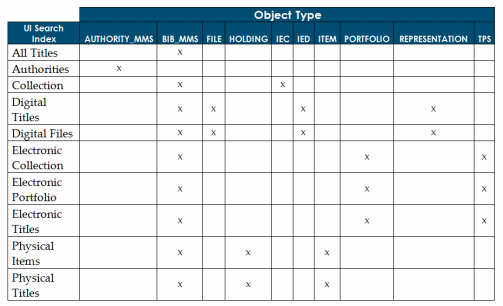
The table below maps the Object Type column in the Search Indexes mapping table to the search index types in Alma.
Search Indexes Example
If an index, such as accession number, is enabled and "Adv Search?" is set to true, it appears as an option when performing an advanced search.
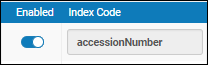
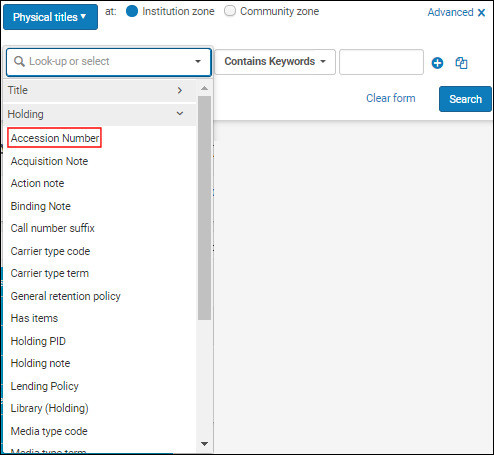
If an index is disabled, it does not appear as an option when performing an advanced search or a simple search regardless of the setting for either of these types of searches.
Configuring Search Index Labels
- Catalog Administrator
- General System Administrator
You can edit the display names of the index labels of local fields used in simple and advanced searches.
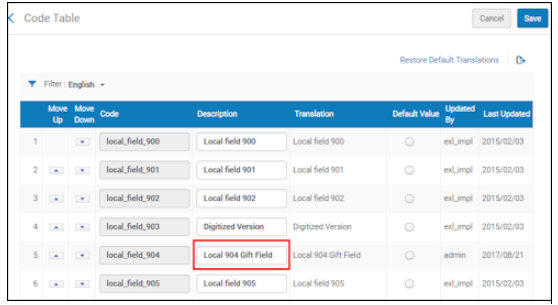
You configure index labels from the Customize Search Labels code table (Configuration Menu > Resources > Search Configuration > Customize Indexes Labels). For more information on code tables, see Code Tables.
You can edit the index label details on this page. Reordering the items on this page has no effect; users can search for specific indexes in the drop-down list by entering part or all of the index label.
Configuring Index Label Examples
If the local field 904 is named Local 904 Gift Field, the Local 904 Gift Field appears when performing a search.
Custom Bibliographic Search Indexes
New for February! This capability enables institutions to configure bibliographic search indexes for specific MARC fields, tailored to their MARC bibliographic data. This infrastructure provides increased flexibility and control over your search configuration, allowing you to optimize search and retrieval based on your institution's unique cataloging practices and requirements. This is in addition to Alma's out-of-the-box Search Indexes.
Feature Benefits:
- Custom Index Activation: Enable indexes that align with your institution's metadata standards and usage needs and assign them meaningful labels for clarity and usability.
- Institution-Specific Flexibility: Configure and manage search indexes independently of global settings.
- Logical Sets Based on Specific MARC Fields: Save searches using search indexes containing data from a single MARC field.
With this feature, institutions can:
- Select MARC bibliographic fields to be searchable in Alma. For example, you can create a local main entry author index using only the MARC 100 field (the out-of-the-box Creator index includes data from both the 1XX and 7XX fields).
- Assign labels and display names for better user clarity. For example, you can define custom standard numbers or identifier indexes based on your institution's specific usage of the MARC 01X-09X fields.
- Use the new indexes as a basis for logical sets and scheduled jobs.
- You can configure a custom search index for a specific Bibliographic field in the range 010 –899.
- Each MARC field's content is indexed as a continuous string, allowing you to search for any term within that field across subfields.
- Custom indexes are defined at the field level. If your institution is configured to include subfield delimiters when sharing data with Analytics using local parameters, these delimiters are also included in your Bibliographic data when using this feature. This means that custom Bibliographic search indexes include subfield delimiters. When searching in Alma, you can choose to include the subfield and its delimiter in your search term.
For example, to mimic a subfield-level index, you can search using $$a Albert Einstein.
- A future release will include the option to include the subfield delimiter for Alma searches when using custom Bibliographic search indexes, and exclude the subfield delimiters from the data shared with Analytics using the local parameters. This will require a full re-indexing of your institutional data. Contact Ex Libris support to enable this feature.
Searching with subfield delimiters in the Community Zone scope
When searching in Alma using a custom search index, the subfield delimiter can be used only when the parameter that controls its inclusion is enabled. However, this applies only to local bibliographic data. The Community Zone is not indexed with subfield delimiters, so searches that rely on the delimiter will not affect Community Zone results.
Behaviour in Simple Search versus Advanced Search
In Simple Search, the search type is Contains Keywords. When searching with subfield delimiters (for example,$$a Albert Einstein or $$b Albert Einstein), both queries return the same results because the Contains Keywords operator matches the words “Albert Einstein” regardless of the delimiter. The subfield delimiter becomes relevant only in the Advanced Search, where the Contains Phrase operator is used to search for the exact indexed string.
Managing Search Index Table Using an Import File
This feature streamlines the management of multiple custom indexes. You can import an Excel file with a specific header, as detailed below, containing all the required fields.
Supported Columns:
| Column | Required/Optional | |
|---|---|---|
| MARC_FIELD [010-899] | Required | If not provided, the index is not created, and a message is displayed. |
| OBJECT_TYPE [Bibliographic only] | Required | If not provided, the default value Bibliographic is used. |
| SIMPLE_SEARCH [true/false] | Required | If not provided, the default value true is used. |
| ADV_SEARCH [true/false] | Required | If not provided, the default value true is used. |
| LABEL | Optional | If provided, it is used as the index description in the Customize Search Labels table. |
Import Template
Refer to the template file for the import file heading structure. Below is an example of how the import file must be structured.
| MARC_FIELD | OBJECT_TYPE | SIMPLE_SEARCH | ADV_SEARCH | LABEL |
|---|---|---|---|---|
Adding Bibliographic Search Index Labels
Search index labels can be customized.
- Select Configuration Menu > Resources > Search Configuration > Custom Indexes and create a new index for the Bibliographic field of your choice.
- Optionally, select Configuration Menu > Resources > Search Configuration > Customize Index Labels to assign a label to the index you just created.
- Log out of Alma and then log back in to apply your changes.
- Use a simple or advanced search to test the behavior and results of your custom index(es).
Configuring Search Resources
Configuration options are available to tailor the options presented when you select Search Resources (Resources > Cataloging > Search Resources).
To configure which external resources are available for searching, see Configuring External Search Resources. This configuration determines which options are available in the External Resources Pool section of the Search Profile configuration.
To configure which internal and external resources are searched when you select Search Resources, see Configuring Search Profiles.
Configuring External Search Resources
- Catalog Administrator
You can add external resources you want to search and their characteristics (normalization process, merge method, and credentials, as needed). You configure external resources on the Search External Resource Setup page (Configuration Menu > Resources > Search Configuration > External Search Resources). For information on external search, see Searching External Resources.
The External Resources search enables the option to Show All Resources that lists all available external resources, rather than search for a specific resource.
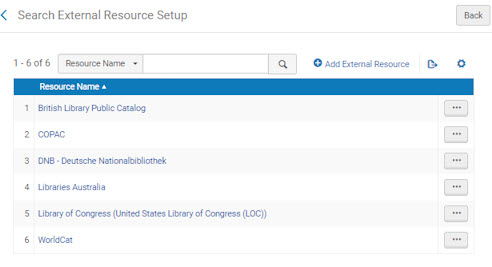
- On the Search External Resource Setup page, select Add External Resource.
- Enter one or more search criteria to be used in locating a resource.
- Name – Enter the name or part of the name of the resource.For example, enter KERIS in the Name parameter to locate the following resources:
- KERIS (Korea Education and Research Information Service) – MARC 21 record format
- KERIS (KORMARC) – KORMARC record format
- Name search type – Select the way in which you want the search word or string to be matched against the resource names,Contains,Exact, or Starts with.
- Resource type – Select a type of resource to locate such as e-journal or e-book.
- Publisher – Enter the name of a specific publisher from which you want to locate a resource.
For a list of possible external resources, see External Search Resources. - Name – Enter the name or part of the name of the resource.
-
Select Find Resources to display the resources (from this list) that meet your criteria.A list of resources that meet the criteria opens on a new page. If the search returns no results, edit your criteria and try again.
Search External Resource Setup Results - KERIS Example -
Locate the resource that you want to make available to your institution and select Select Resource from the row actions list.It is possible to have multiple connections to the same resource if the credentials to the resource are different for each connection.For cases like KERIS, if you want to import KERIS records that are stored in both the KORMARC and the MARC 21 record format, you need to repeat these configuration steps for both formats.
-
Under Institution Details, modify, enter, or select the following:
- Resource name – Modify the resource name to the name by which the institution refers to the resource.
- Normalization process – Select the appropriate normalization rules file to be used from a list of previously defined files. Normalization processes can be added from the Resource Management Configuration page, in the General section. For more information, see Working with Normalization Processes.
-
Merge method – Select from one of the following merge methods predefined by Ex Libris:
- Replace 245 and 035 OCLC if exist – Replaces all MARC fields in the Alma record with fields from the external records, except for fields 001, 245, and 035 (whose “a” subfields contain OCoLC or where the first indicator is 9 and the second indicator is #). Any 001, 245, or 035 fields in the Alma record are left in place, and any 245 or 035 fields in the external record are added to them.
- Overlay all fields but local – Replaces 035 fields in the Alma record with those from the external record unless the first indicator is 9 and the second indicator is #. In addition, replaces all other MARC fields in the Alma record with fields from the external records, except for fields 001 and 9XX.
- Keep only old value – Keeps all MARC field values in the Alma records.
- Conditional subject headings – Replaces all MARC fields in the Alma record with fields from the external records, except for fields 001, 035, 9XX, 65X, and 7XX. Any 001, 035, 9XX, 65X, or 7XX fields in the Alma record are left in place, and any 6xX or 7XX fields in the external record are added to them.
Alternatively, if you defined merge rules in the MD Editor (see Working with Merge Rules for the way in which these rules work), you can select these rules from the Merge method drop-down list. The descriptions that were entered for the rules are displayed as the merge method names.If you select a merge rule from the drop-down list, confirm that it is designed to work with search external resources. There may also be merge rules in the list that were designed for use in an import profile. -
Credentials – The <username>/<password> (using this syntax, with no spaces) to be used for the external resource. For resources that use the new infrastructure, there are two separate fields for entering the username and the password.
For KERIS, the credentials will have 3 parts that are provided by KERIS:
Group g:
User u:
Password p:
The values need to be added in the following format:
g:xxx u:xxx p:xxx
Note that there needs to be a space character between the parts.
For this parameter, note that you can use all characters except for the ampersand (&).
- Select Save. The resource is added to the list of available external resources.
Configuring Search Profiles
- Catalog Administrator
- General System Administrator
After you configure external search resources, you need to create a search profile that defines the order in which the external resources are searched, and the search conditions. The search profiles appear in the Search Cataloging Profile dropdown list (Resource Management > Cataloging > Search Resources) when searching resources. The search profile can be configured to identify multiple resources (local and external) to be searched and define the order in which these resources are searched. For more information, see Searching Resources.
In a Network Zone, the settings that control the placement of new records and templates (Local or Network) in the MD Editor (File > Options) also determine which search profiles are available to the individual user when the Institution Zone and the Network Zone have configured different search profiles. Since each user can define the placement of new records in the MD Editor, it is possible that individual users in the same member institution with different settings for the placement of new records may access and use different search profiles. See Options for more information.
- On the Search Profile List page (Configuration Menu > Resources > Search Configuration > Search Profile), select Add Search Profile. The first page of the Search Profile Details wizard appears.
- Enter a name and description (required) for the search profile you are defining and select Next. The second page of the wizard appears.
- Under the Internal Resources Pool section, select one of more of the following check box options if you want Alma to search internal resources and select Add to Selection:
- Institution Zone
- Network Zone (when available)
- Community Zone
- Under External Resources Pool, select the external resource you want to add to the profile, and select Add to Selection.
- Use the Move Up and Move Down arrows to set the search results order for the resources.
- To delete a selected resource, select Remove from the row actions list.
- Select Save. The profile is added to the list of search profiles. It can now be selected from the Search Cataloging Profile drop-down list (Resource Management > Cataloging > Search Resources).
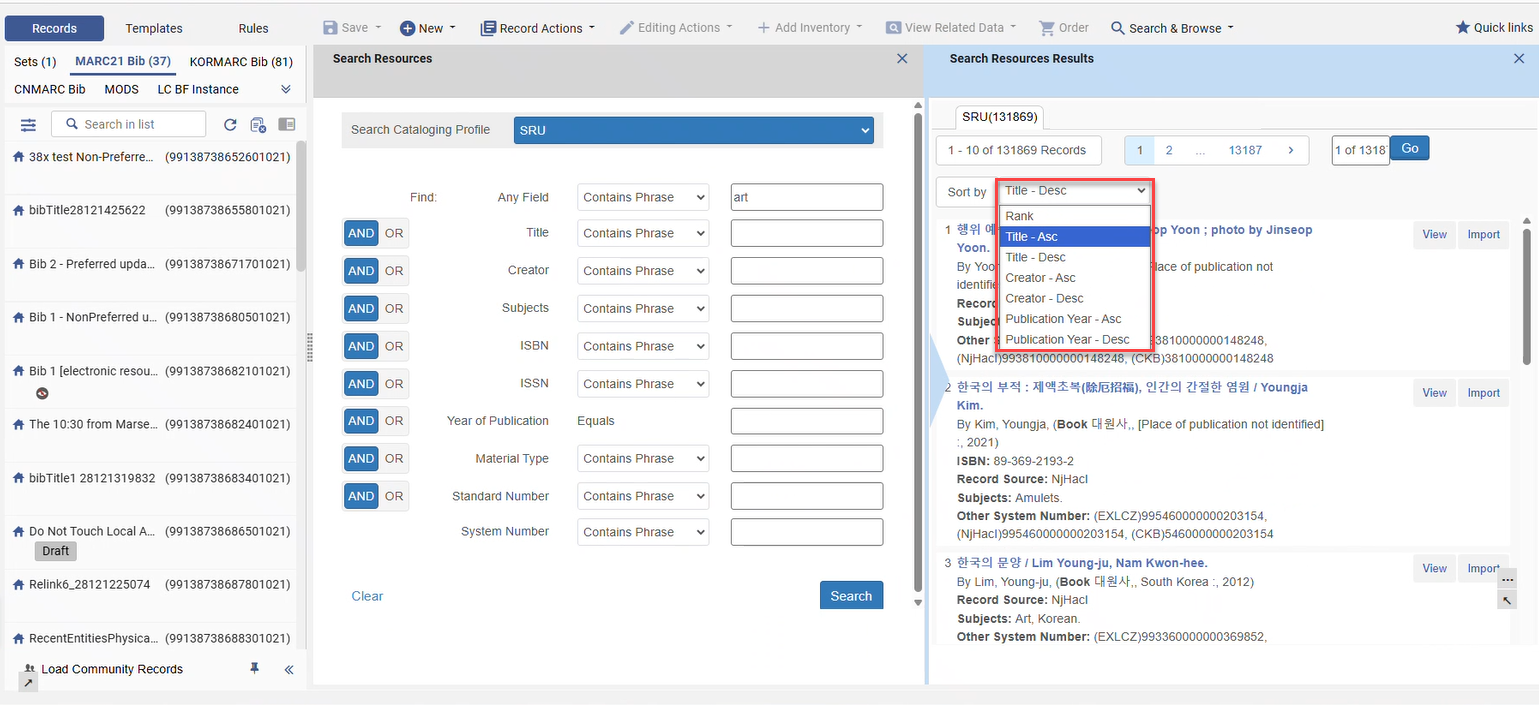
New for February! For Alma SRU-based external search resources only, users can sort results in the Metadata Editor by Rank,Title(default),Creator, and Publication Date.
External Search Resources
A complete list of available External resources can be found here.
Customizing the Search Results Record Fields
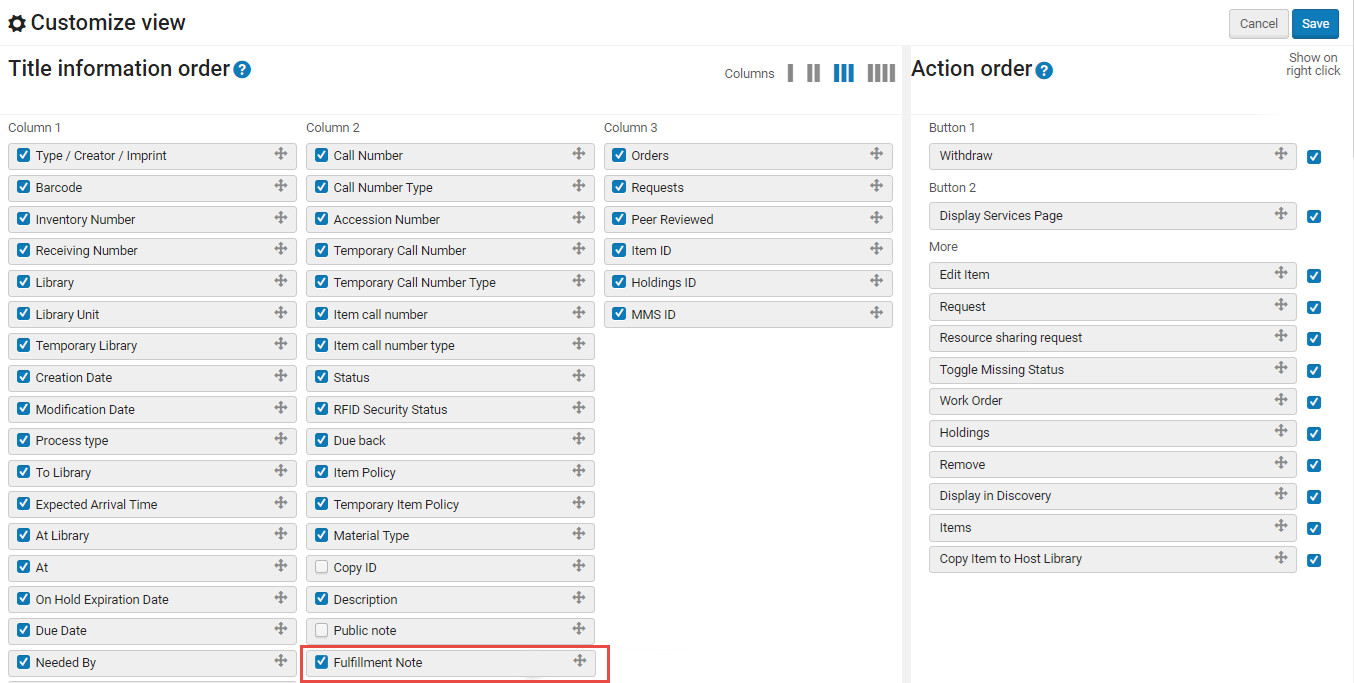
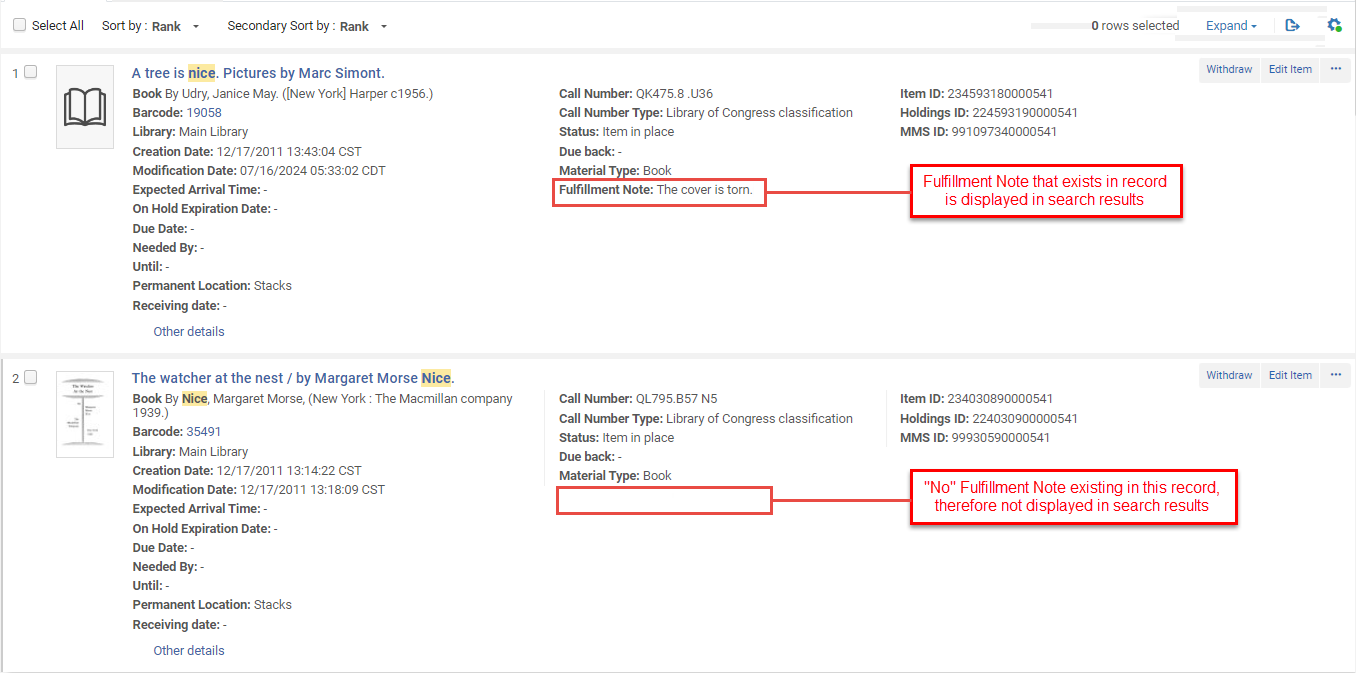
After a search has been conducted in Alma, users can customize the record fields that are visible in the search results. For example, if you didn't want to include the "Fulfillment Note" in the search results, it can be removed using the customization icon. Note that Administrators can set institutional defaults, eliminating the need for individual users to configure their display with data relevant to the entire institution (see Customizing the Display in Alma).
To customize the search results record fields:
- After searching in Alma, select the gear icon (
 ). The Customize view drop-down option menu is displayed.
 Customize View Drop Menu
 - Select (
 ) the record field(s) you want to remove from appearing in the search results, for example,Fulfillment Note.
 - Select Save. All the selected record fields are displayed in the search results (if they exist).
 Customize Records Display in Search Results
Customizing the Thumbnail Display
- Catalog Administrator
Alma attempts to display a thumbnail image for each title. If the title has a digital file, a thumbnail of that file appears (unless the file is part of an auxiliary representation). If the title has no digital inventory, Alma attempts to acquire a thumbnail image of the cover using the title's ISSN/ISBN/LCCN. If no thumbnail is available, a generic image of the material type (book, video, music, and so forth) appears.
You can configure whether you want Alma to display thumbnails in the repository search results for digital resources only, or for all types of resources.
In the Chinese region, the thumbnail book covers option for search results was disabled in order to improve performance and the customer experience with repository search results.
- Open the Repository Search Configuration page (Configuration Menu > Resources > Search Configuration > Repository Search).
- Select one of the following options:
- Show for all objects – Thumbnails appear for all types of resources.
- Show digital only – Thumbnails appear only for digital resources.
- Select Save.
Configuring the Display of Additional Staff Search Fields
Using the Additional Fields for Search Results mapping table, you can customize the way in which the five additional 9XX fields for staff search appear in All titles search results.
In the Network Zone, you can centrally create, distribute, and manage the display of the additional five 9XX fields for staff search. Use the procedure below for configuring the Additional Staff Search Fields and see Centrally Managing Additional Staff Search Fields in a Network Zone for more information specific to the Network Zone.
- Open the Additional Fields for Search Results mapping table (Configuration > Resources > Search Configuration > Additional Staff Search Fields).
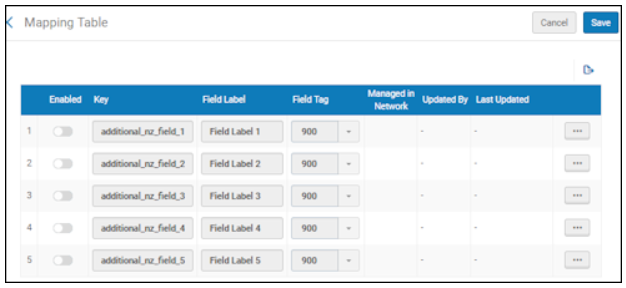
Additional Fields for Search Results Mapping Table - Select the slider () in the Enabled column to enable the field you wish to customize.
- Using the ellipsis button, select Customize for the row that you want to edit. The Field Label and Field Tag column options become available for editing.
- From the drop-down list, select the field whose search results display you want to customize, and customize the label for this field.

Customizing a Search Field The label appears in the search results with the contents of the additional field and, like other search result fields, can be configured to appear or not appear in the search results view.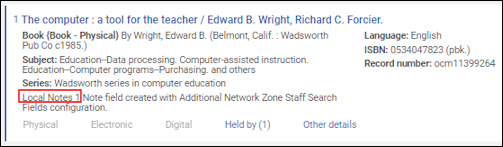
Search Results with Additional Search Field 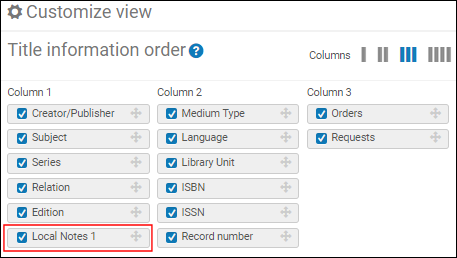
Configure Search Results View There is a known issue that the field label does not appear in the bold font in the search results. - Use the row slider to enable the field that you have customized.
- Select Save.
Page tags: article:topicConfiguring Resource Managementproduct:almacontent:Documentationlang:englishthumbnailsearch indexindex labelsearch external resourceconfigure search indexexternal search profile
