Configuring Item Statistics Notes

To configure statistics notes, you must have one of the following roles:
  • Catalog Manager
  • Catalog Administrator
  • Repository Manager
  • Repository Administration

The customer parameter statistics_note_controlled must be set to true for statistics note configuration options and features to appear in Alma. See Configuring Other Settings (Resource Management) for more information.

For physical items, you can configure three fields (called "Statistics note 1", "Statistics note 2", and "Statistics note 3") that can be used for custom analysis purposes using Alma Analytics.

When configured, these three fields appear as drop-down lists on the Notes tab of the Physical Item Editor (see Statistics Notes in the Physical Item Editor Page - Notes Tab table in the Updating Item-Level Information section).
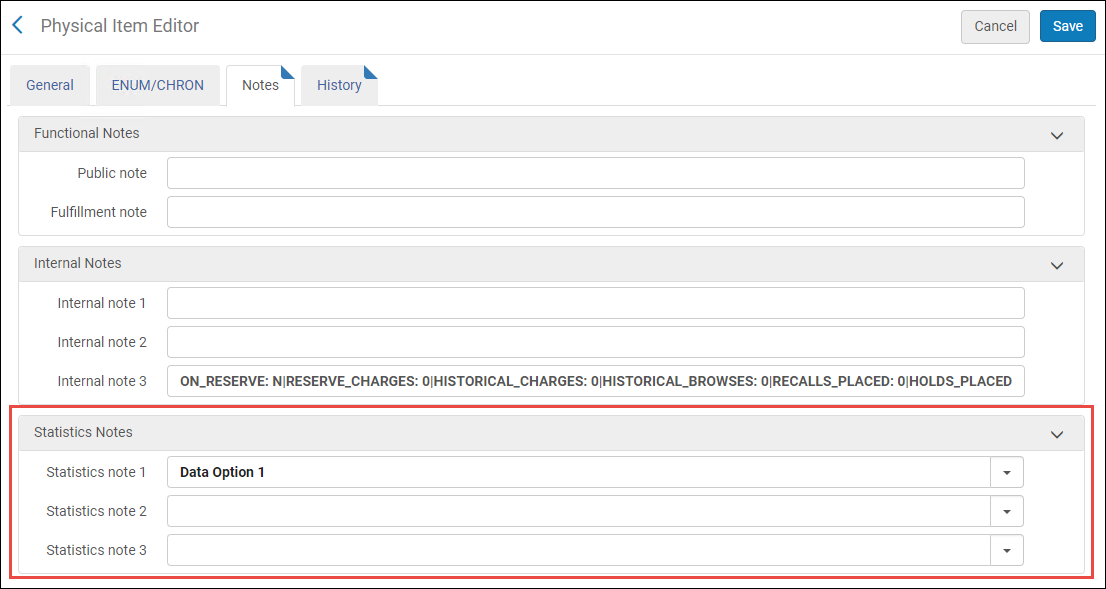
Physical_Item_Editor_Statistics_Notes_Section_NewUI

To define a fixed list of data options for each statistics note, use the Statistics Note configuration options (Configuration > Resources > General > Statistics note 1 /Statistics note 2 /Statistics note 3). For details, see Configuring Statistics Note 1, 2, and 3.
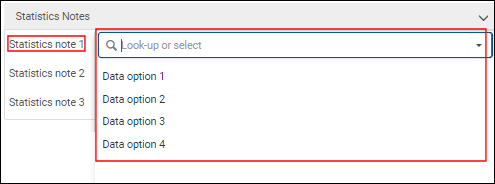
Statistics Note 1 Drop-Down List

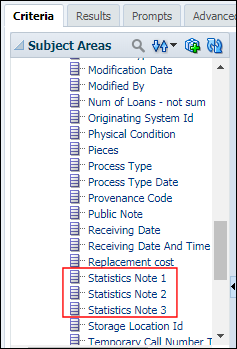
With these fields, you can specify information to track and report on with Analytics that is not available in other ways. In Analytics, this information appears in the Statistics Note 1, Statistics Note 2, and Statistics Note 3 subject areas. See Physical Items for more information.

Statistics Note 1, 2, and 3 Subject Areas in Analytics

Configuring Statistics Note 1, 2, and 3

You configure the statistics notes in the Item Statistics Note 1, 2, and 3 code tables (Configuration > Resources > General > Statistics note 1 /Statistics note 2 /Statistics note 3). These configuration links only appear if statistics_note_controlled is set to true. For more information about code tables, see Code Tables.
Statistical notes are configurable per the institution.

The statistics_note_controlled customer parameter controls all three item statistics notes together. It is not possible to configure one statistic note to display a dropdown list but have free-text in the other statistic notes.
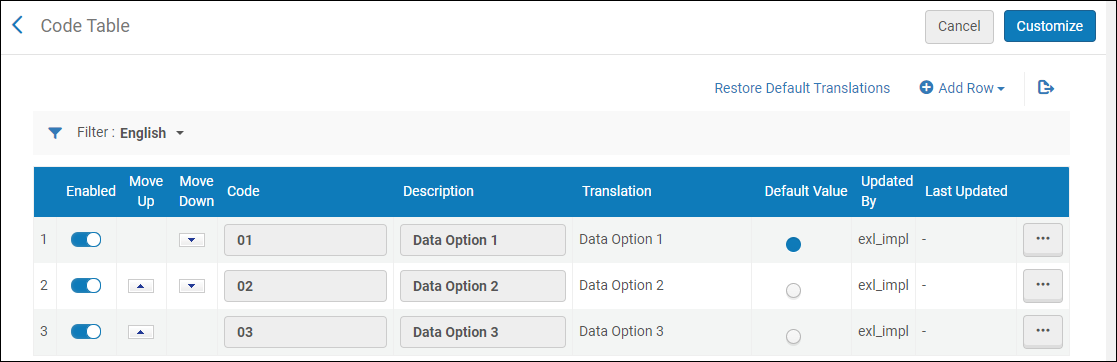
Statistics Notes 1 Options Configured

Select Add Row to enter the data options. The option identified as 'Default' appears as the pre-selected option for the statistics note on the Notes tab in the Physical Item Editor, and in the physical inventory section for import profiles, if the Item information field is populated.

If you flagged one of the values in the table as the default one, the selection cannot be undone. You can select another value to be the default one, but you cannot unselect a value. If you have only one entry in the table, use the Excel export option, change the value in the Default Value column to False, and import the file to overwrite the setting. Alternatively, you can add a new row and mark the new entry as the default one. Then, remove the new row.

You can add (Add Row), reorder (Move Up or Move Down), or delete the data options.
Depending on your data analysis requirements, you may configure one, two, or all three statistics note fields.

Searching for Statistical Notes

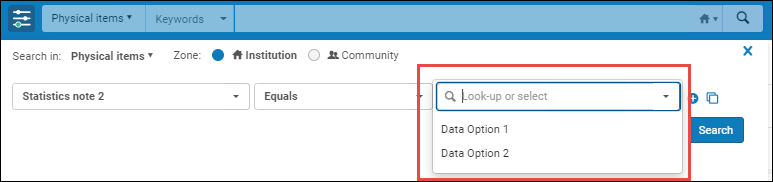
In advanced search for Physical titles and Physical items, you can search for statistical notes.
When the statistics_note_controlled customer parameter is set to true, the search criteria box displays a dropdown list of the custom options that you configured (see Configuring Statistics Note 1, 2, and 3). When the statistics_note_controlled customer parameter is set to false, the search criteria box is a free-text entry field.

Search criteria box with a drop-down list of the custom options that you configured