
Licencias centralmente gestionadas para recursos electrónicos en una Zona de red
For links to online help pages related to collaborative networks, see Collaborative Networks.
En una red colaborativa, se pueden negociar licencias con proveedores en representación de múltiples instituciones miembro. Puede:
- Acquire resources on behalf of all institutions using a license, enabling each institution to pay for the resources associated with that license as required.
And/Or - Permitir que cada institución miembro adquiera sus propios recursos mediante una licencia negociada.
Ambos escenarios pueden existir simultáneamente.
In the first scenario, you add a license called a negotiation license. La Zona de red enlaza los recursos relevantes para la licencia, permitiendo a las instituciones miembro ordenarlas bajo esta licencia. A diferencia de otras licencias ingresadas en Alma cuyo uso es exclusivamente para propósitos de información, una licencia de negociación tiene un efecto funcional en Alma. El recurso debe activarse en la Zona de red y el periodo de licencia de la institución miembro debe estar vigente en la licencia.
For more information about ordering electronic resources negotiated and managed by the center office in the Network Zone, see the Order E-Resources Negotiated and Managed in the NZ by a Member video (9:35 mins).
Las licencias de negociación gestionadas por la Zona de red también pueden registrar el precio por año para licencias plurianuales que permitan el incremento del precio entre los años. A negotiation license with start and end dates spanning more than one year will display the Price per year and Price increase fields. When a PO line is created for a resource and links to a multiyear license in the Network Zone, the price of the PO line will be updated by the price per year for the member institution. When the PO line is renewed, the fund will be checked to verify that there is enough money for the renewal based on the Price per year and Price increase field. Si el fondo no tiene suficiente, la renovación fallará. If the Price per year and Price increase fields are left empty, the standard functionality will apply.
In the second scenario, the license is a centrally managed license, created in the Network Zone and pushed to the member institutions, like other centrally-managed Network Zone information. Se puede pasar una licencia regular o una negociación de licencia de esta manera (una licencia de negociación se convierte en estándar en la institución miembro). En este escenario, cada miembro de la institución puede comprar recursos y añadirles a su copia local de la licencia.
In a member institution, a centrally managed license is noted by a checkmark in the Shared column in the Licenses and Amendments page.
Adding a Negotiation License or a Centrally Managed License
El siguiente rol puede añadir una licencia de negociación o una licencia gestionada centralmente:
- Gerente de Licencia (para la Zona de red)
- Iniciar sesión en la Zona de red para su red colaborativa.
- While adding a license (see Adding a License), the License type field appears in the Summary tab of the License Details page. To add a negotiation license, select Negotiation in this field. Note: You can select License to add a standard license, as usual.
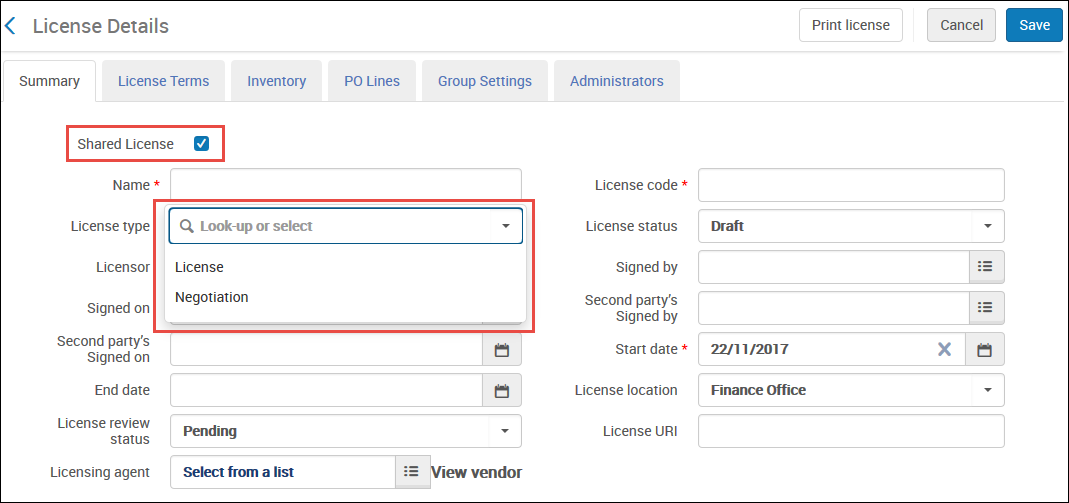 Página de Detalles de licencia
- Regardless of which license type you select in the previous step, optionally select Shared License to push the license to all member institutions, enabling each one to purchase resources and attach them to their local copy of the license.
- When you finish entering information, select Save. La licencia se guarda y se regresa a la lista de licencias. If you selected Shared License, the license is pushed to member institutions the next time that the Distribute Network Acquisition Changes to Members job runs. If you push a Negotiation type license this way, the license changes to type License in the member institution. To push the license manually, see Distributing Centrally Managed Licenses.
- Para una licencia de Negociación:
- Select Edit in the row actions list to open the license. Select the Negotiation Details tab.
 Página de Licencia de Detalles - Pestaña de los Detalles de la Negociación
- On the Negotiation Details tab, select Add Member. Aparece la página de detalles de resumen.
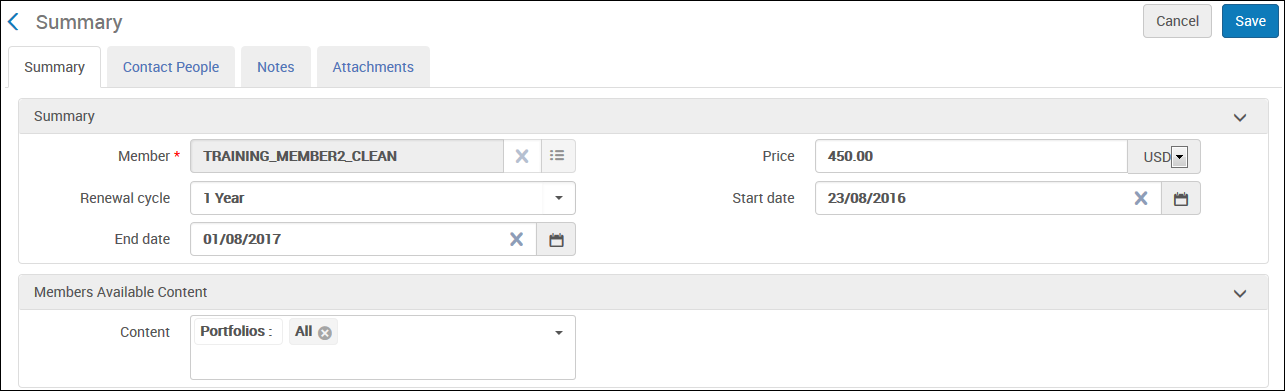 Página de Resumen
- Introducir una institución miembro y cualquier detalle adicional para la licencia.
If you are working with a multiyear license,Price per year and Price increase fields will be displayed in place of the Price field. Para más información sobre licencias plurianuales, ver arriba en esta página.
- Seleccionar el contenido que es específico para este miembro.
- Select Next.
Step 2 of the wizard appears. Add Contact People
- Enter contact details for the member and select Save.
Adding a contact creates a contact user (see Managing Users). - Select Save to save the license. Para añadir personas de contacto adicionales:
- On the Negotiation Details tab, edit the institution (select Edit in the row actions list).
- Select the Contact People tab.
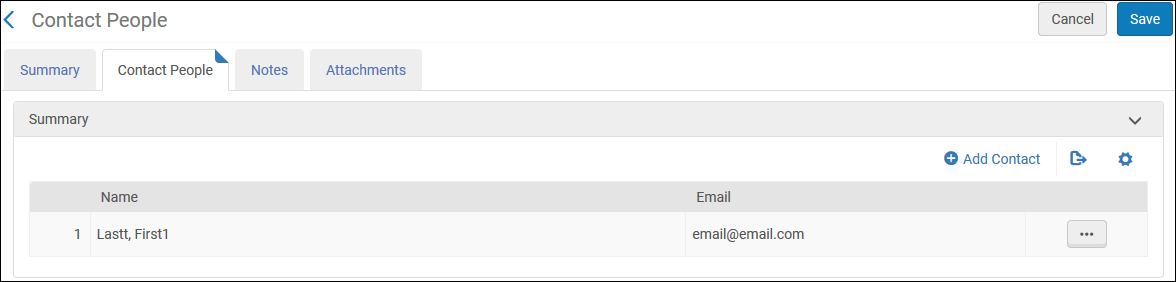 Pestaña Personas de contacto
- Select Add Contact, enter the contact person information, and select Save.
- When you are done adding people, select Save to save the license.
- Select Edit in the row actions list to open the license. Select the Negotiation Details tab.
When editing a member institution, you can also add notes or attachments in the Notes or Attachments tabs of a Negotiation license, respectively. For more information on these tabs, see Common Alma Tabs.
Deleting Centrally Managed Licenses
Distributing Centrally Managed Licenses
The following role can distribute licenses:
Acquisitions Administrator
Centrally managed licenses are distributed automatically by the Distribute Network Acquisition Changes to Members job when they are created or updated. se puede distribuir manualmente la licencia. Puede seleccionar qué información distribuir a las instituciones miembro. The license includes the Distribution check boxes.Summary and License Terms are shown but are sent by default and cannot be unselected.Notes and Attachments are optional selections.
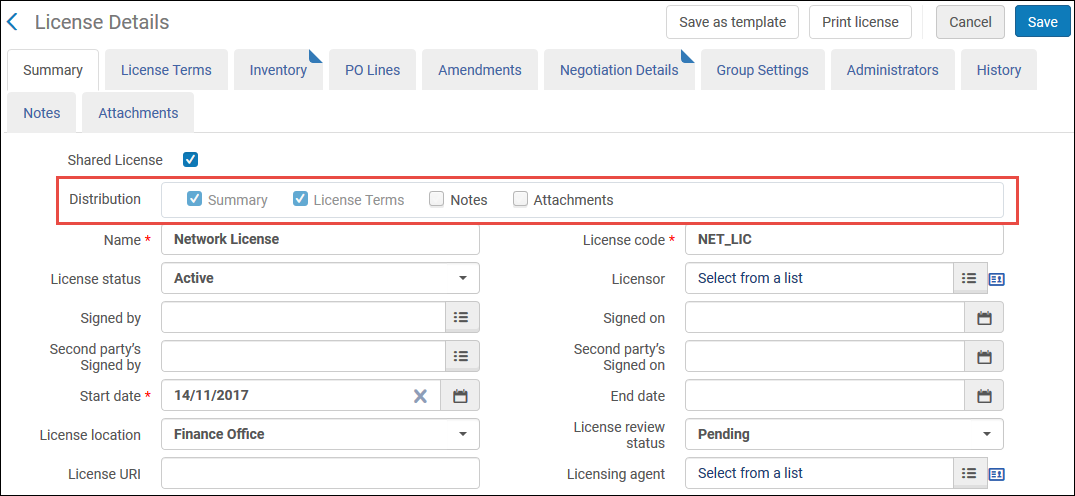
- On the Licenses and Amendments page (Acquisitions > Acquisitions Infrastructure > Licenses), select Distribute to member in the row actions list. This option only appears on the Network Zone for centrally managed licenses that have an Active status. Aparece una lista de instituciones miembro.
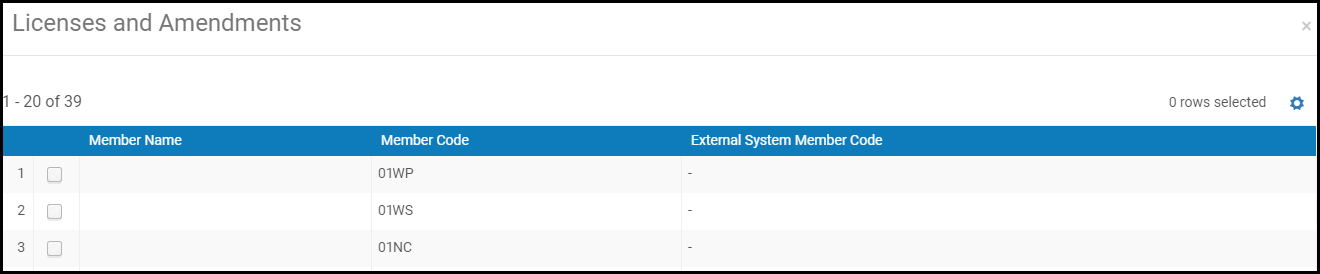
Licenses and Amendments dialog box - Select the members to which the license should be distributed.
- Select Submit, and select Confirm in the confirmation dialog box. The Distribute network Acquisition changes to members job runs. For information about viewing the report, see Viewing Completed Jobs.
Observe lo siguiente:
- If the license in the Network Zone does not have a vendor code in either the Licensor or Licensing agent field, the license is distributed.
- If the license in the Network Zone has a vendor code in either the Licensor or Licensing agent field, but the vendor is not distributed, the license is not distributed.
- If the license in the Network Zone has a vendor code in either the Licensor or Licensing agent field, and the vendor is distributed, the license is distributed as well.
- Para publicar un valor de término de licencia desde la Zona de la red a la Zona de la institución, el término de la licencia ya debe existir en la Zona de la institución. If it does not already exist, you must manually add it in the Institution Zone. When a license is distributed from the Network Zone to the Institution Zone, the Display to public values are not carried over with it - rather, the values that already exist within the Institution Zone are applied.
Vincular un Recurso Electrónico a una Licencia de Negociación
To link an electronic resource to a license, see Managing Electronic Resources,Editing a Portfolio Using the Electronic Portfolio Editor, and Associating a License to a Portfolio.
Ordering a Centrally Managed Electronic Resource
Los siguientes roles pueden ordenar recursos electrónicos asociados con una licencia de negociación.
Inventory Operator or Manager (Institution Zone/Consortium Member)
Si un recurso electrónico activado es gestionado por la Zona de red y asociado con una licencia de negociación, y su institución está en lista y actualmente activa dentro de la licencia de negociación, se puede ordenar el recurso para su institución.
You can now place an order on electronic resources that are managed centrally in the Network Zone even if they do not have a license of type Negotiation.
La funcionalidad se puede dividir entre las órdenes de recursos electrónicos gestionados centralmente que tienen una negociación de licencia, y las que no tienen una negociación de licencia.
Órdenes con una negociación de licencia
- Si la negociación de la licencia especifica que el recurso es negociado por el miembro, la orden se creará en la zona de la institución con toda la información de la negociación.
- If a license negotiation exists for the resource, but the resource was not negotiated for the member:
- The user is prompted with the following message: "Please note the following: This electronic resource is part of a central license negotiation. Tenga en cuenta que su institución no está incluida en la negociación de licencia central. ¿Está seguro de que quiere continuar?"
- El miembro puede colocar una orden, que se crea en la zona de la institución y se enlaza al recurso gestionado centralmente. El miembro puede crear una licencia local y asociarla a una orden local.
Órdenes sin una negociación de licencia
- If the resource is available for the member, as defined by the group configuration, it can be ordered with the Order action. La orden se crea localmente y se enlaza al recurso de la Zona de red.
- Se puede crear una licencia local en la zona de la institución y asociarla a la orden creada localmente.
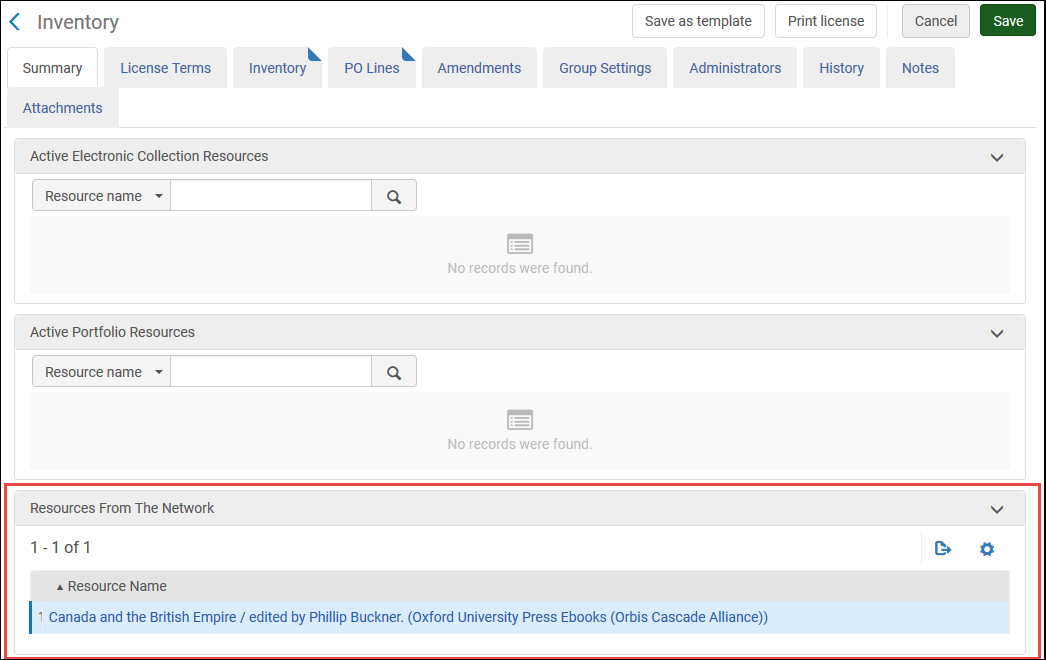
On the License Details page, in the Inventory tab, the Resources from the Network section shows electronic collections and portfolios. Esta sección está disponible para órdenes con o sin una negociación de licencia.
The local license can include terms of use that are viewable by the end user via the link resolver in the Primo View It tab. This action is available for orders with or without a license negotiation.
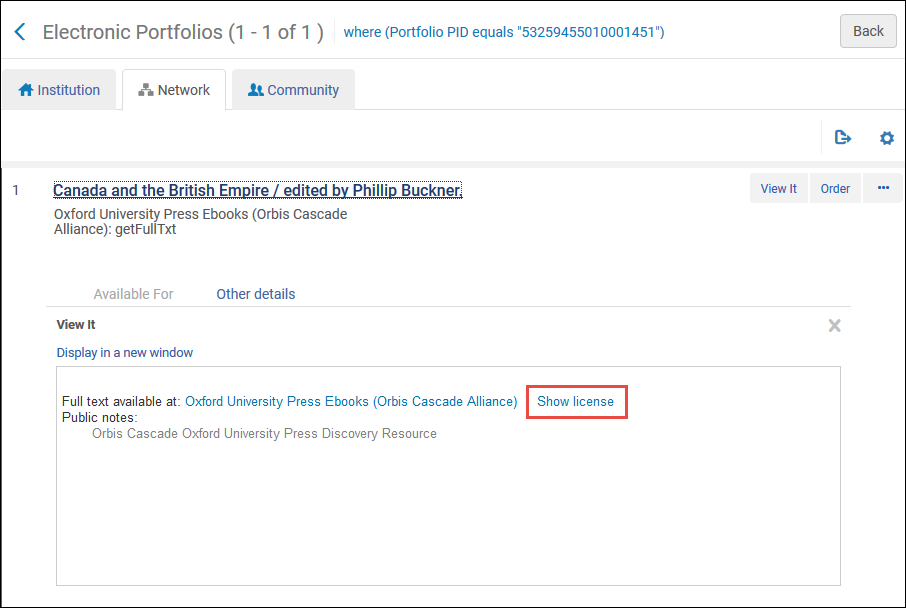
Incluso si el recurso está enlazado por una licencia de negociación en la Zona de red, el recurso puede no estar disponible para la institución actual si esta no forma parte de la negociación. In this case, it is still possible to order the resource from the Network tab.
- Iniciar sesión en Alma como una institución miembro de un consorcio.
- Search for the electronic resource in the Network Zone (the Network tab). See Searching in Alma.
- Find the resource and select Order in the row actions list.
Your institution's name and code appear in the Collection Available For filter and in the Available For field.
La Línea de Orden de Compra y el Formulario aparece. See Manually Creating a PO Line. - Order the resource, as described in Manually Creating a PO Line. Alma crea una Orden de compra para la institución. Esta Línea de la Orden de compra se enlaza al inventario centralmente gestionado en la Zona de red. The Inventory tab of the Institution Zone PO line lists the Network Zone inventory to which the PO line is linked.
