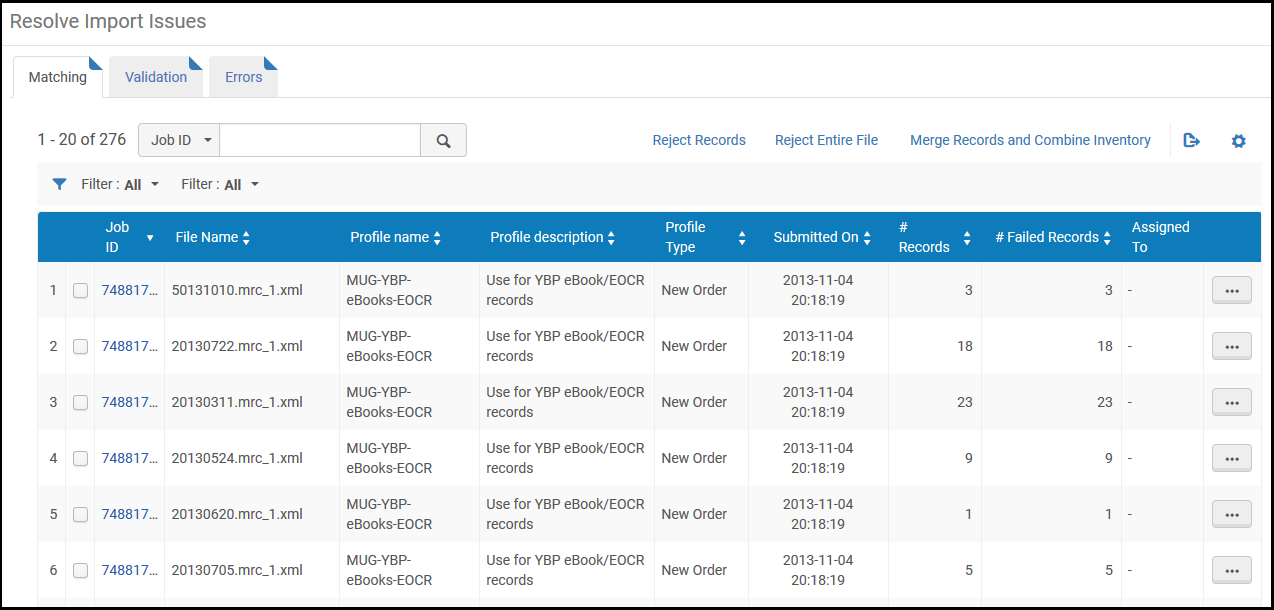
Se pueden presentar los siguientes problemas al importar durante el proceso:
Matching – The imported record matches an already existing record in the database. When this occurs, the issue is resolved according to the Match profile configured during import profile creation (see Configuring/Editing an Import Profile: Match Profile).
For details on resolving matching records, see Resolving Matching Issues.
Validation – During the import process, the imported records are checked according to the validation task chain selected during import profile creation (see Creating/Editing an Import Profile: General Profile Information). Si la verificación determina que existe un problema como un error y no como una advertencia, el fichero es enviado a la pestaña de Validación de la página Resolver problemas de validación. Si problema es un Error o una Advertencia se determinada de acuerdo con la severidad de perfil escogido durante la creación del perfil. For information on configuring validation exception (severity) profiles, see Working with Validation Exception Profiles.
No es posible corregir registros que no pueden ser validados. Se puede forzar la importación del registro o descartarlo. También se puede forzar la importación del fichero completo o abortar la importación.
For details on resolving validation issues, see Resolving Validation Issues.
Errors – Something unexpected has happened which cannot be resolved. Estos errores incluyen cualquier problema con la información del fichero no relacionada con coincidencia o validación de registros. La pestaña de errores de la página Resolver problemas de importación muestra solo los ficheros con estos problemas.
For details on viewing error records, see Viewing Import Errors.
En la tabla siguiente se describen las distintas formas de acceder a la página Resolver problemas de importación:
Gerente/Administrador de catalogación, Administrador del repositorio
Resolver problemas de coincidencia
Una discrepancia de coincidencias se produce cuando el registro importado coincide con un registro ya existente en la base de datos. When this occurs, the issue is resolved according to the Match profile handling method configured in the import profile (see Creating/Editing an Import Profile: General Profile Information). Las siguientes opciones de gestión están disponibles:
Manual – The file is sent to the Matching tab of the Resolve Import Issues page, where you can resolve the problem. For details, see Editing Matching Records.
If either Merge or Overlay was defined and there are multiple record matches, the job reverts to manual operation where you manually choose which matching record to merge/overlay.
Para Resolver problemas de coincidencia:
On the Resolve Import Issues page (Acquisitions > Import > Resolve Import Issues or Resources > Import > Resolve Import Issues), select the Matching tab and locate the import job you want to view. (See Types of Import Profiles for information regarding the profile types that appear.)
You can also access the Resolve Import Issues page by selecting Manual Handling Required on the Monitor and View Imports page.
You can also access this page with pre-defined filters by selecting one of the following tasks in the Task List in the persistent menu (see Tasks in the Task List)
Import - match issues
Import - validation issues
Import (EOD) - match issues
Import (EOD) - validation issues
Página Resolver problemas de importación – Errores de coincidencia
Seleccionar una acción de lista de acciones de la fila:
Release assignment- Release the assignment of this issue.
Do Not Import – Discard the records with matching errors, and import the valid records in the file.
Reject File – Discard the entire file containing records with matching errors. El fichero es eliminado desde la página Gestionar errores de validación de importación.
To perform multiple Do Not Import and Reject File actions on imported file records, on the Resolve Import Issues page select the issues on which you want to perform the actions and select Reject Records or Reject Entire File.
To merge records and combine inventory for duplicate multi-match records from multiple files from a single import job, on the Resolve Import Issues page select the files from the single import job and select Merge Records and Combine Inventory. See Merging Records and Combining Inventory for more information.
Ver Registros de coincidencia de ficheros importados
To view the records within the import file that match existing Alma records: on the Resolve Import Issues page, select View records in the row actions list. The Handle Matching page opens. Entonces se puede determinar si se quiere importar estas coincidencias de registros.
En la página de Gestionar coincidencias, se puede filtrar la lista de resultados mediante el Tipo de gestión, de la siguiente manera:
Manual – Manual handling for matches was configured during import profile configuration (see Configuring New Import Profiles)
Multiple Matches Delete – The delete failed due to matching records
Multiple Matches EOD – The EOD import failed due to matching records
Multiple Matches Merge – The merge failed due to matching records
Multiple Matches Overlay – The overlay failed due to matching records
La página de Gestión de coincidencias muestra las siguientes columnas en los registros importados para gestionar la sección:
On the Handle Matching page, select the record ID link or View Matches in the row actions list for the record whose matches you want to handle.
Si hay un solo registro que coincide, la página de coincidencia en paralelo aparece:Páginas de Coincidencia en paraleloLa página de Coincidencia en paralelo muestra los Detalles del registro importado en el lado izquierdo de la página y los Registros coincidentes en el lado derecho de la página.
Si hay más de un registro que coincide, aparece la página Importar coincidencias de registro. The left panel of the page displays the Imported Record Details, and the right panel displays the Matched Records in your catalog.Página Importar coincidencias de registro
En la sección Lista de coincidencia de registros, seleccionar el registro que se quiere hacer coincidir con el nuevo registro.
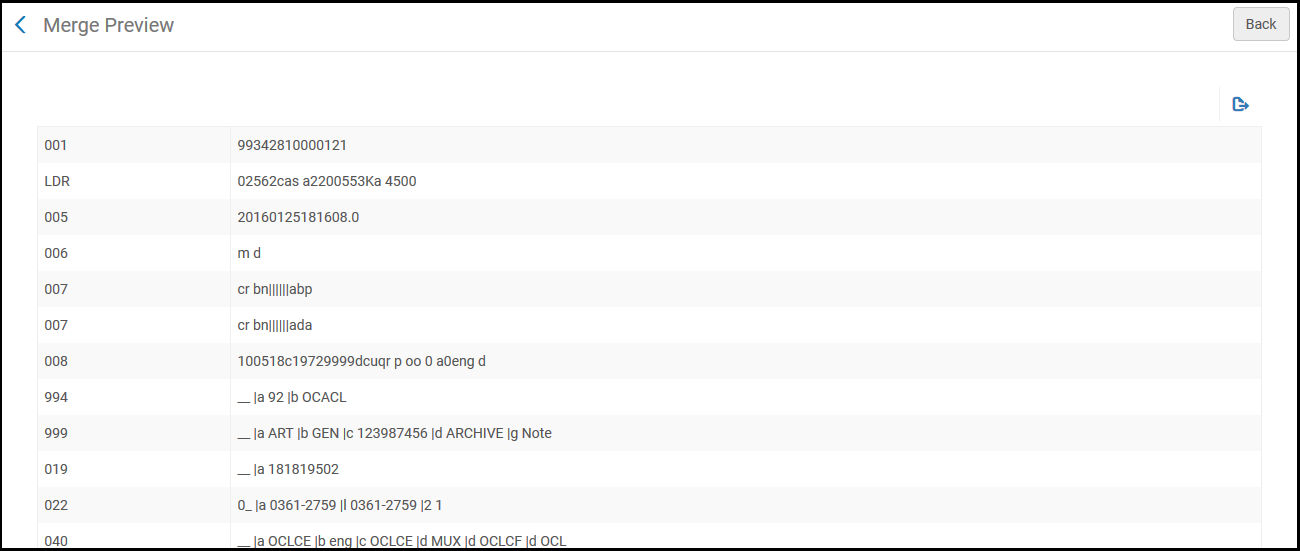
To preview how the record would look following an import, select a record in the Matched Record List (if there was more than one match) and select Merge Preview. Aparece la página Vista preliminar de fusión. Select Back to return to the previous page.
Página Vista preliminar fusionadao
Editar Coincidencia de registros.
To edit the records within the import file that match existing Alma records, on the Resolve Import Issues page, select Edit in the row actions list. The Handle Matching page opens.
Cuando un operador trabaja en un fascículo de importación, ese fascículo se le asigna a él.
Para editar coincidencia de registros:
On the Handle Matching page, select the record ID link or View Matches in the row actions list for the record whose matches you want to handle. See Viewing Matching Import File Records for details. Aparecen acciones adicionales en la páginas de Coincidencia en paralelo o página Importar coincidencias de registros.
Select Approve Import on the Handle Matching page to approve the import without viewing the records. El registro es importado, pero pudiera ser un duplicado de un registro existente. For information on monitoring imports, see Monitor and View Import Jobs.
En la página de Coincidencia en paralelo o la página de Coincidencias de registros de importación, seleccionar una acción de las siguientes:
Import – Import the record, although there may be a duplicate with an existing record.
Do Not Import – Discard the new record.
Merge – Merge the records according to the options chosen in the profile configuration. El historial de todos los enlaces realizados para este registro (por ejemplo, Línea de la Orden de Compra adjunta) es conservado. For details on configuring import profiles, see Managing Import Profiles. Téngase en cuenta que si esta opción no se puede realizar, como en el caso de importar registros marcados para eliminar, no estará disponible.
Overlay – Discard all bibliographic data in the old record and replaces it with the data in the new record. Al igual que al fusionar, el historial de todos los enlaces realizados para este registro es guardado.
Delete – Delete the bibliographic when it has no inventory associated with it.
Use NZ Record(member institution implementing a Network Zone, only) – Discard the new record and instead use the record from the Network Zone.
Si el registro es importado, los detalles de la importación pueden ser vistos en la página Gestionar y ver importaciones.
Merging Records and Combining Inventory
New records might fail to import when multiple matching duplicate records exist in the Alma database. To handle these records, you can configure the "Merge Records and Combine Inventory for Multi-Match" section in the import profile (see Creating/Editing an Import Profile: Match Profile). Esto permite fusionar los registros y combinar inventario cuando se importan registros.
When a file was produced using an import profile configured for "Merge Records and Combine Inventory for Multi-Match", then the action Merge Records and Combine Inventory is available for the file on the Resolve Import Issues page. If the import job that you ran was large and resulted in multiple files appearing on the Resolve Import Issues page, select the checkbox at the beginning of each row for these files and select Merge Records and Combine Inventory in the page actions list.
Para fusionar registros y combinar inventario:
On the Resolve Import Issues page (Resources > Import > Resolve Import Issues), locate the file(s) containing the duplicate records that you want to resolve in order to import a new record.
Select Merge Records and Combine Inventory in the row actions list for the file, OR Select multiple files from the same import job and select Merge Records and Combine Inventory in the page actions list.
The Merge Records and Combine Inventory page action works only with multiple files from the same import job.
Aparece un mensaje de confirmación:
Mensaje de confirmación de Fusionar registros y combinar inventario
The confirmation message displays the settings that you selected in the import profile (that generated this failed import file). You can Preview the changes in Excel format,Cancel your request, or Submit the job to resolve the issues.
Optionally, select Preview to preview the changes (in Excel format) that will be implemented once you click Submit.
Each set of duplicate records is identified by a group number. For each group, the Operation column identifies the preferred record and the records to be merged with this preferred record. When the merge is complete, only one record will remain in the Alma database. This record will be merged with the new record that you are importing (unless you selected the Suppress or Keep it options in the import profile).
Vista previa de Cambios de registros duplicados de coincidencia múltiple
There may also be some records identified as 'Ignore' in the Operation column. This may occur when the record was suppressed or if there was a lapse in time between running the original import job and working with the Resolved Import Issues page, and some records may no longer exist.
When you are ready to proceed, select Submit. Se ejecuta la tarea de fusionar. For more information, see Viewing Running Jobs and Viewing Scheduled Jobs.
To view the report details, select the link for Merge records and combine inventory report i n the job reports. Al igual que otros informes de coincidencias múltiples, este informe muestra los registros preferidos y secundarios (fusionados). In the Message column, the message for the secondary (merged) record shows the number of physical items, portfolios, PO lines, and so forth, that were merged with the preferred record.Informe de fusionar registros y combinar inventario
Solucionar problemas de validación
Imported records are validated according to the validation task chain defined in the import profile (see Managing Import Profiles).
Para tareas/registros con problemas de validación se puede:
Forzar la importación
Elegir no importar
Rechazar el fichero
Crear un fichero XML de los registros fallidos
Resolver problemas de validación:
On the Resolve Import Issues page (Acquisitions > Import > Resolve Import Issues or Resources > Import > Resolve Import Issues), select the Validation tab. The Resolve Import Validation Errors page appears.
You can also access the Resolve Import Validation Errors page by selecting Manual Handling Required in the Status column on the Monitor and View Imports page.
Página Resolver errores de validación de importación
Localizar el trabajo de importación y seleccionar una acción de la fila o seleccionar varias acciones y seleccionar una acción de la página:
View records(Viewing Import File Records With Validation Errors)
Edit(Editing Records With Validation Errors)
Release assignment- Release the assignment of this issue.
Do Not Import/Reject Records – Discard the records with validation errors, and impor the valid records in the file.
Reject File/Reject Entire File – Discard the file containing records with validation errors. El fichero es eliminado desde la página Gestionar errores de validación de importación.
Las acciones disponibles dependen de si el trabajo de importación le ha sido asignado a usted.
Visualizar registros de ficheros de importación con errores de validación
Se pueden ver los registros dentro del fichero de importación que coinciden con los registros existentes de Alma. Luego se puede determinar cómo desea gestionar los registros con errores de validación.
Para ver los errores de validación:
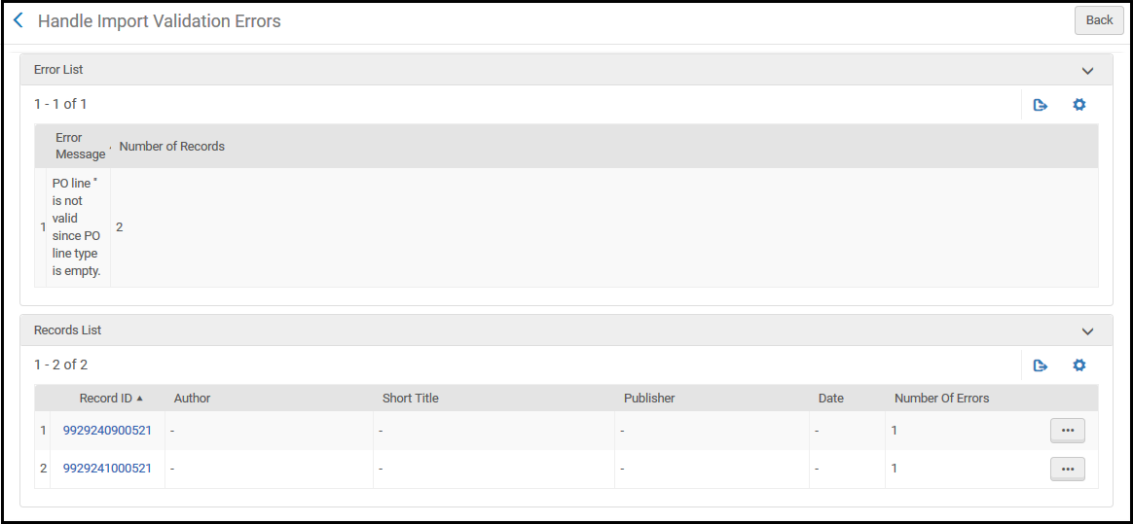
On the Resolve Import Validation Errors page, select View records in the row actions list for the relevant import file. Aparece la página Gestionar errores de validación de importación.Página Gestionar errores de validación de importaciónLa página Gestionar errores de validación de importación incluye las siguientes secciones:
Detalles del fichero tarea de importación. Note that Number of failed records includes the total number of failed records, including records whose issues were resolved.
Error List – The validation errors. Muestra las siguientes columnas:
Mensaje de error - El error que hizo que la validación fallara.
Número de registros - El número de registros que tienen un error.
Records List – The record details with the following columns:
ID de registro
Autor
Título corto
Editor
Fecha
Número de errores
In the Records List area, select View Errors in the row actions list. Aparece la página Detalles del registro importado.Página de Detalles del registro importadoEl lado izquierdo de esta página muestra los detalles del registro en los siguientes formatos:
Formato de registro original
Formato de registro MARC
El lado derecho de la página muestra la información de error. La sección Lista de errores en esta página muestra la misma información de error que se muestra en la sección Lista de errores en la página Gestionar errores de validación de importación. Exportar el fichero, hacer las correcciones necesarias y volver a importar el fichero.
Editar Registros con errores de validación
The Edit option enables you to view the record details and validation errors and provides several options for managing the records/files with these errors.
Para editar un registro:
On the Resolve Import Validation Errors page, select Edit in the row actions list for the relevant import file. Aparece la página Gestionar errores de validación de importación. See Viewing Import File Records With Validation Errors. Aparecen acciones adicionales al editar la página.
Seleccionar una de las siguientes acciones:
Do Not Import – Discard the records with validation errors while importing the valid records in the file.
Force Import – Import all the records including those with errors.
Reject File – Discard the file containing records with validation errors. El fichero es eliminado desde la página Gestionar errores de validación de importación.
Create File – Save the record details to an external XML file in which you can edit the records. A continuación, se puede volver a importar el archivo.
View Errors(row actions list) – See Viewing Import File Records With Validation Errors.
Vista de errores de importación
La página Resolver errores de importación enumera los trabajos de importación con errores inesperados que ocurrieron durante el proceso de importación. Estos errores incluyen cualquier problema con los datos del fichero que no estén relacionados con la coincidencia o la validación de registros. See the Monitor and View Imports page and Monitor and View Import Jobs for more details.
Ver errores de importación:
On the Resolve Import Issues page (Acquisitions > Import > Resolve Import Issues or Resources > Import > Resolve Import Issues), select the Errors tab. The Resolve Import Errors page appears.Página Resolver errores de importación
Select Download in the row actions list to download an XML or a binary file (depending on the format defined in the import profile) listing the records (up to 5000) that did not import properly. Por ejemplo:Error/es en el XML descargado
Corregir cualquier error que se detecte y volver a ejecutar el proceso de importación.