
サポートサービス
2026年2月開始
サポートサービスは、ネットワークゾーンレベルの管理者がメンバー機関に対して高度なメンテナンスおよびトラブルシューティングサービスを提供できるようにします。
サポートサービスページへのアクセス
サポートサービスの役割を有効化する必要があります。
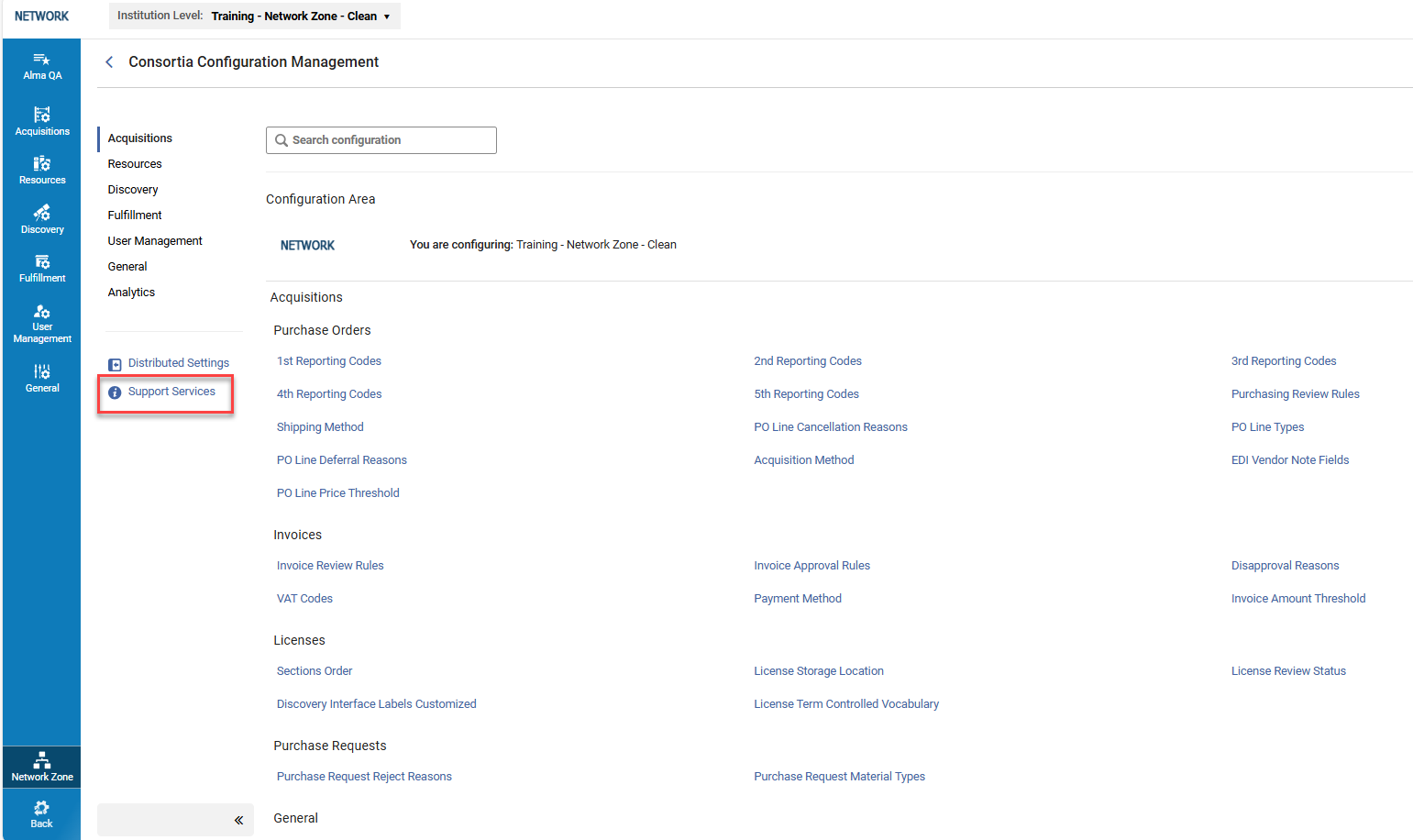
コンソーシアム設定管理ページで、サポートサービスを選択してページを開きます。
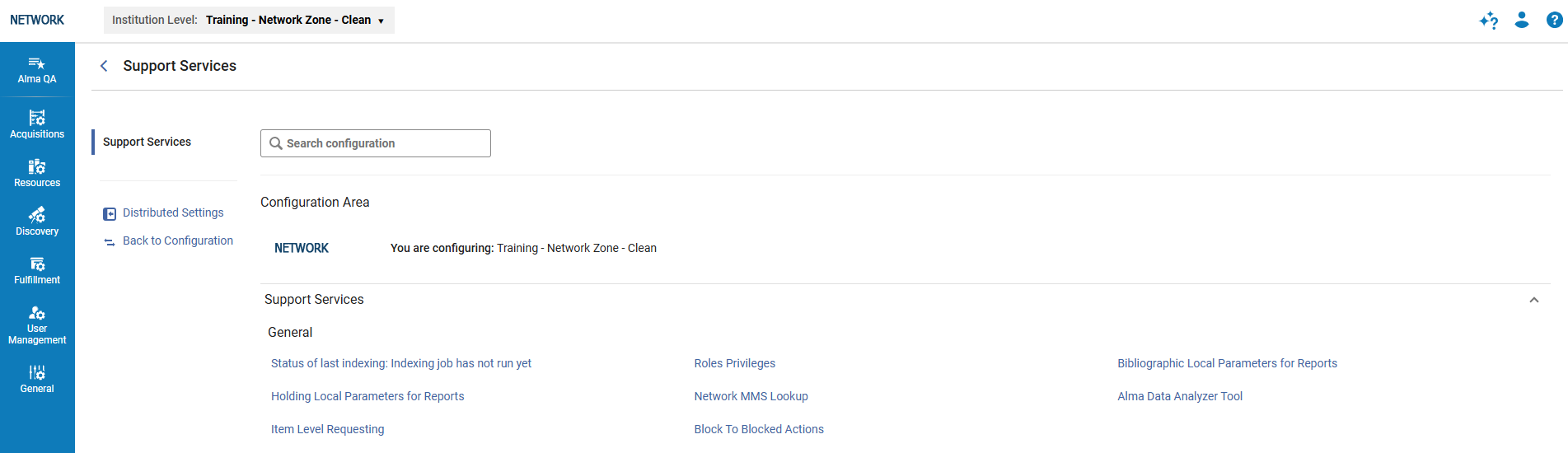
最後のインデックス作成ステータス
Select this option to view the last indexing report at the Network level and the member/s level.
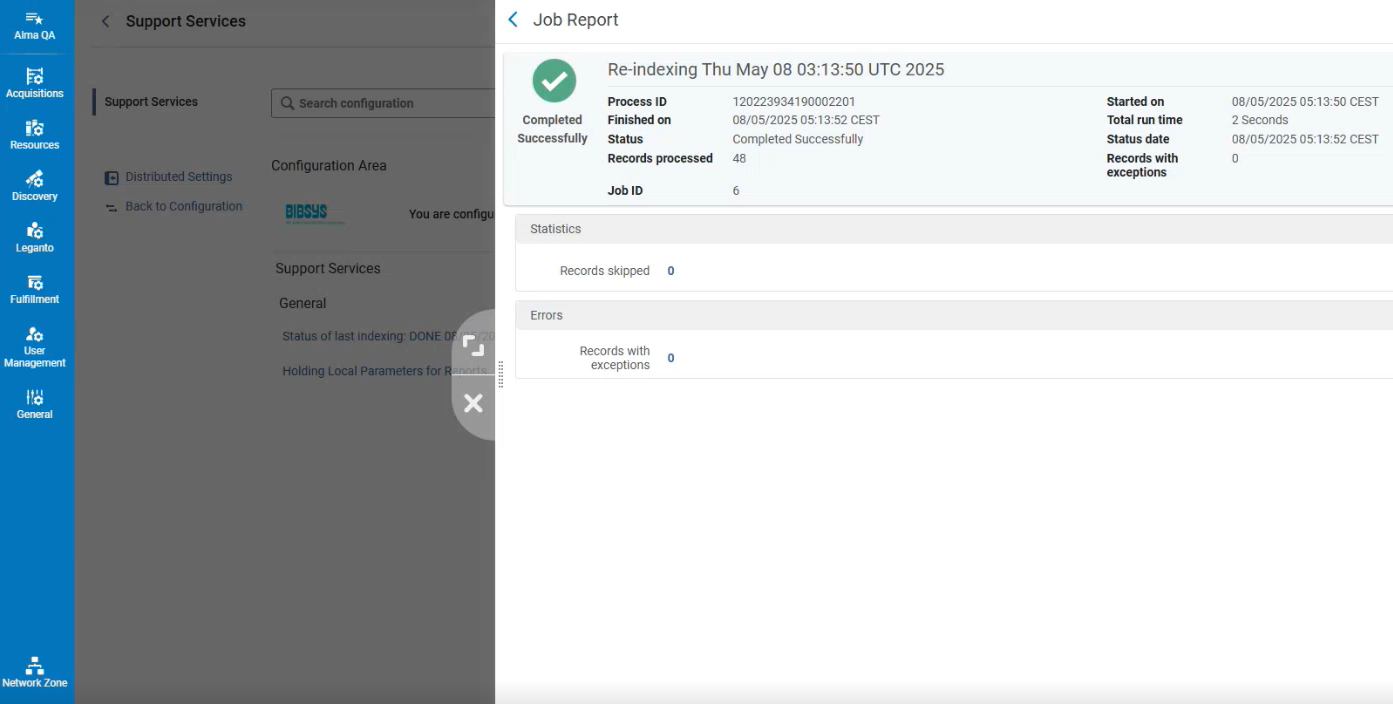
エラーメッセージが記載されたレコードが表示される場合、それらは通常、データに影響を与えず、ユーザーによる対応を必要としない、データベースの軽微な矛盾に関連しています。
Roles Privileges
このオプションを選択して、特定の役割に対する権限をオンまたはオフにします。
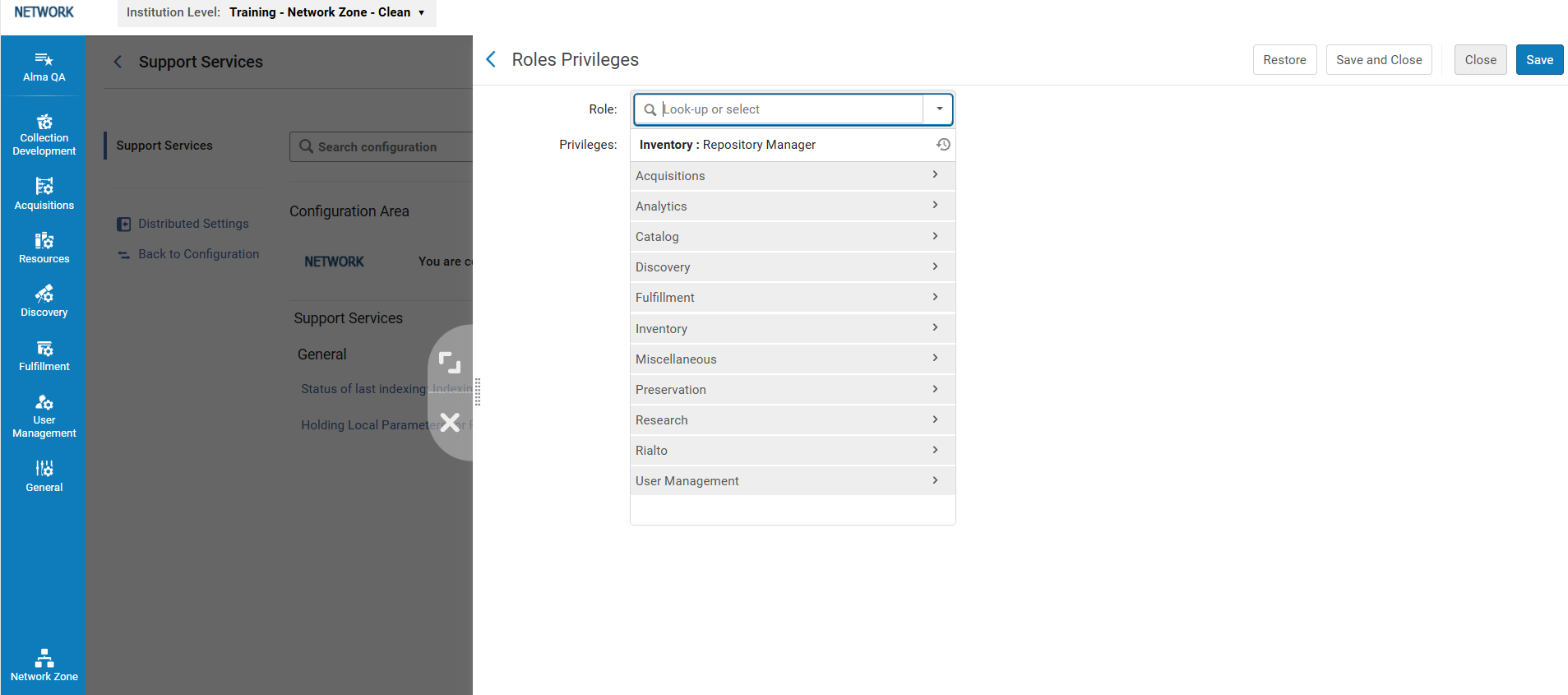
For more information, see Roles and Registration Configuration.
ネットワーク管理者は、復元ボタンを選択すれば、不要な変更を元に戻すことができます。
レポートを所蔵するローカルパラメータ
これにより、コンソーシアムはレポートの書誌ローカルパラメータを追加し、メンバーへの配布を一元的に実行できるようになります。For more information, seeAdd bibliographic fields to Alma analytics.
Changing the Bibliographic Local Parameters for Reports
-
In the Institution Level dropdown list, select your Network Zone.
-
必要に応じて表の情報を更新します。なお、表が一度も更新されていない場合(初期状態)、編集するために、まずカスタマイズボタンを選択する必要があります。
-
[保存]を選択します。次の2つのオプションが表示されます:
-
Select Apply changes in the row of buttons at the top of the table to run a job that applies the changes to the Analytics data.変更はネットワークレベルで適用されますが、メンバーに自動的に配布されるわけではありません。
-
全メンバーに配布を選択してください。A pop-up window opens, enabling you to choose a specific member/s or all members to distribute the changes to (see Consortia Central Configuration Dashboard).Ensure that the Apply Changes checkbox is selected in order to run the job that applies the changes to the Analytics data.
-
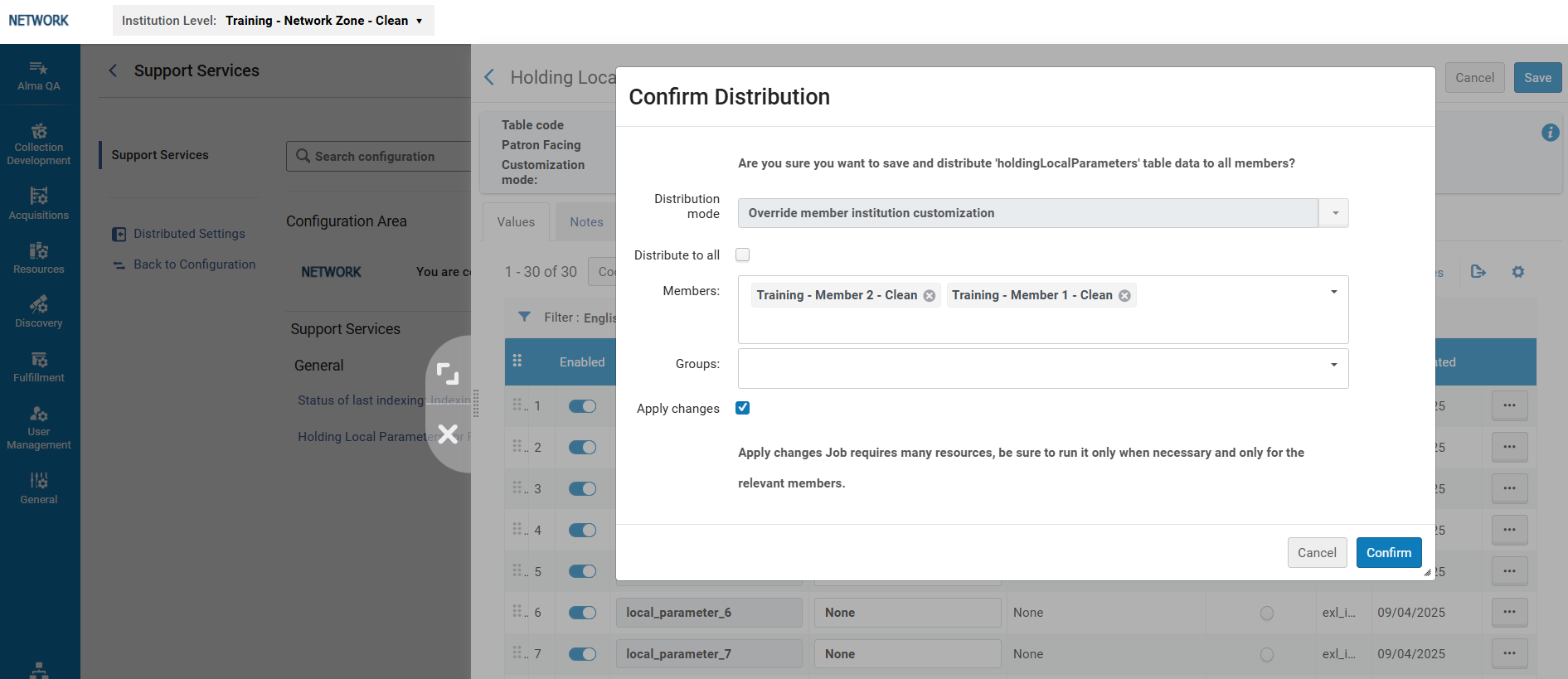
Distribution for bibliographic local parameters
- If a member was selected in the Institution Level drop-down list, the Network Zone administrator can update and save the parameters at the member level, and run the job that applies these changes to the analytics data by selecting the Apply changes button.
-
書誌ローカルパラメータでは、タグ値が10未満であれば例外がスローされます。
- When editing subfields after the tag, the subfield range or list must be written without spaces between them (for example,100 a-c,k,j-m, which has no spaces between the subfields).
レポートを所蔵するローカルパラメータ
This enables Consortia to add holding local parameters for reports and run the distribution centrally to the members.
レポートの所蔵ローカルパラメータの変更
-
In the Institution Level dropdown list, select your Network Zone.
-
必要に応じて表の情報を更新します。なお、表が一度も更新されていない場合(初期状態)、編集するために、まずカスタマイズボタンを選択する必要があります。
-
[保存]を選択します。次の2つのオプションが表示されます:
-
Select Apply changes in the row of buttons at the top of the table.これにより、アナリティクスデータに変更を適用するジョブが実行されます。変更はネットワークレベルで適用されますが、メンバーには自動的に配布されません。
-
全メンバーに配布を選択してください。A pop-up window opens, enabling you to choose a specific member/s or all members to distribute the changes to (see Consortia Central Configuration Dashboard).Ensure that the Apply Changes checkbox is selected in order to run the job that applies the changes to the Analytics data.
-
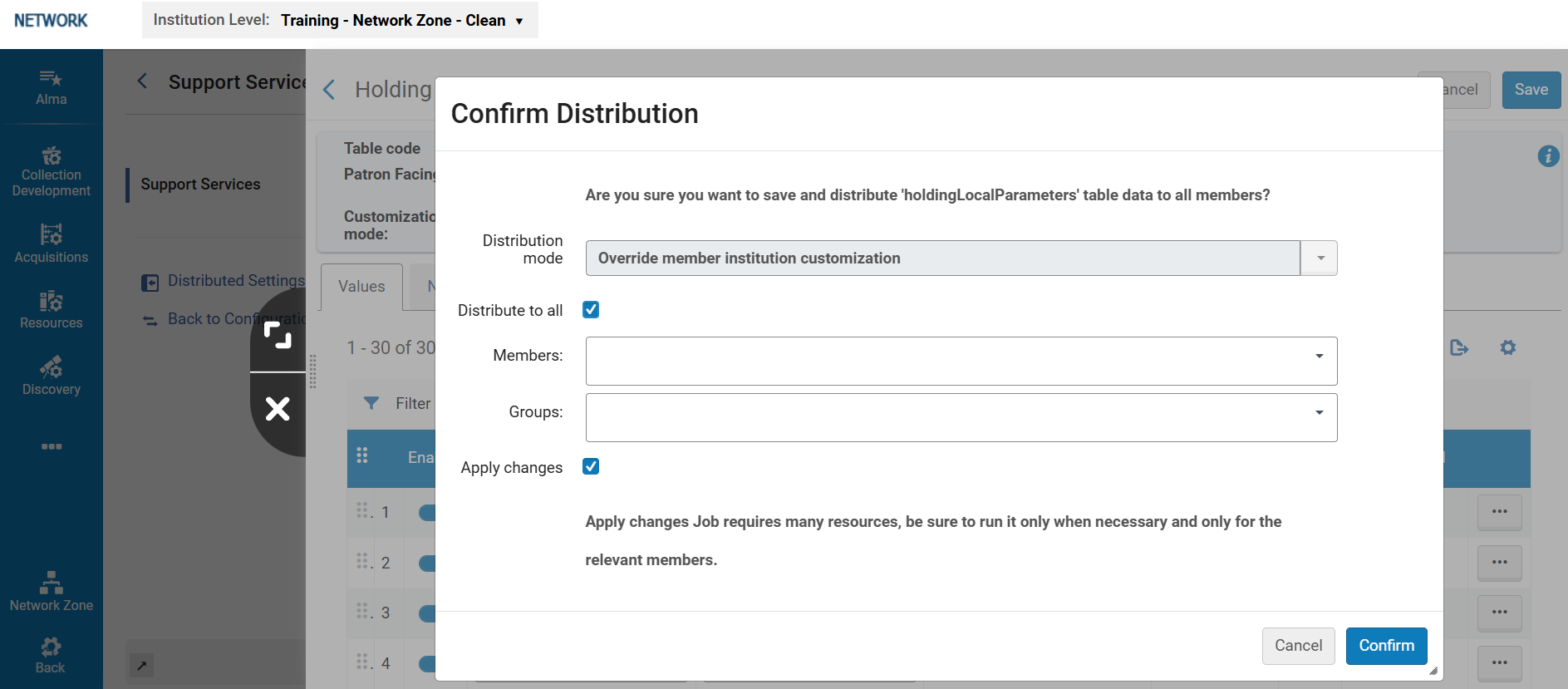
- If a member was selected in the Institution Level drop-down list, the Network Zone administrator can update and save the parameters at the member level, and run the job that applies these changes to the analytics data by selecting the Apply changes button.
- 所蔵ローカルパラメータには、検証は適用されません。
- When editing subfields after the tag, the subfield range or list must be written without spaces between them (for example,100 a-c,k,j-m, which has no spaces between the subfields).
ネットワークMMS検索
これにより、ネットワークゾーンのオペレーターは、IZ書誌レコードのMMS IDリストをアップロードし、それらがNZ書誌レコードにリンクされているかどうかを確認できるようになります。If yes, they can get the NZ MMS ID.If the Match on network MMS ID is selected, the network zone operator can upload a list of MMS IDs in the NZ, choose a member IZ, and get the corresponding IZ MMS IDs.
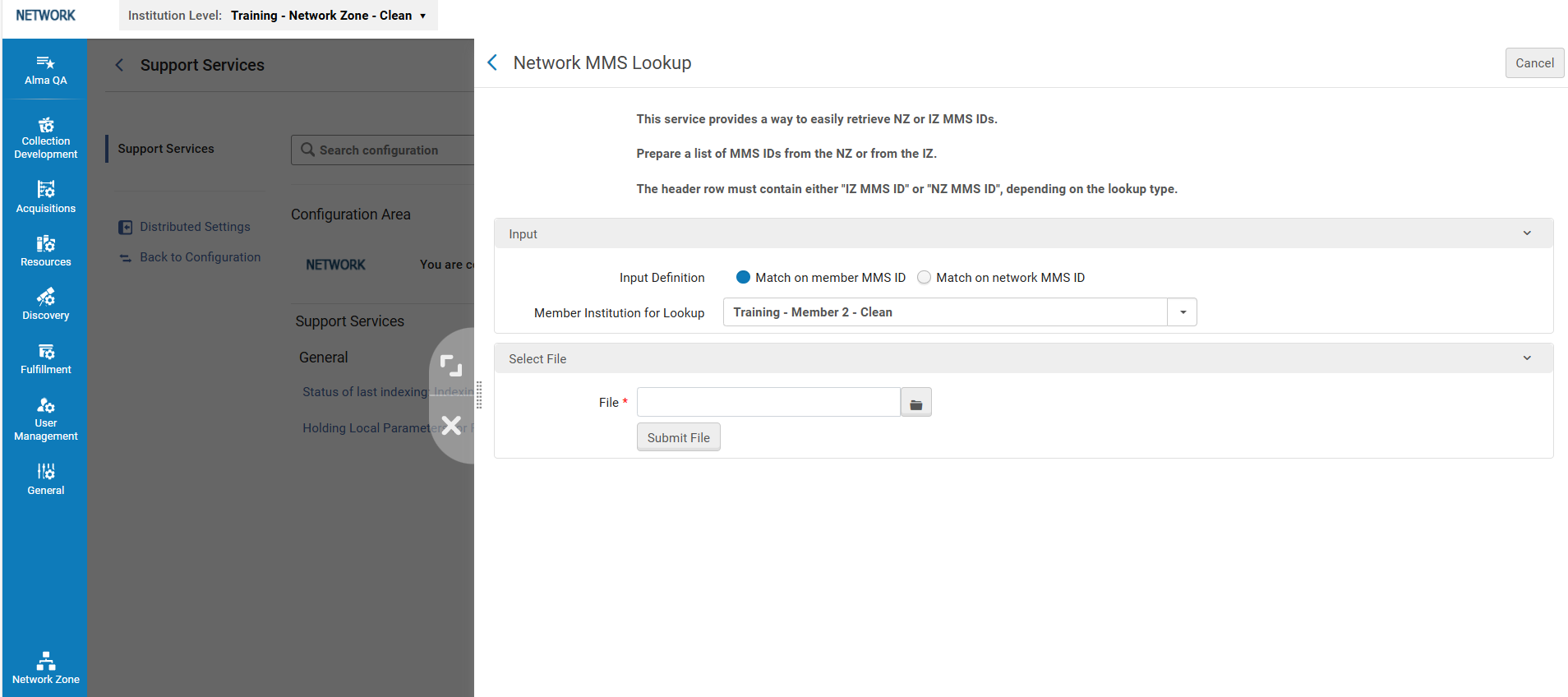
-
MMS IDを含むファイルを準備します。The IDs should come from either the Network Zone or the Institution Zone.Depending on where the IDs are from, the header row should contain either IZ MMS ID or NZ MMS ID.
MMS IDは同一機関のものに限ります。つまり、同一ファイル内に複数機関のMMS IDを提出することはできません。 -
入力定義では、ファイルのヘッダー行に入力したコンテンツに応じて、メンバーMMS IDで一致またはネットワークMMS IDで一致のいずれかを選択してください。
-
ルックアップ用にメンバー機関を選択します。
-
ファイルを読み込み、ファイルを送信を選択してください。Almaはデータを分析し、終了するとファイルをユーザーのコンピューターにダウンロードします。
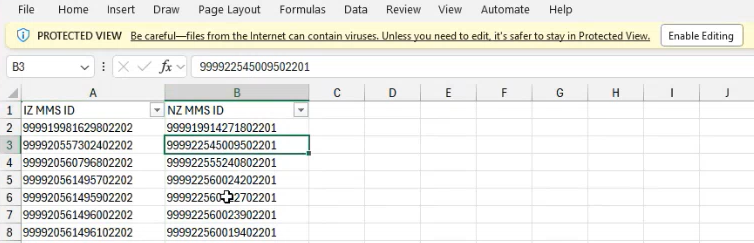
レポートには、ネットワークゾーンと機関ゾーンにリンクされたレコードが含まれます。一致するものが見つからない場合は、レポートにその旨が示されます。

ファイルサイズによっては、ファイルのダウンロードに先立ち、データの分析に時間がかかります。例えば、50,000件のMMS IDを含むファイルの場合、約30秒待たなければならないこともあります。
アイテムレベルのリクエスト
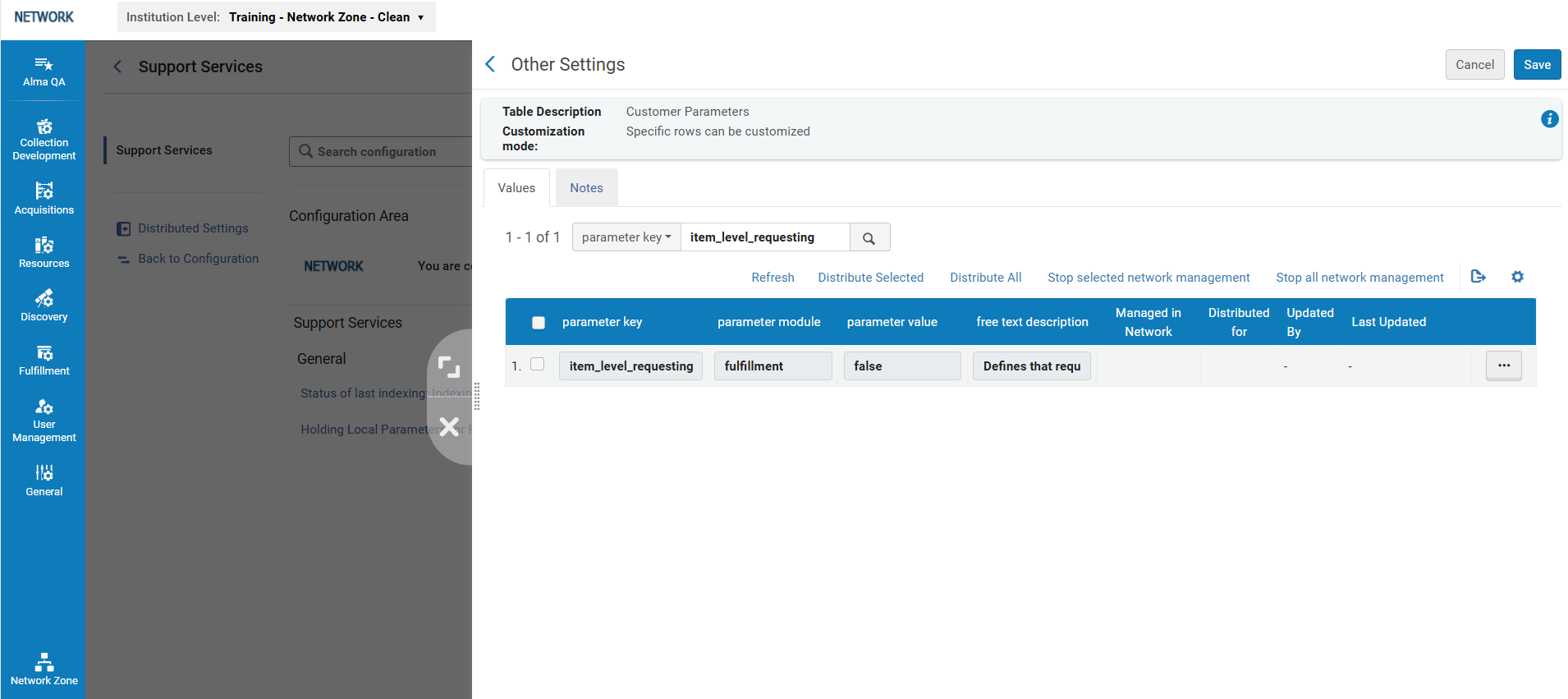
This parameter defines whether an item without a description is requestable from the item level link in the Primo Get It tab.真(True)に設定すると、資料リクエストはタイトルレベルのリクエストに取って代わります。If set to False, which is the default, items without descriptions are requested via title level requesting.
このパラメータを真(True)に変更すると、ユーザーはタイトルレベルからのリクエストを一切行えなくなります。For example, if a patron wants to request a book with 10 identical items, before updating this parameter, they would see a single request link, and Alma would resolve which item to select according to availability, etc. However, if the parameter is changed to True, the patron sees 10 request links and must decide which one to choose.どれを選択するかによって、待ち時間はさらに長くなる可能性があります。
ブロックされたアクションをブロックする
This table is used to configure the block actions that appear when adding user block definitions (see Configuring User Blocks).
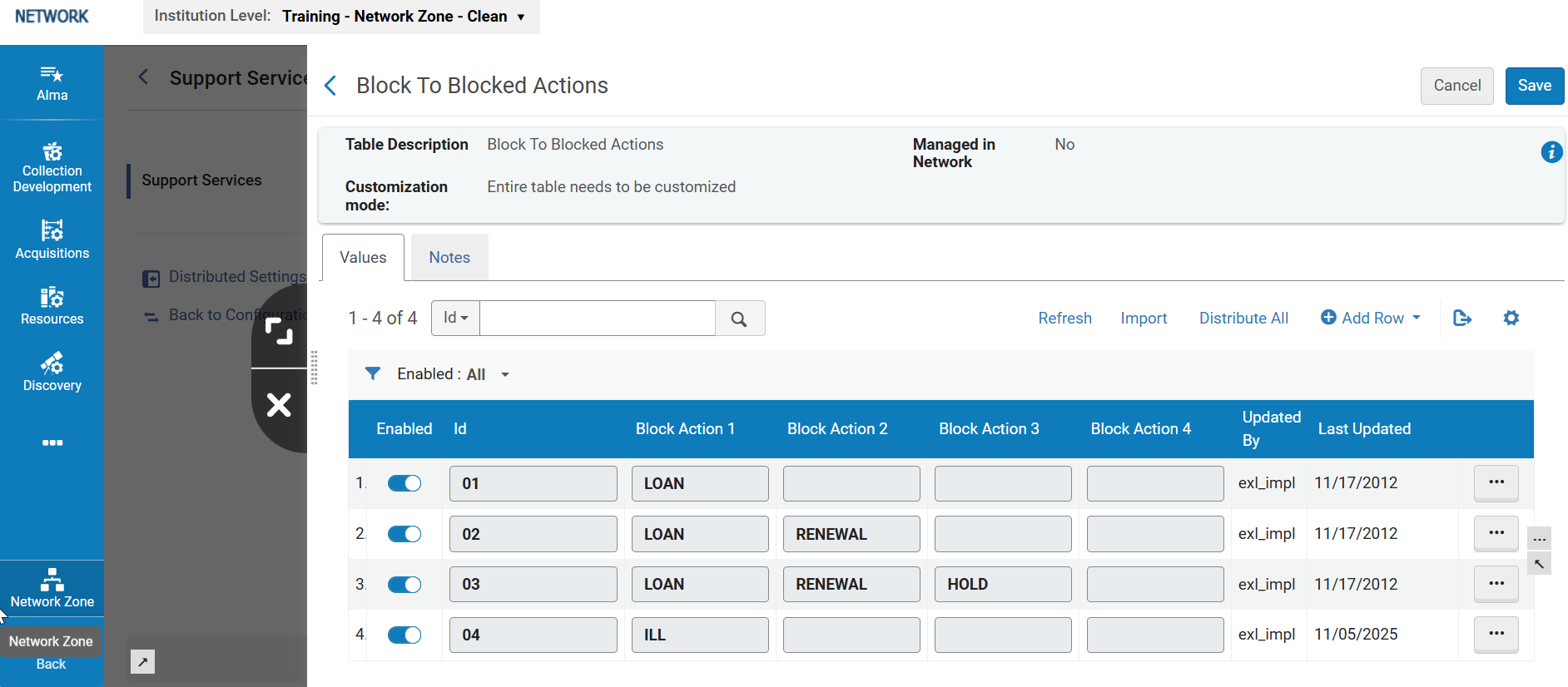
ブロックされたアクションをブロックする
LOAN - Loans are blocked
RENEWAL - Renewals are blocked
HOLD - Physical requests are blocked
ILL - Resource sharing requests are blocked
ブロックアクションは大文字で記述する必要があります。
Alma データアナライザーツール
概要
データ修正ツールを使用すると、Almaの書誌データと目録データのレコードに関する問題を分析および修正できます。This could be, for example, a bibliographic record that is found in Primo or analytics but not in Alma.データ修正ツールを使用した場合、MMS ID(レコード番号を参照)を入力すると応号が返されます。場合によっては、対処が必要な問題を修正することもできます。
このツールは、ネットワークゾーン管理者が機関ゾーンのデータを分析および修正するために使用されます。
For more information, see Record Numbers.
ツールの使い方
- Select the Alma Alma Data Analyzer Tool option from the Support Services page.
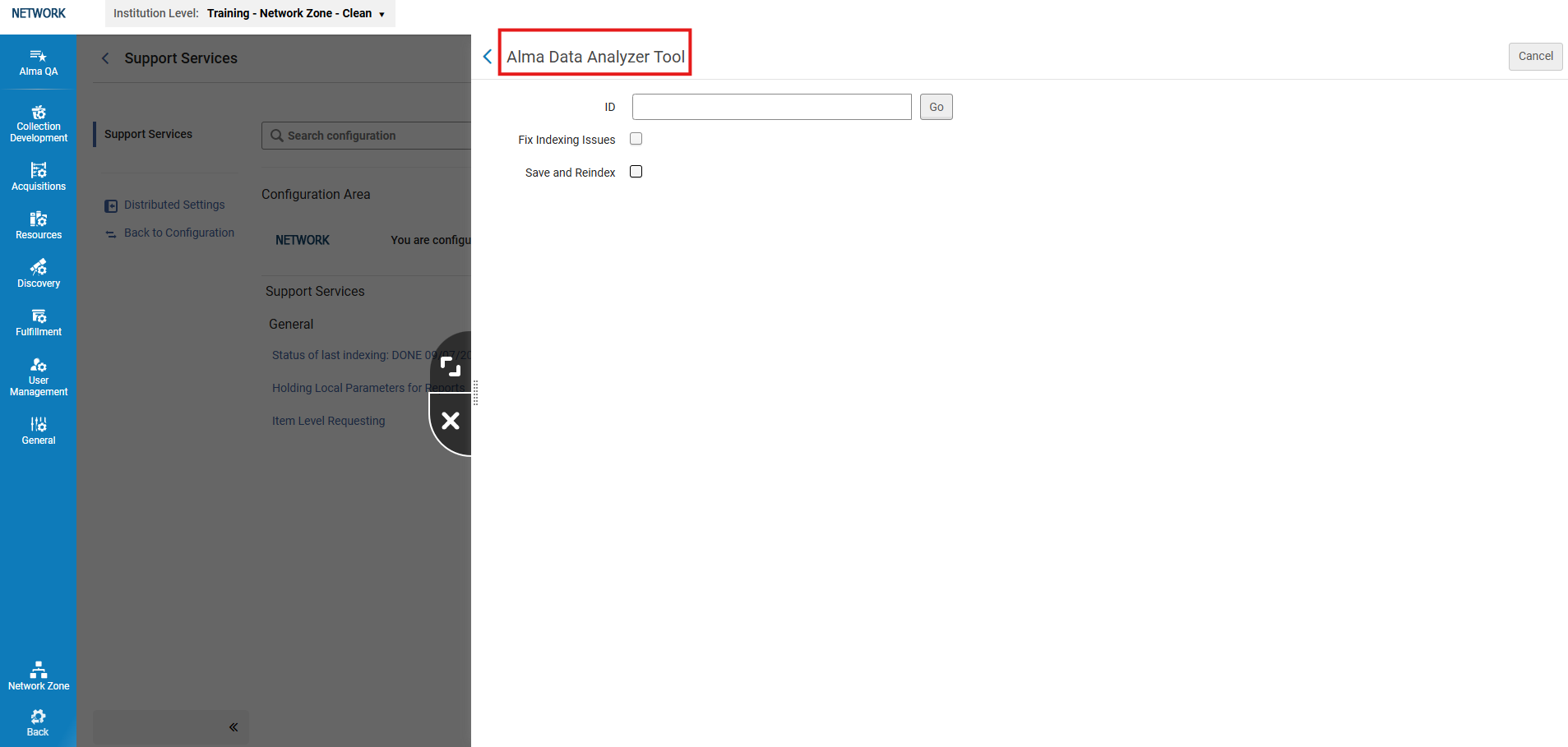 データアナライザーツール
- Enter the MMS ID(for the bibliographic or holding record) in the ID field.
- 必要に応じて次のオプションを選択します:
- Fix indexing issues — Fixes indexing issues for the MMS record.
- Save and Reindex — Saves and reindexes the MMS record.
- Select the Go button.
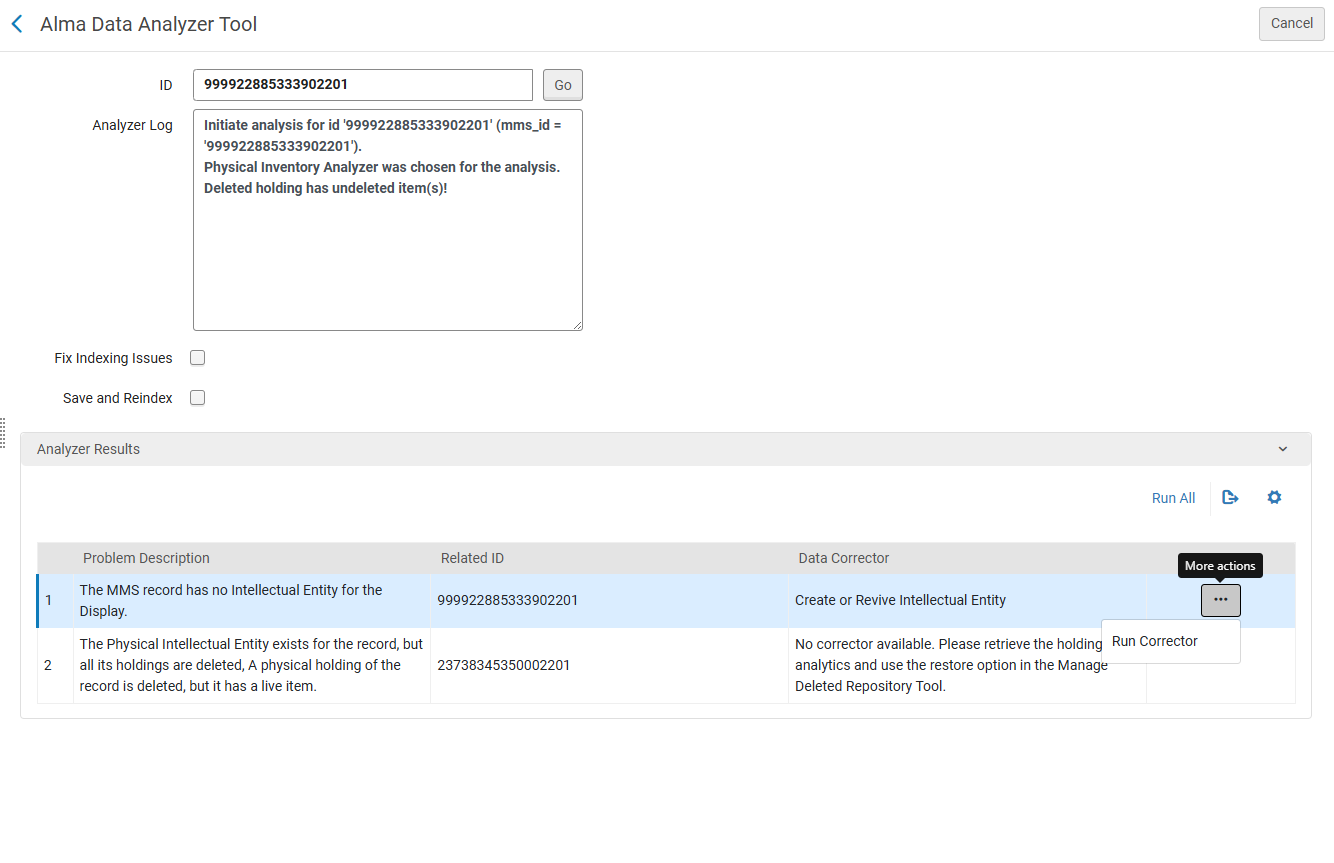 The following information appears on the screen:
- Analyzer Log - Displays the analyzed identifier and the type of analysis that was done
- アナライザーの結果
- Problem Description - Description of the problem found.
- Related ID - The ID of the record that was found by the tool to be the source of the problem.
- Data Corrector - The job that needs to be run to fix the issue.
- Select Run Corrector from the actions menu to run the job.
ツールが問題に対処するデータ修正ツールを検出できない場合、修正ツールを実行オプションは表示されません。
