
リソース共有ディレクトリへの提供
このページでは、メンバーの追加、物理的なアイテムの貸出ポリシータブ、メンバーの詳細の更新など、Almaのリソースシェアディレクトリへの貢献の概要を説明します。For more information on resource sharing including locating items for resource sharing, working with resource sharing partners, managing borrowing and lending requests and contributing to the resource sharing directory, see Resource Sharing.
リソース共有ディレクトリを構成するには、次のいずれかの権限が必要です。
- 統括管理者
- フルフィルメント アドミン
リソース共有ディレクトリとは何ですか?
このディレクトリは、Almaのリソース共有図書館に関する最新情報を提供する中心的な場所です。図書館はオプトインにより、いくつかの簡単な手順でディレクトリ内に自身を定義します。ディレクトリ内に存在していれば、他の図書館はあなたの機関を見つけて、簡単にピアツーピアのリソース共有関係を作成し、細かい技術的な接続を介したやり取りを軽減することができます。
ディレクトリでは、好みのスタッフインターフェイスごとにAlma接続またはILLiad接続を定義することができます。
For more information, see The Ex Libris Resource Sharing Directory.(5分11秒)
For more information on the various workflows for resource sharing, including broker and peer to peer based, managing resource sharing partners, borrowing/lending requests and contributing to the resource sharing directory, see Resource Sharing.
どのような手順ですか?
- 前提条件として、Almaで定義されたリソース共有図書館が必要です。これは1つの図書館にすることも、特定のニーズに基づいて多数にすることもできます。Almaの各リソース共有図書館には、ディレクトリ内に対応するメンバーが必要です。
- 最後に、参加アイテムをメンバーごとに定義する必要があります。
This content is for institutions that already have their resource sharing libraries defined in Alma.
メンバーを追加
機関に、個別に独立してリソース共有運用を管理する複数のキャンパス/図書館がある場合は、リソース共有図書館ごとにメンバーを1人のみ追加してください。
From the Resource Sharing Members page (Configuration > Resource Sharing > Members), select Add new member either from a New Resource Sharing Library or an Existing Resource Sharing Library.

See Lending Customization for more information about setting up Rapido members.
From the Resource Sharing Members page (Configuration > Fulfillment > Contribute to Resource Sharing Directory > Resource Sharing Directory Member), select Add new member either from a New Resource Sharing Library or an Existing Resource Sharing Library.
メンバー属性タブ
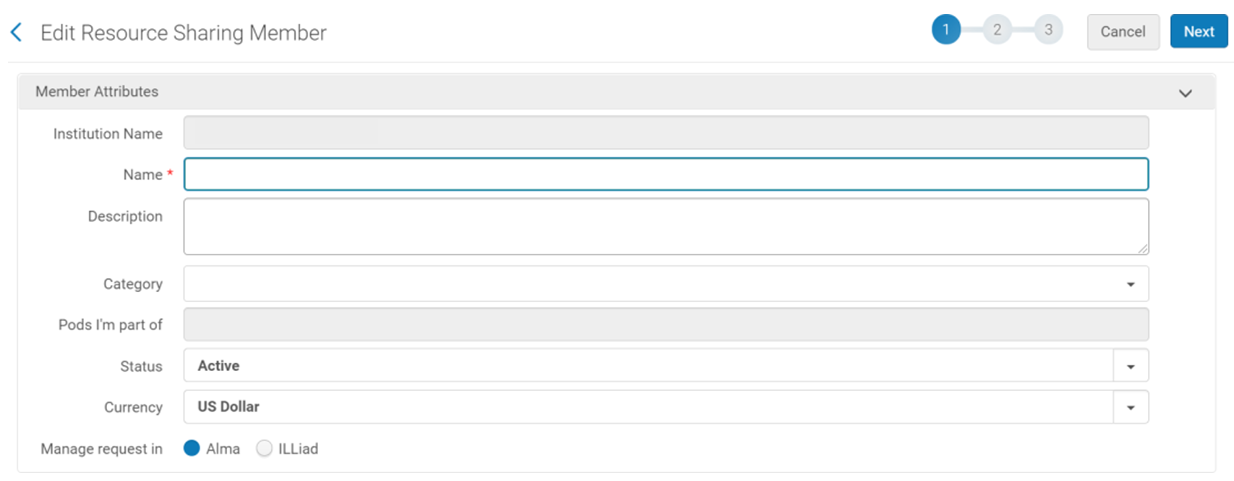
次のフィールドは、他の機関があなたを見つけて識別できるようディレクトリに表示されます。
- 名称
- Description – libraries can include instructions on how to communicate with them.この情報は、リソース共有パートナー リストのコミュニティタブ (フルフィルメント > リソース共有 > パートナー) に表示されます。
- Status – refers to the current status of the member (active/inactive).
Pods I'm part of is a field that is configured by the Ex Libris Resource Sharing team based on your participation in pods available in your region.Please contact Ex Libris if you would like to join a pod.
貴機関は、ポッドに参加するために Rapido を使用する必要はありません。
[リクエストの管理場所]を使用すると、AlmaまたはILLiadのどちらでILLリクエストを送受信するかを定義できます。
ILLiadを選択するときは、追加の接続の詳細を定義する必要があります。
Member Address- The address that is used for displaying the shipping address.配送先住所は、RS図書館の[連絡先情報]タブで定義されているものです。別の機関がリソース共有パートナーとしてあなたをダウンロードしたときにも、配送メールと配送電話が表示されます。Note that some information such as the shipping email address and ISIL code/ISO symbol, cannot be updated in this screen.They can be updated in the Contact Information page (Configuration > Fulfillment > Library Details > Contact Information tab), when in the scope of the Resource Sharing library.メンバーを追加したら、行アクション メニューからリソース共有ライブラリの編集を選択して情報を編集することもできます。
[物理的アイテムの貸出ポリシー]タブ
メンバーの詳細を入力したら、次のタブに移動します。
参加アイテムの定義では、貸し出したい物理的資料を示すことができます。
Properly defining participating items cuts down on staff time having to reject requests that are not lendable.
- [物理的なアイテムを提供する]は物理的アイテムを共有する予定がある場合はチェックする必要があります。
- 参加アイテムを追加します。
Selecting Add Participating Item opens the screen below.資料タイプ、アイテムポリシー、および場所に基づいて、リソース共有を承認した物理的資料を定義できます。
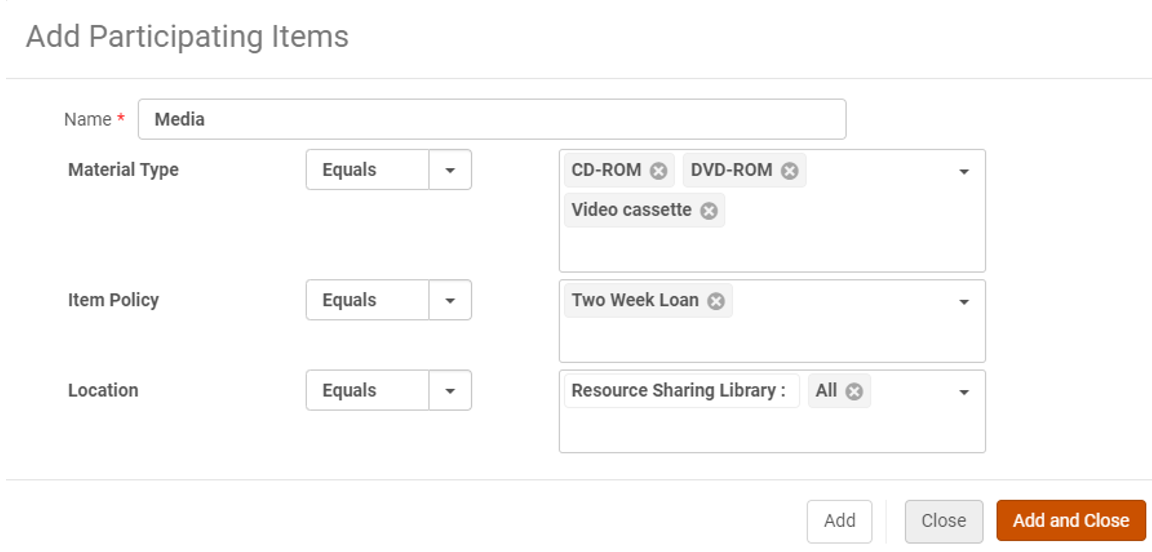
物理的アイテムは、[物理的アイテムを提供する]がチェックされている場合にのみ貸し出し可能です。
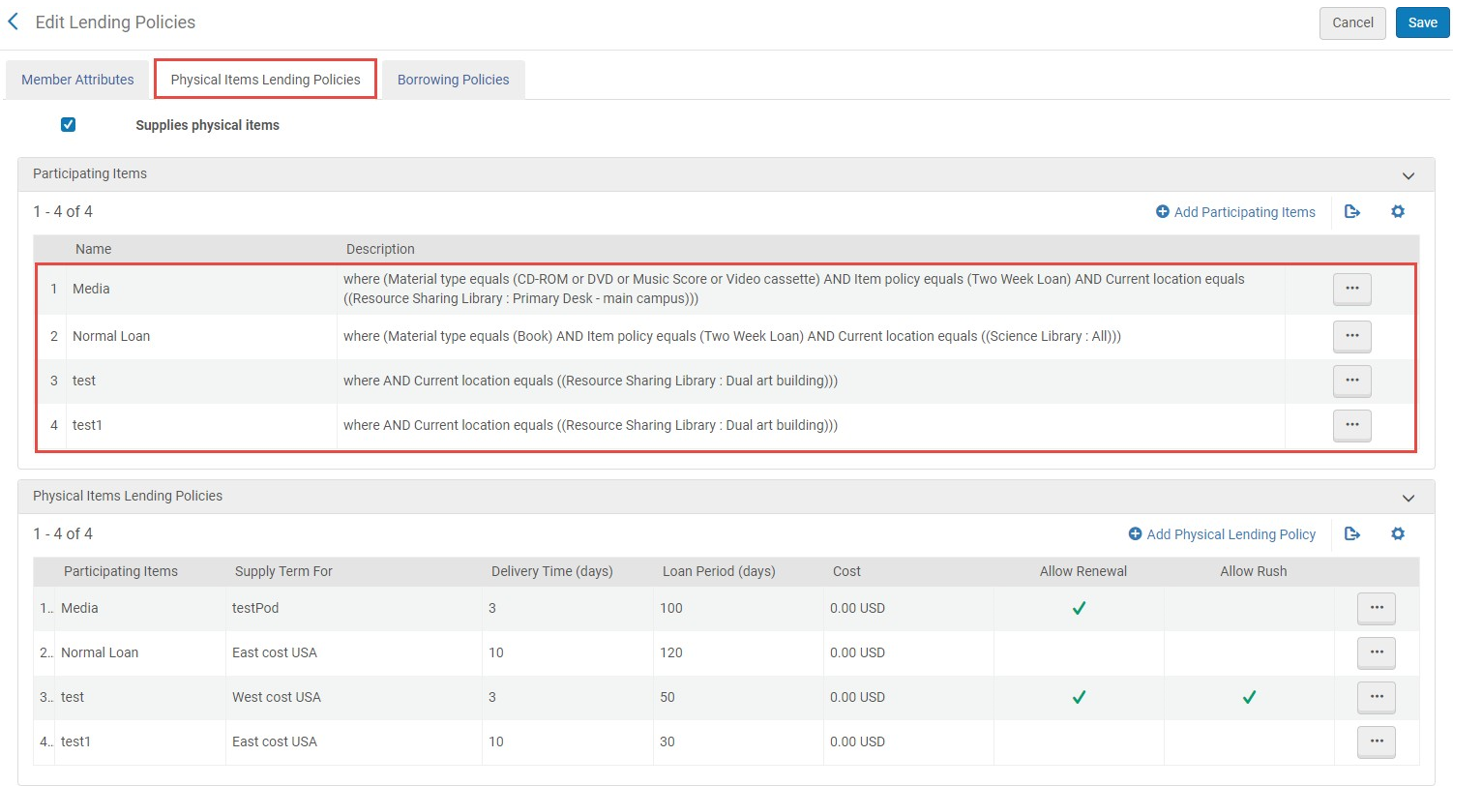
相互ポッドをリクエストして参加した場合は、参加しているアイテムをそのポッドにリンクする必要があります。This is complete when the pod appears under Pods I'm part of.
Updating Member Details in the Resource Sharing Directory
リポジトリ内の情報を変更する必要がある場合はいつでも、メンバーの詳細を編集できます。The directory automatically updates the following day.
更新は、Ex Libris Resource Sharing Directoryからダウンロードされたパートナーに配布されます。If an institution makes changes that impact the partner information in the Resource Sharing Directory (using the Edit Resource Sharing Library row action), such as email, address, etc., this information is updated on the partner record downloaded by other institutions.
Page tags: article:topicproduct:almacontent:Documentationlang:english
