
フルフィルメントネットワーク
ネットワークアクティビティを表示します。フルフィルメントネットワーク内のどこででも受け取りや返却を実行できます。
This page describes fulfillment networks including viewing network activity, the pickup anywhere workflow (item belonging to another institution in the fulfillment network to be picked up at yet a third institution in the fulfillment network) and Get It at other institutions.For information on automated fulfillment networks see Automated Fulfillment Network Requests (AFN).For more information on the various workflows for resource sharing, including broker and peer to peer based, managing resource sharing partners, borrowing/lending requests and contributing to the resource sharing directory, see Resource Sharing.
For working with the Managing Patron Services page (working with patrons, loans, returns, etc.) see Managing Patron Services at a Circulation Desk.
フルフィルメントネットワークとは、ネットワーク内の他の機関のユーザーにフルフィルメントサービスを提供するための事前定義された契約を結んでいるAlma機関のグループです。ユーザーは、ネットワークメンバーのコレクションを検索し、グループ内の機関から直接リソースをリクエストできます。リクエストされたアイテムは、ネットワーク内の任意の機関で貸出・返却できます。This lowers the library involvement for configuration, maintenance of supplier lists, and staff mediation of requests.The fulfillment network can be set up regardless of whether the fulfillment network partners work with a Network Zone.
Unlike the classic resource sharing model, in which a patron's home library serves as an intermediary in providing access to resources it does not own, fulfillment networks allow for direct interaction between patrons of one library and another library in the fulfillment network.フルフィルメントネットワークは、次のシナリオのサポートを提供します。
- ウォークイン貸与
- 直接リクエスト
- ネットワーク内のどこででも返却
- ネットワーク内のどこででも受け取り
- Primoのネットワークユーザーカード
In a fulfillment network, the resource owning library is the patron's service provider.リソース所有図書館は、貸与管理(延滞、紛失、更新など)、罰金/手数料関連の問題を含む、リクエストユーザーの貸与サイクルのすべての側面を直接管理します。ユーザーは、リソースを所有する図書館にリソースを直接リクエストします。ユーザーは、ユーザーのホーム機関、リソース所有図書館、またはフルフィルメントネットワーク内の別の図書館でのリソースの受け取りをリクエストできます。
直接リクエストを許可したいメンバー機関間で単一のPDSインストールが共有されていない場合、Primo設定が必要になる場合があります。
フルフィルメントネットワークには、次の追加属性があります。
- ネットワーク内の機関間で共有されるユーザー情報は限られます。
- The inventory of each fulfillment network member institution is discoverable by patrons of all fulfillment network members.
For information on configuring a fulfillment network or Pickup Anywhere/Return Anywhere, see Configuring Fulfillment Networks.
フルフィルメント関係は、ある図書館が同じ機関内の別の図書館に対して実行できるサービスを定義します。For more information see Configuring Fulfillment Services Between Libraries Within an Institution.
ユーザーのネットワークアクティビティの表示と操作
リンクされているすべての機関のアクティビティは、ユーザーサービスページで表示できます。The Network Activity tab contains the loan, request, and fines and fees balance data for the linked accounts for view purposes only.貸出リストとリクエストリストもエクスポートすることができます。
The Network Activity tab is visible only from the patron's home institution, if the institution is part of a fulfillment network, and the staff operator has the consortialservices privilege as a part of the following roles:
- 貸出・返却受付マネージャー
- 貸出・返却受付オペレータ
- 貸出・返却受付オペレータ - 限定
- ユーザーマネージャー
- ユーザー管理者
If the patron is a linked user (see Require manual linked account registration), the Network Activity tab is only visible if cross consortia identifiers are enabled (see How to Setup and Test a Fulfillment Network).
フィルタを使用すると、ユーザーは特定の機関またはこのユーザーのリンクされたアカウントを持つすべての機関の取引を選択できます。アクティブな貸与とリクエストはすべて、自動的に表示されます。このセッションの表示のみをフィルタ処理するオプションはありません。
ユーザーのネットワークアクティビティタブにアクセスする
ネットワークタブからは、リンクされたすべての機関のアクティビティを表示できます。
-
On the Patron Identification page (Fulfillment > Checkout/Checkin > Manage Patron Services), enter the patron's name in the Scan patron's ID or search for patron field and select Go.ユーザーサービスページが表示されます。プロキシユーザーを入力することもできます。For more details see Selecting a Patron.
-
左側のペインで、ネットワークアクティビティ タブのアイコンを選択します。
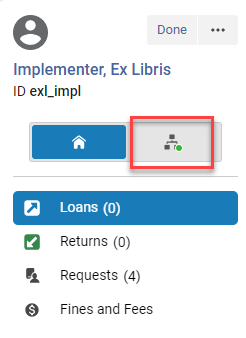 Note that a green dot on the tab indicates that actions (loans, requests, etc.) were done in the network.
-
The Network Activity tab appears with the Loans button selected.
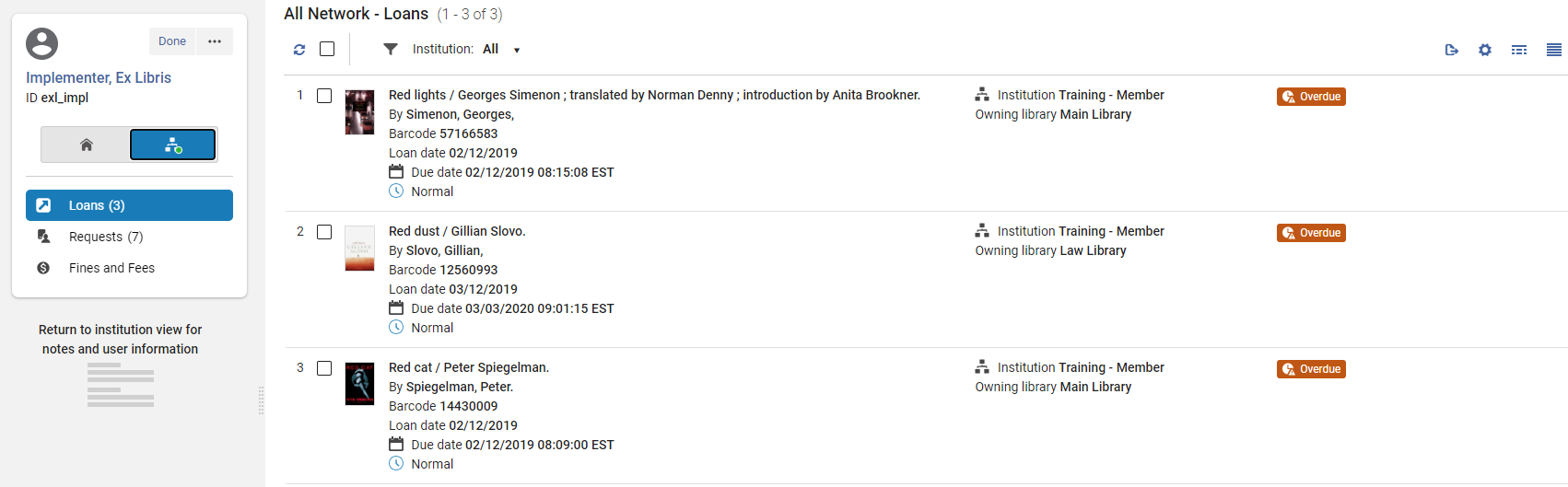 Only active tabs/activities appear, i.e., Returns are not diisplayed.
-
The user information and system notes are not displayed in the left hand pane of the Network Activity tab.
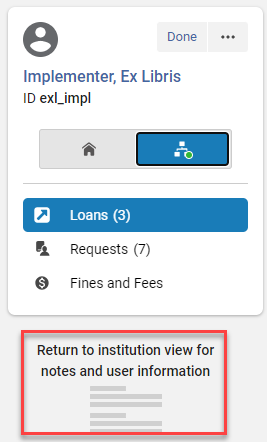
-
By default, the All institutions are selected.
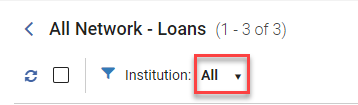
-
You can select from a list of institutions where the patron has active loans, requests or fees.Selecting All displays all the loans, requests or fees from all institutions.This is the default.
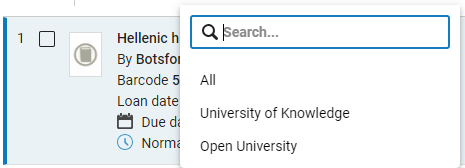
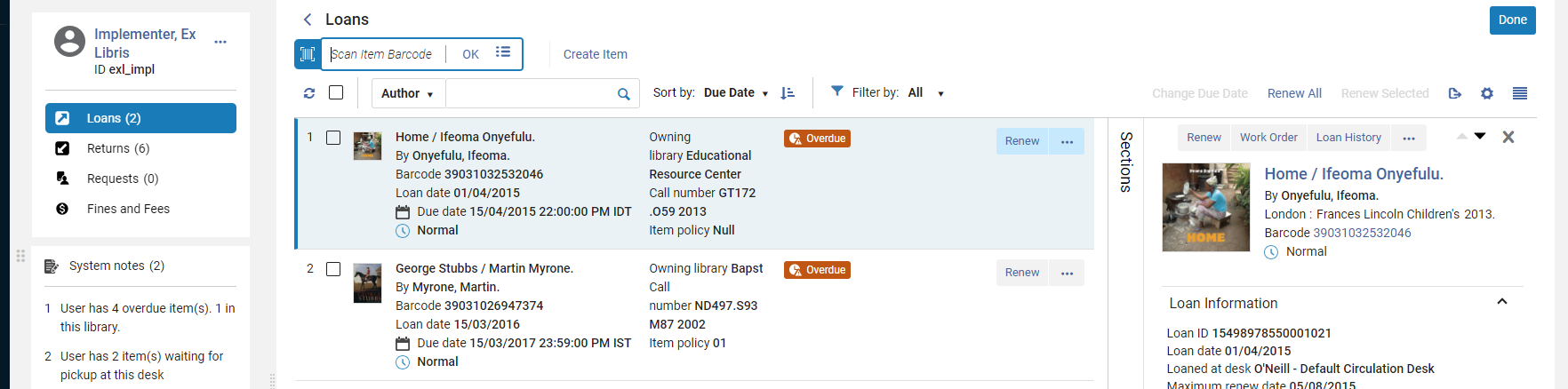
ネットワークアクティビティタブでユーザーの貸出を表示する
貸出は、ネットワークアクティビティ タブでデフォルトで選択されています。
-
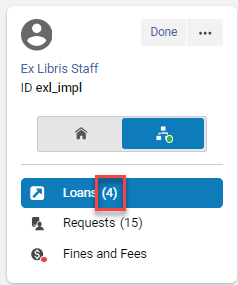
The number in the Loans button displays the number of loans in the selected institution or for All Networks if selected.
-
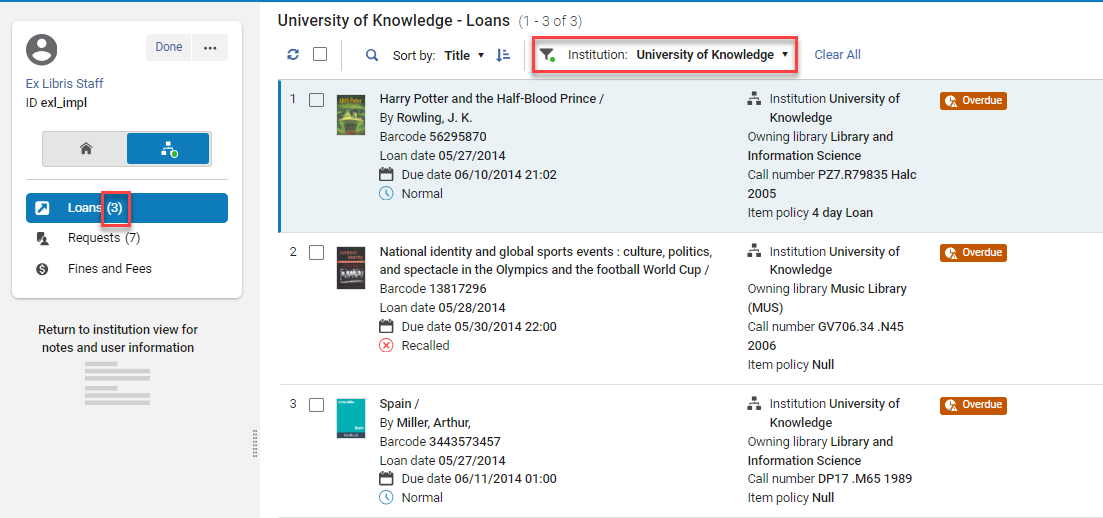
ジョブカテゴリでリストをフィルタリングできます。これを行うと、左側のペインにある選択した機関の貸出のカウンターが更新されます。
-
An additional field with the institution name appears for each loan.
 This field is customizable in the Record Customization menu (see Customizing the Display in Alma).
-
貸出を選択すると、アイテムのスキャンバーは表示されず、アイテムの作成オプションや行アクションはありません。
ネットワークアクティビティタブでユーザーリクエストを表示する
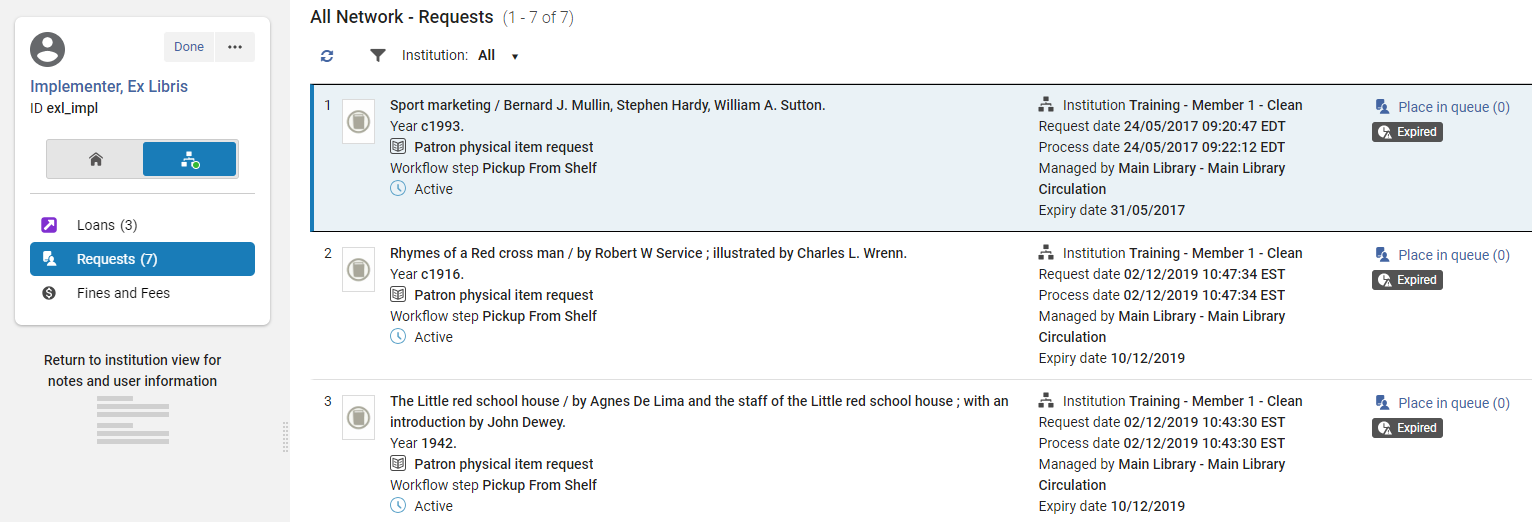
ネットワーク アクティビティ タブで リクエスト ボタンを選択すると、フルフィルメントネットワークで利用者のリクエストが表示されます。
-
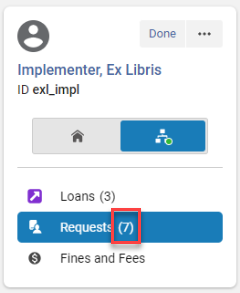
The number in the Requests button displays the number of requests in the chosen institution or for All Networks if selected.
-
An additional field with the institution name appears for each request.
 This field is customizable in the Record Customization menu (see Customizing the Display in Alma).
-
When Requests is selected there is no Create item option or row actions.
-
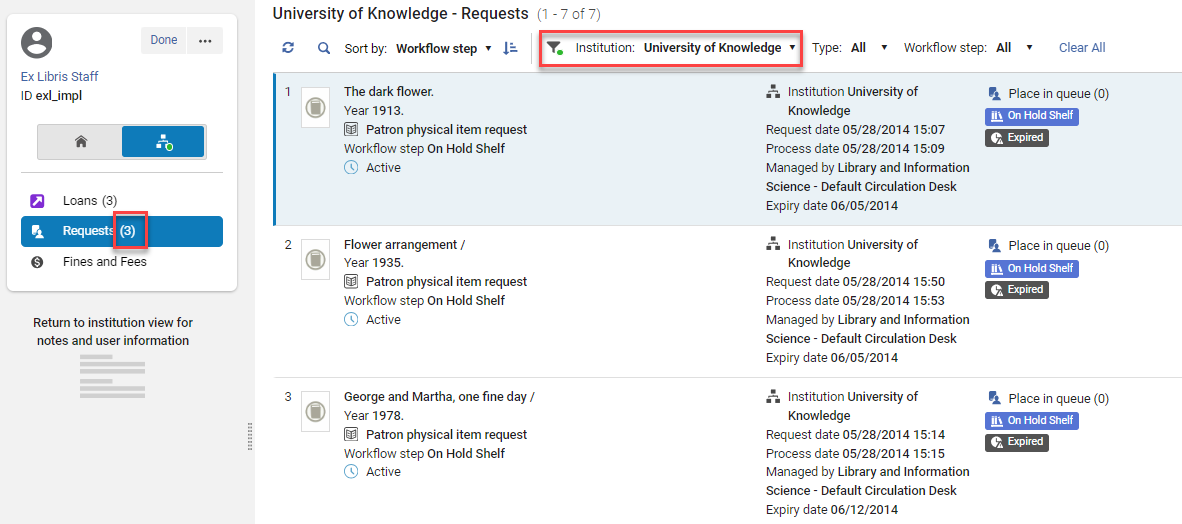
ジョブカテゴリでリストをフィルタリングできます。When doing so, the counter for the requests in the left hand pane is updated for the selected institution.
ネットワークアクティビティタブで罰金と手数料を表示する
ネットワークアクティビティタブで、罰金と手数料ボタンを選択するとフルフィルメントネットワーク内のユーザーの罰金と手数料が表示されます。
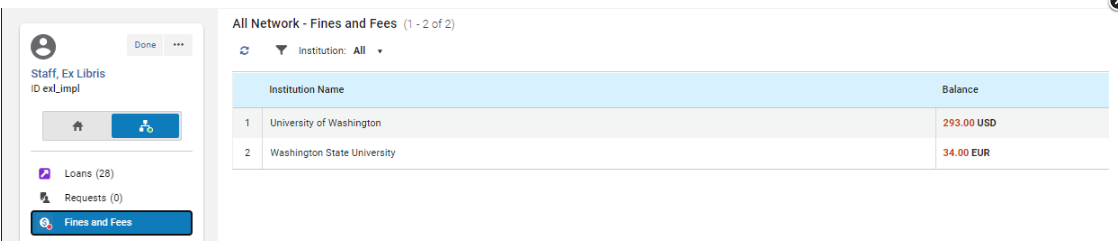
-
The Fines and Fees button displays a content indicator if fines/fees exist for the patron.
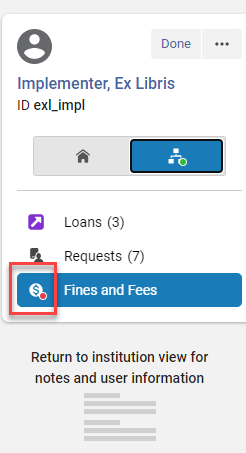
-
ネットワーク アクティビティタブで罰金と手数料を選択した場合、アイテムの作成オプションや行アクションはありません。
ユーザーネットワークアクティビティタブの表示をカスタマイズする
For instructions on customizing the display see Customizing the Display in Alma.
ネットワークアクティビティタブのカスタマイズは、メインのユーザーサービスページの表示のカスタマイズや変更には影響しません (また、影響も受けません)。
ユーザーネットワークアクティビティタブの表示の切り替え
For instructions see Views.
ネットワークアクティビティタブからレコードをエクスポートする
For instructions see Exporting Records to Excel.
ウォークイン貸与
ウォークイン貸与とは、別の機関のユーザーがリソース所有機関からアイテムを借りることです。For details see Registering Patrons from Other Institutions in the Fulfillment Network.
どこでも受け取りワークフロー
フルフィルメントネットワーク内でのリクエストの作成は、受け取りロケーションがユーザーネットワーク、リソース所有図書館またはフルフィルメントネットワーク内の別の図書館であっても、通常のフルフィルメントプロセスと本質的に同じプロセスです。リクエストの作成と実行に関係するページは同じですが、さまざまなドロップダウンリストとチェックボックスで提供されるオプションに違いがあります。The process may be just between the patron's home institution and the resource owning institution or the pickup of the requested resource may also take place at a third institution within the network.これはすべて標準のワークフロー内で処理されます。For information on configuring Pickup Anywhere, see Configuring Pickup Anywhere/Return Anywhere.
ネットワーク内どこでも受け取りのアイテムのリクエスト
The scenario below describes the workflow where a patron from one institution in the fulfillment network requests an item belonging to another institution in the fulfillment network to be picked up at yet a third institution in the fulfillment network.このワークフローは、機関間のリクエスト、貸与、および返却のアクションを示しています。
For more information about pickup anywhere in fulfillment networks, see the Enhancements to Fulfillment Network video (1:41 min).
To request a pickup from a different institution, the patron signs in to Primo, searches for a resource, and selects from a list of institutions that have the resource available.ユーザーは、許可された受け取り機関のリストから選択し、リクエストを送信します。
ユーザー情報とリソースリクエストは、リソースを所有する図書館にコピーされます。Staff operators at that library see the requested pickup library in their task lists and pick slips.
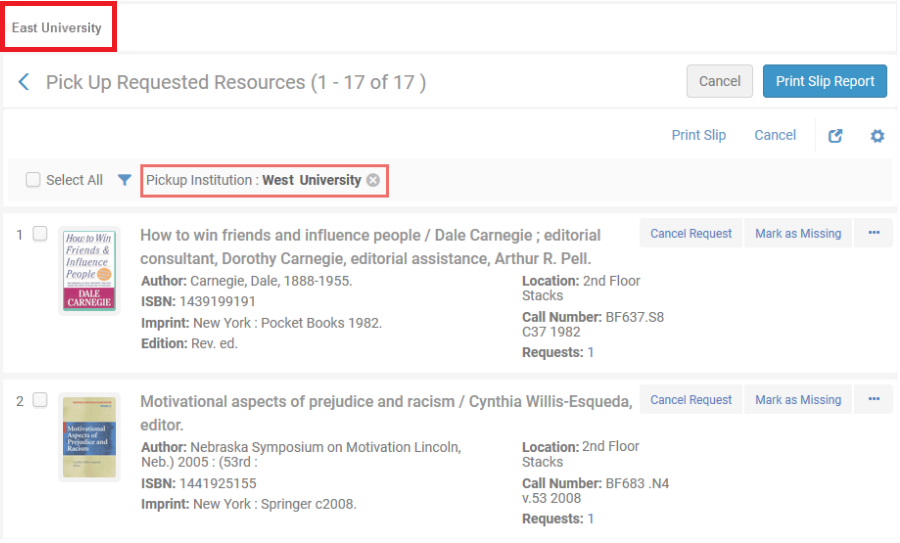
アイテムは、リソースを所有する機関によってスキャンされ、宛先が表示され、リソースを所有する機関から受け取り機関へのアイテムの通過が行われます。
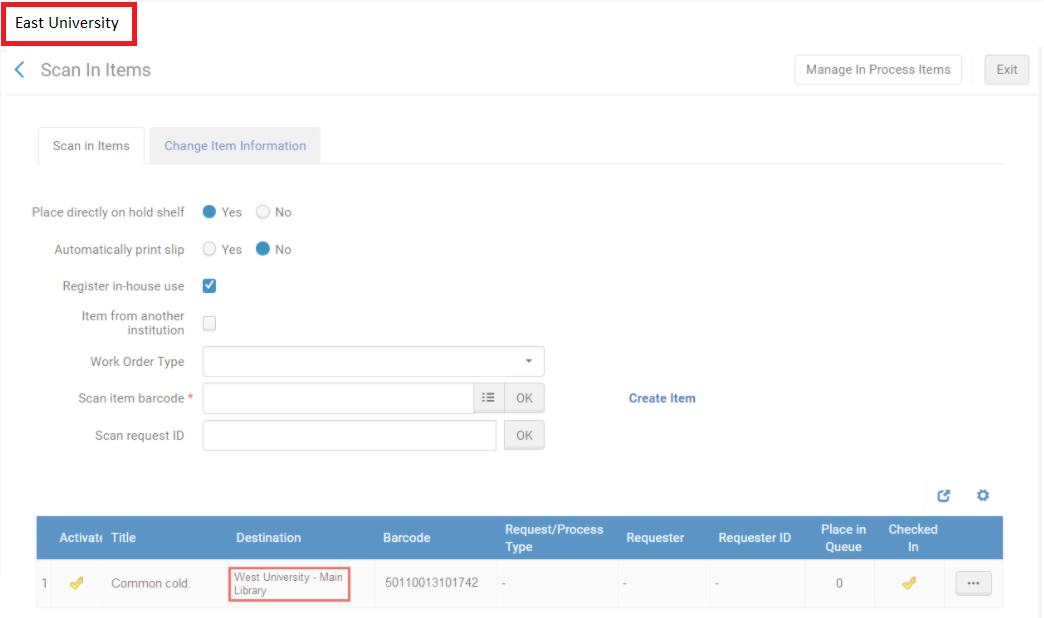
アイテムは、所有機関が選択された状態で受け取り機関で受け取られ、スキャンされます。
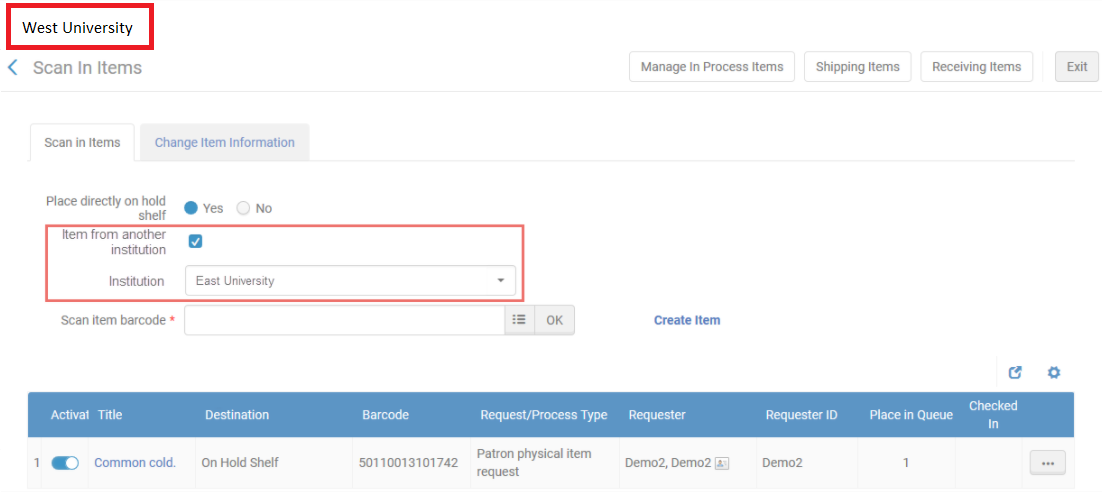
ユーザー情報は、受け取り機関によって自動的に取得され、ユーザーにはリクエストが受け取り可能であることが通知されます。ユーザーにアイテムを貸与する際、受け取りロケーションの貸出・返却デスクのスタッフオペレータは、ユーザーサービスページで所有図書館を選択し、ユーザーにアイテムをチェックアウトします。残りの貸与ライフサイクルは標準的なプロセスになります。
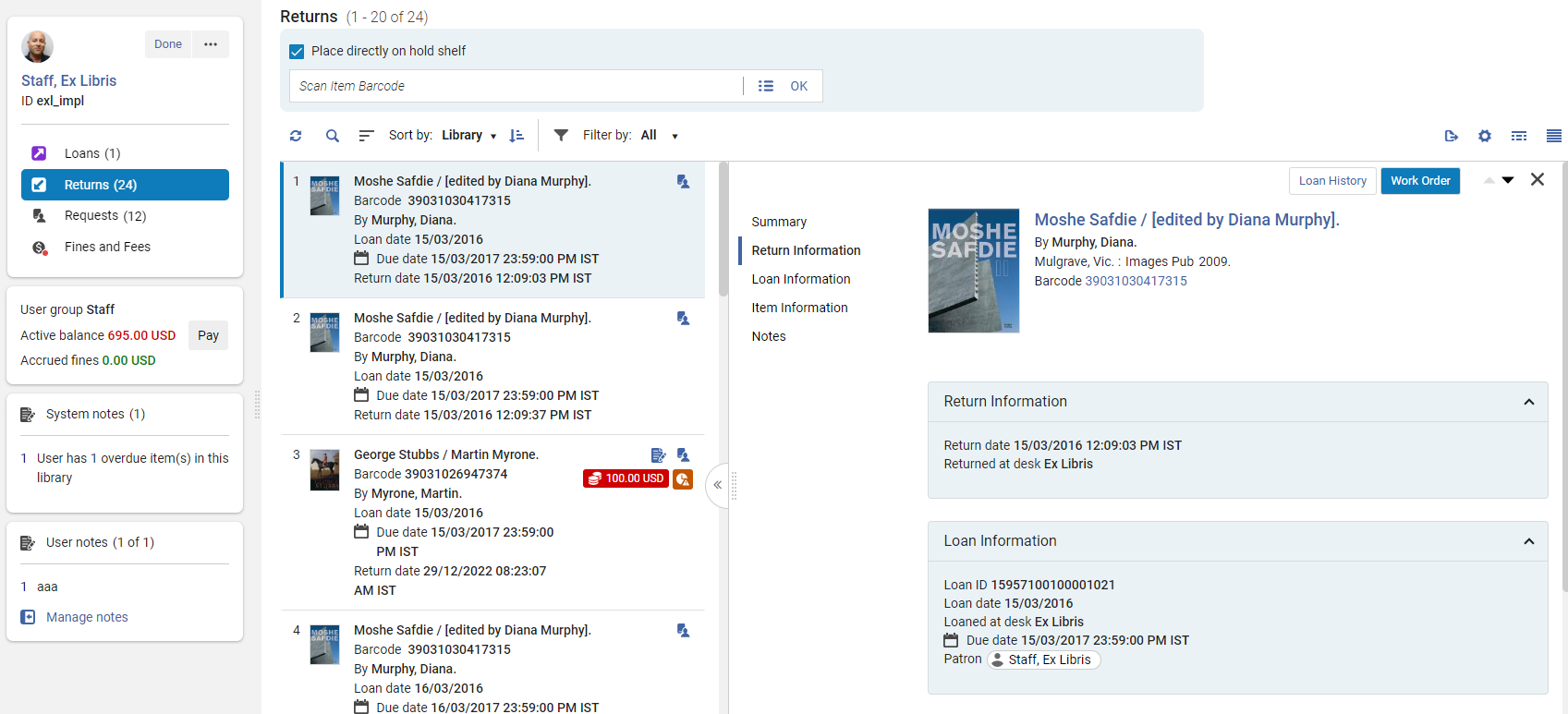
When the patron returns the resource to the pickup institution, the item is scanned as usual with the resource owning institution selected on the Manage Item Returns page.アイテム返却の管理インターフェイスは、アイテムの次のステップが所有機関への返却のための通過であることであることを示します。
他の機関での入手
ネットワーク目録の表示は、すべての機関が参加する共有ネットワークゾーンに基づいている場合と、ネットワークゾーンを使用していない検出ネットワークに基づいている場合があります。See Overview of Collaborative Networks with Primo VE for more information on the shared discovery options.
When the institution is part of a network, Primo will expose the discovered record's inventory at the patron's institution, as well as at other institutions of the network.The home institution's inventory and the network institutions' inventory are displayed in separate sections, as shown below.
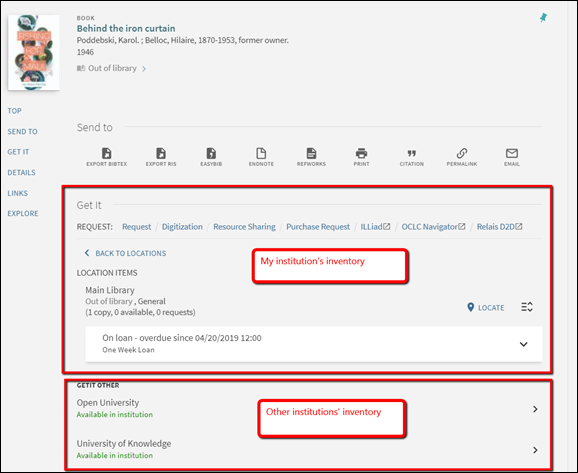
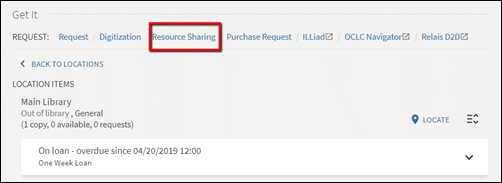
Other institutions' inventory may be displayed without allowing the patron to directly request the other institutions' resources.たとえば、機関がリソースシェアまたは自動フルフィルメントネットワークを実装している場合、ネットワークリクエストはリソース共有リンクを介して送信されます。
Alternatively, the institution may allow the patrons to navigate into the other network members' inventory information and directly place a request.
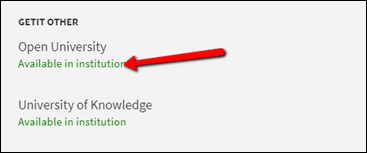
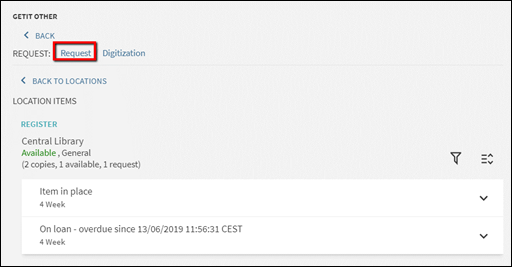
以下は、機関がネットワークリクエストのためにセットアップする可能性のあるサービスタイプの一部です。
Expose other institutions' availability only
このモデルでは、ホーム機関が検出されたリソースの利用可能なコピーを保持している機関に関する情報のみを公開することを決定します。The institution may decide not to allow the patrons to further navigate into every institution's holdings information.これには、フル表示ページでのナビゲーションが少なくなるという利点があり、複数のオプションによって引き起こされる可能性のある混乱を最小限に抑えます。このセットアップでは、ユーザーは機関が利用可能なコピーを所有している、または所有していないことのみを確認し、リクエストする際に常に同じリソース共有リクエストのリンクを使用します。機関で利用可能テキストのリンクを無効にすることができます。Please consult Primo configuration guides for achieving this type of set up.
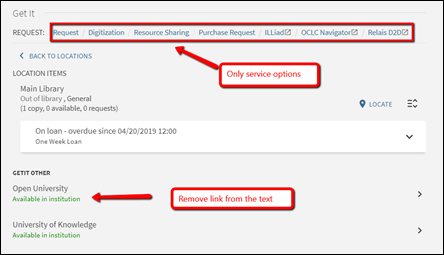
Expose other institutions' holdings
In this model the home institution may decide to expose, in addition to information about which institution holds available copies of the discovered resource, also where the inventory is found, but not allow directly requesting the remote institutions' items.This would be a classic setup where the institutions allow patrons of one another to walk into each other's library and use the on shelf items, but require that the requesting be done only using the Resource Sharing option from the local inventory display.
As is shown below, in this setup the Available in institution text does allow navigating into the network institutions' inventory, but the remote institution's Get It information is shown without the patron being automatically logged into that institution.これにより、以下が発生します。
-
リモートの[入手する]にはリクエストオプションはありません。
-
The loanability information is either loanable or not loanable, and is calculated using the same procedures that are used for determining potential loanability when the patron is not logged in.
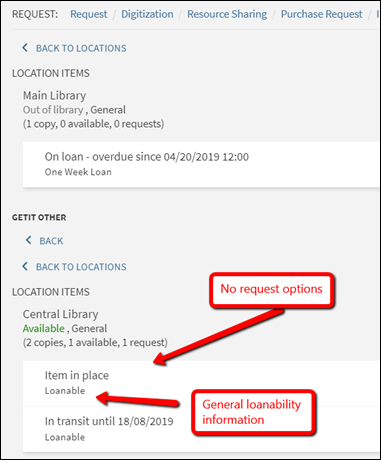
This is achieved by setting the uresolver_remote_register parameter to None in the Configuration Menu > Fulfillment > Other Settings page.このパラメーターは、リモート機関(つまり、ユーザーのホーム機関ではない機関)に適用されることに注意してください。

Allow directly requesting other institutions' holdings
機関はどの機関が検出されたリソースの利用可能なコピーを保持しているかだけでなく、目録が見つかったが、リモートアイテムに直接リクエストを出すこともできるのはどこであるかを公開する場合があります。これは、機関がリソース共有や自動フルフィルメントネットワークベースのロータを利用せず、ユーザーが他の機関のアイテムを直接見つけて直接リクエストできるようにする場合の標準セットアップです。
リンクされたアカウントの手動登録を要求する
It is possible to set Alma so that when the patron chooses to display a remote institution's Get It information, the default view will be as for a non-logged user.Almaはリモート機関でリンクされたアカウントを自動的に作成しないため、詳細な利用規約は表示されず、リクエストオプションも表示されません。A ‘Register' option will allow the patron to explicitly request to create a linked account.
このタイプの設定は、リンクされたアカウントが、ユーザーが明示的にそれらを作成するようにリクエストしたときにのみ作成されるようにするために実行できます。これはプライバシーに関する考慮事項に役立つだけでなく、ユーザーが実際にローカルリクエストを作成する必要がない限り、複数のリンクされたアカウントが作成されないようにすることができます。
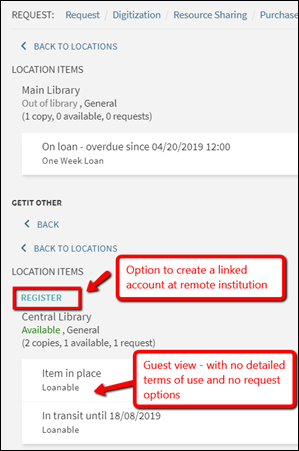
Using the ‘Register' option creates the linked account and reloads the remote Get It information with detailed terms of use and with request options, after having created the linked account.
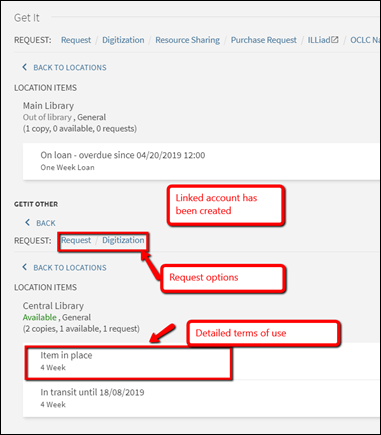
To do this, set the uresolver_remote_register parameter to Manual in the Configuration Menu > Fulfillment > Other Settings page.このパラメーターは、リモート機関(つまり、ユーザーのホーム機関ではない機関)に適用されることに注意してください。
リンクされたアカウントの自動登録を許可する
Set the uresolver_remote_register parameter to Auto to skip the Register step and always automatically create the linked account at the remote institution.このセットアップにより、リクエストプロセスが合理化され、リクエストオプションの前に手動で登録する必要がなくなりますが、リクエストオプションを表示するためにユーザーがナビゲートしたすべての機関で複数のリンクされたアカウントが作成される場合があります。
Page tags: article:topicProd:Almacontype:documproduct:almacontent:Documentationlang:englishFulfillment Networkpickup anywhererequest item for pickup anywhere
