Configuring Course Behavior
You can configure how courses appear in Leganto. You can also configure whether instructors can modify courses by setting the modify_course_details (Configuration > Leganto > Features > Leganto Features) to true or false.
Configuring How Courses Appear in Leganto
When course names are displayed instead of course codes, the course code continues to appear in a tooltip.
Set the parameter course_display to name or code(Configuration > Leganto > General > Settings).
Set the parameter display_cms_id (Configuration > Leganto > LTI > Settings) to true (displays searchable ID when arriving from the CMS; display the course code when logging in to Leganto directly or from Alma) or false (display course code in all cases),
Creating Courses Automatically from an LTI Link
After selecting an LTI link for a course that has not been created yet in Leganto, you must first create the course before you can create a list. You must enable this functionality if you want the course created automatically when an LTI link is selected.
-
Set the create_course_automatically field to true in the Leganto Customer Settings mapping table (Configuration > Leganto > LTI > Settings). When set to true, the code and name fields automatically populate using the default processing department and default start and end date parameters.
-
Configure the default_processing_department field in the Leganto Customer Settings mapping table (Configuration > Leganto > General > Settings).
-
Edit your LTI tool's integration profile for your CMS (Configuration > Leganto > LTI > Integration Profiles). The new Course Name Field Name field appears in the Actions tab under the LTI Definitions section.
-
Specify the parameter that holds the course name in the LTI tool.
-
Save your changes to the integration profile.
Creating Courses Manually from an LTI Link
Leganto supports manually creating courses from an LTI link. When the lms_create_course (Configuration > Leganto > LTI > Settings) parameter is set to true, and the parameter create_course_automatically (Configuration > Leganto > LTI > Settings) is set to false, and the parameter default_processing_department (Configuration > Leganto > General > Settings) is set, instructors accessing an LTI link for a course that does not yet exist in Alma can create the course manually.
When logging in to your LMS, instructors are prompted to create a list from scratch or from an existing list, according to configuration. After making a selection, instructors are then prompted to fill in or confirm the course details. After the course information is entered, the course is created in Alma and the instructor moves to the next screen.

Managing Multiple Courses for Lists
You can enable lists to be associated with multiple courses. When enabled, instructors can associate lists to multiple courses in Leganto. In Alma, librarians can do the same.
When enabled, all associated courses appear in a list's Course Code and Course Name fields, in any other place in Alma that lists the course(s) associated with the list. If the list is too long to display, the full list appears in a tooltip. The total number of participants for a list is the total for all courses associated with the list.
Selecting Associate this list with a course on the Course's Reading List or Reading Lists Task List pages opens the Courses tab on the Edit Reading List page.
Selecting Remove associated course on these pages opens the Courses tab on the Edit Reading List page ONLY if there are multiple courses associated with the list (so that you can select which one to remove). If there is only one course associated with the list when you select this option, that course is simply disassociated with the list, as usual.
Enabling Multiple Courses for Lists
When configured, you can associate multiple courses with a list.
Set the parameter multicourse_lists in the customer parameters table (Configuration > Leganto > General > Settings) to enabled.
Adding and Removing Courses from a List
You manage the courses associated with lists in the Courses tab on the Edit Reading List page (see Managing Reading Lists).

In this tab:
- To associate a course to the reading list, select Associate Course, select the course and select Associate Course.
- To remove a course association, select Remove Association in the row actions list for the course.
Indicating that Courses Deliberately Have No List
You can add a No list expected indication to a course to alert the librarian that this course deliberately does not include a list. You can also do so if you are working from an LMS (see Marking a Course as Not Expected to Have a List in the LMS).
Lists can still be added to courses with the No list expected checkbox checked.

The No list expected column indicates which courses have the No list expected checkbox checked.
The No list expected column is hidden by default. To show the No list expected column, select the column from the Manage column display list.
list.

If the librarian selects the Leganto create list - reminder email action for a course that has the No list expected checkbox checked, the librarian can still send the reminder email, but an alert appears indicating that This course is marked as 'No list expected'.

When duplicating a course that has the No list expected checkbox checked, the No list expected checkbox is checked on the duplicated course.
When rolling over a course that has the No list expected checkbox checked, the No list expected checkbox is checked on the rolled over course.
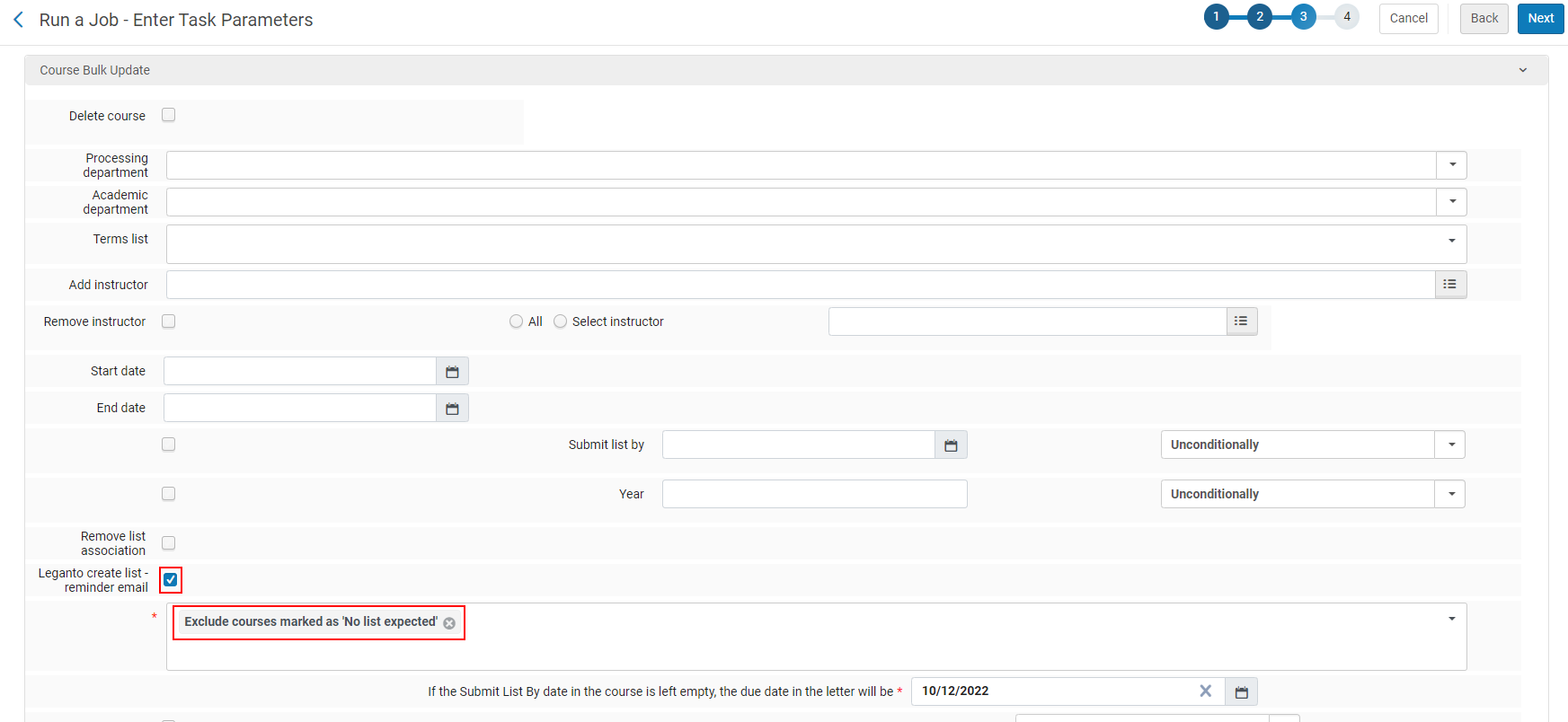
The Course Bulk Update job (Admin > Manage Jobs and Sets > Run a Job) includes the condition Excluded courses marked as 'No list expected' when the Leganto create list - reminder email checkbox is checked. This enables you to bulk-exclude emails to instructors whose courses intentionally do not include lists when the job runs.