
Collection Management
You can create reports of the titles lent and borrowed in the RapidILL (interlibrary loan solution) database. To create the reports, select Collection Management from the Lending drop-down menu at the top of the RapidILL page.
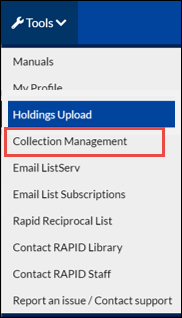
Collection Management Link
The following appears:
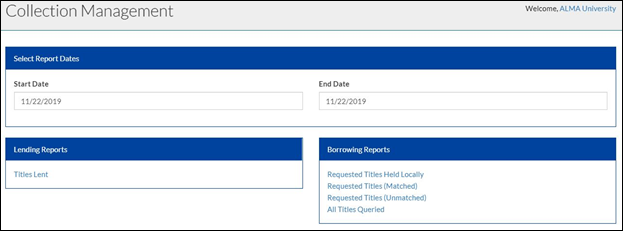
Collection Management
To create a report of titles:
- Select the date range that you want the report to include. Select a start date from the left calendar and end date from the right calendar.
- Select the button with the type of report that you want to create:
- Titles lent – a list of all titles lent
- Requested Titles Held Locally – a list of titles that when queried against the RapidILL database were identified as being held in your library’s RapidILL holdings file.
- Requested Titles (Matched) – a list of titles that were queried against and matched in the RapidILL database. These requests went into the RapidILL system.
- Requested Titles (Unmatched) – a list of titles that were queried against the RapidILL database, but did not match the holdings of any of the libraries in your pods.
- All titles Queried – a list of every title that was queried against the RapidILL database, regardless of its outcome (matched, unmatched, held locally).
The following is an example of a report:
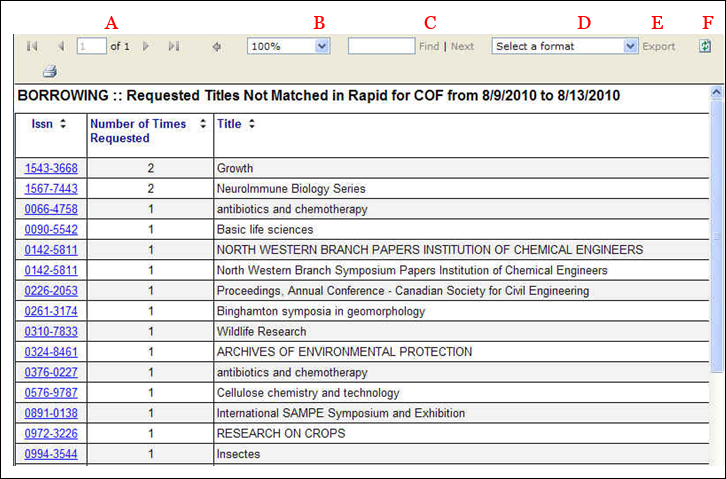
Requested Titles (Unmatched)
The reports contain the following information for each title:
- ISSN
- Number of Times Requested
- Title
You can sort the columns by selecting the arrows in the column heading.
The following elements are available for the report:
- A – The total number of pages in the report. Use the arrows to move through the pages.
- B – Search the report.
- C – Select an export format.
- D – Refresh the report.
Select the ISSN of a title to see the results for that title by year. For example: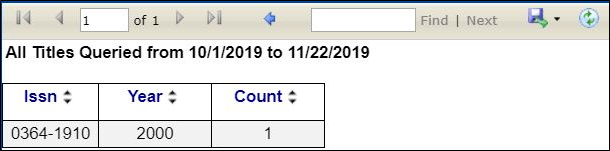
ISSN Per Year
