
Objects
Objects Overview
The object-related tables in the SFX KnowledgeBase store objects and information (or metadata) about objects.
The following table lists the data fields available for objects:
The following table describes the relation types used to describe the relationships between objects in SFX.
Searching for Objects
You can search for objects in the SFX database.
- From the KBManager section of the Data Management area, click Objects. The Search Objects window opens:
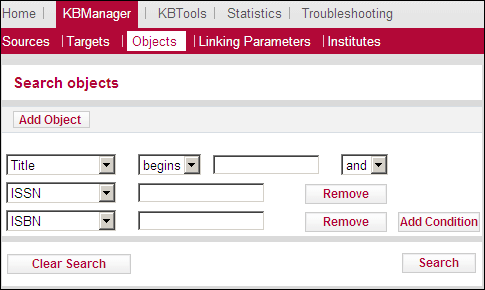
By default, three drop-down lists are displayed.
- From the drop-down lists, select one of the following identifiers:
- Title – Selecting this identifier displays a drop-down list with the following options:
- starts with
- contains
- exact
The search is performed for all title types (main, abbreviated, and so forth)
- ISSN – The search is performed for all types (electronic, incorrect, and print) and can be with or without dashes
- ISBN – The search is performed for all types (electronic, incorrect, and print) and can be with or without dashes.
- CODEN – The search is performed for a complete six-character string or using right truncation.
- DOI – The search is performed for an exact match, no truncation.
- LCCN – The search is performed for an exact match, no truncation.
- OCLC – The search is performed for an exact match, no truncation.
- Publisher – The search is performed for a complete or partial publisher name (by using a contains search).
- Place of Publication – The search is performed for a complete or partial publication place (by using a contains search).
- OBJECT_ID – The search is performed for an exact match, no truncation.
- Object Type – From the drop-down list, select an object type.
- Object Language – From the drop-down list, select a language.
- LOCAL– The search is performed for a complete LOCAL value or using right truncation
- Category – From the drop-down list, select a category.
- Author Personal – The search is performed for an exact match, no truncation.
- Author Corporate – The search is performed for an exact match, no truncation.
- Author Meeting – The search is performed for an exact match, no truncation.
- Depending on the identifier you choose, another drop-down list or text box opens. From the drop-down list, select an item and enter text in the text box.
- To add additional conditions to the search, click Add Condition.
- Click Search.
The List of Search Results window opens with the search results:
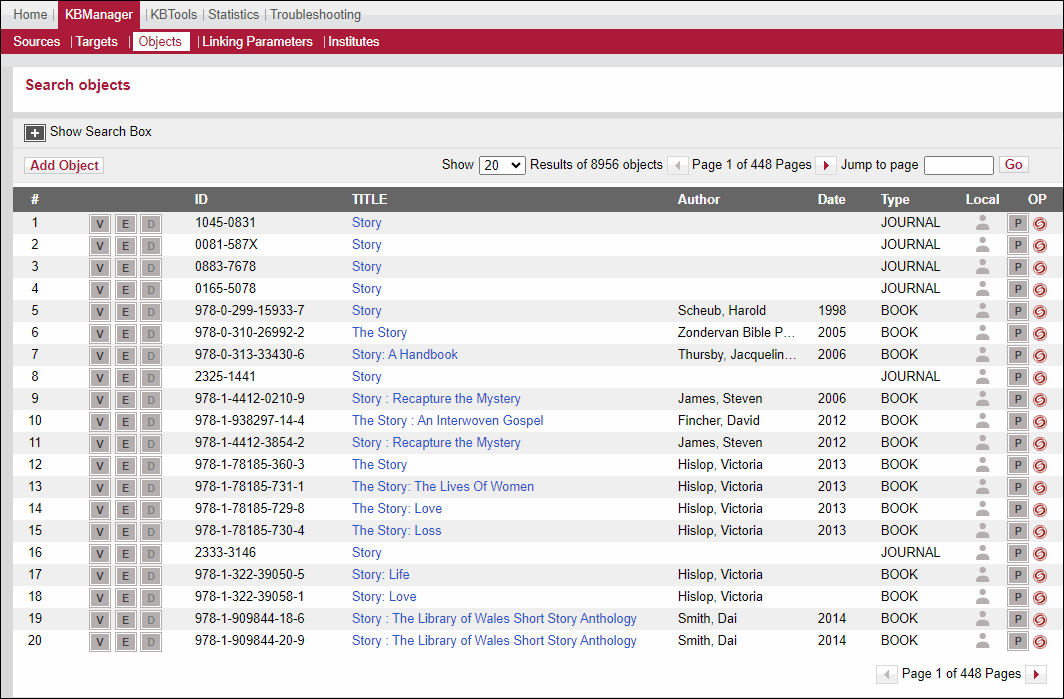
Each row of this table is structured in the following way:
-
 View button – Click to view object details.
 -
 Edit button – Click to edit object details.
 -
 Delete button – Click to delete objects (local objects only).
 - ID – The value displayed is determined by the following order of priority:
- ISSN
- ISBN
- LCCN
- OCLC
- CODEN
- DOI
- LOCAL
- OBJECT_ID
- Title – The title of the object.
- Author – The author of the object (if available).
- Date – The date of publication. Available only for monograph type objects (such as books), but not for serial type objects (such as journals).
- Type – The type of the object.
- Local – Indicates whether the object is global, localized, or local.
- OP – A green dot
 is displayed if the object contains active object portfolios.
 -
 – Click to display the List of Portfolios.
 -
 – Click to display the SFX menu.
To sort the results, click ID or Title. By default, the results are sorted by ID.
When sorting by ID, if the list consists of IDs from different identifiers, the list first sorts by like identifier (ISSN, ISBN, and so forth) and then by ID within the identifier.
Viewing Objects
You can view an object from the List of Search Results.
- Click the View button next to the object you want to view or click the object’s title. The View Object window opens:
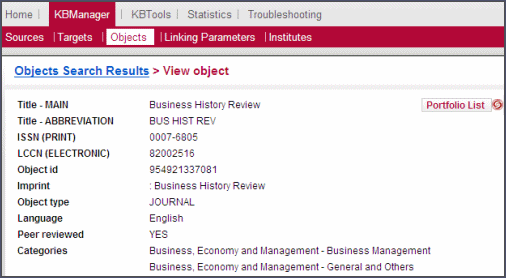
For an explanation of the fields in the View Object Details dialog box, see Object Fields.
- Click Portfolio List to see the List of Portfolios of the object. For more information, see Object Portfolios.
Editing Object Details
You can edit an object in the List of Search Results.
- Click the Edit button next to the object you want to edit.
- If the object is global, the following window opens:
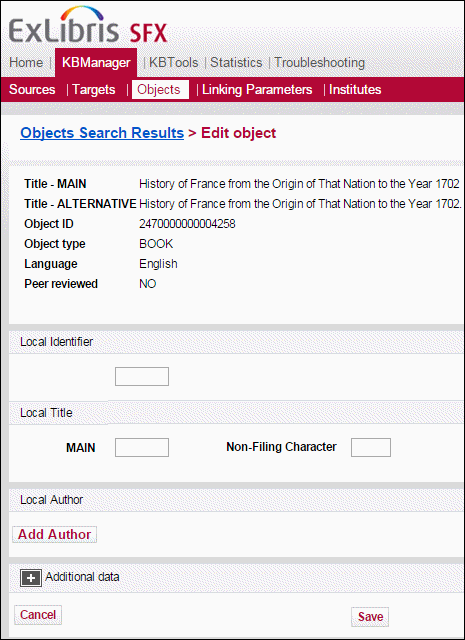
The global object attributes are not editable.
- You can add the following local information to the object:
- Local identifier
- Local title
- Non-filing character
- Local Author (see the following step)
- Click Add Author to add local author information to the object. The following is displayed:

- Add the following information:
- Type – Personal, Corporate, or Meeting
- Last Name
- First Name/Initials
- Additional, Main, or Alternative
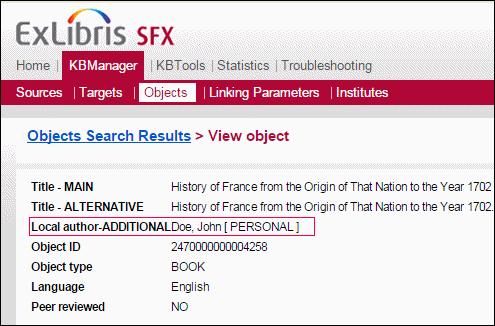
- Click Save. The local author is displayed when viewing the object details:
- To display additional data, click
 .
.
- If the object is local, the following window opens:
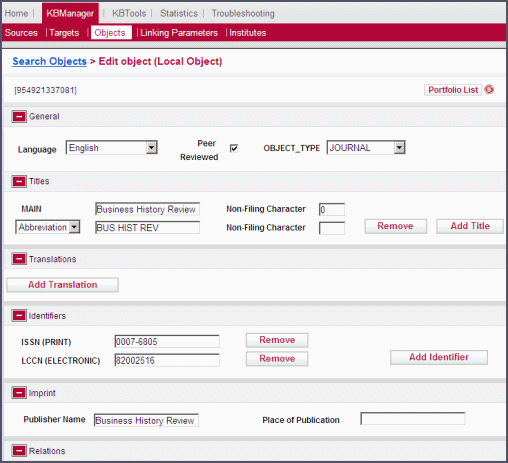
- Edit the object details according to Table Object Fields.
- To confirm your changes, click Save.
Viewing Object Portfolios
You can view object portfolios in the List of Search Results.
To view the object portfolios for the object, click the Portfolio button . The List of Portfolios window opens:
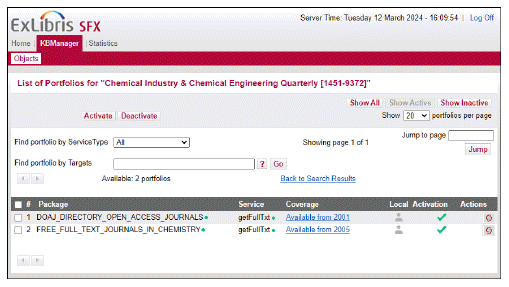
SFX displays the targets, services, and thresholds of the object. Active targets and target services have a green dot displayed next to them. For more information on object portfolios, see Object Portfolios.
-
To define the default number of object portfolios displayed in the List of Portfolios, refer to the config/admin.config section of the SFX Advanced User’s Guide.
-
When displaying the list of portfolios for a particular object, the following filtering options exist: Find portfolio by Service Type – select one of the following options from the drop-down list: All, getFullTxt, getSelectedFullTxt, GetAbstract, getTOC
Find portfolio by Targets – enter the name or part of the name of a target or subtarget
You can use both filters together. A boolean AND is used to combine the two filters.
Activating Object Portfolios with OneClick Activation
When activating an object portfolio, if its target or target service are not activated, the following message is displayed:
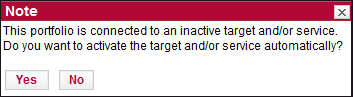
To activate the target and target service, enter y.
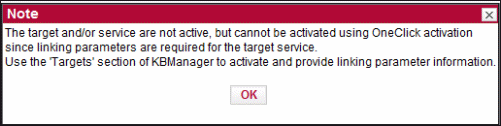
If there are linking parameters for a target service, but the value is missing, the object portfolio cannot be activated and the following message is displayed:
Testing the SFX Menu
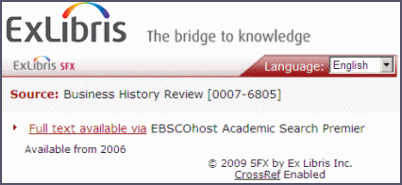
To test how the object looks in the SFX menu, click the SFX button next to an object. For example:
Adding an Object
You can add an object to the local OBJECT table.
- Click Add Object from the List of Search Results. The Add Object window opens:
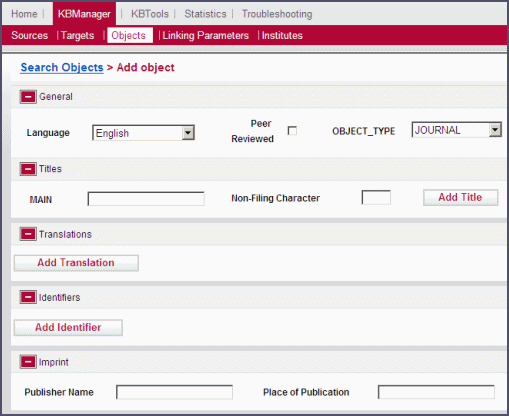
The Add Object window is dynamic. The fields vary according to the language selected (for example, the Titles fields) and the object type selected (for the Identifiers, Imprint, and Authors fields).
- Fill in the fields as described in Table Object Fields.
- To confirm your changes, click Save.
Customer Contributions
You can contribute changes to the SFX global knowledgebase for the following targets in the SFX KnowledgeBase:
- MISCELLANEOUS_EJOURNALS
- MISCELLANEOUS_FREE_EJOURNALS
- MISCELLANEOUS_EBOOKS
- MISCELLANEOUS_FREE_EBOOKS
- US_GOVERNMENT_DOCUMENTS_FREE
The following changes can be contributed for these targets:
- updates to thresholds or parse params of object portfolios
- new object portfolios
The information contributed to the SFX KnowledgeBase should be applicable to all customers. Portfolios with data that is only locally relevant (for example, local coverage or local linking information) should not be contributed.
The user profile you use must be configured to allow contributions. For more information, see the Configuring Customer Contributions section of the SFX Advanced User’s Guide.
The Contribute button is displayed when you view object portfolios that have been changed:
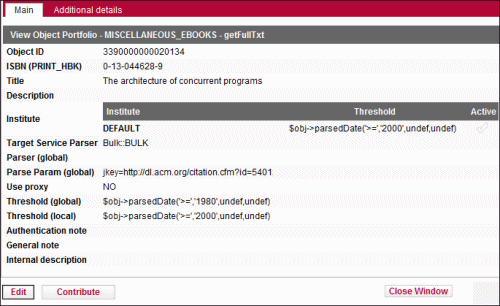
Click the Contribute button to contribute the change. This creates a CRM case for evaluation by the content team. You are notified by email when the change is included in the SFX CKB or if the contribution is rejected.
To ensure that you can use the Customer Contributions feature, provide your SalesForce CRM credentials by following the instructions described in the Troubleshooting and Debugging > Configuring Contact Support section of the SFX Advanced Users Guide.
