
Sources
Sources Overview
The List of Sources contains information about resources that are the starting points of links—for example, an A & I database, a reference in a journal article, or an OPAC record. The most important field in the source list is the Source ID. This field contains information that the SFX program needs about the origin of the SFX request. (For more information, refer to the Local Source Configuration section of the SFX Advanced User’s Guide.) Source ID is a required field. It is not possible to add a new source without specifying the source ID. Each source is connected to a number of source services.
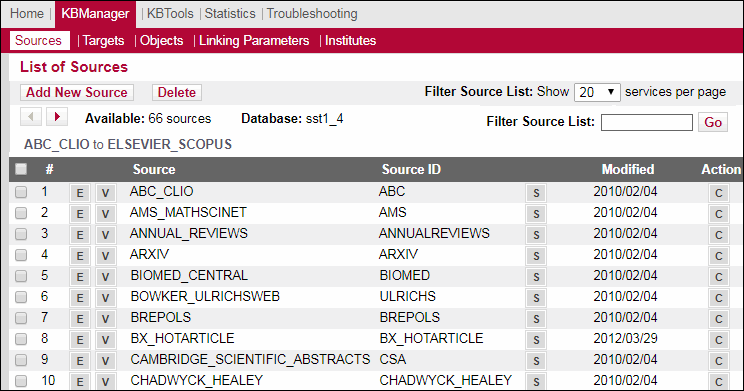
To display a list of sources, from the KBManager section of the Data Management area, click Sources. The List of Sources window opens:
List of Sources
The work area displays a menu bar, a navigation bar, and a list of all available sources.

The Navigation bar contains the following sections:
- Add New Source – Click to add a new source.
- Delete – Click to delete selected sources. Only locally created sources can be deleted, not sources that are part of the global KnowledgeBase.
- Filter Source List – Select the number of sources to be displayed per page
- Available– The number of sources in the table
- Database – The name of the database in which you are currently working
- Filter Source List – Type the name of the source you want to view. It is possible to use one or more of the following characters (according to regular expression syntax in Perl) when filtering:
| Character | Description |
|---|---|
| ^<search_term> | Search term starting with |
| <search_term>$ | Search term ending with |
| <search_term>. | Search term followed by at least one character |
If you want to return to the complete list of sources after using the filter, click Sources in the navigation bar.
The lower part of the work area lists the available sources alphabetically in a table. Each row of this table is structured in the following way:
-
 Check box – Select a check box next to a source to mark the source for deletion.
 -
 Edit button – Click to edit the source.
 -
 View button – Click to view the source.
 - Source – The name of the source.
- Source ID – The identifier of the local redirection component (parser). The source parser interprets the metadata sent by the link-source and transforms it into an SFX request.
-
 Service button – Click to display all source services to which this item is connected.
 - Modified – The date on which the item was last modified.
- Action –
 Copy button – Click to copy the source’s data to a new source.
Editing Sources
You can edit sources from the List of Sources.
Click the Edit button  next to the source you want to edit. The Edit Source dialog box opens:
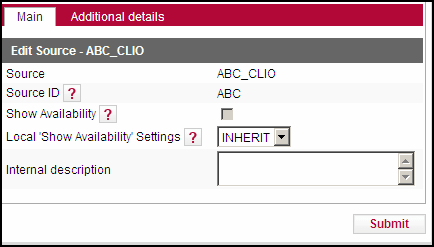
- If the source is global, the following dialog box opens:
 Edit Global Source
To override the global show availability setting, from the Local ‘Show Availability’ Settings drop-down list, select one of the following options:
- INHERIT – Inherit availability settings from the global record
- YES – Show availability settings
- NO – Do not show availability settings
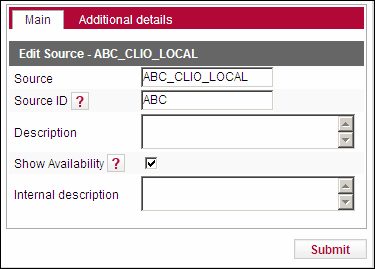
- If the source is local, the following dialog box opens:
 Edit Local Source
To display the availability information in the SFX menu for a particular source, select the Show Availability check box.
For more information about this option, refer to the Using a Special Displayer to Show Date Threshold Information in the SFX Menu section of the SFX Advanced User’s Guide.
- Edit the fields as appropriate.
- For additional details, click the Additional Details tab. The Additional Details dialog box opens:
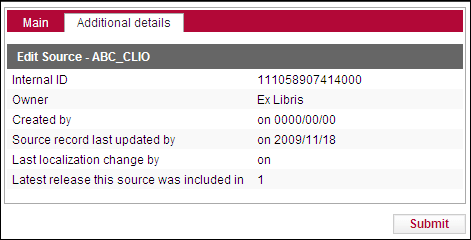
- To save y]our changes, click Submit.
Viewing Sources
You can view sources from the List of Sources.
Click the View button next to the source you want to view. The View Source dialog box opens:
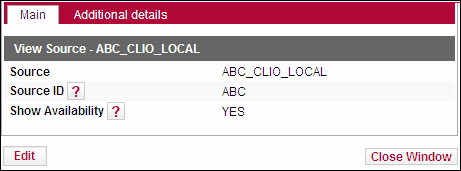
- To edit the source, click Edit. For more information on editing sources, see Editing Sources.
- For additional details, click the Additional Details tab.
Adding Sources
You can add a source to the List of Sources.
- Click Add New Source. The Add Source dialog box opens:
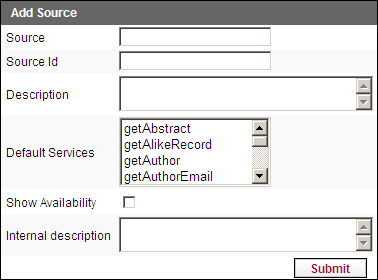
- Fill in the fields to add a new source. The Source and Source ID fields are mandatory.
You can also add a new source by clicking the Copy button next to the source you want to copy. The Add Source dialog box opens, containing the source’s data, including the source’s services. The suffix _LCL is automatically added to the name of the original source. Modify the information, if necessary.
- To save your changes, click Submit.
The source is added.
Deleting Sources
You can delete a source from the List of Sources.
- Select the check box next to the source you want to delete.
- Click Delete.
The source is deleted.
- Only locally created sources can be deleted. Sources that are part of the global KnowledgeBase cannot be deleted.
- There is no rollback in KBManager. Once you confirm the deletion, all of the source’s data is lost. All connections to services from the deleted source are also deleted.
Source Services
To display all available services for a source, click the Services button  in the List of Sources. The List of Source Services window opens:
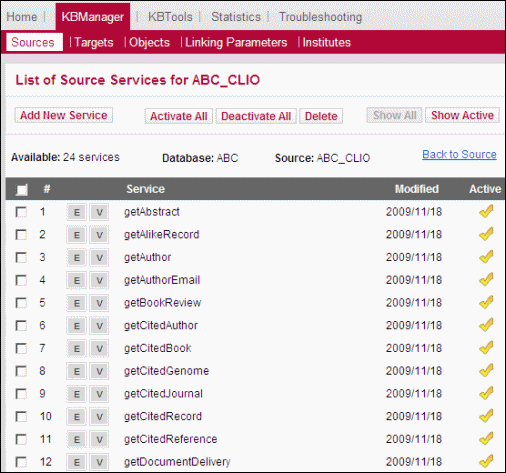
Each source can perform a number of source services if the target to which the source is connected also has this service available. For example, the source ISI_WEB_OF_KNOWLEDGE can provide the getHolding service. The Local Catalogue target also can provide the getHolding service. A connection is made between the source and the target so that the getHolding service is available to you.
For a list of possible service types, refer to Appendix B – List of Service Types in the SFX Advanced User’s Guide.
You can perform the following activities for source services:
- Editing Source Services
- Viewing Source Services
- Activating Source Services
- Deactivating Source Services
- Adding Source Services
- Deleting Source Services
Editing Source Services
You can edit source services from the List of Source Services.
Click the Edit button next to the source you want to edit.
- If the source is global, the following dialog box opens:
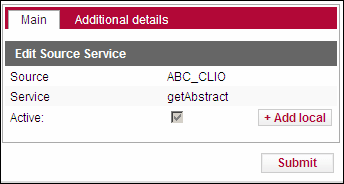
The global information is read-only. To add a local activation to the global source service, click +Add local.
- If the source is local, the following dialog box opens:
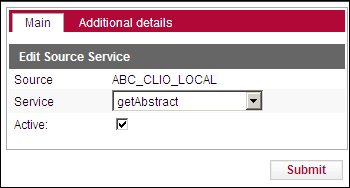
You can change the service and activate or deactivate it.
- For additional details, click the Additional Details tab.
- To save your changes, click Submit.
Viewing Source Services
You can view source services from the List of Source Services.
Click the View button  next to the source service you want to view. The View Source Service dialog box opens:
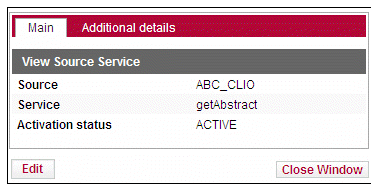
- To edit the source service, click Edit. For more information, see Editing Source Services.
- For additional details, click the Additional Details tab.
Activating Source Services
To activate a source service, click the gray arrow  . The arrow becomes green
  . To activate all source services, click Activate All.
Deactivating Source Services
To deactivate a source service, click the green arrow . The arrow becomes gray . To deactivate all source services, click Deactivate All.
Adding Source Services
You can add source services to the List of Source Services.
- Click Add New Service. The Add Source Service dialog box opens:
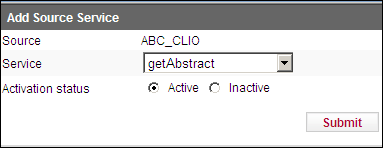
- From the Service drop-down list, select a service
- Under Activation status, select Active or Inactive.
- To save your changes, click Submit.
The source service is added.
Deleting Source Services
You can delete source services from the List of Source Services.
- Select the check box next to the source service you want to delete.
- Click Delete.
The source service is deleted.
