
Viewing Programs in the Calendar's Grid View
When patrons access the Program Registration calendar, the system displays the grid view of programs scheduled for the current month. For example:
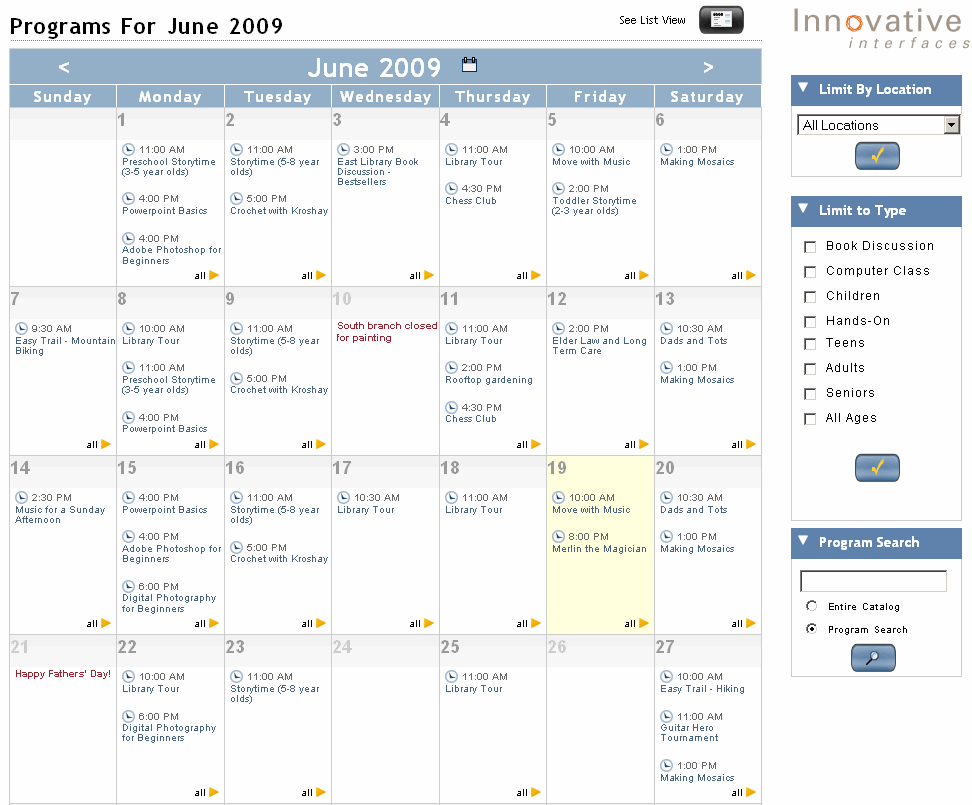
To access program information within the grid view of the calendar, patrons can do the following:
For more information about changing calendar views and searching for specific programs, see Searching for Programs in the Program Calendar.
Navigating to the Desired Month
To navigate within the calendar grid, patrons can use the navigation tools along the top of the calendar pane:
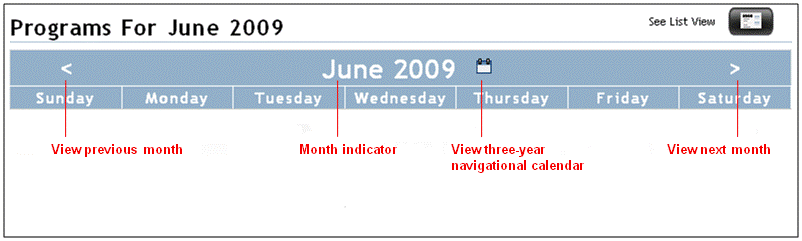
- The < and > arrows enable patrons to move back or forward by month.
- The month indicator (e.g., June 2009) enables patrons to view the calendar in list view by month.
- The flip-calendar graphic to the right of the month indicator enables patrons to view a three-year navigational calendar on which the current month is highlighted. For example:
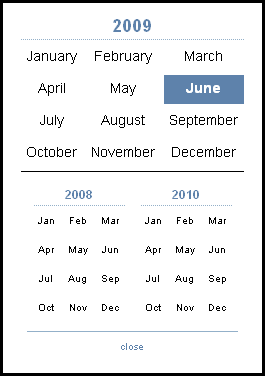
To access a different month of the current, preceding, or next year, patrons choose the desired month from the three-year navigational calendar. To close the three-year navigational calendar, patrons choose the close link at the bottom of the navigational calendar.
Accessing Program Details
On each date for which programs are scheduled, the calendar displays the program names of up to three of the scheduled programs as well as an "all" link. For example:
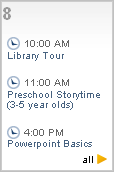
To access more information, patrons can do the following:
- View a detailed list of programs scheduled for a specific date
- View a brief list of programs scheduled for a specific date
- View information about a specific program
Viewing the Detailed List of Programs for a Date
To view information about all the programs scheduled for a specific date, patrons choose the date in the upper left-hand corner (e.g., 9). The calendar displays the list view by day.
Viewing the Brief List of Programs for a Date
To view a list of all programs scheduled for a specific date, patrons choose the all link in the lower right-hand corner. The program pop-up by day slides in from the right, for example:
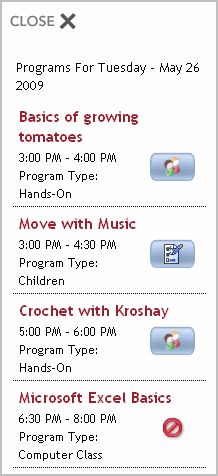
The program pop-up by day displays the following information:
| Program detail displayed: | Source: |
|---|---|
| Program name | Program Name variable-length field in the program record |
| Time | The time element of the Session variable-length field in the section record |
| Program type | Program Type fixed-length field in the program record |
| Registration action possible | The program status based on system calculations |
To access more information from the program pop-up by day, patrons can do the following:
- To access more information about a program listed on the program pop-up by day, patrons choose the program name from the pop-up list. The calendar pop-up displays the program pop-up by section.
- To take a registration action for the program displayed on the pop-up, patrons choose the registration link to the right of the program information. The calendar displays the registration page.
If registration is not available (e.g., no registration is required), the registration link indicates the reason registration is not available. Patrons can choose the program name to access the program pop-up by section, and from there choose the program name to view any additional information available on the program display page in the WebPAC.
To close the program pop-up by day, patrons choose the CLOSE link at the top of the pop-up.
Viewing Information about a Program
To view information about a specific program, patrons choose the program name (e.g., Storytelling). The program pop-up by section slides in from the right, for example:
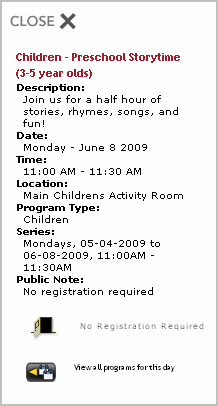
The program pop-up by section displays the following information:
| Program detail displayed: | Source: |
|---|---|
| Program name | Program Name variable-length field in the program record |
| Description | Program Description variable-length field in the program record |
| Date | The date element of the Session variable-length field in the section record |
| Time | The time element of the Session variable-length field in the section record |
| Location | Location fixed-length field in the section record |
| Program type | Program Type fixed-length field in the program record |
| Registration action possible | The program status based on system calculations |
To access more information from the program pop-up by section, patrons can do the following:
- To view more information about the program displayed in the program pop-up by section, patrons choose the program name on the pop-up. The system displays the program display page in the WebPAC.
- To take a registration action for the program displayed on the pop-up, patrons choose the registration link below the program information. The calendar displays the registration page.
If registration is not available (e.g., no registration is required, the section is closed, or patrons must register via a third party), the registration link indicates the reason registration is not available. Patrons can choose the program name to view any additional information available on the program display page in the WebPAC. - To view a list of all programs for that date, patrons choose the View all programs for this day link. The calendar displays the program pop-up by day.
To close the program pop-up by day, patrons choose the CLOSE link at the top of the pop-up.
