
Use PressReader to browse, borrow, and read newspapers and magazines available through your library's PressReader subscription.
Prerequisite:
-
Make sure PressReader is enabled.
PressReader is enabled by default. If the PressReader content doesn't appear in the app, go to My Account > Preferences, and turn on PressReader in the Integrated Readers section.
Procedure:
-
Use the search bar to search for content.
-
In the Search In filter, select PressReader.
-
Select a title to view its details.
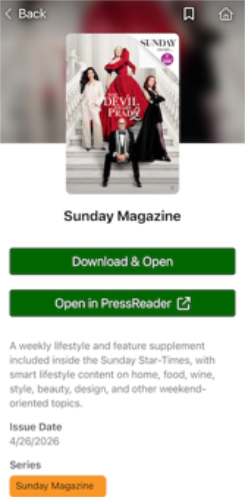
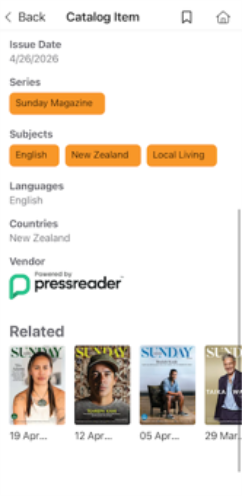
Selecting a title opens its Item Details Display, where you can view the borrowing option, publication date, available languages, and other editions in the Related section. The five most recent editions are displayed.
-
Do one of the following:
-
Select Download & Open to open the publication in the built-in reader.
In the built-in reader, you can:
-
swipe between pages
-
zoom in and out
-
open the table of contents and a bottom controls tray by tapping the screen
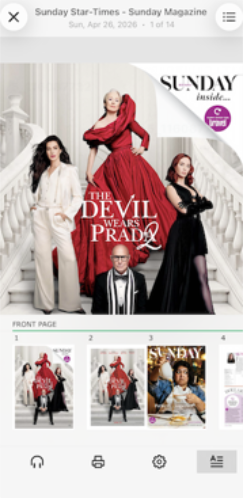
From the control tray, you can:
-
select
 to listen to content using text-to-speech playback with progress, play/pause, 15-second skip controls, playback speed and Bluetooth output.
-
select
 to print the content if enabled, though it's usually disabled.
-
select
 to configure the reader settings, including SmartZoom, Show Highlights, and text-to-speech.
-
select
 to switch to the Text View with adjustable font size, brightness, and voice-over.
-
-
-
Select Open in PressReader to open the publication in the PressReader app.
If the app isn't installed, you're prompted to install it.
-
-
Return to the default layout by tapping the magazine image in the bottom-right corner.
Once an item has been borrowed, the app automatically starts downloading the content, so it can be available offline.
If you select X in the top left corner of the built-in reader, you can check the download progress of the content in the Item Details Display.
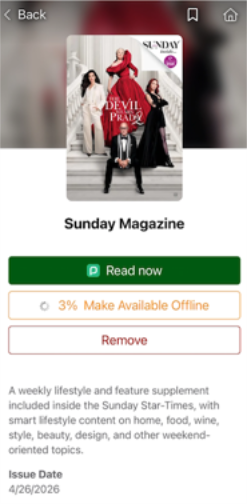
After the download is complete, you can read the publication without an internet or Wi-Fi connection, and even in airplane mode. Borrowed items appear in My Account > Loans under In-App Reader and Available Offline filters.
If needed, you can remove the borrowed PressReader content by selecting Remove from either the Loans display or the Item Details Display. This clears up any downloaded content.
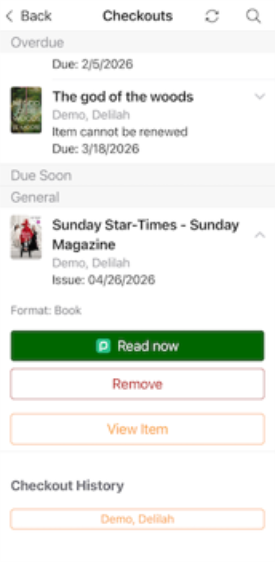
After reading PressReader content in the app, returning to the home screen displays a bottom tray that lets you quickly jump back in and continue where you left off. If you prefer not to see this, tap the X to dismiss it. You can still access the content from the Item Details screen or from your Checkouts at any time .
