
To help improve discoverability of your PressReader collection, you can create a dedicated tab on the app home screen that takes patrons directly to the search experience with the PressReader filter already enabled.
A dedicated PressReader tab provides a quick way for patrons to browse and discover PressReader content without manually applying filters or navigating through multiple search options. By reducing the number of steps required to access PressReader materials, libraries can increase the visibility and usage of their digital collection.
The following procedure uses a PressReader tab as an example.
-
The PressReader tab is displayed on the app home screen.
-
Selecting the tab opens the search experience with the PressReader filter already applied.
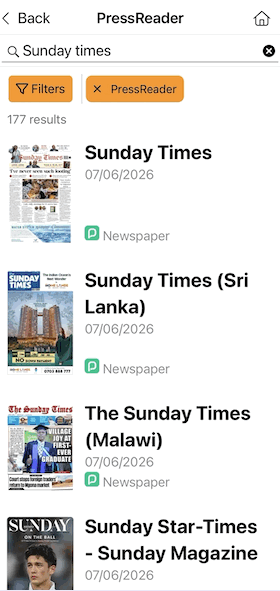
To create and customize a dedicated PressReader tab:
This example is just one possible configuration to use as a reference. You are free to customize the visual of the PressReader tab based on your library and the experience you want to create for your patrons.
-
Access the Content Management System (CMS) and navigate to the Mobile Apps section from the left side menu options.
-
Select the mobile app or template where you want to create the PressReader tab.
-
In Tab Manager, determine where you want to create the new tab.
-
Selecting Home Screen creates a primary tab that is displayed on the app home screen.
-
Selecting an existing tab creates the new tab as a secondary tab beneath the selected tab.
In this example, the PressReader tab is created under Home Screen so it appears directly on the app home screen.
-
-
Select Create in the Tab Manager.
This option is represented by a folder icon with a yellow star.
-
In the New Tab pop-up window, provide a name for the new tab.
In this example, the tab is named PressReader.
-
Select Create.
The new tab is generated.
-
Select the newly created tab and then select Edit Tab: PressReader.
The Edit Tab page opens.
-
In Title, enter a title for the tab (in this example PressReader).
This is the name displayed to patrons on the home screen.
When a full-width banner is used, the title isn't displayed in the app. However, it's still required for accessibility purposes and for patrons using simplified view.
-
Provide a subtitle for the tab in the Subtitle field.
The subtitle helps describe the purpose of the tab and supports patrons using screen readers.
The subtitle isn't displayed in the app view, but it remains available to accessibility tools.
-
In the Button section, upload the image that you want to use for the tab icon.
You can upload your own image by toggling Image, and selecting Choose File. The file size shouldn't exceed 880 × 240 px.
-
Enable Use image as banner.
-
Set the visibility of the Search Hoopla tab:
-
Always displays the tab whether or not a patron is signed in.
-
Pre-Login displays the tab only before a patron signs in.
-
Post-Login displays the tab only after a patron signs in.
-
Staff Only displays the tab only for staff users.
The Staff Only option may not be supported by all ILS/LMS systems because some systems don't distinguish between staff and patron accounts.
-
Never hides the tab for all users.
-
-
(Optional) Enable Pinned Notification to keep the tab at the top of the app home screen.
When enabled, patrons aren't able to change the order of the tab within their app's preferences.
If multiple tabs are pinned, they appear in the order shown in Tab Manager.
-
In Tab Type, select Library Search.
-
In the options below the Library Search set the Search Target to PressReader.
-
(Optional) Enable Include ISBN Scanner.
This option adds a barcode scanner to the search experience, allowing patrons to search for Hoopla items by scanning an ISBN barcode on a book or other material with their device camera.
When enabled, a scanner icon appears in the search interface. After a barcode is scanned, the app automatically performs a search and displays matching results from the library collection.
-
(Optional) Enable Include RFID Scanner.
This option enables RFID-based item scanning on supported devices and hardware configurations.
RFID functionality depends on device capabilities and hardware support.
-
(Optional) Enable Include Result Indicators.
This option adds visual indicators in search results to help patrons identify item availability and format information.
-
Select Save at the bottom of the page to create the new tab.
-
Reload the app to view the changes.
This can be done by navigating to the hamburger menu in the top right corner, selecting Preferences, and then selecting Reload.
The app refreshes and loads the PressReader tab with your customizations.
