
Servicio de identidad de Ex Libris
El Servicio de identidad de Ex Libris se basa en una solución dedicada de gestión de identidades. Este servicio reemplaza el método de autenticación interno usado previamente por clientes de Alma. Todas las contraseñas para usuarios internos de Alma se almacenan en el Servicio de identidad de Ex Libris, que está alojado por este en sus centros de datos. For more information on this service, see https://developers.exlibrisgroup.com/alma/integrations/user-management/authentication/exl_identity_service.
The following password considerations are applicable with the Ex Libris Identity Service:
- No se puede configurar la seguridad de la contraseña.
- The password does not have an expiry date.
- La contraseña se bloquea durante 30 minutos tras 15 intentos fallidos de inicio de sesión.
- When a staff user enters a wrong user and password combination on the Alma login page, the error message includes a Forgot password? link, which links to the reset password page. In order to display a Forgot Password option in Primo/PrimoVE, a configuration update is required. For more information, see the knowledge article,How to add a 'Forgot My Password' link to the login page in the new UI when using Alma for authentication.
Las etiquetas del servicio de identidad se pueden configurar en la tabla de códigos Mensajes internos de inicio de sesión. See Configuring Identity Service Labels.
For Alma users, a Reset Password Letter is sent to an individual user by selecting the Reset your password for the identity service option in the Send message drop-down list on the User Details page. The letter is sent to a group of users by running the Update/Notify Users job and selecting the Identity Service mail option in the Send notification to user drop-down list on the job parameters page.
- La nueva contraseña debe tener por lo menos ocho caracteres y no puede incluir el nombre de usuario ni ninguna palabra usada habitualmente como contraseña.
- When the Reset Password letter is sent by the Update/Notify Users job or from the Send Message drop-down list, the link is active for twenty-four hours. When the letter is sent from the Forgot Password? link, it is active for one hour.
- En la pantalla Resetear la contraseña, se pide a los usuarios introducir sus nombres de usuario o direcciones de correo electrónico. Si los usuarios introducen sus nombres de usuario, se envían correos electrónicos a las direcciones principales de los usuarios. Si los usuarios introducen direcciones de correo electrónico, el sistema busca las direcciones de correo electrónico especificadas y, si las localiza, las usa aunque no sean las direcciones principales de los usuarios. Si no se localiza una dirección de correo electrónico o pertenece a más de un usuario, no se envía el correo electrónico.
For more information on logging into Alma, see Logging Into and Out of the User Interface.
Autenticación multifactor (MFA)
This feature requires the mfa_for_alma_hep parameter to be enabled (see User Settings).
Es posible configurar Alma para recomendar (o aplicar) el uso de la autenticación multifactor. The Login Using One Time Token Letter needs to be enabled to support MFA (see Configuring Alma Letters).
-
If MFA is activated, the Allowed Emails list (see External Systems) should be configured with the email addresses of all staff members who need to be able to login.
Recomendar la MFA
This requires the mfa_for_alma_hep parameter to be set to "suggest" (see User Settings).
- When logging in for the first time after setting the mfa_for_alma_hep parameter to "suggest", the user is prompted with the regular username and password.
- After logging in, a message appears recommending that the user enable multi-factor authentication.
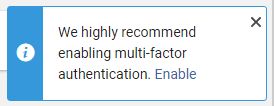
- The user can ignore the message or cancel it using the X button, or they can select Enable.
- If the user selects Enable, a message prompts the user to Ignore or Confirm. This message includes the user email address/es to which the login link will be sent.
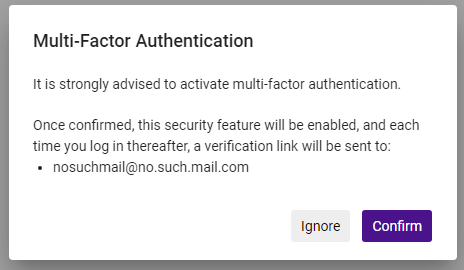
- If the user selects Confirm, the next time they login, a login link is sent to their email/s and a message appears letting them know that the link was sent.
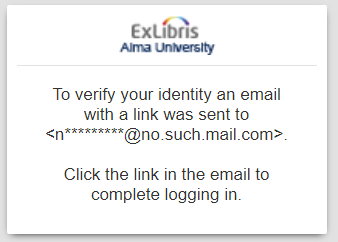 If the user selects Ignore, the MFA recommendation message will be displayed each time the user logs in.
- The message will appear each time the user logs in (after validating their username and password). The link is active for 10 minutes. Activar el enlace dirige al usuario a la página de inicio del producto. Tenga en cuenta que el enlace solo se puede utilizar en el mismo navegador desde el que se inició el flujo de inicio de sesión.
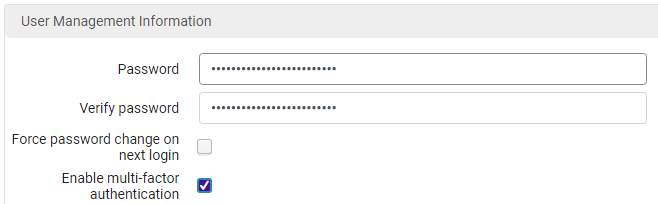
- Users can also enable/disable MFA from the User Management Information page at Admin > Manage Users > Staff > User Management Information.
Forzar la MFA
This requires the mfa_for_alma_hep parameter to be set to "force" (see User Settings).
- After setting the mfa_for_alma_hep parameter to "force", all users will be required to authenticate with MFA.
- Cuando inicien sesión, a los usuarios se les pedirá la autenticación con su nombre de usuario y contraseña regulares.
- A link will be sent to the user's email before entering the product (from the login page), and a message will appear.
- The link is active for 10 minutes. Activating the link directs the users to their product home page. Tenga en cuenta que el enlace solo se puede utilizar en el mismo navegador desde el que se inició el flujo de inicio de sesión.
With the mfa_for_alma_hep parameter set to "force", there is no way to turn off the MFA flow for a specific user.
Page tags: article:topicproduct:almacontent:Documentationlang:english
