
Reglas de control de autoridad
- Catalogador
- Gerente de catálogo
- Administrador de catalogación
- Gerente del repositorio
- Administrador general del sistema
To create and configure the Link BIB Headings rules and preferred term correction rules, you must have one of the following roles:
- Administrador de catalogación
- Administrador general del sistema
Authority control rules give you more control over when linking bibliographic headings should be done and when linking should be skipped. They also provide greater control over the preferred term correction process and the end results from preferred term correction. The Authority Control Rules configuration page can be accessed from the Resources list of configuration options (Configuration Menu > Resources > General > Authority Control Rules).
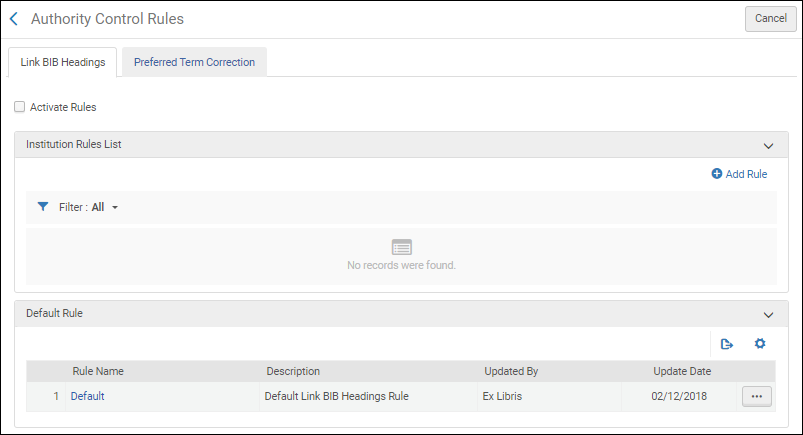
To learn more about authority control rules, see the Linking Bibliographic Headings Rules and the Managing Preferred Term Correction sections below. Note that these sections assume that you are familiar with the information on the Using the Authority Control Task List page.
Linking Bibliographic Headings Rules
Link BIB Headings rules enable you to control when linking occurs when the link bibliographic headings job is run. See Authorities - Link BIB Headings for more information.
With Link BIB Headings rules, you can define in which cases linking upon save and automatic linking (as part of the Link Bibliographic Headings job) is skipped for bibliographic headings. As an example, you can specify not to perform linking for undifferentiated personal names.
El proceso de gestionar los registros de encabezados bibliográficos que aparecen en la Lista de Tareas de Control de Autoridades, como resultado de la tarea de enlace, se puede simplificar al implementar etiquetas para identificar ciertos tipos de registros. See Using Tags for more information.
The Link BIB Headings rules are defined on the Authority Control Rules page (Configuration Menu > Resources > General > Authority Control Rules > Link BIB Headings). To define them, use the parameters below, then specify an operator (=, Contains, In List, Not Equals, or Not in List), and select/enter a value. When records are saved or when the Link Bibliographic Headings job attempts to automatically link bibliographic headings, these rules evaluate the data in your bibliographic records to determine whether to link or not link the records.
When you create rules, you can specify if linking should or should not occur.
Se pueden crear, habilitar/deshabilitar reglas múltiples. When there are multiple rules defined, they are processed in the order in which they exist in the Institution Rules List; and when one rule's conditions are met, the process uses that rule's output and does not process any of the remaining rules. If no rules are created, the default Link BIB Headings rule is used.
- Authority ID — Refers to the authority ID information stored in the MARC 21 $0 or UNIMARC $3, for example (for details, see Using Originating System IDs for Linking Bibliographic Records to Authority Records).
- Bibliographic Headings Value — Use to evaluate the value of the displayed bibliographic headings, to determine if linking should be skipped. For example, if the Bibliographic Headings Value is configured as contains Human History, and the displayed bibliographic headings contain Human history, the linking is skipped.
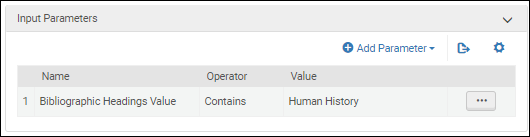 Parámetro de Valor de Encabezados Bibliográficos
Use the operator Contains to ignore the ending punctuation in the heading, or Equals if you want that punctuation to be considered.
- Diacritics — When this rule is set, Alma does not normalize diacritics and instead considers their UTF-16 encoding value when matching. Only diacritics with the same UTF-16 value are considered a match. For example, bib heading 650 $$a Tröll is considered Diacritics = not identical when matched against the authority record with 150 $$a Troll.
- Campo — Cuando se selecciona este parámetro, se puede especificar un número de campo como valor.
- Lenguaje — Este parámetro se refiere a la información catalogada en $9 (MARC 21) o $7 (UNIMARC).
- Subfield Codes — When this rule is set, Alma compares both the content and the subfields used for matching. For instance, the bibliographic heading 700 $$a Shakespeare, William, $$d 1564-1616 $$t Tragedies is considered Subfield codes = not identical when matched against an authority record with 100 $$a Shakespeare, William, $$d 1564-1616 $$x Tragedies.
- Source Code — When this parameter is selected, you may choose from the following drop-down list of values: authority type such as call number/classifications, chronological term, corporate name, genre/form, geographic name, meeting name, personal name, topical name, or uniform title.
- Nombre personal no diferenciado — Este parámetro examina lo siguiente:
- MARC 21 authority 008 control field, position 32 = "b"
- campo de control UNIMARC autoridad 120, posición 1 = "a"
When this parameter is selected, you may select True or False. - Vocabulary — When this parameter is selected, you may select any of the local authority or Community Zone vocabulary codes to which you have access.
For more information about creating rules that use these parameters, see Creating Link BIB Headings Rules.
- If not active, check the Active checkbox.
- Verify that the default rule is set up according to your institution's preference. Alma checks the rules starting from the top and applies the first rule where all input parameters are met. If none of the rules apply, the default rule is used. Recomendamos configurar la regla por defecto para enlazar.
- Configure las primeras reglas con parámetros de entrada que siempre deben aplicarse (use un solo parámetro por regla para garantizar que este parámetro se aplique siempre , sin depender de otros parámetros). Por ejemplo, si una institución no quiere que un registro se enlace si los subcampos no coinciden, podría establecer su regla principal de la siguiente manera:
- Parámetro de entrada: Códigos de subcampo = no idénticos
- Configuración del flujo de trabajo: No enlazar
- Below these, set up rules that only apply if certain other conditions are met. You can combine parameters to have these apply only for a specific mix of circumstances. Por ejemplo, si una biblioteca desea evitar la normalización de los diacríticos para un vocabulario específico, podría establecer una regla como la siguiente:
- Parámetro de entrada:
- Vocabulario = Fichero de Autoridad de Nombre Finlandés
- Diacríticos = no idénticos
- Configuración del flujo de trabajo: No enlazar
- Parámetro de entrada:
- If there is a specific sub-case in which the institution wants to enable linking, add a rule with Workflow setup: Link above the rule that prevents the general case from linking. You can also add a tag when linking to help catalogers identify these headings in the Authority Control Task List.
Control de autoridad – Excluir el encabezado del enlace
Users can exclude specific headings from being linked to an authority record by automatic processes, by adding $$9 no_linkage to the authorized field. Esto es muy útil sobre todo cuando un campo contiene datos que son similares a un encabezado existente, pero en realidad no está relacionado con ese encabezado. This prevents the field from incorrectly getting associated with the heading and improves the integrity of the library's metadata. Esto es ventajoso en casos en los que el nombre de un creador es idéntico al de un creador autorizado y no existen suficientes datos para distinguir los dos y evitar el enlace (por ejemplo, una biblioteca cataloga un trabajo de tesis antiguo por John Smith y no tiene más información biográfica del creador).
This functionality is not available for Community Zone records or Community Zone-linked bibliographic records.
Creating Link BIB Headings Rules
Link BIB Headings rules can be created using the Authority Control Rules configuration option.
- Open the Authority Control Rules page (Configuration Menu > Resources > General > Authority Control Rules), and select the Link Bib Headings tab.
- In the Institution Rules List section, select Add Rule.
- Introduza un nombre y una descripción de la regla.
- Introduzca los parámetros de entrada.
- In the Input Parameters section, select Add Parameter.
- Desde las listas desplegables, seleccione una opción (para Nombre) y un operador.
- Enter or select a value and select Add Parameter.
- Introduzca los parámetros de configuración del flujo de trabajo
- Seleccione uno de los siguientes métodos de aplicación:
- Link – Select this option when you want the Authorities - Link BIB Headings job or linking upon Save(in the MD Editor) to link the bibliographic headings when the criteria of one of the Link BIB Headings rules is met.
- Do not link – Select this option when you want the Authorities - Link BIB Headings job or linking upon Save(in the MD Editor) to not link the bibliographic headings when the criteria of one of the Link BIB Headings rules is met.
Select a tag from the Tag as drop-down list (optional). Note that the Authority Control Rule Tags appear for both Link BIB Headings rules and preferred term correction rules (when enabled for your system; see Managing Preferred Term Correction for more information). Tags are only used for automatic link bibliographic headings jobs (when you select the Link option) and streamlines the process for working with records in the Authority Control Task List. Note that when you select Do not link, there is no option to specify a tag.
If no tags exist, add them by doing the following:
- Select Add Tag.
- Select Add Row.
- Enter a tag code (that appears in the Authority Control Task List in the Tag column and as a facet), description, and select Yes or No to indicate if this is the default tag.
- Select Add Row.
- Repita este proceso para añadir otras etiquetas.
- Select Customize or Save. Note that all the tags that you create appear in the Tag as drop down list.
- Seleccione uno de los siguientes métodos de aplicación:
- Select Save.Su regla se añade a la sección de Lista de Reglas de la Institución. Después de creaR una regla, puede seleccionar editarla, duplicarla o borrarla. Cuando hay múltiples reglas, también puede cambiar el orden de las reglas con las funciones Mover hacia Arriba y Mover hacia Abajo. Cada regla se puede habilitar o deshabilitar individualmente.
- Select the Activate Rules checkbox for the rules that you create to be applied when records are saved or when the Link Bibliographic Headings job attempts to automatically link bibliographic headings. Note that both the Link BIB Headings and Preferred Term Correction tabs have an Activate Rules checkbox so that each type of rule can be activated/deactivated independently.
Ejemplos de Casos de Utilización
Enlace cuando se cumplen calores de campos específicos de Campos
If you want a rule to include the Authorities - Link BIB Headings job link bibliographic headings when specific field values occur, use the following configuration:

Enlace cuando se cumplen valores del código fuente
If you want a rule to include the Authorities - Link BIB Headings job link bibliographic headings when source code values are met, use the following configuration:

Lista de tareas de control de autoridades
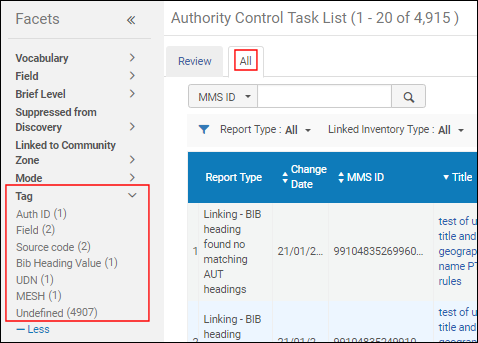
With Link BIB Headings rules, the Authority Control Task List provides an additional column and facets for tags (see Using Tags).
Observe que algunas columnas están ocultas por defecto. To view these columns, select the Configuration iconin the table actions list to open the configuration pane. Select the Tag column option to add this column to your view of the table if it is not already visible.
Using Tags
With Link BIB Headings rules, you can configure tags for managing records in the Authority Control Task List (see the Creating Link BIB Headings Rules procedure). Para una lista de las Etiquetas de Reglas de Control de Autoridadades, vea el siguiente ejemplo. Note that these tags appear for both Link BIB Headings rules and, when enabled, preferred term correction rules (see Managing Preferred Term Correction for more information).
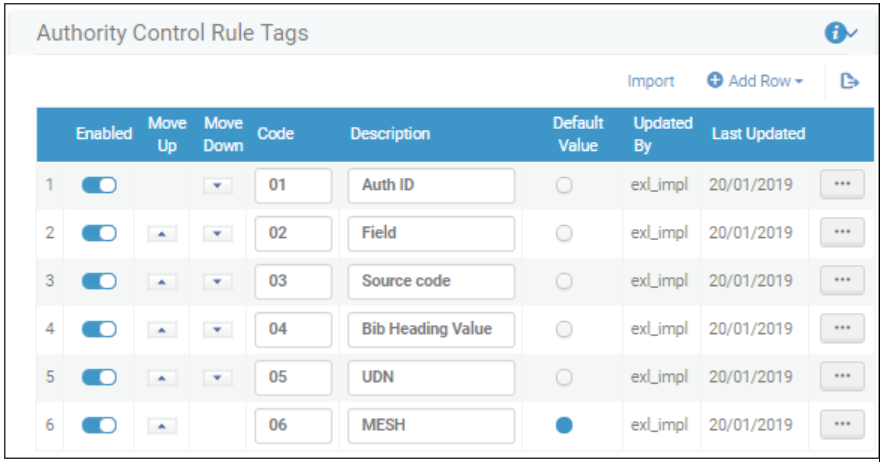
When the tags are used in the Link BIB Headings rules, they appear as facets that you can use to filter the list of records on the All tab in the Authority Control Task List (Resources > Cataloging > Authority Control Task List).

Managing Preferred Term Correction
Las reglas de corrección de términos preferidos configuradas le permiten controlar la población del proceso de corrección de términos preferidos cuando se ejecuta la tarea de corrección de términos preferidos. See Authorities - Preferred Term Correction for more information.
Con las reglas de Corrección de Términos Preferentes, puede marcar y evitar que las correcciones ocurran automáticamente cuando se ejecuta la tarea de Corrección de Términos Preferentes. Subsequently, staff can review/mediate marked changes in the Authority Control Task List before they are executed.
When you configure preferred term corrections rules for mediation (by selecting Apply mediated preferred term correction), the preferred term correction job identifies the correction that needs to be made and adds an entry to the Authority Control Task List that shows the current term and the term that it will be changed to if corrected.
With preferred term correction rules, you can create tags for identifying certain types of records in order to streamline your process for working with the Authority Control Task List (see Identify Certain Records for Mediation and Tags for more information).
Con las reglas de corrección de términos preferentes de Alma, puede definir:
- Which records should be corrected automatically
- Qué registros no se deben corregir
- Qué registros se deben sugerir en la Lista de Tareas de Control de Autoridades para su corrección, pero no de forma automática (guardado para mediación/revisión manual)
This capability is managed through preferred term correction rules that are processed when the Authorities - Preferred Term Correction job runs. Con estas reglas, puede controlar la población de la corrección de términos preferentes en la Lista de Tareas de Control de Autoridades. See the Use Case Examples section for ideas regarding this capability.
To define the rules for managing the Authorities - Preferred Term Correction job (see Authorities - Preferred Term Correction for more information), use the parameters below, specifying an operator (=, Contains, In List, Not Equals, or Not in List) and selecting or entering a value. Cuando se procesa, estas reglas evalúan los datos existentes en sus registros bibliográficos para determinar cómo procesar la corrección de términos preferentes.
- Authority ID— This parameter refers to the authority ID information stored in the MARC 21 $0 or UNIMARC $3, for example (for details, see Using Originating System IDs for Linking Bibliographic Records to Authority Records).
- Field— When you select this parameter, you can specify a field number as the value.
- Indication rules— When you select this parameter, all the indication rules that you have created appear in a drop-down list from which you can select. Indication rules are executed in the authority record's metadata. For more information, see Working with Indication Rules.
- Language— This parameter refers to the information cataloged in $9 (MARC 21) or $7 (UNIMARC).
- Normal and linked fields are linked to different authority records— This option appears if the 880 field is enabled (by Ex Libris) as an authorizing field. This option can be used to identify cases where a field and its linked 880 field are linked to different multilingual authorities. Your options are to select true or false.
- Source Code— When this parameter is selected, you may choose from the following drop-down list of values: authority type such as call number/classifications, chronological term, corporate name, genre/form, geographic name, meeting name, personal name, topical name, or uniform title.
- Vocabulary— When this parameter is selected, you may select any of the local authority or Community Zone vocabulary codes to which you have access.
For more information about creating rules that use these parameters, see Creating Preferred Term Correction Rules.
When you create rules, you can specify what is applied or not applied during the preferred term correction job, and you can specify which changes you want to mediate.
Se pueden crear, habilitar/deshabilitar reglas múltiples. Cuando se definen varias reglas, se procesan en el orden en que aparecen en la Lista de reglas de corrección de términos preferidos. Cuando se cumplen las condiciones de una regla, el proceso utiliza el resultado de esa regla y no procesa ninguna de las reglas restantes.
If no rules are created, the default preferred term correction rule is used when the preferred term correction job is run. The default preferred term correction rule is also utilized when the enabled rules are evaluated in priority order and none of those rules have logic that applies to the record being analyzed for preferred term correction.
As part of the rules functionality, you can set up custom tags that can be applied when the preferred term correction job runs and, subsequently, be used to more easily locate information in the reports presented in the Authority Control Task List. See Tags for more information.
MARC 21 Preferred Term Corrections May Swap Headings with Cross-References Across Fields
Alma enables libraries to be configured to correct bibliographic headings based on authority cross-references, updating them to the preferred term and changing the field tag in the bibliographic record accordingly (such as from 610 to 630). This ensures bibliographic data stays aligned with authority records' preferred terms.
To enable this functionality in your institution, input the vocabulary codes for the relevant authority vocabularies into the customer parameter authority_ptc_ignore_suffix(Configuration Menu > Resources > General > Other Settings), separated by commas. For more information on the parameter, see Configuring Other Settings (Resource Management).
Cuando se actualiza un campo bibliográfico a un campo X30, los indicadores sin completar en el registro bibliográfico se ajustan en función del registro de autoridad vinculado. Según los estándares MARC21, el primer indicador del campo de autoridad 130 (caracteres no presentar) se copia al segundo indicador del campo bibliográfico X30.
Once enabled, headings updated by this new behavior appear in the Authority Control Task List under a new report type,Preferred Term Correction - Bib Heading updated and tag modified, enabling catalogers to review and make further updates as necessary (such as adjusting indicators). For more information on the report type, see Using the Authority Control Task List.
Un encabezado bibliográfico que está enlazado a un registro de autoridad a través de una referencia cruzada, pero los términos preferentes y no preferentes están en campos diferentes (por ejemplo, el término preferente está en el campo de autoridad 130 y la referencia cruzada está en el campo de autoridad 410), también aborda los campos que contienen una representación gráfica alternativa.
Libraries that configured Alma to manage this scenario for any of their authority vocabularies after the November 2024 release can now see preferred term corrections applied to cases with a linked Alternate Graphic Representation while preserving the link.
This enhancement applies to bibliographic headings linked to authorities starting from the November 2024 release date onward. To apply this option to already-linked headings, either manually re-link them using F3 or run the Unlink bib records from authority records job (Admin > Manage Jobs and Sets > Run a Job) on a selected set of records.
Crear Reglas de Corrección de Términos Preferentes
Preferred Term Correction rules can be created using the Authority Control Rules configuration option.
- Open the Authority Control Rules page (Configuration Menu > Resources > General > Authority Control Rules), and select the Preferred Term Correction tab.
- In the Institution Rules List section, select Add Rule.
- Introduza un nombre y una descripción de la regla.
- Introduzca los parámetros de entrada.
- In the Input Parameters section, select Add Parameter.
- Desde las listas desplegables, seleccione una opción (para Nombre) y un operador.
- Enter or select a value and select Add Parameter.
- Introduzca los parámetros de configuración del flujo de trabajo
- Seleccione uno de los siguientes métodos de aplicación:
- Aplicar corrección de término preferente
- Aplicar corrección de término preferente mediado
- No aplicar corrección de término preferente
Select a tag from the Tag as drop-down list (optional). Note that when you select Do not apply preferred term correction, there is no option to specify a tag.
If no tags exist, add them by doing the following:
- Select Add Tag.
- Select Add Row.
- Enter a tag code (that appears in the Authority Control Task List in the Tag column and as a facet), description, and select Yes or No to indicate if this is the default tag.
- Select Add Row.
- Repita este proceso para añadir otras etiquetas.
- Select Customize. Note that all the tags that you create appear in the Tag as drop down list.
- Seleccione uno de los siguientes métodos de aplicación:
- Select Save.Su regla se añade a la sección de Lista de Reglas de la Institución. Después de creaR una regla, puede seleccionar editarla, duplicarla o borrarla. Cuando hay múltiples reglas, también puede cambiar el orden de las reglas con las funciones Mover hacia Arriba y Mover hacia Abajo. Cada regla se puede habilitar o deshabilitar individualmente.
- Select the Activate Rules check box.Esta casilla de verificación se debe seleccionar para que las reglas que cree se apliquen cuando los registros se guarden, o cuando la tarea de Enlace a Encabezados Bibliográficos intente enlazar automáticamente los encabezados bibliográficos. Note that both the Link BIB Headings and Preferred Term Correction tabs have an Activate Rules checkbox so that each type of rule can be activated/deactivated independently.
Ejemplos de Casos de Utilización
Vea las siguientes secciones para ejemplos de reglas de Corrección de Términos Preferentes que se usan para controlar el proceso y los resultados de la corrección de términos preferentes.
Omitir Ciertos Registros para la Corrección de Términos Preferentes
If you want a rule to have the Authorities - Preferred Term Correction job skip preferred term correction for certain records, the configuration could be entered as shown below with Do not apply preferred term correction selected. See Authority Control Task List for more information.

Identificar Ciertos Registros para su Mediación
If you want the Authorities - Preferred Term Correction job to tag certain records for mediation, the configuration could be entered as shown below with Apply mediated preferred term correction selected and tagging for LCNAMES (or other tag that you created). See Authority Control Task List for more information.

Automatizar Selectivamente Ciertas Correcciones mientras se Identifican Otras para su Mediación
Si prefiere que los encabezados de materias se corrijan de manera automática, pero prefiere mediar correcciones de nombres personales, consulte los ejemplos de reglas más abajo.

Los campos enlazados a LCNAMES se pueden corregir automáticamente, mientras que los campos enlazados a encabezados de materias médicas (MESH) se pueden identificar para informes/revisiones mediados.

Lista de tareas de control de autoridades
With preferred term correction rules, the Authority Control Task List provides additional columns and facets (see Using Modes and Tags) and options for applying corrections (see Applying Changes for Mediated Corrections in the Authority Control Task List).
Usar Modos y Etiquetas
Con las reglas de Corrección de Términos Preferentes, puede especificar qué cambios se realizan de forma automática o si se deben identificar para mediación. Las opciones en la Lista de Tareas de Control de Autoridades ofrecen un método para filtrar los registros con estas especificaciones. Las etiquetas que especifique en sus reglas de corrección de términos preferentes también se pueden filtrar en la Lista de Tareas de Control de Autoridades. Véase los ejemplos que hay a continuación.
-
Mode — identifies when rules were applied automatically or specified mediation.
 Modo Columna
 Modo Faceta
-
Tags — For the tags that you identify in your preferred term correction rules, you can view and filter the Authority Control Task List reports with these tags.
 Columna de Etiqueta y Faceta
Observe que las columnas Modo y Faceta están ocultas por defecto. To view these columns, select the Configuration iconin the table actions list to open the configuration pane. Seleccione las opciones de Modo y Etiqueta para añadirlas a su vista de la tabla.

Applying Changes for Mediated Corrections in the Authority Control Task List
Después de revisar correcciones mediadas en la pestaña Revisión de la Lista de Tareas de Control de Autoridades, puede aplicar las correcciones para los encabezados bibliográficos que quiere corregir. Estos resultados en el registro bibliográfico se corrigen con los datos de registro de autoridad. Las correcciones mediadas se pueden aplicar de la siguiente manera:
- Individual rows — For each row in the Authority Control Task List to which you want to apply the changes, you can select the Apply action from the row actions, or you may select the check box at the beginning of the row and, subsequently, select Apply Selected.
- Multiple rows — You can select multiple records across multiple pages, up to 100 records, and use Apply Selected.
- All mediated rows — Select the Apply All option to apply the mediated corrections on all the mediated rows that appear in the list (across pages).
Page tags: article:topicproduct:almacontent:Documentationlang:english
