
Herramienta mejorada de análisis de superposiciones y colecciones
To work with the Overlap and Collection Analysis tool, you must have one of the following roles:
- Operador de compras
- Gerente de compras
- Gerente del repositorio
- Operador de inventario electrónico
Overlap and Collection Analysis Tool - Summary of Enhancements
An enhanced version of the Overlap and Collection Analysis tool was included in the Alma Feb 2023 release, although it is not currently the default version. The following enhancements were implemented in the new version:
- Support for a Community Zone or Network Zone electronic collection as a source, in addition to Institution Zone electronic collections, which were already supported.
- Ability to compare in a single click all Institution Zone holdings with those of a specific electronic collection in the Institution Zone (to determine content overlap for possible cancellations) or with those of a specific electronic collection in the Community Zone (to determine content-overlap for possible new purchases) or with those of a specific electronic collection in the Network Zone.
- Ability to select a Network Zone electronic collection as a target.
- New summary report in which you can view an overview of the data at a glimpse (various reports overlap percentage)
Working with the Network Zone is enabled for consortia members only.
For a description of the previous (pre-enhancement) functionality of this tool, which is still the default tool in Alma, see Working with Overlap and Collection Analysis.
The enhanced Overlap and Collection Analysis tool is disabled by default. Contact Ex Libris staff to activate it in your institution.
Enhanced Overlap Analysis Tool
The Enhanced Overlap and Collection Analysis tool can perform two different types of analyses of your electronic collections:
- Compare Electronic Collections- Compare an Alma electronic collection in the Institution Zone with the titles of one or more electronic collections in the Institution, Community, or Network Zone (if NZ is enabled), to find titles with overlapping coverage dates in these collections. Esta comparación busca coincidencias entre registros de Alma a nivel de título utilizando identificadores, como ISSN o ISBN, y compara la información de cobertura a nivel de portafolio. See Performing Compare Electronic Collections Analysis below for more information.
- Look Up Titles - Compare a list of identifiers contained in an Excel spreadsheet with Alma records from various population scopes to generate overlap-analysis reports. See Performing Look Up Titles Analysis below for more information.
When you perform an overlap analysis (using either of these two methods), the analysis searches for matching electronic collections that have a service type of FullText or SelectedFullText.
Comparing Electronic Collections
You can compare the titles in an Alma electronic collection in the Institution Zone with the titles of one or more electronic collections in the Institution, Community or Network Zone (if NZ is enabled) to find titles with overlapping coverage dates in these collections. Esta comparación busca coincidencias entre registros de Alma a nivel de título utilizando identificadores, como ISSN o ISBN, y compara la información de cobertura a nivel de portafolio.
The comparison generates a number of reports; see Compare Electronic Collections Reports below.
- Open the Overlap and Collection Analysis page (Resources > Advanced Tools > Overlap and Collection Analysis).
- Select New Analysis and then select Compare Collections. A page opens where you can see existing report templates on the left side, or create a new report template on the right side.
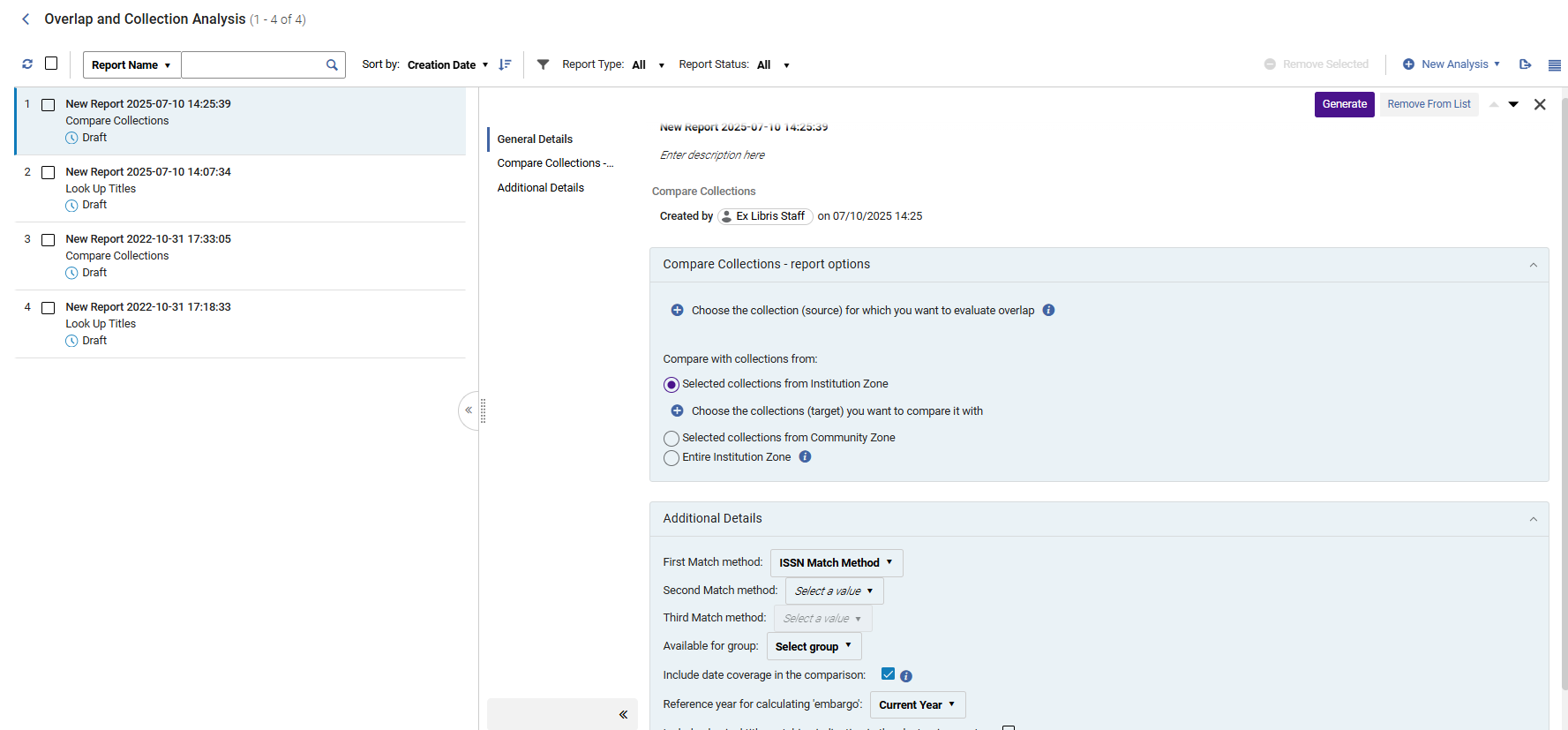
- Colocar un nombre al nuevo informe y proporcionar una descripción. To do that, click inside the field and start typing. Para salir, clicar en cualquier lugar fuera de los campos.
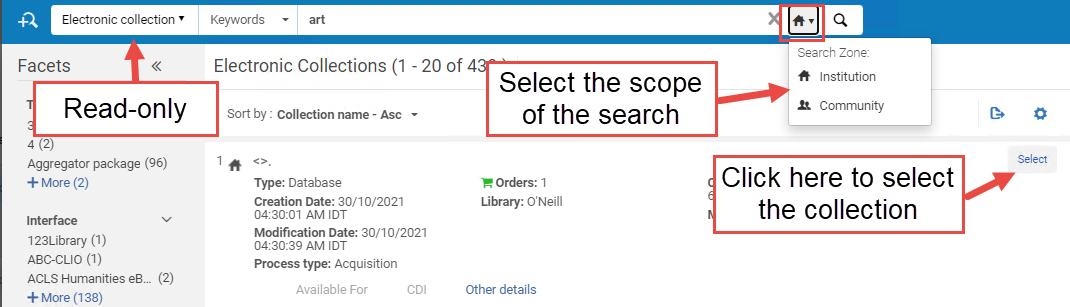
- Select Choose the collection for which you want to evaluate overlap. A sliding panel opens where you can search for your electronic collection within your Institution/ Community / Network Zone. To select it, click Select.Once selected, the search panel is closed automatically, and the selected electronic collection is added to the Overlap and Collection Analysis page.
- Under Compare with collection from, select the type of target collection that you want to compare to your source collection:The selected source collection cannot be included in the target collections. If you select, as the target, the options Entire Institution Zone or Entire Network Zone, and the selected source is part of that target, the source collection itself is excluded from the target collection during the analysis.
Colección objetivo Descripción Caso de uso Colecciones seleccionadas de la Zona institución Seleccionar colecciones electrónicas de la Zona de la Institución como las colecciones objetivo para la comparación. This option helps you learn which parts of your electronic collection are already included in other electronic collections available in your IZ electronic inventory.
Colecciones seleccionadas desde la Zona de red
Disponible para instituciones miembro de consorcios solamente.
Select electronic collections from the Network Zone (NZ) as the target collections for comparison.
You can select only the NZ collections that are available to your institution.
Esta opción ayuda:
- When considering whether to order (or cancel) a NZ electronic collection, to learn what portion of this collection is already covered in other electronic collections available in your IZ electronic inventory.
- When considering whether to order (or cancel) a NZ electronic collection, to compare it with a CZ candidate collection in order to learn which offers better value for its cost.
Colecciones seleccionadas de la Zona de la comunidad Seleccionar colecciones electrónicas de la Zona de la Comunidad como las colecciones objetivo para la comparación. Esta opción ayuda:
- When considering whether to purchase (or cancel) a CZ electronic collection, to learn what portion of this collection is already covered in other electronic collections available in your IZ electronic inventory (coverage can be taken into consideration).
- To see what percentage of the titles in the source CZ collection(s) overlap with those in other CZ collection(s), in order to learn which collection offers better value for its cost.
Zona de la Institución completa Select the entire Institution Zone as the target for comparison.
This includes all electronic collections available for your institution (both active and inactive). This means all local collections, as well as all activated CZ collections AND standalone portfolios.
For consortia member institutions only: When selected, the checkbox Include the electronic collections available for my institution in the Network Zone also appears. Select this option to also include in the target population all NZ collections available for your institution (either by explicit Available For group, or by not having any group settings set on the NZ collection).
Esta opción ayuda a:
- Compare specific collection(s) in the Institution Zone with the electronic holdings of the entire Institution Zone, in order to identify content overlap when considering cancelling some collections.
- Compare specific collection(s) in the Community Zone with the electronic holdings of the entire Institution Zone, in order to identify content overlap when considering new purchases or in order to avoid purchasing duplicate resources.
- Compare a limited number of active IZ collections with all the active IZ holdings, to identify overlap for resource cancellation scenarios, in order to learn what full-text access would be lost if a resource were cancelled.
- Compare a limited number of non-activated Community Zone collections with all the active IZ holdings, to identify overlap when considering whether to add a new resource, in order to learn whether the resource has sufficient unique full texts to justify acquiring it.
Toda la Zona de red
Available for consortia member institutions only
Select the entire Network Zone as the target for comparison.
This includes both active and inactive resources.
Cuando se selecciona, también aparecen las siguientes casillas de verificación:
- Include only the electronic collections available for my institution in the Network Zone
- Include only the electronic collections not available for my institution in the Network Zone
- Include all the electronic collections available in the Network Zone
When Multi-Campus Group Settings is enabled, the target population contains the collections available for your institution (either by explicit Available For group, or by not having any group settings set on the NZ collection).
Esta opción ayuda a:
- Compare specific collection(s) in the Institution Zone with the electronic holdings of the entire Network Zone electronic holdings in order to identify content overlap when considering cancelling some collections.
- Compare specific collection(s) in the Community Zone with the electronic holdings of the entire Network Zone in order to identify content overlap when considering new purchases or in order to avoid purchasing duplicate resources.
- Compare a limited number of active IZ collections with all the active NZ holdings available for your institution, to identify overlap for resource cancellation scenarios, in order to learn what full-text access would be lost if a resource were cancelled.
- Compare a limited number of non-activated Community Zone collections with all the active NZ holdings, to identify overlap when considering whether to add a new resource, in order to learn whether the resource has sufficient unique full texts to justify acquiring it.
- Select Choose the collection you want to compare it with. Se abre un panel donde se puede buscar la colección electrónica dentro del alcance seleccionado arriba. To select a collection, select the Select checkbox and then click Done.Once selected, the search panel is closed automatically, and the selected electronic collection is added to the Overlap and Collection Analysis page.
- Select the match method:ISSN,ISBN,Title,LCCN, or 035.
- Seleccionar un grupo para comparar solo portafolios asociados a este grupo o portafolios que no están asociados a ningún grupo (que están disponibles para todos los grupos). If no group is selected, portfolios are compared regardless of the group they belong to.This option only appears for institutions that are defined as multi-campus. Cuando una institución está definida como múltiples campus, esta función no está activada por defecto. Contact Ex Libris Customer Support to enable it. The list of groups is taken from the Inventory Network Group code table.
- Verify that Include date coverage information in the comparison is selected, to enable analysis down to the level of the coverage.
- When selected, the Reference year for calculating embargo parameter is activated. Select the year for calculating the embargo from the dropdown list. Esta opción permite realizar el análisis y prueba de superposición de cobertura, y se simula que el año actual es el año que se seleccionó en la lista desplegable ("Año actual +1", "Año actual +2", "Año actual +3", etc.). For example, if the current year is 2021, but you would like to test what the Overlap Analysis would be two years from now (since some resources have embargoes that might affect their availability in two years), select Current year +2. The analysis will compare the coverage overlap, taking the embargo into account , as if the analysis took place in 2023.
- When finished setting the parameters, select Generate. Alma generates the report and displays the results in the Analysis Report section, with percentages for unique and overlapping content. This enables you to see at a glance which collections have high overlaps with others (and therefore could be cancelled), or have high levels of unique content (and therefore should be retained). Click
 to export the reports as Excel files.
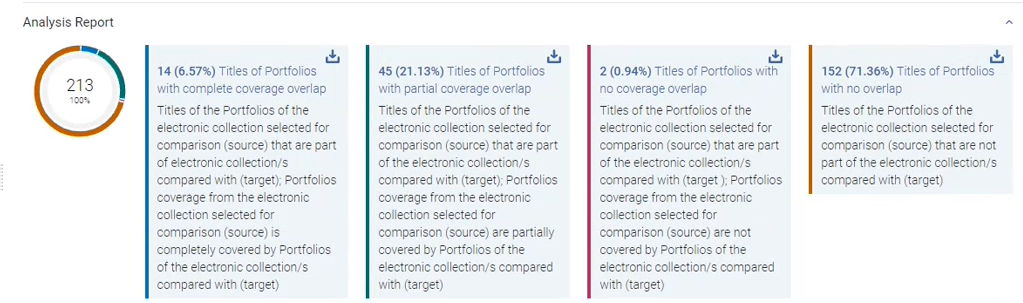 In addition, Alma places the report as the top-most report in the left section, where you can access it at a later time. For detailed information about the report, see Compare Electronic Collections Reports.
Performing Look Up Titles Analysis
Compare a list of identifiers contained in an Excel spreadsheet with Alma records from various population scopes to generate overlap analysis reports.
This comparison generates a number of reports, see Look Up Titles Reports.
Some characters in the Excel file, for instance, "#" may cause an error.
For Look Up Titles Analysis, when there are many matching title's items (and/or related titles' items) for a single identifier, the information may not be fully displayed in the Excel table due to Excel's display limitations. In these situations, it is recommended to run the analysis by setting the report output format as "One Excel line per match".
Fichero de Excel que contiene identificadores para la comparación
Prepare an Excel file containing the unique identifiers for the titles you want to compare against the Institution / Community / Network Zone.
El fichero de Excel de entrada puede contener más de una hoja. However, only the first sheet is handled by the Overlap Analysis job.
To identify the method for comparing the records, the identifier column must be placed first in the first sheet of the input excel file. The column heading must be one of the following: eISBN/ISBN (eISBN and ISBN values can occur in the same column (each in a separated line), eISSN/ISSN (eISSN and ISSN values can occur in the same column (each in a separate line), LCCN, TITLE.
The identifier column must not contain more than one identical identifier per title. If there are several rows with the same identifier, the job processes the first one only, and skips the processing of any additional identical rows.
El fichero Excel no puede ser mayor a 10 MB.
The Excel file may contain columns with additional information right after the identifier column on the first sheet only. These columns (from the first sheet only) will be also included in the report outputs. Esto sucede solo para las columnas que tienen encabezados. Una columna sin encabezado es una indicación para que el sistema deje de buscar columnas adicionales. The additional columns in the input file will be located in the output reports after the last column of the analysis information columns, in the same order they appeared in the input excel file. For each identifier, the values of the additional columns will appear in the output reports on the corresponding identifier's line, and will include the relevant information from the input file.
Buscar títulos
- Open the Overlap and Collection Analysis page (Resources > Advanced Tools > Overlap and Collection Analysis).
- Select New Analysis and then select Look Up Titles. Se abre una página donde se pueden ver los informes existentes en el sector izquierdo, y crear un nuevo informe en el sector derecho.
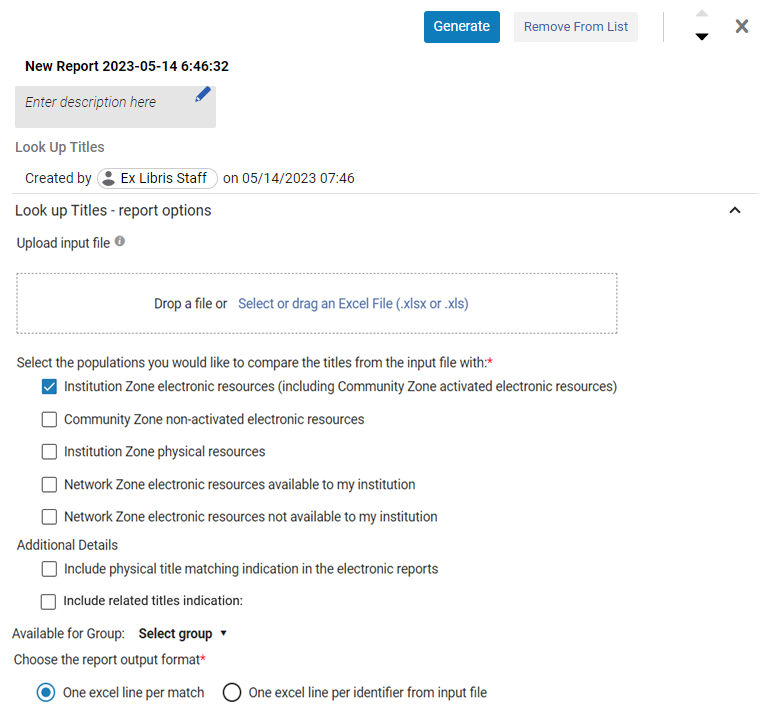 Panel de Buscar títulos
- Colocar un nombre al nuevo informe y proporcionar una descripción. Para hacerlo, clicar dentro de los campos y comenzar a tipear. Para salir, clicar en cualquier lugar fuera de los campos.
- Under Upload Input File, browse to locate the Excel file containing the identifiers of the titles for comparison.Some characters in the Excel file, for instance, "#" may cause an error.
- Under Available For group, select a group to compare only portfolios of the selected collection that are available for this group OR portfolios that are not associated with any group (which are then available for all groups). If no group is selected, portfolios are compared regardless of the group they belong to.
This option only appears for institutions that are defined as multi-campus. Cuando una institución está definida como múltiples campus, esta función no está activada por defecto. Contact Ex Libris Customer Support to enable it. The list of groups is taken from the Inventory Network Group code table.
-
Seleccionar las poblaciones con las que se quisiera comparar los títulos del fichero de entrada (se puede seleccionar más de una opción):
Población Descripción Recursos electrónicos de la zona de la institución (incluyendo los recursos electrónicos activados de la zona de la comunidad) Alma compares the Excel file with the electronic resources in the Institution Zone and activated Community Zone resources.
This option generates the following report:Look Up Titles – Institution Zone Electronic Resources
See Overlap and Collection Analysis Job Reports for more information.
Once this option is selected, if institutions are defined as multi-campus, an additional dropdown option of Available for Group is displayed enabling users to select a group that will be included in the analysis.
Recursos electrónicos no activados de la zona de la comunidad Alma compares the Excel file with the non-activated Community Zone resources.
This option generates the following report:Look Up Titles – Community Zone non-activated electronic resources. See Overlap and Collection Analysis Job Reports for more information.
Recursos físicos de la Zona de la institución Enables users to upload a list of titles and compare it with the institution's Electronic and Physical holdings (or both). This option enables the institution to make informative decisions regarding titles/collections that they own or would like to purchase, and as a result, potentially assist the institution to manage the financial budget expenses/savings. Network Zone electronic resources available to my institution
Disponible para instituciones miembro de consorcios solamente.
Alma compares the Excel file with the electronic resources available to your institution in the Network Zone.
This option generates the following report:Look Up Titles – Network Zone resources available to my institution. See Overlap and Collection Analysis Job Reports for more information.
Network Zone electronic resources not available to my institution
Disponible para instituciones miembro de consorcios solamente.
Alma compares the Excel file with the electronic resources not available to your institution in the Network Zone.
This option generates the following report:Look Up Titles – Network Zone resources not available to my institution. See Overlap and Collection Analysis Job Reports for more information.
Incluir indicación de coincidencia de título físico en los informes electrónicos Al seleccionar cualquiera de las opciones relacionadas con Electrónica, es decir:
- Recursos electrónicos de la zona de la institución (incluyendo los recursos electrónicos activados de la zona de la comunidad)
- Recursos electrónicos no activados de la zona de la comunidad
- Recursos electrónicos de la zona de red disponibles para mi institución
- Recursos electrónicos de la zona de red no disponibles para mi institución
it enables the Additional Details section with the following option:
- Include physical title matching indication in the electronic reports
This option enables users to select whether they would like to receive an indication in the Excel reports on whether the titles from the uploaded file also have a matching physical title.
Incluye la indicación de títulos relacionados Al ejecutar un análisis de superposición y comparar títulos con el inventario Físico, Alma puede (si lo desea) localizar también títulos físicos que estén relacionados con el título coincidente. Esto garantiza que los usuarios que realicen un análisis y busquen coincidencias físicas tengan una visión completa de los títulos/ejemplares que se superponen y puedan tomar decisiones informadas. Once this type of match that has a related physical title with physical inventory is found, the job marks the related physical indication. This physical hint indication is included as 4 new columns in the Excel report:
- Has Physical Matching(Yes / No)
- Physical Holdings Library: Location (count)
- Has Related Physical Matching(Yes / No)
- Related Physical Holdings Library: Location (count)
The "Related" report incorporates a new column,Relation type that has the following values:
- Contiene
- Vacío
When the "Contains" indication is displayed in the new column, an additional indication (Related title) is displayed next to the MMS ID.
Available for Group
Appears for institutions that are defined as multi-campus.
Alma compares the Excel file with the electronic resources that do not exist in the Institution Zone or in activated Community Zone electronic holdings for the selected Available For group.
This option generates the following report:Look Up Titles – From file not available for the selected Available For Group. See Overlap and Collection Analysis Job Reports for more information.
- Seleccionar el formato de salida del informe:
Formato de salida Descripción One Excel line per match A single identifier might appear in multiple Excel rows, one row for every match. Dado que cada celda contiene solo un valor de un portafolio coincidente específico, los filtros y el ordenamiento son más precisos y específicos. For example, by adding a column "Origin (IZ or CZ)", you could distinguish between portfolios linked to the CZ and ones that are not. 
One Excel line per identifier from the input file For each unique identifier from the input file, there is a single row in the output report, with information of all matching portfolios concatenated in each cell:

- Todos los valores del portafolio se muestran dentro de llaves {}.
- When there are several values within the {} brackets, each value appears within its own double quotes "", separated from other values by pipeline sign |.
- When finished setting the parameters, select Generate. Alma genera el informe y muestra los resultados en la sección Informe de análisis que se abre en el sector derecho. Clickto download the report as an Excel file to your machine. In addition, Alma places the report in the left section, where you can access it at a later time. For detailed information about the report, see Look Up Titles Reports.
- After the Overlap and Collection Analysis job completes, an Overlap and Collection Analysis Letter is sent to the staff user to indicate that the job is completed. For information on configuring the letter, see Configuring Alma Letters.
Informes de análisis de superposición y colección
Una vez que se generan los informes, están visibles para todos los usuarios de la institución.
You cannot edit the reports, they can only be viewed.
Compare Electronic Collections Reports
| Informe | Descripción | Columnas de informes |
|---|---|---|
| Compare Collections - Titles of portfolios with complete coverage overlap |
Titles included in portfolios of the electronic collection selected for comparison (source) that are also part of electronic collection/s compared with (target); Portfolio coverage from the electronic collection selected for comparison (source) is completelycovered by portfolios of the electronic collection/s compared with (target). For the Analysis Information sheet, see Analysis Information below in this table. |
|
| Compare Collections - Titles of portfolios with partial coverage overlap |
Titles included in portfolios of the electronic collection selected for comparison (source) that are also part of the electronic collection/s compared with (target); Portfolio coverage from the electronic collection selected for comparison (source) are partially covered by portfolios of the electronic collection/s compared with (target). For the Analysis Information sheet, see Analysis Information below in this table. |
|
| Compare Collections - Titles of portfolios with no coverage overlap |
Titles included in portfolios of the electronic collection selected for comparison (source) that are part of the electronic collection/s compared with (target); Portfolios coverage from the electronic collection selected for comparison (source) are not covered by portfolios of the electronic collection/s compared with (target). For the Analysis Information sheet, see Analysis Information below in this table. |
|
| Compare Collections - Titles of portfolios with no overlap |
Titles included in portfolios of the electronic collection selected for comparison (source) that are not part of the electronic collection/s compared with (target). For the Analysis Information sheet, see Analysis Information below in this table. |
|
| Compare Collections - Titles of portfolios not available for selected Available For Group |
Titles included in portfolios that are part of the electronic collection selected for comparison (source), but are not available for the selected 'Available For Group'. Appears only for multi-campus and only if you selected to specify groups in the "Available for Group" option. For the Analysis Information sheet, see Analysis Information below in this table. |
|
| Analysis Information | Este informe proporciona información general sobre la tarea. Aparece como la última hoja en todos los demás informes. |
|
Informes de búsqueda de títulos
| Informe | Hoja de informe | Columnas de informes |
|---|---|---|
| Look Up Titles – Institution Zone Electronic Resources All titles from input files that have a match with electronic resources in the Institution Zone. |
Matches with Single Resource Includes all the titles with a single match (either in the Institution Zone or activated Community Zone populations) |
|
|
Matches with Multiple Resources Include all the titles with multi matches (either in Institution Zone or activated Community Zone populations). |
||
|
No Matches or No Resources include all the titles with no match. |
|
|
|
Analysis Information General information about the job |
|
|
| Look Up Titles – Community Zone non-activated electronic resources All titles in input file that have a match in with electronic resources in the Community Zone that are not activated in the Institution Zone. |
Match Includes all the titles with one or more matches in the non-activated Community Zone population. |
|
|
No Match Includes all the titles with no matches in the non-activated Community Zone population. |
|
|
|
Analysis Information General Information about the job |
See Analysis Information Sheet. | |
|
Look Up Titles – Network Zone resources available to my institution All titles in input file that have a match with electronic resources managed in the Network Zone for my institution. Disponible para instituciones miembro de consorcios solamente. |
Match Includes all the titles with one or more matches in the Network Zone electronic resources available for your institution. |
|
|
No Match Includes all the titles with no matches in the Network Zone electronic resources that are available for my institution. |
|
|
|
Analysis Information General Information about the job |
See Analysis Information Sheet. | |
|
Network Zone resources not available to my institution All titles in input file that have a match with electronic resources managed in the Network Zone for other institutions in my consortia. Disponible para instituciones miembro de consorcios solamente. |
Match Include all the titles withone or more matchesin the Network Zone electronic resources that are not-available for my institution). |
|
|
No Match Includes all the titles withno matchesin the Network Zone electronic resources that are not-available for your institution. |
|
|
|
Analysis Information General Information about the job |
See Analysis Information Sheet. | |
|
Look Up Titles - from file not available for the selected Available For Group Titles that do not exist in the Institution Zone or in activated Community Zone electronic holdings for the selected Available For group |
Titles not available for the selected group |
|
|
Look Up Titles - Institution Zone physical resources All titles from input files that match with the institution's Electronic or Physical holdings (or both). |
Matches with Single Resource Includes all the titles with a single match (in the institution's Physical holdings). |
|
| Matches with Multiple Resources Include all the titles with multi matches (in the institution's Physical holdings). | ||
| No Matches or No Resources include all the titles with no match. |
|
|
|
Analysis Information General Information about the job |
See Analysis Information Sheet. |
Page tags: article:topicproduct:almacontent:Documentationlang:english
