
Trabajar con superposición y análisis de colección
Overview of overlap analysis and methods for performing overlap analysis
- Operador de compras
- Gerente de compras
- Gerente del repositorio
- Operador de inventario electrónico
Utilizar la Herramienta de análisis de superposición para lograr mejores capacidades de análisis de desarrollo de colecciones de existencias electrónicas de bibliotecas.
Among the main use cases in which the Overlap Analysis Tool can help your collection-development analysis:
- When considering to order an electronic collection, can help you establish which part of this collection is already covered in other electronic collections available in your existing library content, to learn which collection has a better value for money, and to avoid content overlap and purchasing of duplicate resources.
- When considering to cancel electronic collections, can help you determine content overlap rate for possible resource cancellation scenarios, in order to learn what full text access would be lost if a resource were cancelled.
Tipos de análisis
With Overlap and Collection Analysis, Alma can provide you with the following information about your electronic collections:
- Compare Electronic Collections- Compare an Alma electronic collection in the Institution Zone or the Community Zone with the titles of one or more electronic collections in the Institution Zone or in the Community Zone, or with the entire Institution Zone, to find titles with overlapping coverage dates in these collections. Esta comparación busca coincidencias entre registros de Alma a nivel de título utilizando identificadores, como ISSN o ISBN, y compara la información de cobertura a nivel de portafolio. See Performing Compare Electronic Collections Analysis for more information.
- Look Up Titles - Compare a list of identifiers contained in an Excel spreadsheet with Alma records from various population scopes to generate overlap analysis reports. See Performing Look Up Titles Analysis for more information.
- When you perform an overlap analysis (using either of these two methods), the analysis searches for matching electronic collections that have a service type of FullText or SelectedFullText.
- The analysis considers only coverage year, not month or date, in determining overlap. En consecuencia, puede haber pequeñas variaciones.
Managing Overlap and Collection Analysis Reports
All reports generated by the institution's Alma users appear in the Overlap and Collection Analysis page (Resources > Advanced Tools > Overlap and Collection Analysis). All reports are visible to all Alma users with appropriate roles (except for the Draft reports, that are visible only to the user who created the report).
Once the report is generated, it is read-only: it can be viewed, but cannot be edited.
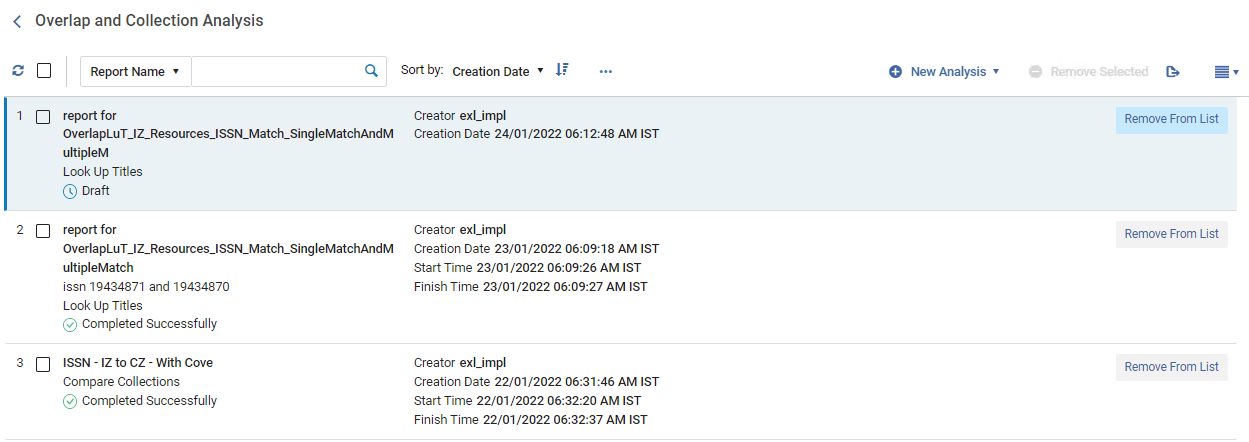
- Seleccione su nombre.
- To remove one report, select Remove From List in the row actions.
- To remove several reports, tick the checkbox by the desired reports and select Remove Selected at the top.
Utilizar las opciones de búsqueda y filtro para ubicar el informe deseado:
| Opciones de búsqueda | Descripción |
|---|---|
| Nombre/descripción del informe | Select whether to search by report name or description, specify the name/description, and select the search icon  . |
| Ordenar por | Select either of the options to sort the reports: Creator, Creation date, Start/End time, name, status, type. Seleccionar si se desea mostrar los informes en orden ascendente o descendente. |
| Tipo de informe | Seleccione el tipo de informe para mostrar solo los informes de este tipo. Las opciones on: Todos, Comparar colecciones, Buscar títulos. |
| Estado del informe | Seleccione el estado del informe para mostrar solo los informes con este estado. Las opciones son: Todos, Completado con éxito, Borrador, Fallido, Pendiente, En proceso, Completado con errores. |
Realizar análisis de comparación de colecciones electrónicas
Use to compare two Alma electronic collections to find titles with overlapping coverage dates in these collections.
Compare an Alma electronic collection in the Institution Zone or the Community Zone with the titles of one or more electronic collections in the Institution Zone or in the Community Zone, or with the entire Institution Zone, to find titles with overlapping coverage dates in these collections. Esta comparación busca coincidencias entre registros de Alma a nivel de título utilizando identificadores, como ISSN o ISBN, y compara la información de cobertura a nivel de portafolio.
S bien el análisis tiene en cuenta las fechas de cobertura (año, mes y día), algunos portafolios pueden tener su cobertura definida por volumen/fascículo en lugar de por fechas. La comparación de portafolios con coberturas definidas en formatos diferentes puede dar lugar a pequeñas variaciones.
The comparison generates a number of reports, see Compare Electronic Collections Reports.
- Open the Overlap and Collection Analysis page (Resources > Advanced Tools > Overlap and Collection Analysis).
- Select New Analysis and then select Compare Collections. A page opens where you can see existing reports on the left side and create a new report on the right side.
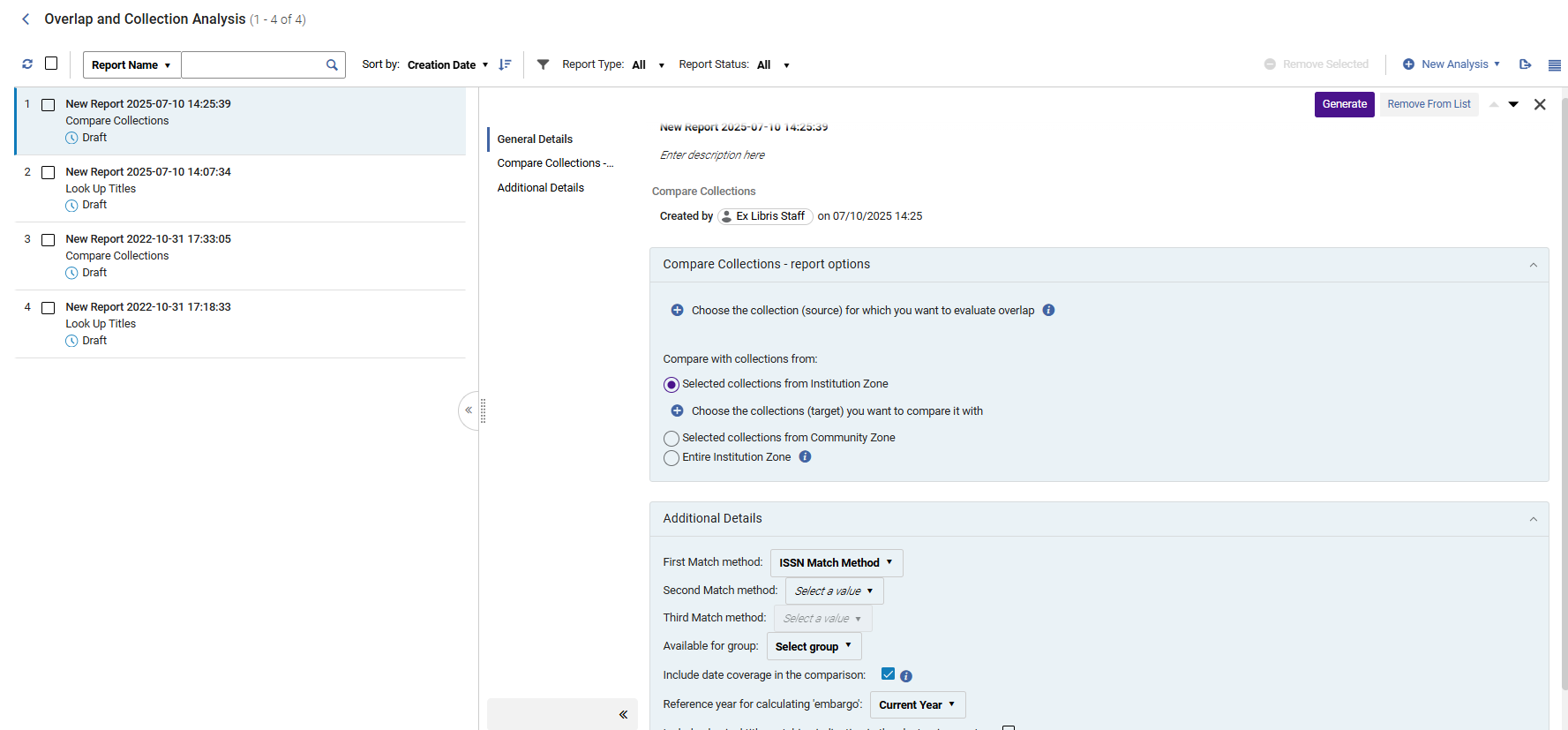
- Name your new report and provide a description by selecting inside the field and typing. To exit, select anywhere outside of the fields.
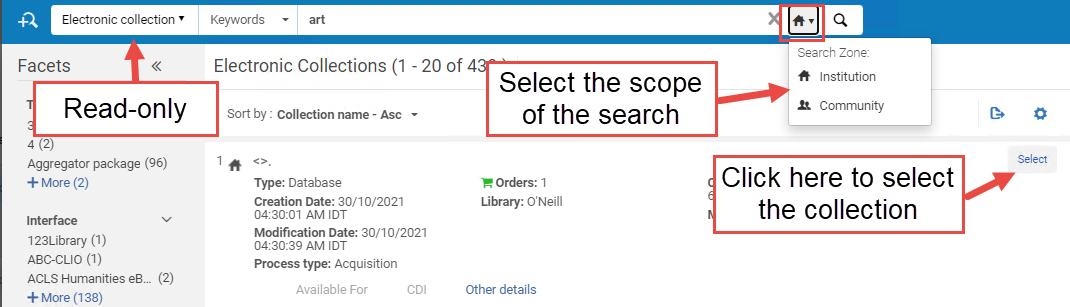
- Select Choose the collection for which you want to evaluate overlap. Se abre un panel deslizante donde se puede buscar la colección electrónica dentro de su Institución/Comunidad. To select it, click Select.Once selected, the search panel is closed automatically, and the selected electronic collection is added to the Overlap and Collection Analysis page.
- Under Compare with collection from, select the type of target collection that you want to compare to your source collection:
The selected source collection is not included in the target collections. If you select as the target the option "Entire Institution Zone" of which the selected source is part, the source collection is excluded from the target population.
Colección objetivo Descripción Caso de uso Colecciones seleccionadas de la Zona institución
Select electronic collections from the Institution Zone as the target collections for comparison.
This option helps you know which part of your electronic collection is already covered in other electronic collections available in your IZ electronic inventory.
Colecciones seleccionadas de la Zona de la comunidad
Select electronic collections from the Community Zone as the target collections for comparison.
Esta opción ayuda:
When considering to purchase (or cancel) CZ electronic collection(s), to know what portion of it is already covered in other electronic collections available in your IZ electronic inventory (coverage can be taken into consideration).
To see which percentage of titles overlaps in source CZ collection(s) and other CZ collection(s), to learn which collection has a better value for money.
Entire Institution Zone
Select the entire Institution Zone as the target for comparison.
This includes all electronic collections available for your institution (both active and inactive). This means all local collections, as well as all activated CZ collections AND standalone portfolios.
Esta opción ayuda a:
Compare specific collection(s) in the Institution Zone against the entire Institution Zone electronic holdings, to determine content overlap rate for possible cancellations
Comparar colecciones específicas en la Zona de la Comunidad con las existencias de la Zona de la Institución completa, para determinar la superposición de contenido en posibles nuevas compras o para evitar compras de recursos duplicados.
Compare limited number of active IZ collections against all the active IZ holdings, to determine overlap for resource cancellation scenarios, in order to learn what full text access would be lost if a resource were cancelled.
Compare a limited number of non-activated Community Zone collections against all the active IZ holdings to determine overlap when considering whether to add a new resource, in order to learn whether the resource has sufficient enough unique full text to justify acquiring it.
- Select Choose the collection you want to compare it with. Se abre un panel donde se puede buscar la colección electrónica dentro del alcance seleccionado arriba. To select a collection, check the checkbox and select Done.Once selected, the search panel is closed automatically, and the selected electronic collection is added to the Overlap and Collection Analysis page.
- Select the First Match method: ISSN, ISBN, Title, LCCN, or 035. Note that the match is performed using the same fields for these indexes as used in the repository search as described in Available Search Indexes.
- If relevant, select a Second Match method: ISSN, ISBN, Title, LCCN, or 035 and Third Match method: ISSN, ISBN, Title, LCCN, or 035.
The Identifiers are used in the defined order. Se utiliza primero el método de Primera coincidencia. El siguiente método de coincidencia solo se utiliza para los títulos que no coincidieron con el método de Primera coincidencia. El informe de resultados incluye el método utilizado para obtener cada coincidencia. Los métodos de coincidencia adicionales, si se definen, también se aplican a la búsqueda de indicaciones físicas. No es posible seleccionar el mismo identificador más de una vez.
- Seleccionar un grupo para comparar solo portafolios asociados a este grupo o portafolios que no están asociados a ningún grupo (que están disponibles para todos los grupos). If no group is selected, portfolios are compared regardless of the group they belong to.This option only appears for institutions that are defined as multi-campus. Cuando una institución está definida como múltiples campus, esta función no está activada por defecto. Contact Ex Libris Customer Support to enable it. The list of groups is taken from the Inventory Network Group code table.
- Ensure the Include date coverage information in the comparison option is selected to enable analysis down to the level of coverage, taking into account the coverage ranges and embargo periods of the source and target portfolios.
- When selected, the "Reference year for calculating embargo" parameter is activated. Select the year for calculating the embargo from the dropdown. Esta opción le permite realizar el análisis y prueba de superposición de cobertura, y se simula que el año actual es el año que se seleccionó en la lista desplegable ("Año actual +1", "Año actual +2", "Año actual +3", etc.). For example, if the current year is 2021, but you would like to test what the Overlap Analysis would be two years from now (since some resources have embargoes that might affect the availability in two years), select "Current year +2". The analysis compares the coverage overlap considering the embargo, as if the analysis took place in 2023.
- When finished setting the parameters, select Generate. Alma genera el informe y muestra los resultados en la sección Informe de análisis, con porcentajes para contenido único y superpuesto. This enables you to see at a glance which collections have high overlap with others (and therefore could be cancelled), or have high levels of unique content (and therefore should be retained). El informe de análisis resume las coincidencias encontradas por todos los métodos de coincidencia definidos. Los informes de Excel proporcionan detalles sobre el método de coincidencia utilizado para cada coincidencia.
- Select the download icon
 to download the reports as Excel files.
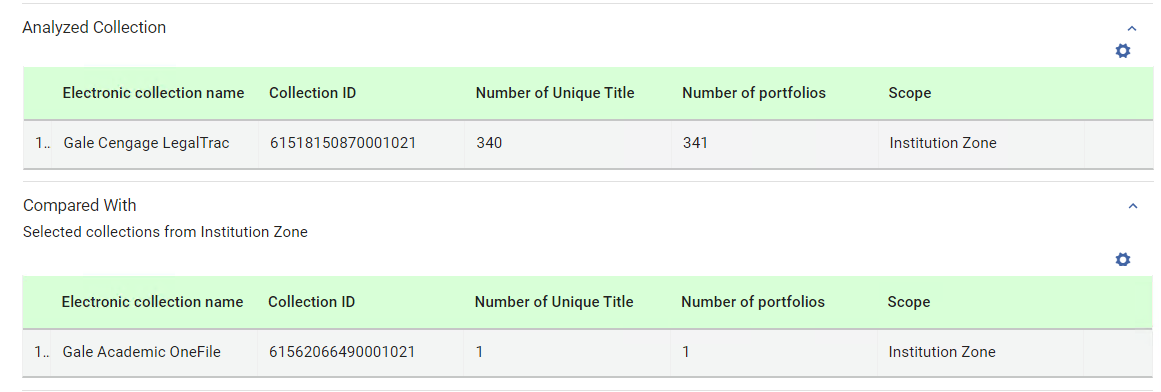
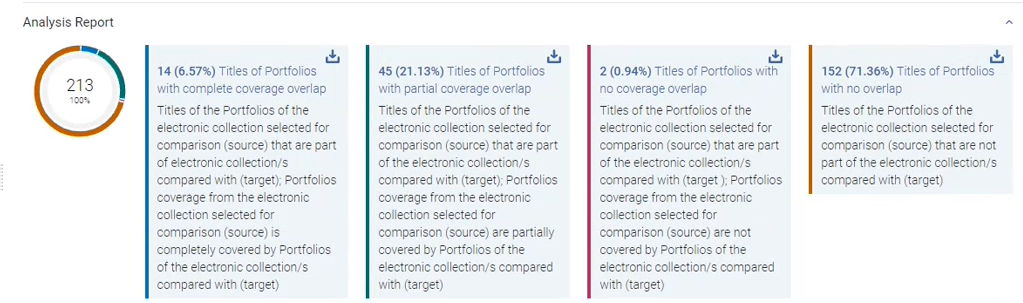 In addition, Alma places the report as the top-most report in the list of reports on the left, where you can access it at any time. For detailed information about the report, see Compare Electronic Collections Reports.When the results are displayed for the analyzed and compared collections, the Number of unique title column appears in the table. This column is the count of titles in the source that are searched for comparison in the selected target collections. La etiqueta de la columna indica que la comparación realizada se lleva a cabo a nivel de registro bibliográfico (nivel de título). Podría haber más de un portafolio para el mismo registro bibliográfico (título). The reports are title-based, and this column shows where the total number of titles are derived from.
Performing Look Up Titles Analysis
Compare a list of identifiers contained in an Excel spreadsheet with Alma records from various population scopes to generate overlap analysis reports.
This comparison generates a number of reports, see Look Up Titles Reports.
Overlap and Collection Analysis Look up title for physical titles does not return a match when there are physical holdings but no items,only physical titles with items are considered for the matching.
Excel File Containing Identifiers for Comparison
Prepare un fichero de Excel que contenga los identificadores únicos para los títulos que desea comparar con la Zona de la Institución/Comunidad/Red.
El fichero de Excel de entrada puede contener más de una hoja. Sin embargo, la tarea Análisis de superposición solo procesa la primera hoja. Las otras hojas pueden contener cualquier información relevante para su institución.
Para identificar el método de comparación de registros, la columna de identificadores debe colocarse en la primera hoja del fichero de Excel de entrada. If desired, second and third matching identifiers may be added in columns B and C.
The column heading for column A must be one of the following:
- eISBN/ISBN (eISBN and ISBN values can occur in the same column (each in a separate line))
- eISSN/ISSN (los valores eISSN e ISSN pueden aparecer en la misma columna, cada uno en una línea separada).
- LCCN
- TÍTULO

To define Second and Third match methods, the column headings for columns B and C must be one of the following:
- eISBN/ISBN (Identificador coincidente)
- eISSN/ISSN (Identificador coincidente)
- LCCN (Identificador coincidente)
- TÍTULO (Identificador coincidente)
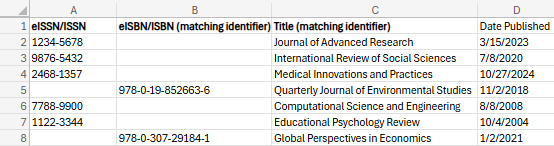
Below is an example of an Excel file with two matching identifiers in columns A and B. Notice the header in column C is not marked as a (matching identifier), and thus not considered for matching.
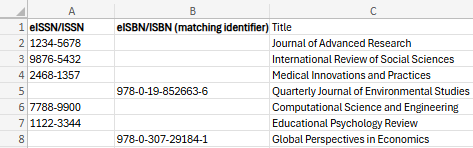
El fichero de Excel puede contener columnas con información adicional después de la columna o columnas identificadoras solo en la primera hoja. This includes columns B and C if their headers are not recognized as match methods. Estas columnas (de la primera hoja solamente) también se incluyen en los resultados del informe. Esto sucede solo para las columnas que tienen encabezados. Una columna sin encabezado es una indicación para que el sistema deje de buscar columnas adicionales. Las columnas adicionales en el fichero de entrada se ubican en los informes de resultados después de la última columna de información del análisis, en el mismo orden en el que aparecen en el fichero de Excel de entrada. Para cada identificador, los valores de las columnas adicionales aparecen en los informes de salida en la línea de identificadores que corresponda, e incluyen la información relevante del fichero de entrada.
Puede utilizar la misma columna de identificadores coincidentes varias veces, por ejemplo, para realizar la búsqueda utilizando tres valores eISSN/ISSN diferentes para cada título.
Buscar títulos
- Open the Overlap and Collection Analysis page (Resources > Advanced Tools > Overlap and Collection Analysis).
- Select New Analysis and then select Look Up Titles. A page opens where you can see existing reports on the left side, and create a new report on the right side.
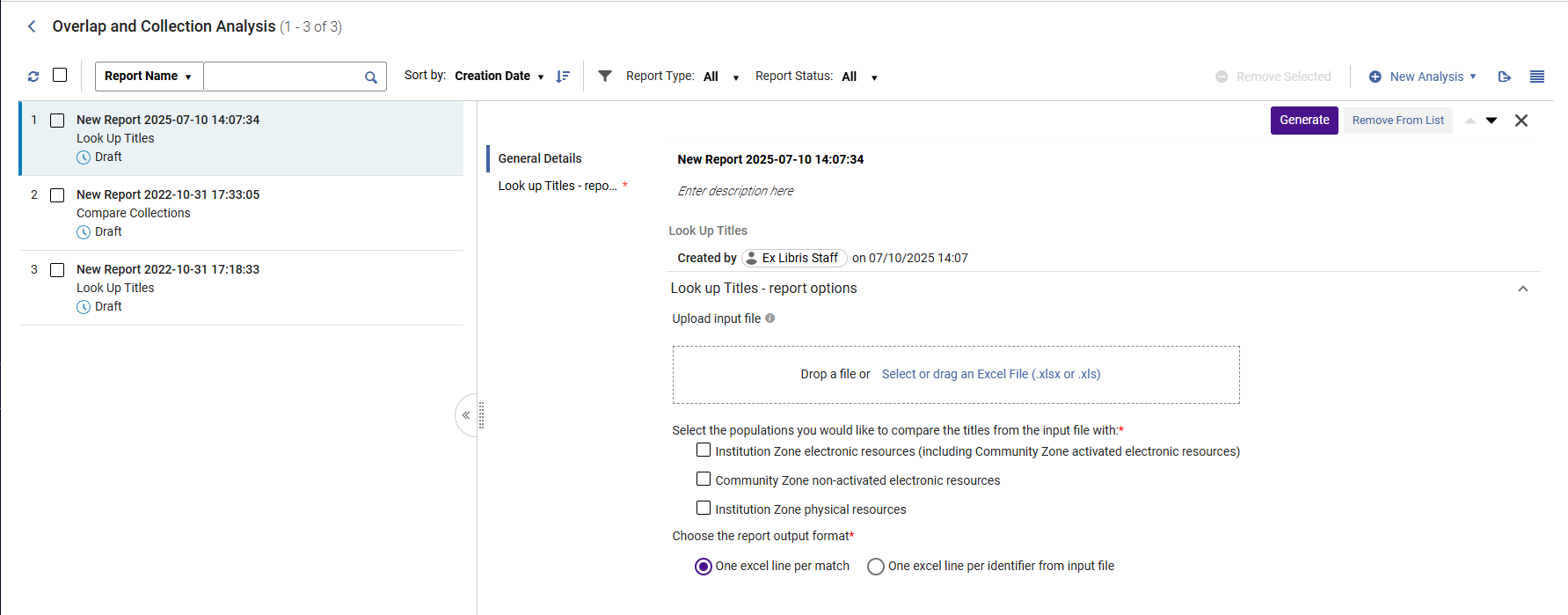
- Asigne un nombre a su nuevo informe y proporcione una descripción al realizar una selección dentro de los campos y escribir. To exit, select anywhere outside the fields.
- Under Upload input file, browse to locate the Excel file containing the identifiers of the titles for comparison.
- Under "Available For group", select a group to compare only portfolios of the selected collection that are available for this group OR portfolios that are not associated with any group (which are then available for all groups). If no group is selected, portfolios are compared regardless of the group they belong to.This option only appears for institutions that are defined as multi-campus. Cuando una institución está definida como múltiples campus, esta función no está activada por defecto. Contact Ex Libris Customer Support to enable it. The list of groups is taken from the Inventory Network Group code table.
-
Seleccionar las poblaciones con las que se quisiera comparar los títulos del fichero de entrada (se puede seleccionar más de una opción):
Población Descripción Comentarios Recursos electrónicos de la zona de la institución (incluyendo los recursos electrónicos activados de la zona de la comunidad)
Alma compares the Excel file with the electronic resources in the Institution Zone and the activated Community Zone resources.
This option generates the following report:Look Up Titles – Institution Zone Electronic Resources
See Overlap and Collection Analysis Job Reports for more information
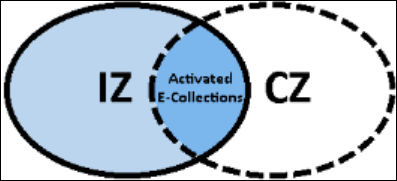
- When "Institution Zone Electronic Resources (including Community Zone activated electronic resources)" is selected, the title set in blue (both shades) is compared to the titles in the Excel file:
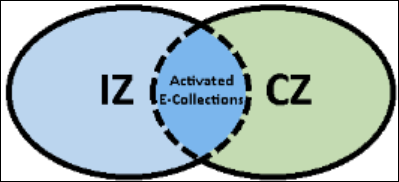
- When "Community Zone non-activated electronic resources" is selected, the title set in green is compared to the titles in the Excel file:
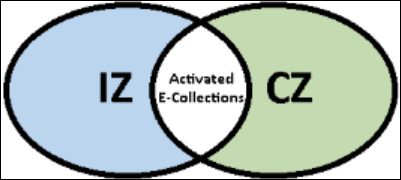
- When both options are selected, both the title sets in blue and in green are compared to the titles in the Excel file:
Recursos electrónicos no activados de la zona de la comunidad
Alma compares the Excel file with the non-activated Community Zone resources.
This option generates the following report:Look Up Titles – Community Zone non-activated electronic resources. See Overlap and Collection Analysis Job Reports for more information.
Recursos físicos de la Zona de la institución
Alma compares the Excel file with the physical resources in the Institution Zone.
This option generates the following report:Look Up Titles – Institution Zone Physical Resources
See Overlap and Collection Analysis Job Reports for more information.
Network Zone electronic resources available to my institution
Disponible para instituciones miembro de consorcios solamente.
Alma compares the Excel file with the electronic resources available to your institution in the Network Zone.
This option generates the following report:Look Up Titles – Network Zone resources available to my institution. See Overlap and Collection Analysis Job Reports for more information.
Network Zone electronic resources available to my institution
Disponible para instituciones miembro de consorcios solamente.
Network Zone electronic resources not available to my institution
Disponible para instituciones miembro de consorcios solamente.
Alma compares the Excel file with the electronic resources not available to your institution in the Network Zone.
This option generates the following report:Look Up Titles – Network Zone resources not available to my institution. See Overlap and Collection Analysis Job Reports for more information.
Network Zone electronic resources not available to my institution
Disponible para instituciones miembro de consorcios solamente.
Include physical title matching indication in the electronic reports
Al seleccionar cualquiera de las opciones relacionadas con Electrónica, es decir:
-
Recursos electrónicos de la zona de la institución (incluyendo los recursos electrónicos activados de la zona de la comunidad)
-
Recursos electrónicos no activados de la zona de la comunidad
-
Recursos electrónicos de la zona de red disponibles para mi institución
-
Recursos electrónicos de la zona de red no disponibles para mi institución
it enables the Additional Details section with the following option:
-
Include physical title matching indication in the electronic reports
This option enables users to select whether they would like to receive an indication in the Excel reports on whether the titles from the uploaded file also have a matching physical title.
Include physical title matching indication in the electronic reports
Incluye la indicación de títulos relacionados Al ejecutar un análisis de superposición y comparar títulos con el inventario Físico, Alma puede (si lo desea) localizar también títulos físicos que estén relacionados con el título coincidente. Esto garantiza que los usuarios que realicen un análisis y busquen coincidencias físicas tengan una visión completa de los títulos/ejemplares que se superponen y puedan tomar decisiones informadas. Una vez encontrado este tipo de coincidencia que tiene un título físico relacionado con el inventario físico, la tarea marca la indicación física relacionada. This physical hint indication is included as four columns in the Excel report:
- Has Physical Matching(Yes / No)
- Physical Holdings Library: Location (count)
- Has Related Physical Matching(Yes / No)
- Related Physical Holdings Library: Location (count)
En los casos en los que se seleccionan varios métodos de coincidencia, al realizar el análisis para uno o varios métodos de coincidencia determinados, se utiliza el mismo método o métodos de coincidencia para buscar una sugerencia física. If a hint is found for any match method, we do not continue to the next one - this is independent of the main match (main match and physical hint match may not match each other). The found hints are stored with the addition of saving the match method used to find each hint.
Una vez completado el análisis principal y clasificadas los portafolios en los diferentes informes, se añade la sugerencia física a cada fila.
If no physical hint/related was found, the physical hint columns remain empty (including the Physical MatchingBy'column)
The "Related" report incorporates the column Relation type, which includes the following values:
- Contiene
- Vacío
Include related titles indicationWhen the Contains indication is displayed in the column, an additional indication (Related title) is displayed next to the MMS ID.
Disponible para grupos
Disponible para instituciones definidas como múltiples campus solamente.
Alma compares the Excel file with the electronic resources that do not exist in the Institution Zone or in the activated Community Zone electronic holdings for the selected Available For group.
This option generates the following report:Look Up Titles – From file not available for the selected Available For Group. See Overlap and Collection Analysis Job Reports for more information.
- When "Institution Zone Electronic Resources (including Community Zone activated electronic resources)" is selected, the title set in blue (both shades) is compared to the titles in the Excel file:
- Seleccionar el formato de salida del informe:
Formato de salida Descripción One Excel line per match A single identifier might appear in multiple Excel lines: a line for every match. Dado que cada celda contiene solo un valor de un portafolio coincidente específico, los filtros y el ordenamiento son más precisos y específicos. Por ejemplo, al añadir una columna "Origen (ZI o ZC)", se pueden diferenciar los portafolios que están enlazados a la ZC y los que no lo están. 
One Excel line per identifier from the input file
For each unique identifier from the input file, there is a single line in the output report, with information of all matching portfolios concatenated in each cell:

Todos los valores del portafolio se muestran dentro de llaves {}.
When there are several values within the {} brackets, each value appears within its own double quotes "", separated from other values by pipeline sign |.
Alma utiliza Microsoft Excel y está limitado a la cantidad de información que admite para que se muestre en una sola celda. Las celdas con más información que los caracteres limitados admitidos se acortan.
- When finished setting the parameters, select Generate. Alma genera el informe y muestra los resultados en la sección Informe de análisis que se abre en el sector derecho. Select the download iconto download the report as an Excel file to your machine. In addition, Alma places the report in the left section, where you can access it at a later time. For detailed information about the report, see Look Up Titles Reports.
- Tras completar la tarea de Análisis de superposición y colección, se envía una carta de Análisis de superposición y colección al usuario del personal para indicar que la tarea se completó. For information on configuring the letter, see Configuring Alma Letters.
Análisis de superposición y colección en consorcios
Además de todas las opciones proporcionadas arriba, se ofrecen opciones adicionales para instituciones miembro de un consorcio:
- Compare Electronic Collections- Compare an Alma electronic collection in the Institution/Community/Network Zone with the titles of one or more electronic collections in the Network Zone or with the entire Network Zone. See Working with Overlap and Collection Analysis
- Look Up Titles - Compare a list of identifiers contained in an Excel spreadsheet with Network Zone electronic resources that are either available, or not available, to your institution. See Working with Overlap and Collection Analysis
Working with Network Zone is enabled for consortia members only.
Compare Electronic Collections Analysis in Consortia
Los miembros del consorcio también pueden seleccionar colecciones electrónicas fuente para comparar desde la Zona de Red:
- Clicar "Seleccionar la colección para la cual quiere evaluar la superposición". A sliding panel opens where you can search for your electronic collection within your Institution/ Community / Network Zone. To select it, click "Select".Once selected, the electronic collection is added to the Overlap and Collection Analysis page:
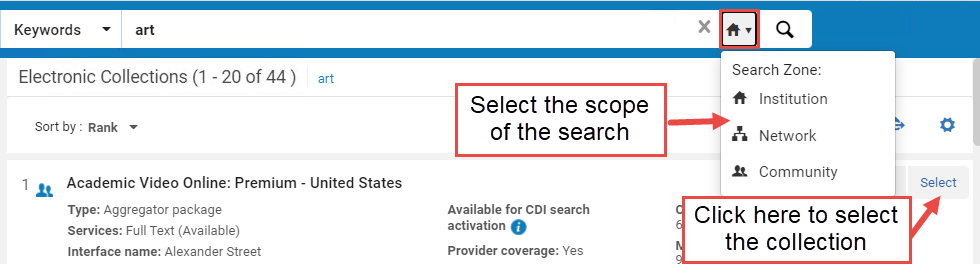
In addition, Network Zone options are enabled as targets with which you want to evaluate overlap with the source collections:
The selected source collection is not included in the target collections. If you select as the target the options "Entire Institution Zone" or "Entire Network Zone" of which the selected source is part, the source collection is excluded from the target population.
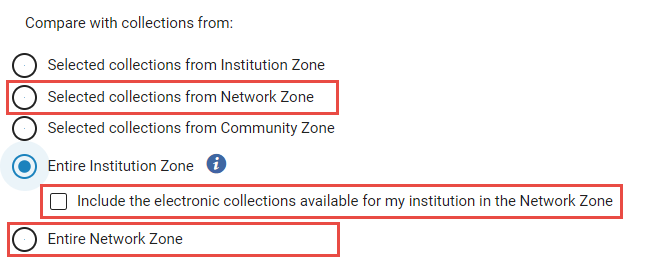
| Colección objetivo | Descripción | Caso de uso |
|---|---|---|
|
Colecciones seleccionadas desde la Zona de red |
Select electronic collections from the Network Zone (NZ) as the target collections for comparison. Solo se pueden seleccionar las colecciones de la Zona de Red disponibles para esta institución. |
Esta opción ayuda:
|
| Zona de la Institución completa |
Select the entire Institution Zone as the target for comparison. For consortia member institutions only: When selected, the checkbox "Include the electronic collections available for my institution in the Network Zone" also appears. Select it to include in the target population also all NZ collections available for your institution (either by explicit Available For group, or by not having any group settings set on the NZ collection). |
Esta opción ayuda a:
|
|
Toda la Zona de red Disponible para instituciones miembro de consorcios solamente. |
Select the entire Network Zone as the target for comparison. This includes both active and inactive resources. Cuando se selecciona, también aparecen las siguientes casillas de verificación:
When "Multi-Campus" Group Settings is enabled, the target population contains the collections available for your institution (either by explicit Available For group, or by not having any group settings set on the NZ collection). |
Esta opción ayuda a:
|
Look Up Titles Analysis in Consortia
For Consortia members, additional Network Zone options are enabled for comparison with the Excel input file: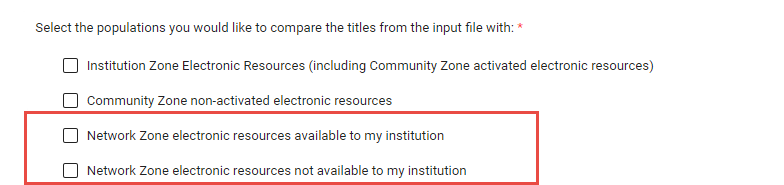
| Población | Descripción | |
|---|---|---|
|
Recursos electrónicos de la zona de red disponibles para mi institución |
Alma compares the Excel file with the electronic resources available to your institution in the Network Zone. This option generates the following report:Look Up Titles – Network Zone resources available to my institution. See Overlap and Collection Analysis Job Reports for more information. |
|
|
Recursos electrónicos de la zona de red no disponibles para mi institución |
Alma compares the Excel file with the electronic resources not available to your institution in the Network Zone. This option generates the following report:Look Up Titles – Network Zone resources not available to my institution. See Overlap and Collection Analysis Job Reports for more information. |
|
Overlap and Collection Analysis Reports
Una vez que se generan los informes, están visibles para todos los usuarios de la institución. Se pueden ver desde cualquiera de las siguientes ubicaciones:
- Overlap and Collection Analysis page > reports list.
- Monitor Jobs page >History tab (see Viewing Completed Jobs).
Los informes son de solo lectura, no se pueden editar.
Los informes devuelven todos los portafolios de la Zona de la Institución activados desde la Zona de la Comunidad, incluidos los portafolios activos e inactivos. Se pueden utilizar filtros en el fichero Excel para refinar aún más los resultados.
Compare Electronic Collections Reports
| Informe | Descripción | Columnas de informes |
|---|---|---|
| Compare Collections - Titles of portfolios with complete coverage overlap |
Titles included in portfolios of the electronic collection selected for comparison (source) that are also part of electronic collection/s compared with (target); Portfolio coverage from the electronic collection selected for comparison (source) is completelycovered by portfolios of the electronic collection/s compared with (target). For the Analysis Information sheet, see Analysis Information below in this table. |
|
| Compare Collections - Titles of portfolios with partial coverage overlap |
Titles included in portfolios of the electronic collection selected for comparison (source) that are also part of the electronic collection/s compared with (target); Portfolio coverage from the electronic collection selected for comparison (source) are partially covered by portfolios of the electronic collection/s compared with (target). For the Analysis Information sheet, see Analysis Information below in this table. |
|
| Compare Collections - Titles of portfolios with no coverage overlap |
Titles included in portfolios of the electronic collection selected for comparison (source) that are part of the electronic collection/s compared with (target); Portfolios coverage from the electronic collection selected for comparison (source) are not covered by portfolios of the electronic collection/s compared with (target). For the Analysis Information sheet, see Analysis Information below in this table. |
|
| Compare Collections - Titles of portfolios with no overlap |
Titles included in portfolios of the electronic collection selected for comparison (source) that are not part of the electronic collection/s compared with (target). For the Analysis Information sheet, see Analysis Information below in this table. |
|
| Compare Collections - Titles of portfolios not available for selected Available For Group |
Titles included in portfolios that are part of the electronic collection selected for comparison (source), but are not available for the selected 'Available For Group'. Appears only for multi-campus and only if you selected to specify groups in the "Available for Group" option. For the Analysis Information sheet, see Analysis Information below in this table. |
|
| Analysis Information | Este informe proporciona información general sobre la tarea. Aparece como la última hoja en todos los demás informes. |
|
Informes de búsqueda de títulos
| Informe | Hoja de informe | Columnas de informes |
|---|---|---|
| Look Up Titles – Institution Zone Electronic Resources All titles from input files that have a match with electronic resources in the Institution Zone. |
Matches with Single Resource Includes all the titles with a single match (either in the Institution Zone or activated Community Zone populations) |
|
|
Matches with Multiple Resources Include all the titles with multi matches (either in Institution Zone or activated Community Zone populations). |
||
|
No Matches or No Resources include all the titles with no match. |
|
|
|
Analysis Information General information about the job |
|
|
| Look Up Titles – Community Zone non-activated electronic resources All titles in input file that have a match in with electronic resources in the Community Zone that are not activated in the Institution Zone. |
Match Includes all the titles with one or more matches in the non-activated Community Zone population. |
|
|
No Matches or No Resource Includes all the titles with no matches in the non-activated Community Zone population. |
|
|
|
Analysis Information General Information about the job |
See Analysis Information Sheet. | |
| Look Up Titles – Institution Zone Physical Resources All titles from the input file that match with physical resources in the Institution Zone. | Matches with Single Resource Includes all the titles with a single match in the Institution Zone. |
|
| Matches with Multiple Resources Include all the titles with multi matches in Institution Zone. | ||
| No Matches or No Resources Include all the titles with no match. |
|
|
| Analysis Information General information about the job |
|
|
|
Look Up Titles – Network Zone resources available to my institution All titles in input file that have a match with electronic resources managed in the Network Zone for my institution. Disponible para instituciones miembro de consorcios solamente. |
Match Includes all the titles with one or more matches in the Network Zone electronic resources available for your institution. |
|
|
No Match Includes all the titles with no matches in the Network Zone electronic resources that are available for my institution. |
|
|
|
Analysis Information General Information about the job |
See Analysis Information Sheet. | |
|
Network Zone resources not available to my institution All titles in input file that have a match with electronic resources managed in the Network Zone for other institutions in my consortia. Disponible para instituciones miembro de consorcios solamente.
|
Match Include all the titles with one or more matches in the Network Zone electronic resources that are not-available for my institution). |
|
|
No Match Includes all the titles withno matchesin the Network Zone electronic resources that are not-available for your institution. |
|
|
| Analysis Information General Information about the job | See Analysis Information Sheet. | |
|
Look Up Titles - from file not available for the selected Available For Group Titles that do not exist in the Institution Zone or in activated Community Zone electronic holdings for the selected Available For group |
Titles not available for the selected group |
|
Page tags: article:topiccontype:documResource ManagementAdvanced Toolsproduct:almacontent:Documentationlang:englishCollection AnalysisOverlap AnalysisCommunity Zone AnalysisInstitution Zone AnalysisElectronic Collection Analysis
