
ラベル印刷ツールを使用して書籍ラベルを印刷する
Alma can integrate with locally-used label printing applications.Examples of these are SpineOMatic and LIBstick, which are developed specifically for use with Alma:
- LIBSTICK (Library Sticker) is a SAAS-based, template-based label printing service, developed in 2019 by the Technion Library IS (Information System).For information about LIBstick, see LiBstick user documentation
- For information on SpineOMatic (recommended by Ex Libris), see SpineOMatic: Lable Printing Software for Alma.
Spine labels are printed directly from Alma, and can be printed either singly or in batches.You can configure how call numbers are printed on the labels; see Configuring Call Number Parsing when Printing Labels.
ラベル印刷ツールをダウンロードしてインストールする方法
You can use the Alma Label Printing tool to print book labels.
Before downloading the Alma printing tool, ensure that you have Java 1.7.0_04 or later and a third-party, XML-based PC print solution installed on your computer.Alternatively, you can use a solution such as SpineOMatic (recommended by Ex Libris) instead of the Alma printing tool.For information on SpineOMatic, see https://developers.exlibrisgroup.com/blog/SpineOMatic-Label-Printing-Software-for-Alma.
- On the Download Label Printer page (Configuration Menu > Resources > General > Label Printing Tool), select Download.
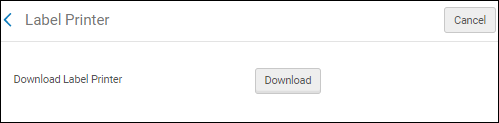
- Open or save urm_label_printer.zip, then extract the files using your computer's extraction tool or wizard.
- ウィザードの手順を完了して、ラベル印刷ファイルとフォルダーをコンピューターに保存します。
- Run run.bat from the bin directory from the location in which you saved the files.ソフトウェアが正常にインストールされると、ラベル印刷アプリケーションが開き、デフォルトタブの[アイテム詳細]が開きます。
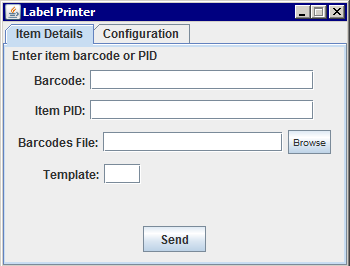 アイテム詳細
- [設定]タブを選択して、ユーザーとロケーション情報を入力します。
- Fill in the User,Password,Alma URL, and Institution fields.For the user name and password, enter the Alma credentials of the staff operator that uses the application.Ensure that this staff member has the user role 'API Label Printing Read'.If this role is not assigned to the user, the user will receive the "Authorization failure" error when attempting to print.
- [プログラムロケーション]および[プログラムパラメータ]フィールドに、サードパーティの印刷プログラム情報を入力します。For information on SpineOMatic (recommended by Ex Libris), see https://developers.exlibrisgroup.com/blog/SpineOMatic-Label-Printing-Software-for-Alma.
- [プログラムパラメータ]フィールドに「preview」と入力し、印刷前にプレビューを有効にします。
ラベルの印刷
- Open your label printing tool from an icon or an executable in the label printing tool's folder.The Label Printer appears:
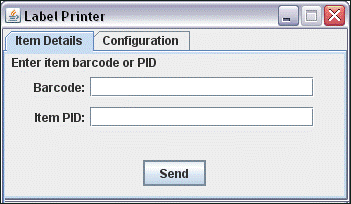
- アイテムバーコードまたはアイテムID (PID) を選択または入力します。
- 送信を選択します。
After sending the barcode or item ID, the client application triggers an Alma Web service.Webサービスはアイテム情報をXMLフォーマットで返却します。その後、クライアントアプリケーションは次のいずれかを実行します。
- 設定可能なサードパーティの印刷ソリューションを有効化し、そのサードパーティソリューションへの入力としてXMLを送信します。
- XMLをクライアント側のディレクトリに配置します。
