
Configuring Services
Configuring How Services Appear
You configure the service appearance in the App Builder in the service tab that appears in the Configuration tabs when you select the service (see Working with the App Builder).
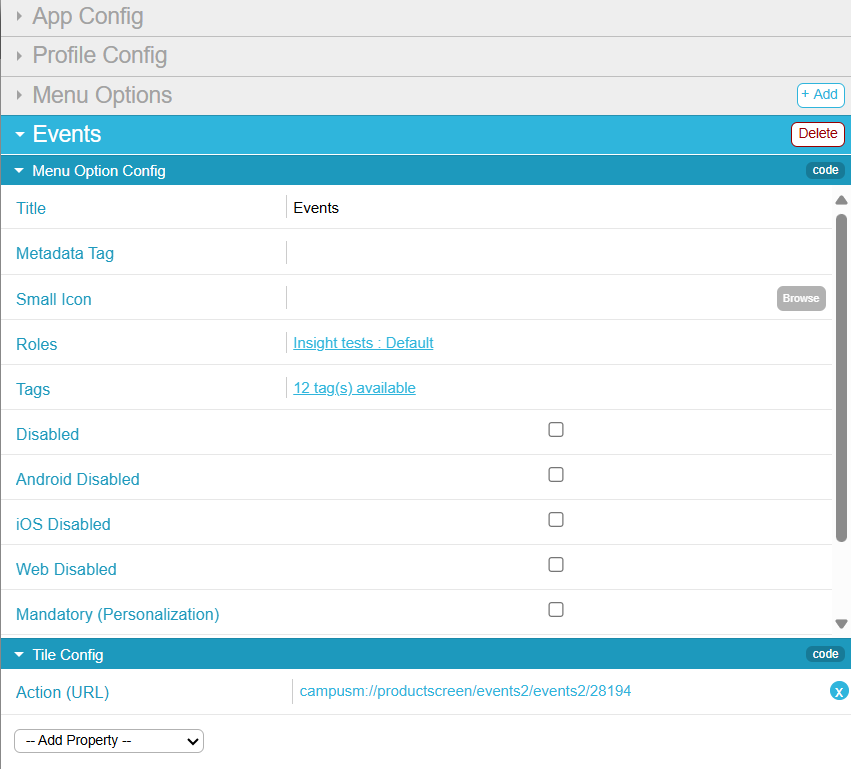
The following configuration options are available. You can also work directly with a service's code (see Working with App Code). If you change any service properties, select Save & Publish to publish your changes.
Overriding Service Appearance Based on Device Properties
You can configure different service properties for different types of devices, based on the device's platform, type, and/or screen sizes.
To configure a service property based on device properties:
- In the App Builder, in the Tile Config area of the service tab, select Add Property > Overrides. An Overrides pane is added to the Tile Config area. If this pane already exists, expand it.
- Select Add Override to add a new device conditions/override property pair.
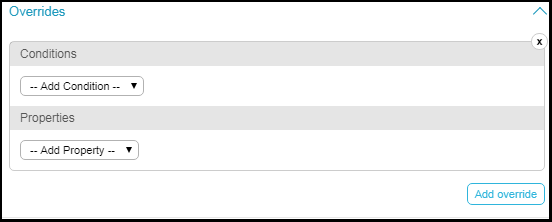
Overrides Pane - Select one or more conditions and select one or more values for the conditions or enter a value for the condition. The possible conditions are:All of the conditions must be true (AND) for the override to take effect. For example, if you select platform iOS and Android, and you select minimum height 100 pixels and minimum width 200 pixels, the override will take effect if the device is iOS or Android and the height is at least 100 pixels and the width is at least 200 pixels:platform = (iOS OR Android) AND height > 100 AND width > 200.
- Platforms - Select one or more: iOS, Android, or Web. The condition applies if the device matches any (OR) of these platforms.
- Device Types - Select one or more: Phone, Desktop, or Tablet. The condition applies if the device matches any (OR) of these types.
- Max/Min Device Area - Enter the maximum or minimum total device area (height x width), in pixels. This setting is not commonly used; the best practice is to specify the max/min device height/width (see the next setting).
- Max/Min Device Height/Width - Enter the maximum or minimum screen height or width, in pixels.
- Select one or more properties to override if the condition matches. For more information, see Configuring Services.
When you are done, save your changes.
Configuring Default Banner Service Images
For regular banner services, you can associate the entire service to specific app roles, enabling you to display or hide the entire service for these roles. The default banner service enables you to associate app roles with each image in the banner, which means that you can display or hide each image for specific app roles. Similarly, the default banner service enables you to configure different URLs for each image.
The default banner service appears if you add a banner service and do not define any images for the service. See Creating Services and Configuring Services.
You add, edit, and delete default banner service images on the Select home page banner to change pages (App Settings > News/Events/Comms > Home Page Banners). This page presents a list of image entries; for information about working with lists, see Working with Lists. You can reorder the entries on this page using the up and down arrows.
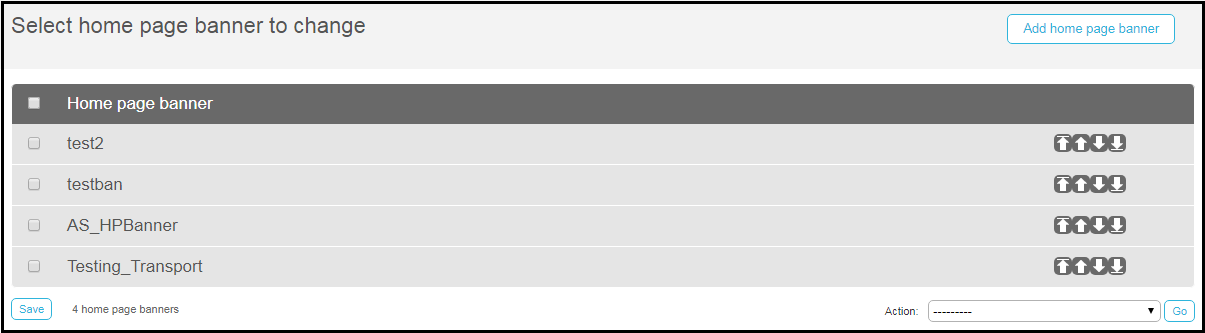
For each entry, configure:
Rearranging Services in the App
In the App Builder, you can drag and drop services in the Device Display Pane (see Working with the App Builder) to change the location of the service in the app's window.
To view how the app appears on various devices and screen orientations (vertical or horizontal), select the device type and/or orientation in the Device Selection Menus.
Tile arrangements affect all device types and orientations, and are saved per profile and not per role/combination of roles/tags. This is because roles are dynamic, and there is no way to predict which roles and/or tags any one user might have at any given moment. Therefore, to make sure that the app looks as best as it can in the different platforms, screen sizes, roles and tag combinations, the default arrangement for any home page is determined at the profile level.
To get the best results, it's recommended to open app builder to the desired profile, select all roles, and arrange. If desirable, remove the roles one by one to see how things change and look for different role/tag combinations.
