
Import/Export Tools
To access this option, type 8 Import/Export from the main menu. The Import/Export Tools menu is displayed:
|
Import/Export Tools 1 Export GOOGLE institutional holdings file 2 Primo Export 3 MARCit! Export 4 CDI Export 5 Elsevier ScienceDirect Autoloader 6 Ovid Autoloader 7 SpringerJournals Autoloader 8 SpringerBooks Autoloader 9 Wiley Autoloader 10 Taylor & Francis (Books) Autoloader Please select [1-10,q,m]: |
Export Google Institutional Holdings File
The Export Google institutional holdings file option allows the exporting of active getFullTxt data from the SFX database in the export format required for the Google Scholar source. The file is harvested by Google once every week and is used by Google to indicate in the Google Scholar search results when electronic full text is available from the end user's institutional library.
The Export Google institutional holdings file option also allows you to schedule the creation of the holdings file. We recommend setting up a weekly schedule to ensure that an up-to-date holdings file is available for Google Scholar crawlers.
More information on the Google Scholar source can be found in the SFX Source Configuration Guide. More information on the Google Scholar export format and options can be found in the Export Tool chapter of the SFX General User’s Guide.
- Log on to the SFX server as an instance user.
- Type da.
- Type ./server_admin_util.
- Select 10 Export Google Institutional Holdings File from the main menu. The Export GOOGLE institutional holdings tools menu is displayed:
|
Export GOOGLE institutional holdings Tools 1 (Re)Export GOOGLE institutional holdings file 2 Show scheduled export GOOGLE institutional holdings file 3 Schedule export GOOGLE institutional holdings file |
(Re)Export GOOGLE Institutional Holdings File
Select 1 (Re)Export GOOGLE institutional holdings file. The following is an example of the prompts that are displayed. (Note that the following questions are identical to the options available when exporting from the SFX Admin Center in Google Scholar format. For more information, refer to the Google Scholar Format section of the SFX General User’s Guide.)
|
Please select [1-3,q,m]: 1 Chinese Titles Export include the following (if exists): Simplified, Traditional or Both [S,T,B]:S Please enter the institute's name (Leave empty for Default): Please select object types: Serials, Monographs or Both [S,M,B]:B Use the following additional export file from scratch directory (optional, leave empty for None): Export active portfolios with the following services: 1 getFullTxt 2 getSelectedFullTxt 3 getHolding 4 getTOC 5 getAbstract 6 Various (Comma delimited [1,2, ..]) 7 All For default [getFullTxt] leave empty: Please select [1-7]: 1 Use zip compression? [Y/n] y Would you like to add author information? [Y/n] y Running the index builder. This may take a long time, depending on the amount of active portfolios. Export Successful. Output file is: /exlibris/sfx_ver/sfx4_1/sfxlcl41/export/institutional_holding.gzip |
Show Scheduled Export Google Institutional Holdings File
Select 2 Show scheduled export GOOGLE institutional holdings file. The following is displayed:
|
Export GOOGLE institutional holdings schedule is as follows: [1] 00:00 of every Sunday of every month (output compressed) Would you like to remove any of these? [y/N] n |
Schedule Export GOOGLE Institutional Holdings File
Select 3 Schedule export GOOGLE institutional holdings file. The following is an example of the prompts that are displayed:
|
Please enter scheduling parameters Time must be in the form HH:MM where HH can be: 00-23 for midnight-11PM or * for every hour MM can be: 00-59 or * for every minute Enter the time to run [00:00]: Would you like to schedule for a certain weekday? [Y/n] y Please select a weekday (1-7 Sunday-Saturday respectively) [1]: 1 Please enter the institute's name: Chinese Titles Export include the following (if exists): Simplified, Traditional or Both [S,T,B]:S Please select object types: Serials, Monographs or Both [S,M,B]:B Export active portfolios with the following services: 1 getFullTxt 2 getSelectedFullTxt 3 getHolding 4 getTOC 5 getAbstract 6 Various (Comma delimited [1,2, ..]) 7 All For default [getFullTxt] leave empty: [1-7]: 1 Use zip compression? [Y/n] Successfully added the refresh task to your crontab. |
The following notes apply to the question Please enter the institutes's name:
- If no institute is specified, anything active for either Default or any of the institutes/groups is exported.
- If an institute name is specified, anything active for the institute (or active for Default or a group with which the institute is affiliated and is not explicitly inactive for the institute) is exported.
- If a group name is specified, anything active for the group is exported.
- If Default is specified, anything active for Default is exported.
Primo Export
This option allows you export a Primo file, schedule an export, and update and remove scheduled exports.
It is possible in SFX to create an XML export with active fullText journals and books for import into Primo.
The file is a compressed tar file. The first time a Primo export is performed a complete export file is created. If an export was performed previously so that there is an output file in the directory, an incremental export file is created. The Primo export file is created in the SFX Admin interface.
- In the SFX Admin Center, from the KB Tools section of the Data Management area, click Export Tool.
- Click the Advanced Export Profile tab. The following window opens:
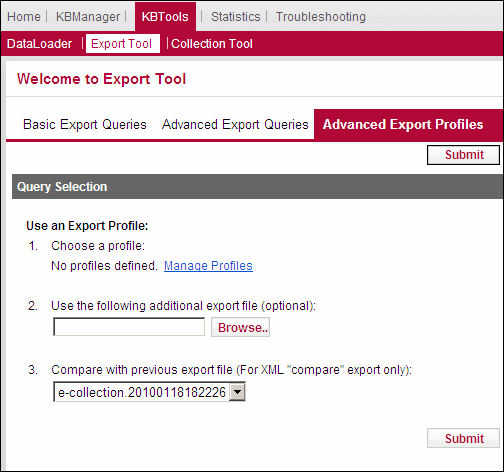
- Click Manage Profiles > Add New Profile. The following is displayed:
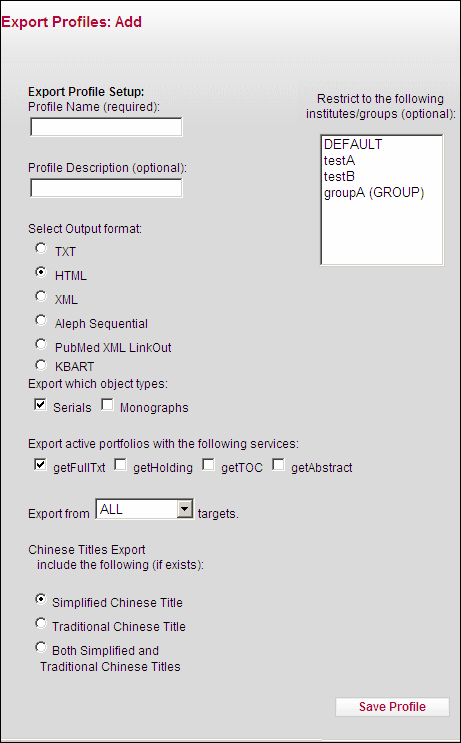
- Enter the following data:
- Profile name: Primo (A different name can be used but whatever name is chosen, it must be used when starting or scheduling the export.)
- Output format: XML
- Object types: selectboth Serials and Monographs
- Export active portfolios with the following services: getFullTxt
- Select Export All targets
- Select Compare with previous export file
- Fill in the remaining fields according to the particulars of your installation and your preferences.
- Click Save Profile.
- On the SFX server, log on as an instance user.
- Type da.
- Type ./server_admin_util.
- Select 10 Primo Export. The Primo Export Tools menu is displayed:
|
Primo Export Tools 1 (Re)Export Primo file 2 Show scheduled Primo export file 3 Schedule Primo export file |
- Select an option from the menu.
The export file is located at:
/exlibris/sfx_ver/sfx4_1/<instance>/export/sfx4primo_export/sfx_primo_export.xml-marc.tar.gz
MARCit! Export
For information concerning the MARCit! export, see the MARCit! Export with the Server Admin Utility section of the MARCit! Users Guide.
CDI Export
The CDI Export option allows you to run or schedule an export in CDI format.
- Select 4 Export CDI from the Import/Export Tools menu. The Export CDI institutional holdings Tools menu is displayed:
|
Export CDI institutional holdings Tools 1 (Re)Export CDI institutional holdings file 2 Show scheduled export CDI institutional holdings file 3 Schedule export CDI institutional holdings file |
- Select an option:
- 1 (Re)Export CDI institutional holdings file
The following is an example of the prompts that are displayed. (Bold text is entered by the user):
|
Export CDI institutional holdings Tools 1 (Re)Export CDI institutional holdings file 2 Show scheduled export CDI institutional holdings file 3 Schedule export CDI institutional holdings file Please select [1-3,q,m,u]: 1 Chinese Titles Export include the following (if exists): Simplified, Traditional or Both [S,T,B]:s Please enter the institute's name (Leave empty to include all activations):Demo Please select object types: Serials, Monographs or Both [S,M,B]:b Use the following additional export file from scratch directory (optional, leave empty for None): Export active portfolios with the following services: 1 getFullTxt 2 getSelectedFullTxt 3 All For default [ALL] leave empty: Please select [1-3]: Please select 'Use this file as additional holdings file in another instance' option: [y/N]:y Do you want to use the production full text holdings when publishing to CDI? [y/N]:y Please provide the Production PC key:12345 Running the index builder. This may take a long time, depending on the amount of active portfolios. |
- 2 Show scheduled export CDI institutional holdings file
The following is an example of the prompts that are displayed. (Bold text is entered by the user):
|
Export CDI institutional holdings Tools 1 (Re)Export CDI institutional holdings file 2 Show scheduled export CDI institutional holdings file 3 Schedule export CDI institutional holdings file Please select [1-3,q,m,u]: 2
Export CDI institutional holdings schedule is as follows: [1] 00:00 of every day of every month [2] 11:30 of every Monday of every month (output compressed) Would you like to remove any of these? [y/N] y Please enter the number of the task to remove or <enter> to cancel: 1 Successfully deleted the crontab line |
- 3 Schedule export CDI institutional holdings file
The following is an example of the prompts that are displayed. (Bold text is entered by the user):
|
Export CDI institutional holdings Tools 1 (Re)Export CDI institutional holdings file 2 Show scheduled export CDI institutional holdings file 3 Schedule export CDI institutional holdings file Please select [1-3,q,m,u]: 3
Please enter scheduling parameters Time must be in the form HH:MM where HH can be: 00-23 for midnight-11PM or * for every hour MM can be: 00-59 or * for every minute Enter the time to run [00:00]: 11:30 Would you like to schedule for a certain weekday? [Y/n] y Please select a weekday (1-7 Sunday-Saturday respectively) [1]: 2 Please enter the institute's name: Demo Chinese Titles Export include the following (if exists): Simplified, Traditional or Both [S,T,B]:s Please select object types: Serials, Monographs or Both [S,M,B]:b Export active portfolios with the following services: 1 getFullTxt 2 getSelectedFullTxt 3 All For default [ALL] leave empty: [1-3]: Please select 'Use this file as additional holdings file in another instance' option: [y/N]:y Do you want to use the production full text holdings when publishing to CDI? [y/N]:y Please provide the Production PC key:12345 Successfully added the refresh task to your crontab |
Elsevier ScienceDirect Autoloader
Elsevier coverage is customer specific. The SFX global KnowledgeBase does not contain thresholds that apply to all or even majority of SFX customers. To make it easier to localize the SFX KB (activate and load local coverage), Elsevier provides an automated process for downloading customer holding files in KBART. The process to download and localize the SFX KB can be automated so that you can run and schedule it.
Run Elsevier ScienceDirect Autoloader
- Select 5 Elsevier ScienceDirect Autoloader from the Import/Export Tools menu. The Elsevier ScienceDirect Autoloader menu is displayed:
|
Elsevier ScienceDirect Autoloader 1 Run Elsevier ScienceDirect Autoloader 2 Show scheduled Elsevier ScienceDirect loads 3 Schedule Elsevier ScienceDirect Autoloader Please select [1-3,q,m,u]: |
- Select 1 Run Elsevier ScienceDirect Autoloader to run the Elsevier ScienceDirect Autoloader. The following is displayed:
|
The Elsevier ScienceDirect Autoloader will remove previous activation/localization of the ELSEVIER_SD_SCIENCE_DIRECT_COMPLETE and ELSEVIER_SD_BOOKS targets and re-localize/activate the targets using the institutional holdings file downloaded from Elsevier Science Direct. Note: An authentication token from Elsevier is required to allow automated download of your institutional holdings file. Make sure this token has been filled in the 'elsevier_sd_autoloader.config_' configuration file of your instance. Do you want to continue? [Y/n]Y |
- Enter Y to continue.
|
Please select the type of objects you want to update Elsevier ScienceDirect target(s) for: Serials, Monographs or Both [S,M,B]: B |
- Enter B, for example.
|
Please enter the institute's name (Leave empty for Default): Do you want automatically download the Elsevier ScienceDirect holdings file? Alternatively, you can download the file manually and specify file name and location. [Y,N]: n |
If you enter n, the following is displayed:
|
Specify file name and location: |
- Enter the file name and location.
Show Scheduled Elsevier ScienceDirect Loads
Select 2 Show scheduled Elsevier ScienceDirect loads. If there are no scheduled Elsevier ScienceDirect loads, the following is displayed:
|
There are no scheduled Elsevier ScienceDirect loads |
If there are scheduled Elsevier ScienceDirect loads, the following is displayed, for example:
|
Elsevier ScienceDirect Autoloader schedule is as follows: [1] 00:00 of every Sunday of every month Would you like to remove any of these? [y/N] |
Schedule Elsevier ScienceDirect Autoloader
- Select 3 Schedule Elsevier ScienceDirect Autoloader. The following is displayed:
|
Please note that the recommended schedule is 'monthly'. Please enter scheduling parameters Time must be in the form HH:MM where HH can be: 00-23 for midnight-11PM or * for every hour MM can be: 00-59 or * for every minute Enter the time to run [00:00]: |
- Enter a time for the autoloader to run. The following is displayed:
|
Would you like to schedule for a certain weekday? [Y/n] |
If you enter Y, the following is displayed:
|
Please select a weekday (1-7 Sunday-Saturday respectively) [1]: |
- Enter a number. The following is displayed:
|
Successfully added the refresh task to your crontab. |
This task cannot be scheduled when the Centralized Management of Maintenance Tasks is activated. If you attempt to do so, the following is displayed:
|
Maintenance tasks can be scheduled only by the system administrator of this SFX installation. This option is not available for local SFX instances. |
Ovid Autoloader
Ovid coverage is customer specific. The SFX global KnowledgeBase does not contain thresholds that apply to all or even majority of SFX customers. To make it easier to localize the SFX KB (activate and load local coverage), Ovid provides an automated process for downloading customer holding files in KBART. The process to download and localize the SFX KB can be automated so that you can run and schedule it.
Run Ovid Autoloader
- Select 6 Ovid Autoloader from the Import/Export Tools menu. The Ovid Autoloader menu is displayed:
|
Ovid Autoloader 1 Run Ovid Autoloader 2 Show scheduled Ovid loads 3 Schedule Ovid Autoloader Please select [1-3,q,m,u]: |
- Select 1 Run Ovid Autoloader to run the Ovid Autoloader. The following is displayed:
|
The Ovid Autoloader will remove previous activation/localization of the Ovid_COMPLETE and Ovid_BOOKS targets and re-localize/activate the targets using the institutional holdings file downloaded from Ovid. Note: A user name and password are required to allow automated download of your institutional holdings file. Make sure this token has been filled in the 'ovid_autoloader.config_' configuration file of your instance. Do you want to continue? [Y/n]Y |
- Enter Y to continue.
|
Please select the type of objects you want to update Ovid target(s) for: Serials, Monographs or Both [S,M,B]: B |
- Enter B, for example.
|
Please enter the institute's name (Leave empty for Default): Do you want automatically download the Ovid holdings file? Alternatively, you can download the file manually and specify file name and location. [Y,N]: n |
If you enter n, the following is displayed:
|
Specify file name and location: |
- Enter the file name and location.
Show Scheduled Ovid Loads
Select 2 Show scheduled Ovid loads. If there are no scheduled Ovidloads, the following is displayed:
|
There are no scheduled Ovid loads |
If there are scheduled Ovid loads, the following is displayed, for example:
|
Ovid Autoloader schedule is as follows: [1] 00:00 of every Sunday of every month Would you like to remove any of these? [y/N] |
Schedule Ovid Autoloader
- Select 3 Schedule Ovid Autoloader. The following is displayed:
|
Please note that the recommended schedule is 'monthly'. Please enter scheduling parameters Time must be in the form HH:MM where HH can be: 00-23 for midnight-11PM or * for every hour MM can be: 00-59 or * for every minute Enter the time to run [00:00]: |
- Enter a time for the autoloader to run. The following is displayed:
|
Would you like to schedule for a certain weekday? [Y/n] |
- If you enter Y, the following is displayed:
|
Please select a weekday (1-7 Sunday-Saturday respectively) [1]: |
- Enter a number. The following is displayed:
|
Successfully added the refresh task to your crontab. |
This task cannot be scheduled when the Centralized Management of Maintenance Tasks is activated. If you attempt to do so, the following is displayed:
|
Maintenance tasks can be scheduled only by the system administrator of this SFX installation. This option is not available for local SFX instances. |
SpringerJournals Autoloader
SpringerJournals coverage is customer specific. The SFX global KnowledgeBase does not contain thresholds that apply to all or even majority of SFX customers. To make it easier to localize the SFX KB (activate and load local coverage), SpringerJournals provides an automated process for downloading customer holding files in KBART. The process to download and localize the SFX KB can be automated so that you can run and schedule it.
Run SpringerJournals Autoloader
- Select 7 SpringerJournals Autoloader from the Import/Export Tools menu. The SpringerJournals Autoloader menu is displayed:
|
SpringerJournals Autoloader 1 Run SpringerJournals Autoloader 2 Show scheduled SpringerJournals loads 3 Schedule SpringerJournals Autoloader Please select [1-3,q,m,u]: |
- Select 1 Run SpringerJournals Autoloader to run the SpringerJournals Autoloader. The following is displayed:
|
The SpringerJournals Autoloader will remove previous activation/localization of the SPRINGER_LINK_JOURNALS_AUTOLOAD target and re-localize/activate the targets using the institutional holdings file downloaded from Springer. Note: An authentication token from Springer is required to allow automated download of your institutional holdings file. Make sure this token has been filled in the 'springer_autoload.config_' configuration file of your instance. Do you want to continue? [Y/n]Y |
- Enter Y to continue.
|
Please enter the institute's name (Leave empty for Default): Do you want automatically download the SpringerJournals holdings file? Alternatively, you can download the file manually and specify file name and location. [Y,N]: n |
If you enter n, the following is displayed:
|
Specify file name and location: |
- Enter the file name and location.
Show Scheduled SpringerJournals Loads
Select 2 Show scheduled SpringerJournals loads. If there are no scheduled SpringerJournalsloads, the following is displayed:
|
There are no scheduled SpringerJournals loads |
If there are scheduled SpringerJournals loads, the following is displayed, for example:
|
SpringerJournals Autoloader schedule is as follows: [1] 00:00 of every Sunday of every month Would you like to remove any of these? [y/N] |
Schedule SpringerJournals Autoloader
- Select 3 Schedule SpringerJournals Autoloader. The following is displayed:
|
Please note that the recommended schedule is 'monthly'. Please enter scheduling parameters Time must be in the form HH:MM where HH can be: 00-23 for midnight-11PM or * for every hour MM can be: 00-59 or * for every minute Enter the time to run [00:00]: |
- Enter a time for the autoloader to run. The following is displayed:
|
Would you like to schedule for a certain weekday? [Y/n] |
If you enter Y, the following is displayed:
|
Please select a weekday (1-7 Sunday-Saturday respectively) [1]: |
- Enter a number. The following is displayed:
|
Successfully added the refresh task to your crontab. |
This task cannot be scheduled when the Centralized Management of Maintenance Tasks is activated. If you attempt to do so, the following is displayed:
|
Maintenance tasks can be scheduled only by the system administrator of this SFX installation. This option is not available for local SFX instances. |
SpringerBooks Autoloader
SpringerBooks coverage is customer specific. The SFX global KnowledgeBase does not contain thresholds that apply to all or even majority of SFX customers. To make it easier to localize the SFX KB (activate and load local coverage), SpringerBooks provides an automated process for downloading customer holding files in KBART. The process to download and localize the SFX KB can be automated so that you can run and schedule it.
Run SpringerBooks Autoloader
- Select 8 SpringerBooks Autoloader from the Import/Export Tools menu. The SpringerBooks Autoloader menu is displayed:
|
SpringerBooks Autoloader 1 Run SpringerBooks Autoloader 2 Show scheduled SpringerBooks loads 3 Schedule SpringerBooks Autoloader Please select [1-3,q,m,u]: |
- Select 1 Run SpringerBooks Autoloader to run the SpringerBooks Autoloader. The following is displayed:
|
The SpringerBooks Autoloader will remove previous activation/localization of the SPRINGER_LINK_BOOKS_AUTOLOAD target and re-localize/activate the targets using the institutional holdings file downloaded from Springer. Note: An authentication token from Springer is required to allow automated download of your institutional holdings file. Make sure this token has been filled in the 'springer_autoload.config_' configuration file of your instance. Do you want to continue? [Y/n]Y |
- Enter Y to continue.
|
Please enter the institute's name (Leave empty for Default): Do you want automatically download the SpringerBooks holdings file? Alternatively, you can download the file manually and specify file name and location. [Y,N]: n |
If you enter n, the following is displayed:
|
Specify file name and location: |
- Enter the file name and location.
Show Scheduled SpringerBooks Loads
Select 2 Show scheduled SpringerBooks loads. If there are no scheduled SpringerBooksloads, the following is displayed:
|
There are no scheduled SpringerBooks loads |
If there are scheduled SpringerBooks loads, the following is displayed, for example:
|
SpringerBooks Autoloader schedule is as follows: [1] 00:00 of every Sunday of every month Would you like to remove any of these? [y/N] |
Schedule SpringerBooks Autoloader
- Select 3 Schedule SpringerBooks Autoloader. The following is displayed:
|
Please note that the recommended schedule is 'monthly'. Please enter scheduling parameters Time must be in the form HH:MM where HH can be: 00-23 for midnight-11PM or * for every hour MM can be: 00-59 or * for every minute Enter the time to run [00:00]: |
- Enter a time for the autoloader to run. The following is displayed:
|
Would you like to schedule for a certain weekday? [Y/n] |
If you enter Y, the following is displayed:
|
Please select a weekday (1-7 Sunday-Saturday respectively) [1]: |
- Enter a number. The following is displayed:
|
Successfully added the refresh task to your crontab. |
This task cannot be scheduled when the Centralized Management of Maintenance Tasks is activated. If you attempt to do so, the following is displayed:
|
Maintenance tasks can be scheduled only by the system administrator of this SFX installation. This option is not available for local SFX instances. |
Wiley AutoLoader
Wiley coverage is customer specific. The SFX global KnowledgeBase does not contain thresholds that apply to all or even majority of SFX customers. To make it easier to localize the SFX KB (activate and load local coverage), Wiley provides an automated process for downloading customer holding files in KBART. The process to download and localize the SFX KB can be automated so that you can run and schedule it.
Run Wiley Autoloader
- Select 9 Wiley Autoloader from the Import/Export Tools menu. The Wiley Autoloader menu is displayed:
|
Wiley Autoloader 1 Run Wiley Autoloader 2 Show scheduled Wiley loads 3 Schedule Wiley Autoloader Please select [1-3,q,m,u]: |
- Select 1 Run Wiley Autoloader to run the Wiley Autoloader. The following is displayed:
|
The Wiley Autoloader will remove previous activation/localization of the WILEY_LINK_BOOKS_AUTOLOAD target and re-localize/activate the targets using the institutional holdings file downloaded from Wiley. Note: An authentication token from Wiley is required to allow automated download of your institutional holdings file. Make sure this token has been filled in the 'wiley_autoload.config_' configuration file of your instance. Do you want to continue? [Y/n]Y |
- Enter Y to continue.
|
Please enter the institute's name (Leave empty for Default): Do you want automatically download the Wiley holdings file? Alternatively, you can download the file manually and specify file name and location. [Y,N]: n |
If you enter n, the following is displayed:
|
Specify file name and location: |
- Enter the file name and location.
Show Scheduled Wiley Loads
Select 2 Show scheduled Wiley loads. If there are no scheduled Wileyloads, the following is displayed:
|
There are no scheduled Wiley loads |
If there are scheduled Wiley loads, the following is displayed, for example:
|
Wiley Autoloader schedule is as follows: [1] 00:00 of every Sunday of every month Would you like to remove any of these? [y/N] |
Schedule Wiley Autoloader
- Select 3 Schedule Wiley Autoloader. The following is displayed:
|
Please note that the recommended schedule is 'monthly'. Please enter scheduling parameters Time must be in the form HH:MM where HH can be: 00-23 for midnight-11PM or * for every hour MM can be: 00-59 or * for every minute Enter the time to run [00:00]: |
- Enter a time for the autoloader to run. The following is displayed:
|
Would you like to schedule for a certain weekday? [Y/n] |
If you enter Y, the following is displayed:
|
Please select a weekday (1-7 Sunday-Saturday respectively) [1]: |
- Enter a number. The following is displayed:
|
Successfully added the refresh task to your crontab. |
This task cannot be scheduled when the Centralized Management of Maintenance Tasks is activated. If you attempt to do so, the following is displayed:
|
Maintenance tasks can be scheduled only by the system administrator of this SFX installation. This option is not available for local SFX instances. |
Taylor & Francis (Books) Autoloader
Taylor & Francis (Books) coverage is customer specific. The SFX global KnowledgeBase does not contain thresholds that apply to all or even majority of SFX customers. To make it easier to localize the SFX KB (activate and load local coverage), Taylor & Francis (Books) provides an automated process for downloading customer holding files in KBART. The process to download and localize the SFX KB can be automated so that you can run and schedule it.
Run Taylor & Francis (Books) Autoloader
- Select 8 Taylor & Francis (Books) Autoloader from the Import/Export Tools menu. The Taylor & Francis (Books) Autoloader menu is displayed:
|
Taylor & Francis (Books) Autoloader 1 Run Taylor & Francis (Books) Autoloader 2 Show scheduled Taylor & Francis (Books) loads 3 Schedule Taylor & Francis (Books) Autoloader Please select [1-3,q,m,u]: |
- Select 1 Run Taylor & Francis (Books) Autoloader to run the Taylor & Francis (Books) Autoloader. The following is displayed:
|
The Taylor & Francis (Books) Autoloader will remove previous activation/localization of the TAYLOR & FRANCIS (BOOKS)_AUTOLOAD target and re-localize/activate the targets using the institutional holdings file downloaded from aylor & Francis (Books). Note: An authentication token from Taylor & Francis (Books) is required to allow automated download of your institutional holdings file. Make sure this token has been filled in the 'taf_autoload.config_' configuration file of your instance. Do you want to continue? [Y/n]Y |
- Enter Y to continue.
|
Please enter the institute's name (Leave empty for Default): Do you want automatically download the Taylor & Francis (Books) holdings file? Alternatively, you can download the file manually and specify file name and location. [Y,N]: n |
If you enter n, the following is displayed:
|
Specify file name and location: |
- Enter the file name and location.
Show Scheduled Taylor & Francis (Books) Loads
Select 2 Show scheduled Taylor & Francis (Books) loads. If there are no scheduled Taylor & Francis (Books)loads, the following is displayed:
|
There are no scheduled Taylor & Francis (Books) loads |
If there are scheduled Taylor & Francis (Books) loads, the following is displayed, for example:
|
Taylor & Francis (Books) Autoloader schedule is as follows: [1] 00:00 of every Sunday of every month Would you like to remove any of these? [y/N] |
Schedule Taylor & Francis (Books) Autoloader
- Select 3 Schedule Taylor & Francis (Books) Autoloader. The following is displayed:
|
Please note that the recommended schedule is 'monthly'. Please enter scheduling parameters Time must be in the form HH:MM where HH can be: 00-23 for midnight-11PM or * for every hour MM can be: 00-59 or * for every minute Enter the time to run [00:00]: |
- Enter a time for the autoloader to run. The following is displayed:
|
Would you like to schedule for a certain weekday? [Y/n] |
- If you enter Y, the following is displayed:
|
Please select a weekday (1-7 Sunday-Saturday respectively) [1]: |
- Enter a number. The following is displayed:
|
Successfully added the refresh task to your crontab. |
This task cannot be scheduled when the Centralized Management of Maintenance Tasks is activated. If you attempt to do so, the following is displayed:
|
Maintenance tasks can be scheduled only by the system administrator of this SFX installation. This option is not available for local SFX instances. |
