
Starting a Patron Session in Express Lane
After you have started Express Lane on a workstation, patrons can start an Express Lane session in order to check out items, pay fines, or view their account information.
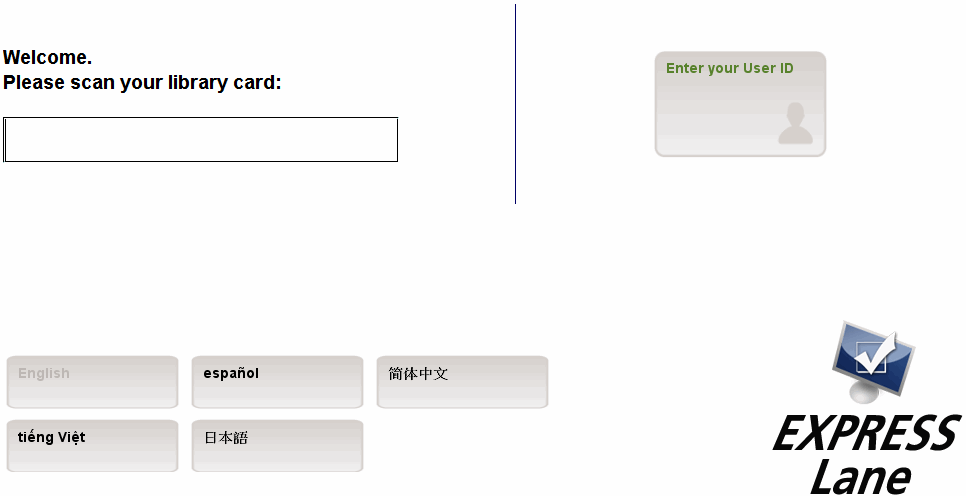
When not in use by a patron, the Express Lane station displays a Welcome screen with a prompt to begin a session. For example:
If the Express Lane Screen Displays Another Patron's Information
If patrons do not choose the Sign Out button to end their Express Lane session, the Welcome screen does not display for the next patron and the Express Lane screen continues to display the previous patron's account information. To prevent patron account information from remaining on the Express Lane screen after the patron has moved away from the station, specify a keyboard timeout when you set up Express Lane logins. If timeouts are not set or the screen does not clear, the next patron can clear the screen by choosing the Previous Screen and/or Sign Out buttons.
To start an Express Lane session, patrons:
- (Optional) Select a language for the session.
- Enter a barcode or user id.
- (Optional) Enter a PIN.
- (Optional) View any messages from the patron record.
- (Optional) Pay any outstanding fines.
- (Optional) Renew their renewable items.
Express Lane then displays a Welcome Patron screen similar to the following:
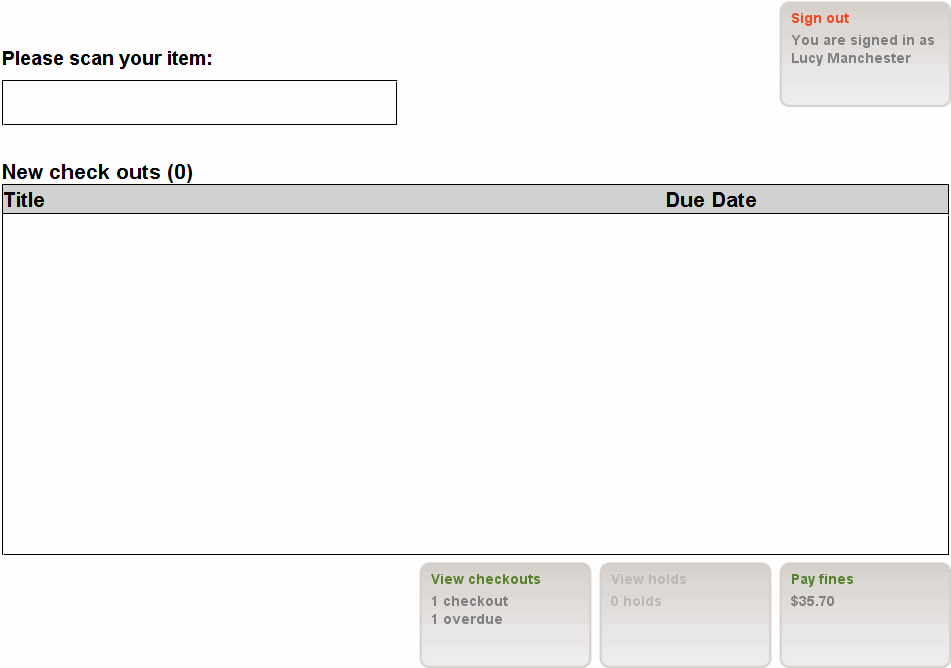
To remove the patron's name from the Welcome Patron screen, contact Innovative.
From the Welcome Patron screen, patrons can:
- check out items
- view certain types of account information and make certain modifications, if enabled
- end the session
Choosing a Language
If your library has enabled multiple languages for Express Lane, the Welcome screen includes buttons that enable the user to toggle between available languages. For example:
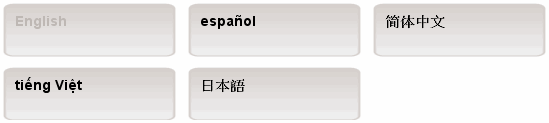
The current language is grayed out. The patron selects a language by choosing the button that corresponds to the desired language.
To enable the Multiple Languages for Express Lane feature, contact Innovative. This feature is available to libraries that have acquired the ability to access WebPAC in languages other than English. Any language accessible in your library's WebPAC can also be enabled in Express Lane.
Starting a Session with a Patron Barcode
Patrons can scan their library card at the Welcome screen to start a session.
If the Conceal Patron Barcode feature is enabled, Express Lane hides the input as the patron types or scans their barcode. To enable this feature, contact Innovative.
By default, Express Lane displays a message and does not allow the patron to continue if the patron is blocked for any of the following reasons:
- The patron's fines exceed the maximum amount of fines allowed for his or her P TYPE.
- The patron has exceeded the highest level of overdue notice allowed for his or her P TYPE.
- The EXP DATE field in the patron record is earlier than the current date, and the Patron Exp. Date element of the relevant entry in the Patron Blocks table is set to "YES".
- The MBLOCK field in the patron record contains a value other than '-' (NO BLOCK).
If the Allow Blocked Patrons to Access Express Lane feature is enabled, blocked patrons are allowed to start an Express Lane session to view their account information and pay fines, but are not permitted to check out or renew items.
To enable the Allow Blocked Patrons to Access Express Lane feature, contact Innovative. You must specify which types of blocked patrons should be allowed to use Express Lane. For example, you can allow patrons who owe too much money to log into Express Lane so that they can pay fines, but block patrons who exceed the maximum number of overdues allowed.
Starting a Session with a User ID
If user IDs are enabled for Express Lane at your library, patrons can start an Express Lane session with their barcode or with the alternate ID they use to log into their account in the WebPAC.
To enable user IDs in Express Lane, contact Innovative.
To start a session with a user ID:
- At the Welcome screen, patrons choose the Enter Your User ID button. The User ID screen prompts:
Please enter your User ID:
If your Express Lane stations have touchscreens and do not have attached keyboards, Innovative can add an on-screen keyboard to the User ID screen.
- To continue, patrons enter their user ID and choose Continue.
If the Conceal User ID feature is enabled, Express Lane hides the input as the patron types in his or her user ID. The system can hide the patron's typing either immediately or after a one-second delay. To enable this feature, contact Innovative. If you do not enable this feature, the system does not obfuscate user IDs while they are entered into the User ID screen text box. Requiring patron PINs at Express Lane stations can help prevent illicit use of user IDs.
To return to the Welcome screen, patrons choose the Back to Previous button.
Entering a PIN
If your library requires that patrons use PINs, Express Lane displays the following after the patron barcode or user ID is verified:
Please enter your PIN:
If the patron has already set up a PIN, the patron enters their PIN information and chooses the Continue button. If the patron has not set up a PIN, Express Lane prompts the patron to create one.
Express Lane requires that patrons enter their PINs if the Personal ID Num (PIN) in patron record OPAC option is set to "ON" and your system is configured to prompt patrons to enter their PINs. Contact Innovative to have your system configured to prompt patrons to enter their PINs or to have this functionality deactivated. Innovative can deactivate PIN requirements specifically for Express Lane stations but maintain PIN requirements for other functions.
If your Express Lane stations have touchscreens and do not have attached keyboards or numeric keypads, Innovative can add either a keypad or a keyboard to the PIN screen. Note that with the on-screen keypad, patrons can enter numeric PINs only. For more information, see Considerations when Choosing Input Devices for Patron Functions.
Displaying Patron Messages
If the Display Patron Messages feature is enabled at your library, Express Lane displays the topmost MESSAGE field in that patron's record (if any messages exist) after the patron has entered a barcode or user ID and PIN.
To sign out, the patron chooses the Sign out button. To continue using Express Lane, the patron chooses Continue.
Contact Innovative to enable the display of patron messages in Express Lane. Before requesting that patron messages be enabled, double-check the MESSAGE fields in your library's patron records to ensure that messages are pertinent to patrons.
Automatically Renewing All Renewable Items
If automatic item renewal is enabled at your library, Express Lane prompts the patron to renew items that are renewable.
- To continue the session without automatically renewing any items, the patron chooses No.
- To automatically renew all renewable items (regardless of checkout or due date), the patron chooses Yes. The system automatically renews all the patron's checked-out items that are eligible for renewal, regardless of checkout or due date, and decrements the total number of renewals allowed for each checked-out item according to your library's loan rules. Express Lane displays a list of the patron's checked-out items with the current due date for each as well as whether each item was renewed. To continue the session, the patron chooses the Continue button.
To have automatic item renewal enabled at your library, ensure that renewals are enabled for Express Lane and then contact Innovative.
