
Depending on your library, search results for materials such as magazines and DVD series can be listed in a summarized format or as individual resources.
For example, suppose a library has multiple copies of the June issue of a monthly magazine. Depending on the library, the June issue can either appear once in your search results, or all the individual copies of the June issue can appear.
The following image shows search results listed in summarized format.
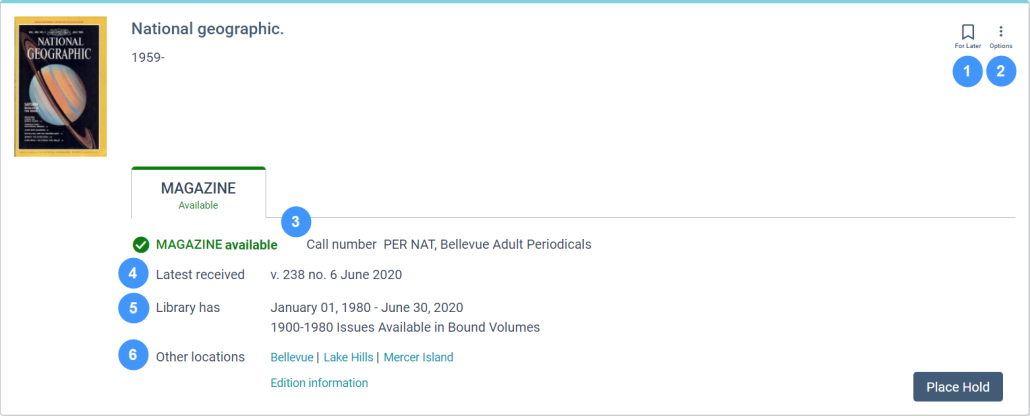
The following table describes the available icons and library holdings information.

|
Save the resource to Bookmarks for later use. |

|
Export a citation or send a link to the resource using email. |

|
Call number of the item. |

|
Latest received identifies the newest issue or item in the library holdings. |

|
Library has lists the full range of issues or volumes that the library has for a serial publication title. In this illustration, the library has issues from January 01, 1980 to June 30, 2020. The library also has issues in bound volumes that range from 1900 to 1980. |

|
Other locations lists availability at other locations. If you are signed in, Vega lists your home library first. If you are not signed in, Vega lists the locations alphabetically. |
To search for periodicals
- Search for a topic, person, or title.
- If you want to narrow the search results, refine the search.
- Do one of the following:
- Note the call number of the item.
- Find and check out the item at your library.
- Select Place Hold.
Vega displays a list of available items. - Select a location.
Vega displays a list of volumes or items that are available at the location you select. - To check a different location, select a location from the list.
- If you want to sort the list of available items, select from the following:
- Newest first
- Call number: descending
- Call number: ascending
- Location: descending
- Location: ascending
- Find the item that you want, and then select Place Hold.
- Select a pickup location.
- (Optional) Select I don't need this item after, and enter the date that you no longer need the resource.
If the resource isn't fulfilled by the date you enter, the system removes the hold request.
| If you want to | Do this |
|---|---|
| Browse an item |
|
| Place a hold on an item |
|
| Check availability at other locations |
|
- Select Confirm Location.
A confirmation window appears.
To check the status of the resource, go to Checkouts/Requests page in the Account Portal, and select the Hold Requests tab.
