
Aprobar facturas
This page describes how to approve invoices in Alma, including how to access the Waiting for Approval Invoices page and approve invoices to proceed to the payment stage, or mark them as Need Additional Review to return them to e review stage of the workflow. También incluye las acciones que se pueden hacer en esta página, tales como cambiar o liberar la asignación de una factura, borrar facturas o devolver facturas a la etapa de Revisión.
- Gerente de facturas
If the approval rules pre-configured by an administrator determine that manual approval for invoices is required under certain circumstances, the invoice is sent for manual approval when the specified criteria are met. This approval set is skipped if an invoice approval rule indicates to do so; see Configuring Invoice Approval Rules.
For an overview of the end to end invoice workflow with links to relevant sections for details see Invoicing Workflow.
Invoices are approved on the Waiting for Approval Invoices page (Acquisitions > Receiving and Invoicing > Approve). You can also view this page starting on a specific tab by selecting one of the following tasks in the Tasks List in the persistent menu (see Tasks in the Task List):
- Invoices - approval - assigned to you
- Invoices - approval - without assignment
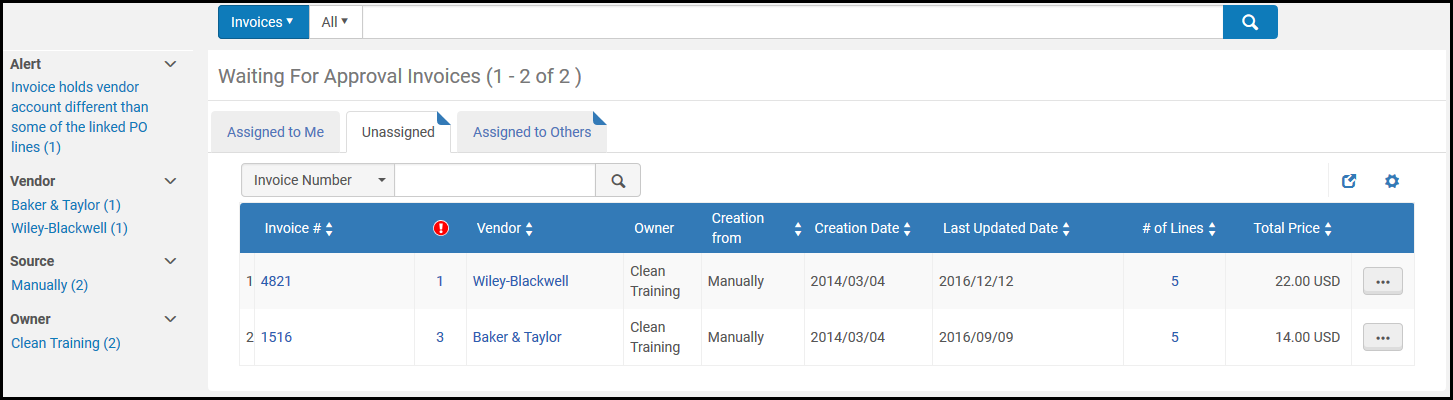
- Localice en la página de Facturas en espera de aprobación las facturas que desea aprobar.
- Select Actions > Edit for the invoice you want to approve. Aparecerá la página de Detalles de factura.
- Modifique la información en cada pestaña según se necesite. For information on the fields in each of these tabs, see Creating an Invoice From a PO or Manually.
- Seleccionar uno de los siguientes:
- Approve – The invoice is waiting to be paid and proceeds to the payment stage of the workflow. For details, see Invoicing Workflow.
- Need Additional Review – If the invoice needs additional review, it is returned to the review stage of the workflow. Cuando seleccione esta función, aparecerá un cuadro de diálogo, que le permitirá elegir una razón para la acción. To configure the reasons, see Configuring Invoice Disapproval Reasons. See Sending Invoices Back to Review.
You can also perform invoice management tasks on the Waiting for Approval Invoices page (Acquisitions > Receiving and Invoicing > Approve), as described in the referenced procedures:
- Change an invoice assignment - Select Assign to in the row actions list for an invoice. Se abrirá el cuadro de diálogo de reasignación. See Assigned to Me, Unassigned, Assigned to Others Tabs.
- Release an invoice assignment - Select Release assignment in the row actions list for an invoice. The invoice is unassigned and moved to the Unassigned tab.
- Delete an invoice - Select Delete in the row actions list for an invoice and select Confirm in the confirmation dialog box. Los gastos asociados se borrarán y los compromisos de la orden de compra relacionada volverán a calcularse.
- Set invoices back to the Review stage (see Sending Invoices Back to Review)
- You can delete an invoice only if you have been assigned the Invoice Operator Extended role.
- If your institution does not enforce approval rules, when a user with a role other than Invoice Manager selects Save and Continue on an invoice in review, the approval status is set to Not Required and the Approved By field is empty.
Page tags: article:topicproduct:almacontent:Documentationlang:englishapprove invoicereject invoiceWaiting for Approval Invoices
