
Crear facturas
Esta página describe cómo crear facturas automáticamente (desde EDI), desde un fichero, desde una orden de compra o manualmente, así como editar líneas de facturas cerradas. También incluye una explicación (con un ejemplo) para cálculos del IVA, así como para trabajar con contabilidad acumulativa. For an overview of the end to end invoice workflow with links to relevant sections for details see Invoicing Workflow. For an overview of working with acquisitions in Alma, including links to relevant sections such as Working with Orders/PO Lines, Renewals, Configuration, etc., see Introduction to Acquisitions.
Las facturas se pueden crear de las siguientes formas:
- Importing an EDI invoice file sent by a vendor, either automatically or manually (see Invoices Created Automatically from EDI and Creating an Invoice From a File, below)
- Importing an Excel invoice file (see Creating an Invoice From a File below)
- Using a PO or manually (see Creating an Invoice From a PO or Manually below)
To allow repeated invoice numbers from the same vendor, set the customer parameter invoice_not_unique to true; see Configuring Other Settings (Acquisitions).
Invoices Created Automatically from EDI
El Intercambio de datos electrónicos (EDI) en un método automático de comunicación entre una institución y sus proveedores. Los ficheros de facturas EDI colocados en un directorio FTP designado por un proveedor habilitado para EDI se cargan y analizan automáticamente por Alma, y las facturas se generan en Alma a partir de esta información.
When a vendor account is configured to support the creation of invoices by importing EDI messages, the Incoming checkbox is selected on the EDI Information tab of the Vendor Details page. For more information, see Electronic Data Interchange (EDI).
An EDI invoice sent by a vendor may contain other charges apart from the "Regular" charge amounts. Pueden abarcar impuestos y otros costos, pueden estar a nivel de factura o a nivel de línea de factura. Tax charges in an EDI invoice are labeled Tax, and are handled in Alma as VAT. Non-tax charges in an EDI invoice are labeled ALC+C, and are handled in Alma as additional charges.
Gestión de impuestos
Los impuestos que aparecen en una factura EDI se pueden sumar en un valor, que luego aparece en la factura como una línea separada de 'Ajustes', o se pueden prorratear e incluir en la línea 'Normal' de cada ejemplar adquirido. Which way this is done depends on whether VAT expended from fund is selected in the EDI settings of the vendor, in the EDI Information tab of the Vendor Details page. For more information, see Electronic Data Interchange (EDI).
When an invoice is created via EDI, and the Use VAT Code option is selected in the EDI Information tab of the Vendor Details page (see Electronic Data Interchange (EDI)), if a VAT code is included in the EDI code of the invoice, it is also included in the invoice in Alma.
Gestión de cargos adicionales
All invoice-level additional charges that come from an EDI invoice file are summed to one value and appear in the Overhead amount field in Alma, in the Summary tab of the Invoice Details page. Además, se agrega una nota a la factura de Alma por cada uno de los cargos.
Depending on the value of the invoice_split_additional_charges customer parameter, an invoice's line-level additional charges can either be summed into a single "Overhead" invoice line (false) or itemized as separate invoice lines (true). (The value of this parameter is set in Configuration Menu > Acquisitions > General > Other Settings; see Configuring Other Settings (Acquisitions).) When additional charges are itemized for invoice lines, each additional charge belonging to an invoice line is numbered as a sub-line. Por ejemplo, si la línea de factura n.º 1 tiene dos cargos adicionales:
-
ALC+C++++BI::28:Binding Charges'
-
ALC+C++++DL::28:Freight Charges'
La factura cargada en Alma tendrá dos líneas de factura adicionales, "1.1 Obligatorio" y '1.2 Entrega', con los importes correspondientes enumerados en cada una. (The total amount of line number 1 will be reduced by these amounts.) This also allows each additional charge to have its tax listed separately.
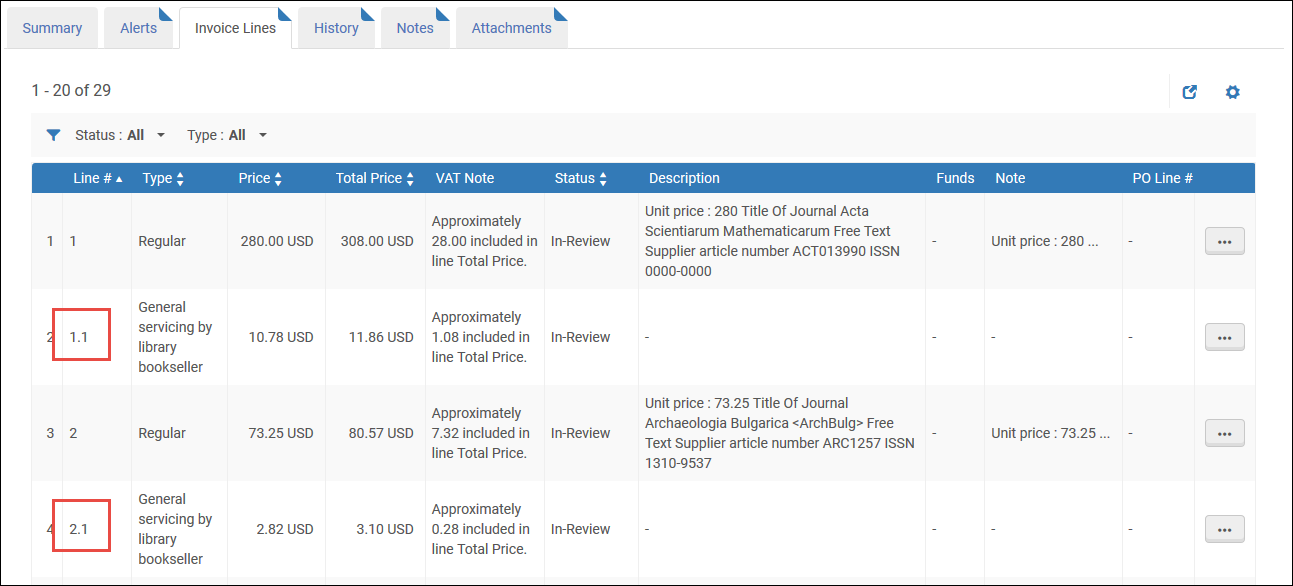
Even when line-level additional charges are itemized, only charge types that appear in the Invoice Line Types code table (Configuration menu > Acquisitions > Invoices > Invoice Line Types) are listed individually. (This table is only available when the value of the invoice_split_additional_charges customer parameter is set to true.) Charge types that do not appear in the table are summed in the "Overhead" line. For more information on the invoice_split_additional_charges customer parameter, see Configuring Other Settings (Acquisitions).
Creating an Invoice from a File
- Gerente de facturas
- Operador de facturas
- Operador de facturas ampliado
Para procesar la recepción del material directamente después de que se cree la factura, también se debe tener el rol de:
- Operador de recepción
Invoices can be created by importing an Excel file, when the From file option is selected on the Select Invoice Creation Process page.
- Las facturas importadas están asociadas a la institución
- To allow repeated invoice numbers from the same vendor, set the customer parameter invoice_not_unique to true; see Configuring Other Settings (Acquisitions).
- There is no way to select accrual mode (see Accrual Mode and Working With Accrual Accounting) for invoices created from a file.
- When an invoice is created from an Excel file, users have the option to use the VAT Code, if it exists, by selecting the Use VAT Code option in the EDI Information tab of the Vendor Details page (see Electronic Data Interchange (EDI)). Esta casilla de verificación también es utilizada por el proceso de creación de facturas desde Excel.
- A new system job that creates the invoices from the input Excel file was added in the May 2025 release. Para las facturas creadas desde un fichero de Excel, a partir de esa fecha, el creador de la factura es "Sistema" y no el Usuario que cargó el fichero, ya que se trata de una tarea de sistema.
- La creación de facturas a partir de XML es compatible con la factura electrónica para los siguientes estándares:
- Estándar italiano (FatturaPA)
- (New for February) German standard (XRechnung)
- Alma XML
- On the Select Invoice Creation Process page (Acquisitions > Receiving and Invoicing > Create Invoice), select From file.
- Select Next. Aparece la página Factura desde fichero:
 Página Factura desde fichero
- In the Vendor field, select a vendor.
- In the File Type field, select either EDI, XML or Excel.
- In the Upload File field, select a file on your local system to upload.
- Optionally, select Download Excel Example and view an Excel example to confirm that your file follows the correct format:
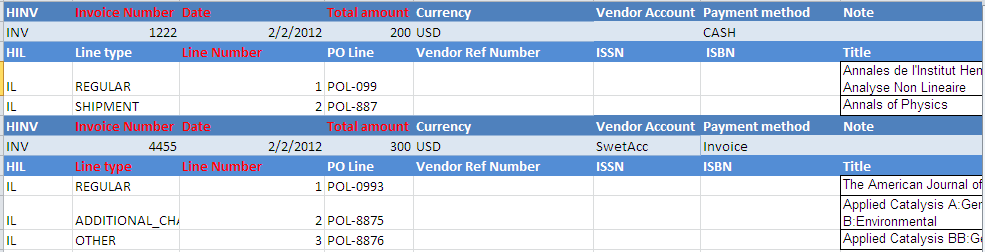 Hoja de cálculo de ejemplo de factura
- Se puede copiar el Excel de ejemplo y usarlo como plantilla para su factura.
- You can also view an Excel example here:Excel File for Invoice Creation Sample YLK.xlsx This example is also referred to in a detailed scenario in the following document:Creating multiple invoices with multiple invoice lines via an Excel file.docx.
- For details on entering the information into the Excel file, see Instructions for Entering Data into the Excel File.
- Select Upload and Run Invoice Creation Job. Aparece un mensaje en la página Factura desde fichero que indica si la tarea se ha realizado con éxito. Cuando el fichero se ha cargado con éxito, el personal recibe una notificación por correo electrónico.
- Select Monitor Jobs to view the status of the job. The Monitor Jobs page appears, with the Completed tab selected. The job is either EDI – Load Files <vendor name>(for an EDI invoice) or Invoice - Create From Spreadsheet(for an Excel invoice). For details on the Monitor Jobs page, see Viewing Completed Jobs.
Instructions for Entering Data into the Excel File
-
Las columnas rojas indican los campos obligatorios.
-
El único formato de fecha que puede utilizarse es MM/dd/AAAA.
-
La primera columna debe tener un tipo de código de línea.
HINV = HEADER INVOICE
-
All types in this row must have the same name (Invoice Number, Date, Total Amount...).
-
The mandatory fields are Invoice Number, Date, and Total Amount.
INV= INVOICE
-
Debe seguir a la fila HINV.
-
Solo puede haber una fila INV por fila HINV.
HIL= HEADER INVOICE LINE
The mandatory fields are Line type and Line Number. Debe seguir a la fila INV.
IL = INVOICE LINE
-
Todos los tipos de códigos deben ser valores de tablas de códigos como "Tipo de línea" o "Código de informe".
-
La columna "Fondo y porcentaje" puede contener un código de fondo con o sin porcentaje o solo con CQfund, que significa 100 %.
-
The fund percentage must be within round parentheses "(00)" with a number of up to 100, for example: AQfund(40) and the next fund rowBQfund(60).
-
Códigos de notificación: solo se admiten el Código de notificación, el Código de notificación secundario y el Código de notificación terciario. Use the code rather than the 'description'.
-
No incluya comas en las celdas de precios.
Creating an Invoice From a PO or Manually
- Gerente de facturas
- Operador de facturas
- Operador de facturas ampliado
- Operador de recepción
Si una factura no se crea usando un EDI o con el recibo del material pedido, se puede crear una desde la orden de compra usando los detalles de la orden de compra o introduciendo los detalles de la factura manualmente. Al crear una factura a partir de una orden de compra, se genera una línea de factura por cada línea de la orden de compra con el precio completo de esta como el precio de la línea de factura (completamente desgravado).
Cuando Contabilidad de acumulación está habilitado, no está disponible la funcionalidad de añadir/cambiar fondos a través de la casilla de verificación en una factura.
- On the Select Invoice Creation Process page (Acquisitions > Receiving and Invoicing > Create Invoice), select From PO or Manually.
- Select the Handle receiving checkbox if you want to process receiving the material directly after the invoice is created.
- If you selected From PO:En el caso de órdenes de contabilidad Acumulativas, solo se pueden crear facturas para órdenes de una sola vez. See Working with Accrual Accounting.
- Select Next. Se abre la segunda página del asistente de creación de facturas, la página Seleccionar orden de compra.

Página Seleccionar orden de compra - Enter or select a PO in the Select PO quick pick list. Solo se muestran las órdenes de compra activas en la lista de selección. Autocompletar también puede encontrar órdenes de compra cerradas. Puede buscar en las siguientes opciones:
- Referencia adicional a la línea de orden de compra
- Todo
- Número de ERP
- Descripción de la unidad organizativa
- Código de fondo
- Nombre del fondo
- Identificador del ejemplar
- Línea de la Orden de Compra
- Título
- N.° de orden de compra
- Código de proveedor
- Número de factura del proveedor
- Nombre de proveedorLa búsqueda por título no está disponible cuando se selecciona "Todos" como criterio de búsqueda.
- Select Save. Aparece la pestaña Líneas de factura en la página Detalles de la factura, mostrando una línea de factura para cada línea de la orden de compra en la orden de compra.Los campos de la línea de factura se rellenan automáticamente y pueden editarse según se requiera.
- Invoicing is not required for PO lines with acquisition methods Gift,Depository,Technical, or Exchange.
- The value of the Line # field is a link which, when selected, opens the Invoice Line Details page for the invoice line.
- The value of the PO Line # field is a link which, when selected, opens the PO Line Summary page for the PO line.
- The value of the Funds column is links to the funds. Seleccionar el nombre de un fondo para ver las transacciones relacionadas con la factura en ese fondo.
- Select Save. Aparece la página Facturas en revisión, que muestra las facturas que están en revisión.
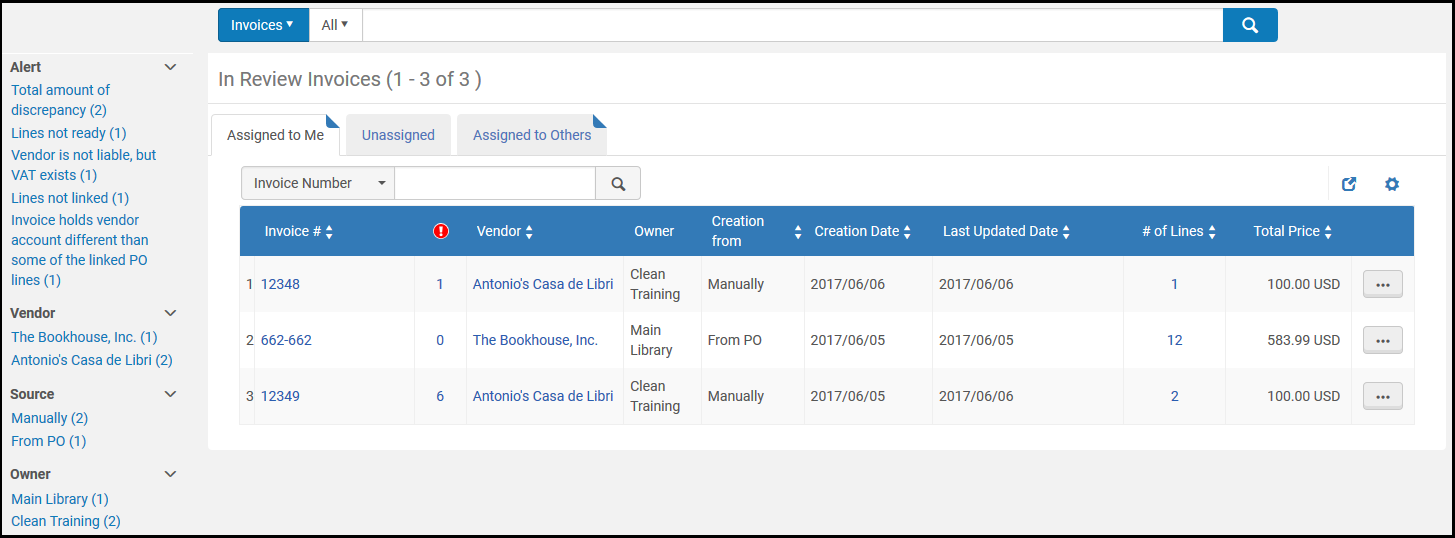
Página Facturas en revisión If you selected the Handle receiving checkbox in step 2, the Save and Save and Continue buttons on the Invoice Lines List page are replaced with a Save and Go to Receiving button. Select Save and Go to Receiving to open the Receive New material page to receive new material. Ensure that you are at a Receiving Department (see Library/Desk Selector in The Persistent Menu), and that there are PO lines in the invoice that are not fully received.
- Select Next. Se abre la segunda página del asistente de creación de facturas, la página Seleccionar orden de compra.
- If you selected Manually:
- Select Next. Aparece la segunda página del asistente de creación de facturas, la página Detalles de la factura.
- Introducir la información requerida tal y como se describe en la siguiente tabla:
Campos de la página Detalles de la factura Sección Campo Descripción Detalles de la factura Número de factura (obligatorio) Un número de factura para el proveedor (puede incluir cualquier carácter y símbolo del teclado; longitud máxima de 100 caracteres). El número no es único de un proveedor específico. To allow repeated invoice numbers from the same vendor, set the customer parameter invoice_not_unique to true; see Configuring Other Settings (Acquisitions). Fecha de factura (obligatorio) The invoice date from the Calendar dialog box. Fecha de vencimiento de la factura La fecha en la que vence el pago. Proveedor (obligatorio) El proveedor al que se emitirá la factura. Cuando se selecciona un proveedor, la lista de propietarios y las unidades de moneda (en Cantidad total) se filtran para mostrar solo los que son compatibles con ese proveedor.Cuenta del proveedor La cuenta del proveedor de esta factura. Cantidad total (obligatorio) La cantidad total de la factura, incluido el envío (de lo contrario, los cargos adicionales prorrateados se calculan mal). Seleccione la moneda. (La lista está predefinida por un administrador y restringida de acuerdo con el proveedor seleccionado. For more information, see Configuring Currencies.) You can enter a negative amount (with a - sign preceding the number) to indicate a credit. Entonces, al usuario se le concede un reembolso.Persona de contacto del proveedor La persona de contacto en el proveedor que gestiona esta factura. Método de pago Método de pago de la factura. Los métodos de pago disponibles son: - Departamento de cuentas - usar si Alma está conectado a un ERP. When this payment method is selected, the Prepaid checkbox in the Payment section is disabled and cannot be selected (see Payment, below)
- Efectivo
- Tarjeta de crédito
- Adjunto
- Cuenta corriente
- Prepago
- Pago especial
- Transferencias bancarias
Número de referencia de la factura Un número de referencia de la factura para habilitar la agrupación de facturas para los informes. Propietario (obligatorio) Asociar la factura con la institución o la biblioteca. La institución y/o bibliotecas disponibles en el recuadro desplegable dependen de su alcance. See the Support for Library-Level Invoicing video (3:23 min) for details about library-level invoices.Cuando se selecciona una biblioteca propietaria, la lista de proveedores se filtra para mostrar solo los proveedores disponibles para esa biblioteca. Además, solo las líneas de orden de compra propiedad de esta biblioteca pueden añadirse a una línea de factura de esta factura.Cargos adicionales Usar prorrata Prorratear los siguientes cargos adicionales en todas las líneas de factura: - Cantidad del envío
- Cantidad del seguro
- Cantidad de gastos generales
- Cantidad del descuento
- Cualquier tipo y cantidad de cargo adicional habilitado para su institución. See Configuring Invoice Line Types. If you have enabled multiple additional line types, each time you select one of the line types from the Additional Charge drop-down, another Additional Charge drop-down appears. Se pueden añadir hasta cinco tipos de líneas adicionales.
If you do not select Use pro rata, each additional charge is displayed as an individual invoice line.This option is selected by default if the invoice_use_pro_rata setting is set to True(see Configuring Other Settings).Si se introduce IVA para esta factura y el proveedor está señalado como sujeto a IVA, y la institución tiene un proveedor gubernamental asociado, se crea una factura separada para este impuesto y se vincula a esta factura. La factura vinculada incluye solamente el IVA. For details on configuring liability for tax and a governmental vendor, see step 2 and step 5 in To add a vendor and vendor account. See also How Alma Handles VAT Payments.After this invoice is paid/exported, the governmental invoice is also paid/exported and appears on the Find Invoices page with the name <invoice number>_RT, where <invoice number> is this invoice's number and _RT stands for Report Tax (the governmental invoice).IVA Informe de impuestos Informar de impuesto de uso (IVA). This field appears only if a governmental vendor is linked to the invoice's vendor. When selecting this field, the VAT % and Amount fields are disabled, and any values in these fields revert to 0.Código de IVA Un código de IVA para asignar un porcentaje de IVA preconfigurado a la factura. Appears only when VAT codes are configured (see Configuring VAT Codes). Seleccionar Actualizar cantidad para aplicar el código de IVA seleccionado en la factura. IVA por línea de factura Habilitar la configuración del IVA a nivel de la línea de factura (que puede gestionarse al editar la línea de la orden de compra). Seleccionar esta opción deshabilita los otros campos de esta sección que son relevantes para configurar el IVA a nivel de factura. This option appears only if the invoice_allow_vat_in_line_level parameter is set to true in Acquisitions Configuration (see Configuring Other Settings).% IVA El % IVA de la cantidad total de la factura: inclusivo, exclusivo o línea exclusiva. Cuando no se rellena el código de IVA, el campo % de IVA se desactiva. Cuando se rellena el código de IVA, el campo % de IVA muestra el % de IVA que corresponde al código de IVA.
For details on configuring the VAT fields, see VAT Calculation – Example. For details on configuring VAT codes, see Configuring VAT Codes.
Tipo de IVA Seleccione: - Inclusive: The invoice total amount includes VAT.
- Exclusive: VAT is added above the invoice total amount.
- Line Exclusive: The invoice's total amount includes VAT (similar to Inclusive), but the VAT amount is calculated outside of the invoice lines' total value and is not factored into the individual invoice lines.
Importe La cantidad de IVA a pagar en la factura: inclusiva, exclusiva o línea exclusiva. When a value is added, a VAT percentage is automatically calculated and appears in the VAT % field. When a VAT Code is configured and the VAT code field appears, this field is disabled and fills automatically when the VAT code is selected (based on the VAT code's percentage and the invoice's total amount). For details on configuring VAT codes, see Configuring VAT Codes.Gastado del fondo Whether the VAT amount is to be expended from the invoice line's fund. Clear to indicate that the VAT amount is to be expended from a separate fund (Adjustment invoice line type).Impuestos del proveedor (moneda local) Cuando sea relevante, introducir una nota para indicar que el IVA se cobra en la moneda local y que la propia factura está en moneda extranjera. Este campo actualmente solo tiene fines informativos. Tipo de cambio explícito (aparece si la moneda de la factura es distinta a la moneda de al menos un libro mayor) Se puede especificar una tasa de cambio fija para el importe de la factura a la moneda utilizada en el fondo. Por defecto, Alma calcula el valor de la transacción según la tipo de cambio de la fecha especificada en la Fecha de la factura. Moneda extranjera La moneda para la cual se quiere fijar una tasa de cambio fija (la moneda del fondo). Tipo de cambio explícito La tasa de cambio que se usará para el importe de la factura. Por ejemplo:- La moneda de la factura es USD
- La moneda del fondo es EUR
- El tipo de cambio explícito is 1,5
Si añade una línea de factura de 10 USD pero la adjunta a un fondo en EUR, el fondo muestra una transacción de 10 x 1,5 = 15 EUR.Select Add to add the exchange rate to the invoice.When payments are made by the ERP for invoices that are closed or waiting for payment, the ERP rate is used if it is better than the rate specified in the Explicit Ratio section.El tipo de cambio explícito puede contener hasta seis decimales.The explicit ratio is exported to the ERP system when the Use xsd format setting is enabled in General configuration (see Import/Synchronize/Export User Blocks/Export Users Fields).Learn more about this feature in the Explicit Currency Conversion Ratio for Invoices video (10:32 mins).Pago Prepagado Enabled only when the selected payment method is an option other than Accounting department. When selecting Prepaid, additional fields appear in the payment section. Para consultar detalles, véase el siguiente paso. Copia interna Si la factura ha sido cargada en Alma con fines de documentación o de seguimiento. La factura no se envía al sistema financiero ERP y no se marca como prepagada. When selecting Internal copy, additional fields appear in the payment section. Para consultar detalles, véase el siguiente paso. - If you selected the Prepaid or Internal copy checkbox, enter the required information, as described in the following table:
Campos de pago prepagado adicionales Campo Descripción Exportar a ERP Enviar la factura al sistema de planificación de recursos de la empresa (ERP) con fines de notificación. This field is displayed only when the exportPrepaidInv parameter is set to True(see Configuring Other Settings). Si este campo no se muestra, contactar con su administrador de adquisiciones.If you selected Internal copy, this field cannot be selected and the invoice cannot be exported to the ERP.Estado del pago El estado del pago relevante: - No pagado
- Pagado
Fecha de pago La fecha del pago. La fecha actual se selecciona por defecto. Identificador de pago Un número de referencia externo del sistema ERP utilizado para indicar que la factura fue pagada. Si no hay integración con un sistema externo, se puede introducir un número de factura o de cheque en este campo.Cantidad a pagar (obligatorio) La cantidad final que se pagó (después de que los tipos de cambio y otros aspectos se tuviesen en cuenta). También se puede seleccionar la moneda de la cantidad en el campo situado a la derecha de este campo. Introducir un número negativo en este campo indica una cantidad de crédito. - Select Save and Create Invoice Lines. Aparece la pestaña Líneas de factura en la página Detalles de la factura, permitiendo que se añadan líneas de factura a la factura.If you selected the Handle receiving checkbox in step 2, the Save and Save and Continue buttons on the Invoice Lines List page are replaced with a Save and Go to Receiving button. Select Save and Go to Receiving to open the Receive New material page to receive new material. Ensure that you are at a Receiving Department; see The Persistent Menu.
- Select Edit in the row actions list for an invoice line for which you want to assign a fund (see the next step for adding an invoice line). Aparece la página Detalles de la línea de factura:Las líneas de orden de compra cerradas pueden incluirse en la factura. To find a closed PO line, select the quick pick link next to the PO Line field and set the filter to All.
- Seleccione la casilla de verificación junto a cada una de las líneas de factura para añadir un fondo. Select the Add/Replace Selected Fund action and select a fund to assign the invoice line. Select Add Fund. The fund appears in the Funding section. The Add/Replace Selected Fund option is not available when Accrual Accounting is enabled. Tenga en cuenta que cuando Alma intenta crear gastos, ocurre lo siguiente:
- Alma va al fondo y comprueba si hay algún gravamen que deba ser liberado.
- Alma then checks what the available balance would be if the disencumbrance is created. La eliminación del gravamen depende de la creación de gastos. Disencumbrance will be for the same amount as the Expenditure.
- If the Available Balance is not enough (less than expenditure after subtracting the expected disemcumbrance), Alma checks the overexpenditure parameter definition (Fund > Rules section).For more information, see the Change Funds in Invoice Lines video (1:16 mins).
- Modify any other information as required, and select Save. La información de la línea de factura se guarda y tanto la transacción de desafectación (una cantidad hasta pero no superior a la cantidad de compromiso) como de gastos se crean para los fondos relevantes. Téngase en cuenta que si las líneas de factura y las líneas de orden de compra usan fondos diferentes, la transacción de desafectación se crea para el fondo de la línea de la orden de compra y la transacción de gastos se crea para el fondo de la línea de factura. Si hay múltiples fondos para una factura, todos los fondos aparecen en la tabla.Si falta información o se tiene información incompleta, se solicita que se confirme antes de proceder. If any required information is missing or incomplete, you are not permitted to continue.
- Repetir de paso e a paso f para cualquier línea de factura adicional que se quiera añadir a la factura desde la página Lista de líneas de factura.
- If you want to manually add an invoice line to the invoice: Alma checks each invoice line you add and displays the status — Ready to be paid or In Review.An invoice can move to the next step in the workflow only if all of its invoice lines have the status Ready to be paid. If mandatory information is missing for an invoice line, it has the status In Review.To edit or delete the invoice line from the list of invoice lines:The Delete option is enabled only if you have the Invoice Operator Extended role.
- Select Add Invoice Line. Aparece el cuadro de diálogo Añadir línea de factura.Algunos campos del cuadro de diálogo Añadir línea de factura aparecen solamente cuando se elige un tipo específico de línea de la orden de compra. For details, see the field descriptions in the Add Invoice Line Dialog Box Fields table in Creating an Invoice from a PO or Manually.
- Introducir la información requerida en el cuadro de diálogo tal y como se describe en la siguiente tabla:
Campos del cuadro de diálogo Añadir línea de factura Campo Descripción Detalles dla reserva El tipo de línea de factura que se va a crear: - Normal
- Otro
- Envío
- Seguro
- Descuento
- Gasto general
- Cualquier tipo adicional habilitado para su institución. See Configuring Invoice Line Types.
Discount is subtracted from the value. Se permite un número negativo; esto resulta útil cuando se devuelve un ejemplar que tenía un descuento (para que el descuento devuelto se añada al valor).If you selected Pro rata when you created the invoice (see step b), the additional charges are pro-rated against all invoice lines, and only the Regular and Other types are available.If you did not select Pro rata, the additional charges are not allocated to a specific invoice line.Número de línea El número de línea de factura. Línea de la orden de compra Una línea de la orden de compra que vincular a la línea de factura. Los campos en el cuadro de diálogo Añadir línea de factura se actualizan dependiendo del tipo de línea de la orden de compra seleccionado (único o continuo). The amount that was previously encumbered in the PO line's funds is disencumbered when the invoice line is added.Título El título de la línea de la orden de compra seleccionada. Precio de la línea de la orden de compra El precio de la línea de la orden de compra seleccionada. Para valores inferiores a 1, introducir un 0 inicial. For example, 0.44, not .44. El precio está en la moneda seleccionada en la línea de la orden de compra. Número de ERP
Las facturas que contienen líneas de factura asociadas con líneas de orden de compra y números ERP tienen el número ERP indicado en la línea de factura. This information is also available within the PO line section when exporting an invoice (see Exporting an Invoice to XM). Totalmente facturado (solo línea de la orden de compra única) Si la línea de la orden de compra está totalmente facturada. Esto crea una transacción de desafectación para cualquier cantidad comprometida. See Invoice Status in Manually Creating a PO Line. Comprobar superposición en la fecha de suscripción (solamente líneas de orden de compra continuas) Alma comprueba si la fecha de suscripción se superpone con la de cualquier otra línea. Si se selecciona esta opción y se detecta una suscripción superpuesta, aparece un mensaje de alerta al crear la línea de factura.- The Check subscription date overlap tool is only meant to be used with editing prior purchase orders.
- Alma comprueba todas las líneas de factura enlazadas a la misma orden de compra para ver si se superponen.
- Alma solo puede comprobar información ya guardada: las líneas de factura en otras facturas y las líneas de factura añadidas previamente desde esta factura si está editando la factura. Las líneas de factura que está añadiendo actualmente no se comprueban para ver si se superponen con otras líneas de factura que se estén editando actualmente. Use the list of invoices lines (see Invoice / Invoice line number list, below) to check for overlaps before saving.
- Users need to use the Invoice/Invoice line number list to manually check for subscription overlaps when creating a purchase order line, and not editing one.
Información adicional (solo líneas de orden de compra continuas) Notas, según se requiera. Required if the Subscription from date and Subscription to date fields are empty Modo acumulativo (solamente líneas de orden de compra continuas) Al habilitar la acumulación de los gastos de las facturas de un período fiscal a otro en instituciones que practiquen la contabilidad acumulativa. Appears only when acquisition_accrual_mode=true in the CustomerParameters Mapping Table (see Configuring Other Settings). When a continuous PO line is selected in the PO line field, this checkbox is selected.For details on working with accrual accounting, see Working With Accrual Accounting.Suscribir desde de la línea de la orden de compra (solo líneas de orden de compra continuas) La fecha de inicio de la suscripción de la línea de la orden de compra. Suscribir hasta de la línea de la orden de compra (solo líneas de orden de compra continuas) La fecha de finalización de la suscripción de la línea de la orden de compra. Suscribir desde (solo líneas de orden de compra continuas) La fecha desde la que está cubierta la línea de la factura. Required if Check subscription date overlap is selected. Suscribir hasta (solo líneas de orden de compra continuas) Una fecha de finalización para la línea de factura. Required if Check subscription date overlap is selected. Factura/Lista de números de líneas de factura For continuous PO lines, this list includes the last five regular invoice lines with this PO line and the dates associated with each invoice line.
Users need to use the Invoice/Invoice line number list to manually check for subscription overlap when creating a purchase order line and not editing one.
Detalles del título El precio y la moneda de la línea de factura. Introducir la cantidad facturada tal y como aparece en la factura para este ejemplar de línea. Para valores inferiores a 1, introducir un 0 inicial. For example, 0.44, not .44. Nota de precio Una nota de texto libre se muestra en los detalles de líneas de la factura, la lista de líneas de factura y el Excel exportado. Liberación de compromiso restante Al crear una transacción de desafectación para liberar cantidades de compromiso que permanecen después de pagar una factura. Aparece solamente cuando se selecciona una línea de la orden de compra continua. Si existen cantidades comprometidas para múltiples fondos después de que una factura se pague, se crea una transacción de desafectación para cada fondo que tenga cantidades comprometidas pendientes.Esta opción puede seleccionarse solamente cuando el precio total de la línea de factura es inferior al precio de la línea de la orden de compra. Se puede cambiar siempre que la línea de factura esté en estado editable.Aunque este campo aparece al crear una factura manualmente o desde una orden de compra, al generar una factura a partir de una orden de compra, el gravamen restante se exime automáticamente. Selecting this field is only applicable when creating an invoice manually and when the field "Accrual mode" is not ticked.Estado del pago La cantidad de la línea de factura. Este campo registra el número de ejemplares facturados, pero su valor no afecta a ningún cálculo. Código de informeCódigo de informe secundarioCódigo de informe terciarioLos códigos de informe primario, secundario y terciario: seleccionar de las listas desplegables predefinidas. For more information on these codes, see Configuring Reporting Codes. Nota de IVA Un campo de solo lectura que muestra información sobre el IVA. El texto que se muestra aquí aparece en la columna Nota de IVA en la pestaña Líneas de factura en la página Detalles de la factura. Nota Notas que se quiere que estén asociadas a la línea de factura. Información adicional Información descriptiva que añadir (opcional), proporcionando información de alcance adicional en la línea de factura. Se muestra solo cuando la línea de factura está conectada a una línea de la orden de compra continua. Código de IVA Un código de IVA para asignar un porcentaje de IVA preconfigurado a la línea de factura. Displayed only when VAT codes are configured (see Configuring VAT Codes). Actualizar cantidad Al invocar el código de IVA seleccionado en la línea de factura. Displayed only when VAT codes are configured (see Configuring VAT Codes). % IVA El porcentaje del precio de la línea de factura que es IVA. Appears only when VAT per invoice line is selected on the Invoice Details page (see the Invoice Details Page Fields table in Creating an Invoice from a PO or Manually). When a value is added, the VAT amount is calculated automatically and is displayed in the Amount field. When VAT codes are configured, this field is disabled (see Configuring VAT Codes).Importe La cantidad de IVA a pagar en la línea de factura. Displayed only when VAT per invoice line is selected on the Invoice Details page (see the Invoice Details Page Fields table in Creating an Invoice from a PO or Manually). When a value is added, the VAT percentage is calculated automatically and is displayed in the VAT % field. When VAT codes are configured, this field is disabled (see Configuring VAT Codes).Fund information - Select Add Fund. Enter the following fund information and select Add Fund to add the fund to the invoice line. Ejercicio fiscal El nombre del fondo. Cuando la línea de factura está guardada, tanto la transacción de desafectación (en la cantidad del compromiso de la línea de la orden de compra) como la transacción de gastos son creadas para todos los fondos seleccionados. Las desafectaciones se crean solamente para los fondos de las líneas de orden de compra y solo se crea una desafectación para cada compromiso (y no para cada gasto). The disencumbrance date is set to five milliseconds before the encumbrance date, so that they appear together in the fund's transactions list.If an amount other than 100% of an invoice line's total is allocated to funds, select Redistribute Lines to re-allocate the fund amount percentages, based on each fund's respective amount relative to the new total amount.Si la línea de factura y la línea de la orden de compra usan fondos diferentes, la transacción de desafectación se crea para el fondo de la línea de la orden de compra y la transacción de gastos se crea para el fondo de la línea de factura.Los fondos con un balance negativo (o un balance de 0) aparecen solamente si hay una regla configurada que permita el gasto excelente y si el límite de gasto excedente no ha sido alcanzado. For details on the fields used for configuring rules, see Ledger Rules.Porcentaje The percent allocation for the fund selected in the Fund field. If an amount other than 100% of an invoice line's total is allocated to funds, select Redistribute Lines to re-allocate the fund amount percentages, based on each fund's respective amount relative to the new total amount. - Select Add to add the current invoice line and leave the dialog box open to add another invoice line, or select Add and Close to add the invoice line and close the dialog box. La línea de factura es añadida a la página Lista de líneas de factura.
- Edit – Select Edit in the row actions list to edit the line. Aparece la página Detalles de la línea de factura, donde se puede editar la información de la línea de factura. La página Detalles de la línea de factura también le permiten ver los detalles de la línea de la orden de compra a la que asoció la línea de factura. When you have edited the invoice line as required on this page, select Save. Será devuelto a la página Lista de líneas de factura donde podrá ver la línea de factura que editó.
- Delete – Select Delete in the row actions list and select Confirm in the confirmation dialog box to delete an invoice line.Borrar una factura elimina el gasto correspondiente y recalcula la desafectación. To remove the disencumbrance (when removing the only invoice associated with the PO line), manually set the PO line's Invoice Status to Partially Invoiced(see Manually Creating a PO Line).
- Select Add Invoice Line. Aparece el cuadro de diálogo Añadir línea de factura.
-
In the Alerts tab, view any alerts that the system may have generated for the invoice when it is saved. If necessary, edit the invoice accordingly, based on the alerts. Las alertas que podrían generarse incluyen:
- Algunas líneas de factura no están listas: a una o más líneas de factura de una factura guardada les falta información
- Algunas líneas de la factura no están enlazadas a las líneas de la orden de compra: una o más líneas de factura no están enlazadas a una línea de la orden de compra
- The invoice total amount entered is different than the calculated total net invoice. Note that the "Some Invoice Lines are not ready" alert does not block the invoice from being approved and can be ignored (see Understanding invoice alert "Some Invoice lines are not ready" ).
- In the Notes tab, add, update, or delete notes for the invoice. For details, see Notes Tab.
- In the History tab, you can view changes made to the invoice or any invoice line fields, including the date and time of the change, the user who made the change, the invoice line number (for invoice lines), and the old and new values.For more information about invoice line audit history, see the Invoice Line Audit History video (0:49 mins).
- To see invoice line history, select Invoice line changes in the History type field.
- To see invoice history, select Invoice changes in the History type field.
- For more information about this tab, see History Tab.
- In the Attachments tab, add, update, or delete attachments for the invoice. For details, see Attachments Tab.
- Seleccionar uno de los siguientes botones:
- Si no se seleccionó la casilla de verificación de recepción en el paso 2, se puede:
- Save – The invoice information you entered is saved and the invoice is moved to the Review Invoices page, where you can review and edit it. La factura no avanza a la siguiente etapa del flujo de trabajo de facturación.
- Save & Continue – The invoice information you entered is saved, and the invoice continues to the next stage of the invoicing workflow, where it is automatically processed. For more information on the invoicing workflow, see Invoicing Workflow.
- If you selected the Handle receiving checkbox in step 2, you can:
- Save and Go to Receiving – The invoice information you entered is saved (and remains in review), and the Receive New Material page opens, enabling you to receive the new material (see Receiving Material).
- Si no se seleccionó la casilla de verificación de recepción en el paso 2, se puede:
VAT Calculation – Example
El siguiente ejemplo ilustra cómo operan los campos relacionados con el IVA.
Este ejemplo presupone que una factura tiene una cantidad total de 100 $. La factura contiene dos líneas de factura, una de 40 $ y la otra de 60 $.
With no VAT, the invoice's Summary tab shows a Total Amount of 100.Total Invoice Lines Amount is 100, which is the sum of the invoice lines (40 + 60). VAT Amount is 0.
The Invoice Lines tab displays the Price of each line, which is the same as the Total Price of each line, and no comment appears in the VAT Note column.
Ahora imaginemos que introducimos un % de IVA de 10.
- If Inclusive is selected (total amount includes VAT), this indicates that the VAT is already figured into the total value of each invoice line. The VAT Amount is configured as $9.09 (100 - 100/1.1 = 9.09). The invoice's Summary tab shows a Total Amount of 100.Total Invoice Lines Amount is 100, which is the sum of the invoice lines (40 + 60). VAT Amount is 9.09.The Invoice Lines tab displays the Price of each line, which is the same as the Total Price of each line. A comment appears in the VAT Notes column, indicating the amount of VAT calculated for that line.
- Línea de factura 1 – Precio = 40 $ (36,36 + 3,64 (IVA))
- If Expended from fund is selected: All $40 is expended from the invoice line's fund, and the VAT note displays $3.64 included in the line's total price.
- If Expended from fund is not selected: $36.36 is expended from the invoice line's fund, and $3.64 is included in the VAT Adjustment line (a total of $9.09 is taken from both lines).
- Línea de factura 2 – Precio = 60 $ (54,55 + 5,45 (IVA))
- If Expended from fund is selected: All $60 is expended from the invoice line's fund, and the VAT note displays $5.45 included in the line's total price.
- If Expended from fund is not selected: $54.55 is expended from the invoice line's fund, and $5.45 is included in the VAT Adjustment line (a total of $9.09 is taken from both lines).
- Línea de factura 1 – Precio = 40 $ (36,36 + 3,64 (IVA))
- If Exclusive is selected, then the total invoice amount does not include VAT. El IVA se añade a cada línea de factura, pero no se refleja en la cantidad total de la factura. The VAT Amount is configured as $10 (10% of $100).The invoice's Summary tab shows a Total Amount of 100.Total Invoice Lines Amount is 110, which is the sum of the invoice lines (44 + 66). VAT Amount is 10.The Invoice Lines tab displays the Price of each line, which is less than the Total Price of each line, and includes the VAT. A comment appears in the VAT Notes column, indicating the amount of VAT calculated for that line.
- Línea de factura 1 – Precio – 40 $ + 4 (IVA) = 44 $
- If Expended from fund is selected: All $44 is expended from the invoice line's fund, and the VAT note displays $4.00 included in the line's total price.
- If Expended from fund is not selected: $40 is expended from the line's fund, and $4 is included in the VAT Adjustment line (an adjustment of $10 is taken from both lines).
- Línea de factura 2 – Precio – 60 $ + 6 (IVA) = 66 $
- If Expended from fund is selected: All $66 is expended from the invoice line's fund, and the VAT note displays $6.00 included in the line's total price.
- If Expended from fund is not selected: $60 is expended from the line's fund, and $6 is included in the VAT Adjustment line (an adjustment of $10 is taken from both lines).
- Línea de factura 1 – Precio – 40 $ + 4 (IVA) = 44 $
- If Line Exclusive is selected, the invoice's total amount includes the VAT (similar to Inclusive), but the invoice line's prices do not. The VAT Amount is calculated against the invoice's Total Value. En nuestro ejemplo, esto no refleja el total real de las líneas de factura + IVA. The VAT Amount is configured as $9.09 (100 - 100/1.1 = 9.09), which is incorrect.The invoice's Summary tab shows a Total Amount of 100. You should adjust the values of the invoice lines or the Total Amount, since Total Amount does not accurately reflect the total value of the invoice lines + VAT.Total Invoice Lines Amount is 110, which is the sum of the invoice lines + VAT (44 + 66). VAT Amount is 9.09. If you adjust the Total Amount to 110, VAT Amount will correctly appear as 10The Invoice Lines tab is the same as it is if Exclusive is selected (see above).
- Línea de factura 1 – Precio = 40 $ + 4 (IVA) = 44 $
- If Expended from fund is selected: All $44 is expended from the invoice line's fund, and the VAT note displays $4 included in the line's total price.
- If Expended from fund is not selected: $40 is expended from the line's fund, and $4 is included in the VAT Adjustment line (an adjustment of $10 is taken from both lines).
- Línea de factura 2 – Precio = 60 $ + 6 (IVA) = 66 $
- If Expended from fund is selected: All $66 is expended from the invoice line's fund, and the VAT note displays $6 included in the line's total price.
- If Expended from fund is not selected: $60 is expended from the line's fund, and $6 is included in the VAT Adjustment line (an adjustment of $10 is taken from both lines).
- Línea de factura 1 – Precio = 40 $ + 4 (IVA) = 44 $
Working With Accrual Accounting
Para las instituciones que practiquen la contabilidad acumulativa, se pueden acumular los gastos de la factura de un período fiscal a otro.
Cuando no se usa la contabilidad acumulativa, si una factura superpone dos períodos fiscales diferentes, la cantidad total de la factura se atribuye al período fiscal actual, es decir, al período fiscal en el que está contenida la fecha del calendario actual. When accrual mode is enabled in Alma, invoice amounts are spread out over all active fiscal periods, beginning with the fiscal period in which the Subscription from date is contained.
Por ejemplo:
- A fiscal year is set in Alma that runs from January 1, 2014 – December 31, 2014, called FY - 2014.
- Another fiscal year is set in Alma that runs from January 1, 2015 – December 31, 2015, called FY - 2015.
Una factura cubre el período fiscal desde el 1 de junio de 2014 hasta el 31 de mayo de 2015. This means that 54.55% of the invoice's fiscal period is in FY – 2014, and 45.45% of the invoice's fiscal period is in FY – 2015.
- If Accrual Mode is disabled: All of the invoice's charges are attributed to the current fiscal year (FY – 2014), regardless of the invoice's Subscription from date value.
- If Accrual Mode is enabled: The invoice's charges are distributed proportionally between FY – 2014 and FY – 2015.
- Para que la contabilidad acumulativa funcione adecuadamente, todos los períodos fiscales pasados y futuros deben estar definidos, y los fondos deben estar activos y poder aceptar transacciones. If a future fiscal year is not active in Alma (or if the fund does not exist), the invoices' expenditures are attributed to the latest active fiscal period in Alma that is covered by the invoice. In the above example, if FY – 2015 was not active, all of the invoice's expenditures would be attributed to FY – 2014, even if accrual mode is enabled.
- If the Subscription from date is not part of the previous, current, or next fiscal period, you will receive an error that the fund is not valid in accrual mode.
- When accrual accounting is enabled, the option to Add/Replace Selected Fund in the Invoice Lines List is not available.
- When accrual accounting is enabled, using the Release remaining encumbrance checkbox in an invoice line is not available.
La contabilidad acumulativa tiene efecto solamente en los gastos y no en los compromisos.
To enable working with accrual accounting, ensure that the parameter acquisition_accrual_mode is enabled (see Configuring Other Settings).
- Ensure that acquisition_accrual_mode is enabled (see Configuring Other Settings).
- Ensure that you have rolled over the ledger and the required fund from the first fiscal year to all required fiscal years (see Rolling Over Legders).Configurar el fondo para aceptar las transacciones de gastos antes (o después) del comienzo del (final del) período fiscal. To do this, ensure that you have selected a value (such as 365) in the Expenditures prior to fiscal period (days) field in the Rules section of the Summary Details page for the specified fund (see the table Ledger Rules in Adding a Legder).For Alma to automatically distribute the amounts to the funds in each fiscal year (see below),all funds in the different fiscal years must have the same fund code. (Si se elige asignar las cantidades manualmente, los códigos de fondo no importan).
- On the Invoice Details Page (Acquisitions > Receiving and Invoicing > Create Invoice, select Manually and select Next), configure the relevant fields to create an invoice.
- Select Save and Create Invoice Lines. Aparece la pestaña Líneas de factura de la página Detalles de la factura.
- Select Add Invoice Line. Se abre el cuadro de diálogo Añadir línea de factura.
- In the PO line field, select a continuous PO line. The dialog box refreshes with the Accrual Mode checkbox selected.
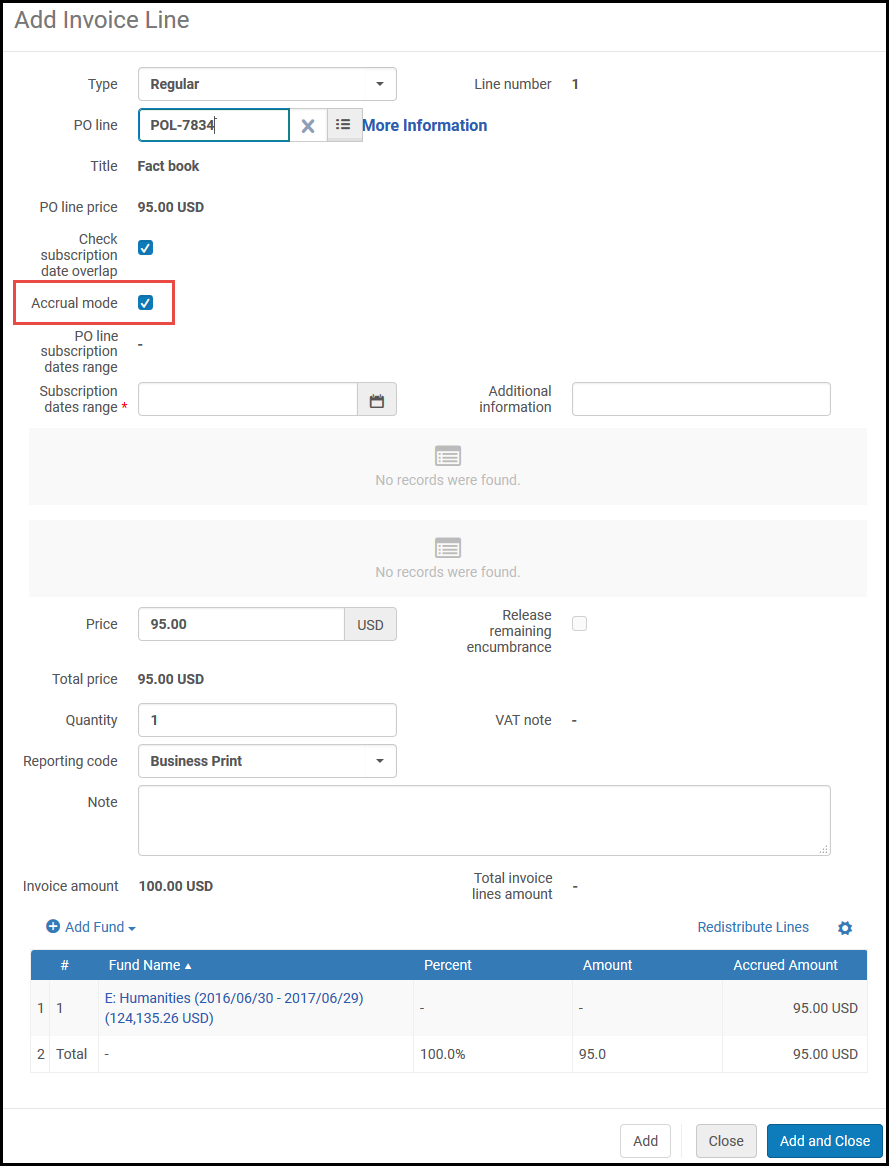
Cuadro de diálogo Añadir línea de factura – Casilla de verificación Modo acumulativo El fondo normalmente se rellena previamente desde la línea de la orden de compra. To remove the fund, clear Accrual Mode, delete the fund, and re-select Accrual Mode. - In Subscription date range, select a start date and end date for the invoice line, respectively. Se muestra la distribución de los gastos entre los períodos fiscales correspondientes.
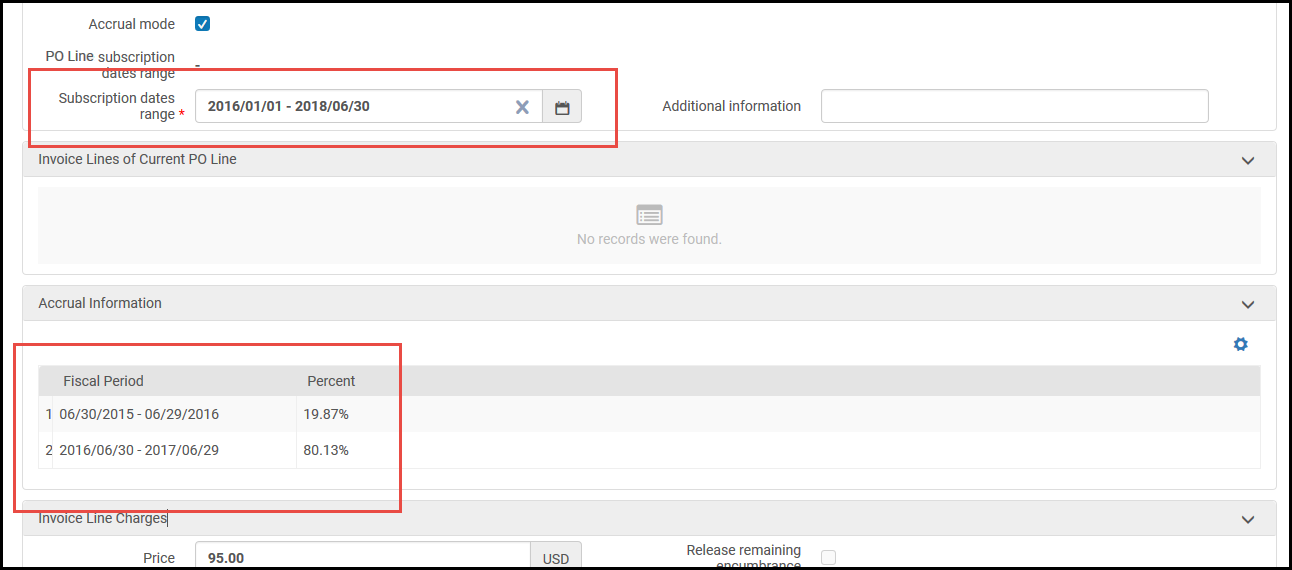
Cuadro de diálogo Añadir línea de factura – Distribución del período fiscal The above figure presents an example where 19.87% of the invoice line's expenditures fall in the fiscal period ending 06/29/2016, and 80.13% of the invoice line's expenditures fall in the fiscal period ending 06/29/2017. - Select Add Fund to add a fund and enter the relevant information.
- Se debe configurar el fondo para aceptar las transacciones de gastos antes (o después) del comienzo del (final del) período fiscal. Ensure that you have selected a value (such as 365) in the Expenditures prior to fiscal period (days) field in the Rules section of the Summary Details page for the specified fund (see the table Ledger Rules in Adding a Ledger).
- Para que Alma distribuya automáticamente las cantidades a los fondos en cada año fiscal, seleccionar un fondo que tenga un fondo compatible (con el mismo código de fondo) en cada año fiscal requerido para la factura. Si hay algún año fiscal que no tenga fondos, entonces se le asigna al fondo asociado al último año fiscal el balance restante de la factura. Por ejemplo, si se quiere extender la factura a lo largo de tres años, 10 % el primer año, 60 % el segundo año y 30 % el tercer año, pero el fondo que se selecciona solo existe en los primeros dos años fiscales, entonces el fondo del primer año cubrirá el 10 % y el fondo del segundo año cubrirá el 90 %.
- Como alternativa, se puede simplemente añadir los fondos que se requiera y asignar manualmente las cantidades a cada uno, según se requiera.
- Select Add Fund. The accrued amounts appear in the Accrued Amount column, according to the displayed percentages (as described in step 7 above).
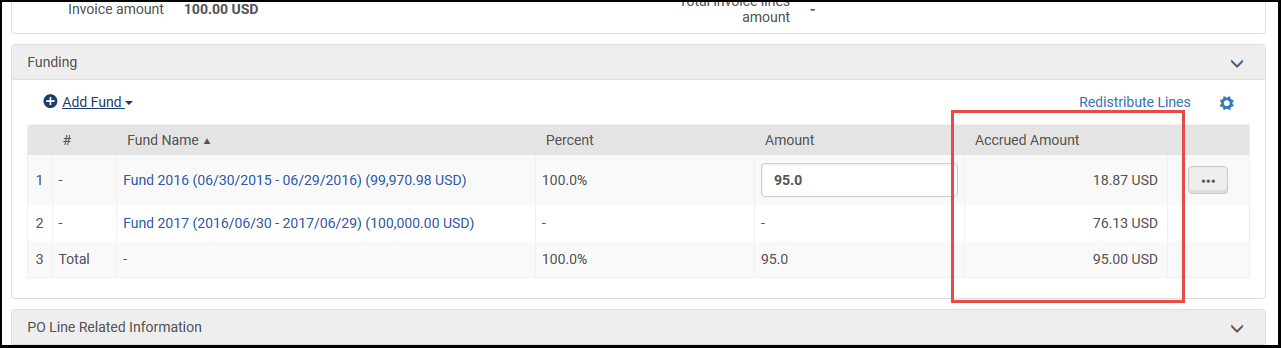
Cuadro de diálogo Añadir línea de factura – Cantidades acumuladas The fund that covers the Fiscal Period in the Subscription from date is called the Baseline Fund.Delete appears next to this fund only. Selecting Delete deletes both accrued amounts covered by this fund. - To disable accrual mode, clear the Accrual Mode checkbox. The amounts then exist independently in the invoice line, and Delete appears next to each. Additionally, the Accrued Amount heading changes to Amount.
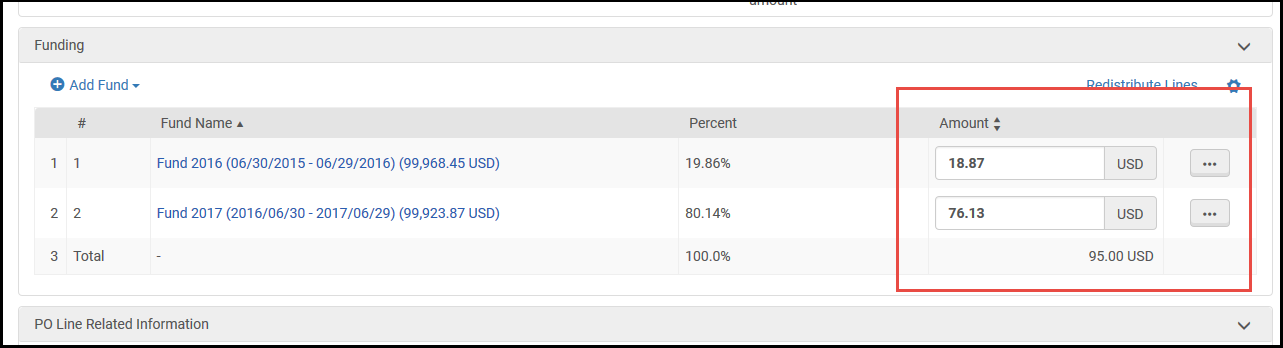
Modo acumulativo deshabilitado - Select Add and Close.
Editing the Invoice Lines of Closed Invoices
La mayoría de los campos de las líneas de una factura cerrada no se pueden modificar. Sin embargo, de forma predeterminada, los siguientes campos de línea de factura se pueden editar incluso cuando la factura está cerrada:
- Subscription dates range (unless Accrual mode is enabled; see Creating Invoices)
- Información adicional
- Comprobar la superposición de fechas de suscripción
- Nota de precio
- Nota
- Códigos de informe 1-5
- In the persistent search box, search for the invoice (see Searching for Invoices). La factura aparece en la página Buscar facturas.
- In the row actions of the invoice, select Edit. La página de Detalles de Factura de abrirá.
- In the Invoice Lines tab, in the row actions of the line you want to edit, select Edit. La página Detalles de línea de factura de abrirá.
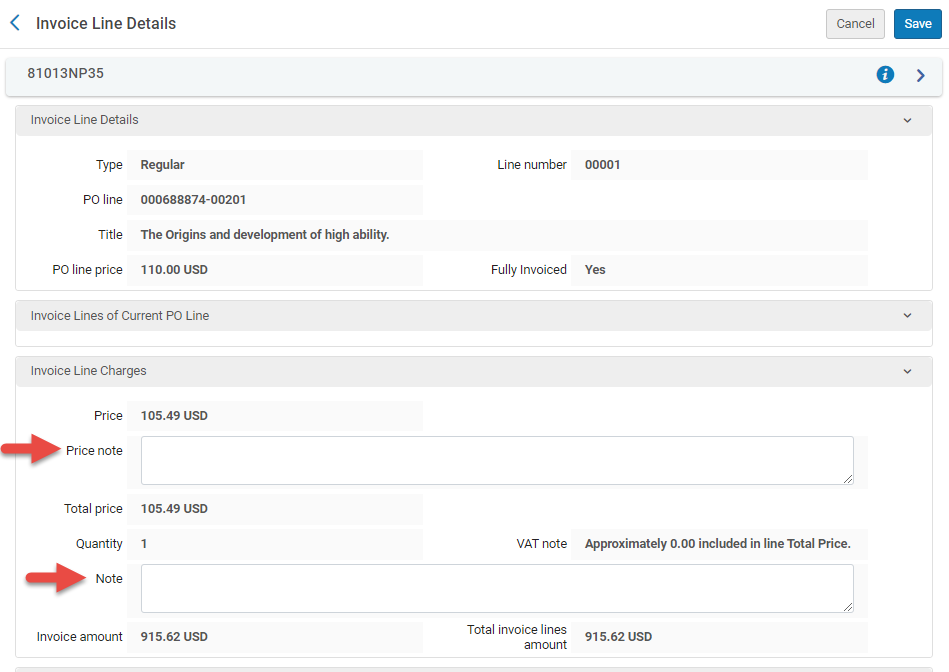
Campos editables en la página Detalles de línea de factura
- Edite los campos editables según sea necesario.
- Select Save to save the changes.
The editable fields of invoice lines in closed invoices can also be edited via the API (except for Reporting Codes 4 and 5). For additional information, see Invoices in the Developer Network.
The option to edit fields of invoice lines that are in closed invoices can be disabled in an institution. When the option is disabled, the row actions of invoice lines in closed invoices contain the View option instead of the Edit option.
- In the Mapping Table at Configuration menu > Acquisitions > General > Other Settings, set the allow_edit_closed_invoice_line Customer Parameter to false.
Añadir facturas de órdenes canceladas
-
Reabra la línea de orden de compra.
-
Adjunte la línea de orden de compra a la factura.
-
Cancele la línea de orden de compra una vez más.
Page tags: article:topicproduct:almacontent:DocumentationInvoice Lineinvoice line typelang:englishinvoice statuscreate invoiceimport invoiceSelect Invoice Creation ProcessInvoice DetailsIn Review Invoicesinvoice numberpayment methoduse pro ratareport VATreport taxVAT codeVAT typeexplicit ratiopayment statusVAT calculationExpended from FundLine Exclusiveaccrual accountingaccrual mode
