
Revisar facturas
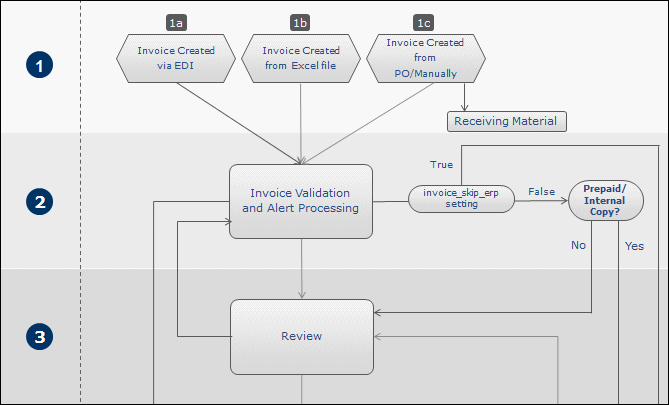
Esta página describe cómo revisar facturas en Alma, incluidas las diversas situaciones en las que una factura llega a la etapa de revisión. It includes how to access invoices in review and the actions that can be done from the Invoice Review page, such as editing and deleting invoices, and changing who an invoice is assigned to. For an overview of the end to end invoice workflow with links to relevant sections for details see Invoicing Workflow.
- Operador de facturas
- Operador de facturas ampliado
- Gerente de facturas
Una factura se envía para su revisión manual en los siguientes casos:
- Existen problemas de datos o alertas -como resultado del proceso en el flujo de trabajo de facturación- que requieren la atención del personal de la biblioteca Y las normas de revisión de facturas indican que esta debe ir a revisión.
- Save(as opposed to Save and Continue) is selected at the end of the manual invoice creation process. See Creating an Invoice from a PO or Manually.
Invoices appear on the In Review Invoices page (Acquisitions > Receiving and Invoicing > Review). You can also view this page starting on a specific tab by selecting one of the following tasks in the Tasks List in the persistent menu (see Tasks in the Task List):
- Invoices - review - assigned to you
- Invoices - review - without assignment
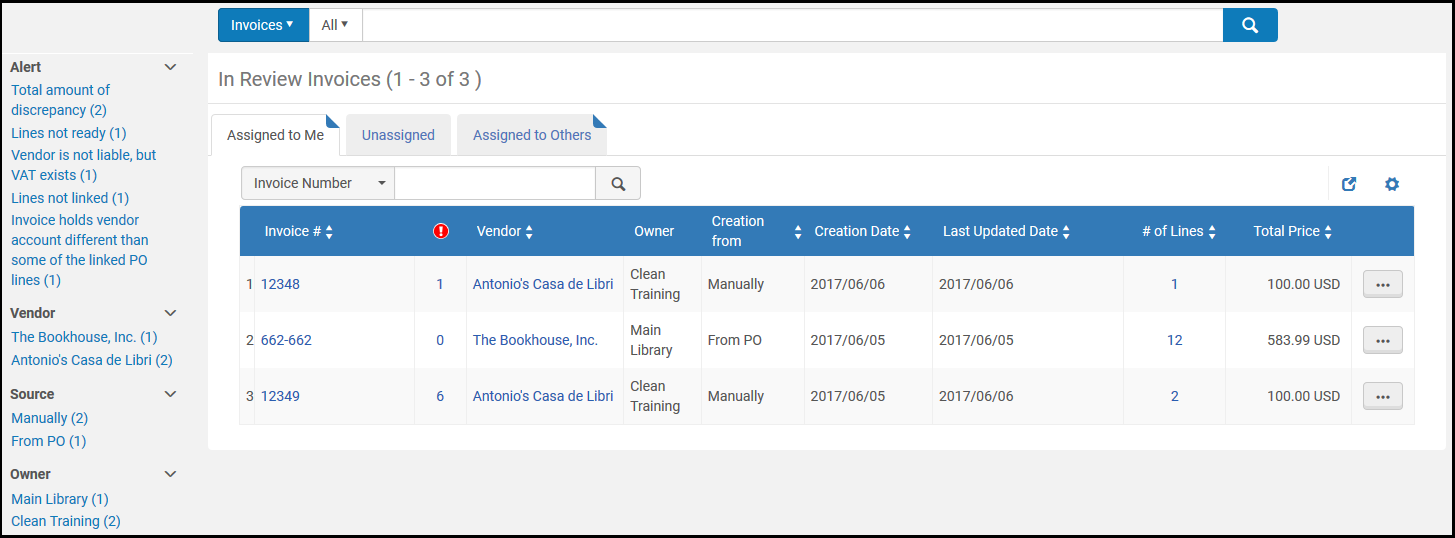
Esta página es una página de tareas En esta página puede editar o eliminar una factura, o cambiar a la persona a quién se le ha asignado la factura.
Invoices appear in the following tabs (see Assigned to Me, Unassigned, Assigned to Others Tabs):
- Assigned to Me— Only you can edit these invoices.
- Unassigned— You or any other staff person with review permissions can edit these invoices.
- Assigned to Others— Only the user assigned to the invoice can edit it, unless it is reassigned to someone else.
- On the In Review Invoices page, select Edit in the row actions list for an invoice. Aparecerá la página de Detalles de factura.
- View the alerts generated for the invoice in the Alerts tab and modify the information in each of the other tabs, as required. For information on the fields in each of these tabs, see Creating an Invoice From a PO or Manually.
- Select Save and Continue to save your changes and move the invoice to the processing stage of the invoicing workflow.If you select Save, your modifications are saved, but the invoice does not move to the next stage of the workflow. In addition, for invoices with 10 or more PO lines, when updating the invoice, the related PO lines are re-indexed. This is done by a background job that appears in the Monitor Jobs page. El usuario que realizó las actualizaciones que desencadenaron esta reindexación aparece como operador. A letter is sent to the user who initiated the re-indexing job.If the invoice data has been properly modified, the invoice continues to move through the invoicing workflow as described in Invoicing Workflow. Some invoice updates require re-indexing of all the related PO lines. Si hay hasta 10 líneas de orden de compra relacionadas, se indexan inmediatamente. Si hay más, se indexan mediante un trabajo en segundo plano. The triggered indexing job appears in the Monitor Jobs page. El usuario que realizó las actualizaciones que desencadenaron esta reindexación aparece como operador.
You can also perform invoice management tasks on the Waiting for Approval Invoices page (Acquisitions > Receiving and Invoicing > Approve), as described in the referenced procedures:
- Change an invoice assignment - Select Assign to in the row actions list for an invoice. Se abrirá el cuadro de diálogo de reasignación. See Assigned to Me, Unassigned, Assigned to Others Tabs .
- Liberar asignación de factura: Seleccione Liberar asignación en la lista de acciones de la fila para una factura. La factura cambia a Sin asignar y se mueve a la pestaña Sin asignar.
- Delete an invoice - Select Delete in the row actions list for an invoice and select Confirm in the confirmation dialog box. Los gastos asociados se borrarán y los compromisos de la orden de compra relacionada volverán a calcularse.
Page tags: article:topicproduct:almacontent:Documentationlang:englishreview invoiceedit invoicedelete invoice
