
Mi tarjeta de biblioteca
Primo's My Library Card displays user information stored on Alma. This information includes loans, requests, and fines.
The My Library Card page in Primo displays the end users' Library Card information (such as loans, requests, fines, and so forth) from Alma using the OPAC via Primo mechanism, which allows Primo to request information from Alma via the ILS Gateway and then display the information on the My Library Card page in Primo. For more information about how OPAC via Primo functions, see How OPAC via Primo Works.
As long as the Primo institution configuration includes the api_base base URL, Primo will invoke OPAC via Primo for the My Library Card functionality. For more information on configuring the institution, see Configuring the Primo Institution.
Además, puede personalizar la información que se muestra en la página Mi tarjeta de biblioteca (como qué campos aparecen en la visualización detallada de un préstamo o solicitud). For more information, see Configuring OPAC via Primo.
When working with a Network Zone, a patron can view all of their accounts from My Library Card by selecting the institution in the My Library Card menu.
Actualizar la información del usuario
If permitted by Alma, the My Preferences section in My Library Card > Personal Settings allows patrons to update their personal information.
To allow users to update their patron information from Primo, set the primo_patron_info_updatable parameter to Y in the Customer Parameters table (Configuration Menu > General > General Configuration > Other Settings) in Alma.
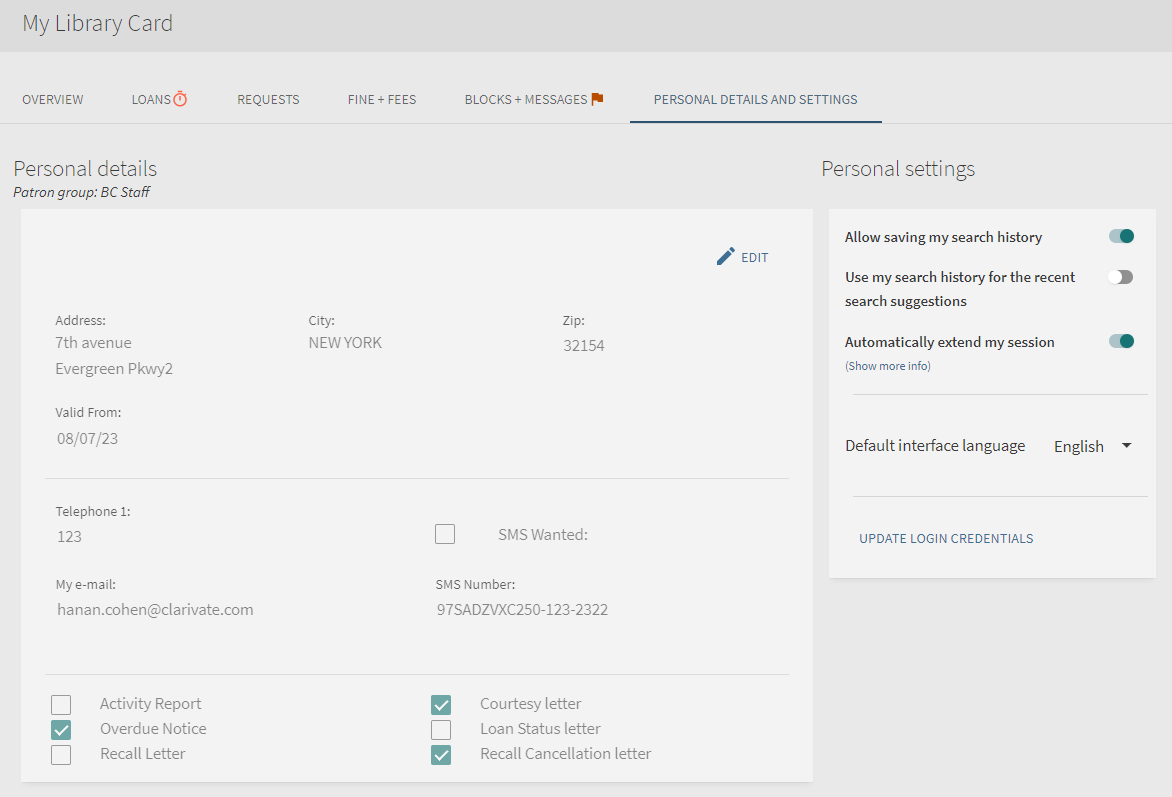
Updating Self-Check Machine PINs
La sección Actualizar credenciales de inicio de sesión en Mi tarjeta de biblioteca > Configuración personal permite a los usuarios de Alma recuperar, mostrar y modificar su PIN y contraseña. El código PIN lo utilizan principalmente las instituciones que utilizan máquinas de autopréstamo (SIP2). Estas entidades deben pedir a sus usuarios finales que creen nuevos códigos PIN en Primo/Primo VE antes de utilizar las máquinas de autopréstamo, ya que es imposible restablecer un código PIN utilizando estas máquinas.
Se aplican las siguientes restricciones:
-
Las actualizaciones de contraseñas se limitan a los usuarios de la red colaborativa (usuarios que no están asociados con la institución pero que pueden recibir servicios de cumplimiento de la misma).
-
PIN updates are only allowed for Alma environments that use PINs (Authentication required is set to Yes in the self-check machine integration profile - see Máquinas de autopréstamo) and have the use_pincode_for_selfcheck_machine parameter set to true in the Customer Parameters table (Configuration Menu > User Management > General > Other Settings) in Alma.
-
Abra Mi tarjeta de biblioteca y seleccione la pestaña Datos personales.
-
Select Update Login Credentials to open its dialog box:
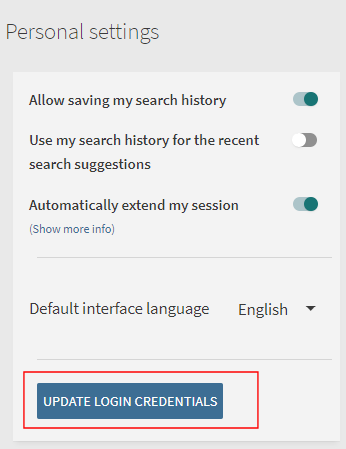 Sección Actualizar credenciales de inicio de sesión -Configuración personal
-
Add your PIN code and select Save.
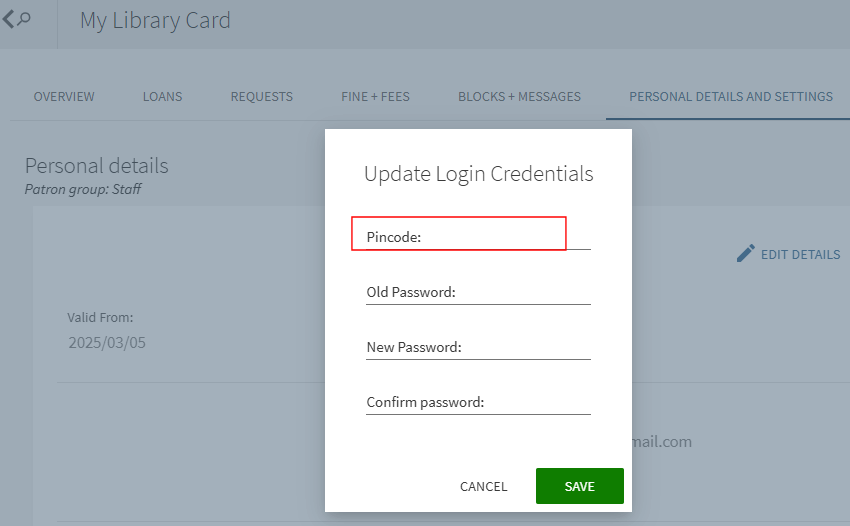 Actualizar código de PIN
Si Alma no lo permite, puede que algunos o todos los campos de credenciales de inicio de sesión no se muestren en Mi tarjeta de biblioteca > Configuración personal.
Pago de multas y cuotas
Alma allows users to pay fines and fees online using My Library Card. For Alma configuration information, see Configuring the E-Payment System for Primo VE.
- On the My Library Card > Fine & Fees tab in Primo, select the Pay Fine link above the list of fines.
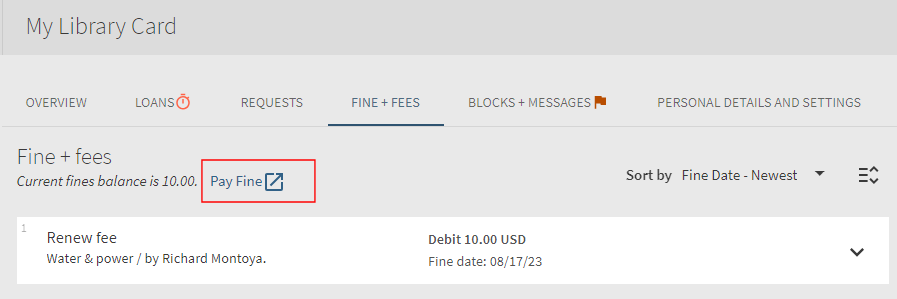 Enlace de multas y cuotas en Mi tarjeta de bibliotecaTo configure the link that display above and below the list of fines, see Configuring the Pay Fine Link.
- Esto le dirigirá a la página de pago de su sistema de pago electrónico.
Configuring the Pay Fine Link
Configuring the Pay Fine Link for WPM Education E-Payment System
Para permitir a los usuarios pagar multas en línea usando Mi tarjeta de biblioteca, debe configurar el enlace en el Sistema de Pago Electrónico de Educación WPM. For Alma configuration information, see Configurar el sistema de pago electrónico de WPM Education.
- On the Primo Home > Advanced Configuration page, select All Mapping Tables.Se abren todas las páginas de las tablas de asignación.
- Select Edit in the row containing the My Account Links mapping table.Se abre la página de la tabla de mapeo de los enlaces de Mi Cuenta.
- In the Create a New Mapping Row section, enter the following fields and then select Create:
View ID – Select the view.
Link Code – Select fines.payfinelink.
Order – Specify 1 to place the link next to the fines/fees balance in the title.
Link URL – Specify the following link to Alma:
https://<Alma domain>.alma.exlibrisgroup.com/view/FinesFeesPayment/<Alma institution code>/do?system=WPM&pds_handle={{pds_handle}}See Your Alma Domain Names. Por ejemplo:https://university.alma.exlibrisgroup.com/view/FinesFeesPayment/01_UNI_INST/do?system=WPM&pds_handle={{pds_handle}}
- Guardar y utilizar los cambios en la tabla de mapeado.
If you want to change the name of the link, modify the label for the fines.payfinelink link code in the My Account Links Labels code table.
Configuring the Pay Fine Link for TRANSACT
Para permitir a los usuarios pagar multas en línea utilizando Mi tarjeta de la bilbioteca, debe configurar el enlace al sistema TRANSACT. For Alma configuration information, see Configurar el sistema de pago electrónico TRANSACT.
-
On the page at Configuration > Discovery > Library Card > Payment Link Configuration configure the online_payment_url parameter as below:
{{STORE_URL}}?itemcode={{TRANSACT_ITEM_CODE}}&amount={{amount}}&empl_id={{userid}}&jwt={{jwt}}
If you want to change the name of the link, modify the label for the fines.payfinelink link code in the My Account Links Labels code table.
Desactivación de la Paginación para la Solicitud de la Lista de APIs
Alma permite a los clientes utilizar la función de paginación proporcionada por Primo en Mi tarjeta de biblioteca > Lista de Préstamos. Por defecto, Primo obtiene préstamos en grandes cantidades. If the user has more loans than the configured bulk size, Primo displays the Show More Loans link at the bottom of the My Library Card > Loans List page, which allows the user to fetch an additional bulk.
If the user invokes the Renew or Renew All option before all loans have been fetched from Alma, Primo will replace the Show More Loans link with the Refresh List link, which allows the user to display the updated loans list from Alma.
Si esta función está desactivada, todos los préstamos se muestran en la página Mi tarjeta de biblioteca > Lista de préstamos.
- On the Primo Home > Advanced Configuration page, select All Mapping Tables.Se abren todas las páginas de las tablas de asignación.
- Select Edit in the row containing the ILS Adaptors Templates table.
- In the Service Name column, search for get_loans.
-
For each of the rows that contain an Alma Adaptor ID (such as ALMA_01), remove the text in shown in bold in the Call Template column:{{api_base}}/view/rest-dlf/patron/{{patron_id}}/circulationActions/loans?lang={{lang}}&view=brief&type={{type}}&institution={{ils_user_institution}}&noLoans={{noItems}}&startPos={{startPos}}
- Guardar y utilizar los cambios en la tabla de mapeado.For additional configurations associated with paging, refer to the description of the Bulk Definition mapping table in Front End Subsystem.
Configuración de la dirección de ordenación para la lista de préstamos
The primo_loan_list_sorting customer parameter allows you to configure the direction in which loans are sorted in Primo My Library Card > Loans. Por defecto, los préstamos se muestran en orden descendente por fecha de vencimiento. Si lo prefieres, puedes ordenarlas en orden ascendente por fecha de vencimiento.
Para configurar otros ajustes, se debe tener uno de los siguientes roles:
-
Administrador general del sistema
-
Administrador de servicios al usuario
Set primo_loan_list_sorting to ascending or descending (see Configuring Other Settings). Por defecto, los préstamos se muestran en orden descendente por fecha de vencimiento.
Page tags: article:topicproduct:almacontent:Documentationlang:englishpatron informationself-check machinepay finespay feespay fine linkdisable pagingsort direction
