
Crear solicitudes de reserva anticipada
Create a booking request.
Esta página describe la creación de una solicitud de reserva anticipada. For links to all the main fulfillment documentation pages see Fulfillment.
Para ajustar la configuración de las solicitudes de reserva, se debe tener uno de los siguientes roles:
- Administrador general del sistema
- Administrador de servicios al usuario
- Operador de servicios al usuario
- Administrador de servicios al usuario
Before creating a booking request for a resource, you first must configure the relevant booking fulfillment policies (see Configuring Policies), create booking terms of use to which you associate the created policies (see Configuring Terms of Use), and then create rules which determine the booking terms of use to be implemented (see Editing a Fulfillment Unit). Después, crear la solicitud específica de reserva para un ejemplar; los parámetros disponibles están basados en la configuración de las políticas y términos de uso.
For more information, see Booking Requests (1:44 min).
Se puede realizar la solicitud de reserva de un ejemplar cuando exista al menos un ejemplar disponible en la institución/biblioteca que coincida con los parámetros de solicitud especificados y mientras no exista otra solicitud de reserva durante el período de tiempo que se está solicitando.
Al realizar una solicitud de reserva en un ejemplar específico dentro de un registro que contiene varios ejemplares, téngase en cuenta lo siguiente:
-
If the record's items contain descriptions:
Solo el ejemplar específico adjunto a la solicitud de reserva puede cumplir con esa petición (aunque haya otros ejemplares asociados con el registro). Si un operador intenta prestar un ejemplar que no sea el específico que se solicitó, la solicitud de reserva no se puede cumplir con dicho ejemplar.
-
If the record's items do not contain descriptions:
Cualquier ejemplar asociado con el registro puede cumplir con la solicitud, ya que la petición se sitúa a nivel del título. Furthermore, all of the record's items are available to be used for other requests, provided that there is one item remaining to fulfill the booking request.
Los ejemplares reservados en una solicitud no pueden ser prestados por otro solicitante durante el período de solicitud de reserva. However, this can be overridden at a circulation desk, in which case the item's due date is the beginning date of the booking request.
If a booked item is recalled by another patron's request, the patron does not have to return it early, but the item cannot be renewed.
El número de solicitudes de reserva que están permitidas puede ser limitado según el tipo de usuario. For details, see Configuring Patron Limits.
- Search for an item for which you want to create a booking request (see Searching in Alma).
- Select Request for the relevant item. The Create Request page appears.
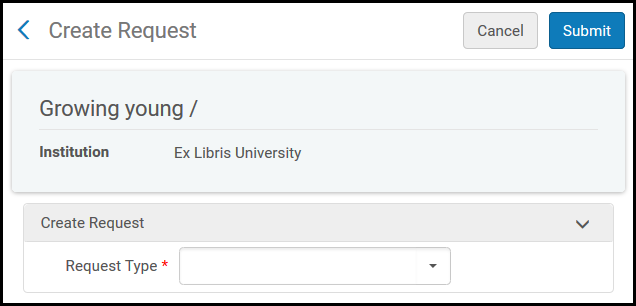
- In the Request type field, select Booking request. The page automatically refreshes and displays the booking request fields.
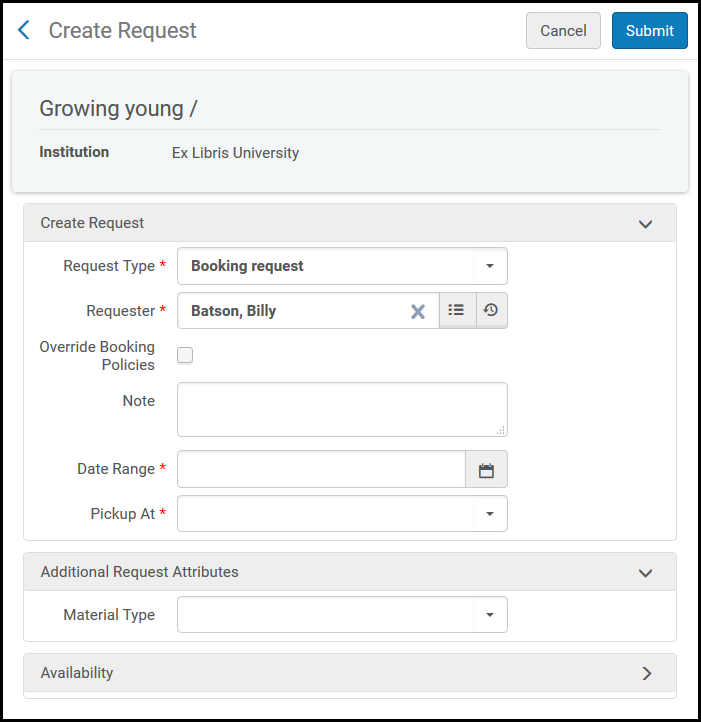
- In the Requester field, browse for the user that is requesting the booking.
- Select the Override Booking Policies check box if you want to ignore the following booking policies and still create a booking request: future limit, maximum allowed booking length, and back to back bookings by the same user.
- Optionally, enter a note in the Note field.
- In the Start time field, enter the date and time that the booking is to start.
- In the End time field, enter the date and time that the booking is to end.The Start time and End time are automatically moved back or forward, as necessary, to ensure that they occur during the library's open hours. Los tiempos actualizados de inicio y finalización se muestran en la página después de enviar la solicitud.Que estos campos se muestren depende de la política Resolución de reserva anticipada en los Términos de uso. For more information, see Adding Fulfillment Policies.
- In the Pickup at field, select a pickup location for the item (from a list arranged alphabetically, by location name).
- Optionally, in the Additional Request Attributes section, select the Material Type to add to the request. The attribute appears in the Additional Request Attributes section.
- Select Submit to submit the booking request. The item appears on the Patron Services Page – Requests tab with a Request Type of Booking(see Requested Items).
- Si un usuario quiere tomar en préstamo un ejemplar reservado durante un período de vista preliminar configurado, el ejemplar no se puede prestar.
- Si un usuario desea tomar en préstamo un ejemplar reservado y no hay un período de vista preliminar configurado, el usuario puede tomar en préstamo el ejemplar, pero debe devolverlo al comienzo del período de reserva.
