
Supporto RFID
- Amministratore di Sistema Generale
È possibile utilizzare i lettori RFID per la scansione dei codici a barre delle copie e per registrare il loro check-out e check-in. Dopo aver aggiunto il profilo d'integrazione RFID, nella barra del Menù principale viene visualizzata un'icona di connessione, a condizione che sia selezionata una Localizzazione di biblioteca dal menu a discesa Attualmente in.
Supported RFID Devices
For a list of supported RFID devices, see https://developers.exlibrisgroup.com/alma/integrations/rfid.
For information for other vendors on how they can integrate with Alma (development may be needed on the vendor's side), see https://developers.exlibrisgroup.com/alma/integrations/rfid/information_for_rfid_vendor/
Using RFID to Read an Item Barcode
If the RFID connection is not currently active, it appears as grayed out:
- Selezioni l'icona di connessione per aprire una finestra pop-up di comunicazione RFID. This enables the communication with the reader and must be left open in order to read from or write to the reader.
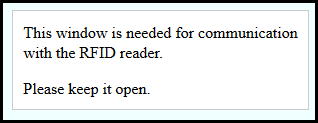
The connection icon on the menu bar changes to activated to show that the connection has been made. La connessione attiva è mantenuta per ogni Utente e scrivania/Servizio. Quando si passa a una nuova scrivania, è necessario attivare la connessione di nuovo selezionando l'icona della connessione.
- Select the Read RFID icon (
 ) next to the search bar to activate the RFID reader to read the barcode of the item that is currently at the counter, and display the item.

All input boxes that accept a barcode show this icon as long as the RFID connection is active. Scan In, Restituzione della copia, Servizi per i patroni, Ricerca archivio, Ricezione nuovo materiale, copia fisica Editor, Modulo rapido di catalogazione e Ricerca persistente (in tutto Alma). Additionally, while on a screen that has the icon to read a barcode, the keyboard shortcut Alt+A, activates the reader to display the listing. When searching for physical items, the search result will display the RFID Security Status. When scanning a multi-part item using RFID, if some of the resources have not been scanned, a message will be displayed indicating that not all of the item resources were scanned. Using the RFID reader to scan and loan an item disables the security bit on the RFID tag. La restituzione della copia riattiva il tag di sicurezza.
Configurazione del profilo d'integrazione RFID
- On the Integration Profiles List page (Configuration Menu > General > External Systems > Integration Profiles), select Add Integration Profile. Si apre la prima pagina della procedura guidata del profilo d'integrazione.
- Enter a Code and a Name for the profile.
- Dall'elenco a discesa Tipo di integrazione, selezioni RFID.
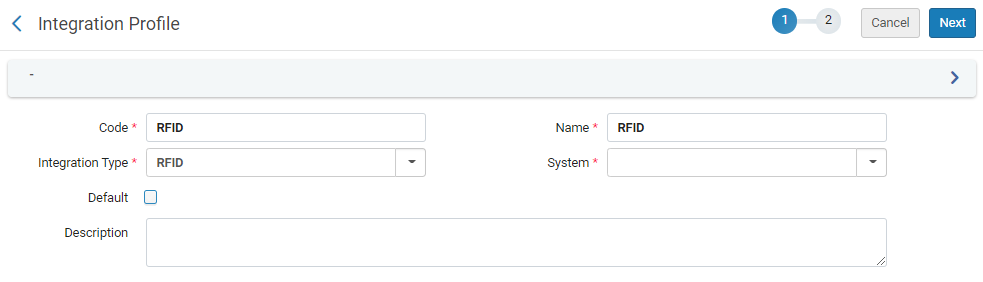 profilo d'integrazione – Fase 1 con RFID selezionato
- Dalla lista a discesa Sistema, selezioni il sistema RFID che sta utilizzando. Supported systems are (see Supported RFID Devices):
- Bibliotecha - Liber8Connect Link
- 3M - 896
- Seret
- Nedap
- OtherSe si seleziona Altro dall'elenco dei sistemi, appare il campo Descrizione del sistema; aggiungere ulteriori dettagli sul sistema lì.
- Facoltativamente, sotto Descrizione, aggiunga una descrizione per il profilo.Il campo predefinito non è attualmente funzionante.
- Selezionare Avanti. Si apre la seconda pagina della procedura guidata.
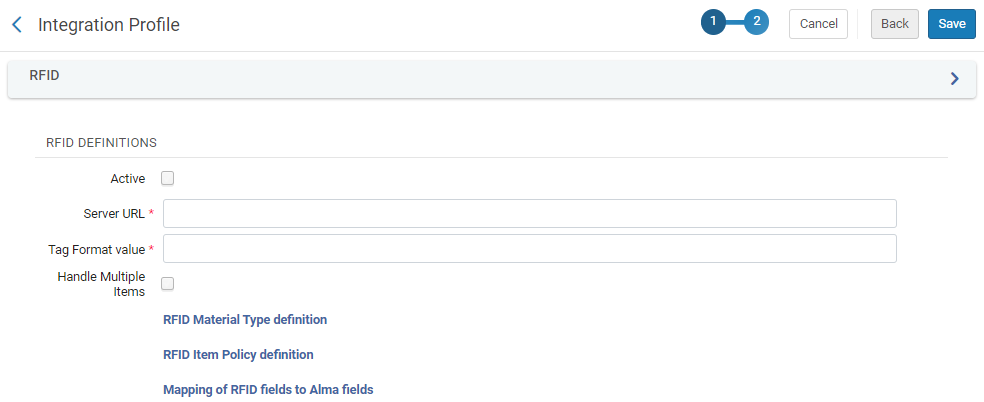
- Select the Active checkbox to make this an active RFID definition. Note: the profile is inactive by default.
- Sotto URL del server, inserisca l'URL del sistema RFID a cui è collegato il Suo dispositivo RFID, come segue:
- For 3M™ RFID Staff Workstation (Model 896): http://localhost:5000/TagService
- For Bibliotheca: http://localhost:5000/BibliothecaRFIDPadService.svc
- For Nedap and Seret: If NGINX isn't needed, you can link directly to the RFID driver, e.g.http://localhost:1801
- For Nedap with NGINX: http://localhost:5000/NedapRfidWebService.asmx(and the NGINX on localhost should proxy to the main server)
- For MK Solutions: http://localhost:4039/mkStaffStation_Alma
- For other integrations that support one central server which then proxies the requests to the readers: https://server-address:port/path(must be http s)For additional information, see Alma – RFID Integration in the Developers Network.
- For 3M - 896 only, the Tag Format value field appears. Contact your RFID supplier for the relevant tag format for the device and enter it in this field.
- Select Handle Multiple Items to accept multiple items on the RFID reader.
- If the System(field on the previous page) is Other, the Item Information Update option appears. Select this option to enable Alma to update item information on RFID tags when they are updated in Alma.
- Configura e/o revisiona le seguenti definizioni:
- Il sistema Nedap viene utilizzato solo per il check-in e il check-out e non consente l'aggiornamento del tag stesso. Pertanto, le definizioni di mappatura non sono disponibili per i profili RFID Nedap.
- When Other is selected in the System field on page 1 of the integration profile, the Item Information Update field appears. In questo caso, le definizioni appaiono solo dopo aver selezionato la casella di controllo.
- If IPs need to be configured for the RFID readers, the reader IPs need to be configured on the circulation desk configuration as well, for example when working with Nedap, or with some RFID vendors that integrate with the Alma Other RFID Integration profile type. See Adding a Circulation Desk.
- RFID Material Type Definition (see the Configuring the RFID Material Type Definition section below)
- RFID Item Policy Definition (see the Configuring the RFID Item Policy Definition section below)
- Mapping of RFID Fields to Alma Fields (see the Mapping the RFID Fields to Alma Fields section below)
- Seleziona Salva.
For more information on configuring RFID, see https://developers.exlibrisgroup.com/alma/integrations/rfid.
Configuring the RFID Material Type Definition
You can map the RFID material type codes used by your vendors to the alphabetic material type codes that you currently have defined in Alma in the RFID Material Type Code Table. La Tabella di codici del Tipo di materiale RFID utilizza le definizioni della Tabella di codici del Tipo di materiale Fisico. See Configuring Physical Item Material Type Descriptions for more information.
- On the Integration Profiles List page (Configuration Menu > General > External Systems > Integration Profiles), open your RFID Integration Profile and select the RFID Material Type Definition link. Viene visualizzata la pagina della Tabella di codici del Tipo di materiale RFID.In un ambiente Network, le opzioni Gestisci tabella in Network appaiono.


- In the Create a New Code Table Row section, select one of the existing material type codes from the Code drop-down list, enter the vendor's RFID code for the Description(mandatory), and select Add Row. Continua ad aggiungere righe per ogni tipo di materiale Alma a cui vuoi assegnare un valore fornitore per il lettore RFID.
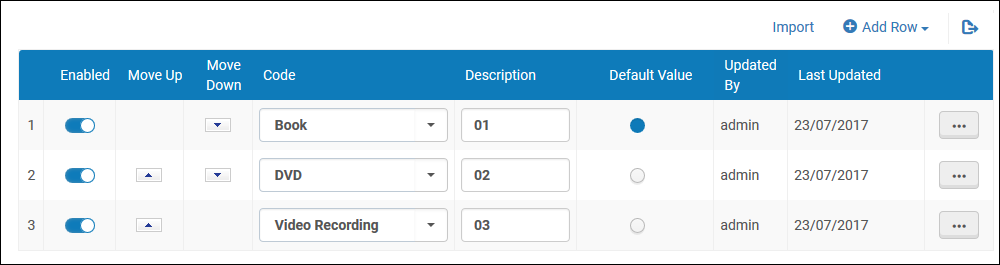 Se ha bisogno di creare un nuovo Tipo di materiale oltre a quanto previsto nella Lista a discesa, utilizzi le opzioni di configurazione della Tabella codici Tipo di materiale fisico. See Configuring Physical Item Material Type Descriptions for more information.
- Selezionare Personalizza (o Salva se avete già modificato questa tabella dei codici).
Configuring the RFID Item Policy Definition
You can map the RFID item policy codes used by your vendors to the alphabetic item policy codes that you currently have defined in Alma in the RFID Item Policy Code Table.
- On the Integration Profiles List page (Configuration Menu > General > External Systems > Integration Profiles), open your RFID Integration Profile and select the RFID Item Policy Definition link. Viene visualizzata la pagina della Tabella di codici della Policy di copia RFID.In un ambiente Network, le opzioni Gestisci tabella in Network appaiono.
- In the Create a New Code Table Row section, select one of the existing item policy codes from the Code drop-down list, enter the vendor's RFID code for the Description(mandatory), and select Add Row. Continua ad aggiungere righe per ogni Policy di copia di Alma a cui vuoi assegnare un valore Fornitore per il lettore RFID.
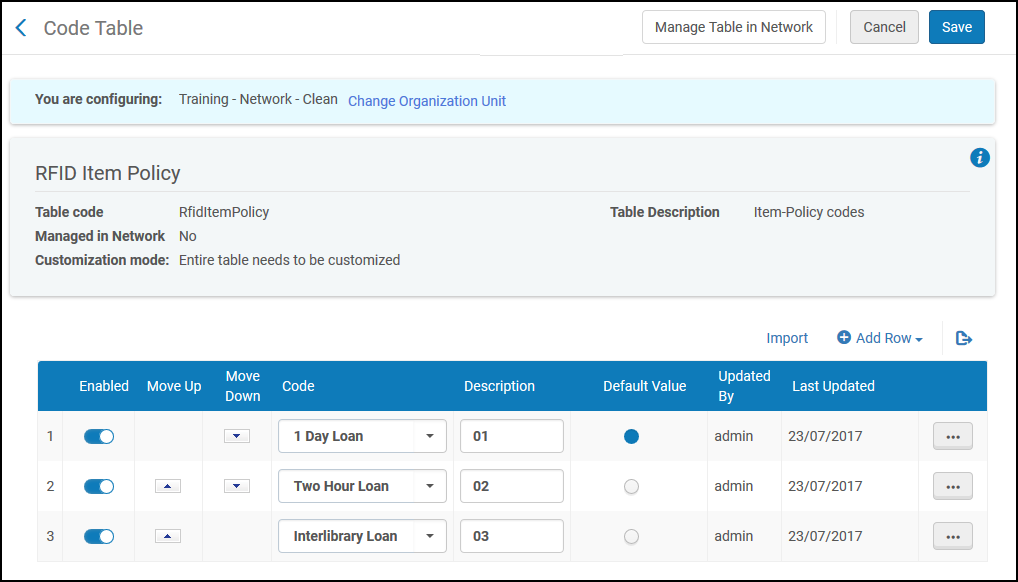
- Select Customize(or Save if you have previously edited this code table).
Mapping the RFID Fields to Alma Fields
Il collegamento mappatura dei campi RFID in campi Alma visualizza le impostazioni della tabella di mappatura dei campi RFID. Le impostazioni di questa pagina determinano quali informazioni vengono scritte sul tag RFID. Da questa pagina, puoi vedere quali campi sono abilitati per essere scritti sul tag RFID. Inoltre, è possibile vedere una delle seguenti impostazioni del campo Alma che è stata mappata su ciascun campo del tag RFID:
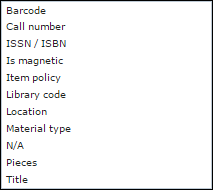
Se ha bisogno di personalizzare il campo mappatura o quali campi sono abilitati per la scrittura sul tag RFID, contatti il Supporto per assistenza.
Configuring Library Codes for RFID
You can map the RFID library codes used by your vendors to the alphabetic library codes that you currently have defined in Alma in the Alma library configuration (navigate to Configuration Menu > General > Libraries section > Add a Library or Edit Library Information, select the Library tab and then select the library to add the code for).
- Il Codice per RFID deve essere configurato in Ordine per scrivere il contenuto RFID.
- This field is only visible when the RFID connection is active as described in Using RFID to Read an Item Barcode.
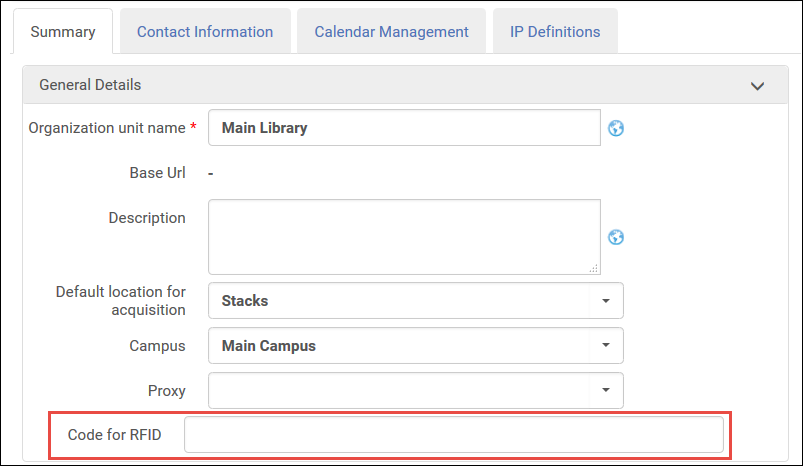
For more information, see Adding/Editing Institution Libraries.
Configuring Location Codes for RFID
You can map the RFID location codes used by your vendors to the alphabetic location codes that you currently have defined in Alma in the Alma location configuration (Configuration Menu > Fulfillment > Locations > Physical Locations when configuring a specific library). Il campo Localizzazione di biblioteca Code for RFID deve essere configurato in Ordine per scrivere contenuti RFID. Questo campo è visibile solo quando la connessione RFID è attiva.
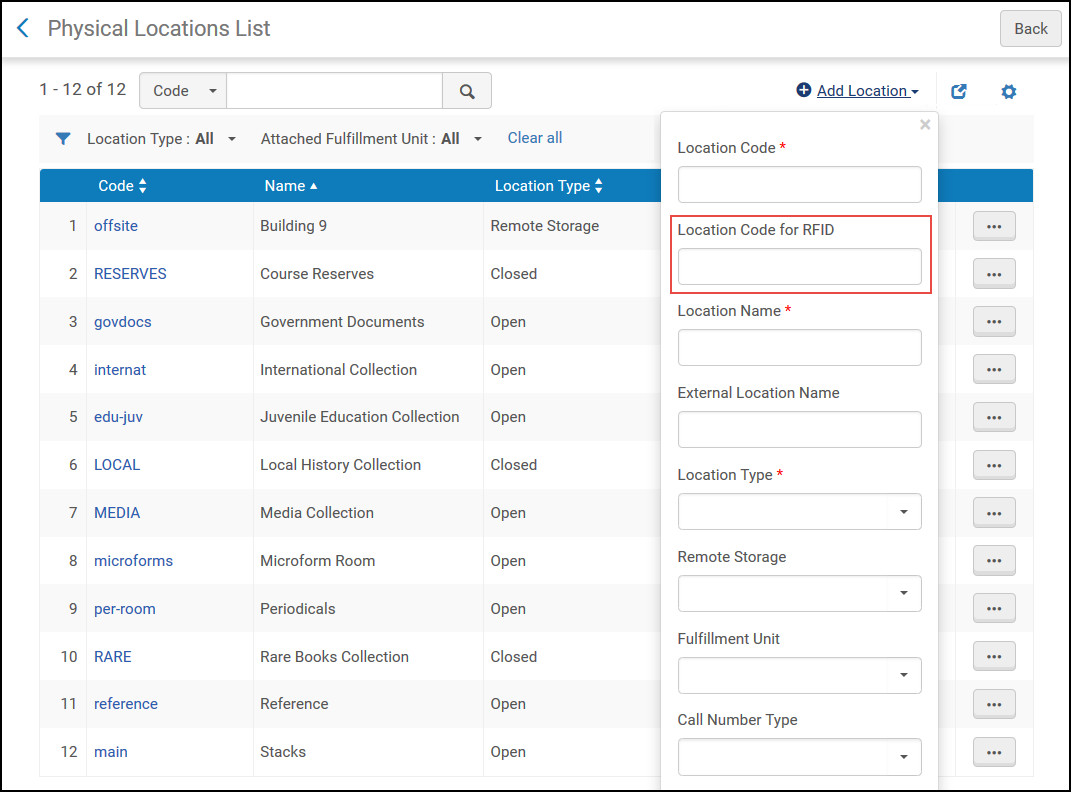
For more information, see Configuring Physical Locations.
Transaction Log
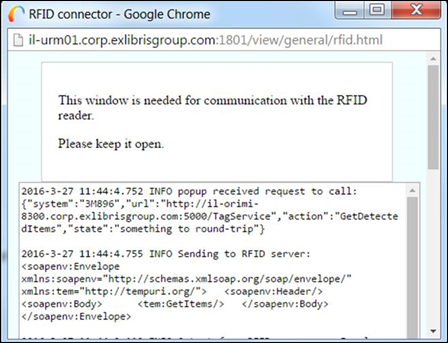
La finestra di comunicazione RFID che si apre quando si seleziona l'icona di connessione può essere espansa per visualizzare un elenco di attività di richiesta e risposta di transazione RFID. Utilizza questo registro per aiutare a risolvere qualsiasi transazione fallita con la tua comunicazione RFID. Includi una copia di questo log con qualsiasi fascicolo RFID Salesforce che potresti sottomettere.
For more information, see https://developers.exlibrisgroup.com/alma/integrations/rfid.
Scanning Multiple Items
Premendo il pulsante RFID, verrà elaborata la copia sul pad RFID. Al termine dell'elaborazione, apparirà un popup di conferma riepilogativo, che indicherà nel dettaglio quante copie sono state gestite correttamente e presenterà eventuali avvisi emersi durante la scansione. If all items are successfully processed, a success message is displayed. If an item requires action, the process is paused until you select Confirm or Cancel. Selezionando Annulla si interrompe solo l'elaborazione della copia specifica. Quando l'elaborazione multi-scansione è completata, viene fornito un riepilogo dell'elaborazione. Le copie che richiedono un'azione appaiono sotto Copie non riuscite/cancellate. Le copie che non necessitano di azione appaiono sotto Elementi che richiedono attenzione.
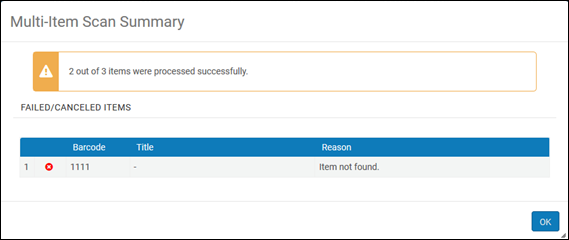
È possibile utilizzare il pulsante RFID nelle pagine seguenti quando sul pad RFID è presente una singola copia o più copie:
- Scansione in copia
- Scan in items > change item information - On this tab, multiple items can be processed as stated above with the exception of the following circumstances;
- Quando viene creato un nuovo codice a barre.
- Quando il profilo d'integrazione RFID è configurato per aggiornare la copia e si seleziona Aggiorna RFID nella tab.
- Manage patron services > Loans tab
- Manage patron services > Returns tab
- Restituzione della copia
For Bibliotecha, this is only supported when using staffConnect Link (using the Other type in the integration profile) or D-Tech. For additional assistance with StaffConnect link, contact support-ch@bibliotheca.com.For a list of supported RFID vendors, see Alma - RFID Integration on the Developer Network.
Page tags: article:topicproduct:almacontent:DocumentationRFIDlang:englishConfigure an RFID integration profileConfigure an RFID Material Type DefinitionRFID material typeRFID item policyMap RFID fields to AlmaLibrary codes for RFIDLocation codes for RFIDRFID transaction log
