
Regole di controllo dell'Authority
- Catalogatore
- Gestore catalogo
- Amministratore catalogo
- Gestore dell’archivio
- Amministratore di Sistema Generale
To create and configure the Link BIB Headings rules and preferred term correction rules, you must have one of the following roles:
- Amministratore catalogo
- Amministratore di Sistema Generale
Authority control rules give you more control over when linking bibliographic headings should be done and when linking should be skipped. They also provide greater control over the preferred term correction process and the end results from preferred term correction. The Authority Control Rules configuration page can be accessed from the Resources list of configuration options (Configuration Menu > Resources > General > Authority Control Rules).
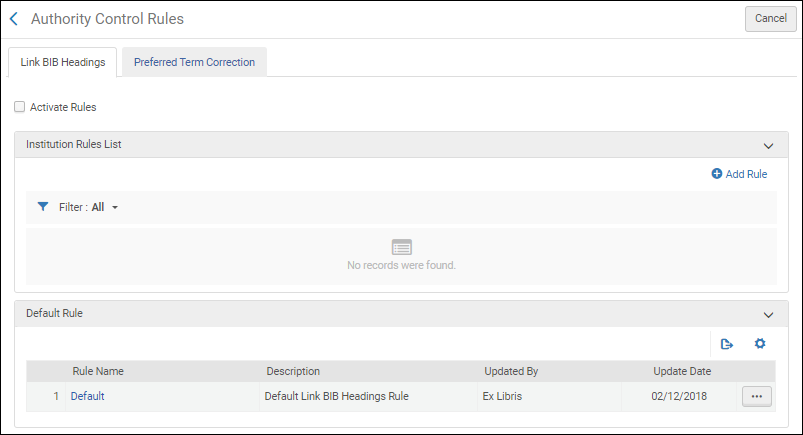
To learn more about authority control rules, see the Linking Bibliographic Headings Rules and the Managing Preferred Term Correction sections below. Note that these sections assume that you are familiar with the information on the Using the Authority Control Task List page.
Linking Bibliographic Headings Rules
Link BIB Headings rules enable you to control when linking occurs when the link bibliographic headings job is run. See Authorities - Link BIB Headings for more information.
With Link BIB Headings rules, you can define in which cases linking upon save and automatic linking (as part of the Link Bibliographic Headings job) is skipped for bibliographic headings. As an example, you can specify not to perform linking for undifferentiated personal names.
The process of managing the bibliographic headings records that appear in the Authority Control Task List as a result of the linking job can be streamlined by implementing tags to identify certain types of records. See Using Tags for more information.
The Link BIB Headings rules are defined on the Authority Control Rules page (Configuration Menu > Resources > General > Authority Control Rules > Link BIB Headings). Per definirli, usi il parametro sottostante, quindi specifichi un operatore (=, Contiene, In Lista, Non uguale a o Non in Lista) e selezioni/immetta un valore. When records are saved or when the Link Bibliographic Headings job attempts to automatically link bibliographic headings, these rules evaluate the data in your bibliographic records to determine whether to link or not link the records.
When you create rules, you can specify if linking should or should not occur.
È possibile creare e attivare/disattivare più regole. When there are multiple rules defined, they are processed in the order in which they exist in the Institution Rules List; and when one rule's conditions are met, the process uses that rule's output and does not process any of the remaining rules. If no rules are created, the default Link BIB Headings rule is used.
- Authority ID — Refers to the authority ID information stored in the MARC 21 $0 or UNIMARC $3, for example (for details, see Using Originating System IDs for Linking Bibliographic Records to Authority Records).
- Bibliographic Headings Value — Use to evaluate the value of the displayed bibliographic headings, to determine if linking should be skipped. For example, if the Bibliographic Headings Value is configured as contains Human History, and the displayed bibliographic headings contain Human history, the linking is skipped.
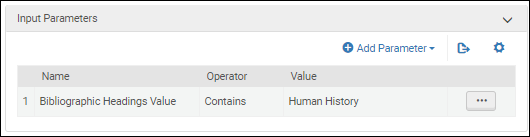 Parametro valore intestazioni bibliografiche
Use the operator Contains to ignore the ending punctuation in the heading, or Equals if you want that punctuation to be considered.
- Diacritics — When this rule is set, Alma does not normalize diacritics and instead considers their UTF-16 encoding value when matching. Only diacritics with the same UTF-16 value are considered a match. For example, bib heading 650 $$a Tröll is considered Diacritics = not identical when matched against the authority record with 150 $$a Troll.
- Campo — quando si seleziona questo parametro, è possibile specificare un numero di campo come valore.
- lingua — Questo parametro si riferisce alle informazioni del Modulo di catalogazione in $9 (MARC 21) o $7 (UNIMARC).
- Subfield Codes — When this rule is set, Alma compares both the content and the subfields used for matching. For instance, the bibliographic heading 700 $$a Shakespeare, William, $$d 1564-1616 $$t Tragedies is considered Subfield codes = not identical when matched against an authority record with 100 $$a Shakespeare, William, $$d 1564-1616 $$x Tragedies.
- Source Code — When this parameter is selected, you may choose from the following drop-down list of values: authority type such as call number/classifications, chronological term, corporate name, genre/form, geographic name, meeting name, personal name, topical name, or uniform title.
- Nome personale indifferenziato: questo parametro esamina quanto segue:
- MARC 21 authority 008 control field, position 32 = "b"
- Campo di controllo Authority UNIMARC 120, posizione 1 = "a"
Quando questo parametro è selezionato, può selezionare Vero o Falso. - Vocabulary — When this parameter is selected, you may select any of the local authority or Community Zone vocabulary codes to which you have access.
For more information about creating rules that use these parameters, see Creating Link BIB Headings Rules.
- If not active, check the Active checkbox.
- Verify that the default rule is set up according to your institution's preference. Alma verifica le regole dall'inizio e applica la prima regola per cui tutti i parametri di input sono soddisfatti. Se nessuna delle regole si applica, viene utilizzata la regola default. Consigliamo di impostare la regola default per il collegamento.
- Set le prime regole con un parametro di input che deve essere sempre applicato: usi un singolo parametro per regola per garantire che questo parametro venga sempre applicato, senza dipendere da altri parametri. Ad esempio, se un'istituzione non desidera mai che un record venga collegato se i sottocampi non corrispondono, potrebbe impostare la sua regola principale come segue:
- Parametro di input: i codici dei Sottocampo non sono identici
- Configurazione del flusso di lavoro: non collegare
- Below these, set up rules that only apply if certain other conditions are met. È possibile combinare i parametri affinché si applichino solo a una specifica combinazione di circostanze. Ad esempio, se una biblioteca desidera evitare la normalizzazione dei segni diacritici per un vocabolario specifico, potrebbe stabilire una regola come:
- Parametro di input:
- vocabolario = File di Autorità dei Nomi Finlandesi
- Diacritici = non identici
- Configurazione del flusso di lavoro: non collegare
- Parametro di input:
- If there is a specific sub-case in which the institution wants to enable linking, add a rule with Workflow setup: Link above the rule that prevents the general case from linking. You can also add a tag when linking to help catalogers identify these headings in the Authority Control Task List.
Controllo di autorità – Escludere intestazione dal collegamento
L'utente può escludere che specifiche intestazioni vengano collegate a un record di autorità tramite processi automatici, aggiungendo $$9 no_linkage al campo autorizzato. This is especially useful when a field contains data that is similar to an existing heading but is not really related to that heading. Questo impedisce che il campo venga associato erroneamente all'intestazione e migliora l'integrità dei metadati della biblioteca. This is advantageous in cases where a creator's name is identical to an authorized creator, and not enough data exists to distinguish the two and prevent linking (for example, a library catalogs an old thesis work by John Smith and has no further biographic information on the creator).
This functionality is not available for Community Zone records or Community Zone-linked bibliographic records.
Creating Link BIB Headings Rules
Link BIB Headings rules can be created using the Authority Control Rules configuration option.
- Open the Authority Control Rules page (Configuration Menu > Resources > General > Authority Control Rules), and select the Link Bib Headings tab.
- Nella sezione Lista regole dell'istituzione, selezionare Aggiungi regola.
- Inserisci un nome e una descrizione per la regola.
- Immettere i parametri di input.
- Nella sezione Input parametro, selezioni Aggiungi parametro.
- Dal menu a discesa Lista, selezioni un'opzione (per Nome) e selezioni un operatore.
- Enter or select a value and select Add Parameter.
- Immettere i parametri di configurazione del flusso di lavoro.
- Selezioni uno dei seguenti metodi di applicazione:
- Link – Select this option when you want the Authorities - Link BIB Headings job or linking upon Save(in the MD Editor) to link the bibliographic headings when the criteria of one of the Link BIB Headings rules is met.
- Do not link – Select this option when you want the Authorities - Link BIB Headings job or linking upon Save(in the MD Editor) to not link the bibliographic headings when the criteria of one of the Link BIB Headings rules is met.
Seleziona un tag dalla Lista a discesa Tag come (facoltativo). Note that the Authority Control Rule Tags appear for both Link BIB Headings rules and preferred term correction rules (when enabled for your system; see Managing Preferred Term Correction for more information). Tags are only used for automatic link bibliographic headings jobs (when you select the Link option) and streamlines the process for working with records in the Authority Control Task List. Note that when you select Do not link, there is no option to specify a tag.
If no tags exist, add them by doing the following:
- Seleziona Aggiungi tag.
- Selezionare Aggiungi riga.
- Inserisci un codice tag (che appare nella lista delle attività del controllo di autorità nella colonna tag e come Faccetta), una descrizione e seleziona Sì o No per indicare se questo è il tag default.
- Selezionare Aggiungi riga.
- Ripeta questo procedimento per aggiungere altri tag.
- Select Customize or Save. Nota che tutti i tag che Lei crea appaiono nella lista dei tag a discesa.
- Selezioni uno dei seguenti metodi di applicazione:
- Seleziona Salva.La tua regola è stata aggiunta alla sezione Lista Regole dell'istituzione. Dopo che una regola è stata creata, puoi scegliere di modificarla, duplicarla o eliminarla. Quando ci sono più regole, puoi anche cambiare l'ordine delle regole usando le funzioni Sposta su e Sposta giù. Ogni regola può essere Abilitata o Disattiva individualmente.
- Select the Activate Rules checkbox for the rules that you create to be applied when records are saved or when the Link Bibliographic Headings job attempts to automatically link bibliographic headings. Note that both the Link BIB Headings and Preferred Term Correction tabs have an Activate Rules checkbox so that each type of rule can be activated/deactivated independently.
Esempi di casi d'uso
Collegare quando vengono soddisfatti valori di campo specifici
If you want a rule to include the Authorities - Link BIB Headings job link bibliographic headings when specific field values occur, use the following configuration:

Collegamento quando vengono soddisfatti i valori del codice sorgente
If you want a rule to include the Authorities - Link BIB Headings job link bibliographic headings when source code values are met, use the following configuration:

Lista di Attività dell'Authority Control
With Link BIB Headings rules, the Authority Control Task List provides an additional column and facets for tags (see Using Tags).
Nota che alcune colonne sono nascoste di default. To view these columns, select the Configuration iconin the table actions list to open the configuration pane. Select the Tag column option to add this column to your view of the table if it is not already visible.
Using Tags
With Link BIB Headings rules, you can configure tags for managing records in the Authority Control Task List (see the Creating Link BIB Headings Rules procedure). Per una Lista dei tag delle regole di controllo di autorità, vedi l'esempio sotto. Note that these tags appear for both Link BIB Headings rules and, when enabled, preferred term correction rules (see Managing Preferred Term Correction for more information).
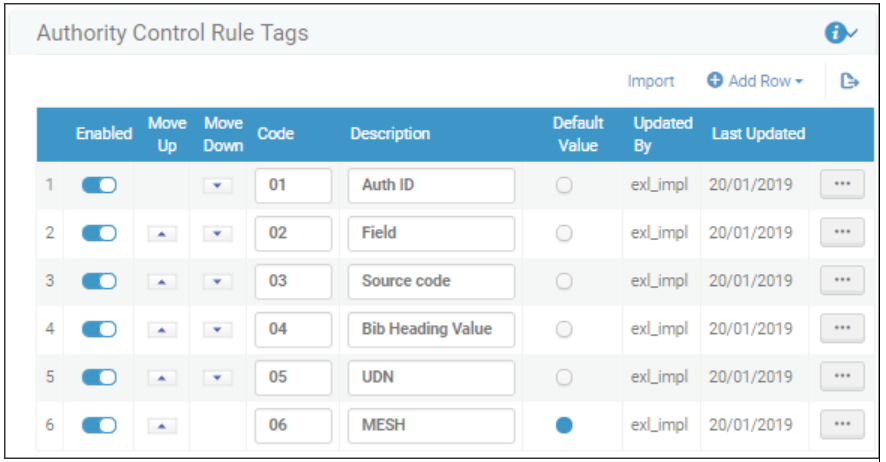
When the tags are used in the Link BIB Headings rules, they appear as facets that you can use to filter the list of records on the All tab in the Authority Control Task List (Resources > Cataloging > Authority Control Task List).
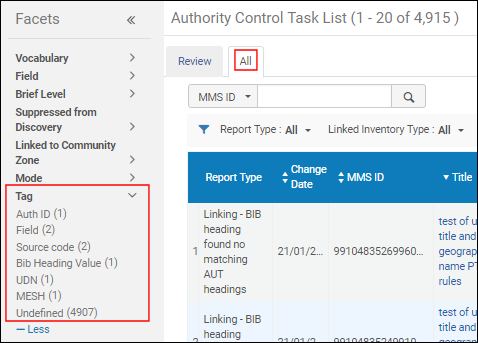

Managing Preferred Term Correction
Le regole configurate per la correzione dei termini preferiti consentono di controllare la popolazione del processo di correzione dei termini preferiti quando viene eseguito il processo di correzione dei termini preferiti. See Authorities - Preferred Term Correction for more information.
Con le regole di correzione del termine preferito, Lei può contrassegnare e impedire che le correzioni vengano eseguite automaticamente quando viene eseguito il processo di correzione del termine preferito. Subsequently, staff can review/mediate marked changes in the Authority Control Task List before they are executed.
When you configure preferred term corrections rules for mediation (by selecting Apply mediated preferred term correction), the preferred term correction job identifies the correction that needs to be made and adds an entry to the Authority Control Task List that shows the current term and the term that it will be changed to if corrected.
With preferred term correction rules, you can create tags for identifying certain types of records in order to streamline your process for working with the Authority Control Task List (see Identify Certain Records for Mediation and Tags for more information).
Con le regole di correzione termine preferito di Alma, può definire:
- Which records should be corrected automatically
- Quali record non dovrebbero essere corretti affatto
- Quale record dovrebbe essere suggerito nella lista delle attività del controllo di autorità per la correzione ma non eseguito automaticamente (trattenuto per mediazione/revisione manuale)
This capability is managed through preferred term correction rules that are processed when the Authorities - Preferred Term Correction job runs. Con queste regole, controlli la popolazione di correzione del termine preferito nella lista delle attività di controllo di autorità. See the Use Case Examples section for ideas regarding this capability.
To define the rules for managing the Authorities - Preferred Term Correction job (see Authorities - Preferred Term Correction for more information), use the parameters below, specifying an operator (=, Contains, In List, Not Equals, or Not in List) and selecting or entering a value. Quando vengono elaborate, queste regole valutano i dati esistenti nei record bibliografici per determinare come eseguire la correzione del termine preferito.
- Authority ID— This parameter refers to the authority ID information stored in the MARC 21 $0 or UNIMARC $3, for example (for details, see Using Originating System IDs for Linking Bibliographic Records to Authority Records).
- Field— When you select this parameter, you can specify a field number as the value.
- Indication rules— When you select this parameter, all the indication rules that you have created appear in a drop-down list from which you can select. Indication rules are executed in the authority record's metadata. For more information, see Working with Indication Rules.
- Language— This parameter refers to the information cataloged in $9 (MARC 21) or $7 (UNIMARC).
- Normal and linked fields are linked to different authority records— This option appears if the 880 field is enabled (by Ex Libris) as an authorizing field. This option can be used to identify cases where a field and its linked 880 field are linked to different multilingual authorities. Your options are to select true or false.
- Source Code— When this parameter is selected, you may choose from the following drop-down list of values: authority type such as call number/classifications, chronological term, corporate name, genre/form, geographic name, meeting name, personal name, topical name, or uniform title.
- Vocabulary— When this parameter is selected, you may select any of the local authority or Community Zone vocabulary codes to which you have access.
For more information about creating rules that use these parameters, see Creating Preferred Term Correction Rules.
When you create rules, you can specify what is applied or not applied during the preferred term correction job, and you can specify which changes you want to mediate.
È possibile creare e attivare/disattivare più regole. Quando vengono definite più regole, esse vengono elaborate nell'ordine in cui si trovano nella lista delle regole di correzione preferite. Quando vengono soddisfatte le condizioni di una regola, il processo utilizza l'output di quella regola e non elabora nessuna delle regole rimanenti.
If no rules are created, the default preferred term correction rule is used when the preferred term correction job is run. The default preferred term correction rule is also utilized when the enabled rules are evaluated in priority order and none of those rules have logic that applies to the record being analyzed for preferred term correction.
As part of the rules functionality, you can set up custom tags that can be applied when the preferred term correction job runs and, subsequently, be used to more easily locate information in the reports presented in the Authority Control Task List. See Tags for more information.
MARC 21 Preferred Term Corrections May Swap Headings with Cross-References Across Fields
Alma enables libraries to be configured to correct bibliographic headings based on authority cross-references, updating them to the preferred term and changing the field tag in the bibliographic record accordingly (such as from 610 to 630). This ensures bibliographic data stays aligned with authority records' preferred terms.
To enable this functionality in your institution, input the vocabulary codes for the relevant authority vocabularies into the customer parameter authority_ptc_ignore_suffix(Configuration Menu > Resources > General > Other Settings), separated by commas. For more information on the parameter, see Configuring Other Settings (Resource Management).
Quando un campo bibliografico viene aggiornato a un campo X30, gli indicatori di non archiviazione nel record bibliografico vengono regolati in base al record di autorità collegato. Secondo gli standard MARC21, il 1° Indicatore (di campo) dell'autorità campo 130 (caratteri non di archiviazione) viene copiato nel 2° Indicatore (di campo) del campo bibliografico X30.
Once enabled, headings updated by this new behavior appear in the Authority Control Task List under a new report type,Preferred Term Correction - Bib Heading updated and tag modified, enabling catalogers to review and make further updates as necessary (such as adjusting indicators). For more information on the report type, see Using the Authority Control Task List.
"Un'intestazione bibliografica collegata a un record di autorità tramite un riferimento incrociato, ma il termine preferito e il termine non preferito si trovano in campi diversi (ad esempio, il termine preferito è nel campo di autorità 130 e il riferimento incrociato è nel campo di autorità 410), affronta anche i campi contenenti una rappresentazione grafica alternativa."
Libraries that configured Alma to manage this scenario for any of their authority vocabularies after the November 2024 release can now see preferred term corrections applied to cases with a linked Alternate Graphic Representation while preserving the link.
This enhancement applies to bibliographic headings linked to authorities starting from the November 2024 release date onward. To apply this option to already-linked headings, either manually re-link them using F3 or run the Unlink bib records from authority records job (Admin > Manage Jobs and Sets > Run a Job) on a selected set of records.
Creazione delle regole di correzione del termine preferito
Preferred Term Correction rules can be created using the Authority Control Rules configuration option.
- Open the Authority Control Rules page (Configuration Menu > Resources > General > Authority Control Rules), and select the Preferred Term Correction tab.
- Nella sezione Lista regole dell'istituzione, selezionare Aggiungi regola.
- Inserisci un nome e una descrizione per la regola.
- Immettere i parametri di input.
- Nella sezione Input parametro, selezioni Aggiungi parametro.
- Dal menu a discesa Lista, selezioni un'opzione (per Nome) e selezioni un operatore.
- Enter or select a value and select Add Parameter.
- Immettere i parametri di configurazione del flusso di lavoro.
- Selezioni uno dei seguenti metodi di applicazione:
- Applichi la correzione del termine preferito
- Applicare la correzione del termine preferito mediato
- Non applicare correzione forma accettata
Seleziona un tag dalla Lista a discesa Tag come (facoltativo). Nota che quando selezioni Non applicare la correzione del termine preferito, non c'è l'opzione per specificare un tag.
If no tags exist, add them by doing the following:
- Seleziona Aggiungi tag.
- Selezionare Aggiungi riga.
- Inserisci un codice tag (che appare nella lista delle attività del controllo di autorità nella colonna tag e come Faccetta), una descrizione e seleziona Sì o No per indicare se questo è il tag default.
- Selezionare Aggiungi riga.
- Ripeta questo procedimento per aggiungere altri tag.
- Seleziona Personalizza. Nota che tutti i tag che crei appaiono nell'elenco a discesa Tag come.
- Selezioni uno dei seguenti metodi di applicazione:
- Seleziona Salva.La tua regola è stata aggiunta alla sezione Lista Regole dell'istituzione. Dopo che una regola è stata creata, puoi scegliere di modificarla, duplicarla o eliminarla. Quando ci sono più regole, puoi anche cambiare l'ordine delle regole usando le funzioni Sposta su e Sposta giù. Ogni regola può essere Abilitata o Disattiva individualmente.
- Selezionare la casella di controllo Attiva Regole.Questa casella di controllo deve essere selezionata affinché le regole che crei vengano applicate quando i record vengono salvati o quando il processo di collegamento delle intestazioni bibliografiche tenta di collegare automaticamente le intestazioni bibliografiche. Note that both the Link BIB Headings and Preferred Term Correction tabs have an Activate Rules checkbox so that each type of rule can be activated/deactivated independently.
Esempi di casi d'uso
See the following sections for examples of Preferred Term Correction rules used to control preferred term correction processing and results.
Ignora determinati record per la correzione del termine preferito
If you want a rule to have the Authorities - Preferred Term Correction job skip preferred term correction for certain records, the configuration could be entered as shown below with Do not apply preferred term correction selected. See Authority Control Task List for more information.

Identificare determinati record per la mediazione
Se si desidera che il processo Autorità - Correzione del termine preferito contrassegni determinati record per la mediazione, la configurazione può essere inserita come mostrato di seguito con l'opzione Applica correzione del termine preferito mediata selezionata e l'assegnazione di tag per LCNAMES (o un altro tag che hai creato). See Authority Control Task List for more information.

Automatizzare selettivamente alcune correzioni mentre si identificano altre per la mediazione
Se preferisce che le intestazioni dei soggetti vengano corrette automaticamente, ma preferisce mediare le correzioni dei nomi personali, consulti le regole di esempio riportate di seguito.

I campi collegati a LCNAMES possono essere corretti automaticamente, mentre i campi collegati alle intestazioni di soggetto medici (MeSH) possono essere identificati per la reportistica/revisione mediata.

Lista di Attività dell'Authority Control
With preferred term correction rules, the Authority Control Task List provides additional columns and facets (see Using Modes and Tags) and options for applying corrections (see Applying Changes for Mediated Corrections in the Authority Control Task List).
Utilizzo di modalità e tag
Con le regole di correzione del termine preferito, è possibile specificare che le modifiche vengano apportate automaticamente o che debbano essere identificate per la mediazione. Le opzioni nella lista delle attività del controllo di autorità forniscono un metodo per filtrare i record utilizzando queste specifiche. Il tag che specifica nelle regole di correzione del termine preferito può anche essere filtrato nella lista delle attività del controllo di autorità. Consultare gli esempi qui sotto.
-
Mode — identifies when rules were applied automatically or specified mediation.
 Colonna modalità
 Modalità Faccetta
-
Tags — For the tags that you identify in your preferred term correction rules, you can view and filter the Authority Control Task List reports with these tags.
 tag Colonna e Faccetta
Nota che le colonne Modalità e tag sono nascoste per default. To view these columns, select the Configuration iconin the table actions list to open the configuration pane. Seleziona le opzioni Modalità e Tag per aggiungerle alla tua vista della tabella.

Applying Changes for Mediated Corrections in the Authority Control Task List
Dopo aver apportato le correzioni mediate nella tab revisione della lista delle attività di controllo di autorità, è possibile applicare le correzioni alle intestazioni bibliografiche che desidera correggere. Questo comporta la correzione del record bibliografico utilizzando i dati del record di autorità. Le correzioni mediate possono essere applicate nel modo seguente:
- Individual rows — For each row in the Authority Control Task List to which you want to apply the changes, you can select the Apply action from the row actions, or you may select the check box at the beginning of the row and, subsequently, select Apply Selected.
- Righe multiple: può selezionare più record su più pagine, fino a 100 record, e utilizzare Applica selezionati.
- All mediated rows — Select the Apply All option to apply the mediated corrections on all the mediated rows that appear in the list (across pages).
Page tags: article:topicproduct:almacontent:Documentationlang:english
