
Lavorare con Overlap e Collection Analisi
Panoramica dell'analisi della sovrapposizione e metodi per eseguire l'analisi della sovrapposizione
- Operatore Acquisti
- Gestore Acquisti
- Gestore dell’archivio
- Operatore inventario elettronico
Utilizzare lo strumento di Analisi Sovrapposizione per ottenere migliori capacità di analisi dello sviluppo delle collezioni dei fondi elettronici delle biblioteche.
Among the main use cases in which the Overlap Analysis Tool can help your collection-development analysis:
- When considering to order an electronic collection, can help you establish which part of this collection is already covered in other electronic collections available in your existing library content, to learn which collection has a better value for money, and to avoid content overlap and purchasing of duplicate resources.
- When considering to cancel electronic collections, can help you determine content overlap rate for possible resource cancellation scenarios, in order to learn what full text access would be lost if a resource were cancelled.
Tipi di analisi
With Overlap and Collection Analysis, Alma can provide you with the following information about your electronic collections:
- Compare Electronic Collections- Compare an Alma electronic collection in the Institution Zone or the Community Zone with the titles of one or more electronic collections in the Institution Zone or in the Community Zone, or with the entire Institution Zone, to find titles with overlapping coverage dates in these collections. Questo confronto abbina i record Alma a livello di Titolo, utilizzando identificativi come ISSN o ISBN, e confronta le informazioni sulla copertura a livello di portafoglio. See Performing Compare Electronic Collections Analysis for more information.
- Look Up Titles - Compare a list of identifiers contained in an Excel spreadsheet with Alma records from various population scopes to generate overlap analysis reports. See Performing Look Up Titles Analysis for more information.
- When you perform an overlap analysis (using either of these two methods), the analysis searches for matching electronic collections that have a service type of FullText or SelectedFullText.
- L'Analisi considera solo l'anno di copertura, non il mese o la data, nel determinare la sovrapposizione. Di conseguenza, potrebbero esserci lievi variazioni.
Managing Overlap and Collection Analysis Reports
All reports generated by the institution's Alma users appear in the Overlap and Collection Analysis page (Resources > Advanced Tools > Overlap and Collection Analysis). Tutti i report sono visibili a tutti gli utenti Alma (ad eccezione del report bozza, che è visibile solo all'utente che ha creato il report).
Once the report is generated, it is read-only: it can be viewed, but cannot be edited.
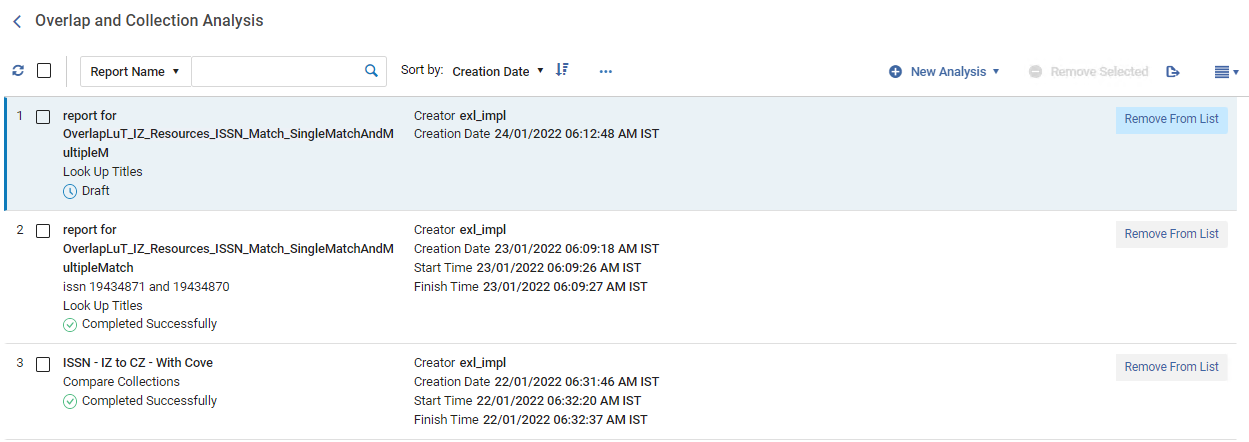
- Seleziona il suo nome.
- Per rimuovere un report, selezionare Rimuovi dall'elenco nelle azioni della riga.
- Per rimuovere più report, selezioni la casella di controllo accanto al report desiderato e selezioni Rimuovi selezionati in alto.
Utilizzare le opzioni di ricerca e di filtro per individuare il report desiderato:
| Opzioni di ricerca | Descrizione |
|---|---|
| Nome Report / Descrizione | Select whether to search by report name or description, specify the name/description, and select the search icon  . |
| Ordina per | Selezioni una delle opzioni per ordinare il report: creatore, data di creazione, ora di inizio/fine, nome, stato, tipo. Selezionare se visualizzare il report in ordine crescente o decrescente. |
| Tipo di report | Selezionare il tipo di report per visualizzare solo il report di questo tipo. Le opzioni sono: Tutto, Confronta collezione, Cerca titolo. |
| Status Report | Selezionare lo stato del report per visualizzare solo il report di questo stato. Le opzioni sono: Tutti, Completato con successo, Bozza, Non riuscito, In sospeso, In corso, Completato con errori. |
Performing Compare collezione elettronica Analisi
Use to compare two Alma electronic collections to find titles with overlapping coverage dates in these collections.
Compare an Alma electronic collection in the Institution Zone or the Community Zone with the titles of one or more electronic collections in the Institution Zone or in the Community Zone, or with the entire Institution Zone, to find titles with overlapping coverage dates in these collections. Questo confronto abbina i record Alma a livello di Titolo, utilizzando identificativi come ISSN o ISBN, e confronta le informazioni sulla copertura a livello di portafoglio.
Sebbene l'Analisi consideri le date di copertura (anno, mese e giorno), alcuni portafogli potrebbero avere la copertura definita in base al volume/fascicolo anziché alle date. Confrontare portafogli che hanno la copertura definita in formati diversi può comportare piccole variazioni.
The comparison generates a number of reports, see Compare Electronic Collections Reports.
- Open the Overlap and Collection Analysis page (Resources > Advanced Tools > Overlap and Collection Analysis).
- Select New Analysis and then select Compare Collections. A page opens where you can see existing reports on the left side and create a new report on the right side.
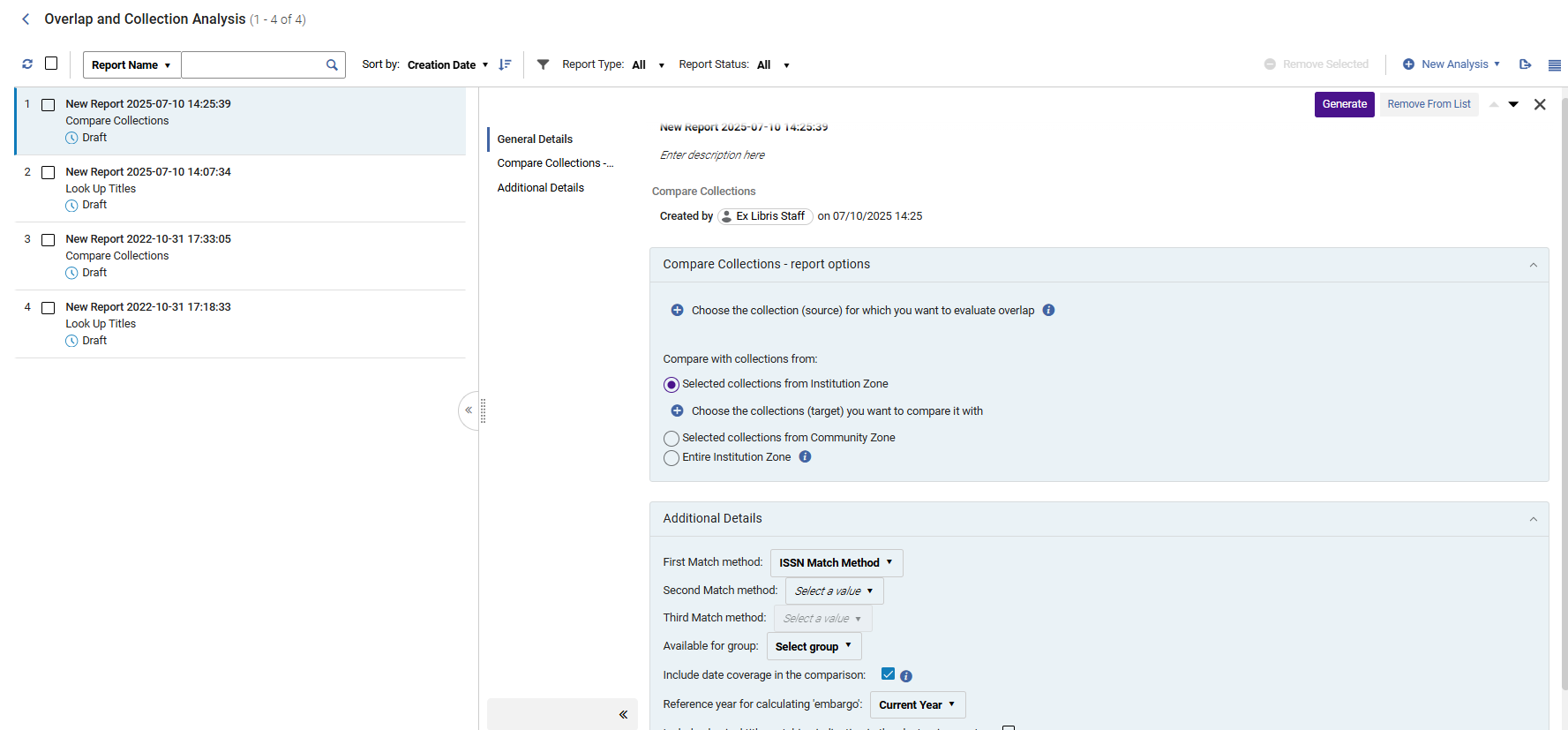
- Name your new report and provide a description by selecting inside the field and typing. To exit, select anywhere outside of the fields.
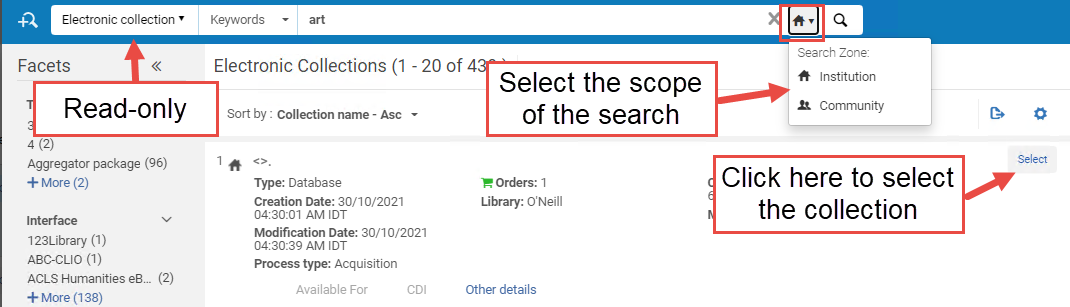
- Seleziona Scegli la raccolta per la quale desidera valutare la sovrapposizione. Si apre un Pannello a scomparsa dove potrà cercare la Sua collezione elettronica all'interno della Sua istituzione/Community. To select it, click Select.Once selected, the search panel is closed automatically, and the selected electronic collection is added to the Overlap and Collection Analysis page.
- Sotto Confronta con la raccolta da, selezioni il tipo di raccolta target che desidera confrontare con la raccolta di origine:
The selected source collection is not included in the target collections. If you select as the target the option "Entire Institution Zone" of which the selected source is part, the source collection is excluded from the target population.
Collezione target Descrizione Caso d'uso Collezioni selezionate dalla Institution Zone
Select electronic collections from the Institution Zone as the target collections for comparison.
This option helps you know which part of your electronic collection is already covered in other electronic collections available in your IZ electronic inventory.
Collezioni selezionate dalla Community Zone
Select electronic collections from the Community Zone as the target collections for comparison.
Questa opzione La aiuta a:
When considering to purchase (or cancel) CZ electronic collection(s), to know what portion of it is already covered in other electronic collections available in your IZ electronic inventory (coverage can be taken into consideration).
To see which percentage of titles overlaps in source CZ collection(s) and other CZ collection(s), to learn which collection has a better value for money.
Entire Institution Zone
Select the entire Institution Zone as the target for comparison.
This includes all electronic collections available for your institution (both active and inactive). This means all local collections, as well as all activated CZ collections AND standalone portfolios.
Questa opzione La aiuta a:
Compare specific collection(s) in the Institution Zone against the entire Institution Zone electronic holdings, to determine content overlap rate for possible cancellations
Confronti le collezioni specifiche nella Community Zone con l'intero patrimonio della Institution Zone, per determinare la sovrapposizione dei contenuti per possibili nuovi acquisti o per evitare di acquistare risorse duplicate.
Compare limited number of active IZ collections against all the active IZ holdings, to determine overlap for resource cancellation scenarios, in order to learn what full text access would be lost if a resource were cancelled.
Compare a limited number of non-activated Community Zone collections against all the active IZ holdings to determine overlap when considering whether to add a new resource, in order to learn whether the resource has sufficient enough unique full text to justify acquiring it.
- Seleziona Scegli la raccolta con cui desidera confrontarla. Si apre un pannello in cui è possibile cercare la Sua collezione elettronica nell'ambito selezionato sopra. To select a collection, check the checkbox and select Done.Once selected, the search panel is closed automatically, and the selected electronic collection is added to the Overlap and Collection Analysis page.
- Select the First Match method: ISSN, ISBN, Title, LCCN, or 035. Note that the match is performed using the same fields for these indexes as used in the repository search as described in Available Search Indexes.
- If relevant, select a Second Match method: ISSN, ISBN, Title, LCCN, or 035 and Third Match method: ISSN, ISBN, Title, LCCN, or 035.
The Identifiers are used in the defined order. Viene utilizzato per primo il primo Metodo di identificazione duplicati. Il metodo di identificazione duplicati successivo viene utilizzato solo per i titoli che non sono stati abbinati utilizzando il primo metodo di identificazione duplicati. Il rapporto sui risultati include il metodo utilizzato per ottenere ogni corrispondenza. Il metodo di identificazione duplicati aggiuntivo, se definito, si applica anche alla ricerca dell'indicazione fisica. Non è possibile selezionare lo stesso identificativo più di una volta.
- Selezioni un gruppo per confrontare solo i portafogli associati a questo gruppo o i portafogli che non sono associati ad alcun gruppo (che sono quindi disponibili per tutti i gruppi). If no group is selected, portfolios are compared regardless of the group they belong to.Questa opzione appare solo per le istituzioni definite come multi-campus. When an institution is defined as multi-campus, this feature is not activated by default. Contact Ex Libris Customer Support to enable it. The list of groups is taken from the Inventory Network Group code table.
- Ensure the Include date coverage information in the comparison option is selected to enable analysis down to the level of coverage, taking into account the coverage ranges and embargo periods of the source and target portfolios.
- When selected, the "Reference year for calculating embargo" parameter is activated. Selezioni l'anno per calcolare l'embargo dal menu a tendina. This option enables you to perform the analysis and test the coverage overlap, pretending the current year is the year you selected in the dropdown ("Current year +1", "Current year +2", "Current year +3", etc.). For example, if the current year is 2021, but you would like to test what the Overlap Analysis would be two years from now (since some resources have embargoes that might affect the availability in two years), select "Current year +2". The analysis compares the coverage overlap considering the embargo, as if the analysis took place in 2023.
- When finished setting the parameters, select Generate. Alma generates the report and displays the results in the Analysis Report section, with percentages for unique and overlap content. This enables you to see at a glance which collections have high overlap with others (and therefore could be cancelled), or have high levels of unique content (and therefore should be retained). Il rapporto di analisi riassume le corrispondenze trovate da tutti i metodi di identificazione duplicati definiti. Il report Excel fornisce dettagli riguardo a quale Metodo di identificazione duplicati è stato utilizzato per ogni corrispondenza.
- Select the download icon
 to download the reports as Excel files.
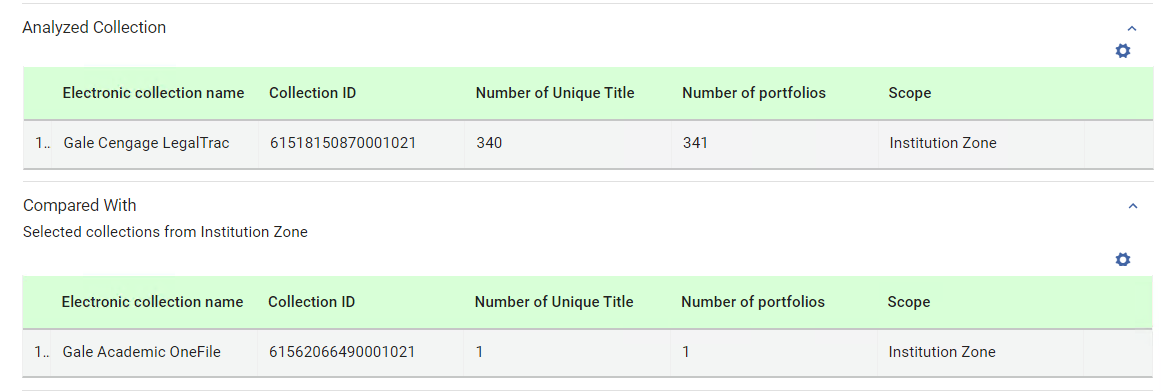
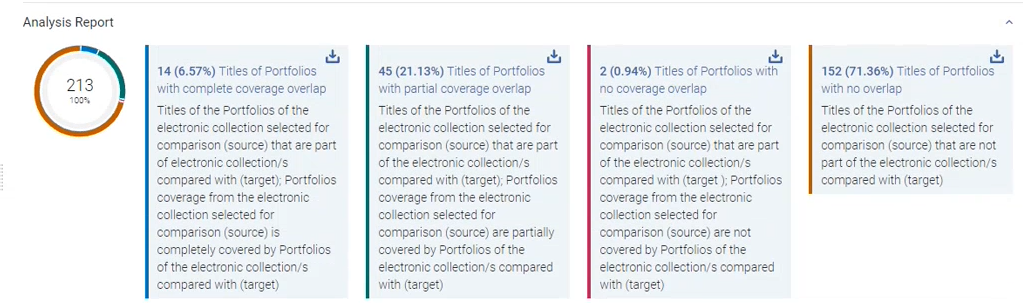 In addition, Alma places the report as the top-most report in the list of reports on the left, where you can access it at any time. For detailed information about the report, see Compare Electronic Collections Reports.When the results are displayed for the analyzed and compared collections, the Number of unique title column appears in the table. This column is the count of titles in the source that are searched for comparison in the selected target collections. L'etichetta della colonna indica che il confronto viene effettuato a livello di record bibliografico (livello Titolo). Potrebbero esserci più portfolio per lo stesso record bibliografico (Titolo). The reports are title-based, and this column shows where the total number of titles are derived from.
Performing Look Up Titles Analysis
Compare a list of identifiers contained in an Excel spreadsheet with Alma records from various population scopes to generate overlap analysis reports.
This comparison generates a number of reports, see Look Up Titles Reports.
Overlap and Collection Analysis Look up title for physical titles does not return a match when there are physical holdings but no items,only physical titles with items are considered for the matching.
Excel File Containing Identifiers for Comparison
Preparate un file Excel contenente l'identificativo univoco per il Titolo che desiderate confrontare con l'istituzione/Comunità/Network Zone.
Il file di input Excel può contenere più di un foglio. Tuttavia, il processo di Analisi Sovrapposizione elabora solo il primo foglio. Gli altri fogli possono contenere qualsiasi informazione rilevante per la Sua istituzione.
Per identificare il metodo per confrontare il record, la colonna identificativo deve essere posizionata nel primo foglio del file Excel di input. Se desiderato, è possibile aggiungere un secondo e un terzo identificativo corrispondente nelle colonne B e C.
L’intestazione della colonna A deve essere una delle seguenti:
- eISBN/ISBN (eISBN and ISBN values can occur in the same column (each in a separate line))
- eISSN/ISSN (i valori eISSN e ISSN possono comparire nella stessa colonna (ognuno su una riga separata))
- LCCN
- Titolo

Per definire il Secondo e il Terzo Metodo di identificazione duplicati, le intestazioni delle colonne B e C devono essere una delle seguenti:
- eISBN/ISBN (matching identificativo)
- eISSN/ISSN (Identificativo corrispondente)
- LCCN (Identificativo di corrispondenza)
- Titolo (Identificativo corrispondente)
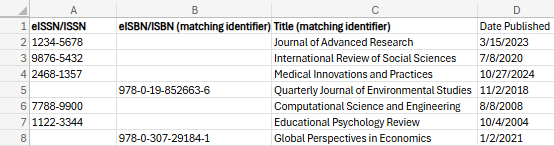
Di seguito è riportato un esempio di file Excel con due identificativi corrispondenti nelle colonne A e B. Avviso: l'intestazione nella colonna C non è contrassegnata come (identificativo corrispondente) e pertanto non è considerata per la corrispondenza.
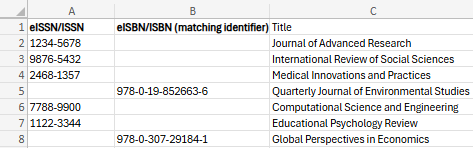
Il file Excel può contenere colonne con informazioni aggiuntive dopo la/le colonna/e identificativa/e solo sul primo foglio. Questo include le colonne B e C se le loro intestazioni non sono riconosciute come Metodo di identificazione duplicati. Queste colonne (solo dal primo foglio) sono incluse anche negli output del rapporto. Questo accade solo per le colonne che hanno intestazioni. Una colonna senza intestazione è un'indicazione per il sistema di interrompere la ricerca di colonne aggiuntive. Le colonne aggiuntive nel file di input si trovano nel report di output dopo l'ultima colonna delle colonne informative di analisi, nello stesso ordine in cui apparivano nel file Excel di input. Per ogni identificativo, i valori delle colonne aggiuntive appaiono nel report di output sulla riga dell'identificativo corrispondente e includono le informazioni rilevanti dal file di input.
È possibile utilizzare la stessa colonna identificativo corrispondente più volte, ad esempio, per eseguire la ricerca utilizzando tre diversi valori eISSN/ISSN per ciascun Titolo.
Cercando titolo
- Open the Overlap and Collection Analysis page (Resources > Advanced Tools > Overlap and Collection Analysis).
- Select New Analysis and then select Look Up Titles. A page opens where you can see existing reports on the left side, and create a new report on the right side.
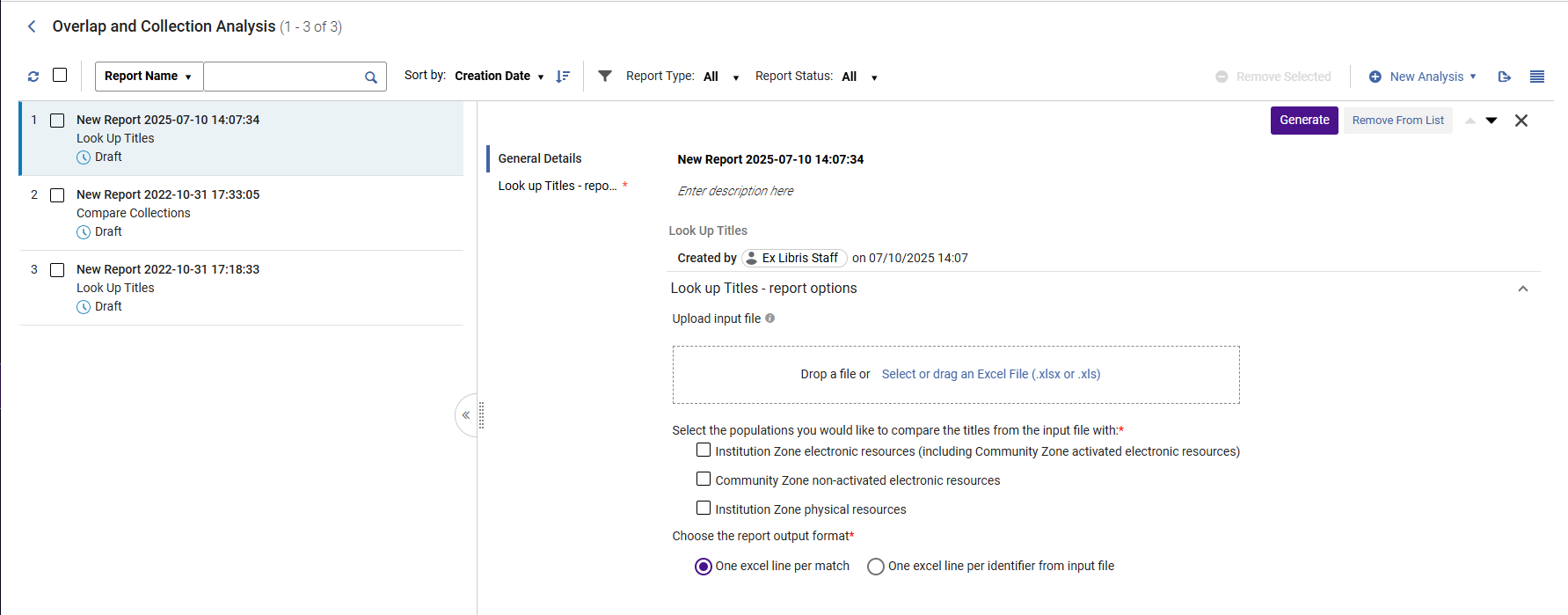
- Assegni un nome al Suo nuovo report e fornisca una descrizione selezionando l'interno del campo e digitando. To exit, select anywhere outside the fields.
- Sotto Carica file di input, sfoglia per individuare il file Excel contenente l'identificativo del Titolo per il confronto.
- Under "Available For group", select a group to compare only portfolios of the selected collection that are available for this group OR portfolios that are not associated with any group (which are then available for all groups). If no group is selected, portfolios are compared regardless of the group they belong to.Questa opzione appare solo per le istituzioni definite come multi-campus. When an institution is defined as multi-campus, this feature is not activated by default. Contact Ex Libris Customer Support to enable it. The list of groups is taken from the Inventory Network Group code table.
-
Selezioni le popolazioni con cui desidera confrontare il Titolo dal file di input (può selezionare più di un'opzione):
Popolazione Descrizione Commenti Risorse elettroniche della Institution Zone (incluse le risorse elettroniche attivate dalla Community Zone)
Alma compares the Excel file with the electronic resources in the Institution Zone and the activated Community Zone resources.
This option generates the following report:Look Up Titles – Institution Zone Electronic Resources
See Overlap and Collection Analysis Job Reports for more information
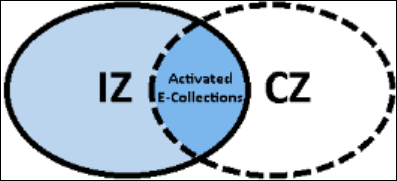
- When "Institution Zone Electronic Resources (including Community Zone activated electronic resources)" is selected, the title set in blue (both shades) is compared to the titles in the Excel file:
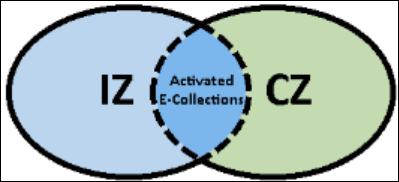
- When "Community Zone non-activated electronic resources" is selected, the title set in green is compared to the titles in the Excel file:
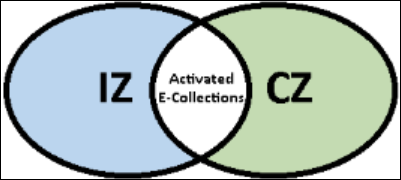
- When both options are selected, both the title sets in blue and in green are compared to the titles in the Excel file:
Risorse elettroniche non attivate dell'area della Community
Alma compares the Excel file with the non-activated Community Zone resources.
This option generates the following report:Look Up Titles – Community Zone non-activated electronic resources. See Overlap and Collection Analysis Job Reports for more information.
Risorse fisiche dell’Istituzione
Alma compares the Excel file with the physical resources in the Institution Zone.
This option generates the following report:Look Up Titles – Institution Zone Physical Resources
See Overlap and Collection Analysis Job Reports for more information.
Network Zone electronic resources available to my institution
Disponibile solo per i membri del consorzio dell'istituzione.
Alma compares the Excel file with the electronic resources available to your institution in the Network Zone.
This option generates the following report:Look Up Titles – Network Zone resources available to my institution. See Overlap and Collection Analysis Job Reports for more information.
Network Zone electronic resources available to my institution
Disponibile solo per i membri del consorzio dell'istituzione.
Network Zone electronic resources not available to my institution
Disponibile solo per i membri del consorzio dell'istituzione.
Alma compares the Excel file with the electronic resources not available to your institution in the Network Zone.
This option generates the following report:Look Up Titles – Network Zone resources not available to my institution. See Overlap and Collection Analysis Job Reports for more information.
Network Zone electronic resources not available to my institution
Disponibile solo per i membri del consorzio dell'istituzione.
Includi indicazione di corrispondenza dei titoli fisici nei report elettronici
Quando si seleziona una qualsiasi delle opzioni relative all'elettronica, ovvero:
-
Risorse elettroniche della Institution Zone (incluse le risorse elettroniche attivate dalla Community Zone)
-
Risorse elettroniche non attivate dell'area della Community
-
Risorse elettroniche del Network disponibili per la mia istituzione
-
Risorse elettroniche dell'area Network non disponibili per la mia istituzione
abilita la sezione Ulteriori dettagli con la seguente opzione:
-
Includi indicazione di corrispondenza dei titoli fisici nei report elettronici
This option enables users to select whether they would like to receive an indication in the Excel reports on whether the titles from the uploaded file also have a matching physical title.
Includi indicazione di corrispondenza dei titoli fisici nei report elettronici
Include related titles indication Quando si esegue un'analisi di sovrapposizione e si confronta il titolo con l'inventario fisico, Alma può (se lo desidera) individuare anche i titoli fisici correlati al titolo corrispondente. Ciò garantisce che l'Utente che esegue un'Analisi e cerca corrispondenze fisiche abbia un quadro completo della sovrapposizione Titolo/copia ed è in grado di prendere decisioni informate. Una volta trovato questo tipo di corrispondenza, che ha un Titolo fisico correlato con l'Inventario fisico, il processo contrassegna l'indicazione fisica correlata. This physical hint indication is included as four columns in the Excel report:
- Has Physical Matching(Yes / No)
- Holding fisiche biblioteca: Localizzazione di biblioteca (conteggio)
- Has Related Physical Matching(Yes / No)
- Holding fisiche correlate biblioteca: Localizzazione di biblioteca (conteggio)
Nei casi in cui vengono selezionati più Metodi di identificazione duplicati, quando si esegue l'analisi per un determinato Metodo di identificazione duplicati, lo stesso Metodo di identificazione duplicati viene utilizzato per cercare un indizio fisico. If a hint is found for any match method, we do not continue to the next one - this is independent of the main match (main match and physical hint match may not match each other). The found hints are stored with the addition of saving the match method used to find each hint.
Una volta completata l'analisi principale e ordinati i portafogli nei diversi report, il suggerimento fisico viene aggiunto a ciascuna riga.
If no physical hint/related was found, the physical hint columns remain empty (including the Physical MatchingBy'column)
Il report "Correlato" incorpora la colonna Tipo di relazione, che include i seguenti valori:
- Contiene
- Vuoto
Includi indicazione dei titoli correlatiWhen the Contains indication is displayed in the column, an additional indication (Related title) is displayed next to the MMS ID.
Disponibile per Gruppo
Disponibile solo per istituzioni definite come multi-Campus.
Alma compares the Excel file with the electronic resources that do not exist in the Institution Zone or in the activated Community Zone electronic holdings for the selected Available For group.
This option generates the following report:Look Up Titles – From file not available for the selected Available For Group. See Overlap and Collection Analysis Job Reports for more information.
- When "Institution Zone Electronic Resources (including Community Zone activated electronic resources)" is selected, the title set in blue (both shades) is compared to the titles in the Excel file:
- Scegli il formato di output del rapporto:
Formato di output Descrizione Una riga Excel per ogni corrispondenza Un singolo identificativo potrebbe apparire in più righe di Excel: una riga per ogni corrispondenza. Since each cell holds just one value of a specific matching portfolio, filtering and sorting are more accurate and specific. For example, by adding a column "Origin (IZ or CZ)", you could distinguish between portfolios linked to the CZ and the ones that are not. 
Una riga Excel per identificativo dal file di input
For each unique identifier from the input file, there is a single line in the output report, with information of all matching portfolios concatenated in each cell:

Tutti i valori del portafoglio sono visualizzati tra parentesi graffe {}.
When there are several values within the {} brackets, each value appears within its own double quotes "", separated from other values by pipeline sign |.
Alma utilizza Microsoft Excel ed è limitata dalla quantità di informazioni che possono essere visualizzate in una singola cella. Le celle con più informazioni rispetto al numero di caratteri supportati vengono troncate.
- When finished setting the parameters, select Generate. Alma generates the report and displays the results in the Analysis Report section that opens on the right side. Select the download iconto download the report as an Excel file to your machine. In addition, Alma places the report in the left section, where you can access it at a later time. For detailed information about the report, see Look Up Titles Reports.
- Dopo il completamento del lavoro di Analisi sovrapposizione e raccolta, viene inviata una comunicazione di Analisi sovrapposizione e raccolta al personale utente per indicare che il lavoro è stato completato. For information on configuring the letter, see Configuring Alma Letters.
Analisi di sovrapposizione e collezione nei consorzi.
Oltre a tutte le opzioni sopra indicate, sono previste ulteriori opzioni per l'istituzione membro del consorzio:
- Compare Electronic Collections- Compare an Alma electronic collection in the Institution/Community/Network Zone with the titles of one or more electronic collections in the Network Zone or with the entire Network Zone. See Working with Overlap and Collection Analysis
- Look Up Titles - Compare a list of identifiers contained in an Excel spreadsheet with Network Zone electronic resources that are either available, or not available, to your institution. See Working with Overlap and Collection Analysis
Working with Network Zone is enabled for consortia members only.
Compare Electronic Collections Analysis in Consortia
I membri del consorzio possono selezionare la collezione elettronica di origine per il confronto anche dalla Network Zone:
- Fare clic su "Scegli la raccolta per la quale desidera valutare la sovrapposizione". A sliding panel opens where you can search for your electronic collection within your Institution/ Community / Network Zone. To select it, click "Select".Once selected, the electronic collection is added to the Overlap and Collection Analysis page:
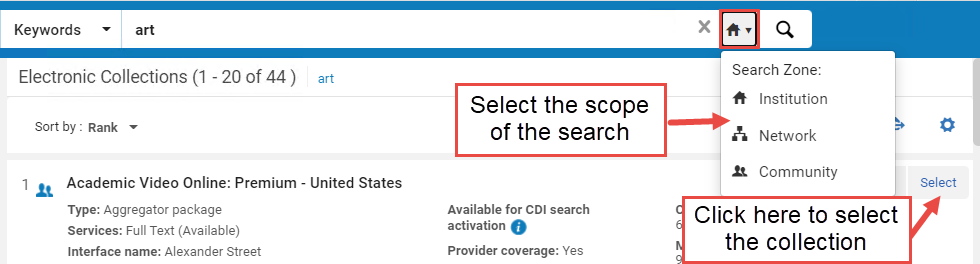
In addition, Network Zone options are enabled as targets with which you want to evaluate overlap with the source collections:
The selected source collection is not included in the target collections. If you select as the target the options "Entire Institution Zone" or "Entire Network Zone" of which the selected source is part, the source collection is excluded from the target population.
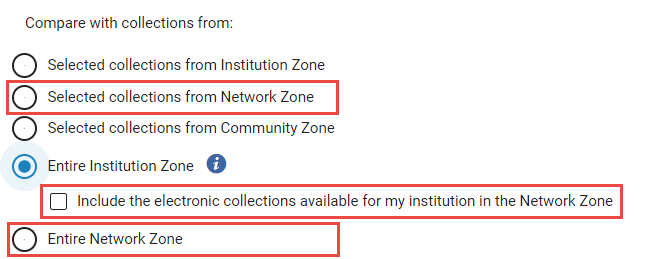
| Collezione target | Descrizione | Caso d'uso |
|---|---|---|
|
Collezioni selezionate dalla Network Zone |
Select electronic collections from the Network Zone (NZ) as the target collections for comparison. È possibile selezionare solo le collezioni della Network Zone disponibili per questa istituzione. |
Questa opzione La aiuta a:
|
| Intera Institution Zone |
Select the entire Institution Zone as the target for comparison. For consortia member institutions only: When selected, the checkbox "Include the electronic collections available for my institution in the Network Zone" also appears. Select it to include in the target population also all NZ collections available for your institution (either by explicit Available For group, or by not having any group settings set on the NZ collection). |
Questa opzione La aiuta a:
|
|
Intera Network Zone Disponibile solo per i consorzi membri dell'istituzione. |
Select the entire Network Zone as the target for comparison. This includes both active and inactive resources. Quando selezionato, appaiono anche le seguenti caselle di controllo:
When "Multi-Campus" Group Settings is enabled, the target population contains the collections available for your institution (either by explicit Available For group, or by not having any group settings set on the NZ collection). |
Questa opzione La aiuta a:
|
Look Up Titles Analysis in Consortia
For Consortia members, additional Network Zone options are enabled for comparison with the Excel input file: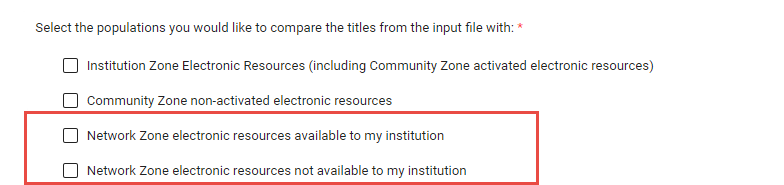
| Popolazione | Descrizione | |
|---|---|---|
|
Risorse elettroniche del Network disponibili per la mia istituzione |
Alma compares the Excel file with the electronic resources available to your institution in the Network Zone. This option generates the following report:Look Up Titles – Network Zone resources available to my institution. See Overlap and Collection Analysis Job Reports for more information. |
|
|
Risorse elettroniche dell'area Network non disponibili per la mia istituzione |
Alma compares the Excel file with the electronic resources not available to your institution in the Network Zone. This option generates the following report:Look Up Titles – Network Zone resources not available to my institution. See Overlap and Collection Analysis Job Reports for more information. |
|
Overlap and Collection Analysis Reports
Una volta generati i report, sono visibili a tutti gli utenti dell'istituzione. Può visualizzarli da una delle seguenti localizzazioni di biblioteca:
- Overlap and Collection Analysis page > reports list.
- Monitor Jobs page >History tab (see Viewing Completed Jobs).
I report sono di sola lettura, non è possibile modificarli.
Il report restituisce tutti i portafogli Institution Zone attivati dalla Community Zone, inclusi sia i portafogli attivi che quelli inattivi. Per perfezionare ulteriormente i risultati è possibile utilizzare i filtri nel file Excel.
Compare Electronic Collections Reports
| Report | Descrizione | Colonne del Report |
|---|---|---|
| Confronta collezioni - Titolo dei portafogli con sovrapposizione completa di copertura |
Titles included in portfolios of the electronic collection selected for comparison (source) that are also part of electronic collection/s compared with (target); Portfolio coverage from the electronic collection selected for comparison (source) is completelycovered by portfolios of the electronic collection/s compared with (target). For the Analysis Information sheet, see Analysis Information below in this table. |
|
| Confronta collezioni - Titolo di portafogli con sovrapposizione parziale di copertura |
Titles included in portfolios of the electronic collection selected for comparison (source) that are also part of the electronic collection/s compared with (target); Portfolio coverage from the electronic collection selected for comparison (source) are partially covered by portfolios of the electronic collection/s compared with (target). For the Analysis Information sheet, see Analysis Information below in this table. |
|
| Confronta collezioni - Titolo di portafogli senza sovrapposizione di copertura |
Titles included in portfolios of the electronic collection selected for comparison (source) that are part of the electronic collection/s compared with (target); Portfolios coverage from the electronic collection selected for comparison (source) are not covered by portfolios of the electronic collection/s compared with (target). For the Analysis Information sheet, see Analysis Information below in this table. |
|
| Confronta Collezioni - Titoli dei portafogli senza sovrapposizione |
Titles included in portfolios of the electronic collection selected for comparison (source) that are not part of the electronic collection/s compared with (target). For the Analysis Information sheet, see Analysis Information below in this table. |
|
| Confronta le collezioni - Il titolo dei portafogli non è disponibile per il gruppo selezionato 'Disponibile per' |
Titles included in portfolios that are part of the electronic collection selected for comparison (source), but are not available for the selected 'Available For Group'. Appears only for multi-campus and only if you selected to specify groups in the "Available for Group" option. For the Analysis Information sheet, see Analysis Information below in this table. |
|
| Analysis Information | Questo rapporto fornisce informazioni generali sul lavoro. Appare come l'ultimo foglio in tutti gli altri report. |
|
Cerca il titolo del report
| Report | Foglio Report | Colonne del Report |
|---|---|---|
| Look Up Titles – Institution Zone Electronic Resources All titles from input files that have a match with electronic resources in the Institution Zone. |
Matches with Single Resource Includes all the titles with a single match (either in the Institution Zone or activated Community Zone populations) |
|
|
Matches with Multiple Resources Include all the titles with multi matches (either in Institution Zone or activated Community Zone populations). |
||
|
No Matches or No Resources include all the titles with no match. |
|
|
|
Analysis Information General information about the job |
|
|
| Look Up Titles – Community Zone non-activated electronic resources All titles in input file that have a match in with electronic resources in the Community Zone that are not activated in the Institution Zone. |
Match Includes all the titles with one or more matches in the non-activated Community Zone population. |
|
|
No Matches or No Resource Includes all the titles with no matches in the non-activated Community Zone population. |
|
|
|
Analysis Information General Information about the job |
See Analysis Information Sheet. | |
| Look Up Titles – Institution Zone Physical Resources All titles from the input file that match with physical resources in the Institution Zone. | Matches with Single Resource Includes all the titles with a single match in the Institution Zone. |
|
| Matches with Multiple Resources Include all the titles with multi matches in Institution Zone. | ||
| No Matches or No Resources Include all the titles with no match. |
|
|
| Analysis Information General information about the job |
|
|
|
Look Up Titles – Network Zone resources available to my institution All titles in input file that have a match with electronic resources managed in the Network Zone for my institution. Disponibile solo per i membri del consorzio dell'istituzione. |
Match Includes all the titles with one or more matches in the Network Zone electronic resources available for your institution. |
|
|
No Match Includes all the titles with no matches in the Network Zone electronic resources that are available for my institution. |
|
|
|
Analysis Information General Information about the job |
See Analysis Information Sheet. | |
|
Network Zone resources not available to my institution All titles in input file that have a match with electronic resources managed in the Network Zone for other institutions in my consortia. Disponibile solo per i membri del consorzio dell'istituzione.
|
Match Include all the titles with one or more matches in the Network Zone electronic resources that are not-available for my institution). |
|
|
No Match Includes all the titles withno matchesin the Network Zone electronic resources that are not-available for your institution. |
|
|
| Analysis Information General Information about the job | See Analysis Information Sheet. | |
|
Look Up Titles - from file not available for the selected Available For Group Titles that do not exist in the Institution Zone or in activated Community Zone electronic holdings for the selected Available For group |
Titolo non disponibile per il gruppo selezionato |
|
Page tags: article:topiccontype:documResource ManagementAdvanced Toolsproduct:almacontent:Documentationlang:englishCollection AnalysisOverlap AnalysisCommunity Zone AnalysisInstitution Zone AnalysisElectronic Collection Analysis
