
注文書の削除
このページでは、注文書を削除する方法について説明します。For a list of links to pages with instructions for purchasing in Alma including creating PO lines, renewals, working with vendors, etc., see Purchasing.For information on the overall purchasing workflow see Purchasing Workflow.For an overview of working with acquisitions in Alma, including links to relevant sections such as Infrastructure, Invoicing, Configuration, etc., see Introduction to Acquisitions.
- 購入オペレータ(拡張)
- 購入マネジャー
You can delete a PO/POs when they do not contain PO lines that are received, activated, or linked to an invoice.注文書を削除すると、それに関連付けられているすべての注文書明細も削除されます。To delete PO lines, see Deleting PO Lines.
Deleting POs creates a report when the job is completed, as is the case for all other jobs (see Viewing Completed Jobs).
- On the Delete PO page (Acquisitions > Purchase Order > Delete PO) and select each PO you want to delete.
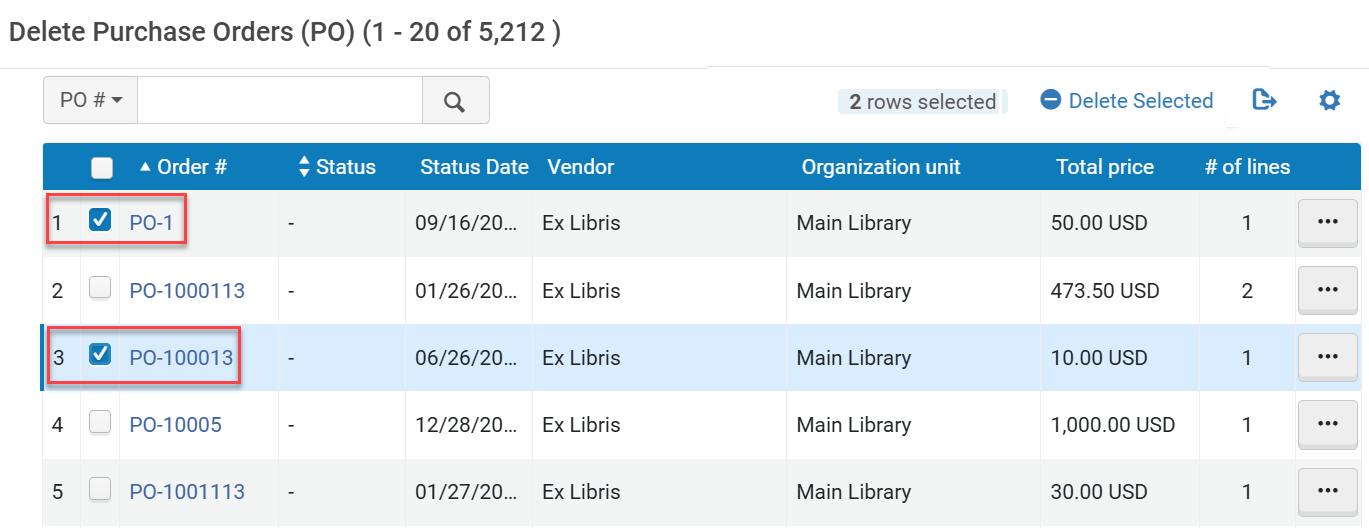 You can delete a single PO by selecting Delete PO from the actions menu.You can also delete POs when reviewing (see Packaging PO Lines into a PO) or approving them (see Approving and Sending POs).
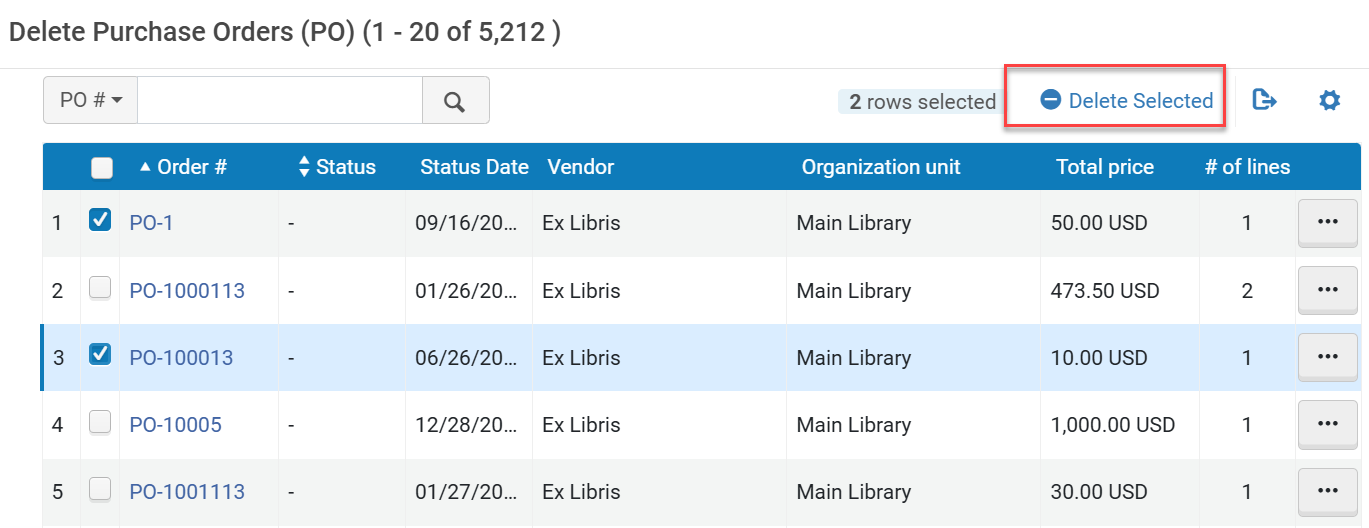
- Select Delete Selected and then Confirm in the confirmation dialog box to delete the PO/POs.
- A confirmation message appears on the Delete PO page, with a link to the Monitor Jobs page to view the progress of the delete request (see Viewing Running Jobs).
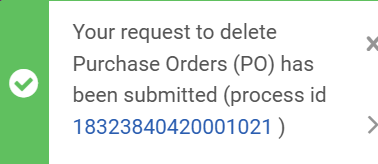 [注文書を消去する] メッセージ
[選択した項目を削除] を使用してPOを削除すると、該当の行は直ちにページから消えます。When deleting a PO from the row actions menu with Delete PO, the row remains on the page until the deletion process has completed.
Page tags: article:topicproduct:almacontent:Documentationlang:englishDelete POdelete purchase order
