
購買ワークフロー
このページでは、さまざまな種類の注文書 (物理/電子/デジタル) を作成するために必要な手順を含む、全体的な購入ワークフローについて説明します。
For a list of links to pages with instructions for purchasing in Alma including creating PO lines, renewals, working with vendors, etc., see Purchasing.
For an overview of working with acquisitions in Alma, including links to relevant sections such as Invoicing, Renewals, Configuration, etc., see Introduction to Acquisitions.
購入ワークフローの一般説明
以下は、作成から有効化または受入を待機するまで、購入発注明細(注文明細)が処理される方法を指定する購入ワークフローの図です。This workflow does not cover patron-driven acquisitions and it does not cover the Rialto purchasing workflows.For Rialto purchasing workflows, see Rialto End-to-End Order Lifecycle.
For more information, watch Purchasing Overview.(4分6秒)
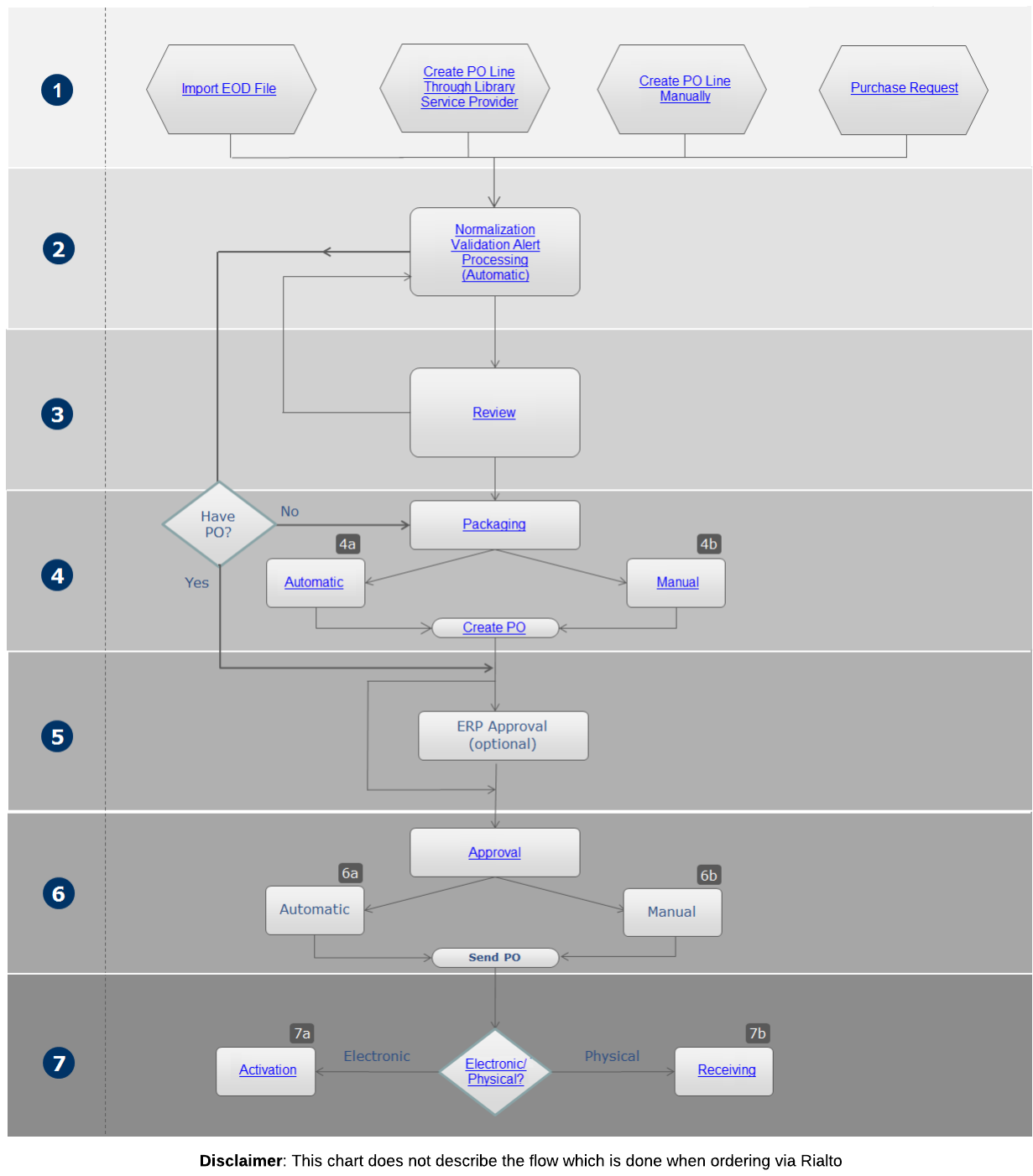
以下は、このワークフローにおけるステップの詳細な説明です(数字は図内の番号に対応)。
- 注文明細は通常、次のいずれかを介してAlmaに入力されます。
- 埋め込み注文データ(EOD)インポートを使用して、自動的に
- ライブラリ サービス プロバイダー (LSP) を介したリアルタイム API
- Manually as a result of the creation of a PO line, including from purchase requests (see Working with Purchase Requests) For information on the three order types (electronic/physical/digital) and how to create them, see the Required Steps to Create an Order section below.For information on other purchase types such as legal deposits and patron driven acquisitions see Creating PO Lines.
- Almaは、注文明細を正規化、検証、および処理して、管理者が事前に設定したレビュールールに基づいて特別な注意を必要とする要素があるかどうかを判断します。This process is based on the review rules pre-configured by an administrator (see Configuring Purchase Review Rules).
- If there are data issues (including invalid or missing information) or alerts that require attention, Alma sends the PO line for review (see Reviewing PO Lines).
Manually created PO lines skip the review process if you select Order Now or Save and Continue. If you do not select these options (for example, if you only select Save), then the manually created PO line remains In Review.
- 注文明細は注文書にパッケージングされます。The purchasing configuration, configured in the PO line's Information section (see Manually Creating a PO Line), determines if the packaging is automatic or manual.If, during the packaging process (manual or automatic), any of the mandatory fields (required in this step) are incomplete, the PO is sent back for review (see Reviewing Purchase Orders).注文書を確認し、不足している情報を入力すると、注文書は承認されベンダーに送信される場所へ進みます。
- Automatic – PO lines are automatically packaged according to the rules in a PO (see Packaging PO Lines into a PO).
- Manual – The PO line is packaged manually (see Packaging PO Lines into a PO).When the person performing the manual packaging selects Create New PO Package in the Actions menu of the PO Lines task list, the PO line is packaged into a PO.
- POは必要に応じてERP承認に進み、次のステップで説明するように、Almaは自動承認を実装するか手動承認を実装するかを検証します。
- Almaは、購入設定(Ex Librisによって構成)に応じて、承認と送信が自動であるか手動であるかを決定します。注文書は、手動作成であるかEODを使用した作成であるか、および手動または自動パッケージで設定されているかどうかにかかわらず、承認が必要です。ただし、ユーザーが注文明細について「今すぐ注文」を選択した場合、注文書は購入設定に関係なく、自動的に承認されます。
- 自動 – 注文書が自動的に承認され、ベンダーに送信されます。
- 手動 – ベンダーに送信される前に、注文書を手動で承認する必要があります。For information, see Approving and Sending POs.手動承認を実行する際、「発注書の承認」ページで承認して送信を選択すると、承認された注文書がベンダーに送信されます。
- 注文明細は、購入ワークフローの最終段階へ進み、そこで資料が電子か冊子かまたはデジタルかを確認するためのチェックを行います。
- Electronic – The PO line proceeds to the activation stage (see Activating Electronic Resources and the Activation Task List).
- Physical— The PO line proceeds to the receiving stage, where it is handled according to its type, as described in Receiving Material.Post-receiving processing may also be performed after the material is received (see Post-Receiving Processing).
- Digital— The PO line does not have an activation or receiving process.最終段階は、ワンタイムの注文明細であるか、継続的な注文明細であるかによって異なります。
- One-Time – The PO line closes when the representation(s) have been uploaded and Save and Continue is selected.
- Continuous – After a representation is uploaded, and Save and Continue is selected, the PO line is marked either as Recurring Renewal or Waiting for Manual Renewal, depending on whether it is configured for manual or automatic renewal (see Manually Creating a PO Line).ここでは、手動で閉じた場合、これまでのサブスクリプションが到着したために閉じられた場合、または注文明細ステータスの変更ジョブによって閉じられた場合に閉じます。
注文を作成するために必要な手順のチェックリスト
注文を作成するには、主に3つの方法があります:
- Manually - For details see Manually Creating a PO Line.(For creating a service subscription PO line without inventory, see Creating Service Subscription PO Lines Without Inventory.)
- EOD - For details see Importing Records Using an Import Profile.
- Real-Time - For real-time ordering via API (through library service provider) see Real-Time Ordering.
The above three methods can create an order for both physical and electronic resource material types.For digital resource material types, the manual and API methods are supported.各資料タイプの注文を作成するために必要な手順のチェックリストを以下に示します:
For electronic orders originating from OASIS it is recommended to use the API approach for complete descriptive information and access information.
For the full list of the ways to create a PO line including legal deposits, purchase requests and patron driven acquisitions (PDA) see Creating PO Lines.
冊子リソースの注文方法
物的 - 手動注文
|
設定アクション |
説明 |
|---|---|
|
手動注文では、特別な設定は必要ありません。 |
物的 - EOD(埋め込み注文データ)
|
設定アクション |
説明 |
|---|---|
|
デフォルトのメタデータテンプレートの設定 |
Ensure that a default metadata template is configured (see Working with Record Templates).メタデータエディター > テンプレートを開きます。デフォルトとして定義するテンプレートを選択します。Select Properties.デフォルトとして選択します。 |
|
ベンダー設定 |
Make sure that the vendor in Alma is configured not to send outgoing EDI messages for POs.Other EDI messages (e.g. for invoices) can be sent if this is your workflow.Read more about vendor EDI |
|
関連する注文情報をベンダーに提供する |
The following parameters must be provided in order for the vendor to create an order: 所有図書館コード(複数) – 作成された注文明細が割り当てられる図書館。可能性のある所有図書館コードのリストをベンダーに提供しなければなりません。ベンダー側で行わなければならない可能性のある実装は、関連する所有図書館を選択するために注文フォームにドロップダウンを表示することです。その他の実装は、アカウントを単一の所有図書館に関連付けることです。この場合、オペレーターは関連するアカウントにログインする必要があります。 The vendor can use the Retrieve libraries API in order to get full list of libraries, or the Get library API in order to check a code of a library. 場所コード(複数) – これは、関連アイテムが作成される場所を指します。冊子資料のみに関連します。 The vendor can use theRetrieve locations API in order to get the list of locations. 予算コード(複数) – 支払いが生成される予算を指します。 The vendor can use the Retrieve funds API. |
|
Create a New Order import profile or copy an existing profile |
Go to Acquisitions > Manage import profiles.Ensure that the Vendor reference number information received from the EDI invoice is mapped to Alma.See Managing Import Profiles. |
|
Ensure that you have the correct Submission Format option selected |
|
|
Configure an Update inventory import profile |
Go to Acquisitions > Manage import profiles.
|
物的 - API
|
設定アクション |
説明 |
|---|---|
|
デフォルトのメタデータテンプレートの設定 |
Ensure that a default metadata template is configured (see Working with Record Templates).メタデータエディター > テンプレートを選択します。デフォルトとして定義するテンプレートを選択します。プロパティを選択します 。デフォルトとして選択します。 |
|
Send vendor the API key (see REST PO Line). |
APIキーは機関によって生成され、ベンダーに提供される必要があります。 各ベンダーは、一意で個別のAPIキーを持つ必要があります。In this way, in the event that the institution wants to discontinue working with a specific vendor, that specific API key can be disabled via the developer's network.Other API keys will continue functioning as usual.
サンドボックス環境または本番環境でAPIを定義できます。
|
|
関連する注文情報をベンダーに提供します。 |
The following parameters must be provided in order for the vendor to create an order: Vendor code and Vendor account code – These refer to the vendor record in Alma.作成された注文明細は、そのベンダーとベンダーアカウントに関連付けられます。Almaのこのベンダーが、発注書の送信EDIメッセージを送信しないように構成されていることを確認する必要があります。これがワークフローの場合、他のEDIメッセージ(請求書など)を送信することができます。 所有図書館コード(複数) – 作成された注文明細が割り当てられる図書館。可能性のある所有図書館コードのリストをベンダーに提供しなければなりません。ベンダー側で行う実装は、関連する所有図書館を選択するために注文フォームにドロップダウンを表示することを含む場合があります。その他の実装は、アカウントを単一の所有図書館に関連付けることです。この場合、オペレーターは関連するアカウントにログインする必要があります。 The vendor can use the Retrieve libraries API in order to get full list of libraries, or the Get library API in order to check a code of a specific library. Location code(s) – The location created for the related item(s).冊子資料のみに関連します。 The vendor can use theRetrieve locations APIto get the list of locations. 予算コード – 支払いが行われる予算。 The vendor can use the Retrieve funds API. For more information, see Real Time Acquisitions Setup for Institutions. |
|
Create New order integration profile. |
The New Order API Integration Profile determines the matching rules that you want to apply.For more information, see How the bibliographic record is determined.Validations for fund related issues can also be configured as documented here(docx). |
|
Configure an Update inventory import profile. |
|
電子リソースの注文方法
電子 – 手動注文
|
設定アクション |
説明 |
|---|---|
|
手動注文では、特別な設定は必要ありません。 |
電子 – EOD(目込み注文データ)
|
設定アクション |
説明 |
|---|---|
|
デフォルトのメタデータテンプレートの設定 |
Ensure that a default metadata template is configured (see Working with Record Templates).メタデータエディター > テンプレートを選択します。デフォルトとして定義するテンプレートを選択します。Select Properties.デフォルトとして選択します。 |
|
ベンダー設定 |
Verify that the vendor in Alma is configured not to send outgoing EDI messages for POs.Other EDI messages (e.g. for invoices) can be sent if this is your workflow.Read more about vendor EDI |
|
関連する注文情報をベンダーに提供する |
The following parameters must be provided in order for the vendor to create an order: 所有図書館コード(複数) – 作成された注文明細が割り当てられる図書館。可能性のある所有図書館コードのリストをベンダーに提供しなければなりません。ベンダー側で行う実装は、関連する所有図書館を選択するために注文フォームにドロップダウンを表示することを含む場合があります。その他の実装は、アカウントを単一の所有図書館に関連付けることです。この場合、オペレーターは関連するアカウントにログインする必要があります。 The vendor can use the Retrieve libraries API in order to get full list of libraries, or the Get library API in order to check a code of a specific library. Location code(s) – The location that is created for the related item(s).冊子資料のみに関連します。 The vendor can use the Retrieve locations API in order to get the list of locations. 予算コード – 支払いが行われる予算。 The vendor can use the Retrieve funds API. For more information, see Real Time Acquisitions Setup for Institutions. |
|
Create a new order import profile or copy an existing profile |
Go to Acquisitions > Manage import profiles.Ensure that the Vendor reference number information received from the EDI invoice is mapped to Alma.See Managing Import Profiles. |
|
Ensure that you have the correct Submission Format option selected |
|
|
Configure an Update inventory import profile |
Go to Acquisitions > Manage import profiles.
|
電子 – API
|
設定アクション |
説明 |
|---|---|
|
デフォルトのメタデータテンプレートの設定 |
Ensure that a default metadata template is configured (see Working with Record Templates).メタデータエディター > テンプレートを選択します。デフォルトとして定義するテンプレートを選択します。プロパティを選択します 。デフォルトとして選択します。 |
|
APIキーは機関によって生成され、ベンダーに提供される必要があります。 各ベンダーは、一意で個別のAPIキーを持つ必要があります。In this way, in the event that the institution wants to discontinue working with a specific vendor, that specific API key can be disabled via the developer's network.Other API keys will continue functioning as usual.
サンドボックス環境または本番環境でAPIを定義できます。
|
|
|
関連する注文情報をベンダーに提供する |
The following parameters must be provided in order for the vendor to create an order: Vendor code and Vendor account code – These refer to the vendor record in Alma.作成された注文明細は、そのベンダーとベンダーアカウントに関連付けられます。Almaのこのベンダーが、発注書の送信EDIメッセージを送信しないように構成されていることを確認する必要があります。これがワークフローの場合、他のEDIメッセージ(請求書など)を送信することができます。 所有図書館コード(複数) – 作成された注文明細が割り当てられる図書館。可能性のある所有図書館コードのリストをベンダーに提供しなければなりません。ベンダー側で行う実装は、関連する所有図書館を選択するために注文フォームにドロップダウンを表示することを含む場合があります。その他の実装は、アカウントを単一の所有図書館に関連付けることです。この場合、オペレーターは関連するアカウントにログインする必要があります。 The vendor can use the Retrieve libraries API in order to get full list of libraries, or the Get library API in order to check a code of specific library. Location code(s) – The location that is created for the related item(s).冊子資料のみに関連します。 The vendor can use the Retrieve locations API in order to get the list of locations. 予算コード – 支払いが行われる予算。 The vendor can use the Retrieve funds API. For more information, see Real Time Acquisitions Setup for Institutions. |
| New Order API Integration Profile determines the matching rules that you want to apply.For more information, see How the bibliographic record is determined.Validations for fund related issues can also be configured as documented here (docx). | |
|
Configure an Update inventory import profile |
|
OASIS/GOBIからの注文の電子リソースの注文方法
See Real-Time Ordering for a full list of providers.
電子 – API
|
設定アクション |
説明 |
|---|---|
|
デフォルトのメタデータテンプレートの設定 |
Ensure that a default metadata template is configured (see Working with Record Templates).メタデータエディター > テンプレートを選択します。デフォルトとして定義するテンプレートを選択します。プロパティを選択します 。デフォルトとして選択します。 |
|
Send vendor the API key (see REST PO Line). |
APIキーは機関によって生成され、ベンダーに提供される必要があります。 Use OASIS-Onboarding@proquest.com to contact OASIS. For GOBI, contact your GOBI representative. 各ベンダーは、一意で個別のAPIキーを持つ必要があります。In this way, in the event that the institution wants to discontinue working with a specific vendor, that specific API key can be disabled via the developer's network.Other API keys will continue functioning as usual.
サンドボックス環境または本番環境でAPIを定義できます。
|
|
関連する注文情報をベンダーに提供する |
The following parameters must be provided in order for the vendor to create an order: Vendor code and Vendor account code – These refer to the vendor record in Alma.作成された注文明細は、そのベンダーとベンダーアカウントに関連付けられます。Almaのこのベンダーが、発注書の送信EDIメッセージを送信しないように構成されていることを確認する必要があります。これがワークフローの場合、他のEDIメッセージ(請求書など)を送信することができます。 所有図書館コード(複数) – 作成された注文明細が割り当てられる図書館。可能性のある所有図書館コードのリストをベンダーに提供しなければなりません。ベンダー側で行う実装は、関連する所有図書館を選択するために注文フォームにドロップダウンを表示することを含む場合があります。その他の実装は、アカウントを単一の所有図書館に関連付けることです。この場合、オペレーターは関連するアカウントにログインする必要があります。 The vendor can use the Retrieve libraries API in order to get full list of libraries, or the Get library API in order to check a code of a specific library. Location code(s) – The location created for the related item(s).物的資料にのみ関連します。 The vendor can use the Retrieve locations API in order to get the list of locations. 予算コード – 支払いが行われる予算。 The vendor can use the Retrieve funds API. For more information, see Real Time Acquisitions Setup for Institutions. |
|
The New Order API Integration Profile determines the matching rules that you want to apply.For more information, see How the bibliographic record is determined.Validations for fund related issues can also be configured as documented here(docx). このワークフローはコミュニティゾーンレコードを有効化するため、統合プロファイルの[検証]セクションと[一致]セクションは考慮されません。 |
|
|
コミュニティゾーンから関連するコレクションを有効化 |
To successfully create an electronic resource (portfolio) within a collection in Alma, the institution must have the relevant collection in their Institution Zone activated from the Community Zone. Currently, the functionality of creating the resource within a collection during the order process is available only for orders originating from OASIS and GOBI from their supported eBook platforms. |
デジタルリソースの注文方法
デジタル - 手動注文
|
設定アクション |
説明 |
|---|---|
|
関連するデジタル注文明細タイプを有効にします。 |
Navigate to Configuration > Acquisitions > PO Line Types and select Customize from the row actions menu for one or both of the following:
完了したら、必ず保存を選択してください。 |
|
関連するデジタル タイトルを作成または検索して注文します。 |
デジタル注文明細を作成するには、上記のように注文明細タイプを有効にする必要があります。 Creating a digital PO line is very similar to creating a physical or electronic PO (see Manually Creating a PO Line).One main difference is that digital PO line types are created with no inventory(both One Time and Continuous), and you need to associate a representation with the PO line.表現を注文明細に関連付ける方法は 2 つあります。
After a Digital PO Line is created, configured, and saved, the workflows differ for One Time and Continuous:
The UPDATE_REPRESENTATION_FROM_ACQ privilege provides purchasing roles the ability to edit representations from the PO Line. 注文明細は、表現がなければ「保存して続行」することはできません。If you select Save and Continue when no representations have been added to it, it is not saved, and a warning message appears. |
購入タイプワークフローと目録の説明
注文明細が特定の購入タイプで作成されると、ワークフローとデータへの影響が固定され、変更できなくなります。そのため、購入ワークフローと結果の目録の両方に対するさまざまな購入タイプの影響を理解することが重要です。
資料タイプは、書籍、電子ジャーナル、CD-ROMなど、アイテムの形式に関する資料のタイプを指します。For information on all electronic material types, see Managing Electronic Resources.For information on all physical material types, see Configuring Physical Item Material Type Descriptions.資料タイプは、作成されるアイテムレコードの一部ですが、注文明細ワークフローは管理しません。資料タイプは、注文明細を作成/編集する際に変更できます。資料タイプは、注文明細を作成/編集する際に変更できます。
デジタル注文明細の場合、マテリアル タイプ フィールドは使用されません。
購入タイプは冊子、電子、またはデジタルのいずれでも可能で、また次の継続タイプのいずれでも可能です:
-
ワンタイム – 印刷本、電子書籍、楽譜など、繰返し出版されないような1回限りまたはまれな注文。物的資料は、[新規資料を受入する]ページのワンタイムタブで受入されます。所蔵とアイテムは自動的に作成され、各ユニークなロケーションに1つの所蔵、さらに各コピーに1つのアイテムが作成されます。電子的資料は、標準の有効化プロセスを経て、無期限に有効化されたままになります。デジタル注文明細は在庫なしで作成されます。注文明細の請求書が発行され、受入/有効化されると、注文明細は閉じられます。
Digital representations (Digital Non-Archiving and Digital One Time) are considered as if the "Item" is received and will push the PO Line forward in the workflow. -
継続 – 定期的に繰り返される注文。たとえば、ジャーナルなどの物的または電子的な資料の月極購読。物的資料は、[新規資料を受入する]ページの連続タブで受入されます。所蔵は冊子注文明細の作成時に (場所でのシリーズの実行ごとに) 作成され、アイテムが作成されます。 電子資料は標準のアクティブ化プロセスを経ますが、評価プロセス中に非アクティブ化される場合があります。注文明細は、請求および受入/有効化されると開いたままになります(ただし、手動で閉じることはできます)。デジタル表現 (デジタル サブスクリプション) は、「アイテム」が受信されたものとみなされ、更新ワークフローの注文明細を先に進めます。デジタル注文明細は在庫なしで作成されます。
追加の例とワークフロー情報:
-
見越しパターンを使用する場合:MDエディタで見越し刊行物を開くを選択した後。See Prediction Patterns.
-
それ以外の場合:号またはバインドされたボリュームを受入したとき。
-
四半期ごとにアイテムを受入するシリアル – 号は、注文に添付されたジャーナルの書誌レコードに説明されます。発行ごとにアイテムを作成する必要があります。バインドされるまでは独立したアイテムです。号は流通する場合と流通しない場合がありますが、失われたかどうかや特定の問題に対する特別な社内ルールなど、各号に関する情報は記録してください。号の配信のための見越しパターンを作成するか、[新規資料を受入]ページの連続タブで新規の号を受入する必要があります。
-
百科事典編など、予測できない間隔でボリュームを受入するマルチボリュームモノグラフ – ボリュームは、注文に添付されている百科事典の書誌レコードに説明されます。ボリュームは単独で貸出される場合があるため、ボリュームごとにアイテムを作成する必要があります。[新規資料を受領]ページの連続タブで新規ボリュームを受領します。
-
スタンディングオーダー – 頻繁または定期的に繰り返されない注文。たとえば、特定の著者の図書が出版されたとき、または一連の書籍が出版されているが、必ずしも定期的に出版されていない場合に、そのすべての図書を購入するために使用されます。物的なモノグラフ資料は、[新規資料の受入]ページで受入されません。代わりに、書誌レコードを作成または選択し、所蔵レコードを作成してから、アイテムレコードを作成することで、手動で作成します。これは、スタンディングオーダーの注文明細に関連付けてください。[冊子アイテムエディタ]でアイテムの受入日を設定します。
For more information on managing standing orders in Alma, see Acquisitions - Standing Orders in Alma[PPT].
-
ライセンスのアップグレード – ライセンスのアップグレード購入モデルを反映した購入を記録できます。Additionally, a PO line can be created without a fund and price for the scenario where a License upgrade has no charge and needs to be recorded in the system.注文明細を無料として設定するオプションは、購入、承認プラン、およびベンダーシステムでの購入の受入方法と互換性があります。注文明細の受入方法でこれらの値のいずれかを選択すると、無料チェックボックスが表示されます。このチェックボックスをオンにすると、[予算]セクションと[価格]セクションが非表示になります。
-
非モノグラフ資料は、決まったシーケンスや頻度はありませんが、物的な連続資料と同じ方法で処理されます。電子的な資料は、標準の有効化プロセスを経て、評価プロセスで無効化される場合があります。注文明細は、請求および受入/有効化されると開いたままになります(ただし、手動で閉じることはできます)。
追加の例と情報:
-
予測できない間隔で新しいタイトルを受入するモノグラフシリーズ – 各タイトルは異なる著者によって公開されている場合がありますが、すべて同じシリーズの下にあり、そのシリーズを購読しています。この注文は、シリーズのブロックされている書誌レコードにリンクされています。アイテムはこの書誌レコードでは説明されていません。各アイテムは異なるタイトルで発行されていて、シリーズの注文にリンクされている独自の書誌レコードで個別にカタログ化する必要があります。各アイテムは単独で貸出されます。
-
配送後、既存の冊子アイテムに追加されるルーズリーフ式の法的資料など、更新資料の購読 – この資料は、注文に添付された冊子アイテムの書誌レコードで説明されます。それぞれがこのアイテムの更新です。単独で貸出されないため、配送される資料ごとに新しいアイテムを作成する必要はありません。資料が予測可能な間隔で受入される場合、資料が受入されるごとに注文の予定受入日を更新してください。
-
The table below presents the recommended purchase types that are available for each type of repository search (see Manually Creating a PO Line for an explanation of the search and PO line creation process).
| 見つける | タイプを選択 | 推奨される購入タイプ | 注文の継続性 | 注文明細ワークフロー | 作成済み目録 |
|---|---|---|---|---|---|
| 全タイトル | ジャーナル(ISSN) | 電子ジャーナル | ワンタイム | 注文明細が送信されると、有効化タスクが作成されます | スタンドアローンポートフォリオ |
| 継続 | 注文明細が送信されると、有効化タスクが作成されます | スタンドアローンポートフォリオ | |||
| プリントジャーナル | ワンタイム | [新規資料を受入]ページで受入済み | アイテムタイプ - ジャーナル | ||
| 継続 | [新規資料を受入]ページの[連続]タブで受入しました。アイテムは受入時に作成されます。 | 所蔵 | |||
| 書籍(ISBN) | 電子ブック(タイトル) | ワンタイム | 注文明細が送信されると、有効化タスクが作成されます | スタンドアローンポートフォリオ(電子書籍) | |
| 継続 | 注文明細が送信されると、有効化タスクが作成されます | スタンドアローンポートフォリオ(電子書籍) | |||
| ライセンスのアップグレード | ワンタイム | なし | なし | ||
|
図書
注文する冊子アイテムが書籍のみの場合、どの図書注文タイプ(図書 - ワンタイムなど)も、同等の物的タイプ(物的 - ワンタイムなど)と基本的に同じです。
|
ワンタイム | [新規資料を受入]ページで受入済み | アイテムのタイプ - 書籍 | ||
| スタンディングオーダー
(モノグラフ;非モノグラフは連続として機能します) |
資料は、[新規資料を受入]ページではなく、独自のワークフローを介して受入されます。For details, see Receiving Standing Order Monograph Material. | 所蔵 | |||
| 電子コレクション | ジャーナルパッケージ | 電子コレクション | ワンタイム、連続 | 注文明細が送信されると、有効化タスクが作成されます | 電子コレクション(主要な知識ベースベース) |
| 図書パッケージ | 電子コレクション | ワンタイム、連続 | |||
| 混合 | 電子コレクション | ワンタイム、連続 | |||
| データベース | 電子コレクション | ワンタイム、連続 | |||
| ライセンスのアップグレード -「追加注文」としてのみ利用可能 | ワンタイム | なし | なし | ||
| サービス発注(目録なし) | アクセスサービス | 目録は作成されません。注文明細ワークフローは継続性により異なります(購読タイプの注文には更新が必要です)。See also Creating Service Subscription Lines Without Inventory.
これらの注文明細タイプは目録のメインの注文明細にすることはできませんが、追加の注文明細として目録に追加できます。A one time PO line moves to the "Waiting for Invoice" workflow step once its PO is approved.サブスクリプション PO 明細は、PO が承認されると、「定期更新」ワークフロー ステップに移動します。See Manually Creating a PO Line for more information. |
|||
| データベースサービス | |||||
| その他サービス | |||||
| 論文処理費用(APC) - 1回限り | |||||
| 論文処理費用(APC) - 購読 | |||||
- Purchasing Physical Items
- Import Records in Batch for New Orders
For information about the PO line types that can be created for each material type and context in Alma, see Enabling/Disabling PO Line Types.
Page tags: article:topicpurchasingproduct:almacontent:Documentationlang:englishPurchase order linePO Linepurchase typestanding ordercontinuous PO lineone-time PO linestanding order PO line
