
購入リクエストの操作
This page describes how to work with purchase requests, including creating, assigning and approving requests, emailing the requester, creating purchase requests from citations, etc. For a list of links to pages with instructions for purchasing in Alma including creating PO lines, renewals, working with vendors, etc., see Purchasing.For information on the overall purchasing workflow see Purchasing Workflow.For an overview of working with acquisitions in Alma, including links to relevant sections such as Invoicing, Renewals, Configuration, etc., see Introduction to Acquisitions.
- ユーザーを依頼者として、Alma / Primoからリクエストを作成する:任意の役職
- Create request from Alma on behalf of another user: Purchase Request Operator/Manager (the right to perform this task can also be enabled for other users by Ex Libris customer support)
- リーディングリストからリクエストを作成する:コースリザーブオペレーター/マネージャー(所属機関のEx Librisで有効にした場合)
- リクエストを管理する:購入リクエストオペレーター、購入リクエストマネージャー
- 拒否されたリクエストを削除する:購入リクエストオペレーター + 購入リクエストオペレーター(拡張) または 購入リクエストマネージャー + 購入リクエストオペレーター(拡張)
- リクエストを割り当てる:購入リクエストマネージャー
購入リクエストにより、Almaを使用している図書館員と、PrimoまたはLegantoを使用しているインストラクターまたはユーザーが、図書館にリソースを購入するようにリクエストできます。Requests can be made for various reasons, such as:
-
図書館にはコピーがありません(書誌レコードも目録もありません)。
-
図書館には十分な冊数がない、または適切な形式/版がありません。
-
既存のコピーが破損しています。
依頼者、または依頼者代理の司書は、アイテムの詳細を可能な限り多く記入し、レビュー用にリクエストをAlmaに送信します。別のユーザーに代わってリクエストを作成は、デフォルトで購入リクエストオペレーターまたは購入リクエストマネージャーが実行できます。他の役職を持つユーザーが他の依頼者に代わってリクエストを作成できるようにするには、Ex Librisカスタマーサポートにお問い合わせください。
- 購入リクエストオペレーターの役職を持つAlmaのユーザーは、自分に割り当てられたリクエストまたは割り当てられていないリクエストのみを表示することができます。If their role is defined for a specific library, they can create and see only those requests that belong to their library or those that don't belong to any specific library (the owning library field is empty).An operator that does not have Purchase Request Operator access will not have access to edit the requester in the purchase request form.The operator can reassign purchase requests to other purchase request operators.2018年10月リリースより前に公開されたお客様の場合、この権限はデフォルトで無効になっています。それ以外の場合、この特権はデフォルトで有効になっています。この設定を変更するには、Ex Librisサポートにお問い合わせください。
- An Alma user with the Purchase Request Manager role can see and assign purchase requests for all operators and managers.If the role is defined in a library scope, they may only see and assign requests in that library or that do not belong to a specific library (the owning library field is empty).When the purchase request manager assigns a request, it is checked to verify that the assignee is either an operator or manager for this scope or in the institution's scope.購入リクエストを削除する必要があるオペレーターまたはマネージャーには、『購入リクエストオペレーター拡張権限』も保有している必要があります。
上記のいずれかの役職を持つユーザーが購入リクエストを作成するとき、ユーザーが図書館のスコープ内にいる場合、図書館は所有図書館ドロップダウンリストに追加されます。ユーザーが機関スコープ内にいる場合、すべての図書館が所有図書館ドロップダウンリストに追加されます。If the user is not a purchase request operator or manager, the Owning Library drop-down list will not be populated.
この機能をサポートするために、2つのレターが使用されます:
- Purchase Request Status Letter – Sent to requester when the request is approved or rejected.
- Query to Requester Letter – Sent to the requester when the librarian queries him or her for more information.
- Bibliographic records created using purchase requests are subject to normalization processes (see Working with Normalization Processes).
- 購入リクエストは、AlmaからPrimoに公開されるサービスです。Like any other service, it can be hidden from groups of users using Alma's Display Logic Rules.このサービスは、サービス購入リクエストを非表示ルールで、デフォルトでは初めユーザーに非表示になっています。
- すべてのPrimoユーザーに対してサービスを有効にするには、このルールを削除します。
- 特定のグループに対してのみサービスを非表示にするには、このルールを削除してから、そのグループのサービスを非表示にするルールを追加します。
- この機能に使用されるすべてのラベルを設定することもできます。
- To create a direct link to the purchase request form from Primo, see Direct Linking to the Purchase Request Form.
For more information about configuring display logic rules and configuring labels, see Discovery Interface Display Logic.
購入リクエストを作成
ユーザーは、Primoで購入リクエストを作成できます。Primoでユーザーが行ったリクエストは、レビュー中ステータスでAlmaに提出されています。A brief bibliographic record is created for the requested item if required (and if the metadata is added manually, as stated in the note below).
Almaのユーザーに代わって購入リクエストを作成することもできます。以下を行うことができます:
- When managing citations in a reading list (see Managing Citations),if the Submit Purchase Request privilege has been added by Ex Libris Support to the Course Reserves Operator/Manager roles.Note that simply adding or editing a citation may automatically trigger a purchase request; see Configuring Automatic Purchasing Requests from Citations.
- [購入リクエスト]ページ(以下を参照)。
- [購入リクエスト]ページ(受入 > 購入リクエスト > 購入リクエストを作成)で、できるだけ多くの情報を入力します。書誌情報フィールドで新規レコードを作成または既存レコードを使用のどちらかを選択します。既存レコードを使用を選択すると、他の項目欄が制限されてる一方で、タイトルフィールドではクイックピックリストが利用できます。既存レコードを選択すると、このレコードから購入リクエストを作成できます。あるいは、既存の類似したアイテムからアイテムを作成する場合、既存レコードのタイトルから検索してアイテムのフィールドに入力してから、処理情報ラジオボタンを新規レコードを作成に変えます。新規レコードの作成中、残りのアイテムフィールドは制限されないため、値を変更できます。
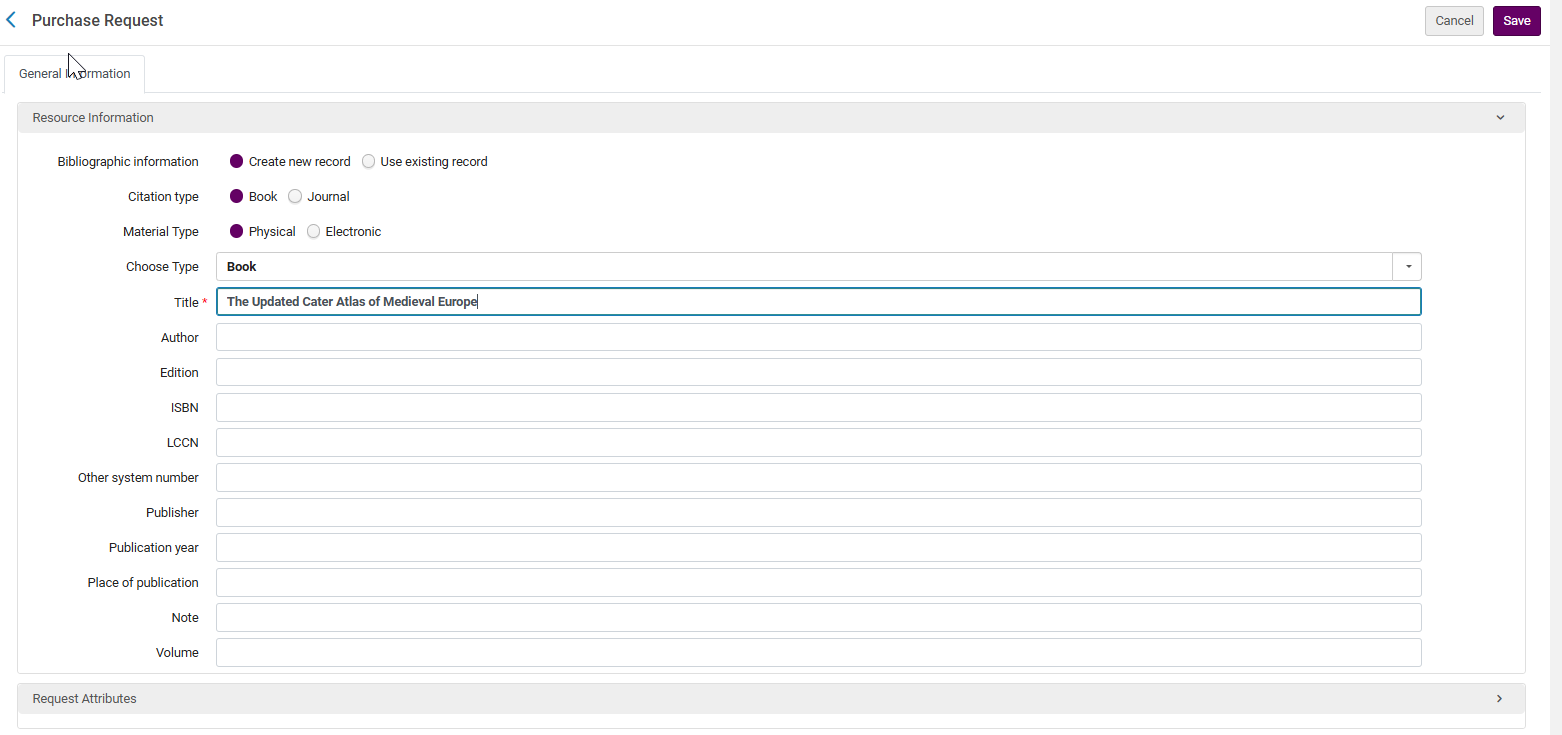
購入リクエストフォーム For a description of the fields in the Resource Information area, see Adding a New Book or Journal Article.属性をリクエスト領域のフィールドは以下のとおりです:- 依頼者 – リクエストを行うユーザー。Once the request is approved, the requester becomes an interested user on the PO line that is created following the approval of the purchase request.See Manually Creating a PO Line.
- リクエストステータス - リクエストの初期のステータスで、常にレビュー中
- 所有図書館 – アイテムを受入する図書館
- 推定コスト – 通貨を含むアイテムの推定コスト
- 予算 – アイテムを購入する予算。このフィールドは、図書館が選択された後にのみ有効になります。購入リクエストが承認される直前に予算を追加することをお勧めします。
- ベンダー/アカウント – アイテムを購入するベンダーとベンダーアカウント
- 承認者 – このフィールドは最初は空欄です。アイテムを承認したユーザーの名前がある場合、後で記載されます。
- 依頼者注記 - リクエストを承認または拒否するユーザーに送信する任意の注記。
- 拒否理由 – このフィールドは最初は空欄です。This field will later contain the reason the request was rejected if any.
タイトルと依頼者フィールドは必須です。When a purchase request is created using Create new record, Alma looks for a potential match to the record via Primo.When a patron in Primo enters an ISBN or EISBN number in a blank Purchase Request form, an alert appears indicating whether a holdings for the resource exists in the library.これはジャーナルには適用されません。Primoが、ユーザーが入力した識別子は所蔵に存在しないというメッセージを表示します。それは、リソースが存在しないか、検出が抑制されている場所、書誌レコード、または所蔵があるか、あるいは電子リソースの場合、電子ポートフォリオがアクティブでないことが理由として考えられます。これは、ネットワークとマルチキャンパスにも関連します。This functionality is controlled by the customer parameter PR_indicate_for_primo_if_isbn_is_exist, and is enabled by default.See Configuring Other Settings (Acquisitions).
マッチングルーチンは、最初にインポートプロファイルを探して、マッチングプロセスを決定します。The import profile can be type Repository or New Order, must be active, and its profile name stored in the purchase_request_import_profile parameter (see Configuring Other Settings (Acquisitions)).The import profile can define which match routine will be used for books and which match routine will be used for journals.If no profile is specified in the parameter, the matching is based on the ISBN/ISSN in the purchase request (using a hard-coded matching routine that cannot be modified).一致するレコードがリポジトリで見つかった場合、購入リクエストはこの書誌レコードにリンクされます。一致するものが見つからない場合、新しい書誌レコードが作成されます。一致するレコードまたは新しいレコードの書誌詳細は、MDエディタを使用して編集できることに注意してください。購入リクエストの編集により編集することはできません(この方法で編集できるのは、依頼者や所有図書館などのリクエスト属性のみです)。購入リクエストを編集するとき、書誌情報は、新規レコードを作成ラジオボタンを選択して変更できます。When changing the radio button, the user will be prompted with the following confirmation message:You are about to change the linked bibliographic record.既存の書誌レコードのデータは置き換えられます。続行してもよろしいですか?
-
検索されたアイテムの引用タイプは、ISBNまたはISSNから取得されます。ISBN番号がある場合、引用タイプは書籍です。ISSN番号がある場合、引用タイプはジャーナルです。どちらの番号も存在しない場合、引用タイプは購入リクエストの作成時に選択されたタイプです。これがどのように適用されるかの例として、ISSN番号を書誌レコードに追加するためにMDエディタが使用されると、その後、購入リクエストが編集され保存されます。購入リクエストが保存された後、購入リクエストの引用タイプがジャーナルになります 。
-
Select the Material Type, which can be Physical or Electronic.デフォルトは、購入リクエスト資料タイプテーブルで設定された値によって決まります。When the value is Physical, the type is determined by the default value in the Physical Material Type Descriptions table (see Configuring Physical Item Material Type Descriptions).When the value is Electronic, the type is taken from an internal table of electronic types and is Book.電子資料タイプの表は内蔵のものであるため、変更できません。
-
The Choose Type field determines the material type of the created inventory.Depending on the Material type listed in the Physical/Electronic possible material types, this will be the material type in the PO Line.
-
情報を手動で入力する代わりに、リポジトリ内のアイテムを検索して選択し、選択を選ぶことができます。The item's information is pre-filled in the page's fields.See Searching in Alma.書誌レコードに関連付けられた購入リクエストを作成する場合、書誌メタデータは購入リクエストページで編集できません。これは、既存のレコードを変更したり、このページから新しいレコードを作成したりすることを避けるためです。情報を手動で入力した場合にのみ、このページから新しいレコードが作成されます。When a purchase request is made for a title that is not held by the library, it is automatically suppressed from publishing.
- (リクエストの編集時のみ)図書館を入力した場合、各場所に関する場所とリクエストされたコピーの数を追加できます。場所を追加を選択します。数量と場所を指定しない場合、デフォルトの受入場所に1つのコピーが想定されます。
- 必要に応じて、注記タブに注記を追加します。
- 完了したら、保存を選択します。リクエストは、ステータスレビュー中で送信されます。必要に応じて、リクエストされたアイテムの簡単な書誌レコードが作成されます。
購入リクエストを管理
購入リクエストを管理するには、次のタスクを使用できます:
- Viewing Pending Purchase Requests
- Assigning a Purchase Request
- Editing a Purchase Request
- Emailing a Purchase Request
- Approving or Rejecting a Purchase Request
保留中の購入リクエストを表示
保留中の購入リクエスト表示するには、Almaメインメニューから受入 > 購入リクエスト > 購入リクエストを管理を選択します。Alternately, if there are any unassigned requests, or there are any requests assigned to you, select one of the following tasks from the Tasks List in the persistent menu (see Tasks in the Task List):
- 購入リクエスト - 自分に割り当てられています
- 購入リクエスト - 割り当てなし
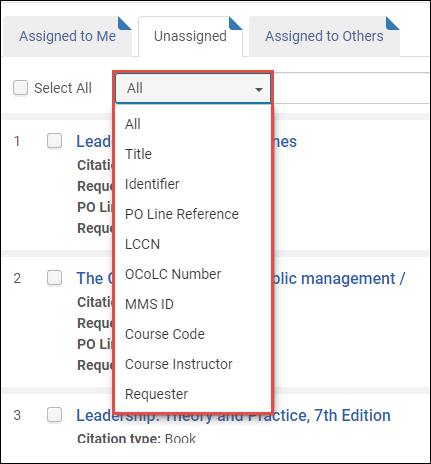
タブを使用して、自分または他のユーザーに割り当てられたリクエストを表示したり、割り当てなしのリクエストを表示したりします。ファセットと検索ツールを使用して、ページ上のリクエストのリストをフィルタリングします。
- MARCレコードシンプルビューページでリクエストを表示するには、リクエストタイトルを選択します。
- 割り当てなしまたは他へ割り当てタブで、リクエスト下部の表示を選択してリクエスト詳細を表示します。リクエストが注文または拒否されている場合、表示リンクは割り当てなしタブにのみ表示されます。
Assigning a Purchase Request
購入リクエストをユーザーに割り当てるか、割り当てを解除できます。リクエストが割り当てられているユーザーは、リクエストを承認または拒否する必要があります。
- 行アクションリストで割り当て先を選択します。ダイアログボックスが表示されます。
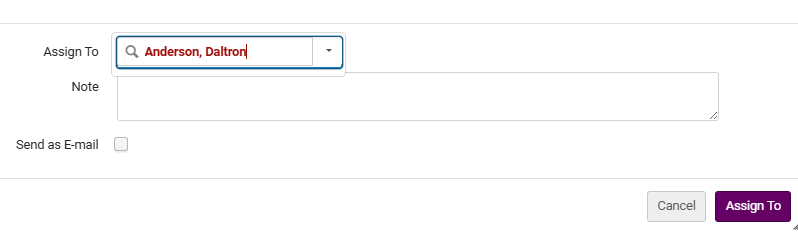 割り当てダイアログボックス
- リクエストを割り当てるユーザーを選択します。関連する役職を持つユーザーのみがドロップダウンリストに表示されます。
- オプションで注記を追加し、ユーザーにメールを送信するかどうかを選択します。
- 割り当て先を選択します。選択したユーザーにリクエストが割り当てられます。
自分に割り当てまたはその他に割り当てタブで、行アクションリストの割り当てを解除を選択します。リクエストが割り当てなしタブに戻ります。
Editing a Purchase Request
購入リクエストを編集できます。
- 自分に割り当てまたは未割り当てタブで、行アクションリストの編集を選択します。[購入リクエスト]ページが表示されます。For more information, see Creating a Purchase Request.
- 必要に応じて、非メタデータフィールドを変更します。
- 再リンクボタンを選択してこの購入リクエストの書誌レコードを変更できます。再リンクすると、ISBNフィールドと引用フィールドの値は、新しい書誌レコードの値で上書きされます。If a Purchase Request needs to be relinked to another bibliographic record, use the "Relink" page action.If Select from list > Use Existing Record is selected and the Purchase Request is being edited, updating the title (either manually or using the pickup option) doesn't relink the Purchase Request to a new bibliographic record but only updates the title on the Purchase Request.For more information, see the Relink a Purchase Request to Another Bibliographic Record video (1:41 min.)
- 完了したら、保存を選択します。リクエストがまだ自分割り当てられていない場合は、このときに割り当てられます。
購入依頼者にメールを送信
購入リクエストの詳細については、依頼者にメールで送信できます。
- 行アクションリストの依頼者にクエリを送信を選択します。[電子メールメッセージ]ダイアログボックスが表示されます。
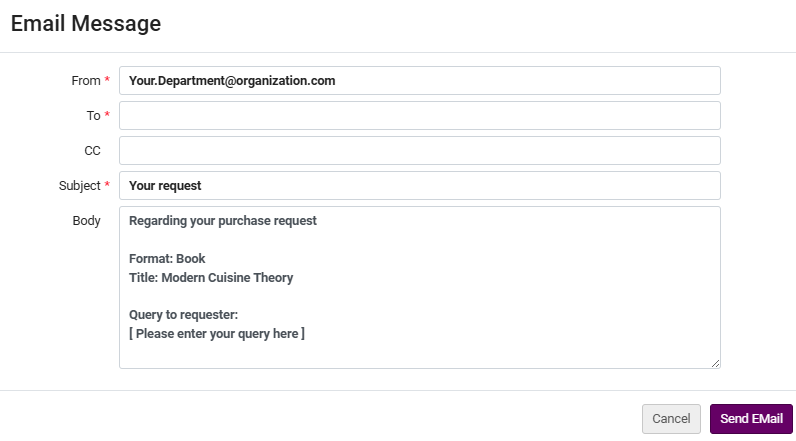 電子メールメッセージダイアログボックス
- フィールドに情報を入力します。The From,To, and Subject fields are mandatory.Note that if the requester's email is not prefilled, you must enter it manually.
- 完了したら、Eメールを送信を選択します。A Query to Requester Letter is sent to the requester.For information about configuring the letter, see Configuring Alma Letters.
Approving or Rejecting a Purchase Request
購入リクエストを承認すると、購入発注明細が作成されます。リクエストを承認するか拒否するかにかかわらず、Almaは依頼者に電子メールを送信します。パッケージ化されたがまだ承認されていない注文明細は、場合によって延期される可能性があります。For more details see Deferring PO Lines.
When editing the PO line, under the "Ordered Items" section, the editing actions are disabled for resources whose library does not match the user role scopes.For details, see Library set on electronic resource.
- アイテムを注文する前に、リクエストで図書館や場所が選択されていることを確認してください。If one is not selected, edit the request; see Editing a Purchase Request.
- 行アクションリストの承認して注文を選択します。すべての必要な値が入力され、要件が満たされている場合、注文明細が作成され、自動または手動パッケージングに送信されます。それ以外の場合、注文明細はレビュー中ステータスで作成されます。その後、通常どおり、購入プロセスに進みます。注文明細番号は、ページ上部の確認メッセージに表示されます。Almaは、依頼者に確認レター、購入リクエストステータスレター(レターコード:PurchaseRequestStatus)を送信します。
購入リクエストを機能させるには、以下を有効にする(アクティブにする)必要があります。
- PRINT_OT - 冊子資料 - 1回限り
- PRINT_CO - 冊子資料 - 購読
- E_BOOK_OT - 電子書籍 - 1回限り
- E_JOURNAL_CO - 電子ジャーナル - 購読
注文明細タイプは、[注文明細タイプマッピングテーブル]ページ(設定メニュー > 受入 > 注文明細 > 注文明細タイプ)で有効または無効にできます。For more information, see Enabling/Disabling PO Line Types.
- 行アクションリストの拒否を選択します。確認ダイアログボックスが表示されます。あるいは、一度に複数のリクエストを拒否することもできます。拒否するリクエストの横にあるチェックボックスを選択し、ページの上部または下部にある[選択を拒否]を選択します。リクエストのリストの上部にあるすべて選択を選択すると、ページ上のすべてのリクエストを選択することができます。すでに承認されたリクエストを拒否することはできません。
- 確認ダイアログボックスで[確認]を選択します。拒否理由ダイアログボックスが表示されます。
- 拒否の理由を選択し、拒否を選択します。リクエストが完了しました。If the purchase request has created a brief record when the purchase request is rejected, then the bibliographic record is deleted.Alma sends the requester a Purchase Request Status Letter to inform him/her of the request rejection.For information about configuring the letter, see Configuring Alma Letters.An administrator can configure the reasons for rejecting a request; see Configuring Purchase Request Reject Reasons.
After a request is rejected or approved it is moved automatically to the Unassigned tab for reference purposes.却下されたリクエストは、リクエストを削除するオプションと共にリクエストのリストに表示されます。リクエストを削除するには、行のアクションリストで削除を選択します。
引用から作成された購入リクエストの管理
You can create purchase requests manually or automatically using the processing rules (see Configuring Automatic Purchasing Requests from Citations).
購入リクエストフォームには、コースに関する基本情報が表示されます。
The Requester note is displayed in the Request Attributes section of a purchase request.
依頼者メモには、コース、インストラクター、コピー数、および参加者数に関する情報が含まれています。依頼者のメモの情報は、注文明細と注文に引き出されます。
依頼者メモは、コース情報から自動生成できます。The requester_note_auto_generate parameter, found in the Other Settings table in Fulfillment Configuration > General > Other Settings, controls whether the requester note will be auto-generated.
このフラグはデフォルトで「false」に設定されています。依頼者メモの自動生成を有効にするには、フラグを「true」に設定する必要があります。
The following facets are available from the Manage Purchase Requests screen (Acquisitions > Manage Purchase Requests):
-
処理部署
-
学術部局
-
キャンパス
-
コース年度
-
コース期間
-
引用タグ
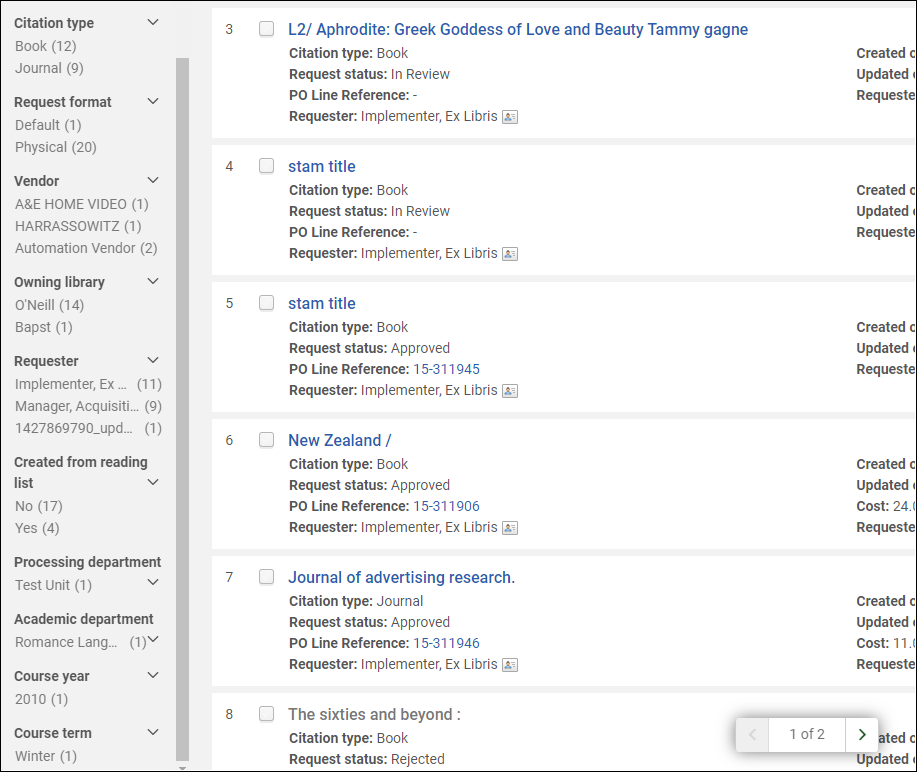
検索を実行する際、次の検索条件を使用できます。
-
コースコード
-
担当教員名
-
依頼者
Converting Purchase Requests to Resource Sharing Requests
You can convert a purchase request into a resource sharing request by rejecting the purchase request before creating the resource sharing request, or by keeping the purchase request and creating the resource sharing request.This option enables the library to service users' purchase requests by obtaining the resource via a resource sharing service, even if the decision is made not to approve the purchase or if the purchase takes a long time.
The new option is available for Purchase Request Operators or Managers who are authorized to create resource sharing requests (they have a Fulfillment Services Operator/Manager role in the resource sharing library scope).購入希望オペレータ/マネージャーの役割に専用の権限を有効にする必要があります。To activate this privilege, contact Ex Libris Support.
リンクは、購入希望のステータス (レビュー中、承認済み、または拒否済み) に関係なく表示されます。
From the Acquisitions > Purchase Requests > Manage Purchase Requests menu, access the Purchase Requests list.購入希望には、「リソース共有リクエストの作成」オプションがあります。

購入希望が有効な場合は、リソース共有リクエストの作成オプションを選択した後、購入希望を拒否するか、引き続き有効にするかを選択するよう求められます。購入希望のステータスはそれに応じてアップデートされます。If you select to reject the purchase request, the Rejection reason in the purchase request is updated to indicate that it was "Changed to resource sharing request".

After selecting Create Request; the Resource Sharing Borrowing Request page appears with the information filled in. If the purchase request is not active, after selecting the option to create a resource sharing request, the Resource Sharing Borrowing Request page appears.

A note is added to the Request Note in the resource sharing request that the "Request has been converted from purchase request".
Page tags: article:topicproduct:almacontent:Documentationpatron purchase requestlang:englishQuery to RequesterPurchase Request Status Letterpurchase requestcreate purchase requestmanage purchase requestsapprove purchase requestreject purchase requestdelete purchase request
