
注文明細を注文書にパッケージ
このページでは、手動および自動のパッケージ化、注文書の確認、注文書の削除など、注文明細を注文書にパッケージ化する方法について説明します。For a list of links to pages with instructions for purchasing in Alma including creating PO lines, renewals, working with vendors, etc., see Purchasing.For information on the overall purchasing workflow see Purchasing Workflow.For an overview of working with acquisitions in Alma, including links to relevant sections such as Infrastructure, Renewals, Invoicing, etc., see Introduction to Acquisitions.
- 購入オペレーター
- 購入マネージャー
注文明細のパッケージ化は、ベンダーに送信される注文書を作成するプロセスです。
If the Manual packaging option was assigned during PO line creation (in the PO Line Information section of the Details pane – see Creating PO Lines), PO lines must be packaged manually into POs.If manual packaging was not assigned, PO lines are packaged automatically into a single PO if the PO Line - Packaging job is enabled (see Configuring Acquisition Jobs) and all the following properties match:
- ベンダーアカウント
- 所有者
- 通貨
- 継続性 – 単発/継続
- 入手方法
- Source type – Source of the PO line creation for example Manual Entry (via the UI), API, EOD, etc.
- 注文ライブラリ
- Fund (if the po_packed_by_fund parameter is set to true; see Configuring Other Settings)
- 注文明細が複数の資金に関連付けられている場合、エラーが生成され、注文明細を手動でパッケージ化する必要があります。
- The maximum number of PO lines that will be added to each PO is controlled on the Acquisition Jobs Configuration page; see Configuring Acquisition Jobs.
- If a PO line is assigned to a user, the PO Line Packaging job will not be able to process it.その場合、割り当てを解除する必要があります。
購入ワークフロー内のパッケージ化
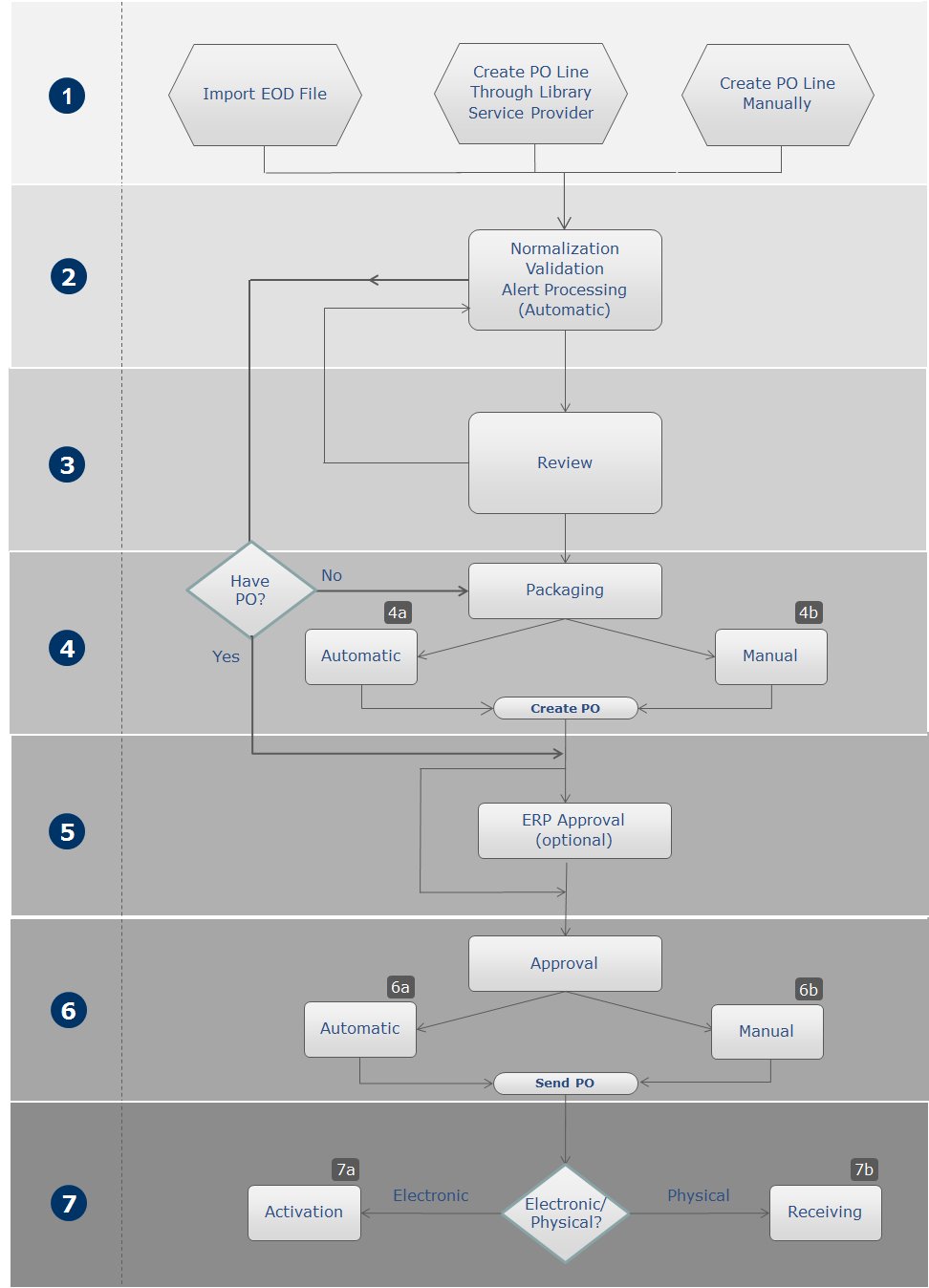
手動パッケージ化が必要な注文書明細の管理
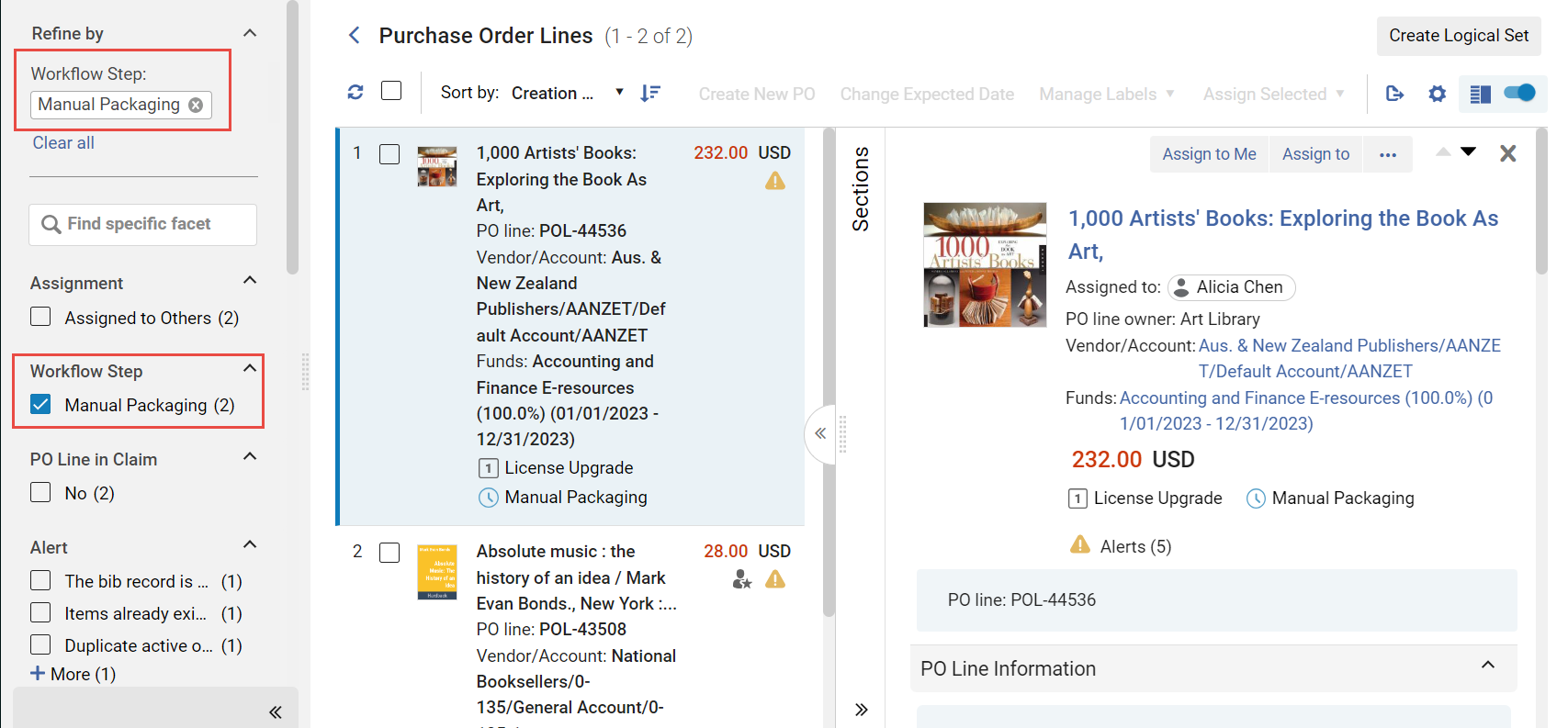
You manage PO lines that require manual packaging in the PO Lines task list.
手動パッケージ化が必要な注文書明細の検索
You can find PO lines that require manual packaging by filtering the list of PO lines that appear in the task list (see Searching for PO Lines - New Layout).
- 注文明細タスク リストが開いたら、[ファセット] ペインの [ワークフロー ステップ] で [手動パッケージ化] を選択します。
- メイン メニューで、 [受入] > [注文書明細] > [パッケージ] を選択します。注文書タスクリストが開き、ファセットで事前に選択された手動パッケージ化フィルタが表示されます。
- in the Tasks List in the persistent menu, under Order Lines, select Package(see Tasks in the Task List).注文書タスクリストが開き、ファセットで事前に選択された手動パッケージ化フィルタが表示されます。
実行可能なアクション
手動パッケージ化が必要な注文明細を見つけたら、その行アクションから次のオプションのいずれかを選択できます。
- 編集 – 注文明細を編集します。See Reviewing PO Lines.
- 新しい注文書を作成 - 注文明細を独自の注文書へパッケージ化します。The PO is sent for approval (see Approving and Sending POs).If a purchase order's acquisition method is Purchase, the process stops at the approval stage.
- Order Now – Send the PO line to the vendor without waiting for approval (see Approving and Sending POs).If you select this option, the Order Now Letter is sent to you after the order is sent for processing.The vendor receives the order as an Order List Letter.For information on these letters, see Configuring Alma Letters.
- 延期 – 注文明細を延期します。See Deferring PO Lines.
- 再リンク – 注文明細を再リンクします。See Relinking PO Lines.
- 書誌リファレンスを変更 – 注文明細の書誌リファレンスを変更します。See Changing Bibliographic Reference.
- キャンセル - 注文明細をキャンセルします。See Canceling PO Lines.
- 削除 - 注文明細を削除します。See Deleting PO Lines.
注文明細のパッケージ化
PO lines can be included in the same PO if they are for the same library, have a common vendor, vendor account and common currency, share the same order pattern (one-time/continuous), and share the same acquisition method and source type.
- 「注文明細」タスクリストで、注文に含める各注文明細の左側にあるチェック・ボックスを選択します。If the task list that is currently open has more than one page, you can select PO lines from multiple pages.
- In the Actions menu, select Create New PO(see also,Managing PO Lines - New Layout).The selected PO lines are packaged into a PO and the PO is sent for approval (see Approving and Sending POs).
注文書の確認
- 購入オペレータ
注文書の作成時に必須情報が無効または欠落している場合、レビュー用に注文書が送信されます。After correcting or adding the mandatory information, the PO is packaged and moves to the Approval and Sending stage of the workflow (see Approving and Sending POs).
PO は、「レビュー中の注文」ページ (「受入」>「注文書 (PO)」>「レビュー (PO)」) で確認します。You can also access this page by selecting the task Order Lines - Review (PO) in the Tasks List in the persistent menu (see Tasks in the Task List).
- レビュー中の注文書ページで、レビューする注文明細アクションリストで編集を選択します。[注文書の概要]ページが表示されます。
- 必要に応じて、ページ上のフィールドを編集します。
- 必須フィールドはアスタリスクでマークされていて、注文書がワークフローの次の段階に進む前に完了する必要があります。
- ベンダーは表示専用であり、注文書の概要では編集できません。ベンダーを変更するには、受入> アドバンスツール> 仕入先の変更を実行します。See Changing Vendors in PO Lines and POs.
- When Integrate by ERP Number is selected for the Export Orders (PO) job (see Financial Systems), a PO's ERP number must be filled in for the PO to proceed to the next stage of the workflow.ERP番号が入力されていない場合、注文書はERPへ送信されて番号を受け取り、その後、注文書承認をインポートするジョブを使ってAlmaに再度インポートされます。ERP番号が入力されていると、注文書(Almaで承認された後)がベンダーとERPに同時に送信されます。
- 以下のうちの1つを入力してください:
- 保存 - 注文書が保存されます。注文書を購入ワークフローの次の段階に進めることができるか不明な場合は、このオプションを使用します。
- Save and Continue – The information you modified is saved, the PO is packaged, and then proceeds to the approval and sending stage of the workflow (see Approving and Sending POs).
発注明細を保存すると、注文明細に関連付けられたアイテムの受領予定日が更新されます。
[レビュー中の注文書]ページ(受入> 注文書> レビュー)で、表示する注文書の行アクションリストの表示を選択します。[注文書の概要]ページが表示されます。ページ上のフィールドを編集することはできません。
- [レビュー中の注文書]ページ(受入> 注文書> レビュー)で、関連する注文書の行アクションリストの編集を選択します。[注文書の概要]ページが表示されます。
- [注文明細リスト] タブで、 [注文明細の追加] を選択します。注文書に追加できる注文明細のリストが表示されます。Note that only PO lines with a status of 'Ready' for manual packaging will appear in the list and are available to add to the PO.If the PO Line is 'In Review', it will not display in the list until all errors in the PO lines's Alerts have been resolved and that status changes to 'Ready'.
- 追加する1つ以上の注文明細を選択します。
- 選択を選択します。注文明細が注文書に追加されます。
Once an EDI PO line has been packaged into a PO, the Download EDI File option appears in the row actions of the PO line.Select this option to download the PO that contains the PO line as an EDI file for review.EDIファイルは、注文の現在のデータに基づいてアドホックに作成されます。(このリンクを表示するには、ベンダーをEDIベンダーとして設定し、注文書チェックボックスを選択する必要があります。)
注文書の削除
[レビュー中の注文書]ページ(受入> 注文書> レビュー)で、行アクションリストの注文書を削除を選択し、確認ダイアログボックスで確認を選択します。
Page tags: article:topicproduct:almacontent:Documentationlang:englishpackage purchase orderpackage POreview PODelete POadd PO line to PO
