
トライアルを管理
このページでは、Almaでトライアルを管理する方法について説明します。For a description of the workflow see Evaluation Workflow.For information on the overall purchasing workflow see Purchasing Workflow.For an overview of working with acquisitions in Alma, including links to relevant sections such as Infrastructure, Renewals, Configuration, etc., see Introduction to Acquisitions.
- トライアルオペレーター
- トライアルマネージャー
For information on how to request or start a trial, see step 2 of the Evaluation Workflow.
トライアルを続行するには、次のことを行う必要があります:
- 資料のタイトル、トライアルの開始日と終了日、トライアルがパブリックかプライベートかなど、トライアルの一般的な詳細を入力します。
- 資料を評価するときに参加者が記入する調査フォームを作成します。
- トライアルがプライベートの場合、トライアルの参加者の詳細を入力します。
For detailed instructions, see Editing Trial Information, below.
Once the information is complete, the trial's status changes to draft.Trials cannot move from the draft stage unless the criteria for publishing a DB is met (See Why is Trial still in Draft status after I have Activated it?).To move from the draft stage, the trial must be linked to an unsuppressed bib with a collection-level URL.
トライアルが終了した後、トライアル結果を分析し、購入決定を記録します。For detailed instructions, see Analyzing Trial Results, below.
既存のトライアルへのアクセス
[トライアルの管理]ページで既存のトライアルを管理します(受入 > 発注書 >)。
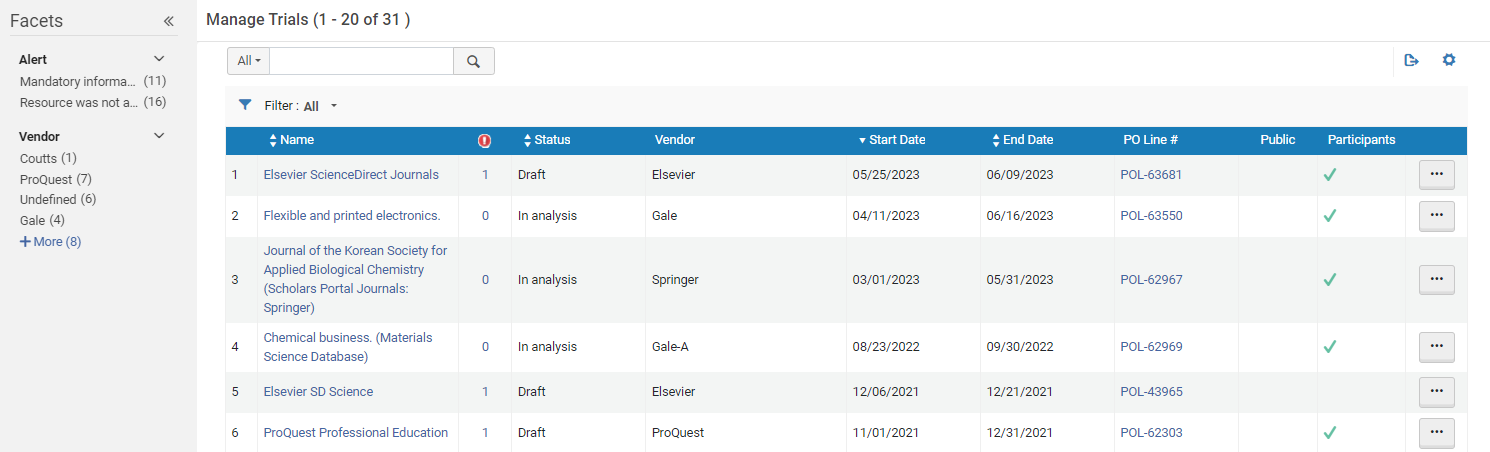
ステータスによるトライアルのリストの事前フィルタリング
- 分析
- ドラフト
- リクエスト済み
注文明細からトライアルを開く
注文明細タスクリストから特定の注文明細の「トライアルの管理」ページを開くことができます。ファセットを使用して、ステータス (ワークフロー ステップ) が [評価中] である注文明細の注文明細タスク リストをフィルタリングすることもできます。
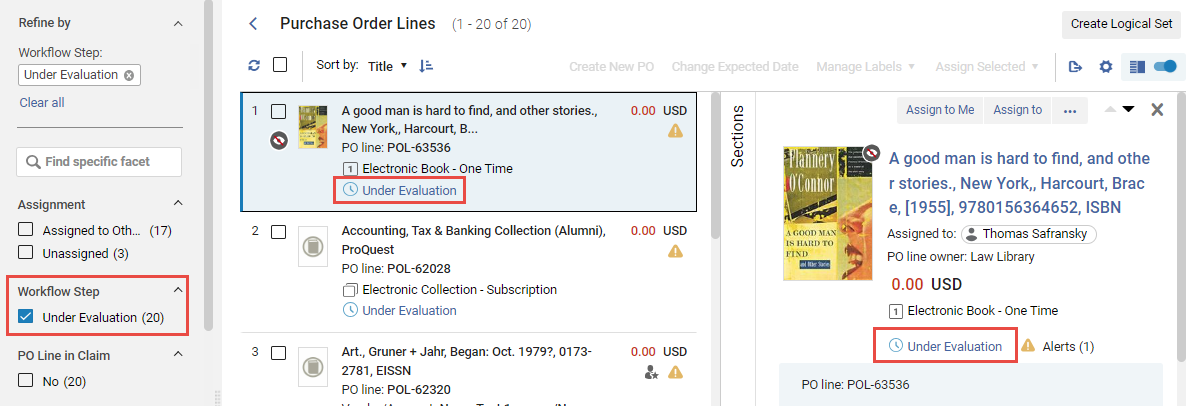
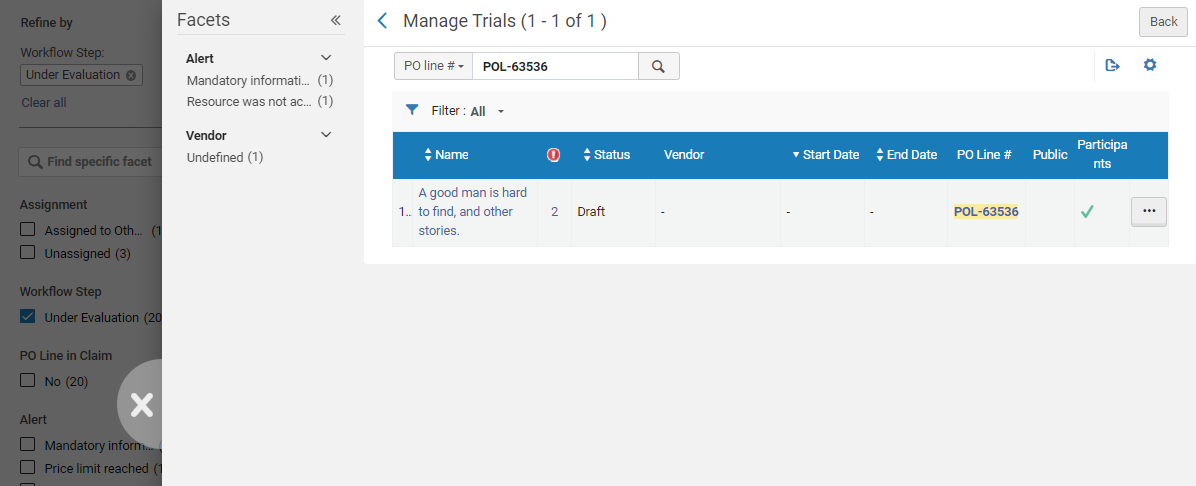
- 注文明細で、「評価中」ステータスを選択します。The Manage Trials page opens in a sliding panel, with only the PO line listed.
実行可能な行アクション
行アクションリストで次のオプションのいずれかを選択します。
- Edit – Edit trial information (see Editing Trial Information, below).
- 削除 – トライアルを削除します。確認ダイアログボックスで[確認]を選択します。Note that a trial must be deleted before any associated PO lines can be cancelled (see Evaluation Workflow).
- 注文明細を編集 - トライアルに関連した注文明細を編集します。Opens the Details pane of the PO line (for additional information, see Manually Creating a PO Line).
- 有効化 – 関連リソースを有効化します。Opens the Activation Wizard, as described in Activating Electronic Resources.
After you activate the trial, the daily Trials – Start and Notify Participants job assumes control of the trial until the trial end date.トライアル終了日には、トライアルがタスクリストに再び表示され、トライアルオペレーターがトライアル結果の分析を検討して購入を決定できるようになります。
トライアル情報を編集
You can edit a PO line's trial information.
- トライアルを管理ページ(受入 > 注文明細 > トライアルを管理)で、編集するトライアルの行アクションリストの編集を選択します。トライアルの詳細ページが表示されます。
- 必要に応じて概要タブで、表示された注文明細情報を変更します。フィールドの説明を次の表に示します。
トライアル概要タブフィールド セクション フィールド 説明 詳細 名前(必須) 購入オペレーターが入力したトライアルの名前。 タイトル トライアル資料のタイトル。 開始日(必須) カレンダーダイアログボックスから選択されたトライアルの開始日。日付は現在の日付より後でなければなりません。The trial's status changes to Active on this date. 終了日(必須) カレンダーダイアログボックスから選択されたトライアルの終了日。この日付は開始日より後でなければなりません。The trial's status changes to In Analysis on this date if the Trials - Start and Notify Participants job is active. トライアル終了以前に参加者に知らせる メールのリマインダーをトライアル参加者に送信する、トライアル終了日までの日数。 For emails to be sent, the Trials – Start and Notify Participants job must be Active; see Viewing All Scheduled Jobs.The notification sent is the Trial Letter and can be configured; see Configuring Alma Letters.一般ユーザー利用可 選択すると、トライアルが一般に公開されます(誰でも利用できます)。 デフォルトでは、このチェックボックスは選択されておらず、トライアルはプライベートトライアルです。トライアルは、(参加者タブで)トライアルに参加する招待トライアル参加者に限定されていることを意味します。連絡先 機関内トライアル連絡窓口の名前。 参加者ページURL トライアル調査へのパス。開始日と終了日が入力されると自動的に入力され、編集できません。トライアルURLには以下の参加ページURLフィールドが含まれます:https://<Almaドメイン>/<参加者ページURL> クリップボードにコピー The full URL can be copied to the clipboard to use it outside of Alma without the need to copy the partial URL and add the server name.
For more information, watch theGet Full URL for Survey of an E-Resource Public Trial video (1:07 min).
フォームを表示 トライアル調査を表示するリンク。 分析と結果 This section is completed by the Trial Operator after reviewing and analyzing the results of the trial (see Analyzing Trial Results). - 調査フォームタブで、調査の質問を作成します。In the Form Configuration section, select the Hide Portfolio Tab and/or Hide Collection Tab check boxes if you want those tabs to be suppressed from the survey form sent to the users.Select the Add Survey Prefix check box to include an explanatory message that appears at the top of the survey.接頭辞メッセージフィールドにメッセージを入力します。次の方法のいずれかまたは両方を使用して、一般情報セクションまたは質問セクションのいずれかの調査に質問を追加します。
- リストから追加で、既存の質問のリストから質問を選択します。調査票の質問リストページが開きます。調査に使用する質問を選択し、選択を選択します。質問がフォームに追加されます。
- 質問を追加を選択します。[質問の追加]ダイアログボックスが表示されます。次のように質問情報を入力します。
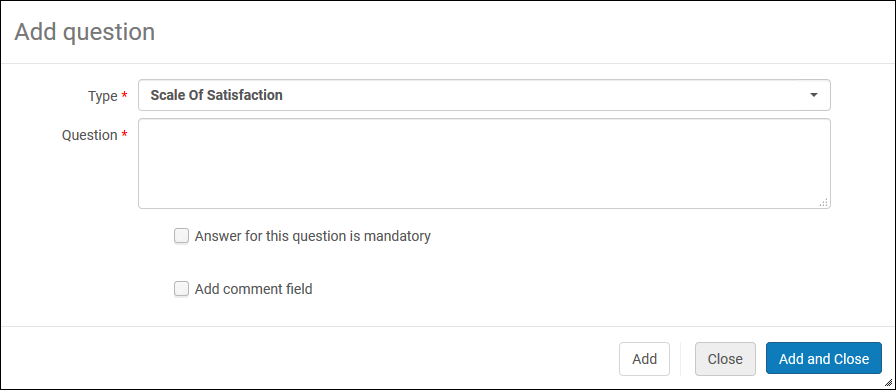
質問ダイアログボックスを追加 - From the Type drop-down list, select one of the following types of questions:Scale of satisfied(for example, 1-5),Yes/No,Free text,Multi choice, or Single choice.
- 質問フィールドに質問のテキストを入力します。トライアルで単一選択または複数選択タイプの質問を追加する際、選択肢の値に '&' を含めることはできません。代わりに 'and' を使用してください。
- 複数選択または単一選択質問の場合は、質問コードを入力します。このコードは、入力した値を質問に関連付けます。
- 複数選択または単一選択質問については、値を追加を選択します。値を入力し追加を選択します。質問のすべての値を入力するまで、この手順を繰り返します。複数選択および単一選択の質問の値は、調査質問の複数選択マッピング表でも維持できます。See Configuring Multiple Choice Survey Questions.
- Select the Answer for this question is mandatory check box to require the user to answer the question.
- Select the Add comment check box to add a comment field to the question.コメントのラベルを入力する別のフィールドが表示されます。
- アンケートに質問を追加し、追加の質問を追加するには、ダイアログボックスを開いたまま、または調査と近いダイアログボックスに質問を追加するには、追加して閉じるを選択します。質問がフォームに追加されます。
- 質問を編集するには、編集する質問の行アクションリストで編集を選択します。必要に応じて質問を変更し、OKを選択します。質問の順序を変更するには、下に移動と上に移動の矢印で移動してください。質問を削除するには、削除する質問の行アクションリストで削除を選択し、確認ボックスで確認を選択します。
- プライベートトライアルを定義する場合は、参加者タブを選択して、トライアルの参加者を選択します。セカンダリ検索を使用して、トライアルに追加した参加者を検索します。To add participants, select Select participants to search for and select users on the Find and Manage Users page (see Searching in Alma).ユーザーを選択し、選択を選択します。選択した参加者がトライアルに追加されます。参加者をセットからロードするには、セットからロードを選択し、セットリストからセットを選択します。At the top of the Trial Details page, a message displays to indicate the number of participants that were added out of the possible set size.Duplicates and deleted users will not be loaded.If a checkmark appears in the Is Notified column, the user has already received a notification.通知が送信されるとき、別の通知はユーザーに送信されません。別の通知を受信するようにユーザーをリセットし、どちらか行アクションリストのリセット通知を選択、またはユーザーのグループを選択して、すべての通知をリセットビューのアクションリストから選択します。参加者を削除するには、ユーザの行アクションリストで削除を選択します。
- 分析タブでは、トライアルが作成された後にのみ表示されます。アラートタブで、トライアル用に生成されたアラートを表示します。
- 添付タブで、調査用に添付を追加、更新、または削除します。For details on working with attachments, see Attachments Tab.
- 注記タブで、調査用の注記を追加、更新、または削除します。For details on working with notes, see Notes Tab.
- 必要に応じて、トライアルの注文明細情報を変更したときは、保存を選択します。
トライアル結果を分析
回答が完了し、トライアル参加者から提出されると、分析タブに記録され、分析されます。The Trial Operator reviews the results, makes a purchasing decision, and enters the decision in the Analysis and Results section of the Summary tab (see Entering and Saving Trial Results, above).
トライアル結果が入力された後、トライアルオペレーターはトライアルを保存します。購入決定が行われなかった場合、ダイアログボックスが表示され、この情報なしでトライアルを保存できるかどうかの確認を求められます。その後、トライアルは[トライアルを管理]ページに残ります。
購入決定が下された場合:
- トライアル情報は正規化され、検証されます。
- トライアルの購入決定があることを示すアラートが生成されます。
The PO line is sent to the review PO lines task list (see step 2 in Purchasing Workflow).その後、購入オペレータは、通常の購入ワークフローの一部として注文明細の処理に進むことができます。
- トライアルを管理ページ(受入 > 注文明細 > トライアルを管理)で、編集するトライアルの行アクションリストの編集を選択します。The Trial Details page appears on the Summary tab (see Editing Trial Information, above).
- 分析タブを選択して、トライアル分析ページを開きます。
分析タブには、次のセクションが含まれています。
- 一般情報 – 参加者に送信された調査の数と返された回答の数(回答者の各カテゴリの合計)。
- Questions – Grouped according to the ranges (described in Editing Trial Information, above).
各範囲内で、次の情報が表示されます。
- 質問番号
- 質問
- 回答
- 平均 - はい/いいえで回答するクローズ質問について、その応答の数が示されています。満足度の質問の場合、すべての回答の平均が表示されます。答えがフリーテキストにある質問については、回答の数が示されているだけでなく、各応答のリストです。
回答の合計に加えて、各質問への回答と各範囲の質問の合計をグラフで表示できます。Yes/No and single or multi choice questions will display a pie chart with a table listing the results per option and comments.Scale of satisfaction questions will display a bar chart and average score.
トライアル結果の入力と保存
トライアルへの回答を分析した後、トライアルオペレータは、結果と購入決定を概要タブの分析と結果セクションに入力します。トライアルオペレーターがこのセクションに入力する必要がある最小限の情報は、結果と結果の日付です。
結果が入力されると、注文明細が保存されます。If the decision was made to purchase the material, the PO line continues with step 2 of the purchasing workflow (see Purchasing Workflow).If the decision was made not to purchase the material, the Purchasing Operator can decide to cancel the PO line on the Purchase Order Lines in Review page (see Canceling PO Lines).
- トライアルを管理ページ(受入 > 注文明細 > トライアルを管理)で、編集するトライアルの行アクションリストの編集を選択します。The Trial Details page appears on the Summary tab (see Editing Trial Information).
- Enter the analysis and results of the trial in the Analysis section.次の表に、このセクションのフィールドの説明を示します。
分析と結果フィールド セクション フィールド 説明 分析と結果 結果 トライアル結果を選択します。 検索結果日時 [カレンダー]ダイアログボックスから、トライアル結果の決定が行われる日付を選択します。 検索結果の理由 結果の理由を選択します。To customize the list, contact Ex Libris support. 購入決定 ドロップダウンリストからいいえまたははいを選択します。 - 次のボタンのいずれかを選択します:
- 保存 — トライアルの結果を保存します。If you decided to purchase the material, the PO line continues with step 2 of the purchasing workflow (see Purchasing Workflow).If you decided not to purchase the material, the PO line can be canceled, as described in Canceling PO Lines.
- Export Survey Feedback — Exports a summary of the trial, with one tab each for the results of General Information and Questions, to an Excel spreadsheet.
Page tags: article:topicproduct:almacontent:Documentationlang:englishedit trial informationanalyze trial resultsenter trial resultssave trial resultsactivate trialtrial surveycreate trial surveysurvey questiontrial analysis
