
注文明細を手動で作成する
This page gives instructions for creating PO lines (physical, electronic and digital) and initiating the next stage in their processing.For editing PO lines see Editing PO Line Information.For the overall purchasing workflow including the steps required for creating orders (whether using EOD, ordering manually, etc.), see Purchasing Workflow.For instructions on creating service subscription PO lines without inventory see Creating Service Subscription PO Lines Without Inventory.For an overview of working with acquisitions in Alma, including links to relevant sections such as Invoicing, Renewals, Configuration, etc., see Introduction to Acquisitions.
- 購入オペレーター
- 購入マネジャー
To manually create a purchase order (PO) line (the first step in the Purchasing Workflow) for physical, electronic, or digital resources, you search for the resource in the bibliographic record (see Searching in Alma) and then create the PO line based on it.For an explanation of the physical and electronic purchase types that can be created from your search results, see Explanation of Purchase Types Workflow and Inventory.
Normally, when you create a PO line for a physical item or electronic resource, Alma automatically creates new inventory for the purchased resources.Alternatively, you can choose not to create new inventory for the manually created PO line, if, for example, you earlier created the inventory manually (see Assign Inventory Manually).また、目録を追加するかどうかにかかわらず、サービス(ウェブサイトへのアクセスやコンピュータープログラムへのサブスクリプションなど)の注文明細を手動で作成することもできます。購入は、アイテムまたはポートフォリオのコピー、あるいは機関、コミュニティ、またはネットワークゾーンで索引付けされた所蔵のないアイテムについて行うことができます。
For more information, watch:Creating Orders(3:56 min).
For electronic resources, a new purchase order can be either a main PO line- the first PO line linked to the inventory - or an additional PO line- for example, a PO line to upgrade the number of concurrent users who can access a resource, or a PO line to add new titles to an existing collection.メインの注文明細は、リソースの目録を作成します。メインの注文明細を削除しようとすると、Almaは目録を削除しようとします。追加の注文明細を削除しても、目録には影響しません。
Creating a PO Line
The procedure for creating a PO line for physical, electronic, and digital material is the same, except for specific PO line information unique to each material type (noted below).
Every PO line is built upon a bibliographic record.Thus, before you can create a PO line for an item (e.g., a physical book or an electronic portfolio), ensure a repository record exists for it.If a bibliographic record does not exist, you must create it before you can create a PO line for it; see Working with Bibliographic Records.
注文明細を注文書 (PO) にパッケージ化する前に、目録アイテムが存在し、注文明細にリンクしてある必要があります。デフォルトでは、注文明細を作成する(電子リソース用のメインの注文明細)とき、Almaは自動的に新規の目録アイテムを作成し、それを注文明細に関連付けます。作成する注文明細の種類が多い場合、Almaは新しい目録アイテムを作成しないようにすることができます。これは、後で目録を追加したい場合や、既存の目録を注文明細に接続したい場合に役立ちます。
- 多くの目録レコードを移行し、それらの注文明細を作成したい場合。For information on adding PO lines after migration see Best Practice Toolkit: Adding PO Lines After Implementation.
- スタンディングオーダーのサプライヤーを切り替えたい場合。
- You create PO lines for bibliographic records – that is, something in the repository (a title, an item, a portfolio, and so forth).If the entity is not yet in the repository, you must first create a bibliographic record for it and add it to the repository; see Working with Bibliographic Records.
- 注文明細をパッケージングに送る前に、注文明細に目録アイテムを追加する必要があります。
- 注文明細オーナーとは、注文明細を作成する図書館を指し、宛先ロケーション/アクセスとは、注文先の図書館を指します。
- 特定の購入タイプで注文明細が作成されると、ワークフローと目録/データへの影響は修正され、変更できなくなります。したがって、これは注文明細作成プロセスの重要なステップです。
- See also:Acquisitions - How to handle one order to a vendor for both physical and electronic material and link them together.docx
-
Search for the title for which you want to create a PO line; see Searching in Alma.
You may also use Search External Resources (Resources > Cataloging > Search Resources) to locate a title in external systems such as the OCLC or the Library of Congress (see Search External Resources).外部リソースを検索する結果リストから、インポートを選択してMDエディタでレコードを開きます。In the MD Editor, select Order(Ctrl+Alt+O) and the PO Line Owner and Type page (see next step) opens.
- In the row actions of the item you want to order, select Order to create a main PO line.アイテムが電子リソースで、既にメインの注文明細が添付されている場合は、代わりに、追加の注文を選択して追加の注文明細を作成します。注文明細オーナーと種別ページが開きます。
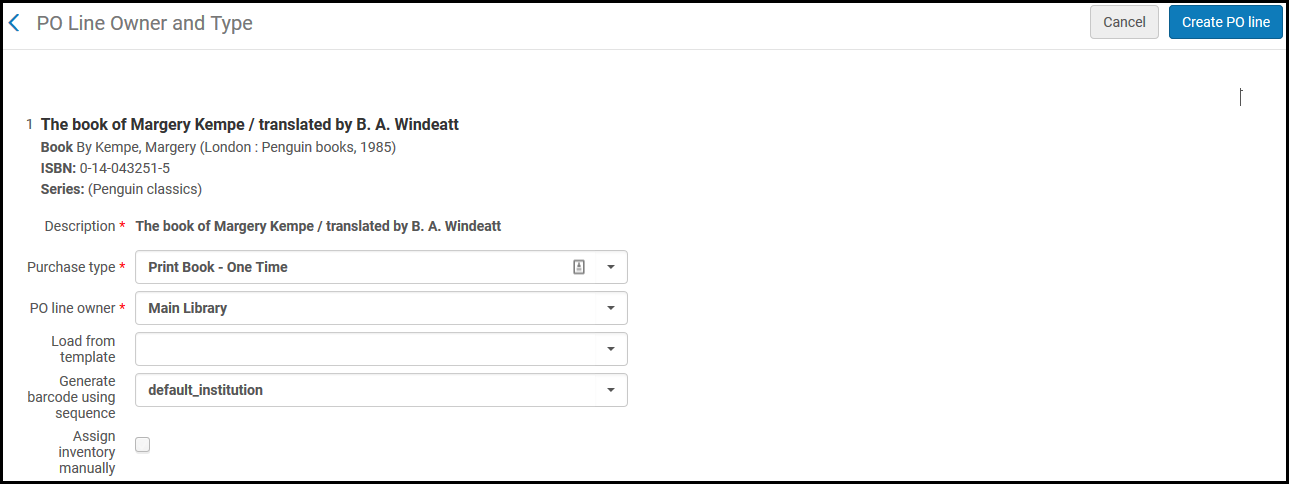 注文明細オーナーと種別ページThis is also the page that opens when you select the Order icon in the MD Editor.
-
Complete the fields on the PO Line Owner and Type page , as follows:
フィールド 説明 注文明細タイプ注文明細の購入タイプを選択します。次のいずれかを選択して、オプションのリストを開きます。-
Recommended – Lists recommended types, which depend on the item you selected to get to this page.
-
Other – Lists all enabled purchase types (except for electronic collections and portfolios), regardless of what item you selected in the inventory to get to this page.Note, however, that when you order an item in a particular format, this does not necessarily mean that any vendor actually has the item in that format; if they do not, they may reject your order.
For an explanation of each type and how an administrator can enable/disable these types, see Enabling/Disabling PO Line Types.Also see Explanation of Purchase Types Workflow and Inventory.デジタル タイプはデフォルトでは有効になっていません。In order to enable them, see the row for enabling digital manual orders in the Digital Manual Order table.Digital PO lines are created with no inventory(both One Time and Continuous), and you need to manually add the representation to the PO line.For more information see Digital Manual Orders.注文明細所有者注文明細を所有する図書館を選択します。This may be different from the library/location for which you are ordering the resource (see Ordered Items Section (Physical Resources Only) and Ordered Portfolios Section (Electronic Resources Only), below).This list is defined by a system administrator; see Adding/Editing Institution Libraries.購買オペレーター/購買マネージャーとしての範囲に関連するオプションのみがリストに表示されます。複数のポートフォリオを作成This option appears when the title that you have selected to order has multiple 856 $u entries (URLs) in the bibliographic record, and you have selected an electronic PO line type.このオプションを選択すると、ポートフォリオリストセクションに表示されるURLからどのポートフォリオを注文するか特定して選択できるポートフォリオリストセクションが表示されます。ポートフォリオリストセクションでポートフォリオの一部またはすべてを選択できます。選択したポートフォリオは、同じ注文明細に関連付けられます。The following images show an example of a bibliographic record with multiple 856 $u entries for which multiple portfolios are ordered in one PO line by selecting this option:.png "Electronic Resource (Title/Bibliographic Record) with Multiple 856 $ Entries") Electronic Resource (Title/Bibliographic Record) with Multiple 856 $ Entries
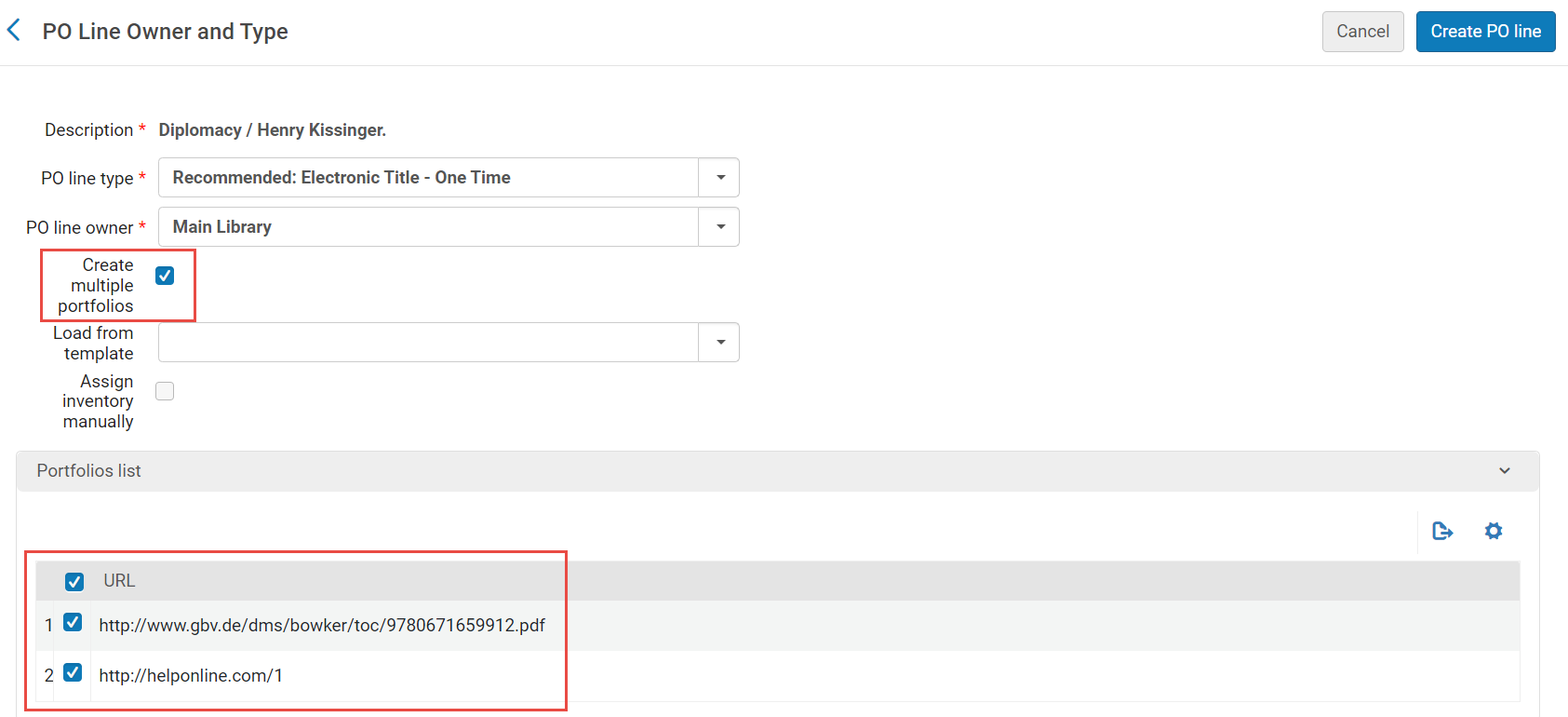 複数のポートフォリオを作成オプションが選択され、ポートフォリオリストセクション
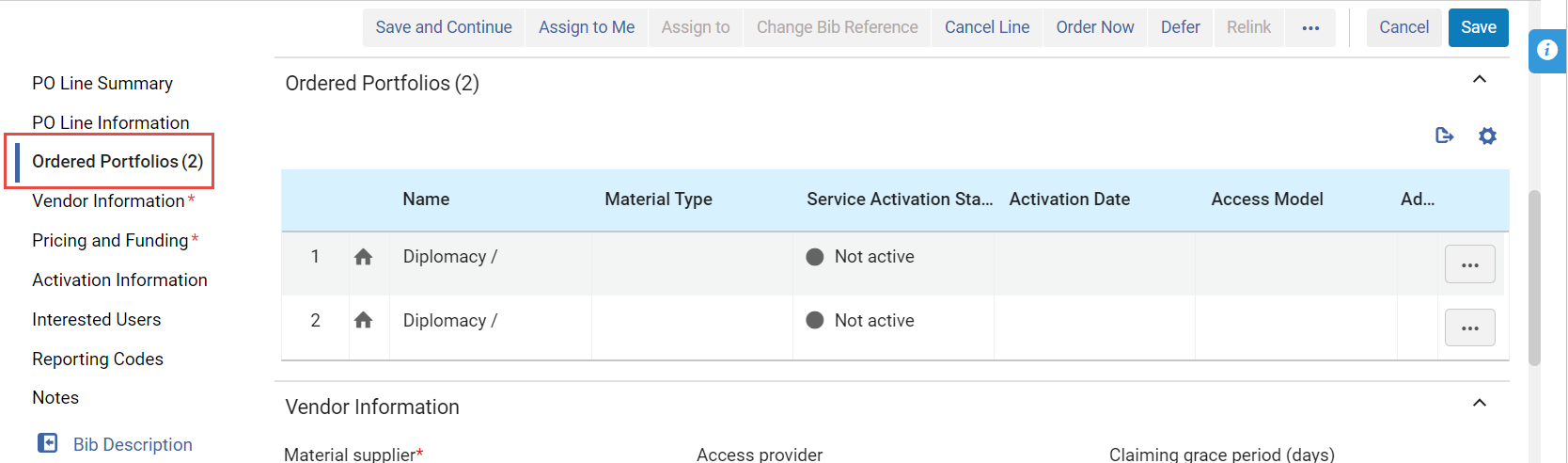 注文明細用に作成された複数のポートフォリオ(1つの注文明細に関連付けられている)複数のポートフォリオを作成を選択しない場合で、注文先の書誌レコード中の856 $uのエントリが複数ある場合、Almaは、注文明細を作成する856 $uのエントリをランダムに1つ選択します。テンプレートから読み込む必要に応じて、注文明細の読み込み元のテンプレートを選択します。Templates are created when you select Save as Template in the Details pane of a PO line.For more information, see Creating and Managing PO Line Templates.テンプレートは注文明細タイプと一致する必要があります。When loading a template that was saved with the Update Net Price according to item quantity field not checked, this field will be un-checked in the created PO line, even if the po_line_quantity_updated_with_items_number customer parameter is true.シーケンスを使用してバーコードを生成するWhen Alma is configured to automatically generate barcodes (see Configuring Barcode Generation), and you select a one-time print PO line type and a library as the PO line owner, the Generate barcode using sequence field appears.このフィールドは、アイテム目録を作成する物的注文明細について表示されます。These are types enabled on the PO Line Type mapping table (see Enabling/Disabling PO Line Types) with Continuity=One-Time and Inventory Format=Physical.If you want Alma to automatically generate a barcode for the item, specify the sequence you want Alma to use when it generates the barcode by selecting one of the barcode-sequence profiles that appears in the dropdown list of available profiles (see Configuring Barcode Generation).The list includes all institution-level barcode-sequence profiles, and all library-level barcode-sequence profiles that are defined in Alma for the PO line owner.If you select a profile, then, after you create the PO line, Alma creates an item with the automatically generated barcode.If you do not select any sequence, the item is still created, but no barcode is assigned to it.
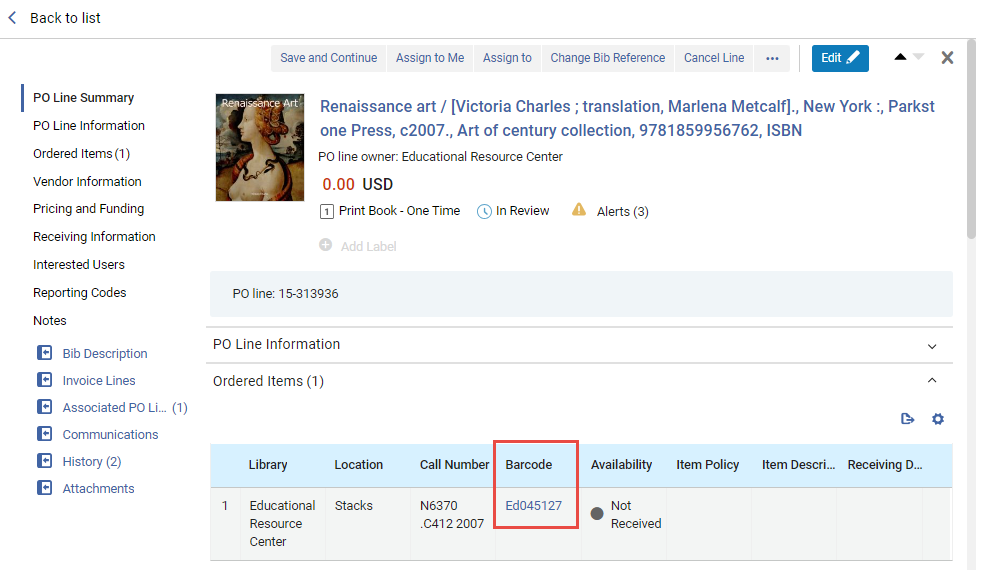 アイテムの自動生成バーコード次のいずれかの方法で作成された注文の場合、Almaは、注文について識別された図書館情報に応じて、バーコード自動生成用に設定された機関レベルのデフォルト、または図書館レベルのデフォルトを使用します。
-
EOD
-
APIから(リアルタイム注文)
-
購入リクエストを承認
-
継続注文プロセスから新しいアイテムを受入する
手動でインベントリを割り当てこのフィールドを選択して、Almaが新しい注文明細の目録アイテムを自動的に作成しないようにします。This checkbox does not appear if you are creating a PO line for a standing order (except for Physical - Standing Order Non Monograph), a PO line of type service (for example Access Service - Subscription, Database Service - One Time, etc.), or the options Digital - Non Archiving or Physical - Archiving(both of which imply an order without inventory).Almaが注文明細の目録アイテムを作成できないようにすると、注文明細は作成されますが、新しい目録は作成されません。注文明細の作成後に目録を注文明細に手動で添付する方法については、以下を参照してください。-
For physical inventory:Adding Inventory to an Item, below.冊子目録の場合、注文明細がパッケージングに進む前に、手動で目録を注文明細に追加する必要があります。
-
For electronic inventory:Adding Inventory to a PO Line for an Electronic Resource, below.
-
- 注文明細を作成を選択します。
手動で目録を割り当てを選択した場合、注文明細を作成するが目録は作成しないことを確認する確認ダイアログボックスが表示されます。確認を選択して続行します。
The PO line is created, and opens in the Details pane in full-page view and in Edit mode, with its workflow step set to In Review.The PO Line Summary section displays basic information about the PO line, including its owner, cost (at this stage, 0.00), type, workflow step, and number.If there are any alerts for the PO line, an Alerts icon (
 ) and link appear, with the number of alerts indicated.リンクを選択してアラートを表示します。(For a complete list of the alerts that may appear in a PO line, with explanations of their meanings, see Configuring Purchasing Review Rules.) Additional details about the PO line appear in the other sections, below the PO Line Summary section.Most of the fields in these sections are blank at this stage, unless the PO line was created from a template; the blank fields should be filled in as appropriate, as explained below.
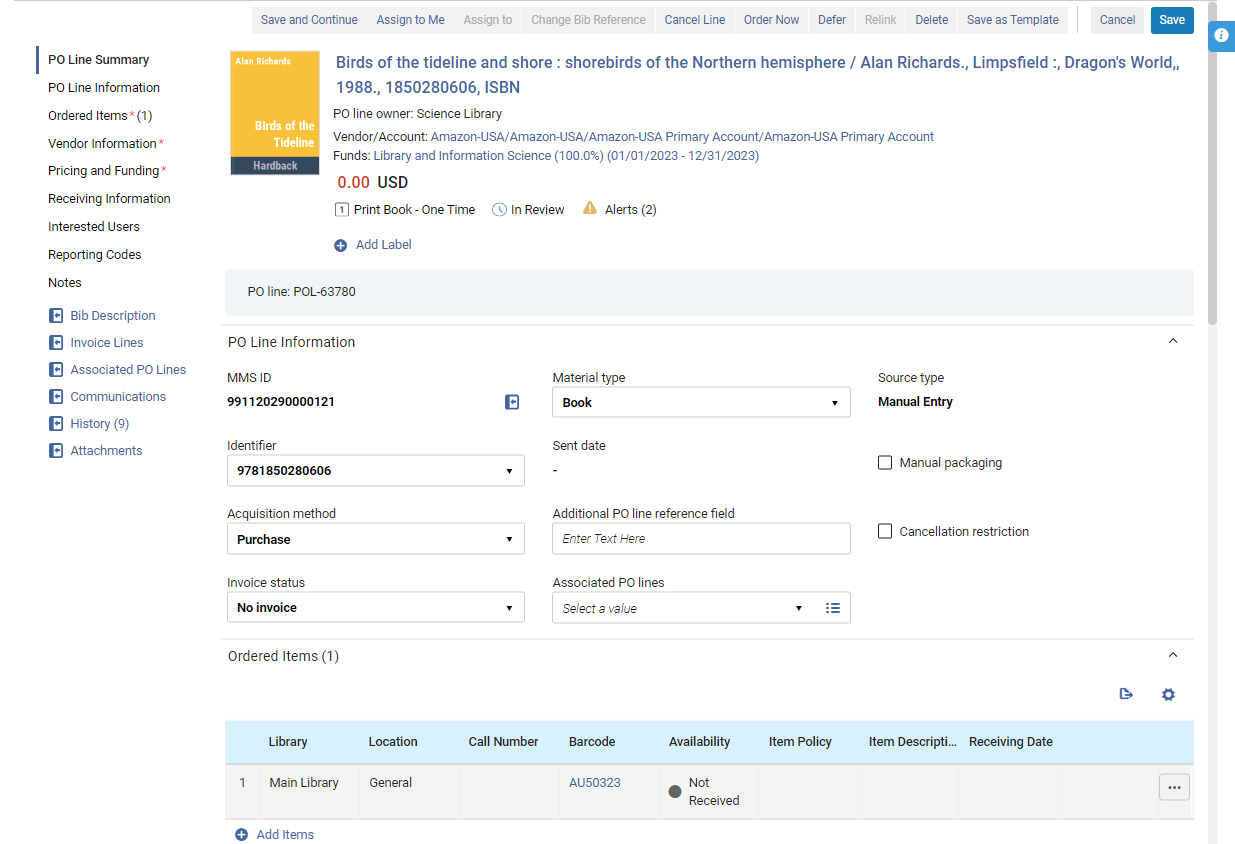 新しく作成された注文明細 (テンプレートから作成)
Adding Information to the New PO Line
上の説明のとおり新しい注文明細が作成されると、注文明細にそれに関する詳細情報の入力を始められます。これは、詳細ペインで行います。このペインは、注文明細が最初に作成されるときに自動的に開きますが、注文明細タスク リストで注文明細を選択することで、後でいつでも開くこともできます。For additional information about opening PO lines from the task list, see Managing PO Lines.
新しい注文明細が最初に作成されると、詳細ペインが編集モードで開き、さまざまなフィールドにすぐに情報の入力を開始できます。今後は、タスク リストから注文明細を開くと、注文明細は表示モードで開きます。In order to edit it, you must make sure it is not assigned to another user (i.e., it is either assigned to you or unassigned), and then select Edit( in the task list or
 at the top of the Details pane) to switch to Edit mode.For additional information, see New Layout 2022.
Each of the sections in the Details pane, and the fields they contain, are described below.必要に応じて、さまざまなセクションに注文明細情報を入力します。When you have finished, select Save to save the information, or Save and Continue to save your changes and send the PO line to the next workflow step.For additional information, see Initiating the Processing of the New PO Line, below.
Almaで新規の注文明細を手動で作成する場合、今すぐ注文、保存、または保存して続行を選択してフローを終了した場合、Almaは特定の POL を含むリストに移動します。この動作は、新しく作成された発注明細にのみ適用されます。既存の発注明細の場合、ユーザーが上記の3つのアクションのいずれかを編集して選択すると、ページはそのまま残ります。
PO Line Summary Section
The only change you can make directly in the PO Line Summary section is to add labels to, or or remove labels from, the PO line (see Managing Labels in the Details Pane).However, some changes you make in other sections automatically update the information in this section when you select Save or Save and Continue; for example, if you select a vendor or a fund, or enter a price for the item, this information is added to the PO Line Summary section.注文明細が注文書 (PO) にパッケージ化されている場合、注文明細番号の横に、PO の番号もこのセクションに追加されます。
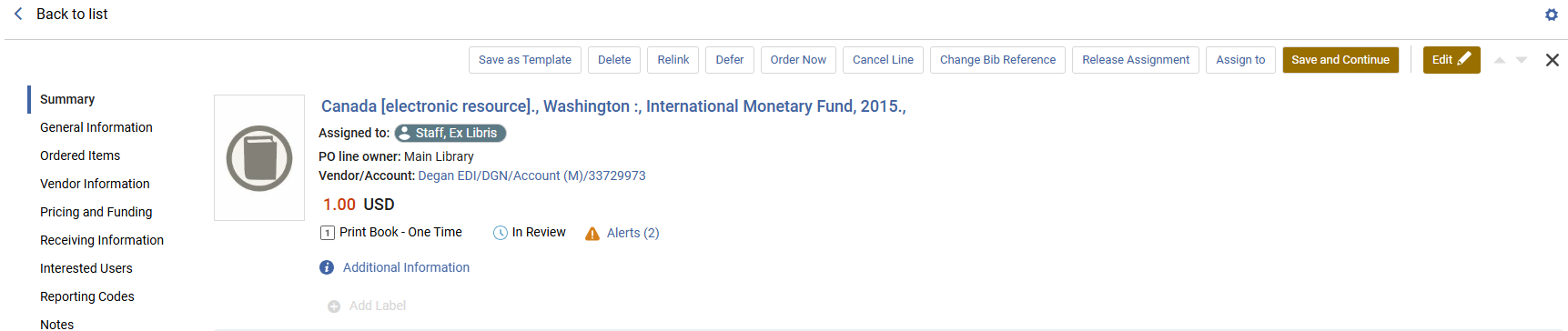
「注文明細の概要」セクションには次の情報が含まれます。
| フィールド | 説明 |
|---|---|
| アイテム説明 |
発注する資料のタイトル、著者の氏名および刊行情報 (2026年2月開始)説明を選択すると、発注明細に関連する機関レコードがスライド式パネルに表示されます。 |
| 割り当て先 | 注文明細がユーザーに割り当てられている場合は、ユーザーの名前が表示されます。 |
| 注文明細所有者 | The library that owns the PO line (see PO line owner, above) |
| ベンダー/アカウント |
注文明細のベンダーとベンダーアカウント Only shown when a vendor has been selected (see Vendor Information Section, below) and the PO line has been saved. Select the vendor information to open the Vendor Details page (see Managing Vendors) in a sliding panel. |
| 予算 |
The funds associated with the the PO line, the proportion of the price that is to be covered by each fund, and the fiscal period defined for each fund Only shown when at least one fund has been selected (see Pricing and Funding Section, below) and the PO line has been saved. Select the name of a fund to open its fund record (see Managing Funds and Ledgers) in a sliding panel, with the Transactions tab selected and showing all the transactions related to this PO line that have already taken place. |
| 料金 | アイテムの価格と通貨 |
| 注文明細タイプ | The Purchase type (see PO line type above) |
| ワークフローステップ | The current workflow step of the PO line (see Searching for PO Lines) |
| アラート |
注文明細にアラートが添付されている場合、このセクションにアラートアイコンが表示され、括弧内にアラートの数が表示されます。アイコン上にマウス カーソルを置くと、ツール ヒントにアラートが表示されます。アイコンを選択すると、スライド パネルでアラートが開きます。 Almaによって生成される最も一般的なアラートは次のとおりです。You can see the complete list of alerts in Configuring Purchasing Review Rules.
|
| 追加情報 |
追加情報へのリンク(次の内容を含む):
|
| ラベルを追加 | 注文明細にラベルを追加するには、ラベルの追加を選択します。For additional information, see New Layout 2022. |
| 発注明細 | 注文明細番号 |
| 発注書(PO) |
注文明細がパッケージ化されている注文書と注文書のステータス。 Only shown when the PO line has been packaged into a PO; see Packaging PO Lines into a PO. |
注文明細情報
「注文明細情報」セクションには注文明細に関する一般情報が含まれており、その一部は追加または変更できます。
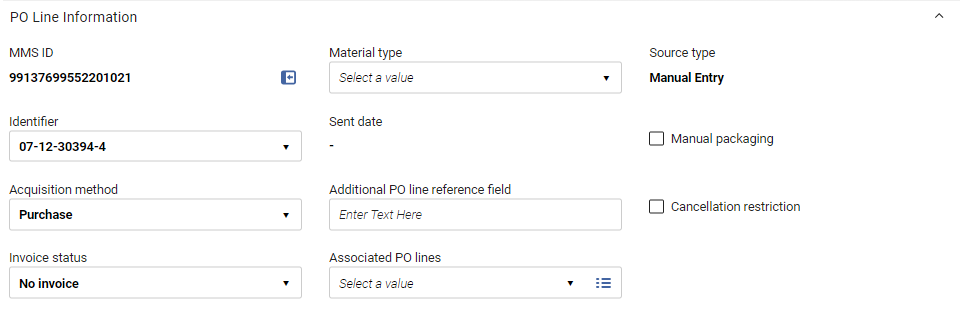
Fields in the PO Line Information Section
注文明細情報セクションには次のフィールドが含まれます。
| フィールド | 説明 |
|---|---|
| MMS ID |
The Metadata Management System ID - the internal Alma record ID - of the item To open the bibliographic record, select the |
| 識別子 |
By default, this field is populated by the first identifier listed in the bibliographic/imported record's ISBN/ISSN (020 or 022) field, and all 020 and 022 values in the record appear in the dropdown list.You can also manually enter any text in the field. If the ISBN number is 13 digits and the display_isbn_13_in_predefined_result parameter is enabled, all 13 digits are displayed.パラメータが無効な場合、識別子には10桁が表示されます。See Configuring Other Settings. |
| Acquisition method |
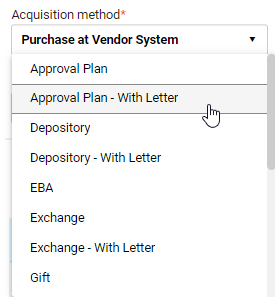
発注明細の入手方法のタイプ。For details on the available acquisition methods, see Acquisition Methods below. システムの設定によっては、注文明細の受入方法を選択するときに、注文書をベンダーに送信するかどうかを選択できる場合があります。If you can, both options appear in the dropdown list.
注文書を送信するかどうかのオプションを含む受入方法ドロップダウン リスト
|
| 請求書のステータス | このフィールドはデフォルトで請求書なしに設定されていて、変更すべきではありません。Almaは必要に応じてこのフィールドを自動的に更新します。
請求書が到着し、請求書明細が注文明細に関連付けられている場合:
これは、注文明細ワークフローに次のように影響します:単発注文明細が完全に請求済みに設定されていて、アイテムが受入/有効化されている場合、注文明細は閉じられています。注文明細が部分的に請求済みに設定されている場合、完全に請求済みに変更される(手動または新しい請求書を受けて)まで請求書待機中ステータスのままです。 注文されたアイテムが、関連するすべての請求書明細の請求アイテムと等しいか、それより少ない場合、請求ステータスは完全に請求済みに設定されます。 請求書/請求書明細が削除されるか、注文明細から請求書明細が削除されると、Almaは、注文明細に関連する別の請求書明細があるかどうか、および注文明細ステータスをチェックします。ステータスが有効で、それ以上に関連する請求書明細が存在しない場合、請求書のステータスが請求書なしに設定されています。 請求書を削除すると、支出が削除され、負債額が再計算されます。負債を削除するには(注文明細に関連付けられている唯一の請求書を削除する場合)、手動で注文明細の請求書ステータスを一部請求済みに設定します。See Creating an Invoice From a PO or Manually. |
| 資料タイプ |
アイテムが表す資料のタイプ(書籍、電子ジャーナル、CD-ROMなど)。利用可能なオプションは、アイテムが物的か電子かによって異なります。For information on customizing material-type labels, see Configuring Physical Item Material Type Descriptions. 注文明細の資料タイプが更新されると、すべてのアイテムが資料タイプで更新されます。 This field does not appear when creating a digital PO line without inventory. |
| 送信日時 | 注文明細を含む注文がベンダーに送信された日付 |
| 追加の発注明細(POL)レファレンスフィールド |
現在の注文明細を識別するためのレファレンスコード。これは、注文明細を参照する任意のフリー テキストまたは情報 (EODで使用可能な識別子など) です。 ここでの「追加」とは参照を指します。 このフィールドは、注文明細がメイン注文明細であるか追加注文明細であるかには関係ありません。 |
| 関連付けられた注文明細 |
A target PO line related to this PO line テキストフィールドに検索文字列(注文明細番号など)を入力して注文明細のキーワード検索を実行するか、フィールドの右側にある検索オプションを使用してリストから注文明細を選択します。 You can associate the current PO line with one target PO line, which is specified in this field.The relationship defined in this field is a one-way relationship: this PO line is associated with the target PO line, but not the reverse.このフィールドの使用例の1つは、マルチパートシリアルを注文する場合です。It is recommended that you have one main PO line (with fund information) for the subscription and an additional Technical PO line for each item that you are to receive at a different interval, each of which would be associated with the main PO line using this field. The Associated PO lines section lists PO lines that are associated with this one (the reverse relationship), and not the PO line selected in this field.And the current PO line would appear in the Associated PO lines section of the PO line selected in this field.See Associated PO Lines Section, below. 注文明細の関連付けは情報提供のみを目的としており、機能的な効果はありません。このフィールドで定義された関連する注文明細を持つ注文明細をキャンセルしようとすると、警告メッセージが表示されます。 |
| 出典タイプ |
現在の注文明細の発信元。For imported lines, select the link to open the relevant page containing the source details; for example, the MARC Record Simple View page, or the Import Job Details page. (New for February 2026) The Rialto status appears when a PO line was created as part of the Rialto workflow (see Monitoring the Order Status). |
| 手動でパッゲージング | 注文明細を注文書に手動でパッケージ化できるようにするかどうか。For details on packaging PO lines, see Packaging PO Lines into a PO |
| キャンセル制限 | 注文明細のキャンセル時に警告を含むキャンセル制限注記を表示するかどうか。(To then continue with the cancellation of the PO line, the user must select Confirm.) If you select this option, a Cancellation restriction note field is added to the section, and a Cancellation Restriction icon appears next to the relevant items in the PO line list tab of the purchase order. |
| キャンセル制限注記 |
キャンセル制限のある注文明細をキャンセルするときに表示される警告のテキスト。 このフィールドは、キャンセル制限が選択されている場合にセクションに追加されます。 |

 beside the number.書誌レコードは、ページ上部のスライド パネルで開きます。
Acquisition Methods
Almaでは次の取得方法が定義されており、受入方法フィールドで選択できます。
To enable or disable methods, or to configure the default method, see Configuring Acquisition Methods.The configuration settings make it possible to select, for each acquisition method, whether an order letter should be sent to the vendor or not (or that the user should be allowed to choose whether to send an order letter or not for each PO line).
| 受入方法 | 説明 |
|---|---|
| 承認計画 | ベンダーがEODフォーマットで機関に必要であると判断したものをベンダーが送信するという合意があります。このような注文明細はベンダーに送信されませんが、注文書にパッケージ化され、受入/有効化されるまで送信済みとしてマークされます。この方法では、価格と予算の情報が必須です。
この方法の動作は、レポートでの表示を除き、 ベンダーシステムでの購入方法の動作と同じです。 |
| デポジトリ | 機関は政府の出版物をホストし、自由に利用可能にすることに同意します。
|
| EBA | Evidence Based Acquisition: The institution deposits an EBA credit with the vendor, to be used on future eBook purchases, and subscribes for a specified period of time, at no charge, to a particular vendor collection.サブスクリプション期間の終わりに向けて、ベンダーは、コレクション内のタイトルの機関の使用状況を説明する統計を機関に提供します。次に、教育機関は、EBA クレジットを使用して、サブスクリプション期間中に利用者が最も使用したコレクション内の電子ブックへの永久アクセスを購入します。For additional information, see Real-Time Ordering. |
| 交換 | 機関は、他の機関とリソースを交換することに同意します。
For more information on the exchange method, see Suggested Workflow for Acquisitions Exchange Program. |
| ギフト | リソースは、ベンダーから機関へのギフトとして付与されます。
|
| 法的デポジット | 法的デポジットにより、注文書のゼロ値をベンダーへの通知と共存させることができ、注文明細注文書の異なるバージョンを送信するための予算も価格も必要ありません。See Working With Legal Deposits. |
| 購入 | 機関はリソースを購入し、注文書が承認されると、EDIまたは電子メールでベンダーに注文と更新を送信します。
For details on managing vendors and vendor accounts, see Managing Vendors. If the parameter po_line_send_notification_to_vendor_on_renewal is set to true on the Mapping Table page for Other Settings (Configuration Menu > Acquisitions > General > Other Settings), a PO Line Renewal Letter (see Configuring Alma Letters) is sent to a vendor when a subscription is renewed (see Configuring Other Settings). |
| ベンダーシステムで購入 | 購入は、外部ベンダーシステムを使用して処理されます。このような注文明細はベンダーに送信されませんが、注文書にパッケージ化され、受入/有効化されるまで送信済みとしてマークされます。この方法では、価格と予算の情報が必須です。
この方法の動作は、レポートでの表示を除き、承認計画方法の動作と同じです。 |
| 技術 | 外部システムから移行された目録またはアイテムのないサービスサブスクリプションの注文に関連します。多くの場合、一度支払うだけで複数のリソースを受入するマルチパート注文に使用されます。
マルチパートシリアルを注文する場合、サブスクリプション用のメインの注文明細(予算情報付き)と、異なる間隔で受け取る各アイテム用の追加の技術注文明細を用意することをお勧めします。次に、各技術注文明細をメインの注文明細に関連付けます。 印刷と電子の混合注文で作業している場合は、電子目録用のメインの注文明細(予算情報付き)と、印刷物用の追加の技術注文明細を用意することをお勧めします(この資料を受入することができるようにします)。次に、技術注文明細をメインの注文明細に関連付けます。
|
Ordered Resources Sections
PO lines for resources have a section listing each individual resource included in the PO line.Note that PO lines for services do not include a section of this type.The section name and its contents depend on the type of the ordered resource.For example, if the PO line is for a physical resource, and is for a one-time order, the section is called Ordered Items, whereas if it is for an electronic resource, it is called Ordered Portfolios.
初めての作成
注文明細が最初に作成されるときに、目録アイテムも同時に作成されている場合は、注文済みリソースセクションに1つのアイテムが表示されます。注文明細の作成時に目録アイテムが作成されていない場合、最初はセクションに明細は表示されません。
関連アイテムまたは所蔵
アイテムまたは所蔵を、そのアイテム/所蔵からの注文明細に関連付けることができます。注文明細は注文アイテム/所蔵セクションに表示されます。
ページ割り
For ordered items, portfolios and collections, pagination appears by default when there are more than 20 rows.
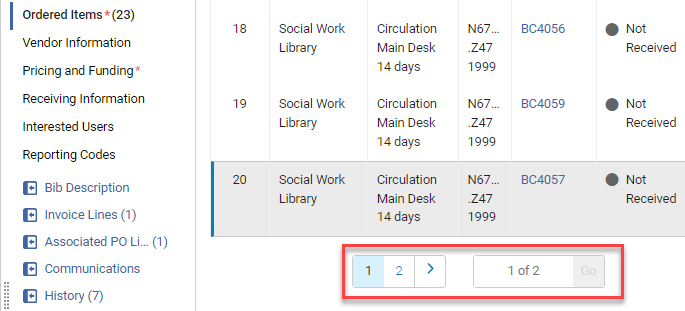
スライダーで、ページ区切りを表示するために必要な行数を変更できます。

スライダーで選択した値は、ログアウトまたはページを更新した後、Alma によって保存されます。
注文アイテムセクション (冊子リソースのみ)
冊子リソースの場合は、必要に応じてリソースをリストに追加できます。たとえば、異なる図書館のために、または異なるアイテムポリシーを使用して、印刷書籍を複数冊追加したり、継続注文明細の場合は、リストに追加の所蔵を追加したりできます。When multiple copies or holdings of a resource are included in a PO line, each distinct item appears in a separate line in this section.
The information in these sections cannot be edited directly.When an item in the list is received, the Availability and Receiving Date are updated automatically.You can view additional details about each resource in the PO line, edit some of the information about it, receive the resource,[New for February 2026] place a request for the item, or delete it from the PO line, using the row actions of the resources in the list.
Fields in the Ordered Items Section (One-Time Physical Items)
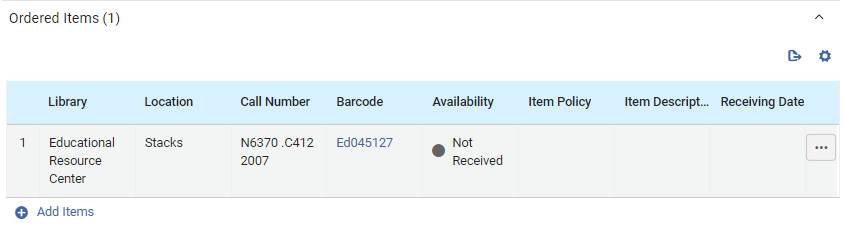
The following information is displayed in the Ordered Items section for each physical item included in a one-time PO line:
| フィールド | 説明 |
|---|---|
| 図書館 |
アイテムが注文されている図書館 This may be different from the PO-line owner specified when the new PO line was created (see PO line owner above). |
| ロケーション | 資料が配置される予定の図書館内の場所。(New for February 2026) Select this link to view the holdings record in a sliding panel. |
| 請求記号 | アイテムの請求番号。 |
|
バーコード |
アイテムに割り当てられているバーコード クリックして、冊子アイテムエディターをスライドパネルで開きます。You can view and edit information about the item there (see Updating Item-Level Information). |
|
利用可否 |
アイテムがすでに受け取られたかどうか アイテムを受け取ると、インジケータは緑色になります。 |
| アイテムポリシー | The conditions under which patrons can access or borrow the item; for more information, see Updating Item-Level Information |
| アイテム説明 | System or user-generated description as it appears in the Physical Item Editor page (see Updating Item-Level Information); normally blank for monographs and filled-in for serials.For additional information, see Description (Generate). |
| 受入日 | アイテムを受け取った場合は、受け取った日付 |
Fields in the Holdings for Ordered Items Section (Continuous Physical Items)

The following information is displayed in the Holdings for Ordered Items section for each continuous physical item included in a PO line:
| フィールド | 説明 |
|---|---|
| 図書館 |
アイテムが注文されている図書館 This may be different from the PO-line owner specified when the new PO line was created (see PO line owner above). |
| ロケーション | 資料が配置される予定の図書館内の場所。(New for February 2026) Select this link to view the holdings record in a sliding panel. |
| 請求記号 | アイテムの請求番号。 |
|
コピーID |
アイテムのコピー番号 (コピー1、コピー2、など) |
|
概要 |
書誌レコードから取得された所蔵に関する情報。 |
| 受入済アイテム |
注文明細に含まれるアイテムの総数のうち、すでに受け取った冊子アイテムの数 このリンクを選択すると、スライド パネルで [アイテムのリスト] ページが開きます。そこには、バーコード、位置情報、受け取り日など、各アイテムに関する追加情報が表示されます。Select the barcode of an item in this list to open the item in the Physical Item Editor (see Updating Item-Level Information). |
冊子アイテム情報の変更
The information in the Ordered Items/Holdings for Ordered Items sections cannot be edited directly.When the item is received, the Availability and Receiving Date are updated automatically.You can edit many of the other fields manually, receive the item, or delete it, from the row actions of the item.リソース自体を変更することもできます。
For instructions on how to receive an item
-
項目の行アクションで、編集を選択します。アイテム情報がスライドパネルで開きます。
-
必要に応じてフィールドを変更し、完了したら保存を選択します。変更が保存され、スライド パネルが閉じます。You may have to refresh the Purchase Order Lines page to see your changes reflected there.
-
In the row actions of the item, select Receive.A dialog appears where you can update the receiving information.
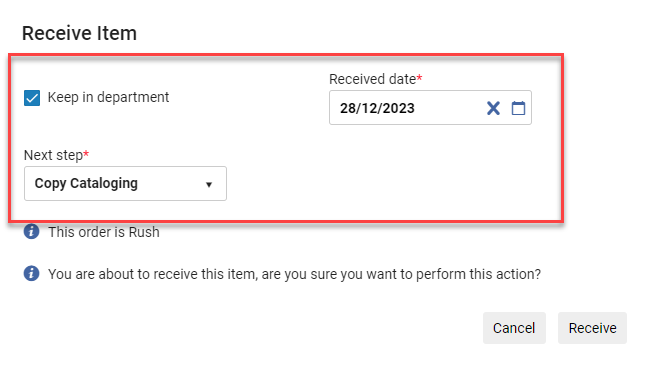 受け取り情報の更新
The department listed under Currently At directly impacts the ability to receive the item from the PO line; an error occurs if the user is not in the correct department.Furthermore, the values shown in the Next step field in the dialogue window correspond to the Currently At department.
See also Receiving Physical Material.
-
In the row actions of the item, select Delete.This performs the same action as Withdraw when receiving physical material (see Receiving Physical Material).
Adding Items or Holdings of a Physical Resource to a PO Line
You can add items to a PO line for physical resources.注文明細が単発の冊子リソース用である場合は、リソースを複数冊を注文明細に追加できます。注文明細が継続的冊子リソースに対するものである場合は、それに追加の所蔵を追加できます。
注文明細が目録なしで作成された場合、注文されたリソースのセクションにアイテムは表示されません。You can follow the procedure below to add the first item.If a PO line for a resource was created without an inventory item, it cannot proceed to packaging until inventory is manually added to it.
- 単発リソースの場合は、注文済みアイテムセクションでアイテムの追加を選択します。For continuous resources, in the Holdings for Ordered Items section, select Add Holdings.The Add Items or Add Holdings box opens.
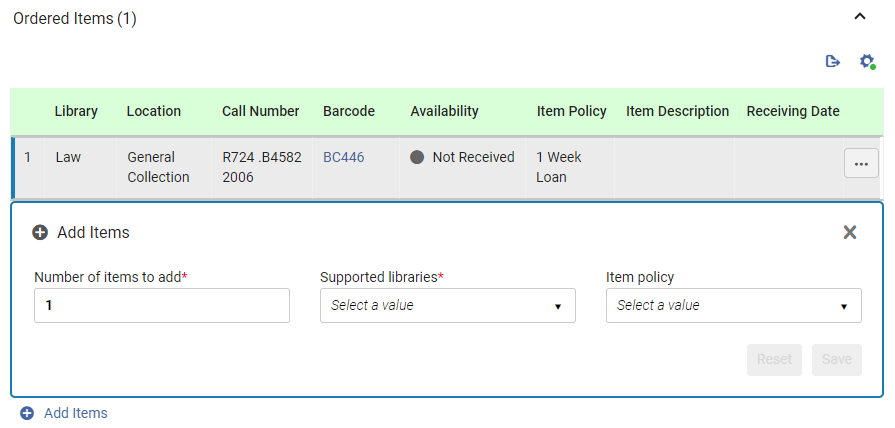
- Under Number of items to add or Number of holdings to create, enter the number of additional copies to add to the PO line for the library and location you will select in the next step.
- Under Supported libraries, select the library and location for which the items are being ordered.The list includes only those locations that can receive items of this type from the PO-line owner specified when the PO line was created (see PO line owner above).For information about creating relationships between libraries to enable the libraries to acquire items for one another, see Configuring Fulfillment Services Between Libraries Within an Institution.
- For one-time orders, select the Item policy – the conditions under which patrons will be able to borrow or access the item (optional).
- [保存]を選択します。The items are added to the PO line, and appear in the list of resources in the Ordered Items or the Holdings for Ordered Items section.(If you added more than one copy, each copy appears in the list in a separate row.)
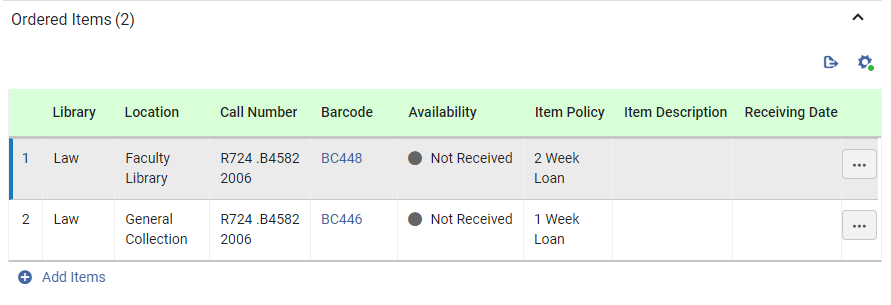
- 冊数を追加するには (たとえば、別の場所用、または別のアイテムポリシーを使用して)、もう一度アイテムの追加を選択し、上で説明したように詳細を入力します。
注文済みポートフォリオ セクション (電子リソースのみ)
注文明細の注文済みポートフォリオセクションは、電子リソースの注文に対してのみ表示されます。It displays information about the electronic resource being ordered in the PO line.You can view additional details, edit some of the information, or change the resource being ordered using the row actions of the table.
The Replace Resource function can be used to handle purchases of electronic resources whose distribution is handled by a Network Zone; see Managing PO Lines.
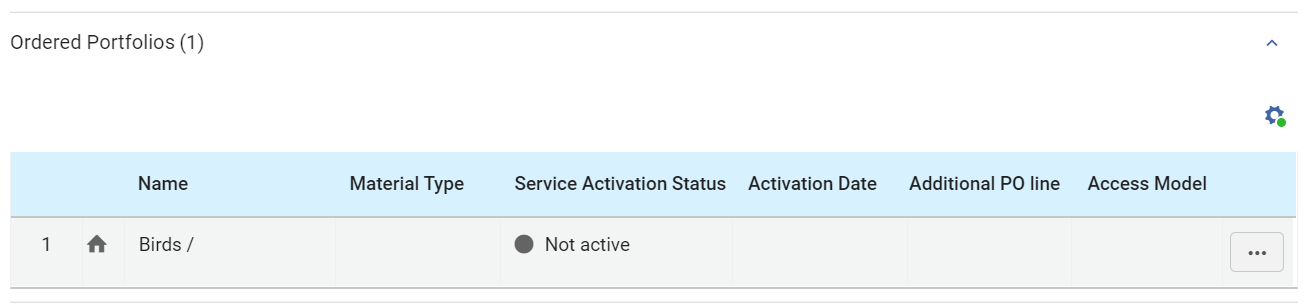
Fields in the Ordered Portfolios Section
The following information is displayed under Ordered Portfolios for the portfolio of the PO line:
| フィールド | 説明 |
|---|---|
|
ゾーンインジケーター。利用可能なリソースは青、利用できないリソースは灰色です。
|
|
| 名称 |
ポートフォリオの名前 |
| 資料タイプ | リソースの種類: 書籍、雑誌、学位論文など。 |
| サービス有効化のステータス | ポートフォリオがアクティブかどうか |
| 有効化日時 | ポートフォリオがアクティブな場合は、ポートフォリオがアクティブになった日付 |
| 追加注文明細 | 緑色のチェックマークが表示されている場合、この注文明細はこの電子リソースに関する追加の注文明細です。 |
| アクセスモデル | The access model defines how many concurrent end-users can access the electronic resource.
The Access Model column appears for the following types of PO lines:
アクセス モデルは、次の 2 つの場所のいずれかで選択または変更できます。
アクセスモデルは、注文明細情報の更新ジョブによって変更することもできます。For more information, see Managing Access Models. |
 – Institution Zone
 – Network Zone
 – Community Zone
ポートフォリオ情報の編集
電子ポートフォリオ エディターでポートフォリオに関するリポジトリ情報を表示および編集できます。For information about this editor, see Editing a Portfolio Using the Electronic Portfolio Editor.
- 注文済みポートフォリオセクションのポートフォリオの行アクションで、編集を選択します。電子ポートフォリオ エディターがスライド パネルで開きます。
- 必要に応じて情報を変更します。
- 保存を選択します。リポジトリ情報が更新され、スライドパネルが閉じます。
Changing the Portfolio Being Ordered
注文明細で注文されているポートフォリオを変更できます。
For additional information about this option, see Replacing the Resource Associated with an Electronic PO Line.
- 注文済みポートフォリオセクションのポートフォリオの行アクションで、リソースの置換を選択します。The Electronic Portfolios page opens in a sliding panel, with the persistent search bar at the top.システム設定によっては、リソースをリポジトリに保持するか削除するかを選択するよう求められる場合があります。その場合は、いずれかのオプションを選択し、保存を選択します。削除することを選択した場合でも、リソースは他の目録に関連付けられていない場合にのみリポジトリから削除されます。
- In the persistent search bar, search for the portfolio you want order instead of the current portfolio.
- リソースを選択し、選択ボタンを選択します。スライド パネルが閉じ、選択したポートフォリオが注文明細の前のポートフォリオに置き換わります。
Adding Inventory to a PO Line for an Electronic Resource
必要に応じて電子注文明細に目録を追加できます。これを行うには、ポートフォリオ レコードに注文明細を追加する必要があります。注文明細の作成時に目録を追加しないことを選択した場合、注文明細にポートフォリオを手動で追加するまで、注文済みポートフォリオセクションは空になります。
- Search for the electronic portfolio that you want to add (see Searching in Alma).
- Select Edit Portfolio.[電子ポートフォリオエディタ]ページが表示されます。
- In the Acquisition tab, in the PO Line field, select the PO line.
- [保存]を選択します。ポートフォリオが注文明細に追加され、注文済みポートフォリオセクションに表示されます。
注文済みコレクションセクション(電子リソース)
The Ordered Collections section of the PO line appears only for orders of electronic resources.It displays information about the electronic resource being ordered in the PO line.You can view additional details, edit some of the information, or change the resource being ordered using the row actions of the table.
The Replace Resource function can be used to handle purchases of electronic resources whose distribution is handled by a Network Zone; see Managing PO Lines.
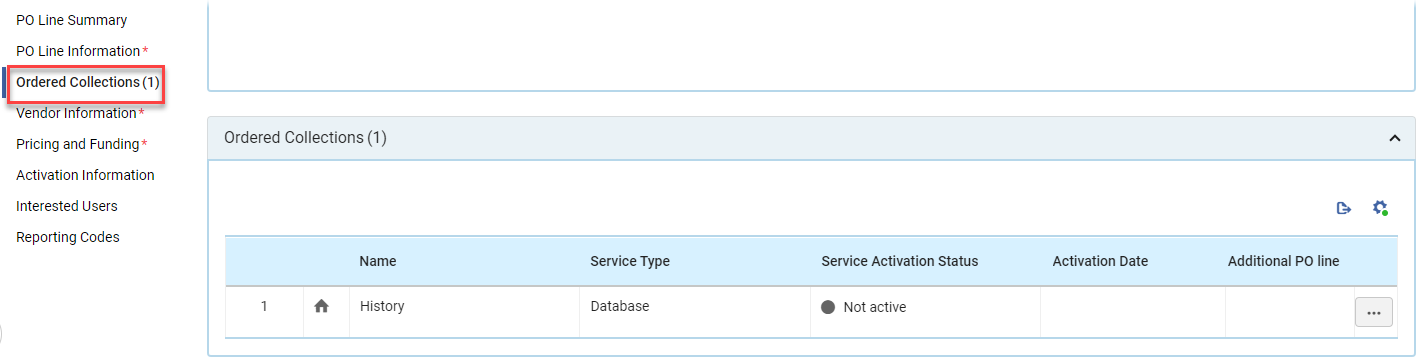
Fields in the Ordered Collections Section
The following information is displayed under Ordered Collections for the collection associated with the PO line:
| フィールド | 説明 |
|---|---|
|
ゾーンインジケーター。利用可能なリソースは青、利用できないリソースは灰色です。
|
|
| 名称 | コレクションの名前 |
| サービスタイプ | サービスのタイプ: データベース、アグリゲータパッケージ、セレクターパッケージなど。 |
| サービス有効化のステータス | コレクションがアクティブかどうか |
| 有効化日時 | コレクションがアクティブな場合は、コレクションがアクティブになった日付 |
| 追加注文明細 | 緑色のチェックマークが表示されている場合、この注文明細はこのコレクションに関する追加の注文明細です。 |
コレクション情報の編集
電子コレクションエディターでコレクションに関するリポジトリ情報を表示および編集できます。For information about this editor, see Managing Electronic Resources.
- In the Ordered Collections section, in the row actions of the collection, select Edit.電子コレクションエディターがスライドパネルで開きます。
- 必要に応じて情報を変更します。
- 保存を選択します。リポジトリ情報が更新され、スライドパネルが閉じます。
Changing the Collection Being Ordered
注文明細で注文されているコレクションを変更できます。
For additional information about this option, see Replacing the Resource Associated with an Electronic PO Line.
- In the Ordered Collections section, in the row actions of the collection, select Replace Resource.The Electronic Collections page opens in a sliding panel, with the persistent search bar at the top.システム設定によっては、リソースをリポジトリに保持するか削除するかを選択するよう求められる場合があります。その場合は、いずれかのオプションを選択し、保存を選択します。削除することを選択した場合でも、リソースは他の目録に関連付けられていない場合にのみリポジトリから削除されます。
- 永続検索バーで、現在のコレクションの代わりに注文したいコレクションを検索します。
- リソースを選択し、選択ボタンを選択します。スライドパネルが閉じ、選択したコレクションが注文明細の前のコレクションに置き換わります。
Adding Inventory to a PO Line for an Electronic Collection
必要に応じて電子注文明細に目録を追加できます。To do so, you must add the PO line to the collection record.
- Search for the electronic collection that you want to add (see Searching in Alma).
- Select Edit Collection.[電子コレクションエディタ]ページが表示されます。
- In the General tab, in the PO Line field, select the PO line number.
- [保存]を選択します。The collection is added to the PO line and appears in the Ordered Collections section.
注文済み表現セクション (デジタル リソースのみ)
注文明細の注文された表明セクションは、デジタル リソースの注文、つまり教育機関が所有し、独自のリポジトリに保存するファイルを提供することによって履行される 1 回限りまたは継続的な注文に対してのみ表示されます。The section displays information about the digital resource being ordered in the PO line.最初は、すべてのデジタル注文明細が目録なしで作成されます。In order to save the PO line and continue processing it, you must associate it with a collection, and upload one or more files to it.
For additional information about working with digital representations, see Adding Representations and Editing Representation Metadata and Content.
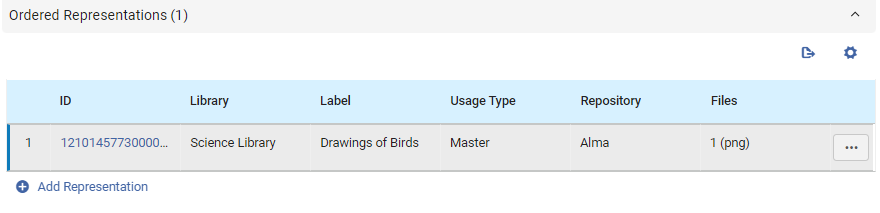
Fields in the Ordered Representations Section
The following information is displayed under Ordered Representations for each representation in the PO line:
| フィールド | 説明 |
|---|---|
| ID |
Almaによって表現に割り当てられた識別番号 |
| 図書館 |
所蔵図書館 |
| ラベル | An optional label identifying the representation; this label appears in the repository search results when selecting View It. |
| 使用タイプ | Options are Derivative, Master, or Auxiliary (The master is the original copy, the derivative is, for example, a copy with a lower resolution, and auxiliary is a representation that is supplementary to the main representation, for example, a table of contents). |
| リポジトリ | 表現ファイルが保存される場所 |
| ファイル | 表現ファイルの名前 |
Adding Inventory to a PO Line for a Digital Representation
デジタル注文明細には少なくとも 1 つのファイルを追加する必要があります。必要に応じてファイルを追加できます。手動で注文明細に表現を追加するまで、注文された表現セクションは空です。デフォルトでは、Almaは表現ファイルを独自のリポジトリに保存します。代わりに、それらをリモート リポジトリに保存することを選択できます。
- In the Ordered Representations section, select Add Representation.「表現の詳細」ページがスライド パネルで開きます。The Title,Library and PO Line are pre-populated as they are inherited from the PO Line.
- Select a Collection with which to associate the representation.Note that you cannot add files to the PO line until you select a collection in which to include them.
- 表現ファイルをリモート リポジトリに保存する場合は、表現の詳細で、リモートを選択します。リモート表現の詳細セクションがページに追加されます。Enter the information about the repository in this section.
- 必要に応じて他のフィールドに入力します。
- Under File Details, select the representation file.ファイルがリポジトリにアップロードされます。
- Select Save.The representation is attached to the PO line, the sliding panel closes, and the PO line's Details pane is once again fully visible.
- [保存して続行]を選択します。注文明細はキャンセルされます。Depending on the type of PO line, its status (workflow step) is updated in one of the following ways:
- One Time PO Line: The PO line moves directly from In Review to Closed.
- Continuous PO Line: The PO line moves from In Review to either Recurring Renewal(if it is configured for automatic renewal) or Waiting for Manual Renewal(if it is configured for manual renewal).注文明細に対して追加の表現を受け取った場合、それらを手動で目録に追加する必要があります。
デジタル表現情報の表示
You can open the Digital Representation Resource Editor from the row of a representation, and view information about the representation.You can also deliver or download the representation from the Files tab of the editor.For information about this editor, see Editing Representation Metadata and Content.
- 注文済み表現セクションの表現の行で、表現のIDを選択します。The Digital Representation Resource Editor opens in a sliding panel.
請求セクションの項目
The Items in Claim section appears in the Details pane when any of the items in the PO line are in claim.また、資料を受け取ったり、受取情報を変更したり[2026年2月開始]、このセクションで資料のリクエストを送信したりすることもできます。Since this section never appears in a newly created PO line, it is documented under Processing Claims.
ベンダー情報セクション
You can enter information about the intended supplier of the item, vendor reference information, the terms of the purchase, as well as a note to the vendor, in the Vendor Information section.
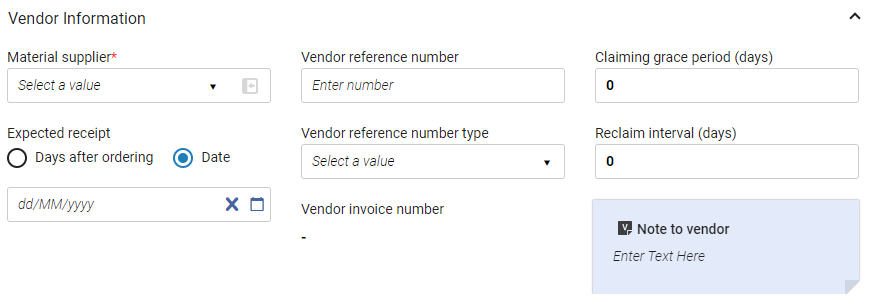
The Vendor Information section contains the following fields:
| フィールド | 説明 |
|---|---|
|
データプロバイダ (必須) |
注文されている資料を供給するベンダー。クイックピックリストから選択します。 When a vendor is selected in this field, you can open its Vendor Details page (see Managing Vendors) in a sliding panel, as follows:
|
|
アクセスプロバイダー (電子アイテムのみ) |
注文されている資料のベンダーインターフェース。クイックピックリストから選択します。See Editing Vendor Interface Information. |
| クレーム猶予期間(日数) | A grace period (in days) after the expected receipt/activation date, after which the PO line is sent to the claims task list (see Processing Claims).デフォルト値は、単発注文明細についてはベンダーアカウントの詳細ページ(受入 > 受入インフラストラクチャ > ベンダー)のクレーム猶予期間フィールドから、継続注文明細についてはベンダーアカウントの詳細ページのサブスクリプション猶予期間フィールドから取っています。 |
| 受け取り/アクティベーション予定 |
注文を受け取る予定の時期 (冊子アイテムの場合)、または注文がアクティブ化される予定の時期 (電子アイテムの場合) 次のいずれかを選択し、オプションの下のフィールドにそれに応じて入力します。
This value is used to calculate the claim date (see Processing Claims). このフィールドは、目録なしで注文明細を作成する場合は表示されません。
Primo Get It への影響: 値がこのフィールドに入力された場合、c.uresolver.getit2.item_list..ACQ.with_expected_dateラベルがPrimo Get Itタブで呼び出され、<日付>まで注文として表示されます。 値がこのフィールドに入力されていない場合、c.uresolver.getit2.item_list..ACQ.with_no_expected_dateラベルがPrimo Get Itタブで呼び出され、注文中として表示されます。 You can customize the values that appear by using the Discovery Interface Labels Code Table page (see Configuring Labels). 継続注文のラベルを呼び出すには、予測パターンで所蔵レコードを作成します。See Prediction Patterns. |
|
オーダー後の電子アクティベーション期限(日) (電子アイテムのみ) |
注文後、有効化タスクの期限が切れるまでの日数。When the due date passes, the Notify E-Activation Due letter is sent to the user that is assigned the e-resource activation task and an alert is displayed in the user's list of tasks.For information on creating a default due date, see Configuring Other Settings.For more information, see Managing Electronic Resource Activation.
For more information, see the Activating Electronic Resources video (6:40 mins). |
|
購読インターバル (継続的冊子アイテムのみ) |
The receipt interval, in days, of the continuous order (such as 30 for monthly, 90 for quarterly, and so forth). This value is used to calculate the claim date, unless prediction patterns are in use (see Processing Claims;Prediction Patterns). When using Prediction Patterns, the Subscription Interval should be the best estimate of the number of days, relative to the date of publication, that the issue arrives in-house. For information on handling items with different receiving intervals, see the explanation for the Technical acquisition method in the Acquisition Methods table. |
| リクレーム間隔(日) | データが入力されると、Almaは最初のクレームレターが送信された後に、定義された間隔でリクレームレターを送信します。フィールドにデータが入力されていない場合、リクレームレターは送信されません。このフィールドが「仕入先アカウントの詳細」ページに入力されると、特定の仕入先アカウントが選択されたときに、注文明細ページのこのフィールドに自動的にコピーされます。If the value in Reclaim Interval (days) field in the PO line details page is modified, that value takes precedence and becomes the actual value. |
| ベンダーレファレンス番号 | ベンダーによって提供された、Almaの注文明細のレファレンス番号。Almaの注文明細を識別するためのマッチングポイントとして機能します。
EDIベンダーと通信する場合、SLIフィールドはベンダーレファレンス番号が一致するポイントです。LIフィールドは、注文明細レファレンス番号のマッチングポイントです。 This field is also used as a matching point for Update Inventory import profiles. |
| ベンダーレファレンス番号種別 | ベンダーレファレンス番号のタイプ。利用可能なオプションは、Ex Librisによって事前定義されています。 |
| ベンダー請求書番号 | 注文明細がEODファイルからアップロードされたときに表示されます。See Importing Records Using an Import Profile.このフィールドは、他のタイプの注文明細では使用されません。 |
| ベンダー向けメモ | 注文明細とともにベンダーに渡すメモを入力します。 |
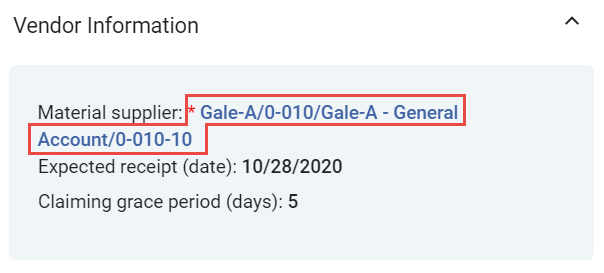
 ).
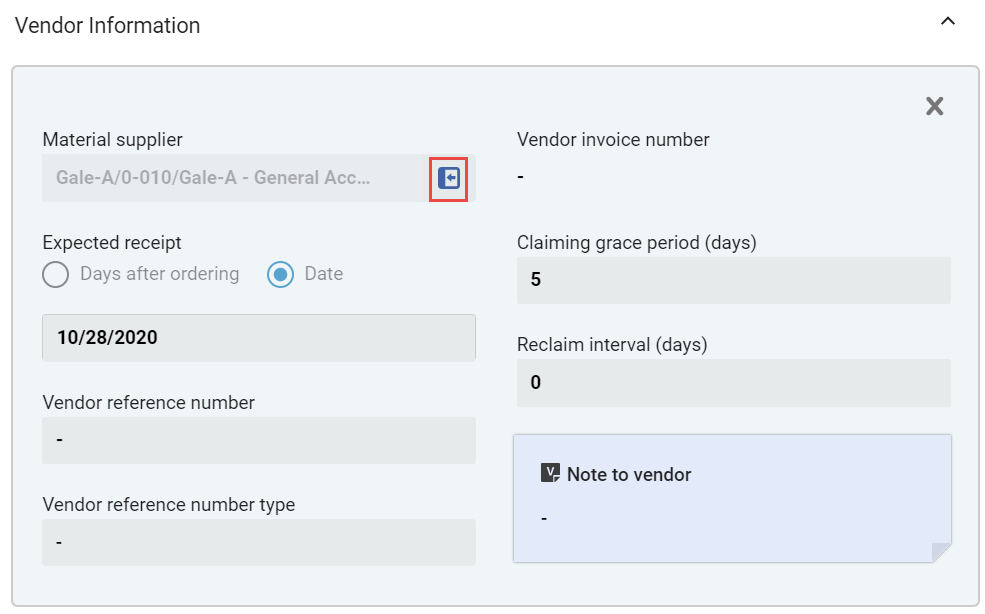
Pricing and Funding Section
「価格設定と資金調達」セクションには、注文されたアイテムの価格、注文の合計コスト、および購入に支払われる予算に関する情報が含まれています。
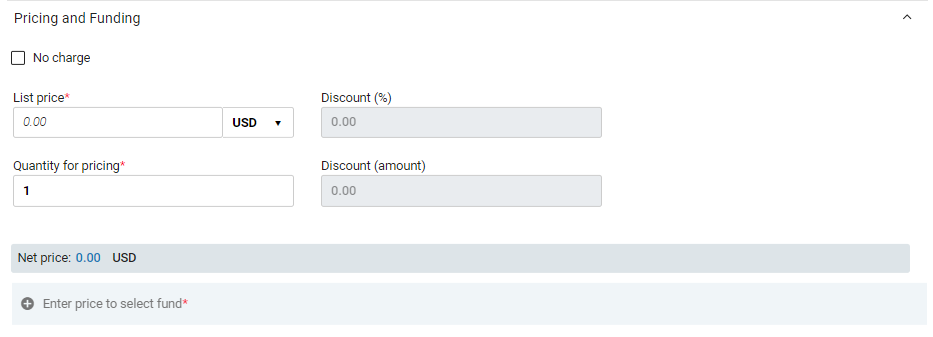
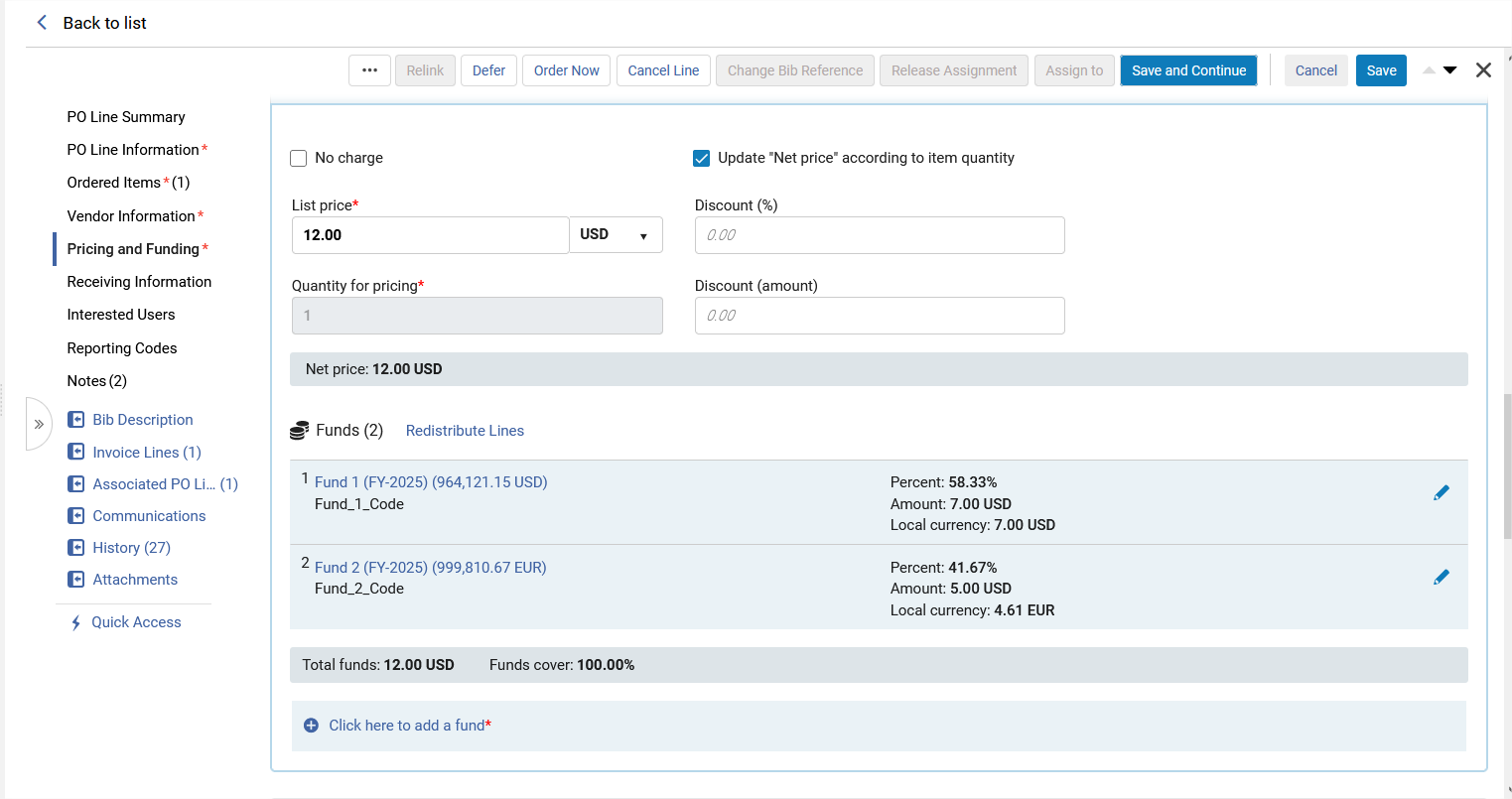
価格設定と資金調達セクションには次のフィールドが含まれます。
| フィールド | 説明 |
|---|---|
| 無料 |
If you need to create a PO line without any charge, but the Acquisition method is one that normally requires pricing and funding information, select this checkbox.When this option is selected, the Pricing and Funding section is hidden, and Alma does not allow encumbrances to be created for the order. The following acquisition methods normally require pricing and funding information, and therefore provide the No charge option:EBA,Purchase,Approval Plan, and Purchase at Vendor System. If this option is selected after an order is created and encumbrances are recorded for the PO line, these transactions are deleted. |
| アイテムの数に応じて正価を更新 | (物理的資料の注文明細にのみ関連)
これは、価格設定の数量フィールドの注文アイテムの数に影響します。チェックボックスが選択されている場合、ユーザーがアイテムを追加または削除すると、価格設定金額の数量が自動的に更新され、その結果、正価フィールドも更新されます。 The Update "Net price" according to item quantity checkbox is selected by default when creating new PO lines.To clear this checkbox by default for newly created PO lines, go to Configuration Menu > Acquisitions > Other Settings, customize the po_line_quantity_updated_with_items_number parameter, and set it to False. EOD/APIによって作成された注文明細では、デフォルトで新しいチェックボックスが有効になっていません。 |
| 記載価格(必須) | アイテムの一冊分の記載価格、およびこのフィールドの右側のフィールドから通貨を選択します。1より小さい値の場合、先頭に0を入力します。たとえば、.44ではなく0.44です 。 |
| 総価格 | 支払われるアイテムの数。1から100の間の数値を示します。注文明細の総額は、価格の数量に記載価格を乗じたものに等しくなります。
Note that the Quantity for pricing and the Number of items to add(when adding items to the PO line in the Ordered Items section) may be different if you have obtained discounted pricing through a deal such as "buy two items and get a third item at no additional charge." |
| 割引(%) | 適用される割引 (あてはまる場合)。Almaは、一冊ごとの記載価格、割引、注文された冊数に基づいて、注文明細の総額を自動的に計算します。注文明細の総額は、合計金額フィールドに表示されます。
ベンダーが定義済みのアカウント割引率を持っている場合、この値は事前入力されています。See Adding a Vendor and Vendor Account.Note that updating the parameters of the vendor account only impacts PO lines created after the change is made; it does not automatically update all existing PO lines from this vendor account. |
| 割引額 | このフィールドを使用すると、自動的に計算されて[割引(%)]フィールドに反映される特定の割引額を挿入できます。
Almaは実際の正味価格を反映するために、常に[割引(%)]フィールドを確認します。ユーザーが[割引額]フィールドに入力すると、正味価格と正規価格の間に0.01の差が生じる場合があります。 |
| 現在のFPで支払った金額 | 現在の会計期間中にこれまでに支払われた合計金額。このフィールドは、注文明細作成後に表示または編集する場合と、サブスクリプション注文の場合にのみ表示されます。これは、注文明細が編集のために開かれたときにその場で計算され、Almaには保存されません。したがって、検索できません。 |
| 予算を追加するにはここをクリックしてください |
Select this link to add a fund to the PO line.An Add Fund box opens. it contains the following fields:Fund name,Percent,Amount.Fill in the fields as explained below.完了したら、ボックスの下部にある保存を選択します。予算情報が予算の下に追加されます。 デフォルトのオプションは100%が割り当てられた1つの予算ですが、注文明細のコストを複数の予算に分配できます。To add additional funds to the PO line, repeat this process for each fund you want to add, stipulating the part of the cost to be covered by each fund in its Percent or Amount fields, as explained below.See also Redistribute Lines, below. Once the funds are added, they are listed under Funds, with information about the cost they are covering.The fund names in the list are links that can be selected to open a sliding panel in which information about transactions related to the PO line for that fund is displayed. 注文明細が保存されると、ここに入力された情報に従って各予算の債務取引が作成されます。 |
| 予算名 | クイックピックリストから予算を選択します。
注文明細の所有者のライブラリにサービスを提供し、有効で、割り当てられていて、現在の会計期間でカバーされている場合、または予算ルールが会計期間外の負債を許可している場合は、注文明細で予算を使用できます。予算は注文時に残高が必ずしもあるとは限りません。 When a fund is selected in this field, select its name to open its fund record (see Managing Funds and Ledgers) in a sliding panel, with the Transactions tab selected and showing all the transactions related to this PO line for this fund.The link is available in both View and Edit modes.
|
| パーセント | 記載価格値の割合がまだ予算割り当てに利用できます。金額フィールドが更新されると、それに応じてこのフィールドの値が更新されます。 |
| 金額 | 記載価格値の金額がまだ予算割り当てに利用できます。パーセント値が更新されると、それに応じてこのフィールドの値も更新されます。 |
| 現地通貨 | The value in the Amount field, given above, in the local currency (converted, if necessary) |
| 再分配ライン | If an amount other than 100% is allocated to funds, select Redistribute Lines to re-allocate the fund amount percentages, based on each fund's relative portion of the current total amount.たとえば、予算が 2 つあり、それぞれが注文明細の合計コストの 80% をカバーするように設定されており、合計でコストの 160% をカバーする場合、明細の再分配はそれぞれを合計の 50% をカバーするように修正します。Alternatively, if one of the funds is configured to cover 50%, and the other 25%, for a total coverage of 75%, Redistribute Lines would correct the first to 66.67% and the second to 33.33%. |
| 正価 | このセクションの前フィールドの情報に基づいて、注文明細の合計コストが表示されます。 |
| 予算の合計 | 選択した資金の合計金額を表示します。 |
| 予算カバー | 選択した予算がカバーする正価の割合。 |

情報受信セクション (冊子リソースのみ)
情報の受け取りセクションでは、何らかの要件や問題があった場合にアイテムを受け取るユーザーが認識できるようにするため、冊子リソースの注文明細に受け取りプロセスに関する情報を追加します。このセクションでは、リソースを急ぎとしてマークすることもできます。

You can can receive items and modify the receiving information from the Ordered Items section (see Modifying Physical Item Information) and from the Items in Claims section (see Items in Claims Section).
The Receiving Information section contains the following fields:
| フィールド | 説明 |
|---|---|
| 急ぎ |
このアイテムの注文を急ぎたいかどうか。The rush icon In addition, the item is marked as Rush( |
| 受入中のルーティング | 選択した場合、注文がルーティング対象としてマークされ、図書館員が関心のあるユーザーのリストを印刷する必要があることを知らせる確認メッセージが注文明細の受入時に表示されます。For details on receiving physical material, see Receiving Physical Material. |
| 受入中の製本 | 選択した場合、注文が製本用にマークされていて、製本用に送信する必要があることを司書に知らせる確認メッセージが、注文明細を受入したときに表示されます。For details on receiving physical material, see Receiving Physical Material.Also see Binding (Merging) Items. |
| 受入メモ |
Enter any information that the person receiving the item should be aware of.For example, indicate the intended location of serial or standing order items for which no inventory items are created. The contents of the receiving note is displayed both in the PO line and in the Receive New Material page (Acquisitions > Receiving and Invoicing > Receive; see Receiving Physical Material).The note is limited to 4000 characters, but can be modified at any time. 目録なしで注文明細行を移行する場合、このフィールドにはアイテムの永続的な場所の図書館/場所情報が含まれます。 このフィールドには複数行のテキストを入力できますが、これらの行は改行なしで1つのテキストブロックとして表示されることに注意してください。 |
 ) in the Receive New Material page (
Activation Information Section (Electronic Resources Only)
The Activation Information section is where you add information about the license and access model of an electronic resource.You can also mark the resource as Rush, and add an Activation note for the Activation Operator to see when they are activating the resource, if you wish.
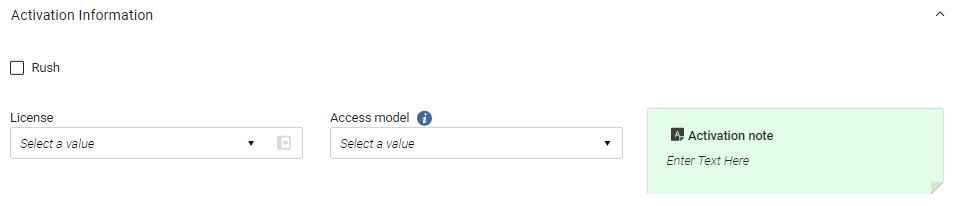
The Activation Information section contains the following fields:
| フィールド | 説明 |
|---|---|
| 急ぎ | このアイテムの注文を急ぎたいかどうか。The rush icon  appears in the item's row in PO-line task lists. |
| ライセンス | インベントリリストに表示されるリソースに関連付けるライセンスをクイックピックリストから選択します。For more information on licenses, see Managing Licenses and Amendments. |
| アクセスモデル |
アクセス モデルは、電子リソースに同時にアクセスできるエンド ユーザーの数を指定します。ドロップダウン リストからリソースの正しいアクセス モデルを選択します。 For additional information, see Access Model and Managing Access Models. |
| メモを有効化 | リソースのアクティブ化を実行するスタッフが知っておくべき情報を入力します。メモの長さに制限はなく、メモはいつでも変更できます。Activation notes are displayed in the Electronic Resource Activation Task List page (Resources > Manage Inventory > Manage Electronic Resource Activation; see Activating Electronic Resources and Activation Task List), where electronic resources are activated. |
更新情報(継続注文のみ)
For continuous orders like subscriptions, order-renewal information is configured in the Renewal Information section.
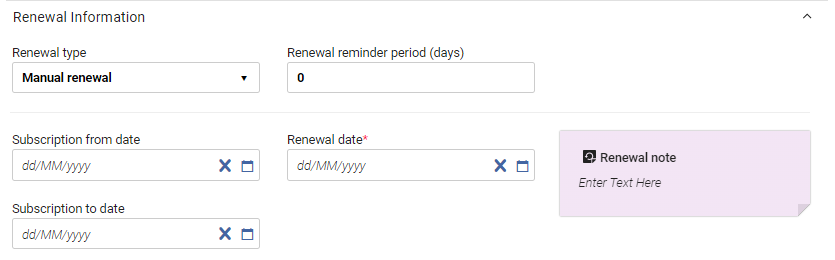
For information about managing renewals, see Processing Renewals.
更新情報セクションには次のフィールドが含まれます。
| フィールド | 説明 |
|---|---|
| 更新タイプ |
次のオプションのいずれかを選択します Manual renewal – When the date earmarked by the Renewal reminder period (days) arrives, the PO Line renewal job changes the Workflow Step of the PO line from Recurring Renewal to Waiting for Manual Renewal.注文明細が更新タスクリストに表示されます。サブスクリプションを更新するには、オペレーターが注文明細を手動で編集して、更新日を将来の日付に変更する必要があります。 Automatic renewal – When the renewal date arrives, the PO Line renewal job automatically changes the renewal date to the previous renewal date plus the period of time specified under Renewal cycle.注文明細のステータスは、引き続き「定期的な更新」となります。 |
|
更新リマインダー期間(日) (手動更新のみ - 必須) |
手動更新の場合、更新日前にオペレーターが更新について通知することを希望する日数(つまり、更新日前にオペレーターがタスクリストに更新を追加することを希望する日数)(受入 > 発注ライン > 更新)。例えば、更新日が5月の10日で更新リマインダー期間が5の場合、更新は5月の5日にタスクリストに追加されます)。
このフィールドに入力できる最大日数は120日です。 |
| 更新サイクル | For automatic renewals, the period of time after which each renewal should take place — for example, 1 year. |
| サブスクリプション開始日 | 注文明細のサブスクリプションが開始された日付。 |
| 更新日(必須) |
注文明細を更新する次の日付:
次の購入方法は、通常の購入ワークフローを表していないため、更新日は必須ではありません。
|
| サブスクリプション終了日 |
サブスクリプションの最終日:
この日付は、サブスクリプションの最後の日を示しているので、更新日と混同ないでください。For example, if you take out a subscription for five years that must be renewed annually (Renewal cycle= one year), the Subscription to date is the last day of the five-year period.
|
Interested Users Section
In the Interested Users section, you manage the users interested in the acquisition.関心のあるユーザーには、注文明細の変更が常に通知されます。You can configure whether an interested user is also notified when the item is received or activated, renewed, or cancelled, and whether a hold is placed on the item for the user.The notification is sent as an Interested In letter (see Configuring Alma Letters).
When the PO line was created from an approved purchase request, the requester is automatically defined as an interested user.In this case, the requester's notification settings are initially set based on the configuration of the following customer parameters (in Configuration Menu > Acquisitions > General > Other Settings):po_line_hold_item_for_interested_users,po_line_notify_interested_users_upon_cancellation,po_line_notify_interested_users_upon_receiving_activation,po_line_notify_interested_users_upon_renewal.For additional information, see Configuring Other Settings (Acquisitions).
The item's request date is the same as the order date.アイテムに関する他のリクエストが存在する場合、リクエストの優先度は、機関によって設定された役割に従って処理されます。The pickup location is the circulation desk of the item's location, as specified in the PO line.
- The Interested Users section appears only in PO lines that have inventory.注文明細タイプ・マッピング・テーブルで一般の資料タイプで定義された注文明細タイプには、このセクションがありません。For information on the PO line type mapping table, see Enabling/Disabling PO Line Types.
- To delete interested users on closed and canceled PO lines, use the po_line_remove_interested_users parameter (see Configuring Other Settings (Acquisitions)).When the weekly PO Line - Delete interested users system job runs, all applicable interested users are removed (see Viewing Scheduled Jobs).
- Select Add interested users.
- In the box that opens, search for the user, and then select their name.The user is added as an interested user, and a pop-up opens in which you can select various options and see the user's contact information.
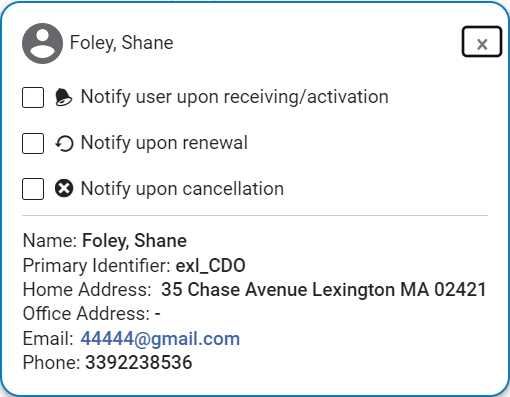
- ポップアップで、次のオプションのいずれかまたはすべてを選択します (使用可能な場合)。
- 受入/有効化時にユーザーに通知 – 選択すると、アイテムが図書館の受入部署に到着したときに、Almaがユーザーにメールを送信します。これが選択されていて、ユーザーのメールアドレスが設定されている場合にのみ、メールが送信されます。
- アイテムを保留 – このオプションは、物的アイテムを操作する場合にのみ表示されます。選択すると、Almaは、アイテムが取得部門を離れるときに取り置きリクエストを作成しますが、それ以前ではありません。アイテムが部署に保管されている場合は(受入部署へのワークオーダーリクエストが存在します)、受信後処理が完了した時点で取り置きリクエストが作成されます。取り置きリクエストが作成されると、リクエスターは注文明細から関心のあるユーザーになり、作成者は受信オペレーターになります。The item's request date is the same as the PO line's order date.アイテムに関する他のリクエストが存在する場合、リクエストの優先度は、機関によって設定された役割に従って処理されます。The pickup location is the circulation desk of the item's library, as specified in the PO line.This library must have a circulation desk with a hold shelf.
- 更新時に通知 – このオプションは、継続注文の場合にのみ表示されます。When selected, Alma sends the Notify Upon Renewal letter to the user when the order is sent to manual renewal.これが選択されていて、ユーザーのメールアドレスが設定されている場合にのみ、メールが送信されます。このオプションはデフォルトでクリアされています。
- Notify upon cancellation- When selected, Alma sends an email to the user when the order is cancelled.これが選択されていて、ユーザーのメールアドレスが設定されている場合にのみ、メールが送信されます。このオプションはデフォルトでクリアされています。
- Select Close(
 ) or click outside the box, to close the pop-up.ユーザーは関心のあるユーザーとして追加されます。

To reopen the pop-up in order to view the contact information or change the settings, select the user icon
 .
報告コードセクション
The Reporting Codes section contains fields in which you can select values for additional acquisitions classifications that are defined in your institution.These reporting codes can be used in analytics for analyses of acquisitions data.Up to five reporting codes may be configured for your institution:
- 1st reporting code
- 2nd reporting code
- 第3レポートコード
- 第4レポートコード
- 第5レポートコード
For additional information, see Configuring Reporting Codes.
メモセクション
In the Notes section, you can add, update, or delete notes for the PO line.For details, see New Layout 2022.
書誌説明セクション
This section opens in a sliding panel, rather than in the Details pane itself (as indicated by the link icon ).将来的には、詳細ペインに移動される予定です。
The Bib Description section contains additional information about the resource being ordered.All fields except Identifier Type are free text and for informational purposes only.Which fields appear depends on the Purchase type that was selected when the PO line was created, as specified in the table below.
注文明細説明は、注文明細の作成時に作成されるエンティティで、関連レコードの書誌情報に接続されておらず、影響も受けません。注文明細がタイトル化学入門用に作成されている場合、この手段は、例えば、注文明細説明のタイトルは、化学入門になります。If, at a later point in time, the title is changed to Introduction to Organic Chemistry, the PO line description title will not automatically change.書誌レコードのタイトルを変更した結果、注文明細の説明タイトルを更新したい場合は、次のいずれかの方法で更新できます。
- In the row actions of the PO line, select Change Bib Reference.
- In the Bib Description section, select the Reload Bib Data button.You can configure Alma to automatically update the Bib Description (and related PO line description) by enabling the po_line_description_update_upon_bib_change parameter (see Other Settings).
To edit the Bib Description, the PO Line needs to be in View mode (before selecting Edit or after selecting Save).
| 購入タイプ | 書誌説明フィールド |
|---|---|
|
|
|
|
|
|
|
|
|
|
|
|
|
|
請求書明細セクション
This section opens in a sliding panel, rather than in the Details pane itself (as indicated by the link icon).将来的には、詳細ペインに移動される予定です。
The Invoice Lines section contains information about any invoice lines associated with the PO line, which can be viewed, added, or edited.注文明細が最初に作成されたときは、もちろん空白です。For information on invoice lines, see Creating an Invoice From a PO or Manually.
- 使用可能なオプションは、権限によって異なります。
- 注文明細は、多くの請求書明細に関連付けられていますが、請求書明細はひとつの注文明細にのみ関連付けられています。
関連付けられた注文明細
This section opens in a sliding panel, rather than in the Details pane itself (as indicated by the link icon).将来的には、詳細ペインに移動される予定です。
The Associated PO Lines section contains information about the PO lines that are associated with the current PO line.注文明細の関連付けは情報提供のみを目的としており、機能的な効果はありません。注文明細は、次のいずれかの理由でリストに表示されることがあります。
- They were associated automatically with this PO line by Alma – for example, other PO lines for the same title.
- They were manually associated with the current PO line in theirAssociated PO line fields in theirPO Line Information sections.
If the current PO line is associated with a target PO line (which is the reverse of the relationship of the PO lines appearing in this section), the target PO line appears in the Associated PO lines field in the PO Line Information section of the current PO line.
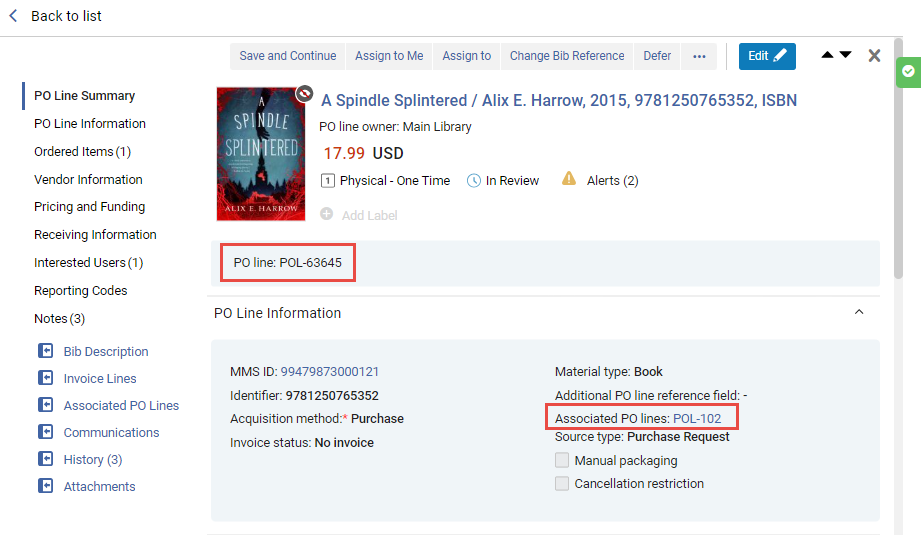
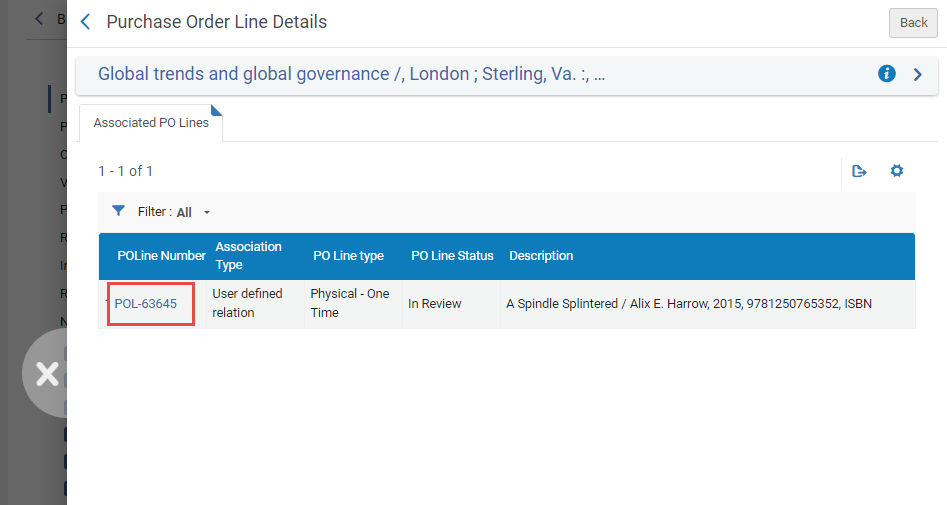
関連付けられた注文明細のリストは、関連付けタイプ列でフィルタリングできます。You can select one of the following filter options:
- All- Display all associated PO lines, regardless of the user's scope.これは情報提供のみを目的としています。Note that only those which are in the users scope can be managed in the PO lines list.
- Same title- Display only those associated PO lines that are for resources with the same title as the resource of this PO line.
- Same Inventory Resource- Display only those associated PO lines that are for the same item (or portfolio or representation) as this PO line.
- User defined relation- Display only those associated PO lines that were manually associated with this PO line by a user.
ベンダーセクションとの通信
This section opens in a sliding panel, rather than in the Details pane itself (as indicated by the link icon).将来的には、詳細ペインに移動される予定です。
通信タブで、ベンダーと新しい通信を開始するか、通信が既に存在する場合は、ベンダーからの返信の詳細を入力および/またはベンダーへの返信で通信をフォローアップすることができます。For details on this section, see Managing PO Lines.
履歴セクション
This section opens in a sliding panel, rather than in the Details pane itself (as indicated by the link icon).将来的には、詳細ペインに移動される予定です。
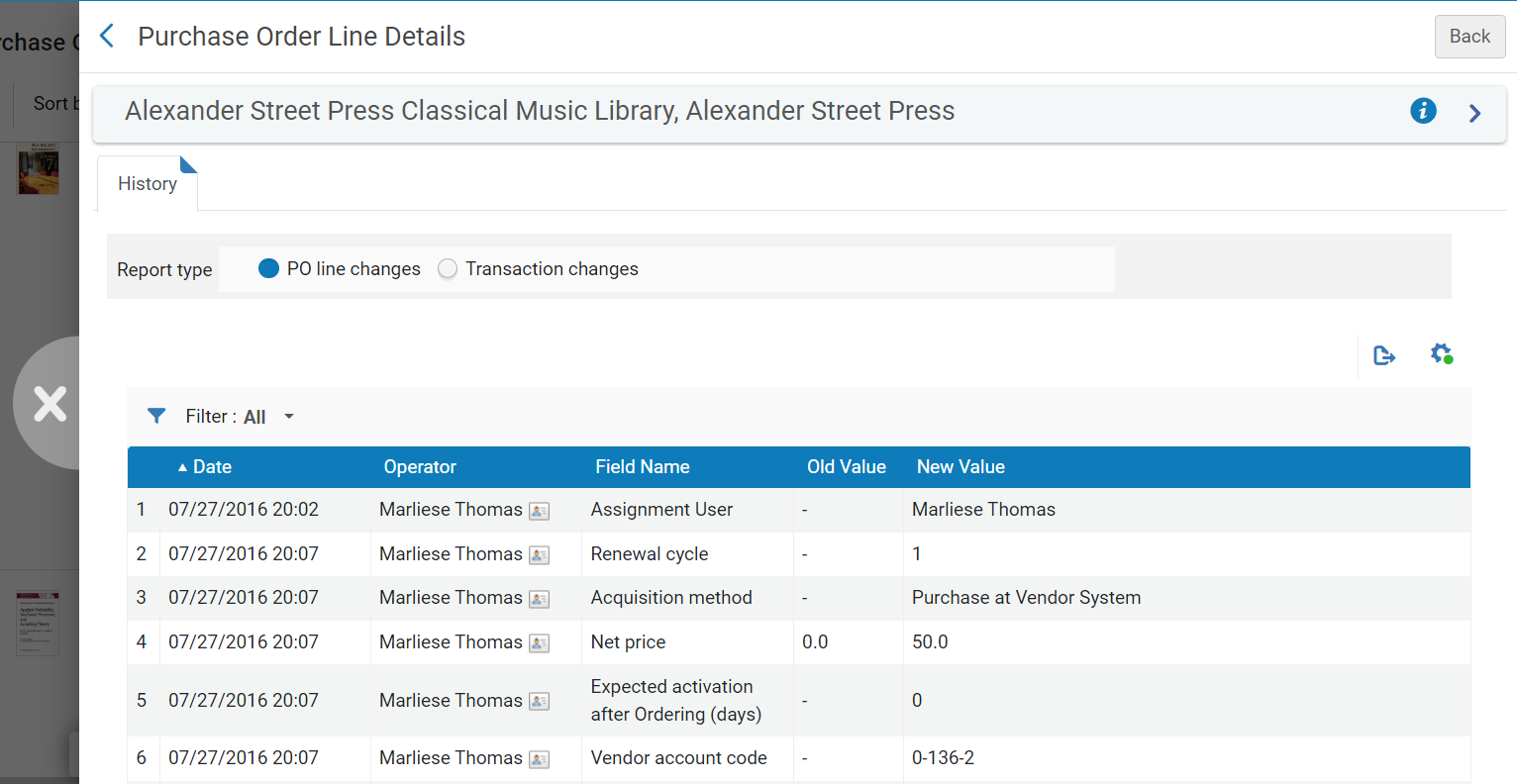
The History section contains a list of the changes that have been made to the fields of the PO line after it was first created and saved.Whenever the existing value of a field is modified or removed, the change appears in the history.Notes or attachments that are added to the PO line are not listed in the tab.
[レポート タイプ] で、次の 2 種類のリストから選択できます。
- PO line changes – Changes to the values of fields, and changes in status (Workflow Step) or assignment.
Integrated with vendor system is seen in the history even if no data/values were changed.This field is relevant for OASIS Orders where the vendor is defined with an Integrated system.In this case, the Integrate with OASIS button is displayed, and when the user selects it the PO Line is created in the vendor's system and the Integrated with vendor system becomes true.
- トランザクションの変更 - 予算、価格、予算の割合、または取引に影響を与える他のもの(負債、支出、負債取消)への変更は、 フィールド名列の取引アイテム値で表示されます。これは、ロールオーバーなどのシステムプロセスの結果である場合があります。
添付ファイルセクション
This section opens in a sliding panel, rather than in the Details pane itself (as indicated by the link icon).将来的には、詳細ペインに移動される予定です。
In the Attachments section, you can add, update, or delete files related to the PO line.添付ファイルの最大サイズは25MBです。
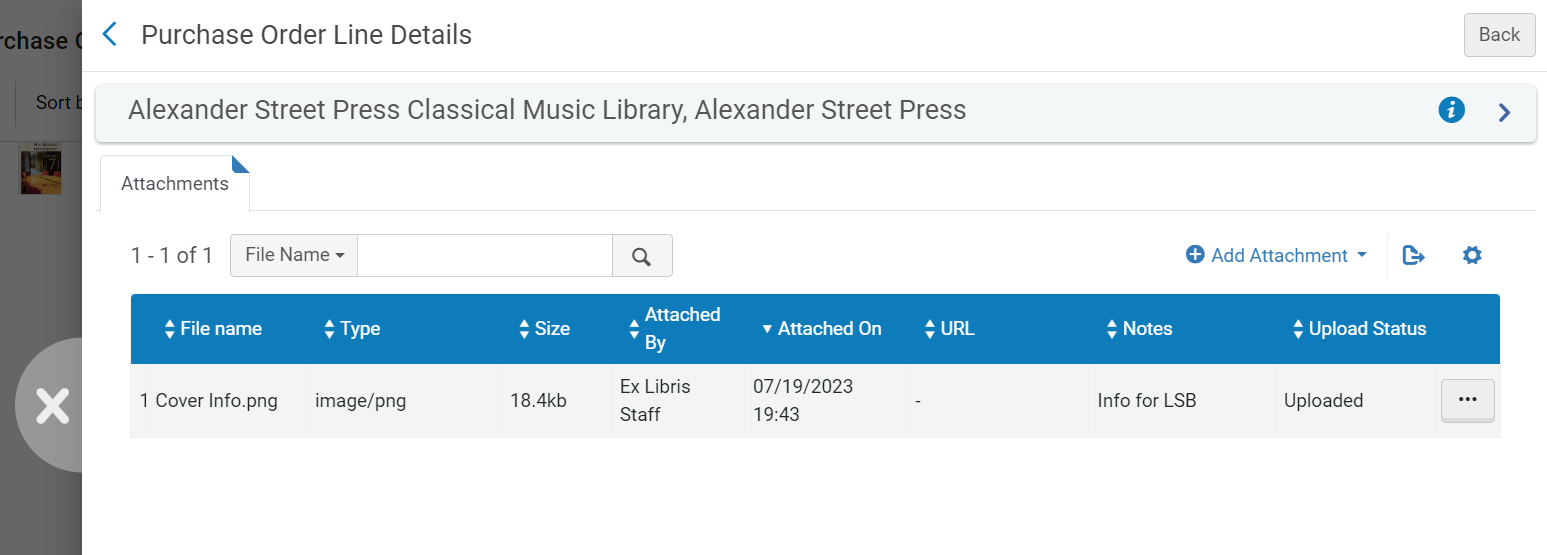
- To add an attachment, select Add Attachment.Browse for a file, add a URL and/or note, if required, and select Add Attachment.
- 添付ファイルを編集するには、行アクションメニューで編集を選択します。
- To delete an attachment, select Delete in the row actions menu, and then select Confirm in the confirmation dialog box.
- To download a file, select Download in the row actions menu, browse to the download folder, and then select OK.
新しい発注明細の処理を継続する
注文明細に関して入手可能なすべての情報の入力が完了したら、「アクション」メニューからオプションを選択して、処理の次の段階を開始できます。注文明細のタイプに応じて、次のオプションの一部またはすべてが利用可能です。
注文明細を保存し、注文したアイテムのレコードが短い場合、警告と確認のダイアログボックスが表示される場合があります。See Working with Brief Record Levels for more information about brief records.
- 保存 – 入力した情報が保存され、注文明細は現在のワークフロー段階に残ります(注文明細を手動で作成した場合は、レビュー中のままです)。Use this option, if you are unsure if you want the PO line to continue to the following stage of the purchasing workflow, or if you are editing PO lines that are in claim (see Processing Claims) or marked for renewal (see Processing Renewals).
- 保存して続行 – 入力した情報が保存され、注文明細はワークフローの次の段階に進みます(レビュールールはチェックされません)。For more information on the purchasing workflow, see Purchasing Workflow.注文明細にアラートがある場合、確認ダイアログボックスに表示されます。For a complete list of alerts that may appear in this context, see Configuring Purchasing Review Rules.
When the "PO Line - Packaging" job is enabled, "Manual packaging" is not checked in the PO Line and the PO Line package job configuration is setup (Configuration Menu > Acquisitions > General > Acquisitions Jobs Configuration), selecting Save and Continue changes the PO line status to Auto Packaging.
Afterwards, when the scheduled "PO Line - Packaging" job runs, it checks all of the PO lines in that status and packages them together based on Vendor account, Owner, Currency, Acquisition method, Fund and so forth, into a single PO.
- 自分に割り当てる – 注文明細を自分に割り当てます。
- Assign to – Open a dialog box in which you can assign the PO line to another user.(必要な役職を持っていない場合、このオプションは表示されません。)
- リリースの割り当て – 自分に割り当てられている注文明細については、割り当てを解除し、注文明細を未割り当てのままにします。
- 保存して評価をリクエスト - 入力した情報が保存され、トライアルがリクエストされます。Use this option if the PO line is assigned to you but you do not have the Trial Operator/Trial Manager role.The PO line's status changes to Under Evaluation and the PO line moves to the Manage Trials page with the status Requested, where the Trial Operator/Trial Manager can access it and continue with the evaluation workflow (see Evaluation Workflow).このオプションは、目録を作成する電子注文明細でのみ使用できます。
- トライアルの保存と開始 – 入力した情報が保存され、トライアルが開始されます。トライアルオペレーター/トライアルマネージャーの役割があり、注文明細が割り当てられていて、トライアルを開始する場合は、このオプションを使用します。The PO line's status changes to Under Evaluation and the Trial Details page opens (continue with the evaluation workflow at step 3).このオプションは、目録を作成する電子注文明細でのみ使用できます。
- Order now – Initiate the processing of the order for the PO line, by moving the PO line to the purchasing workflow where it is normalized and validated before being packaged (step 4 in the Purchasing workflow) and sent.For more information on packaging PO lines, see Packaging PO Lines into a PO.If you select Order Now, an Order Now Letter is sent to you after the order is sent for processing, and the vendor receives the order as an Order List Letter.For information on these letters, see Configuring Alma Letters.
- Cancel line – The PO line is cancelled (see Canceling PO Lines).
- 延期 – 注文明細が繰り延べられ、再有効化(通常の購入ワークフローのステップ2に戻る)またはキャンセルされるまで、レビュー繰延タスクリストに表示されます。For more information on deferring PO lines, see Deferring PO Lines.
- Integrate with OASIS- For a PO line that has OASIS in the Material Supplier field, you can select this button to automatically send the order to OASIS.See Check Availability and Pricing.
- Relink – Change the bibliographic record to which the PO line is linked (see Relinking PO Lines).
- Request Title –[New for February 2026] Place a request on the title (see Creating a Request from the Institution).The action is visible only for PO lines with the Physical inventory format and with any continuity type .
- Delete – Delete the PO line (see Deleting PO Lines).
- Change Bib Reference – Change the bibliographic record of the PO line.See Changing Bibliographic Reference.
- テンプレートとして保存する – 現在の設定をテンプレートとして保存します。See Creating and Managing PO Line Templates.
- Change Currency – Change the currency of PO lines that were packaged.See Changing Currency in PO Lines.
Page tags: article:topicorderproduct:almacontent:Documentationlang:englishinterested userPO line templatecreate PO linemanually create PO linecommunicate with vendoremail vendorvendor emailvendor responseupload vendor responsePO Line Owner and Typegenerate barcodegenerate barcode using sequenceassign inventory manuallyPO Line SummaryAssociated PO LineClaiming grace periodExpected receipt after orderingexpected activation after orderingExpected receipt dateexpected activation dateE-Activation due after orderingSubscription intervalquantity for pricingadd fund to PO lineacquisition methodinvoice statusReporting CodeAdditional PO line referencerushInvoice Lines tabAssociated PO Lines tabCommunications tabapproval plandepositoryexchangegifttechnicalpurchase at vendor systemInterested Users tabcreate PO line templateedit PO line templatesend email to vendor
