
ILL(受付)の作成
手動で、検索から、または外部リソースからILL(受付)を作成します。
このページでは、手動でのリクエストの追加や検索からのリクエストの追加など、AlmaでのILL(受付)の作成の概要を説明します。For more information on resource sharing including locating items for resource sharing, working with resource sharing partners, managing borrowing and lending requests and contributing to the resource sharing directory, see Resource Sharing.
リソースシェア(RS)ILL(受付)とは、図書館間相互貸借(ILL)を介して、他の図書館があなたの機関から本やその他の資料を借りるリクエストです。These requests are usually transmitted digitally to the lending library, and appear in Alma's Lending Requests page (Fulfillment > Resource Sharing > Lending Requests).
For information about handling existing lending requests, see Managing Lending Requests.
If you need to create lending requests in Alma directly – for example, if you receive a request over the phone or by email – you can do so from the Lending Requests page, either manually or from a search, as explained below.新しいリクエストを作成したら、必要に応じて関連するフィールドに入力できます。If the request was created from the results of a search, some of the fields are filled in by the system.
貸出リクエストを手動で追加する
空白のILL(受付)フォームにリソースに関する情報を入力することにより、リソース共有ILL(受付)を手動で作成できます。
ILL(受付)を手動で追加するには:
- On the Lending Requests page (Fulfillment > Resource Sharing > Lending Requests), select Create Request > Manually and then select the type of resource –Book or Article.A blank Resource Sharing Lending Request form opens in a sliding panel.
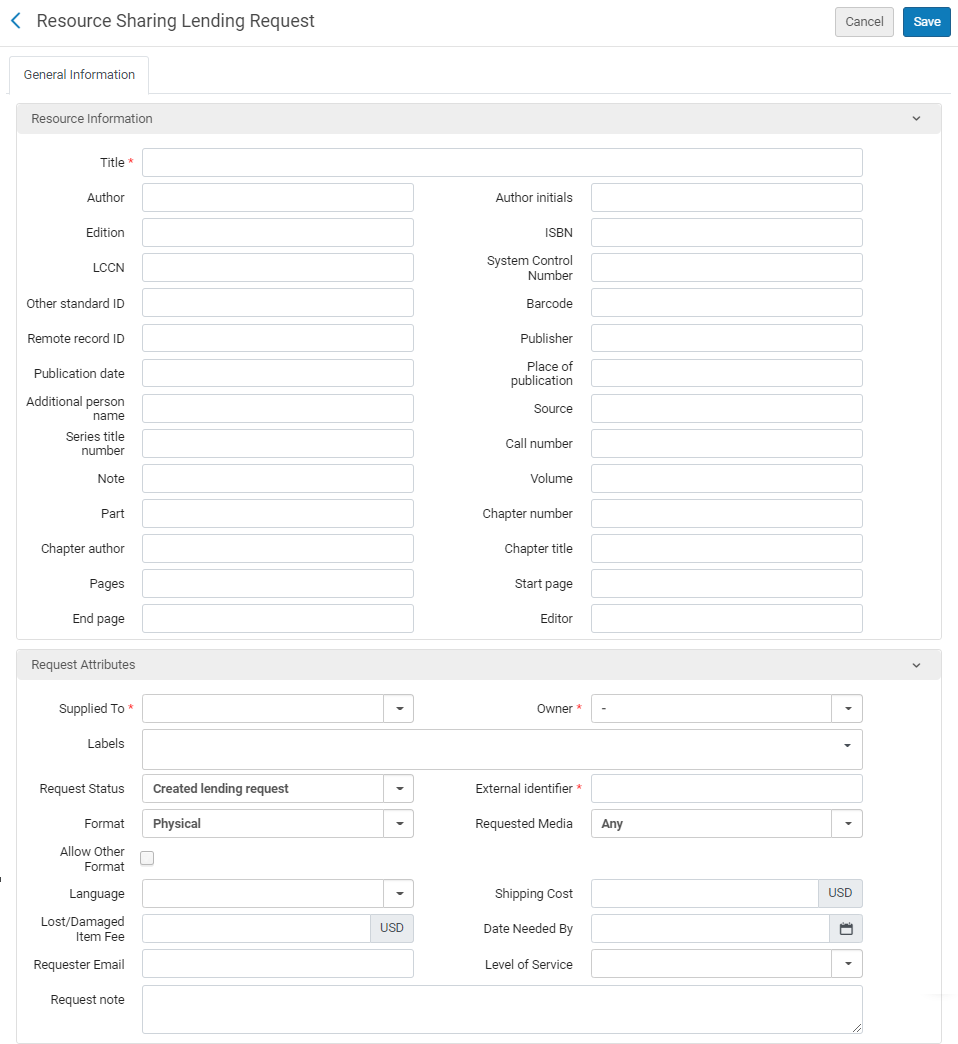
リソースシェアILL(受付)ページ(ブック)
- リソース情報領域で、関連するフィールドに情報を入力します。For more information on these fields, see Adding a New Book or Journal Article.
- In the Request Attributes area, enter the required information in the relevant fields, as described in Lending Request Attribute Fields, below.
- [保存]を選択します。ILL(受付)が作成され、ページが閉じます。
Adding a Lending Request From a Search
You can create a resource-sharing lending request by searching your institution's repository and copying the bibliographic record of the required resource from it.
- 「ILL(受付)」ページ(フルフィルメント>リソースシェア>ILL(受付))で、リクエストの作成>検索からを選択します。スライドパネルにリポジトリ検索ページが開きます。リポジトリ検索ページ:検索から追加
- Search for the item (see Searching in Alma).検索ボックスで選択できるのはすべてのタイトルのみです。
-
Select the checkbox of the required item, and then select Select.The Request Attributes section of the Resource Sharing Lending Request page opens.
 リソースシェアILL(受付)ページ - リクエスト属性セクション
- 次のテーブルの説明に従って、リクエスト情報を入力または変更します。
貸出リクエスト属性フィールド フィールド 説明 提供先(必須) Select the specific integration profile, configured on the Resource Sharing Partner List page in Fulfillment Configuration (see Resource Sharing Partners). Owner (Required)
オペレータのスコープとなるリソースシェア図書館を選択します。NCIPメッセージのようにリクエストが自動的に作成される場合、所有者はNCIPパートナーのパラメータによってセットされます。ISOメッセージの場合、値はリソースシェア図書館で設定されたISOシンボルにセットされます。 ラベル 1つ以上のラベル(単一単語の識別子)をリクエストに追加します。 ラベルフィールドを選択して、既存のラベルのリストを表示します。ラベルの1つを選択してリクエストに添付するか、入力を開始して新しいラベルを作成します。
See also Managing Labels for general information on managing labels in Alma.
リクエストステータス リクエストのステータスを選択します。以下から選択します。 - 処理中
- 返信をキャンセル
- 作成されたILL(受付)
- 破損
- 期限切れ
- 貸し手チェックイン
- 見つかりません
- 紛失
- Overdue request – The request's due date arrived.
- パートナーによって受信
- 借り手のリクエストを拒否
- リクエストが完了しました - リクエストは取り置き棚に到達する前に配送またはキャンセルされました。
- パートナーによって返却
- デジタル配信
- 冊子で発送
- 提供予定
外部識別子(必須) 外部システムから提供された識別文字列を入力します。 フォーマット [フォーマット]ドロップダウンリストで、リクエストのフォーマットを選択します。 - デジタル
- 冊子
- 冊子返却不可
リクエストされた媒体 リクエストを提供する媒体のタイプ。The values that display in the drop-down field are those configured with a value of True on the Requested Media Definition Mapping Table page (see Configuring Requested Media Definitions). When a request is submitted with a requested media type that was added to the out-of-the-box options (see Configuring Additional Requested Media) and the request is sent to an ISO partner, the partner receives the requested media information in the Request Note field.他のフォーマットを許可する リクエストされたフォーマットが利用できない場合、これはユーザーが別のフォーマットでアイテムを受領する意思があるかを示します。 言語 これは、取寄せリクエストでユーザーがリクエストする言語です。 著作権ステータス 借り手側の著作権ステータスを反映します(借り手が著作権ステータスをサポートしている場合)。借り手の値は、ISOリクエストに対して自動的に入力されます。 配送コスト リクエストの配送コストを入力します。表示される通貨は、機関のデフォルト通貨です。 If a shipping cost lender rule is configured, it is applied to the shipping cost of the request (see Configuring Shipping Cost Lender Rules).必要期限 [カレンダー]ダイアログボックスからアイテムが必要期限を選択します。 リクエストノート リクエストのノートを入力します。See also Active and Inactive Notes. 依頼者のEメール リクエストされたリソースがデジタルの場合は、電子メールアドレスを入力します。リソースはこのメールに配信されます。 サービスのレベル リクエストされた配送速度。To configure the available options, see Configuring Levels of Service. - [保存]を選択します。新しいILL(受付)が作成され、ページが閉じます。
Page tags: article:topicLending Requestsproduct:almacontent:Documentationlang:englishLendingCreate Lending Request
