
ILL(受付)の管理
リソースシェアILL(受付)のジョブ
このページでは、注意が必要な特定のILL(受付)を見つける方法と、各ILL(受付)の管理プロセス中に実行できるさまざまなアクションについて説明します。これには、処理が必要なILL(受付)の検索、リクエストパラメータの表示、物的リソース/デジタルリソースのリクエストの処理、ILL(受付)の在庫からの切り離し、ILL(受付)の拒否が含まれます。また、印刷伝票レポートの生成、アラートの削除、タスク割り当ての管理、過去のILL(受付)アクションの表示も含まれます。For more information on resource sharing including locating items for resource sharing, working with resource sharing partners, managing borrowing and lending requests and contributing to the resource sharing directory, see Resource Sharing.
- フルフィルメントサービスオペレーター(リソースシェアライブラリ用)
- フルフィルメントサービスマネージャー(リソースシェアライブラリ用)
You can manage the workflow of existing resource-sharing lending requests in the Lending Requests page (Fulfillment > Resource Sharing > Lending Requests).This page presents a task list of existing lending requests, with details about the resource and the request, including information about notes and alerts attached to it, and various features for handling these requests.
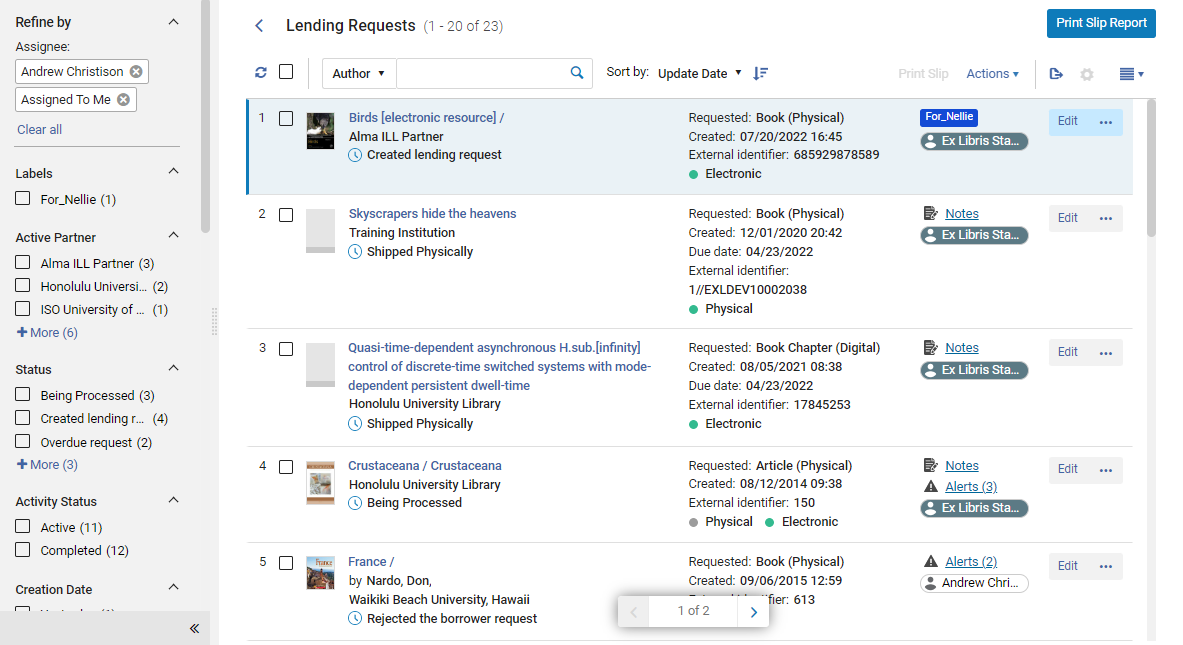
既存のILL(受付)を管理するための標準ワークフローは次のとおりです:
- Find a lending request that is ready to be fulfilled (see Finding Requests that Require Handling below).
- Retrieve the requested resource, either by moving a physical item or acquiring a digital file (see Handling Requests for Physical Resources,Handling Requests for Digital Resources, below).
- Ship the resource, as follows:
- Physical or Physical Non-Returnable Items – Send to resource-sharing desk (see Sending a Physical Resource below)
- Digital Items – Send by email (see Handling Requests for Digital Resources, below)
- 借用機関からアイテムを受領し、図書館にスキャンして棚へ戻します。See Managing Returning Physical Resources, below.
Finding Requests that Require Handling
You can use the facets filtering system, the sort feature, and the secondary search to help you find the tasks you need to work with.For general information about working with the facets and sorting see New Layout 2022.さらに、永続メニューの[タスクリスト]オプションにある事前定義されたフィルタの1つから[ILL(受付)]ページを開くことができます。
ファセットを使用したフィルタリング
ページの左側にあるファセットを使用して、ILL(受付)のリストをフィルタリングできます。ファセットには以下が含まれます。
- Labels – Labels that are attached to requests
- アクティブパートナー–借入機関
- ステータス-貸出リクエストのステータス。The following statuses indicate that the final step in the request is completed.これらのステータスのリクエストは削除される場合があります。
- デジタル配信
- リクエスト完了 - これは削除前の最終ステータスであり、手動で設定できます。
以下は、リクエストプロセスの非最終(処理中)ステータスです。- 処理中
- 借り手のリコール
- 返信をキャンセル
- キャンセル済
- 条件付き
- 作成されたILL(受付)
- 破損
- 期限切れ
- 貸し手チェックイン
- 見つかりません
- 紛失
- 無期限
- 延滞リクエスト
- 自動拒否保留中
- リコールアイテム
- パートナーによって受信
- 借り手のリクエストを拒否
- 更新リクエスト
- パートナーによって返却
- 冊子で発送
- 提供予定
- スタッフ更新
- 更新回答
- ユーザーの更新
- Activity Status – Active or Completed
- Request Reported – Requests that have been printed on the print slip report
- 作成日 – リクエストが作成された日付。可能な値は以下の通りです:
- 今日 – 現在の日付に作成されたリクエスト
- 昨日 – 現在の日付の前日に作成されたリクエスト
- 2~3日前–現在の日付の2~3日前に作成されたリクエスト(今日と昨日を除く)
- 4~7日前–現在の日付の4~7日前に作成されたリクエスト(上記の3つのオプションを除く)
- 8~30日前–現在の日付の8日前から1か月前に作成されたリクエスト(上記の4つのオプションを除く)
- それ以前–現在の日付の1か月以上前に作成されたリクエスト
- アップデート日–リクエストがアップデートされた日付。可能な値は、作成日ファセットの値と同じです。
- リクエストされたフォーマット–リクエストされたアイテムのフォーマット。Options are:Digital,Physical, and Physical non-returnable
- 提供されたフォーマット–リクエストされたアイテムが提供されたフォーマット。Options are:Digital,Physical,Physical non-returnable and Undefined
- 期日–アイテムの配送期限。可能な値は、作成日ファセットの値と同じです。
- 関心がなくなった日付–依頼者がアイテムにもはや関心がないことを示した日付
- パートナーからのメモ–借入機関からのメモ付きのリクエスト
- 所有図書館–リクエストされたリソースを所有する図書館
- サービスのレベル-リクエストに割り当てられたサービスのレベル
- Alerts – Alerts attached to the request
- Assignee – The staff person to whom the request is assigned (including "Unassigned")
- Inventory Type – The formats available for the requested item
二次検索
二次検索機能を使用すると、現在のリクエストリストで特定の条件を満たすリクエストを検索できます。For example, you could search for a particular author's name in order to find all the requests in the list related to books by that author, and hide all the other requests in the list.
Unlike the primary search feature, which is always available in the persistent search box (see Searching in Alma), the secondary search does not cancel previously selected facets.
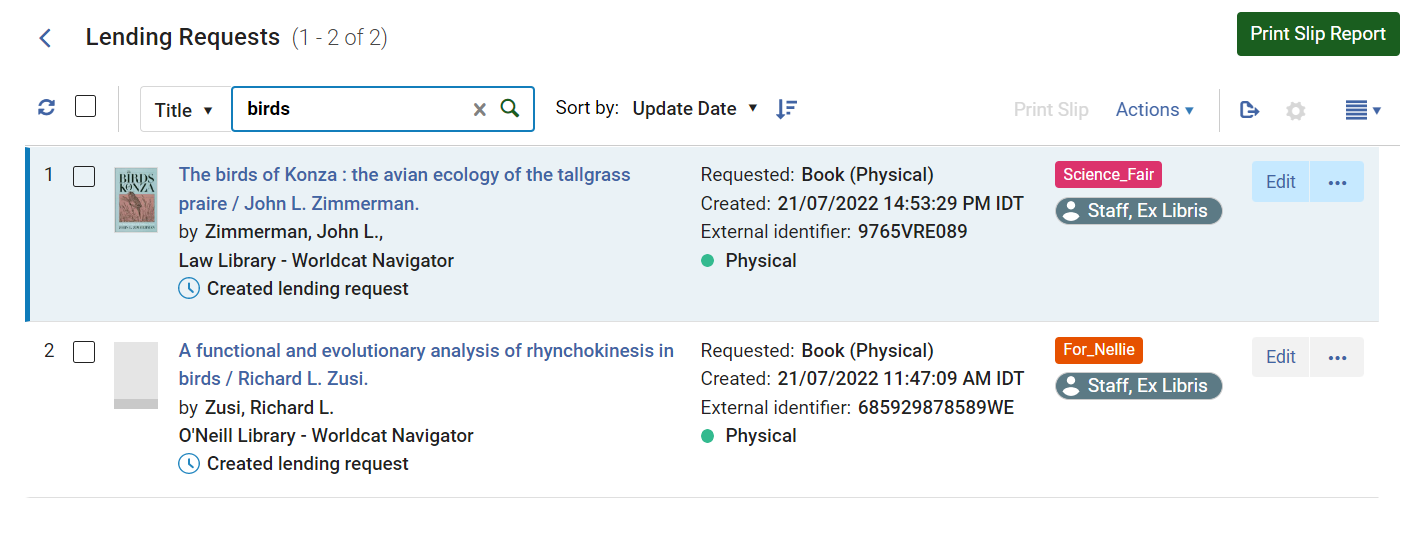
- リクエストリストの上部にある二次検索コントロールのドロップダウンリストで、検索するフィールドを選択します。
- テキストボックスに、検索するテキストを入力します。
- Press Enter or select
 .The search is performed; the request list is updated as required so that only those requests that meet the search requirements appear in it.
- In the secondary-search controls, select the x.
事前定義されたタスクリストフィルター
You can select any of the following tasks in the Tasks List ( ) in the persistent menu (see Tasks in the Task List) to open the Lending Requests page with a preset filter:
- 貸出リクエスト - 新規 - 割り当てられたもの
- 貸出リクエスト - 新規 - 未割り当て
- Lending requests - Overdue - assigned to you- Pre-filters for requests with the status Overdue Request
- Lending requests - Overdue - unassigned- Pre-filters for requests with the status Overdue Request
- Lending requests - Recalled - assigned to you- Pre-filters for requests with the status Recalled Item
- 貸出リクエスト - リコール - 未割り当て - ステータスがリコールされたアイテムになっているリクエストの事前フィルタ
- Lending requests failed locate - assigned to you- Pre-filters for requests with the status Locate Failed
- 貸出リクエストが見つかりません - 未割り当て - ステータスが見つかりませんになっているリクエストの事前フィルタ
- Lending requests with active general messages - assigned to you- Pre-filters for requests that have a general message
- 有効な一般メッセージありの貸出リクエスト - 未割り当て-一般メッセージのあるリクエストの事前フィルタ
- Lending requests with active notes - assigned to you- Pre-filters for requests that have a request note
- Lending requests with active notes - unassigned- Pre-filters for requests that have a request note
貸出リクエストのパラメータの表示と編集
既存のILL(受付)の完全なリクエストフォームを表示できます。ステータスによっては、リクエストを編集できる場合もあります。(Editing refers to adding or modifying the parameters of a borrowing request, such as bibliographic information or information about the request.メモ、ラベル、添付ファイルはいつでもリクエストに追加できます。)
Some of the parameters of a lending request can be viewed and edited in the Details pane, and some editing actions can be performed from the More actions( ) menu in the task list.必要に応じて、[リソースシェアILL(受付)]ページでリクエストを開くことにより、編集可能なすべてのパラメーターにアクセスできます。
詳細ペインの操作
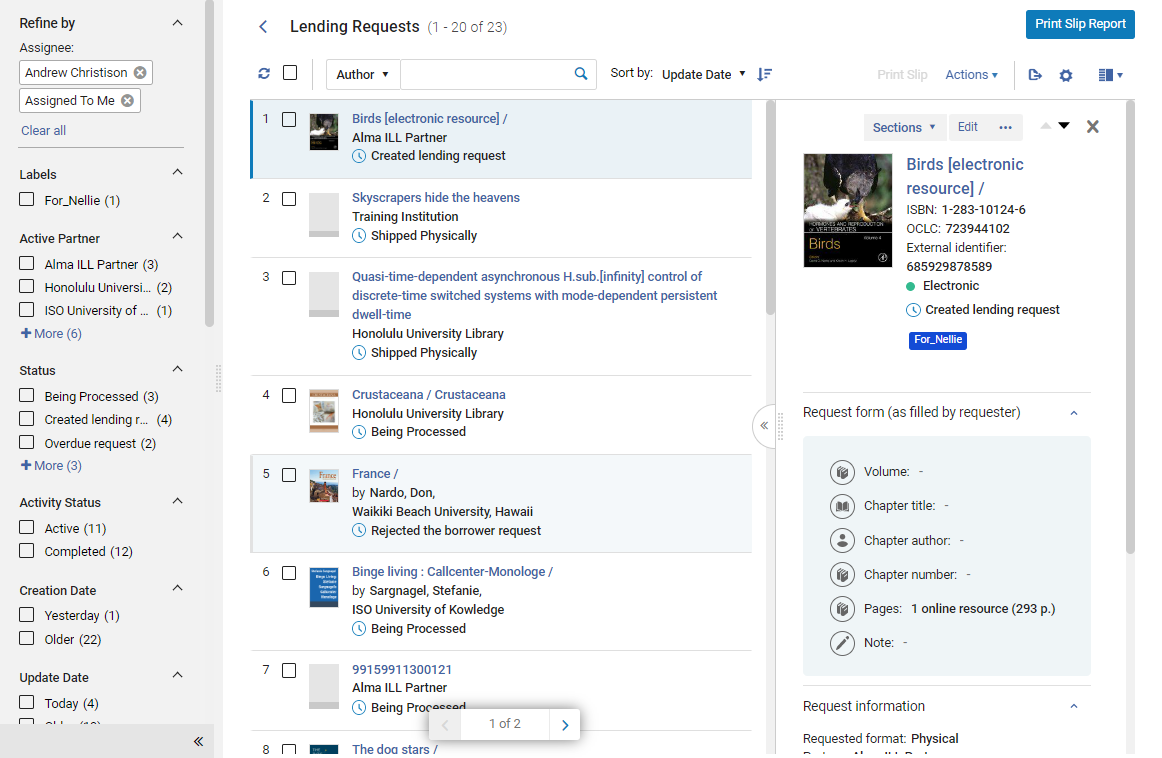
詳細ペインで、既存のILL(受付)に関する多くの詳細を確認したり、リクエストの一部を編集したりできます。
- ILL(受付)ページ([フルフィルメント]>[リソースシェア]>[ILL(受付)])のタスクリストで、リクエストを選択します。詳細ペインが開きます。
- Edit any of the fields in the Request form section, as required.完了したら、セクションの下部にある保存を選択します。
Opening the Full Request Form for Viewing or Editing
必要に応じて、貸出リクエストフォーム全体にアクセスできます。ステータスと役割によっては、フォームを編集できる場合もあります。
- ILL(受付)ページ(フルフィルメント>リソースシェア>ILL(受付))で、表示するリクエストを見つけます。
- In the request's row, select Edit or View.(Or, when the task is selected, and its details are displayed in the Details pane, select Edit or View at the top of the pane.)
- 表示は、リクエストが非アクティブであるか、ユーザーがリクエストを貸し出すための表示権限しか持っていない場合に表示されます。Otherwise,Edit appears.
- 割り当てられていないタスクに対して編集を選択すると、他のユーザーが編集できるようにタスクがロックされます。
[リソースシェアILL(受付)]ページがスライドパネルで開き、一般情報タブが選択されています。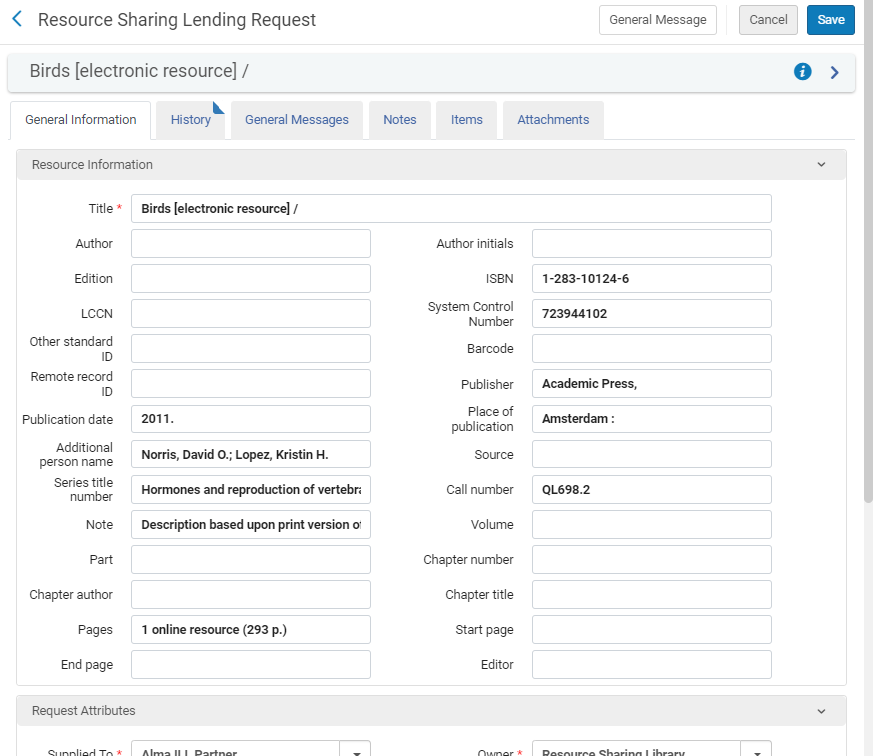 Resource Sharing Lending Requests page
For a description of the fields, see the Resource Information Fields table in Adding a New Book or Journal Article and Lending-Request Attribute Fields table in Creating a Lending Request.
- 編集を選択してフォームを開いた場合は、必要に応じてフィールドを編集します。
- フォームを編集した場合は、保存を選択して変更を保存し、フォームを閉じます。
貸出リクエストのワークフローアクション
既存のリソースシェアILL(受付)のプールを管理するには、それらに対してアクションを実行し、ステータスを変更し、タスクリストから削除し、ラベルを管理します。
- On the Lending Requests page (Fulfillment > Resource Sharing > Lending Requests), filter the request list as required in order to locate the tasks you want to manage (see Finding Requests that Require Handling, above.
-
複数のリクエストを同時に管理するには、これらのリクエストの左側にあるチェックボックスを選択して(またはすべて選択)、次のいずれかのオプションを選択します:
- ステータスの変更-指定されたアイテムのステータスを変更します。ドロップダウンリストからステータスを選択し、ステータスの変更を選択します。
- Print Slip Report – Print a slip report that is sent to a printer or email address, or can be downloaded to a local machine (see Generating a Print Slip Report below.).The report lists the items and their information.
- スリップの印刷-選択した各アイテムの貸出依頼書を印刷します。Ful受領スリップレターは、リソースシェア貸出スリップレターとも呼ばれ、印刷されるレターです。For information about the slip, see Configuring Alma Letters.
- リクエストを削除 – 選択したリクエストをタスクリストから削除します(完了したリクエストのみ)。[確認メッセージ]ダイアログボックスで確認を選択して、リクエストを削除します。
- 特定のリクエストを管理するには、次の表で説明されているように、その他のアクションメニューのオプションの1つを選択します:
| リンク | 説明 |
|---|---|
| スリップを印刷する | アイテムの外部IDとバーコードの両方を含むアイテムの貸出依頼書を印刷します。
まだ配送されていないリクエストの場合、このオプションにより受領リクエストスリップ、Ful受領スリップレターが印刷されます。すでに配送されたリクエストの場合、このオプションは配送スリップ、リソースシェア配送スリップレターを印刷します。これには、配送されるアイテムに固有の追加情報が含まれます。 For information on these slips, see Configuring Alma Letters. |
| 移動するリクエストを作成 | Request that a physical item be brought to your location in order to be prepared for shipping to the borrowing institution (see Sending a Physical Resource below) |
| デジタル化のリクエストを作成 | Request that an institutional digitization department create a digital copy of a physical item (see Sending a Physical Resource via Digitization below). |
| 電子リソースのダウンロード | Download a digital resource from a vendor in order to send it to the borrowing institution (see Handling Requests for Digital Resources below) |
| [複製] | 既存のタスクに基づいて新しいタスクを作成します。The Resource Sharing Lending Request page opens, where you modify the request parameters in the Request Attribute section, as needed (see Request Attribute Fields table).
リソースシェアILL(受付)を複製すると、次のフィールドの値が新しいリクエストにコピーされます。
|
| アサイン先 | Assign a task to a user (see Managing Task Assignments below). |
| MMSから分離させる | Detach a lending request from its inventory (see Detaching a Lending Request from its Inventory below). |
| チェックイン済み |
貸出中の図書館から返却されました。このオプションを選択すると、リクエストのステータスがリクエスト完了に変更されます。このオプションを選択することは、アイテムのスキャンページでバーコードをスキャンすることと同じです (フルフィルメント>リソース リクエスト>アイテムのスキャン)。See Managing Returning Physical Resources, below. |
| 見つける | リソースを見つけるステータス = リソースが見つかりませんのアイテムに対して表示されます。リソースが見つからないか、見つかったリソースが複数ある場合、Almaはリソースの見つけることを試みます。
複数のリソースが見つかった場合、結果が検索ページに表示されます。ここで結果を選択するか、クエリの変更リンクを選択して検索値を変更できます。 見つけるを選択する前に、リソースの編集を選択し、関連情報を更新することをお勧めします。リソースが見つかると、ステータスがリソースが見つかりましたに変わります。 |
| 検索 | リソースを見つけるステータス = リソースが見つかりませんのアイテムに対して表示されます。検索ページを開きます。これにより、新しいリソースを見つけるを実行してリソースを見つけることができます。 |
| リクエストを再アクティブ化 |
Reactivate lending request will appear when:
このオプションを選択すると、完了したピアツーピアのリソースシェアリクエストが再アクティブ化されます。The shipped item's process status changes to In resource sharing and the item is relinked.The request status changes to Request Reactivated.アイテムが別のプロセス中の場合、エラーが表示されます。リクエストの元の外部IDは維持されます。 このアクションは、フルフィルメントサービス管理者で使用可能で、Ex Librisカスタマーサポートによりフルフィルメントサービスオペレータに対しても有効にすることができます。 |
| 拒否 | Reject a lending request (see Rejecting a Lending Request below). |
| 紛失 |
For more information about this status see Resource Sharing - Lost Item Workflow. ILL(受付)が NCIP パートナーからのものである場合、NCIP プロトコルは「紛失」メッセージの送信をサポートしていないため、「紛失」行アクションは使用できません。 |
| リリース割り当て | Remove the assignment of the task and leave it unassigned (see Managing Task Assignments) below. |
| 更新 |
自動化されたリクエスト(ISO、NCIPなど)の場合、リクエストステータスが更新リクエストであり、ワークフロープロファイルが次のように設定されている場合にも、このアクションが表示されます。
(For details on configuring workflow profiles, see Configuring Workflow Profiles.)
自動化されていないリクエストの場合、リクエストステータスがパートナーによって受領され、ワークフロープロファイルのステップとして手動更新が選択されると、アクションが利用可能になります。
You can set the lending_requests_renewed_status (Fulfillment > Other Settings) parameter so that a renewed lending request is set to a status of Renewal Accepted rather than Received by partner.
期日ダイアログボックスを開くオプションを選択します。期日を入力し、OKを選択して更新を作成します。
必要に応じて、関連するフィールドでパートナーに内部ノートやノートを追加できます。For details on these fields, see step 3 in Rejecting a Borrowing Request.
|
|
ユーザーにEメールを送信
|
このアクションを使用して、貸出タスクリストリクエストからパートナーに直接電子メールを送信します。このオプションにより、貸し手が制限事項を伝えたい場合や、お礼状などのあらゆる種類のメッセージを伝える場合などのワークフローが簡素化されます。これらのメッセージは、将来の参照のためにリクエストに保存されます。
Correspondence can be initiated using the Send email to partner action or from the Start Communication button on the Communications tab (see Communicating with Partners).
|
| アイテムをデジタルで発送 | 既に所有している(つまり、デジタル化ワークフローの一部として作成されていない)ファイルを貸出図書館に追加します。Enter the following optional information and upload the files:
|
| 冊子で発送する | リクエストに関連付けられたアイテムを発送します。The Shipping Items page opens (see Shipping Items). |
| 返却不可アイテムの発送 | 書籍のスキャンまたはコピーされた部分などのリソースを、返却不可のコピーとして借用図書館に送信します。When you select this option, a confirmation notification appears, and the status of the request is changed to Shipped Physically for a physical resource, or either Shipped Digitally or Request Completed, depending on whether “Waiting for receive digitally” is selected in the partner's workflow profile. |
| 一般メッセージ | Send a general message with a lending request to a borrower (see Sending a General Message With a Borrowing Request). |
| ステータスクエリ | 貸出機関にステータスのアップデートをリクエストします。これはISOパートナーにのみ適用されます。
返却された借り手のISOステータスはノートに記録されます。各ISOステータスは、次のAlmaリクエストステータスに対応しています。
|
| 提供予定 | 提供予定ステータスでまだ配送されていないリクエストを更新します。Displayed only when the request is not yet shipped and the borrowing partner's workflow includes Will Supply (see Configuring Workflow Profiles). |
| 条件付き | ポップアップウィンドウが表示され、必須の理由、返信日、貸し手が借り手からの回答を待つ最終日、およびノートフィールドが提示されます。メッセージが送信されると、リクエストのステータスが条件つきに変わります。ISOメッセージが借り手に送信されます。When a response is received from the borrower, if the response value is No, the request is rejected.値がはいの場合、返信日フィールドはクリアされ、リクエストのステータスは作成されたILL(受付)に戻ります。 |
- リクエストが(ISO/NCIPによって)自動的に処理され、リソースが見つからないか、入力条件に一致する複数のリソースが見つかった場合、リクエストは引用ステータス = 見つかりませんおよびリソースを見つけるステータス = リソースが見つかりませんで作成されます。
- ILL(受付)の作成中に、タイトルに複数のアイテムがある場合、見つけるプロセス中に利用可否とリクエスト可能性はチェックされません。リクエストは手動で処理する必要があります。
物理リソースのリクエストの処理
ILL(受付)があなたの図書館が冊子形式で保有しているリソースに対するものである場合は、冊子アイテムをリクエスト機関に送信してリクエストを完了するか、リソースをデジタル化してデジタル化されたバージョンをリクエスト機関に送信するかを選択できます。You can either send a digitization request to a digitization department in your institution (see Sending a Physical Resource via Digitization below) or digitize the resource yourself (see Handling Requests for Digital Resources below).
When a request's item is sent to Alma by the NCIP source system, the item's Note field contains a shipping note which displays in the following format:
||Shipping Note||<text of shipping note>||Shipping Note||
発送ノートはOCLCナビゲーターなどのNCIP実行者により、リソース自体、依頼者、リクエストされたロケーションや受け取りロケーションに関する情報など、発送されたアイテムに関する追加情報で図書館システムをアップデートするために使用されます。
Sending a Physical Resource
Requested physical resources are shipped to the borrowing institution, which then delivers them to the patrons who requested them.Ensure that you are at a resource-sharing library before you begin the shipping process.
リクエストされたリソースがすでにあなたの図書館にある場合は、そのままリクエスト先の機関へリソースを送ってください。所属機関が所有しているが、別の場所にある場合は、図書館に転送してから発送するように依頼できます。
- ILL(受付)ページ(フルフィルメント>リソースシェア>ILL(受付))で、リクエストを選択して詳細ペインを開きます。In the Details pane, under Fulfillment request information, you can see which library manages the resource.
- リソースが教育機関の別の場所で管理されている場合は、その他のアクションメニューで移動リクエストの作成を選択します。移動リクエストの作成ダイアログボックスが開き、教育機関でリソースを見つけることができる場所が一覧表示されます。
Create Move Request dialog box - 複数の場所が表示され、どの場所を使用するかを選択する場合は、その場所を選択します。(それ以外の場合は、リクエストの作成時にシステムが場所を自動的に選択します。)ダイアログボックスに手動の説明フィールドが追加されます。
- リクエストがシリアルリソースの特定の発行物に関するものである場合は、マニュアルの説明フィールドに、必要な発行物に関する情報を入力します。このフィールドに入力すると、移動リクエストは一般取り置きリクエストに変換されます。For additional information about General Hold Requests, see Creating a General Hold Request.
- メモを追加する場合は、メモの追加を選択して、メモを入力します。
- リクエストの作成を選択します。移動リクエストが作成されます。
- アイテムが図書館に到着したら、次の手順に進みます。
- In the More actions menu, select Ship item physically.配送アイテムページがスライドパネルで開き、書誌情報と配送情報がすでに入力されています。
- 期日を選択します。If the due date falls on a closed date, then it will be affected by the ‘Closed Library Lending Requests Due Date Management' policy of the relevant Lending Resource Sharing TOU.See the Lending Resource Sharing TOU description in Adding Fulfillment Policies.
- 配架場所から、貸し出し中にリソースが所有すされる貸し出し機関内の配架場所を選択します。
- 必要に応じて、オプションの内部メモやパートナーへのメモを入力します。
- リクエストされたリソースが複数のアイテムで構成されている場合は、複数のアイテムを選択します。
- 1つのアイテムのみを送信する場合は、アイテムのバーコードをスキャンします。The record displays at the bottom of the page, and then the sliding panel closes.If you are sending multiple items, scan the barcodes of each of the items.The records display at the bottom of the page.アイテムのバーコードをスキャンしたあと、入力かOKを選択します。スライドパネルが閉じます。The records are saved in a temporary location at the resource-sharing library, and the status of the request is changed to ShippedPhysically.When the borrowing institution is an email partner, the Lender Ship Email Letter is sent.取寄せ機関がISOパートナーである場合、ISO配送メッセージがパートナーに送信されます。For lending requests before shipping, if the item was already in a temporary location, then, when returned, the item will revert back to the previous temporary location.これは一時的な場所にのみ適用され、一時的な請求番号タイプ、返却期限日などのその他の一時的な条件には適用されないことに注意してください。
You can also ship a requested physical resource directly from the Shipping Items page (Fulfillment > Resource Sharing>Shipping Items) and, although it is not recommended, from the Scan In Items page (Fulfillment > Resource Requests > Scan In Items).そうするには:
- If you are using the Scan In Items page, in the External Identifier field, select Yes.(スキャンインインターフェースから発送する場合、自動印刷スリップオプションは機能しません。)
- Scan the item barcode and the request ID of the resource in the relevant fields.
- OKを選択します。
デジタル化による冊子リソースの送信
If the requested resource is physical, but the request was for a digital copy, you can either scan the item yourself and send it (see Handling Requests for Digital Resources below), or you can send a request for digitization to a digitization department in your institution, as explained here.
- ILL(受付)ページ(フルフィルメント>リソースシェア>ILL(受付))のアイテムのその他のアクションメニューで、デジタル化リクエストの作成を選択します。The Create Digitization Request dialog box opens and lists the locations at which the resource can be found in your institution.
Create Digitization Request dialog box - 複数の場所が表示され、どの場所を使用するかを選択する場合は、その場所を選択します。(それ以外の場合は、リクエストの作成時にシステムが場所を自動的に選択します。)ダイアログボックスに手動の説明フィールドが追加されます。
- リクエストがシリアルリソースの特定の発行物に関するものである場合は、マニュアルの説明フィールドに、必要な発行物に関する情報を入力します。
- 管理部門で、デジタル化を実行するデジタル化部門を選択します。
- メモを追加する場合は、メモの追加を選択して、メモを入力します。
- リクエストの作成を選択します。デジタル化リクエストが作成されます。デジタル化プロセスが完了すると、リソースのデジタルバージョンが自動的に借入機関に送信されます。
Managing Returning Physical Resources
貸出中の冊子資料が図書館に返却されたら、それをチェックインできます。
- 以下のうち一つを実行して下さい:
- In the Scan In Items page (Fulfillment > Resource Requests > Scan In Items), scan its barcode.
- In the Lending Requests page (Fulfillment > Resource Sharing > Lending Requests), in the item's More actions menu, select Checked in.The Checked in dialog box opens.
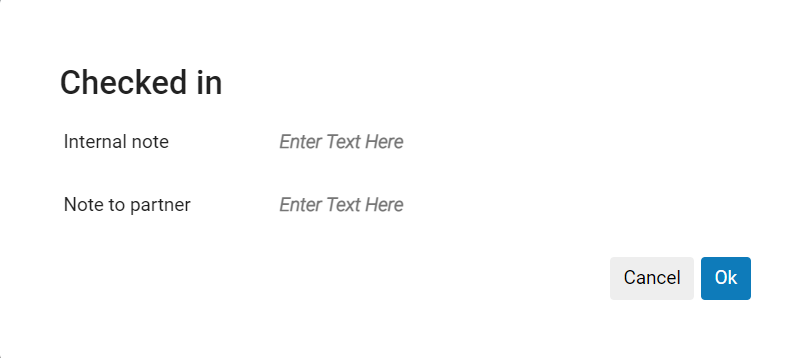
- 必要に応じて、内部メモおよび/または借用パートナーへのメモを入力します。
- OKを選択します。The item is checked in and the status of the lending request is changed to Request Completed.Using the Checked in action does not change the status of the item.アイテムが元の場所に戻された、または元の場所に戻されたことを確認するには、司書はこのアクションを使用した後にアイテムをスキャンする必要があります。
アイテムをスキャンしてAlmaに取り入れた後、借用機関がISOパートナーである場合、ISOチェックインメッセージが図書館に送信され、リクエストは自動的に閉じます。A checked-in ISO message is sent only if the active partner's workflow profile includes Checked In Message as a valid option (see Configuring Workflow Profiles).If the borrowing institution is an email partner, the Lender Checked-In Email Letter is sent.For information about this letter, see Configuring Alma Letters.If a lent resource is overdue, you can send a message to the borrowing institution requesting that they return it.The email / ISO message to send in this case is the Borrower Overdue Email Letter, see Alma Letters List.Note that the letter is only sent to email partners.ISO partners only receive an ISO message This message is sent by the Send Overdue Message to Resource Sharing Borrowing Partner scheduled job.または、手動で一般的なメッセージをパートナーに送信することもできます。
Handling Requests for Digital Resources
デジタルアイテムは、電子メールの添付ファイルとして、借用機関または直接依頼者に送信されます。If you need to send multiple files, zip them into one file before sending them.See also Ship Item Digitally.
If you have immediate access to a digital resource (i.e., it is owned by your library, or you have created it by scanning a physical resource), you can send it to the recipient directly.ベンダーが所有している場合は、ベンダーのシステムでアクセスし、ライセンスの詳細を確認してリソースをシェアする権利があることを確認してから、ダウンロードして受信者に送信できます。
- In the Lending Requests page (Fulfillment > Resource Sharing > Lending Requests), in the item's More actions menu, select Download Electronic Resource.A page listing vendors from which you may be able to download the resource and licensing information for those vendors, when available, opens in a sliding panel.
The Download Electronic Resource page Only OTB resource sharing-related license terms appear on the Download Electronic Resource page:- 電子ILL
- ILL注記
- プリント・ファックスILL
- 図書館間貸出記録保持要指標
- 安全な電子送信ILL
- リストから目的のベンダーを選択します。ベンダーのサイトにリダイレクトされ、そこで必要なリソースをダウンロードできます。
- オプションで次の情報を入力してください:
- Internal Note – See Peer to Peer Resource Sharing(New for February 2026)
- Note to Partner – See Peer to Peer Resource Sharing(New for February 2026)
- Shipping Terms of Use – The values that appear in the dropdown list depend on the configuration (see Configuration of Digital Shipping for Resource Sharing)
- Complete the request – Select Complete the request when you have completed the request to mark it as closed without getting feedback from the borrower.
- Once the files are uploaded and the page is saved, the request is changed either to Shipped Digitally or Request Completed depending on whether "Waiting for receive digitally” is selected in the partner's workflow profile.For more information, see Digitization Processing.
- ILL(受付)ページ(フルフィルメント>リソースシェア>ILL(受付))のアイテムのその他のアクションメニューで、アイテムをデジタルで配信を選択します。
- アップロードするファイルを参照して選択するか、アップロード領域にファイルをドロップします。
- Select Ship to send the file.
- ILL(受付)の完了は、パートナーのワークフロープロファイル設定によって異なります。
- If a ship digitally request was created, it will be cancelled (it is possible to complete ship digitally requests by using the Deliver Digital Documents interface with the ship request ID to ship the file.このプロセスでは、デジタル処理と著作権ルール、承認プロセスなど…を参照します)。
- To add shipping notes, manually set the complete status etc. You can use the classic Ship Item interface and set the format to Digital
Overriding Local Holding Setting
RapidILLは自己所有権をチェックし、所蔵されていると識別されたリクエストにはローカル所有蔵書ステータスが付与されます。When the checkbox Ignore Local Holding(Fulfillment > Resource Sharing > Partners > Parameters tab) is checked, libraries skip this self ownership check by RapidILL.
この設定は、ローカルに所有されている場合にリクエストが自動的に送信されないようにするために、貸出リクエストの送信ルール (フルフィルメント設定 > リソース共有 > 貸出リクエストの送信ルール) を使用している図書館にとって特に重要です。In that case, if the request is manually sent via Rapid then rechecking for local ownership via Rapid may be redundant, and can therefore be prevented using this new option.
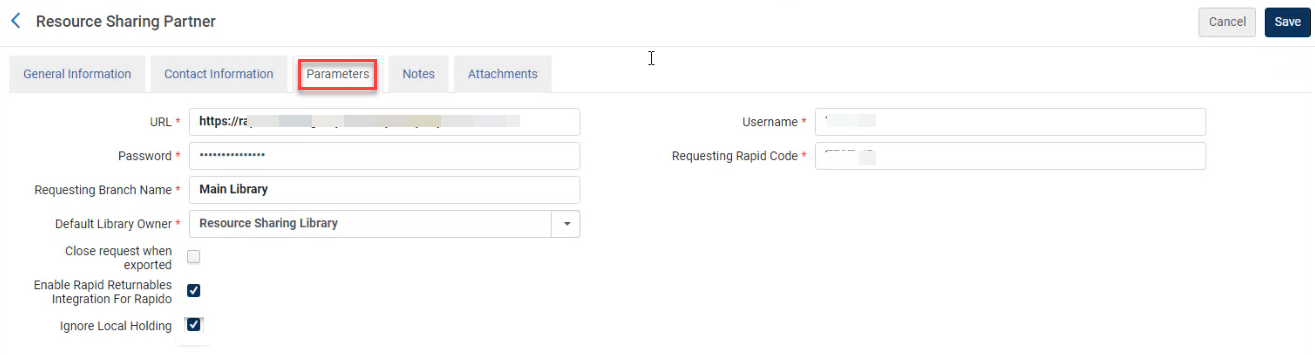
リクエストされたアイテムをRapidパートナーが保有していない場合、リクエストステータスはパートナーにより拒否に設定されます。
貸出リクエストを在庫から切り離す
ILL(受付)は、それが接続されているMMSから切り離すことができます。
- [ILL(受付)]ページで、リソースがアタッチされているリクエストを見つけます(リソースの検索ステータス = リソースの場所)。
- 行アクションリストからMMSから分離させるを選択します。ILL(受付)ページが更新され、リクエストはリソース検索ステータス=リソースが見つかりませんで表示されます。
貸出リクエストの拒否
さまざまな理由で、リソースシェア貸出タスクを拒否することができます。たとえば、アイテムがすでに貸出中であるか、図書館で見つからない場合、ユーザーのリクエストを拒否できます。
rs_keep_rejected_request_activeカスタマーパラメータは、リクエストが拒否された後も、アクティブステータスのままにするか否かを決定します。パラメータがデフォルトのなしに設定されている場合、リクエストは完了し、アクティブなリクエスト列に表示されません。パラメータが貸出または両方に設定されている場合、リクエストはアクティブなリクエスト列に留まるため、スタッフ司書はリクエストを処理するオプションを使用できます。この機能は、パラメータが変更された後に発生する拒否にのみ適用されます。For more information, see Configuring Other Settings (Fulfillment).
- ILL(受付)ページ(フルフィルメント>リソースシェア>ILL(受付))で、リクエストに対して拒否を選択します。リクエストを拒否するダイアログボックスが開きます。
- 理由を拒否フィールドで拒否理由を選択します。
- Optionally, add an Internal reject reason(see Advanced Resource Sharing Configurations).Note that this is only viewable by the lender.
- 必要に応じて、内部ノートおよびパートナーへのノートフィールドに拒否についてのノートを追加します。
- 拒否を選択します。拒否理由と内部メモがメモとしてリクエストに追加されます。If the request is managed using an ISO partner, an Unfill message is sent to the borrowing library, which marks the partner request as Rejected(see Rejecting a Borrowing Request).If the borrowing institution is an email partner, the Lender Reject Email Letter is sent to the partner.
印刷伝票レポートの生成
プリンターまたはEメールアドレスへの送信やローカルマシンへのダウンロードが可能な印刷スリップリポートを生成することもできます。リポートには、タイトル、作成者、ロケーションなどを含むアイテムとその情報が含まれます。このリポートのレターフォーマットは、ILL(受付)リポートスリップレターです。
- ILL(受付)ページ([フルフィルメント] > [リソースシェア] > [ILL(受付)])で、印刷伝票レポートを生成するリソースのチェックボックスを選択します。
- スリップレポートの印刷を選択する。[スリップリポートの印刷]ダイアログボックスが表示されます。[スリップリポートの印刷]ダイアログボックス
- タイプの選択フィールドで、印刷伝票レポートをプリンターに送信するかユーザーに送信するかを選択します。If you select Printer, the Printer field replaces the User field and is enabled.Select the printer to which you want to send the print slip report.ユーザーを選択すると、ユーザーフィールドが有効になります。印刷伝票レポートをEメールで送信するユーザーを選択します。このリポートのレターフォーマットは、ILL(受付)リポートスリップレターです。
- フォーマットタイプフィールドで、印刷伝票レポートをExcelまたはXML形式で送信することを選択します。
- 送信を選択して印刷スリップリポートを送信するか、オプションでダウンロードを選択して印刷スリップリポートをローカルマシンにダウンロードします。
Digital Requests for Partners Without Email Address Alert
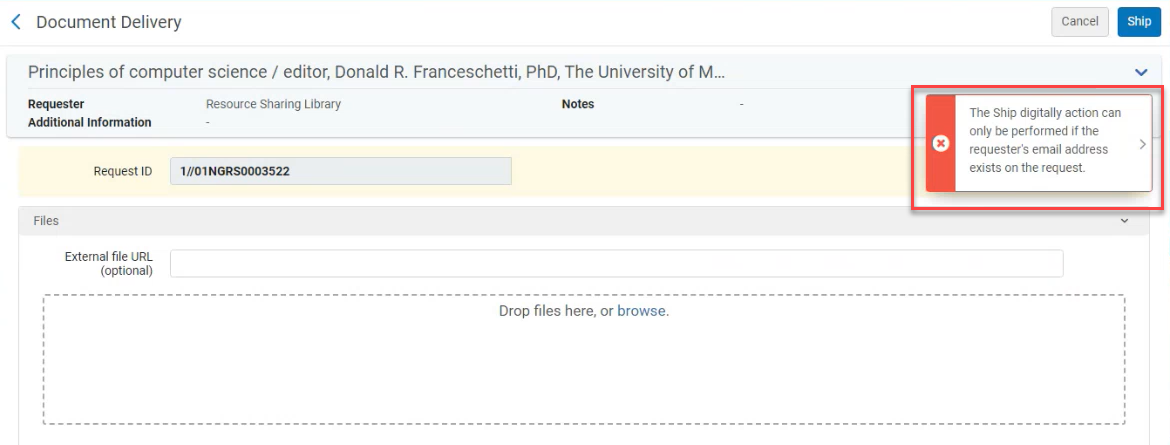
When a lender ships a digital request for borrower who is an ISO partner, an alert is added to the lending request indicating that the borrower does not have an email address.
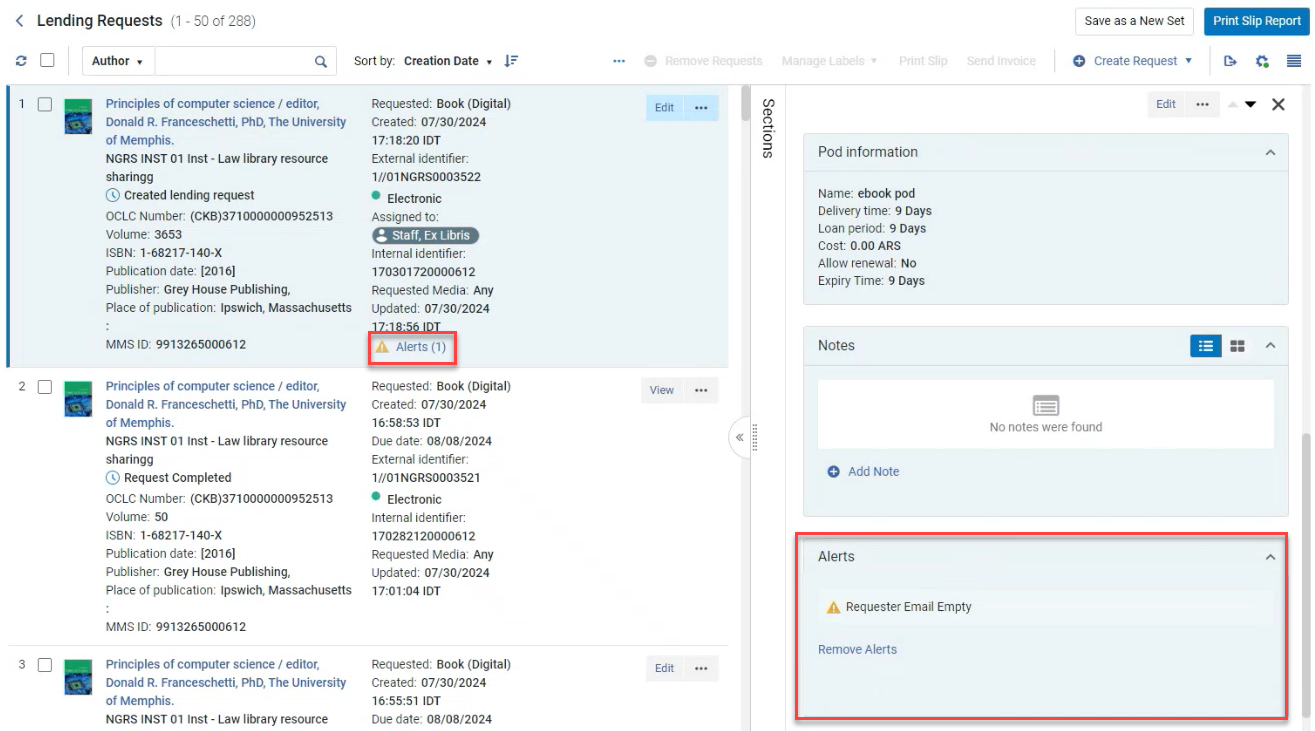
さらに、電子メール アドレスなしでデジタルリクエストが送信されると、依頼者が電子メール アドレスを持っている場合にのみリクエストを処理できることを貸し手に通知するエラーが生成されます。
アラートを削除
アラートは、リクエストのワークフローの主要なステップでリソースシェアタスクに添付されます。アラートには、リクエストの進行ステータス(処理中、キャンセル済み、完了済み)が表示されます。アラートは次のとおりです。
- リクエスト処理中
- リクエストがキャンセルされました
- リクエスト完了
- 引用のデジタル化リクエストは処理中です
- デジタル化リクエストはキャンセルされました
- 引用のデジタル化リクエストが完了しました
If a request has alerts attached to it, an Alerts link, with the number of alerts in parentheses, appears in the request's row in the Lending Requests page.
アラートファセットで1つ以上のアラートタイプを選択することにより、表示されたリクエストをフィルタリングできます。
詳細ペインで、ILL(受付)に添付されたアラートを確認できます。
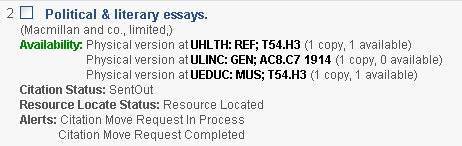
- On the Lending Requests page (Fulfillment > Resource Sharing > Lending Requests) page, do one of the following:
- リクエストの行で、アラートリンクを選択します。詳細ペインが開いたら、アラートセクションまでスクロールします。
- 詳細ペインで、セクション>アラートを選択するか、アラートセクションまでスクロールダウンします。
-
- In the Details pane, in the Alerts section, select Remove Alerts.
タスク割り当ての管理
タスクを割り当てられるか、割り当てが解除された場合にのみ、タスクを再割り当てできます。
- ILL(受付)ページ(フルフィルメント>リソースシェア>ILL(受付))で、関連するタスクの行アクションリストから割り当てを選択します。割り当て先ダイアログボックスが開きます。
- 割り当て先ドロップダウンリストから、オペレータを選択します。オペレータのリストには、フルフィルメントサービスオペレータの役職を持つユーザーのみが含まれます。
- Eメールとして送信チェックボックスをオンにして、新しい割り当てをオペレータに通知します。
- ノートフィールドに、必要に応じてノートを入力します。The field is limited to 1,000 characters.
- 割り当て先を選択します。選択したユーザーにリクエストが割り当てられます。
- ILL(受付)ページ(フルフィルメント>リソースシェア> ILL(依頼) )で、関連するタスクの割り当ての解除を選択します。割り当てが削除され、タスクの割り当てが解除されます。
過去の貸出リクエストアクションの表示
You can view the actions taken on resource-sharing lending requests on the History tab, in the same manner that you do for resource sharing borrowing requests.For details, see Viewing Borrowing Request Actions.
パートナーとの通信
このアクションを使用して、貸出タスク リクエストからパートナーに直接電子メールを送信します。このオプションにより、貸し手が制限事項を伝えたい場合や、お礼状などのあらゆる種類のメッセージを伝える場合などのワークフローが簡素化されます。これらのメッセージは、将来の参照のためにリクエストに保存されます。
Correspondence can be initiated using the Send email to partner action or from the Start Communication button on the Communications tab.
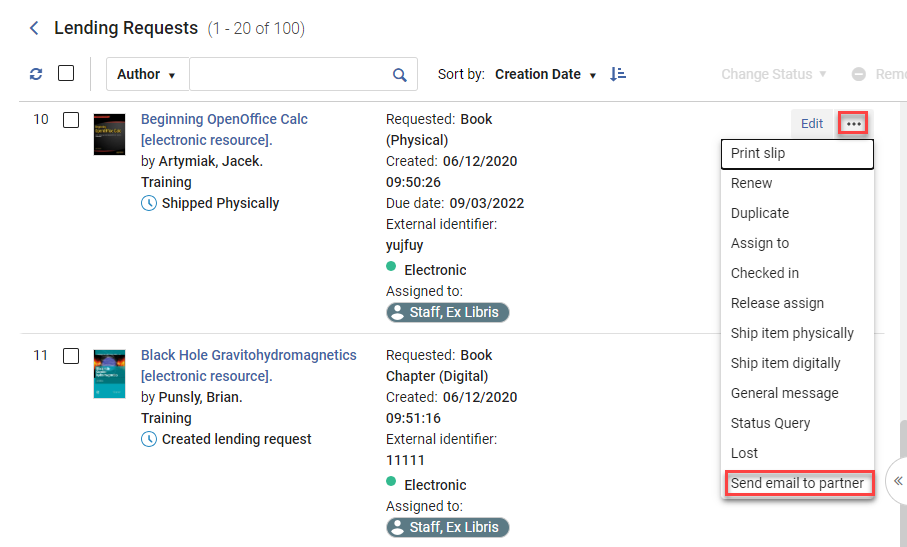
Selecting the Send email to partner action or the Start Communication button opens the Send email to partner form.
The From address is derived from the resource sharing library's preferred email shipping address.Acceptable To email addresses are the partner's preferred email shipping address or from the Rapid contact record email.ILL(受付)の場合、電子メールアドレスはリソース共有リクエストの連絡先電子メールアドレスから取得されます。
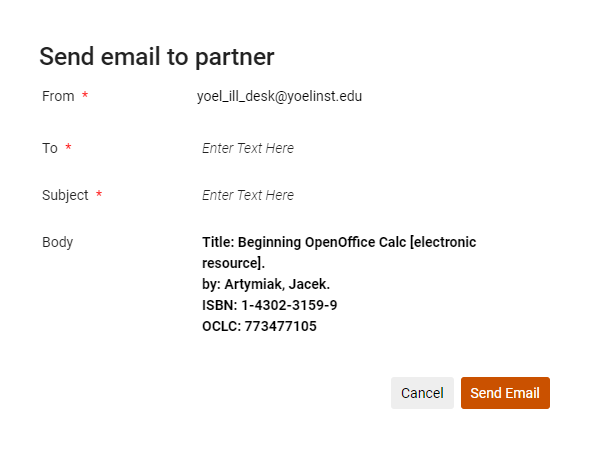
メールを送信を選択後、パートナーは、リソース共有会話レターを受け取り、通信通知がこのリクエストにパートナーとの通信が含まれていることを示すリクエストに追加されます。

通信ログは、通信タブからアクセスできます。
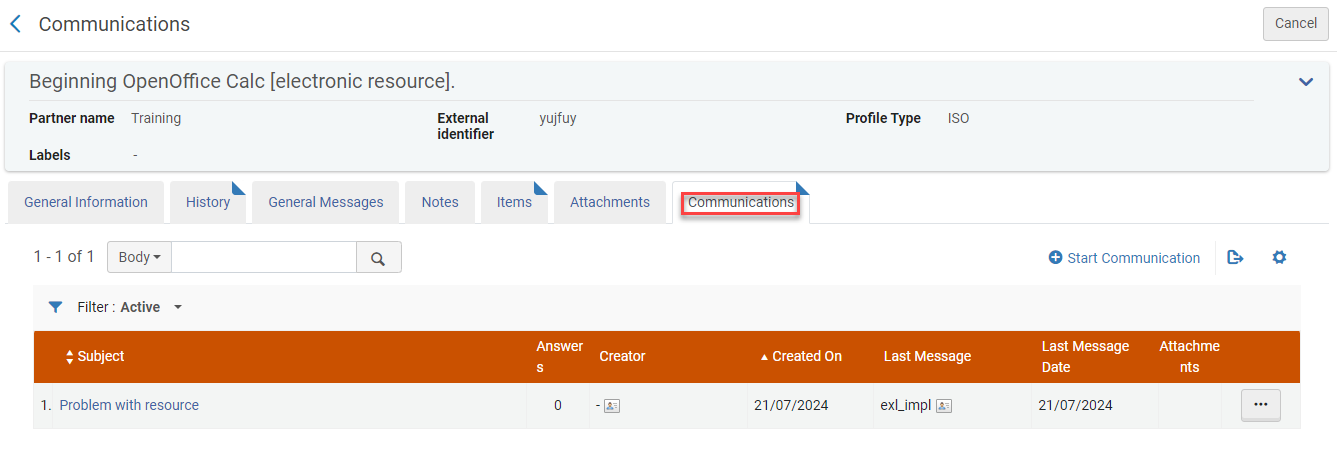
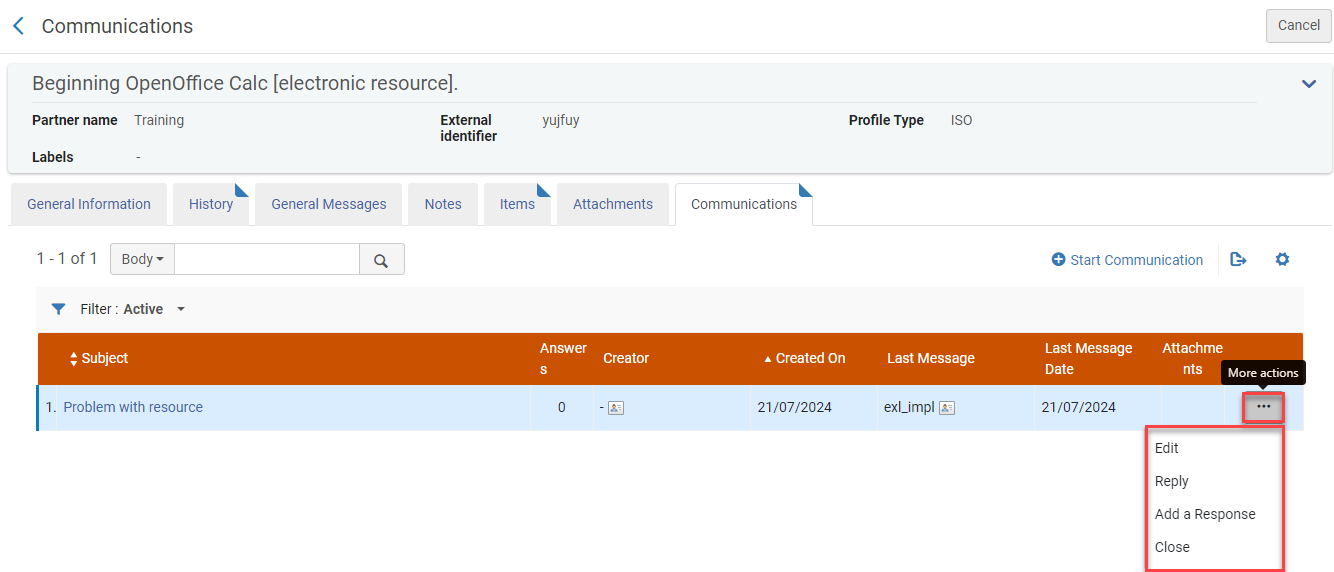
以下の操作が可能です:
- 通信全体を表示するために通信を編集する。
- 別の通信を送信するために通信に返答する。Each reply increases the counter in the CommunicationsAnswers column.
- 通信に対するパートナーの返答を貼り付けるために返答を追加する。
- 通信を閉じる。注: 通信を閉じると、リクエストから通信インジケータを削除しますが、通信は、全てのまたは閉鎖したフィルターの下の通信タブからアクセス可能のままです。
Page tags: article:topicLending Requestsproduct:almacontent:Documentationlang:englishEdit lending requestResource Sharing LendingReject lending request
