
Almaで検索
Searching Alma is available from the persistent search box located at the top of every page [the persistent search box does not appear at the top of the Portfolio List page; this is a known issue].You can also save search queries and reuse them at any time (see Saving and Reusing Search Queries).
Also see Secondary Search.
検索オプション
ユーザー役職に応じて、Almaのリポジトリで次のような多くのアイテムを検索できます:
- Metadata records compiled by Ex Libris or local to your institution or collaborative network (see Metadata Management and Inventory).これらの記録は次のとおりです:
- Local inventory— Including holdings for physical items, electronic portfolios, and digital representations and files.
- Bibliographic titles— Including top-level collections, physical titles, electronic collections, and portfolio titles, and digital titles.
- 典拠レコード
The results appear on the page; see Repository Search Results, below. - 役職に応じて、以下も検索できます:
- Patron requests— The results appear on the Resource Request Monitoring page (see Requests in Alma).
- Courses— The results appear on the Courses page (see Managing Courses).
- Deposits— The results appear on the Deposits page (see Deposit).
- Users— The results appear in the Find and Manage Users page (see Managing Users).
- Acquisitions information— Including PO lines, funds, invoices, vendors, and licenses (see Acquisitions).結果は、関連する受入ページに表示されます。
- Reading lists— The results appear in the Reading Lists Task List page (see Managing Reading Lists).
- Reading list citations— The results appear in the Edit Citations page (see Managing Citations).
- Borrowing Requests— The results appear in the Borrowing Resource Sharing task list.
- Lending Requests— The results appear in the Lending Resource Sharing task list.
- If your institution is working with Esploro, you can search for research assets, deposits, and files, and for researchers; see Searching in Esploro.
検索可能なフィールドは、検索タイプによって異なります。For example, when you search All Titles, the searchable fields are based on metadata that is common to all record formats, but do not include fields that are specific to physical, electronic, or digital inventory.You can search on these specific fields when searching the relevant format (Physical Titles, etc.).
Searching Physical Titles, Items, and Holdings indices with a permanent physical location equals "empty" does not work because it cannot retrieve real results since a holdings record cannot be created without "852$c".使用しないことをお勧めします。
In the persistent search, when searching for Physical Items by the beginning of a barcode as well as Local Control Field 009, we recommend using the “Contains exact phrase starting with” option instead of “Start with” search because it does not return the desired result.これには少なくとも 2 つの文字を使用する必要があります。たとえば、「7」や「Z」だけではなく、最初の文字「7L」や「Z0」を検索します。
すべての物的なアイテム、電子ポートフォリオ/コレクション、およびデジタルファイルは、目録(機関/ネットワーク)固有のデータに加えて、リンクされている書誌メタデータでインデックス付けされます。See Search Indexes for more information.検索は、カタログレコードの形式(例えば、MARC21、BIBFRAME、またはDublin Core)に関係なく同じです。
常設検索ボックスには、次の検索方法があります:
- Simple Search – Search using a single search field (see Performing a Simple Search).
- Advanced Search – Create search criteria, including search conditions, to refine your search (see Performing an Advanced Search).詳細検索は、引用、リクエスト、ILL(依頼)、ILL(受付)、予算、ベンダー、請求書には利用できません。
簡易検索では、単純なフリーテキストインデックスのみをアクティブにできますが、コードテーブルで定義されているような複雑、固定、または固定値のインデックスは、詳細検索でのみサポートされます。
When searching for a call number like I106.4 /4 that ends with a number preceded by a slash, the system ignores the slash and number, such as /4 in this example, and returns search results for I106.4.これは既知の問題です。This happens only when there is a digit after the slash.A search for I106.4 /E, for example, returns the correct set of results.この問題を回避するには、次の例のような常設請求記号タイプインデックスと条件を使用します:

Performing a Simple Search
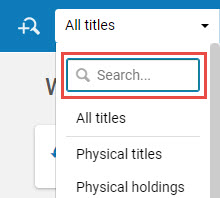
各ページの上部に常設検索ボックスが表示されます。このツールは、最初にリポジトリ(書籍、記事、当局など)およびAlmaの他の領域(注文明細、ベンダーなど)を検索するための簡易検索インターフェースを提供します。For a list of the keyword indexes searched during a repository search, see Search Indexes.デフォルトの検索はすべてのタイトルの目録検索です。
Users can quickly select the type of search (entity type) by starting to type the name in the Search field, for example "Electronic collection", and having it auto-complete in the field.
To rerun a simple repository search, see Rerunning a Previous Search.
- ドロップダウンリストから検索タイプを選択します。(これはオプションの固定リストであり、変更できないことに注意してください。)

オプションの常設検索ドロップダウンリスト 次の役職を持つユーザーは、各タイプの検索を実行できます。User Roles for Search Types
検索タイプ ユーザー役職 全タイトル
物的タイトル物理的アイテム物理的所蔵電子タイトル電子ポートフォリオ電子コレクションデジタルタイトルデジタルファイルコレクション典拠全て 注文明細 請求書マネージャー、請求書オペレーター、請求書オペレーター拡張、購入マネージャー、購入オペレーター、トライアルマネージャー、トライアルオペレーター 請求書 請求書マネージャー、請求書オペレーター、請求書オペレーター拡張、購入マネージャー、購入オペレーター ベンダー ベンダーマネージャー 予算 ファンドマネージャー、ファンドレジャービューアー、レジャーマネージャー、購入マネージャー、購入オペレーター ライセンス ライセンスマネージャー、購入オペレーター、購入マネージャー リクエスト
取寄せリクエスト
ILL(受付)
受入オペレーター、受入オペレーター(限定)、貸出・返却受付マネージャー、貸出・返却受付のオペレーター、フルフィルメントサービスマネージャー、フルフィルメントサービスオペレーター、リクエストオペレーター、ワークオーダーオペレーター、デジタル目録オペレーター(リクエストのみ) ユーザー ユーザー マネージャー、ユーザー管理者、貸出・返却受付オペレーター、貸出デスク(限定)、貸出・返却受付マネージャー、フルフィルメントサービスオペレーター、フルフィルメントサービスマネージャー リーディングリスト 引用コースコースリザーブオペレーター、コースリザーブマネージャー、フルフィルメントサービスオペレーター、フルフィルメントサービスマネージャー デポジット 入金マネージャー、入金オペレーター、入金オペレーター(拡張)、統括システム管理者 取寄せリクエスト(リソースシェア) フルフィルメントサービスマネージャー、フルフィルメントサービスオペレータ(リソースシェア図書館の範囲) ILL(受付)(リソースシェア) フルフィルメントサービスマネージャー、フルフィルメントサービスオペレータ(リソースシェア図書館の範囲) 作品 全て Available only if BIBFRAME support is enabled.For more information, see BIBFRAME support. - 2番目のドロップダウンリストで検索するフィールドを選択するか、複数のフィールドで一般的な検索を行うには、キーワードまたはすべてを選択します(最初のドロップダウンリストでの選択に応じます)。デフォルトのフィールド名を選択し、フィールド名の一部または全部を入力して、フィールドのリストをフィルタリングできます。For more information, see Searchable Fields; for PO lines, see PO Line Search Fields; for vendors, see Vendor Search Fields; for reading lists, see Reading List Search Fields; for citations, see Citation Search Fields (Simple Search Only).To configure the available search fields, see Configuring What Search Indexes Are Available.
- テキストボックスに検索文字列を入力します。To jump to this text field on any page that does not have any other kind of search box, press /(forward slash) on your keyboard.Regarding the search string:
- Articles (such as the,a,an) in your search are ignored.
Leading articles are not ignored when 'Title' is selected from the second drop-down list for All titles, Physical titles, or Electronic titles search types.
- 「AND」という単語はブール演算子として扱われません(単純検索ではすべての用語が暗黙的に「AND」されます)。
- ハイフン、ダッシュ、スラッシュなどの特殊文字は、特殊文字の有無にかかわらず文字列を検索します。例えば、a-bを検索すると、a-bまたはabを含むレコードが見つかります。Spaces separate search terms, so searching for a<space>b finds records that include both a and b anywhere (not as an exact phrase), but does not return ab.For additional special characters, see Searching for Special Characters.The exception to this is a search for course code/name or reading list code/name.See Reading List Search Fields and Citation Search Fields (Simple Search Only).
- All variants of apostrophe characters are normalized to the standard ASCII apostrophe \u0027 in various textual fields such as Subject and Title.つまり、書誌レコード内のテキストに次のUNICODEアポストロフィ文字のいずれかが含まれている場合、このテキストは、元のアポストロフィ文字またはASCII標準の\u0027のいずれかで検索することで返されます。この機能は、システムに設定されているデフォルトの検索言語でのみサポートされています。
- \u02BB - MODIFIER LETTER TURNED COMMA
- \u02BC - MODIFIER LETTER APOSTROPHE
- \u02B9 - MODIFIER LETTER PRIME
- \u2018 - SINGLE QUOTATION MARK
- To use the asterisk ( * ) wildcard character in your search string, place it at the end of the search string.Asterisk may be used at the end of the string with Contains Keywords and Not Contains Keywords.
- 文字列に特殊文字(ダッシュ(-)、ピリオド、引用符または二重引用符、括弧、スラッシュ、スペースなど)が含まれる場合、アスタリスクはサポートされません。例:$ a(Aleph)003858461UCD01-Aleph。
- 疑問符(?)はワイルドカード文字としてサポートされていません。
- アスタリスクは、すべてのインベントリを検索するために適用できます。For example, using asterisk as a keyword to search for ALL titles finds all the resources in Alma.
- When using an asterisk instead of the entire search string, it is recommended using "Title is not Empty" or "MMS ID > 0" to find all records in the repository in an efficient way.Note: Using an asterisk is not recommended, because it is less efficient and more time consuming.
- Alma does not break numbers and letters into separate tokens.For example: The indexing in the new version of Solr does not split the values.As a result, searching, for example, for SCR does not return 202408SCR.Note that when searching for CJK characters (if search language configuration is enabled by Ex Libris as described below), partial results are found.For example, when searching for 20240229, Alma returns results that include CJK characters, such as 年度寄贈20240229.
- Searching numbers in the "Keywords" (All) field, Alma does not split by hyphens (-), with the exception of ISSN and ISBN.
- 検索フレーズを二重引用符で囲むことにより、フレーズ検索を入力できます。This can be done for all search entities and index types that have the option to use phrase search in Alma's advanced search such as titles and portfolios searches.二重引用符で囲まれた一連の単語の前後に検索ボックスで他のテキストを追加すると、引用符で囲まれたテキストはフレーズ検索として扱われないことに注意してください。フレーズ検索機能は、二重引用符で囲まれた単一のフレーズに制限されています。フレーズ検索機能を使用すると、フレーズを含むということばが検索結果の検索語句の前に表示され、これは実行した検索タイプを示します。最近の検索リストには、簡易検索ボックスでフレーズ検索を実行した引用符が表示されます。When you enter a simple search with quotation marks and subsequently switch to the advanced search function, Alma automatically selects the Contains Phrase option.
- Almaは、標準の英語の文字を使用して検索すると、発音区別記号を持つ文字を検索します。機関内のユーザーが発音区別記号付きの文字を使用して検索する場合は、Ex Librisが発音区別記号の一致を返すように検索が設定されていることを確認してください。検索言語の設定は、ドイツ語、ノルウェー語、デンマーク語、スウェーデン語、韓国語、中国語、および香港のTSVCCで使用できます。
- Ex Librisに連絡して、次の拡張検索オプションを有効にします。
- 繁体字中国語/漢字または簡体字中国語/漢字で検索し、繁体字中国語/漢字と簡体字中国語/漢字の両方で結果を返します。
- ハングル(韓国語)で検索し、ハングルとハンジャの両方で結果を返します。
- ひらがな(日本語)で検索し、ひらがなとカタカナの両方で結果を返します。
- 管理者は、検索に関するいくつかの追加項目を設定できます。For more information, see Configuring Search.
- Almaは、タイトルまたは目録エンティティの検索用に、検索履歴に最後の10件の検索を保存します。このリストは無期限に保存されます。現在、リストをクリアする方法はありません(新しい検索を実行する以外)。
- Optionally select the initial results tab using the search scope drop-down list to the left of the magnifying glass:
 Institution,
 Community, or
 Network (when available).機関が典拠をローカルで管理していない場合、典拠検索時に機関での検索はオプションとして利用できない点に注意してください。For more information on these options, see Institution, Community, and Network Tabs.
- Select the magnifying glass
 or press Return or Enter on the keyboard to perform the search.検索クエリに一致するアイテムがページに表示されます。For locations with RFID (see RFID Support), select the RFID read icon to enter content (barcode), and select the magnifying glass.Users can erase entire text content in search fields by selecting an "X" rather than selecting the text and deleting it.この機能は、次世代 UI でのみ有効です。
 RFID読み取りアイコンRFIDが有効なときに物的アイテムを検索すると、セキュリティステータスが表示されます(使用可能な場合)。フィールドには、貸出中または利用可能のいずれかが含まれます。貸出中は、アイテムが貸出中であり、図書館を離れる可能性があることを示します。利用可能なアイテムは図書館から離れることができません。
- 結果の詳細については、以下を参照してください。
- Order lines —Searching for PO Lines
- Invoices —Searching for Invoices
- Requests —Resource Request Monitoring
- Borrowing Requests —Managing Resource Sharing Borrowing Requests
- Lending Requests —Managing Resource Sharing Lending Requests
- Vendors —Managing Vendors
- Licenses —Managing Licenses and Amendments
- Users —Managing Users
- Deposits —Approving Deposits
- Market —Searching the Rialto Marketplace
- All other results (repository): Repository Search Results
- To perform an advanced search, see Performing an Advanced Search.
- To save your search, see Saving and Reusing Search Queries.
- 結果の詳細については、以下を参照してください。
- Articles (such as the,a,an) in your search are ignored.
Performing an Advanced Search
詳細検索は、複数のフィールドや他のリソースタイプの検索フィールドなど、より強力で洗練された検索をサポートします。例えば、物的タイトルを検索する場合、特定の所蔵場所で書誌タイトルを検索できます。See Performing a Simple Search for search information that pertains to both types of searches.
To rerun an advanced repository search, see Rerunning a Previous Search.
詳細検索を使用
Use one of the following procedures to perform an advanced search, depending on the type of the search you are performing.
- 詳細検索は、引用、リクエスト、ILL(依頼)、ILL(受付)、予算、ベンダー、請求書には利用できません。
- OR is not available for advanced searches for licenses, and reading lists.
- When search results are displayed, if Advanced search was used, the + on the Advanced Search icon turns green:
 .アイコンをクリックして詳細検索を表示し、また必要に応じて変更します。
- 詳細検索をサポートする検索の種類を選択します。
- In the persistent search box, select
 Advanced.永続検索ボックスが展開され、検索条件の追加行(追加のフィールドと値)を追加するオプションが含まれます。
- You can also access the advanced search by selecting the search term in the query header.

In the new UX, you can select the Advanced Search icon in the query header to access the advanced search.
- For All Titles and electronic resources searches, select the repository to search: local (Institution Zone), Alma (Community Zone), or your collaborative network (Network Zone).
- Select the search indexes you want to search on.For information on combining multiple search indexes in the same search, see the new Advanced Search or the Classic Advanced Search.
- 比較ドロップダウンボックスで一致タイプを選択します。Comparators vary depending on the field you select.Typical match types include Contains Keywords(words in any order, separated by spaces, disregarding all punctuation including quotes),Contains Phrase(the phrase entered is searched in its entirety),Is Empty(see Searching for Items Without Specific Information),Starts With(also known as a "left anchored" or "left match" search),Equals,Not Equals,Greater Than,Greater Than or Equal To,Less Than,Less Than or Equal To,Not In,Not Contains Keywords,Not Contains Phrase,Is Not Empty, and Contains exact phrase starting with(see Search for an Exact Phrase).
- Currently, there is a known issue with conditions for Electronic Collection field searches:Not Contains,Is Not Empty, and Not Equals are not available for:CDI Search Rights,CDI Fulltext Rights,CDI Fulltext Link,CDI Types,CDI Newspapers,CDI Collection ID.
- Currently, there is a known issue with the Holdings Advanced Search.When searching using multiple search rules for the Library (Holdings) and the Permanent physical location indexes.これらのインデックスで複数の値を検索するには、1つの検索ルールを追加し、マルチセレクトで目的の値すべてを選択します。
- 現在、値にピリオド(.)が含まれるキーワードを含む検索を行う際に既知の問題があります。この場合、完全な値、値の先頭から最初の期間までに一致する検索語(最初の期間の有無にかかわらず)、または期間を含まない検索を使用して検索すると、Almaは値と一致します。例えば、値がaaa.bbb.cccの場合、次を検索します:
- aaa.bbb.cccmatches
- aaa bbb cccmatches(no periods in search)
- bbbmatches(no periods in search)
- aaa.matches(matches the value up to and including the first period)
- aaa.bbbdoes not match(search includes a period but is not the full value)
- bbb.cccdoes not match(search includes a period but is not the full value)
- で始まる検索は、特殊文字(ダッシュ(-)、ピリオド、引用符または二重引用符、括弧、スラッシュ、スペースなど)では期待どおりに機能しません。キーワードを含む検索がこのような場合に代わりに使用します。For example, instead of Starts With"Hallermann –Streiff syndrome", use Contains Keywords"Hallermann Streiff syndrome".
The Starts With operator, when used for parts of strings, works only if what follows after the string is a stop character (such as "." or "_"), or a character of a different type (letter or number).For example, when searching for a holdings record that has the following info in $852: "0_ |b CPSLO_MAIN |c stacks |h E184.M5 |i M5496 2018",starts with "E" retrieves the record because "E" is a letter followed by digits, but starts with "E1" or "E18" does not retrieve the record, because "E1" is followed by "84", and "1" is a digit, and "84" are also digits.
The Starts with operator is more useful for entire words and for title search than for call numbers and call number string parts (because when searching for 'E184', you get results where E184 is located in $h and also in $i, and you may not necessary need that).If accurate call number ranges are important, the recommended best practice is to use the range operators <, >, <=, >=.範囲演算子を使用する場合は、フレーズ部分ではなくフレーズ全体を検索します(たとえば、E1やE18ではなくE184を検索します)。
- For institutions that have the CJK (Chinese, Hong Kong, or Korean) searching setup, there is a known issue that searches do not work properly when the Starts With and Contains Phrase operators are used and the search terms contain punctuation characters.
- ない節は直感に反するかもしれません。For example, for Title search, if a title has holdings in library A and library B, and the title search contains the clause Holdings - Not in - Library A, the title is returned by this search because there is at least one Holdings Record for the title, that is not in library A (you might have expected that it would not be returned because the title has a Holdings Record in library A).
- For information on enabling repository searches to include matches to non-preferred terms in any associated authority records, see Non-Preferred Terms in Repository Search.
- For searching call numbers, see Searching for an Exact Phrase below.
- 選択した一致タイプに応じて、行の最後のフィールドに完全な値または部分的な値を入力または選択します。このフィールドは、フリーテキスト、ドロップダウンリスト、またはカレンダー選択ツールを入力するためのテキストフィールドです。For certain drop-down lists, such as library and permanent physical location, you can select multiple matching values (see the example for Library above).
- [検索]を選択するか、キーボードの[Return]キーを押します。The results of an advanced search appear below the advanced search form.詳細検索を編集し、結果ページから新しい検索を実行できます。現在の検索ロジックは結果の上部に表示されます。
すべてのタイトルおよび標準権限検索は、サブフィールドのアルファベット順に従ってフィールドのサブフィールドからテキストを抽出します。
新しい詳細検索
Searches that moved to the new Alma UI support a more powerful search query builder.
To work with these searches:
[物理的所蔵/図書館]フィールドでの図書館コードの検索はサポートされていません。簡易検索では、図書館コードをキーワードとして検索できます。詳細検索では、図書館名が[図書館/図書館 (所蔵)]フィールドのドロップダウンに表示されます。
| オプション | 説明 |
|---|---|
|
検索条件を追加する方法 |
|
| 検索条件のグループを追加する方法 | Select |
|
To change the relationship between groups of search conditions |
Baseline conditions default to an AND relationship, meaning that each condition must be true to retrieve the searched item.When adding a group of conditions, you can change the relationship within the group to OR.In this case, the search item is retrieved when either of these conditions is true. Select any Boolean operator between the conditions.Parameters for AND and OR appear at the top of the list.Select a parameter to select this type of relationship.To stop displaying these parameters, select the Boolean operator again.
While it is permissible to include multiple Boolean Operators, when many Boolean operators are selected, slower performance is likely to result.Thus, each search query should include no more than 200 Boolean operators. |
| 検索条件を削除する方法 | Select the X right of the search condition to remove it from the query. |
クラシックな詳細検索

検索は単一の行から始まります。各行には、検索フィールドのドロップダウンリスト(テキストを入力してオプションをフィルタリングできます)、比較ドロップダウンリスト、検索条件のテキストボックス/選択リスト、およびいくつかのアイコンが含まれています。フィールドドロップダウンリストのフィールドは、適用先のエンティティごとにグループ化できます。例えば、電子タイトルを検索する場合、各行のフィールドは、タイトル、電子コレクション、および電子ポートフォリオフィールドにグループ化されます。To configure the available search fields, see Configuring What Search Indexes Are Available.
- To add additional rows, select the duplicate row icon or add row icon.For information, see Searchable Fields.デフォルトでは、各行は、(AND)一致している必要があり、追加の検索条件を表します。
- Select OR in any row (other than the first) to change the combination type to OR.Implied parentheses are added around all search rows connected by ANDs.
- 行(最初の行以外)を削除するには、行の削除アイコンを選択します。
Searching for an Exact Phrase
The Contains exact phrase starting with operator is available under for Physical Titles and Holdings searches with the following indexes:
- デューイ十進法分類番号
- その他の分類番号
- その他システム番号
- 常設請求記号(所蔵)
- LC請求番号
- ローカル請求番号
- NLM-type Call Number Note: When searching for call numbers, it is possible to search by permanent call number without specifying the type, except when searching by a call number range.When searching by call number range, you must add to the advanced search conditions the "Permanent call number type" condition.追加しない場合、正確な結果が得られない可能性があります。Permanent call number is not indexed for keywords search.
The search value Exact phrase starting with operator for the "Heading Information" index refers to the first (approximately) 55 characters of the search term.It is not a permanent number, as the system's internal, calculated search query contains more information based on the other parameters specified in the Heading Information search component.
In this case, a phrase is a block of contiguous non-space characters.For example, a call number E184.M5 M5496 2018 contains the three phrases E184.M5 and M5496 and 2018.Use Contains exact phrase starting with to search for terms that occur at the startof any of these phrases.You can search using a minimum of two characters and up to 15 characters.
For example, consider the record that contains the call number E184.M5 M5496 2018 in the relevant index.The below searches using Contains exact phrase starting with returns this record:
- Search for E184.M5 or E184.M or E184., etc.
- Search for M5496 or M549 for M54, etc.
- Search for 2018 or 201, etc.
By default, a phrase does not contain space characters.However, you can ask Ex Libris to configure your institution so that space is considered to be part of your phrases.In this case, any space within the search string is considered to be part of the string.In this case, the below searches using Contains exact phrase starting with returns this record:
- Search for E184.M5 M5496 2(note that this search string contains 15 characters, which is the maximum length of search string for this operator)
- E184.M5 M5496を検索します
- M5496 2018を検索します
- After asking Ex Libris to enable (or disable) this alternative feature, Ex Libris must perform a full re-indexing for your institution.
- 有効にすると、スペースは2〜15文字の長さ制限に対して考慮されます。
- This alternative feature, when enabled, does not apply to the Other System Number index.
- The Equal operator does not support special characters in call numbers.
Search Fields
ほとんどのフィールドは一目瞭然です。追加情報については、次の表を参照してください。For a list of search indexes for BIBFRAME, MARC, and non-MARC bibliographic tag mappings, see Search Indexes.
| オプション | 説明 | ||||||||||||
|---|---|---|---|---|---|---|---|---|---|---|---|---|---|
|
アクセス権(電子ポートフォリオ)
|
アクセス権 (電子ポートフォリオ) の検索インデックスはサポートされていません。Users are to refrain from using this index.Updates or changes will be communicated as they become available.
|
||||||||||||
|
有効化日時 (電子コレクション、ポートフォリオ)
|
有効化された日付に基づいて電子リソースをさがします。
|
||||||||||||
|
検索
|
||||||||||||
|
このリソースが制限されている目録管理グループを選択します。詳細検索オプションで利用可能なものの比較説明については、以下のリストを参照してください:
The selectable criteria vary depending on how the available settings are defined.
この詳細検索機能がどのように実装されているかのデモを見るには、以下のビデオをご覧ください。
For more information, see Search Results with Restricted Access.For information on restricting availability for electronic resources, see Configuring Distributed Access to Electronic Resources.
For more information about searching for electronic resources by inventory management groups, see the Search by Available For Groups video (4:11 mins).
|
||||||||||||
| 製本注記 | 563 $ aを検索 | ||||||||||||
| 簡易レベル | 検索する特定の簡易レベルを選択します。For more information, see Working with Brief Record Levels. | ||||||||||||
| コレクション(デジタルタイトル) | コレクションIDでコレクションを検索します。 | ||||||||||||
| コレクションアクセスタイプ | 現在または永久を選択します。 | ||||||||||||
| コンテンツ関係のデータ | 580 $ a、773 $ tを検索 | ||||||||||||
| 寄稿者(電子コレクションおよび電子ポートフォリオ用) | [コミュニティゾーン]タブで使用して、提供された電子リソースをさがします。 | ||||||||||||
| 利用できるカバレッジ | Select Only Loca l, Global AND Local, Global OR Local, or Only Global. 使用されるカバレッジタイプに基づいて電子リソースをさがします。 |
||||||||||||
| 現在の場所 | 現在の場所でアイテムを検索します。 | ||||||||||||
| 日付情報上書き | いいえまたははいを選択します | ||||||||||||
| DOI - デジタルオブジェクト識別子 | $ 2にdoiが含まれている場合、024の$に格納されます。 | ||||||||||||
|
無料(電子コレクション) 無料(サービス) |
電子コレクションの無料の詳細検索オプションは、電子コレクションレベルと電子サービスレベルの詳細検索の両方に実装されています。 It is possible to search for electronic collections whose Free (service) or Free (electronic collection) is not defined using the Is Empty qualifying option. Note that when an electronic collection is not set as Free or Not Free but all of its services are set to Free, the Is free? parameter on the Additional tab of the Electronic Collection Editor is identified as Free; and if there is at least one service that is defined as Not Free, the electronic collection is shown as Not Free. |
||||||||||||
| 一般的な保持ポリシー | 物的タイトルを検索するときは、所蔵レコードの008フィールドの位置12を検索します。 | ||||||||||||
|
目録あり(すべてのタイトル) |
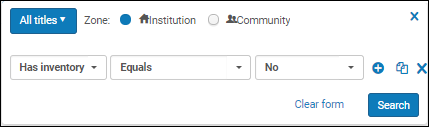
目録の生むん関らず書誌タイトルを検索するには、いいえまたははいを選択します。
"Has Inventory = No"を検索すると、関連在庫の結果が表示されることに注意してください。これは予想される内容です。 |
||||||||||||
| アイテムあり | いいえまたははいを選択して、それぞれ、アイテムのない所蔵またはアイテムのある所蔵を検索します。 物理的タイトル検索のインデックスは、条件に答える所蔵レコードを少なくとも1つ持つ物理的タイトルを参照します。A complete result can be achieved in the Holdings search. |
||||||||||||
| ローカルカバレッジ情報あり | 日付の上書きまたはエンバーゴから選択します。 ローカルカバレッジがある電子リソースをさがします。 |
||||||||||||
| 注文があります | Select No or Yes to search for bibliographic records with or without purchase orders. Searching "Has Orders=Yes" retrieves only bibliographic records that have a PO Line linked to them. 注文明細を別の書誌レコードに再リンクすると、取得されるレコードに影響します。
注文あり - 詳細検索 |
||||||||||||
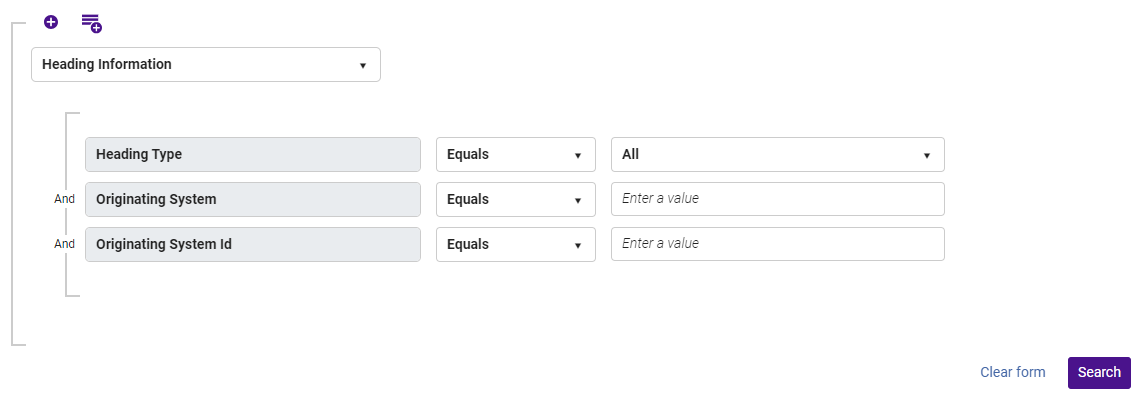
| 標目情報 | Search for bibliographic records that are related to a specific heading.For details, see Browsing Bibliographic Headings.Once the results are in the repository search, you can create a set that would include all these results, and work with the set as usual. In addition, users can search for bibliographic records based on their heading information linked to a specific authority record.When All is selected in the Heading Type drop-down menu, users are prompted to specify the authority record's Originating System and Originating System Id.This functionality enables users to retrieve all bibliographic records with headings linked to the specified authority record, irrespective of the heading type.
詳細検索 - 見出し情報 |
||||||||||||
| リンク済み | コミュニティゾーンまたはネットワークゾーンにリンクされている(またはリンクされていない)レコードをさがします。 (すべてのタイトル検索用)このインデックスは機関タブから詳細検索に使用されている場合は、コミュニティ・ゾーンまたはネットワークゾーンにリンクされているすべての書誌レコードが表示されます。 |
||||||||||||
| ローカル(ローカル電子コレクションおよびローカルポートフォリオ用) | いいえまたははいを選択します。 ローカルで管理されている電子リソースをさがします。 |
||||||||||||
| ISNI - 国際標準名称識別子 | さまざまなフィールド、特に1XX、6XX、および7XXの$ 0に格納できます。 | ||||||||||||
| アイテムPID | アイテムの内部システム生成IDを検索します。 | ||||||||||||
| 目録の言語 | これを使用して、ドロップダウンリストから選択した言語に基づいてレコードをさがします。 言語は3文字の略語としてカタログ化されていることに注意してください。ただし、[詳細検索]ドロップダウンリストには完全な言語名が表示されます。 This is sourced from the MARC 21/KORMARC 040 $b and the UNIMARC/CNMARC 100 $a, positions 22-24. |
||||||||||||
| リンクされた機関 | これを使用して、コミュニティゾーンまたはネットワークゾーン(メンバー機関)にリンクされている書誌レコードを取得します。オプションはコミュニティまたはネットワークです。 | ||||||||||||
| MMS作成日(タイトル) | 機関の詳細検索を行うときに使用できます。これは、権限制御タスクリストを使用するときに役立つ場合があります。 | ||||||||||||
| 修正日 | From the MMS record's modification date column. | ||||||||||||
| オープンアクセス | 506で次の一致を検索します。 506 0_ $ f無制限のオンラインアクセス$ 2スター |
||||||||||||
|
OCLCコントロール番号(019)
OCLCコントロール番号(035a)
OCLCコントロール番号(035a+z)
OCLCコントロール番号(035z)
|
With these indexes, you can locate specific OCLC numbers.
These fields are indexed based on the presence of one of the following prefixes and only the number is indexed: ocm, ocn, on, or (OCoLC).So, for example, 035 $$a (OCoLC)ocm232354470 is indexed as 232354470.Note that even though only the number is indexed, you can still search with or without the prefix.
これらの索引は、MARC 21、KORMARC、UNIMARC(019を除く)、およびCNMARC(019を除く)で利用可能です。
|
||||||||||||
| ORCID ID - オープンリサーチャーおよび投稿者ID | このIDは、さまざまなフィールド、特に1XX、6XX、および7XXの$ 0に格納できます。 | ||||||||||||
| 元のカタログ作成エージェンシー | これを使用して、特定の元のカタログ作成機関のレコードをさがします。 This is sourced from the MARC 21/KORMARC 040 $a and (under construction) the UNIMARC/CNMARC 801 $b, when the second indicator is 0. |
||||||||||||
| 発信元システム | アイテムがAlmaにインポートされた元システムの名前を検索します。 | ||||||||||||
| 発信元システムID | アイテムのインポート元のシステムで作成されたレコードIDを検索します。 | ||||||||||||
| その他分類番号 | 他の番号フィールドのいずれかでカバーされていないスキームから分類番号を検索します。 | ||||||||||||
| その他のシステム番号 | 035フィールドを検索します。 035に接頭辞が含まれる場合、035には接頭辞の有無にかかわらずインデックスが付けられます。As a result, searching for the other system number with or without the prefix returns a successful match.例については、下の表を参照してください。
デフォルトでは、Almaはシステムの数から末尾のゼロを削除します。末尾のゼロを保持するには、ExLibrisサポートに連絡してください。末尾のゼロが正確に7つある場合にのみ可能であることに注意してください。 |
||||||||||||
| 査読済み | 500で次の一致を検索します: 500 __ $ a査読/査読済み |
||||||||||||
| ポートフォリオアクセスタイプ | 現在または永久を選択します。 | ||||||||||||
| Alma AIツールで処理する | Alma の AI メタデータ アシスタントを使用して作成または強化されたレコード | ||||||||||||
| Provider ID (Electronic Collection) Provider Name (Electronic Collection) |
プロバイダー情報を使用して Alma でコレクションを検索します。これは、コミュニティ ゾーンのコレクション名がプロバイダーのコレクション名と異なる場合に特に役立ちます。コミュニティ ゾーン コレクションには、プロバイダー コレクション名と ID、および Alma コレクション名と ID が含まれる場合があります。コミュニティ ゾーン コレクションのプロバイダー名と ID が定義されると、コミュニティ ゾーン、機関、およびネットワーク タブで検索できるようになります。
|
||||||||||||
| 出所コード | 資料の出所を示す機関によって定義されたコードを検索します。 | ||||||||||||
| レコードフォーマット | 検索するレジストリ/レコードフォーマットを選択します(DC = Dublin Core)。 | ||||||||||||
| 資料タイプ | このインデックスは、LDRや008などの既存の書誌フィールドから作成されます。既存の資料タイプフィールドを補完しますが、置き換えはしません。See The Resource Type Field. | ||||||||||||
| 外部カタログとのタグ同期 | MMSレコードをOCLC WorldCatなどの外部カタログと同期する必要があるかどうか。 | ||||||||||||
| 一時的な図書館 | アイテムの実際の物的場所に基づいて検索します。 | ||||||||||||
| 一時的な物的配架場所 | Search for items identified in the system's temporary location field regardless of whether the item is currently in the temporary location (that is, even when Item is in temporary location=No). | ||||||||||||
|
URL |
When searching for Electronic titles or Electronic portfolios, URL is an option under Electronic Collection and Electronic Portfolio. このオプションを使用すると、URLを検索して正確性を維持できます。
|

次のDublin Core(DC)フィールドは、Alma詳細検索の条件として使用できます。
- dc:contributor
- dc:coverage
- dc:creator
- dc:date
- dc:description
- dc:format
- dc:identifier
- dc:language
- dc:publisher
- dc:relation
- dc:rights
- dc:source
- dc:subject
- dc:title
- dc:type
Almaは、RDAを使用するシステムのRDAフィールドとサブフィールドをサポートしています。詳細については、下の表を参照してください。
| フィールド | 説明 |
|---|---|
| 書誌 | |
| 028 | 出版者番号 |
| 264 | 制作、出版、流通、製造、著作権表示(R) |
| 336 | コンテンツタイプ(R) |
| 337 | メディアタイプ(R) |
| 338 | キャリアタイプ(R) |
| 340 | 物的媒体(R) |
| 344 | サウンド特性(R) |
| 345 | 動画の投影特性(R) |
| 346 | ビデオ特性(R) |
| 347 | デジタルファイル特性(R) |
| 377 | 関連言語(R) |
| 380 | 作品の形態(R) |
| 381 | 作品または表現のその他の特徴(R) |
| 382 | パフォーマンスの媒体(R) |
| 383 | 音楽作品の数値指定(R) |
| 384 | キー(R) |
| 権限 | |
| 046 | 特別なコード化された日付(R) |
| 336 | コンテンツタイプ(R) |
| 368 | 個人または法人のその他の属性(R) |
| 370 | 関連する場所(R) |
| 371 | 住所(R) |
| 372 | アクティビティのフィールド(R) |
| 373 | 関連グループ(R) |
| 374 | 職業(R) |
| 376 | 家族情報(R) |
| 378 | フルネームの個人名(NR) |
| 377 | 関連言語(R) |
| 380 | 作品の形態(R) |
| 381 | 作品または表現のその他の特徴(R) |
| 382 | パフォーマンスの媒体(R) |
| 383 | 音楽作品の数値指定(R) |
| 384 | キー(R) |
| 所蔵 | |
| 337 | メディアタイプ(R) |
| 338 | キャリアタイプ(R) |
Searching for Titles by Call Number Range
The range operators <, >, <=, >= are available in the Advanced search when searching for Titles (All Titles, Physical Titles, Electronic Titles, Digital Titles).These operators can be used to search within the below bib call number indexes.
When searching with the permanent call number criteria, a permanent call number type must be provided.When using the Item call number type criteria, an Item call number type must be provided
以下のすべての索引では、範囲検索を行う際に、まずレコードが並べ替えられます。This sort is done based on a unique identifier taken from the first occurrence of the call number field.
| 索引 | MARC 21フィールド | UNIMARCフィールド | CNMARCフィールド |
|---|---|---|---|
| NLMタイプ請求番号 | 096 a、z | ||
| デューイ十進法分類番号 | 082 a,b 092 a,b | 676 a | 676 a |
| その他分類番号 | 084 a,b | 686 a、69X | 686 a、69X |
| LC請求記号 | 050 a,b 055 a,b 090 a,b | 680 a | 680 a |
| UDC | 080 a,b | 675 a | 675 a |
| CLC分類番号 | 690 a | ||
| CAS分類番号 | 692 a | ||
| RUC分類番号 | 694 a | ||
| その他の国内分類番号 | 696 a |
These operators add the ability to search for ranges of call numbers on bibliographic record level.これは、たとえば、特定の主題または主題の範囲に属するすべてのタイトルを検索する場合に役立ちます。For example, you can search for a range of call numbers across the Dewey Decimal Class Number index:
The below title was retrieved in this search, because its Dewey Decimal Class Number (displayed in 082 field $$ a), is included in the specified range.
現在、範囲検索の結果を任意のタイプの請求番号で並べ替えることはサポートされていません。
Watch the Search for Titles by Call Number Range video (1:45 minutes).
Order-Line Search Fields
When searching for order lines (PO lines), you can enter the following additional criteria (some of these are described in Manually Creating a PO Line):
When the format of the PO line reference number breaks the search (for example, containing a forward slash), contact the Alma support team for setting a system customer parameter.その後、PO line検索では、検索タイプとして「等しい」ではなく「含む」が使用されます。
- アクセスプロバイダー(詳細検索のみ) - アクセスプロバイダーのコードと一致。
- 受入方法(詳細検索のみ) - リストから選択。
- 追加の PO line参照 - 他の PO line番号を入力します。
- Alert (advanced only)
- 割り当てられたユーザー (詳細のみ)
- Assignment (advanced only) – Note: When Assigned to me is selected, and the query is then saved as a logical set (see Saving and Reusing Search Queries, below), the user who saved the logical set is saved as the value for Assignment in the query.別のユーザーが論理セットを使用する場合でも、元のユーザーがこのフィールドの値として使用されます。
- 著者名
- Cancellation restriction (advanced only) — Whether the PO line can be canceled,Yes or No.
- Creation Date (advanced only)
- 予算コード
- 予算名
- インポートジョブID - このIDは、注文明細がジョブによってインポートされた場合に存在します。
- Interested users (advanced only) — Whether the PO line has interested users,Yes or No.
- 内部注記
- ライセンスコード(詳細のみ)
- MMS ID
- 資料タイプ - 注文明細の二次タイプを選択します。注:値ではなく、資料タイプのコードを使用してください。このコードは、物的資料タイプタイプのコードテーブルにあります。
- Owning Library — In an institution with multiple libraries, limit the search to an individual library.
- PO line - PO line番号
- PO Line in Claim (advanced only) — Whether the PO line is in claim,Yes or No.
- PO line type — Select the primary type of the PO line (see Enabling/Disabling PO Line Types).
- POレファレンス番号 - 発注書(PO)番号を入力します(ある場合)。
- POステータス(詳細検索のみ) - 発注書(PO)ステータス。
- Physical location name — Based on the ordered item's current physical location.
- 出版地
- 発行年
- 出版者
- 受入注記
- Renewal Date (advanced only) – Note: When Renewal Date is selected, and the query is then saved as a logical set (see Saving and Reusing Search Queries, below), the value of this field at the time the logical set is saved is retained as the value for Renewal Date in the query.これは、選択された値が元々相対値であった場合にも当てはまります。たとえば、選択した値が今日よりも早い場合、クエリがいつ実行されるかに関係なく、更新日がクエリが保存された日付より前のPO line が検索されます。
- レポーティングコード - 一次レポーティングコード。
- Rush (advanced only) — Whether this was marked as a rush order,Yes or No.
- 第2レポーティングコード
- Sent Date (advanced only)
- SIP ID - 注文明細がジョブによりインポートされた場合、このIDが存在します。See Configuring Search Indexes.
- Standard number — See Search Indexes.
- 第3レポーティングコード
- タイトル
- タイトル - で始まる
- ベンダーアカウントコード
- Vendor code — Finds all PO lines whose vendor code contains the search string.
- Vendor code - Equals — Finds all PO lines whose vendor code exactly matches the search string.
- Vendor invoice number — Finds all PO lines whose vendor invoice number contains the search string (The vendor invoice number is sent from the vendor if the PO Line is generated by EOD.)
- Vendor name — Finds all PO lines whose vendor name contains the search string.
- Vendor name - Equals — Finds all PO lines whose vendor name exactly matches the search string.
- Workflow — A workflow step or PO line status Note that i​​​​​n the advanced search, there is a drop down that lists all the possible search values.簡易検索では、検索値を手動で入力できます。結果を得るには、次の検索語のいずれかを使用する必要があります:
- INREVIEW
- MANUAL_PACKAGING
- AUTO_PACKAGING
- READY
- SENT
- CLOSED
- CANCELLED
- WAITING_FOR_MANUAL_RENEWAL
- CYCLIC_RENEWAL
- WAITING_FOR_INVOICE
- TRIAL
- RENEWAL_TRIAL
- DEFERRED
- すべて
When searching for PO lines, the search list is ordered alphabetically to help you find the search value quickly, while the most used fields are displayed in the recent history.
The All index can be used to search PO lines by their internal notes.ユーザーは、メモの完全な説明およびメモの部分的な説明で検索を実行することもできます。これにより、受入スタッフは、メモを検索して特定の注文明細を見つけることができます。
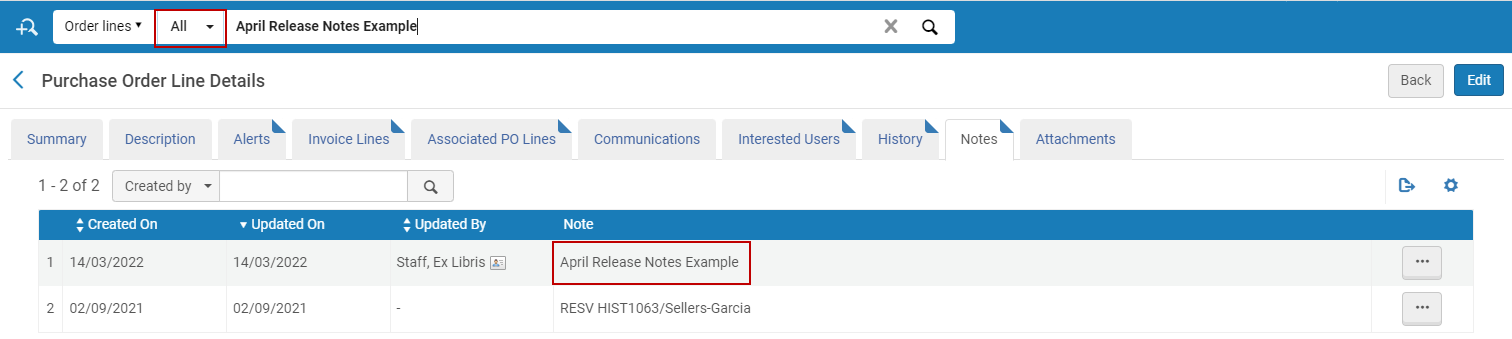
内部メモは、新しい専用の内部メモ検索索引を使用して検索することもできます。

メモを追加したら、PO Lineを保存します。
ベンダー検索フィールド
When searching for vendors, you can enter the following additional criteria (some of these are described in Managing Vendors):
- コード - ベンダーコード
- インターフェース名
- Libraries — Note that this returns all vendors associated with the library that you enter (by name or part of the name), as well as all vendors associated with the institution itself (since a vendor that serves the institution also serves the library).
- 名前 - ベンダー名
- SUSHI Account Name — For more information, see Managing SUSHI Accounts.
Reading List Search Fields
When search for reading lists, you can enter the following additional criteria (for descriptions, see Managing Reading Lists):
- すべて - 任意の条件に一致する図書リストを検索します。When performing a search, you must insert the full code, exact value, or include a wildcard (*) for the search to be successful.ワイルドカードなしでコードの一部を検索すると、レコードが見つかりません。ワイルドカードは、スペースなしで検索パラメーターの直後に挿入する必要があります。全て検索では、読み取りリストID による結果は含まれません。
- コード - 図書リストのコード。コードの一部を挿入してコードを検索すると、検索が成功します。
- コース - コースのコードまたは名前。関連するコースなしでリーディングリストを見つけるには、EXLIBRIS_DEFAULT_COURSEを検索します。
- リスト ID - 図書リスト ID。
- 名前 - 図書リスト名。
- Owner — The primary ID or name of any of the reading list owners.
- (詳細検索のみ)コースの開始日/終了日 - コースの開始日または終了日。
Citation Search Fields (Simple Search Only)
When searching for citations, you can enter the following additional criteria (for descriptions, see Managing Citations):
- キーワード(デフォルトの選択) – このオプションを選択すると、次の引用のメタデータフィールドで一致が検索されます:
- 追加の人物名、著者、本の著者、本のタイトル、章の著者、
- Chapter Title, Citation ID, DOI, Edition, Editor
- ISBN, ISSN, Issue, Journal Title, LCCN
- MMS ID, OCLC Number, Pages, Place of Publication, Publication Date
- Publisher, Resource Note, Source, Title, and Volume
Keyword searches for citations do not support the use of Boolean operators (such as AND or OR), and if these operators are specified, they are treated as keywords.
特殊文字(ハイフン、ダッシュ、スラッシュなど)が検索語として指定されている場合、検索では、特殊文字を含むものと含まないものの両方の結果が返されます。
- 引用ID
- コースコード
- コース名
- 作成者 - 引用著者の名前。Note: Additional person names are not included in the search.
- ISBN/ISSN
- MMS ID
- リーディングリスト名
- タイトル - 引用名
検索フィールドの取寄せまたは貸出
When searching for resource sharing requests (borrowing or lending), you can enter the following additional criteria:
- 外部リクエストID
- [著者]
- DOI
- 内部識別子(取寄せリクエスト用)
- ISBN/ISSN
- アイテムのバーコード
- ジャーナルタイトル
- LCCN
- メモ
- OCLC番号
- その他の標準ID
- PMID
- リモートレコードID
- Requester (for borrowing requests)
- タイトル
- User Identifier (for borrowing requests)
Users Search Fields
- 作成日:移動日数範囲に対応
A moving range of days, such as Is Within the Last (days),Is Older Than (days), Is Within the Next (days) search operators can get a numeric value input (1 - 2,500,000) to define the time range (where 1 represents "today").
- キャンパス
- 作成日:移動日数範囲に対応
- Eメール
- 電話番号
- Since phone numbers are encrypted upon save, a phone search is an exact match search (for example, if country code is entered in the phone number, use it when searching) on numeric values only (any non-numeric values, for example, hyphens, spaces or brackets, do not affect the search).
- 電話番号フィールドは保護されたデータと見なされており、正確な電話番号インデックスを使用してのみ検索できます。「すべて」のユーザー検索には含まれません。
- Expiration date — Supports a moving range of days
- Fine/fee total sum — Searches fines/fees with an Active status
- 名
- ブロックタイプあり
- ID
- ジョブカテゴリ
- Last activity date — Supports a moving range of days
- 姓
- ミドルネーム
- メモ
- プライマリ識別子 - 数字と文字が含まれている場合は完全なIDを検索する必要があります
- 除外日 - 可変的な日数範囲に対応
- Roles and Scopes (New for February)— Searches role and scope with the following conditions:
- 役割による検索には、選択した範囲を含める必要があります。You can use the All option to indicate that the role should be searched for with any scope.
- Scope can include multiple values, e.g., Role Equals Circulation Desk Operator AND Scope Equals (Law OR Main OR Theology).
- The Not Equals option exists for Role only (it does not exist for Scope).If you select this option, you get the complement group (as if adding NOT to the entire search criteria).For example, if you select Role Not Equals Circulation Desk Operator AND User Group Equals Staff, you get a list of all the Staff users that do not have a Circulation Desk Operator role.
- Statistical category — If more than 1000 statistical categories exist, an auto-complete option appears after the user types in the first three characters.統計カテゴリが1000未満の場合、管理可能なドロップダウンリストが表示されます。For details, see User Details Configuration.)
- ユーザーグループ
This feature is not deployed to sandbox environments; it is available only in production environments.
Course Search Fields
When searching for courses, you can enter the following additional criteria (for descriptions, see Managing Courses):
- コースコード
- コースコード(セクションを含む)
- コース終了日
- コースID
- コース名
- コース注記
- コース開始日
- インストラクター名
- 検索可能なID
- セクション
- 年
他の検索とは異なり、コースコードまたはコース名の検索では、a)特殊文字も検索され、b)検索されるエンティティのサイズに関係なく、40文字の検索文字列に制限されます。
For searches on Course Code and Course Name, partial search terms are supported.たとえば、検索コードが「134001」で「13400」を検索すると、アイテムが見つかります。ただし、すべてで検索する際は、これに該当しません。
固有の情報がなしでアイテムを検索
フィールドが存在しないことを検索できます(入力されていない特定のフィールドを含むレコードの場合)。例えば、バーコードやその他の情報なしで物的アイテムを検索できます。目的のフィールドを選択した後、 空ですオプションを選択します。このオプションを使用した条件のサンプルリストについては、以下の表を参照してください。
| すべてのタイトル (存在しない) | 所蔵 (存在しない) | 物的アイテム (存在しない) |
|---|---|---|
| LC請求記号 | 請求記号タイプ(永久) | 目録番号 |
| デューイ十進法分類番号 | 常設配架場所 | 公開注記 |
| UDC | 図書館 | フルフィルメント注記 |
| その他分類番号 | 請求記号接尾辞 | 内部注記 1 |
| 追加出版年 | 所蔵概要 | 内部注記 2 |
| 言語 | 所蔵注記 | 内部注記 3 |
| 管理番号 | アイテムシーケンス番号 | |
| ISBN | 注文明細 | |
| ISSN | アイテム請求記号 | |
| ISSNリンク | 代替の請求記号タイプ | |
| その他 標準ID | 作成日 | |
| 政府文書番号 | 現在の図書館 | |
| 全国書誌番号 | 現在の場所 | |
| 出版者番号 | 一時配架場所からの返却期限日 | |
| 標準番号 | 受入予定日 | |
| その他システム番号 | 目録日付 | |
| 注記 | 磁気媒体です | |
| ローカル注記 | アイテムポリシー | |
| MMS SIP ID(ジョブの影響を受ける一連のレコードに割り当てられた番号) | 資料タイプ | |
| 物的詳細 | 修正日 | |
| 出版国 | 書架配置日 | |
| ジャンル形式 | 書架配置シーケンス | |
| 出版の所在地 | ページ数 | |
| 資料タイプ | ピース | |
| 媒体タイプ | プロセスタイプ | |
| 発信元システムID | ||
| 発信元システム | ||
| タグ非表示 | ||
| 外部カタログとのタグ同期 | ||
| ローカルフィールド 900 | ||
| 代理者 |
例えば、バーコードのない物的アイテムを見つけるには:
- 詳細検索を開きます。
- 検索タイプとして物的アイテムを選択します。
- 検索するフィールドでは、物的アイテム > バーコードを選択します。
- 条件ドロップダウンリストから空ですを選択します。
- 検索を選択します。検索結果には、バーコードなしのすべての物的アイテムが表示されます。
Work Search
The Works search capability enhances user accessibility to linked instances and related works.It enables users to search for works directly, in addition to the current capability of searching instances across all titles.
This functionality is only available if BIBFRAME support is enabled.For more information, see BIBFRAME support.
The Works search capability replicates existing search indexes that are relevant for works.Previously, work records could only be viewed through the linked instances.今回は、作品への直接アクセスが可能になりました。
The Work search displays results similar to other repository searches with minor variations to the results details, sections, actions, facets and customizations.
- Almaの永続検索ボックスで、検索タイプのドロップメニューの作品を選択します。テキストフィールドに検索内容を入力します。The Works search results are displayed.
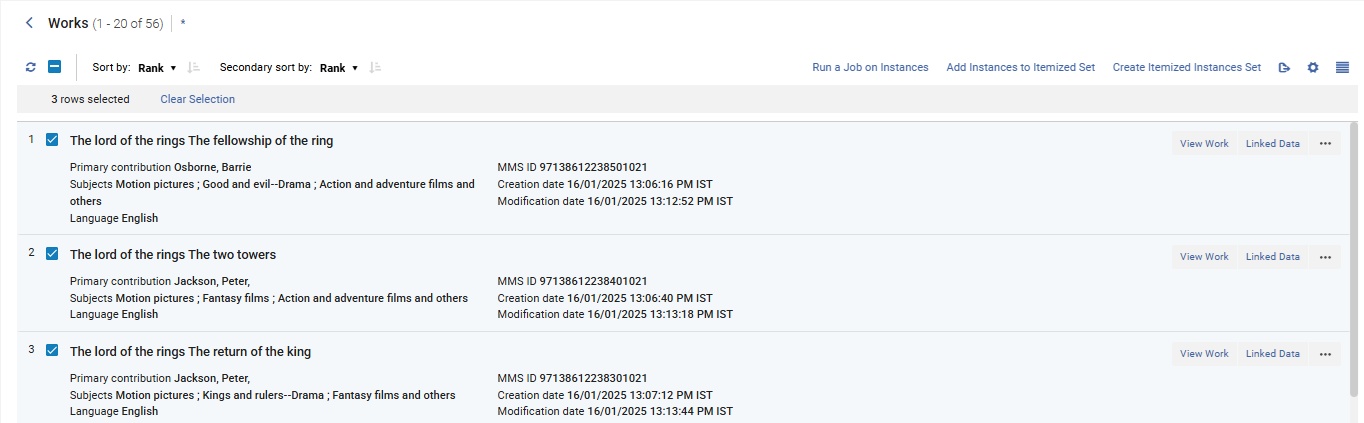 作品検索
The Works search displays results similar to other repository searches, for example, MMS ID, Creation date, Subjects and so forth.However, a few fields and buttons are displayed to reflect the Works search, such as,Instances,View Work and Linked Data.Users can also refine their search by selecting to search based on an attribute from linked instances.The search index drop menu indicates indexes that are an attribute from a linked "instance" with parentheses, for example Edition (Instance).
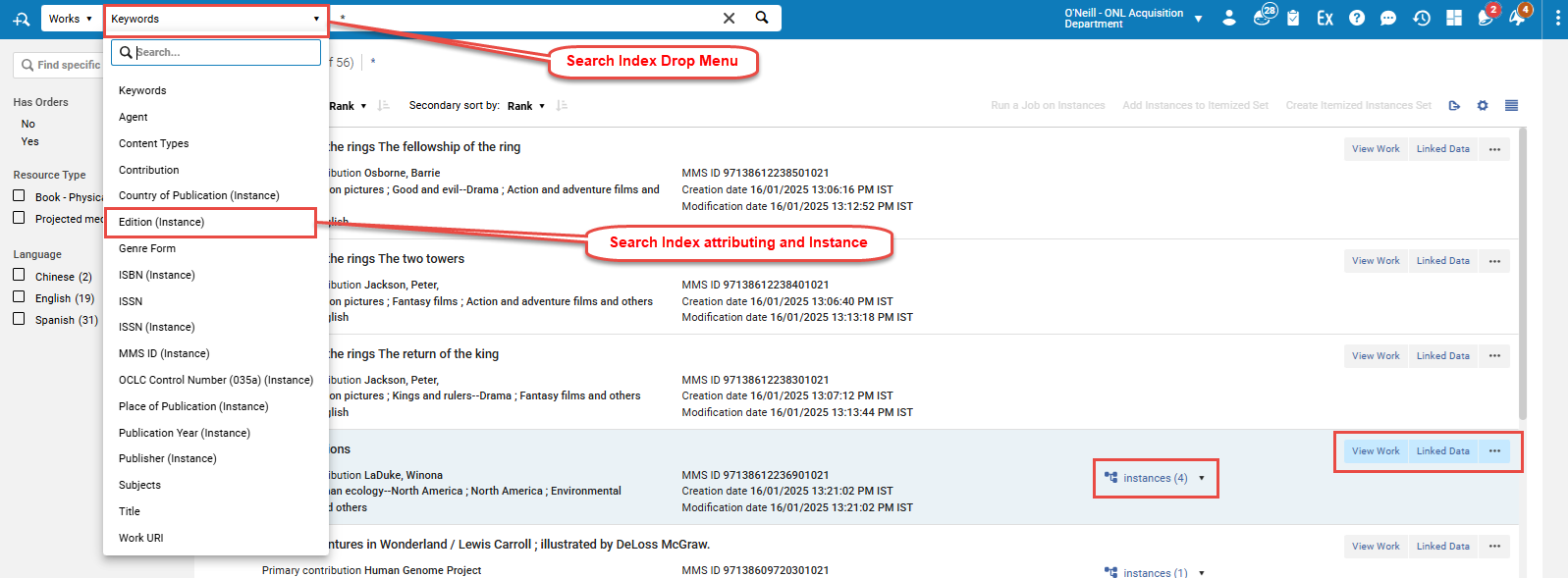
View Work:
In the results screen, users have the ability to view instances from the Works by selecting the Instances quick link ( ).さらに、レコードを選択すると、作品に関する詳細情報を表示できます。
Linked Data:
リンクされたデータボタンを選択すると、リポジトリ検索でリンクされたすべてのエンティティに関する同様の情報が表示されます。
セクション - 作品検索
作品検索で表示されるセクションは、他の Alma 検索とは若干異なります。作品検索結果には以下のセクションが表示されます。
- Summary — see Summary.
- General Information — see General Information.
- レコード表示 - 書誌レコードセクションと同じですが、作品に関連しています。See Bibliographic Record Section.
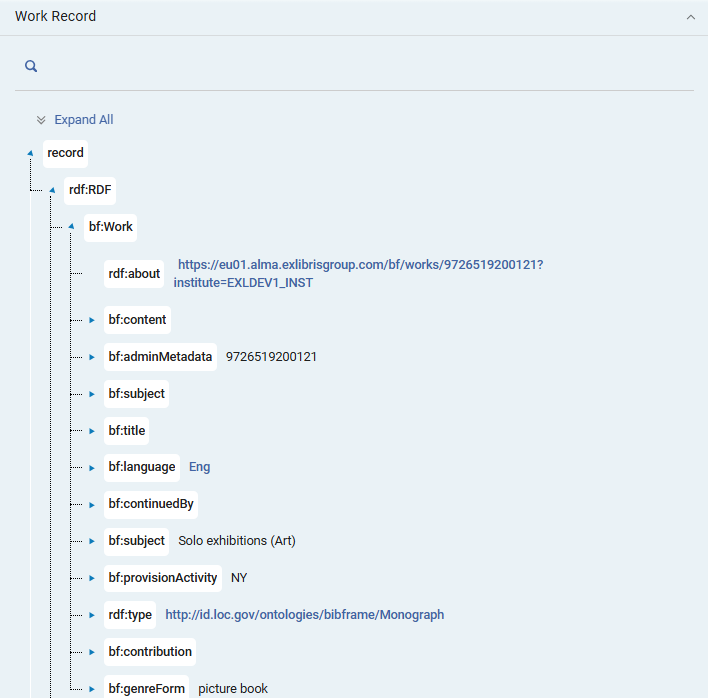 作品レコードセクション
The BIBFRAME work and instance record view within the persistent searches (All Titles and Works) are displayed by default in a tree view, providing a view that is more focused on the content of the record and a less technical RDF/XML view.Users can still view the XML view within a separate section that can be added to the details display as part of the section's customization tool.The section is labeled as work RDF/XML in the work search and Instance RDF/XML within the All Titles customization tool.For more information on display customization in Alma, see New Layout.
- Contributors — see Contributors.
- Subjects — see Subjects.
- インスタンス — 作品レコードに関連付けられた関連インスタンスのリストを表示します ([目録] > [所蔵セクション]と同様)。The list includes a count of instances linked to the work.To streamline the workflow, you can perform actions on the instances listed in the section that would usually be done from the all titles search.
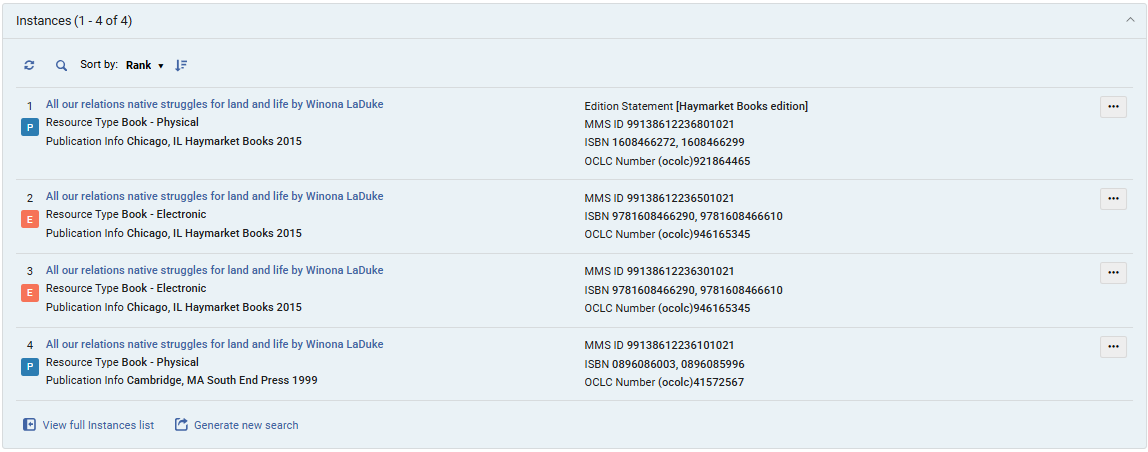 インスタンスセクション
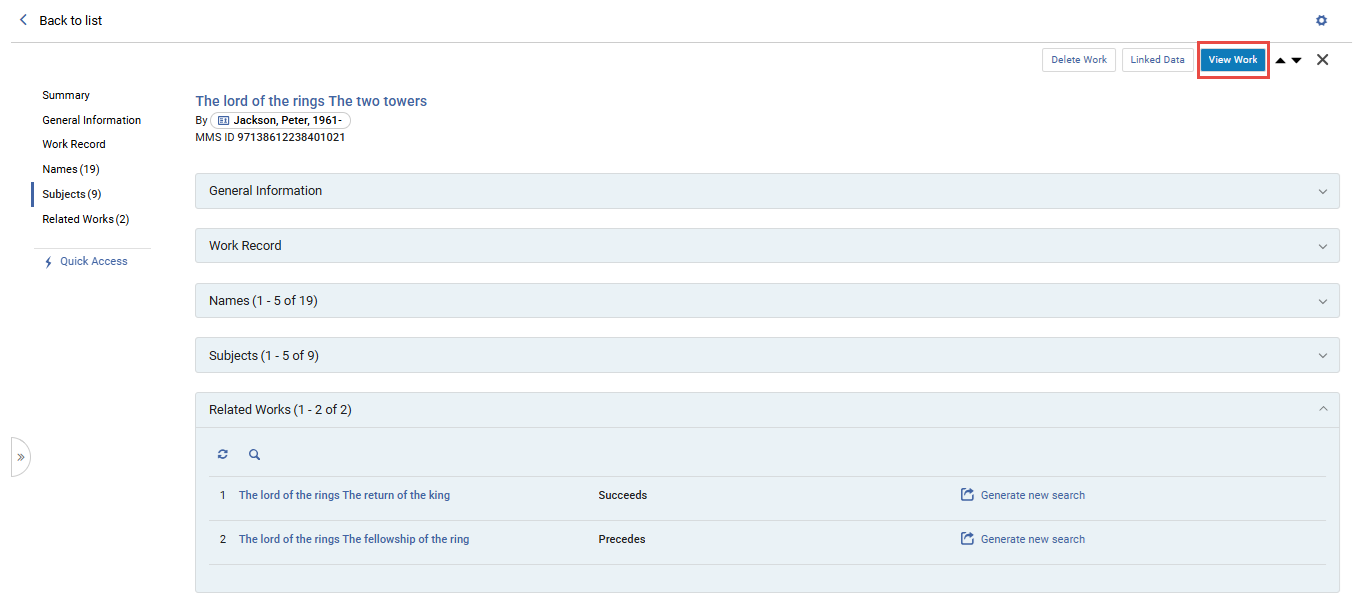
- Related Works — displays a list of related titles and types of relations to the Work record, enabling a quick and seamless navigation as needed.
 関連作品セクション
Rerunning a Previous Search
- テキストボックスを選択し、表示されるドロップダウンリストから以前の検索を選択します。All recent repository searches appear when All Titles is selected as your search type; otherwise, only recent searches for the selected type appear.検索はすぐに実行されます。
- 最近の検索が表示されない場合、ブラウザの履歴を使用して以前の検索文字列を選択できる場合があります。
Searching for Special Characters
Almaリポジトリ検索を使用する場合(またはユーザー、購入リクエスト、フルフィルメントリクエストを検索する場合)、特殊文字や発音区別記号付きの文字を検索できます。検索言語構成(Ex Librisによって設定)は、多くの言語のAlmaで利用できます。これらの言語のほとんどについて、Almaは特殊文字を扱うために標準の実装を使用しています。
For specific information on each language, see Search Configurations for Different Languages.
- Almaの特殊文字の処理は、施設ゾーンでの検索にのみ関連しています。
- 特殊文字検索用に定義できる言語は1つだけです。
これらの言語の正規化は、タイトルや作成者などのテキストフィールドに固有です。ただし、数値フィールドまたは請求番号などの正規化された値を含むフィールドに対しては正規化は行われません。
特殊記号を検索します
Special symbols are characters, such as @, &, !, that are not alphabetic or numeric.In some types of searches, like "Keywords" simple search or "Contains Keywords" operator for the different indexes, special symbols are omitted from the inputted search term.
Special symbols are treated as fully independent characters for repository search, browse bibliographic headings/F3, and sort, and they are not substituted with words.For example, if you have a record in your inventory titled "Crime and Punishment",all Titles where (Title contains keywords "Crime & Punishment") does not return "Crime and Punishment", because "&" is not substituted by the word "and".
On the other hand, if you have the record "War and Peace" in your inventory, then All Titles where (Title contains keywords "War & Peace") is translated in the Alma search engine to All Titles where (Title contains keywords "War Peace"), and does return the record "War and Peace", because its title contains all the words in the search term.All Titles where (Title starts with "War & Peace") or All Titles where (Title equals "War & Peace") does not return the record, as its title is not equal nor starts with "War Peace".
Repository Search Results
Almaのリポジトリ検索は新しいUI コンセプトで徐々にアップグレードされ、検索がより高速かつ簡単になり、ワークフローが合理化されています。一部の検索タイプは、クラシック検索UI のままです。
- For reference to the new UI search results, continue below.
- For reference to Alma's Classic Repository Search Results, see Alma's Classic Repository Search.
リポジトリ検索結果表示
Search results display information according to the type of resource chosen for your search.You can configure the information and actions that appear for each result; for more information see Display Configuration.
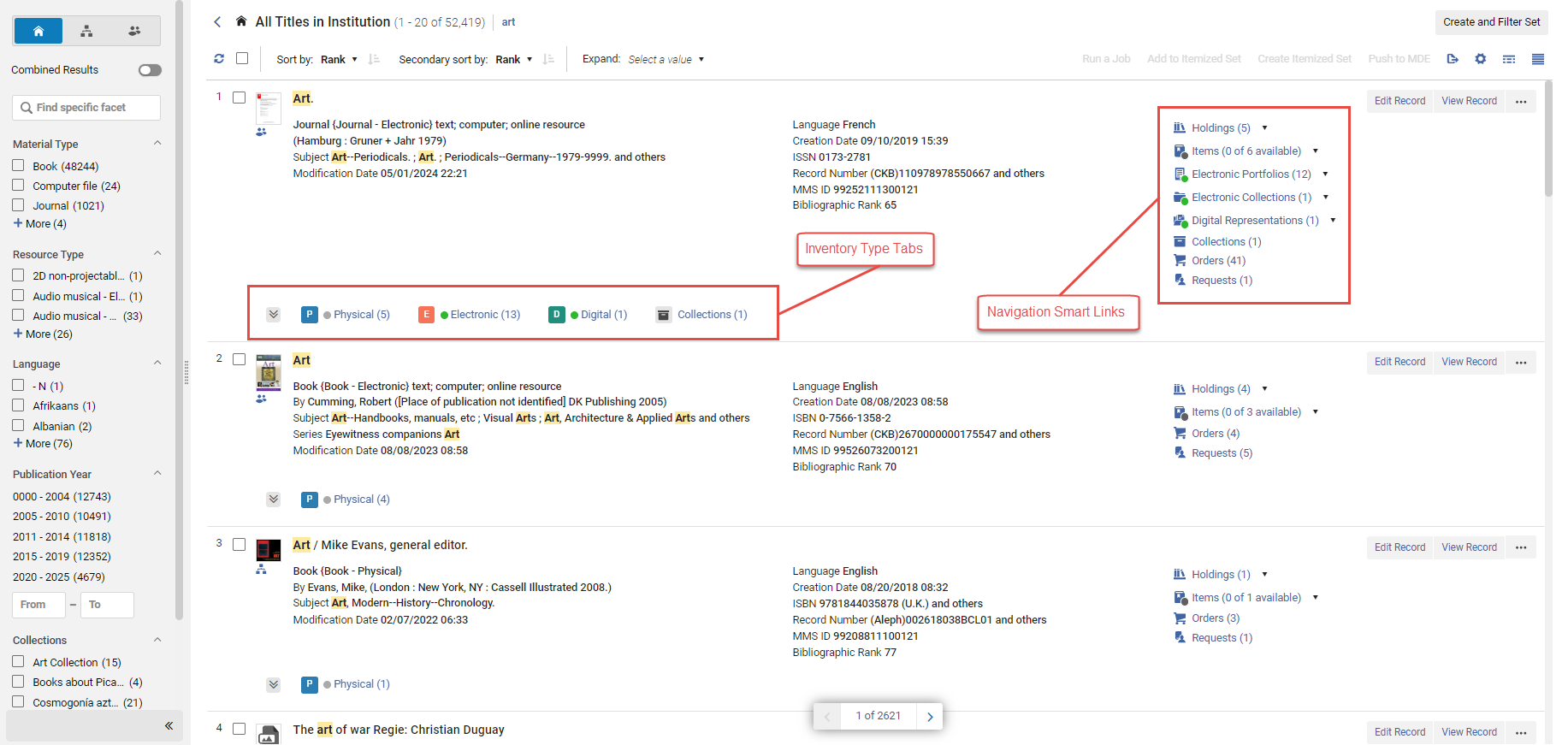
Alma's new UX aims to keep users in context, minimize the need to leave the screen to check information or perform tasks, and improve navigation and efficiency.It therefore offers users a selection of possible views, allowing each person to choose the view most comfortable to them when fulfilling their tasks.Many resources and operations are integrated directly into the search page via the details side-pane, and users can easily switch between different views of the search results:
- List View: Provides a brief view, with expandable inventory "tabs" for easy scanning while scrolling.
- Table View: Displays limited information in a convenient table for easy comparison.
- Split View: Shows search results (in either list or table view) and the details side-pane side by side.
- Full Page View: Displays the details pane only, offering more space for details.
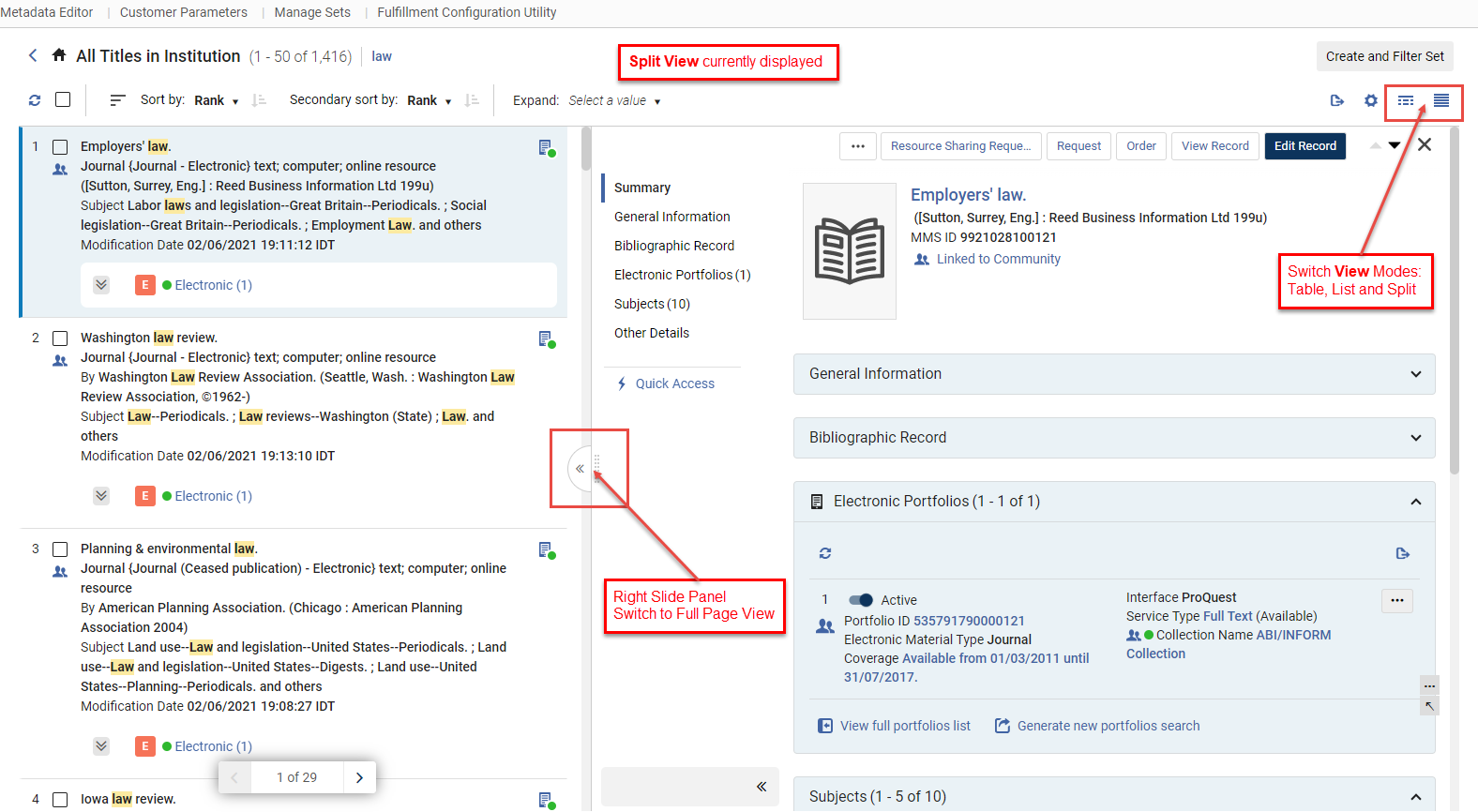
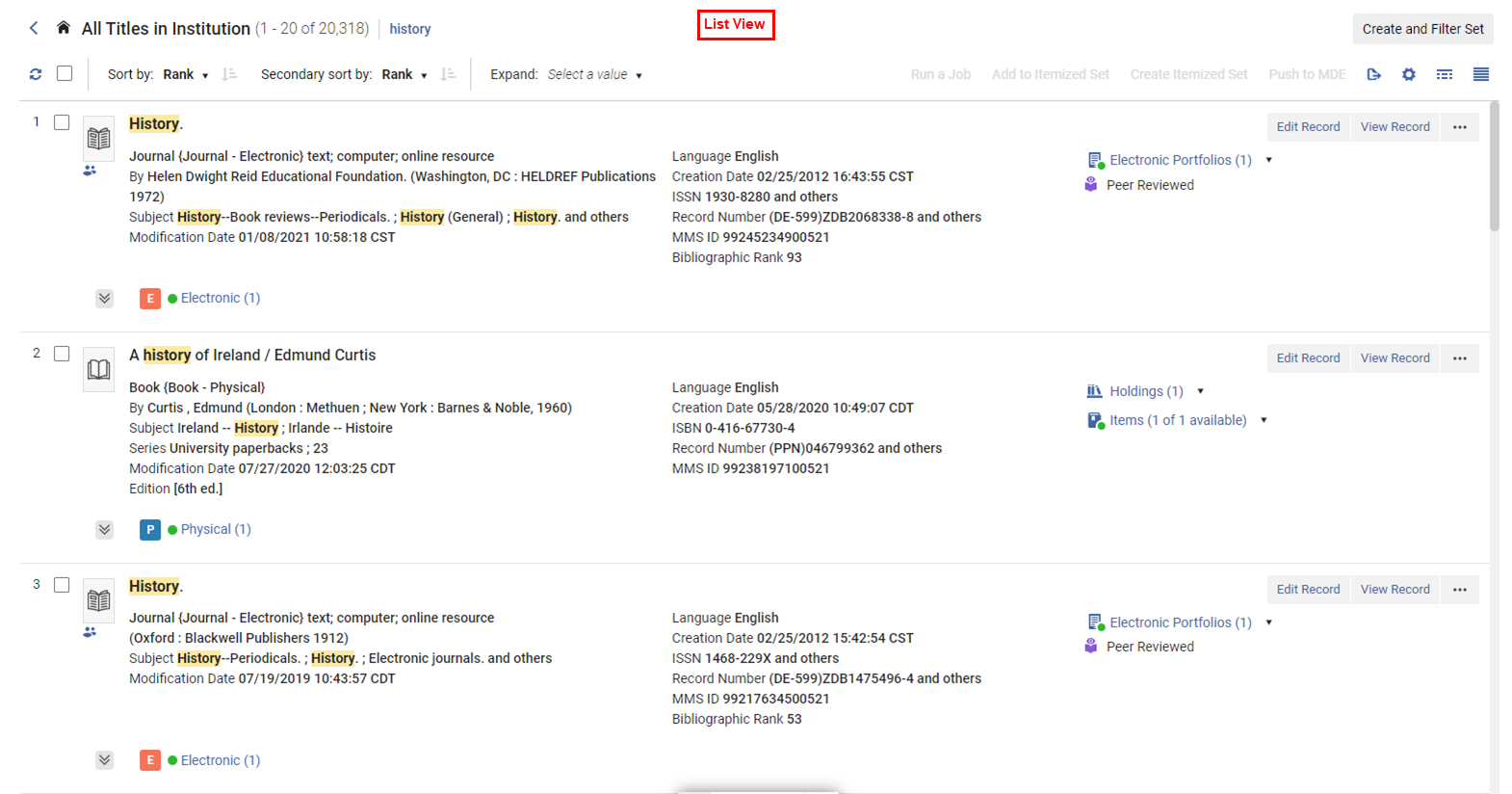
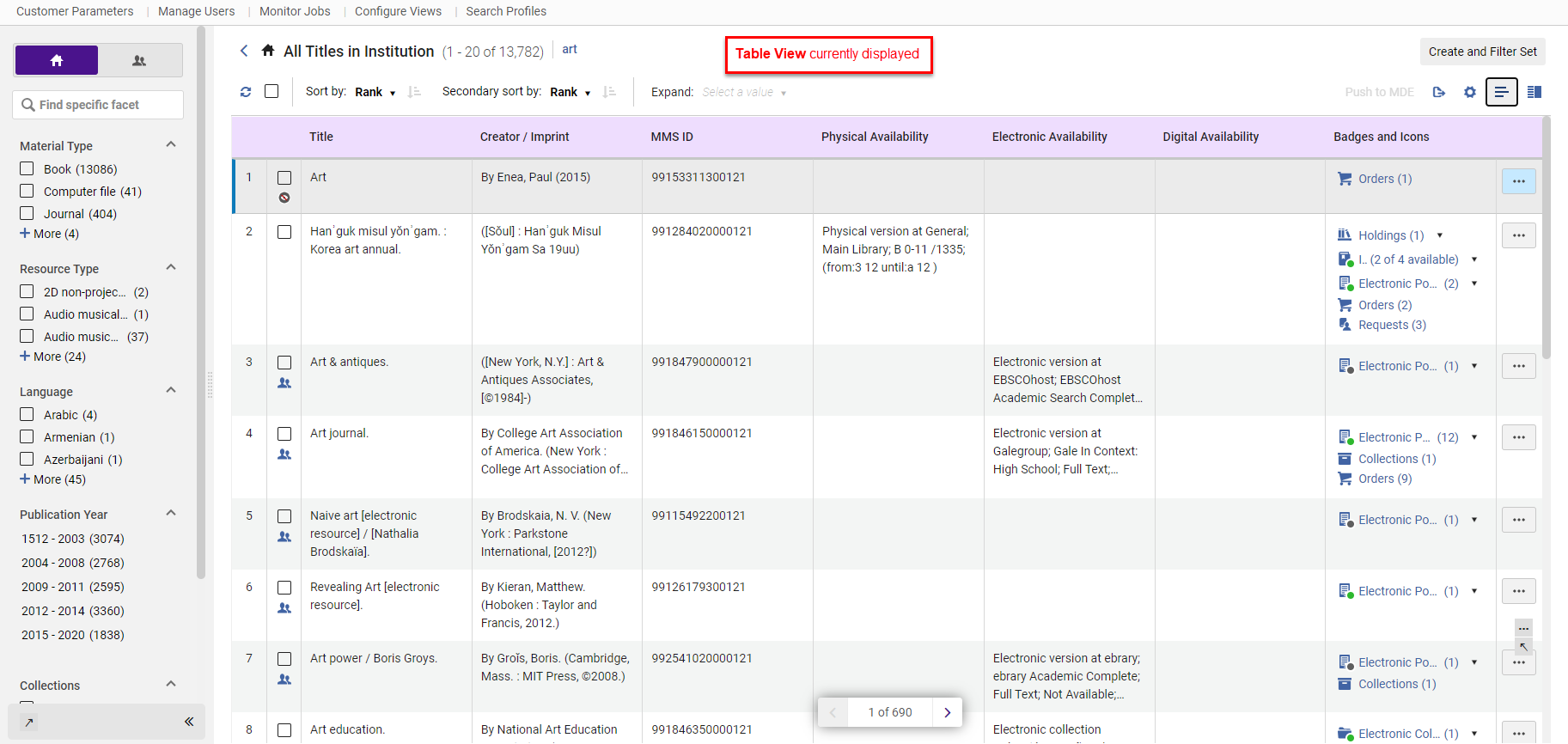
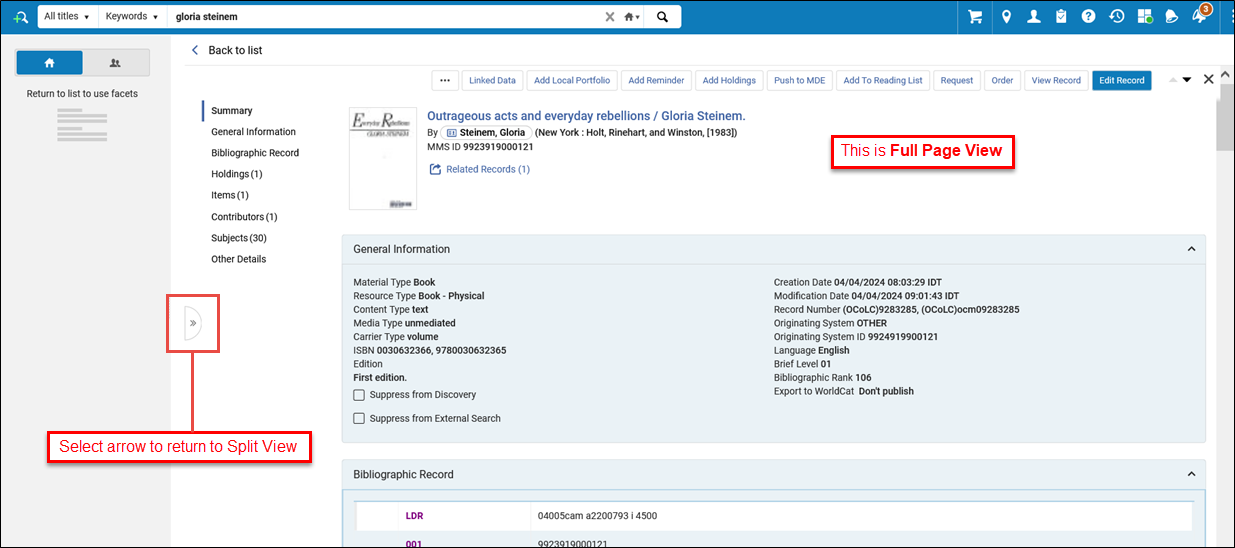
スライドパネル
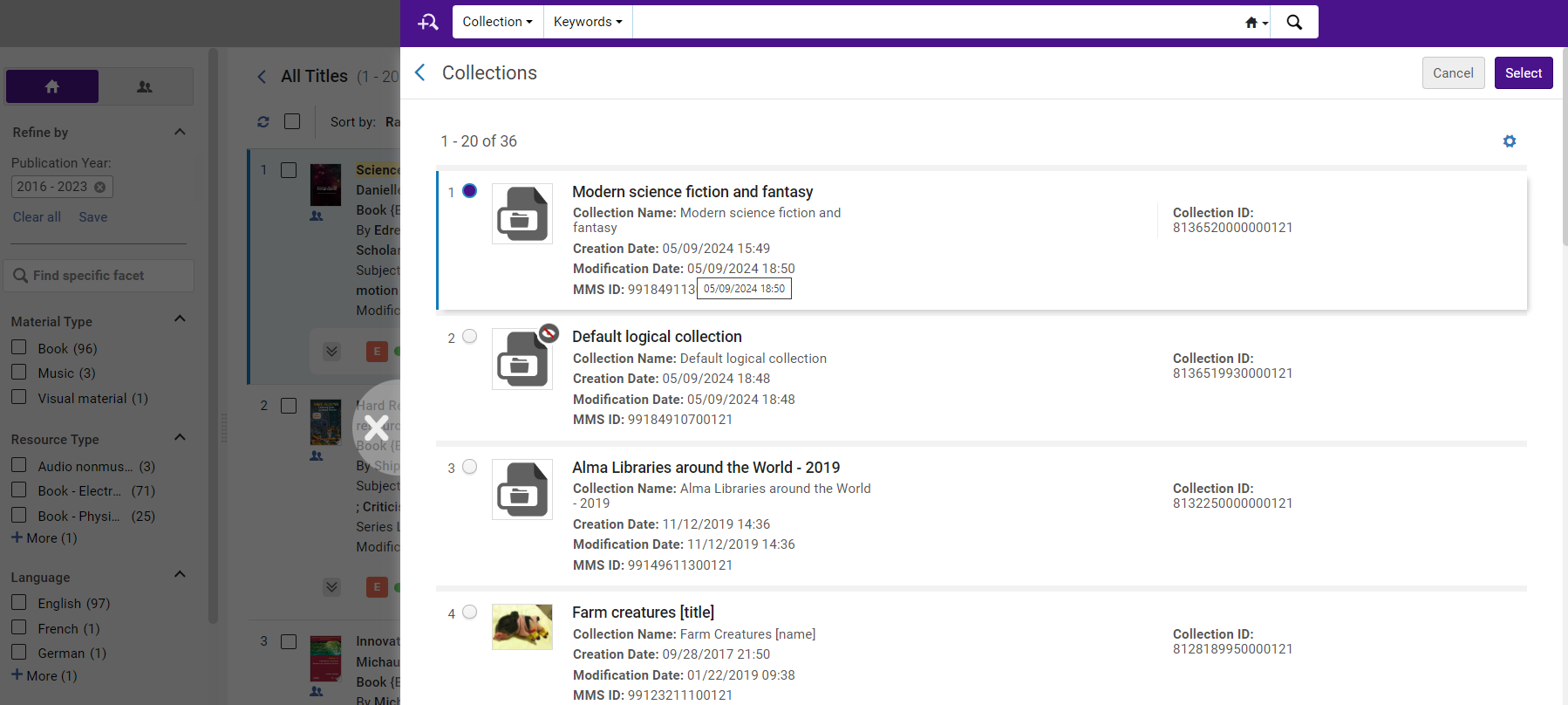
To keep users in context and minimize the need to navigate away, many actions open the relevant pages in a sliding panel.This allows users to perform more complex operations without navigating away and losing search context, as a "side quest" - seamlessly returning to the list of resources to continue their main work once they are done.
スライディングパネルは、アイテムの編集、注文の作成、コレクションへのタイトル追加など、さまざまなワークフローで使用されます。
設定を表示する
The display of search results can be configured at both the user and institution levels.For more information on user level customizations, see Customizing the Display in Alma.
管理者は機関のデフォルトを設定できるため、個々のユーザーが機関全体に関連するデータを使用して表示を構成する必要がなくなります。そして、ユーザーは、特定のニーズに応じてこれらの設定を柔軟に調整できるため、効率と使いやすさが向上します。
利用可能なファセットは次のとおりです:
- Sections: Reorder or hide sections in the details pane to prioritize the most relevant information.
- Actions: Reorder or hide actions for quick access to primary actions with a single click, and easy access to other commonly used actions.
- Records: Customize which fields from the results list are displayed and their positioning, ensuring easy access to essential information for your tasks.最初の列のフィールドは常に表示され、リストビューが狭い場合は2番目の列のフィールドは非表示になります。
- Facets: Reorder or hide facets to ensure relevant tools for your work are readily accessible.
- Table: Customize which of the available metadata fields are displayed as table columns in the table view and where, to make working with the table more efficient.
タブの拡張
The inventory tabs can be expanded to display up to five entries.検索結果を表示しながら、次の操作を実行できます。
-
Recognize tabs that are color-coded by inventory type.
-
特定の種類の目録 (物的な所蔵など) またはタイトルが属するコレクションを表示するには、タブを選択します。後で別のタブを選択した場合は、最初のタブが閉じられてから新しいタブが開きます。
-
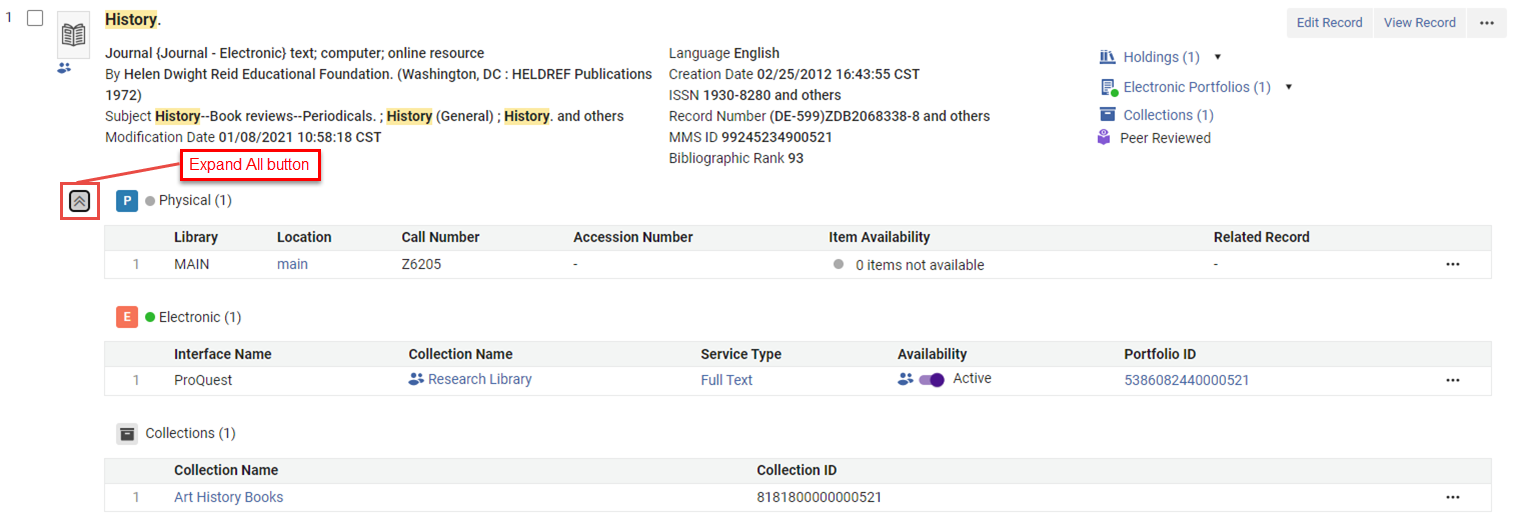
Select the Expand all button
 to view all types of inventory and collections associated with the title at the same time.Alma ではタブが垂直に配置されます。
-
各タブのテーブルで、そのタイプに応じてアクションを実行します (例: 電子ポートフォリオのアクティブ化、コレクションからのタイトルの削除など)。
以下の例は、すべてのタブを開いた状態での検索結果を示しています。
Additionally, you can use the Expand table action to expand the tabs for all results in your search.以下の選択が可能です:
-
特定のタブタイプ
-
すべてのタブタイプ
-
なし(すべてのタブが閉じられます)
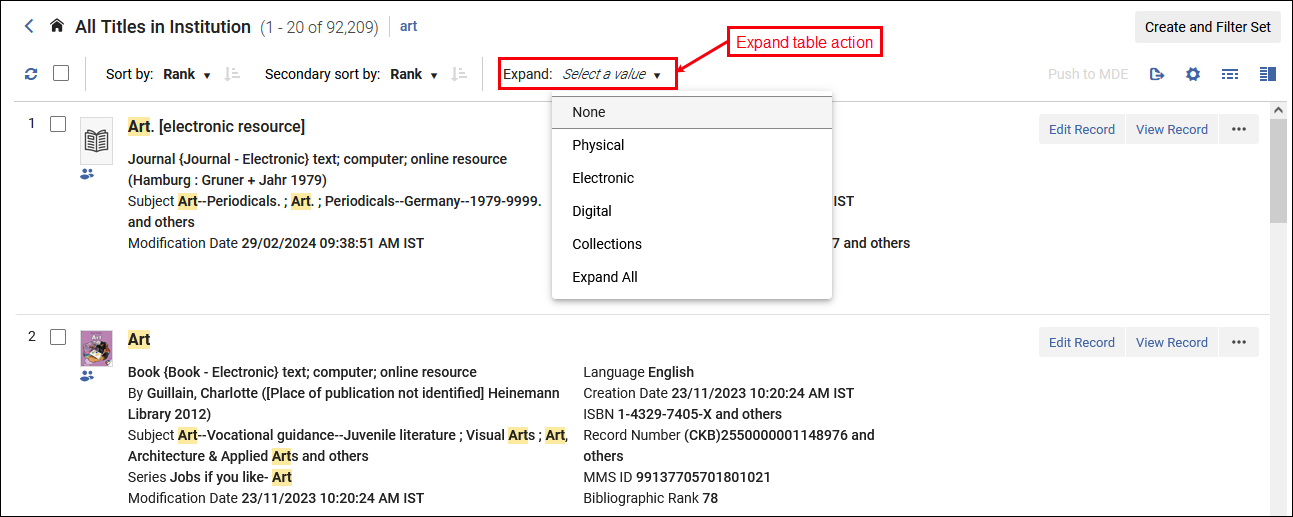
テーブルを展開するアクションで使用できるオプションは、検索する範囲 (機関、ネットワーク、コミュニティなど) によって異なります。Almaは、検索タイプと範囲ごとにセッション間で設定を記憶します。
When you select Expand All, the search results are displayed first and then loads the expanded tabs gradually.このシーケンスにより、タブの読み込みが完了すると同時に結果の確認を開始できます。
Tabs are available in the Record view only; they are not available in the Table view.When you open the Split view, the tabs automatically close.If you select a tab or the Expand all button, Alma closes the right pane to expand the tabs.
Saving and Reusing Search Queries
ロジカルセットを作成することで、リポジトリ検索を後で使用するために保存できます。ロジカルセットは動的な検索クエリであり、アクセスされるたびに再計算されます。つまり、検索が再実行され、結果がセットになります。クエリ(セット)を保存すると、手動でも自動プロセスでも再利用できる検索条件のセットが保存されます。クエリを実行するたびに、前回の実行以降にレコードが変更された場合、結果が異なる場合があります。反対に、 アイテムセットは、手動で入力された、ファイルからアップロードされた、または以前の検索の結果である(ただし、クエリ用語に関連付けられていない)アイテムの固定コレクションです。ロジカルセットを項目化されたセットに変換できることに注意してください。
For more information about sets, see Managing Search Queries and Sets.
- After performing a search, select Create and Filter Set on the search results.ロジカルセットの詳細ポップアップが表示されます。Logical Set Details Pop-Up
- Follow the procedure in Creating Logical Sets- except step 8, entering the search parameters, since this is the search query you are saving.
- For titles, holdings and authority records, you can also filter the set using an indication rule - see Filtering Sets.
保存されたクエリを使用して検索を実行
To run a saved query; on the Manage Sets page (Administration > Manage Jobs and Sets > Manage Sets), locate the saved query (logical set) and select Content in the row actions list.See Managing Search Queries and Sets.
Itemized Sets in Search Results
アイテム別セットは固定リストです。その内容を確認したり使用したりするたびに、内容は同じになります。選択した検索結果を使用して、新しいアイテムセットを作成したり、既存のセットのコンテンツに追加したりできます。For more information, see Creating Itemized Sets on the Manage Sets Page.
コンソーシアムメンバーの場合、項目別セットアクションは機関スコープで検索する場合にのみ使用できます(ネットワークスコープまたは複合スコープでは使用できません)。
アイテムセットの作成
選択した結果に対して、アイテムセットを作成できます。
- Select the records you want to include in the set by checking the checkbox next to the record - a counter shows the number of selected records.
- 一括操作ボタンから、アイテム別セットを作成アイテムセットの詳細ポップアップを開きます。
- セット情報を入力して保存をクリックします。
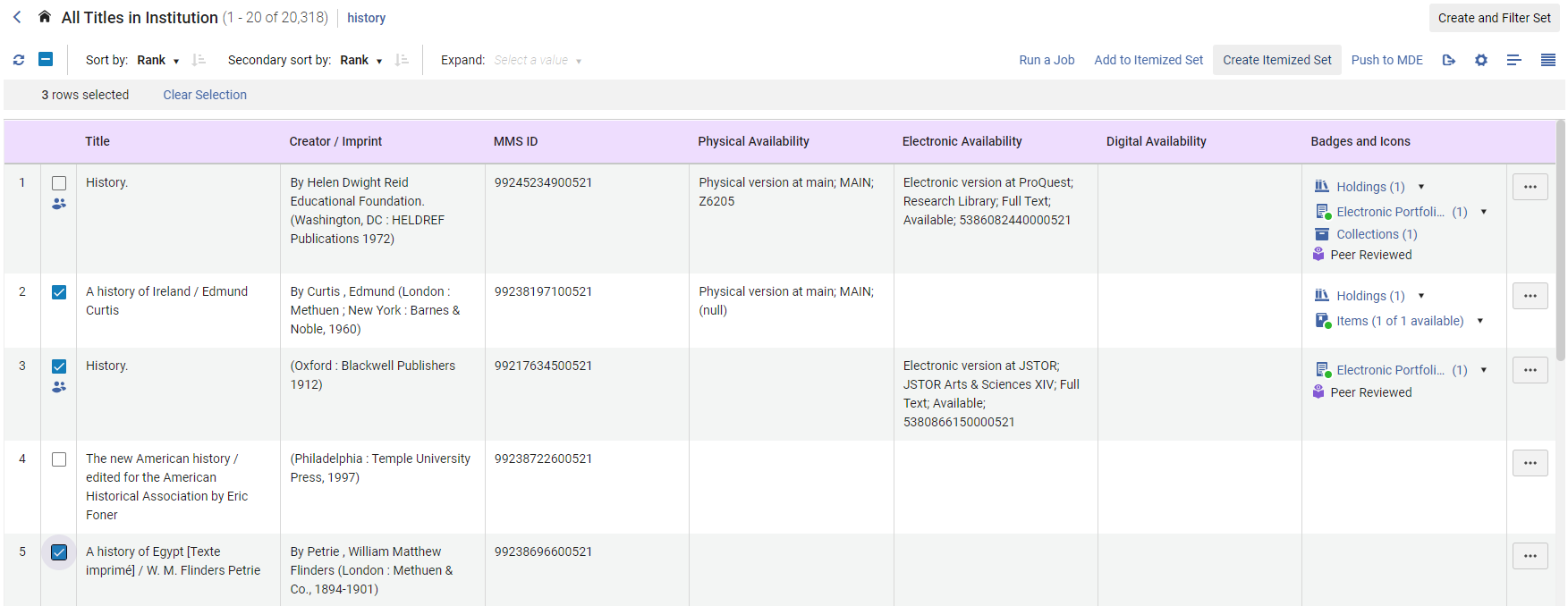 テーブルビューの一括操作 - アイテムセットの作成
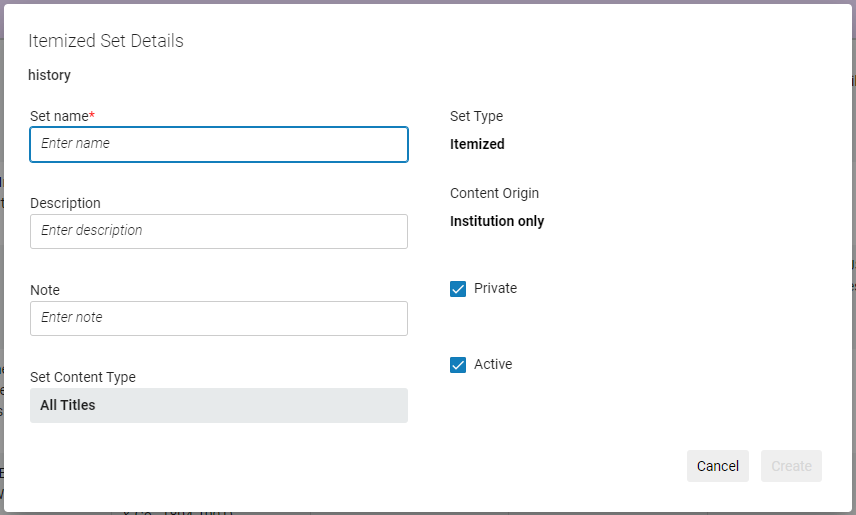 Itemized Set Details Pop-Up
アイテムセットに追加
編集が許可されている既存の項目別検索に、選択した結果を追加できます。
- レコードの横にあるチェックボックスを選択して、セットに含めるレコードを選択します。A counter displays the number of selected records.
- 一括操作ボタンから、アイテム別セットに追加を選択すると、検索タイプに応じて関連するアイテム別セットのリストを含むスライドパネルを開きます。
- 目的のセットを見つけます。検索とフィルターが利用可能です。
- レコードを追加するセットを選択します。
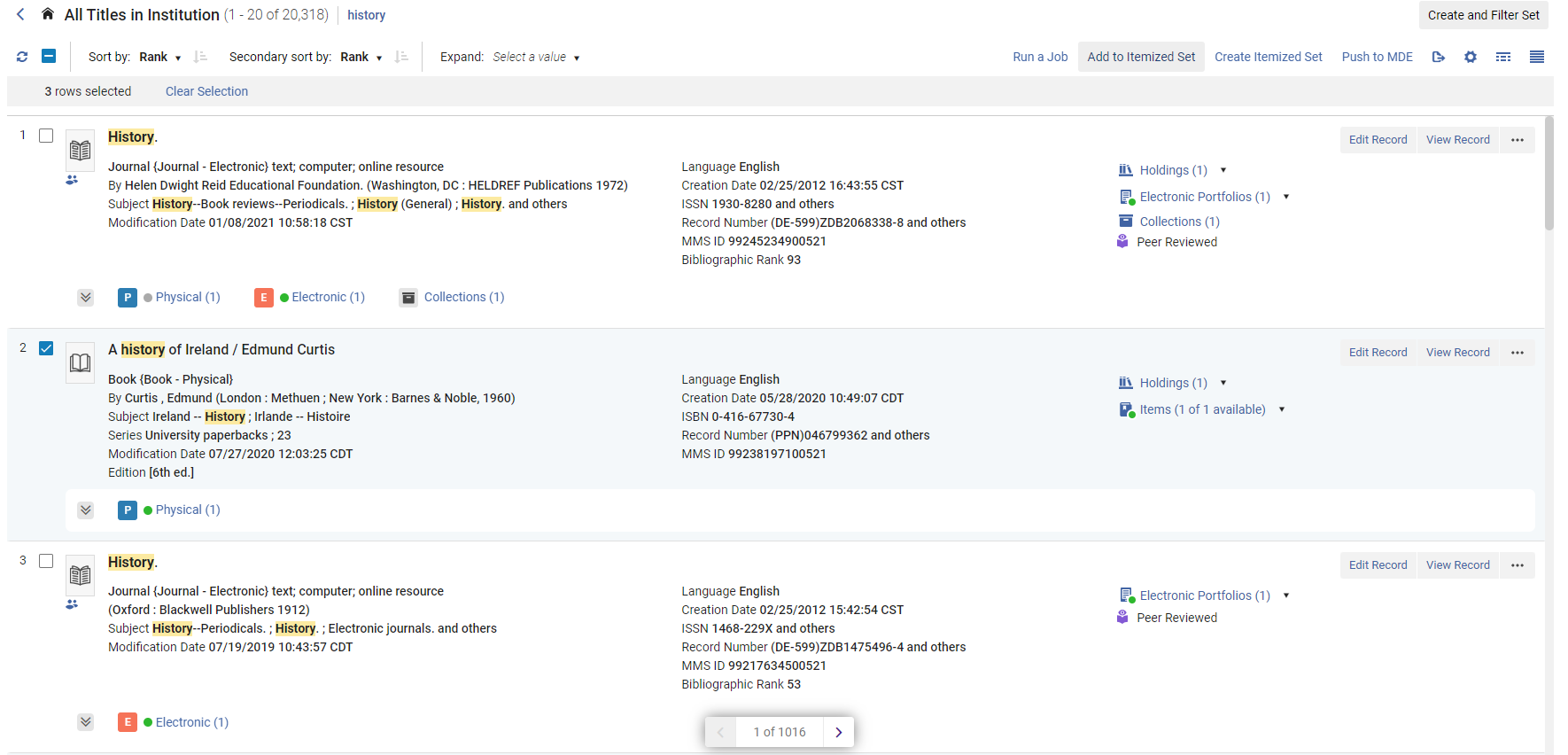 リストビューの一括操作 - アイテム別セットに追加
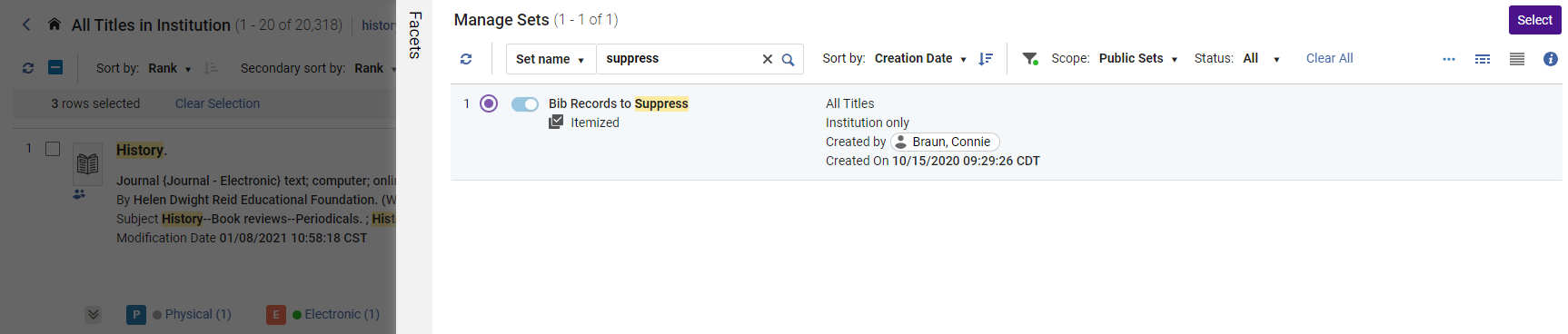 アイテム別セットに追加 - 選択スライドパネル
Run a Job on Selected Search Results
権限がある場合は、選択した結果に対して手動ジョブを実行できます。これはセットを作成せず、プロセスを実行するだけです。
コンソーシアム メンバーの場合、ジョブの実行は、機関スコープ内 (ネットワーク スコープまたは複合スコープ内ではない) で検索する場合にのみ可能です。
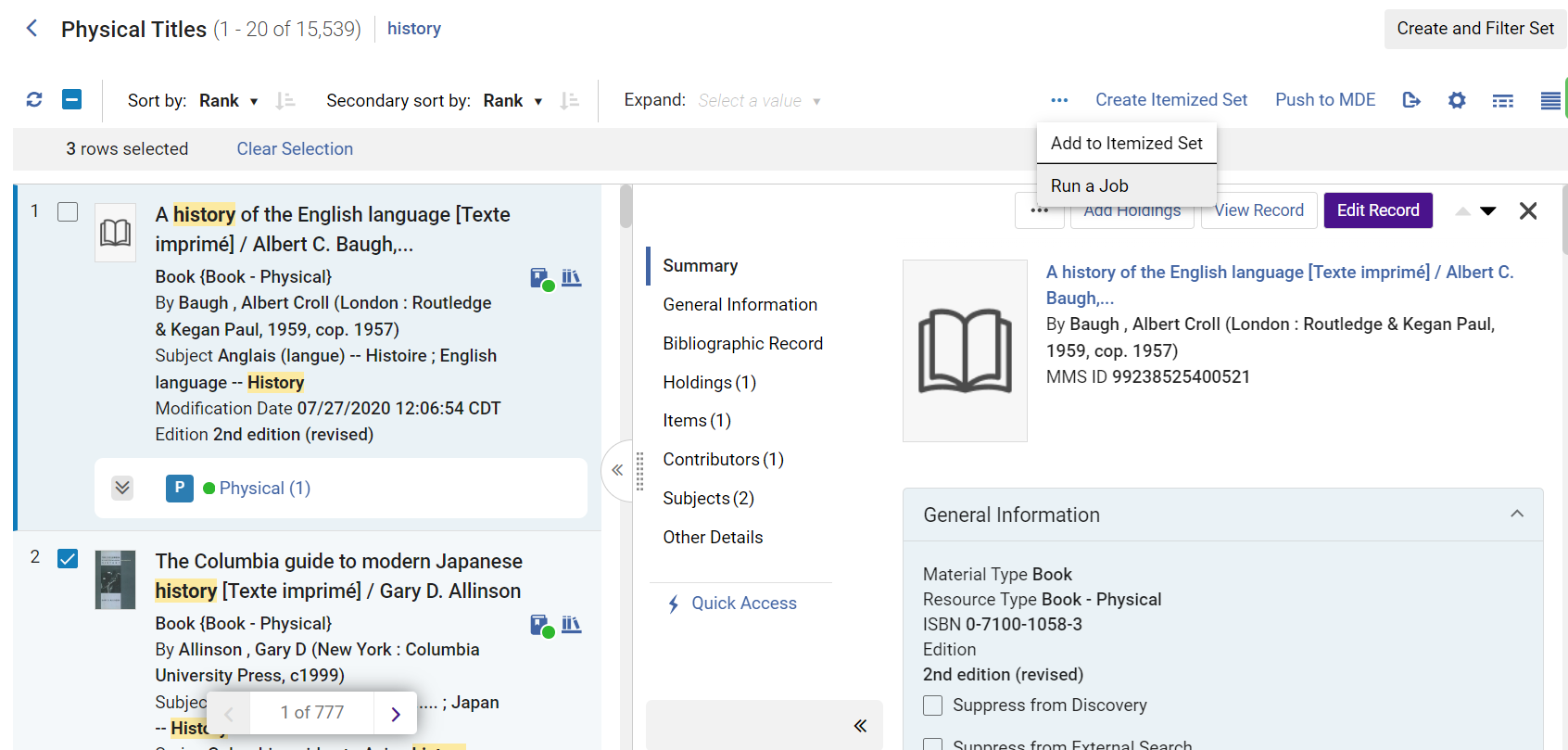
Select the records you want to run the job on by selecting the checkbox next to the record/s.On some New Generation (NG) search results pages that support logical sets, the Select All option lets you select all results across all the results pages.A counter displays the number of selected records.
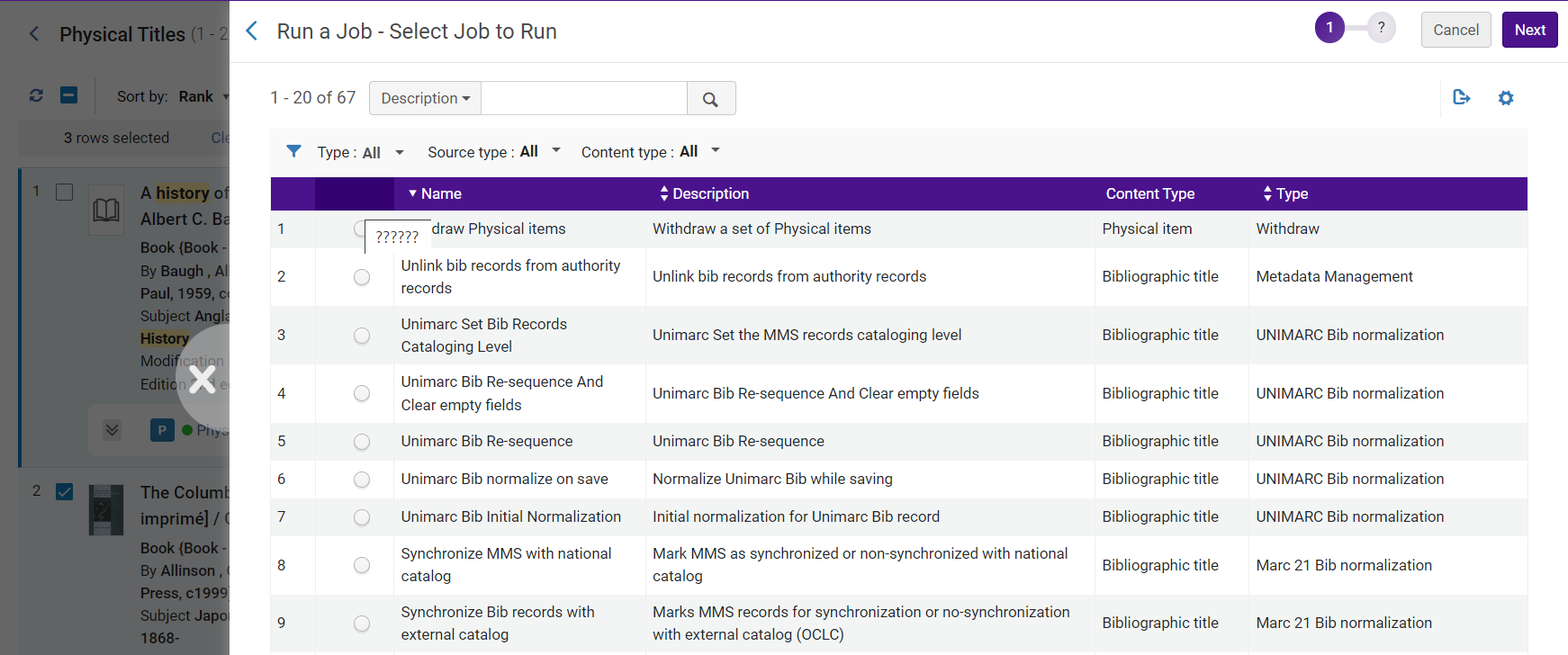
行アクションボタンから、ジョブを実行するを選択すると、検索タイプのレコードの種類で実行できるジョブのリストを含むスライパネルが開きます。
ジョブを選択し、パラメータを入力して、選択したレコードに対してプロセスを実行します。
検索結果のエクスポート
すべての検索タイプのページ上部に表示されるエクスポートボタンを使用すると、検索結果をExcelファイルにエクスポートできます。Excelファイル内の情報列は、使用した検索タイプによって異なります。You can choose to export only the visible fields in the list / table view, or all of the possible display fields (including those currently hidden).
For more information, see Export to Excel.
Sorting Search Results
By default, search results are sorted according to an internal ranking mechanism that is based on Apache Solr; for more information, see http://www.solrtutorial.com/solr-search-relevancy.html.ランキング要因には以下が含まれます:
- Term Frequency- The higher the term frequency in the document, the higher the document score.
- Inverse Document Frequency- The rarer a term is across all documents in the index, the higher its contribution to the score.
- Coordination Factor- The more query terms found in a document, the higher its score.
- Field Length- The more words a field contains, the lower its score.この要因は、より長いフィールド値を持つドキュメントにペナルティを科します。
一部の検索タイプについては、次のオプションを使用してソート順と第二ソート順ドロップダウンリストを使用して並べ替えを変更することができます(Asc=ascendingおよびDesc=descendingの場合)。
- ランク
- タイトル - 昇順
- タイトル - 降順
- 著者 - 昇順
- 著者 - 降順
- 発行日 - 昇順
- 発行日 - 降順
- 統一タイトル - 昇順
- Uniform Title – Desc
- Series – Asc
- Series – Desc
これらのオプションは、検索タイプに使用できます。
- 全タイトル
- 物的タイトル
- 物的アイテム
- 電子タイトル
- 電子コレクション(ソート順のみ)
- 電子ポートフォリオ(タイトルにのみの並び替え)
- デジタルタイトル
- コレクション(ソート順のみ)
The sort order for holdings displayed within a single search result is configured by the sort_library_by_relevance customer parameter (see sort_library_by_relevance), and by the sorting selected by the user in the Holdings section (see Holdings Section).
Filtering Search Results
検索結果の左ペインにあるファセットを使用して、検索結果をフィルタリングできます。使用可能なファセットは、検索の種類と検索結果のアイテムによって異なります。Some facets include a count of records in parentheses next to the facet entry.
ファセット
The Facets panel helps you filter the search results to only see results that meet selected conditions.ファセットを使用すると、次のことが可能になります。
- 検索結果に含める複数の値を選択
- 検索結果から値を除外
- ファセットで検索 - ユーザーはファセットしたい値を簡単に素早く見つけることができます
- Save Facets - users who commonly filter their search results in a specific way can now save this, so it automatically applies to future searches of the same type.ユーザーがフィルタリングされていない検索結果を表示したい場合は、[ファセットを保存] をクリアできます。
For more information, see Facets.
| 検索タイプ | 提供されるファセット |
|---|---|
| タイトル検索(全種類) | Material type (see Material Types in Search Results) |
| Resource Type (see The Resource Type Field) | |
|
言語(008フィールドの位置35-37の内容と1つ以上の041 $ a入力によって決定されます) The Language Facets currently take the language name from the MARC Code List for Languages. |
|
| 出版年: ユーザーはAlmaが提案する範囲を選択するか、手動で年または範囲を入力してファセットすることができます。 | |
| コレクション | |
| レコード形式 (ファセットは、機関がアクティブレジストリで複数のレコード形式を有効にしている場合にのみ表示されます)。 | |
|
物的タイトル
|
Library Scope - limits the scope of physical search results to specific libraries.This reduces the need to define the library in the Advanced search or to use facets for every search, for users that only work with physical resources of specific libraries.
The library scope is a persistent filter that applies to all physical searches (items, holdings and titles).
When you select Save Query to create a set from the search results limited to specific libraries, the set is saved and does not change, even if you change the libraries selection in the future.
See also Library Scope (LS).
|
| すべてのタイトル検索ファセット | |
| 電子タイトル | すべてのタイトル検索ファセット |
| デジタルタイトル | 使用タイプ |
| 表現物エンティティ種別 | |
| すべてのタイトル検索ファセット | |
|
物的所蔵
|
Library Scope — limits the scope of physical search results to specific libraries.This reduces the need to define the library in the Advanced search or to use facets for every search for users who only work with physical resources of specific libraries.
The library scope is a persistent filter that applies to all physical searches (items, holdings and titles).
When you select Save Query to create a set from the search results limited to specific libraries, the set is saved and does not change, even if you change the libraries' selection in the future.
See also Library Scope (LS).
|
| 図書館 | |
| 場所 (場所ファセットは図書館ファセットが適用されると使用可能になります) | |
| 請求番号タイプ |
二次検索
Some pages include a secondary search that enables you to search the current task list for items that meet certain criteria (see New Layout).
Repository Search Labels
To manage repository search labels, you must have an Administrator or Manager role.
To manage inventory search labels, you must have an Administrator, Manager, or the relevant Inventory Operator role (Physical Inventory Operator can manage Physical Holdings search labels).
Users without these roles can search, view and facet labels, but cannot add or remove them.
To enable repository search labels for Operator roles, contact Ex Libris support.
In the repository search, institutions can now add local labels to records (currently available for Title and Holdings searches).これらのラベルは、検索、ファセット、検索結果の表示に使用できます。ラベルの追加は、機関レベルのローカルレコードに対してのみ実行できます。コミュニティレコードとネットワークレコードのラベルの追加はサポートされていません。
ラベルの追加
ラベルは、検索結果で一括して(複数のレコードを選択)追加することも、単一のレコードを選択して追加することもできます。Adding by bulk is represented in the List View whereas the single selection is done in Split View.
- リポジトリ検索を実行します。
- Select the desired search result record(s) - (See below:a.Bulk selection,b.Single selection):
Bulk selection
- 検索結果 (リストビュー) で、ラベルでマークする1つ以上の検索結果レコードを選択します。Once a record is selected, the Manage Labels(
 ) button is enabled.ステップ 3 に進みます。テーブルビューの検索結果でラベルの管理ボタンが有効になりました
Single selection
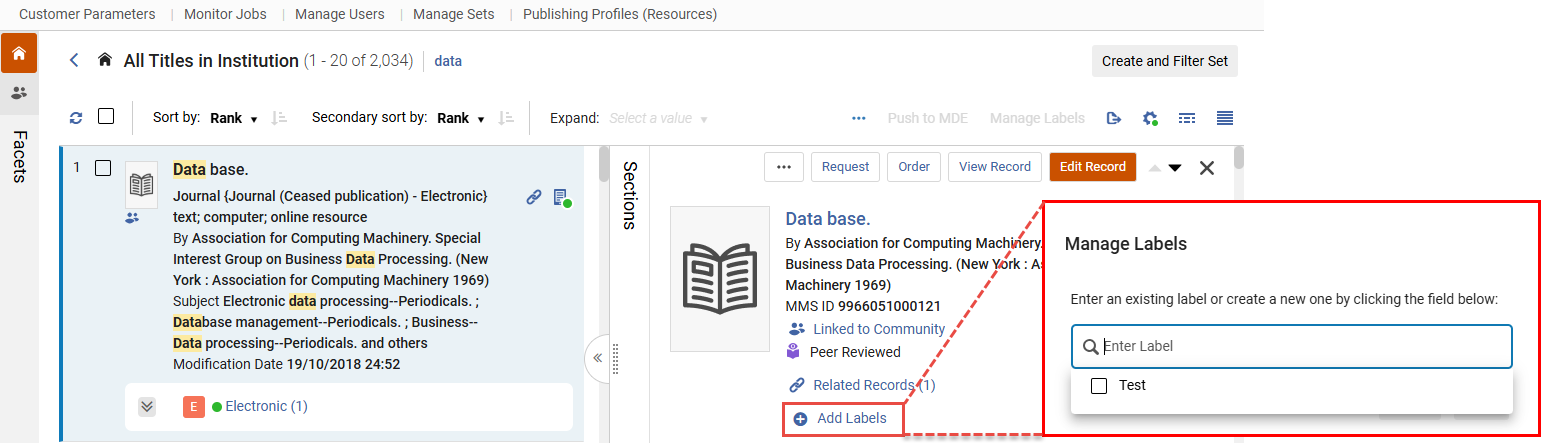
- In the search results (Split View), the record selected displays the Add Labels(
 ) button in the screen's right pane.「ラベルを追加」ボタンを選択すると、ラベルの管理ポップアップ画面が表示されます。
- In the Enter Label text box, type a desired label or select one from the drop menu (if a label was previously added), for example,Test.
- 適用を選択します。The label is added and displayed alongside the navigation and smart links.See Viewing Labels for visual representation.This concludes the steps for adding a label for Single selection in Split View.Step 3 and onward are continued procedures for Bulk selection.
 Add Label - Single Selection
- 検索結果 (リストビュー) で、ラベルでマークする1つ以上の検索結果レコードを選択します。Once a record is selected, the Manage Labels(
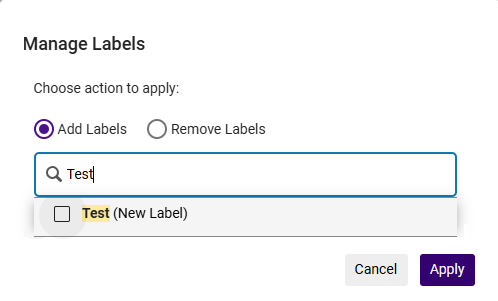
- ラベルの管理を選択します。
- ラベルの管理ウィンドウで、ラベルを追加するラジオボタンが選択されていることを確認します。
- In the Enter Label text box, type a desired label, for example,Test.
 ラベル管理ウィンドウ
- 適用を選択します。The label (in List View) is added and displayed alongside with the navigation and smart links.See Viewing Labels for visual representation.
ラベルの削除
ラベルは、一括(複数のレコード選択)または検索結果内の単一レコード選択によって削除できます。Removing by bulk is represented in the List View whereas the single selection is done in Split View.
- リポジトリ検索を実行します。
- Select the desired search result record(s) — (See below:a.Bulk selection,b.Single selection):
Bulk selection
- In the search results (List View), select one or more desired search result record(s) that are marked with the label you want to remove.Once a record is selected, the Manage Labels() button is enabled.
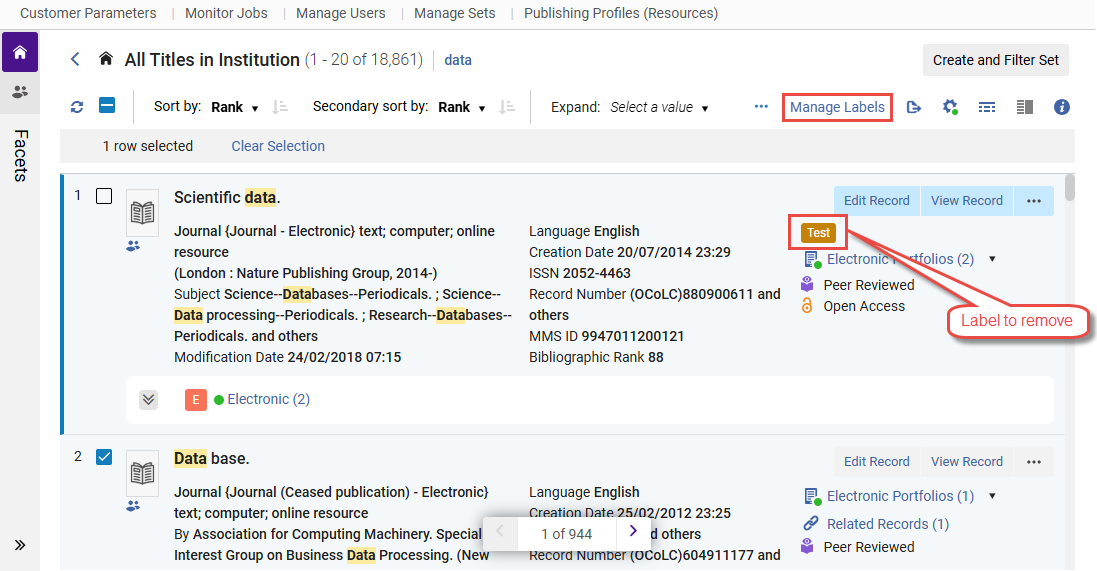 削除するラベルが付いたレコードを表示する検索結果
Single selection
- In the search results (Split View), the record selected displays the label (for example,
 ) in the screen's right pane.Upon selecting the label or the edit icon (
 ), the Manage Labels pop-up screen is displayed.
- Select the X alongside the label you want to remove (
 ).
- 適用を選択します。The label is removed.This concludes the steps for removing a label for Single selection in Split View.Step 3 onwards are continued procedures for Bulk selection.
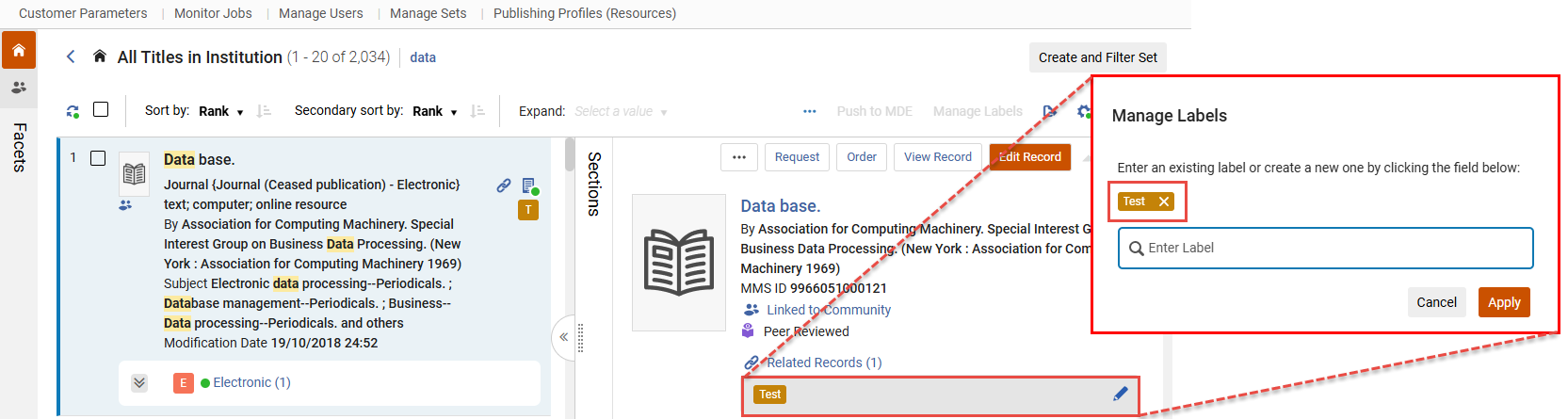 Remove Label - Single Selection
- Select the X alongside the label you want to remove (
- In the search results (List View), select one or more desired search result record(s) that are marked with the label you want to remove.Once a record is selected, the Manage Labels(
- ラベルの管理を選択します。
- ラベルの管理ウィンドウで、ラベルを削除ラジオボタンが選択されていることを確認します。
- In the Enter Label text box, from the drop menu select the label to remove, for example,Test.
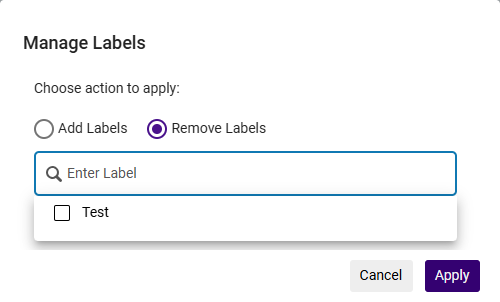 ラベル管理ウィンドウ
- 適用を選択します。The label is removed from all views (List, Split and so forth).
ラベルの表示
ラベルは、さまざまな表示 (リスト、分割、表) で異なる方法で表示されます。以下は、さまざまなビューに表示されるラベルの視覚的な表現です。
List View:
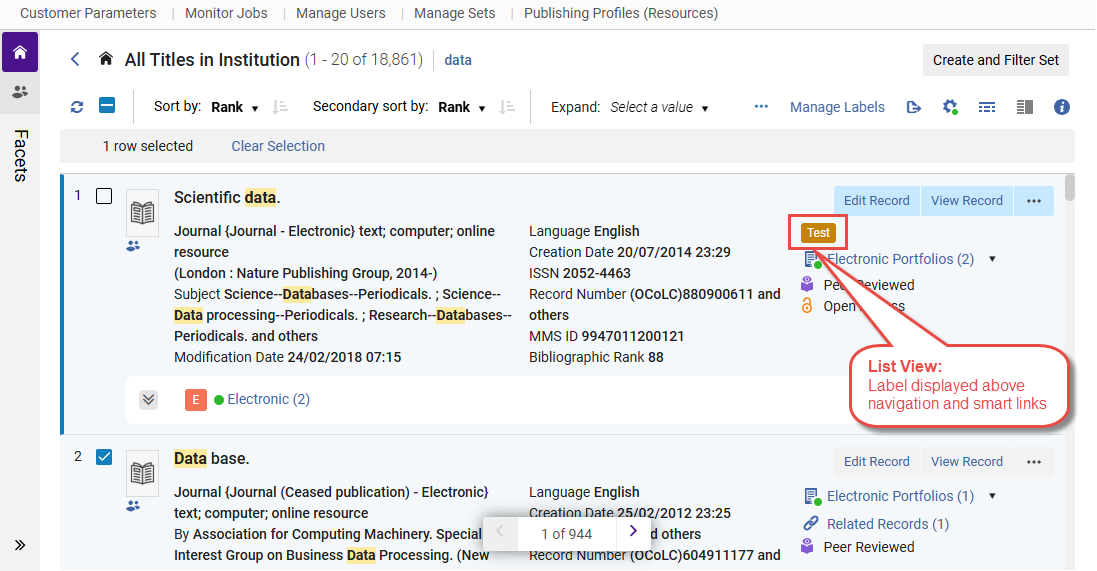
Split View:
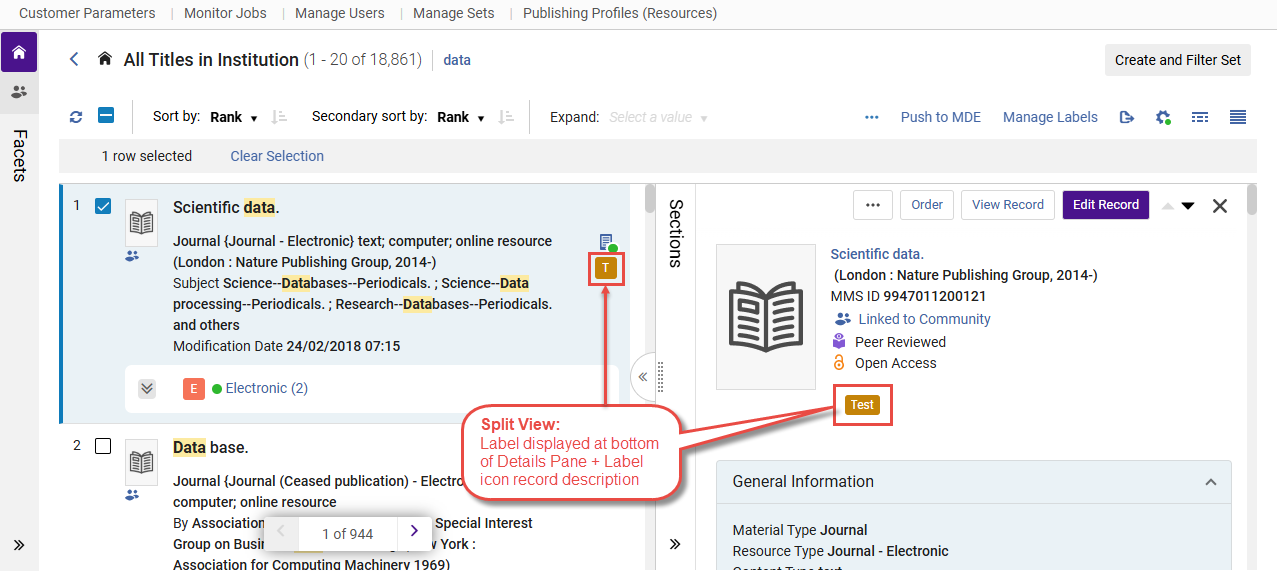
Table View:
テーブルビューでのラベルの表示 – ラベル列はデフォルトでは表示されませんが、設定できます。
- In the search results screen, select the icon (
 ) for Table View.
- Select the gear icon (
 ) to customize the view.
- 機関のカスタマイズで、テーブルのカスタマイズを選択します。
- リストを下にスクロールして選択ローカルラベルを選択します。
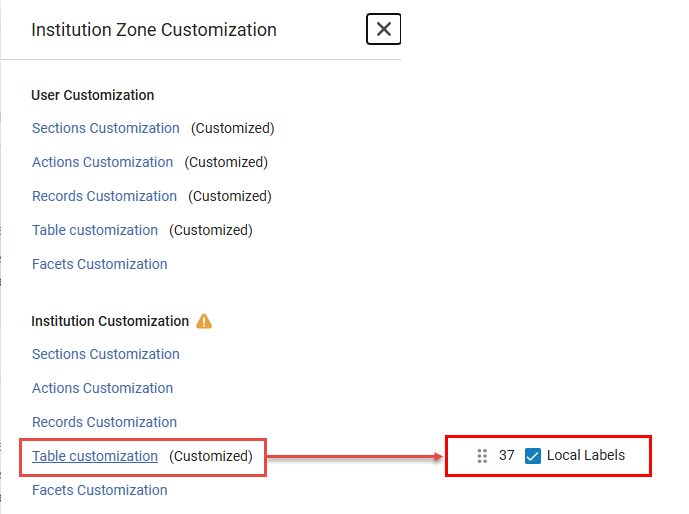 テーブルビューのカスタマイズ - 選択されたローカルラベル
- 適用を選択します。The Local Labels column is displayed in Table View.
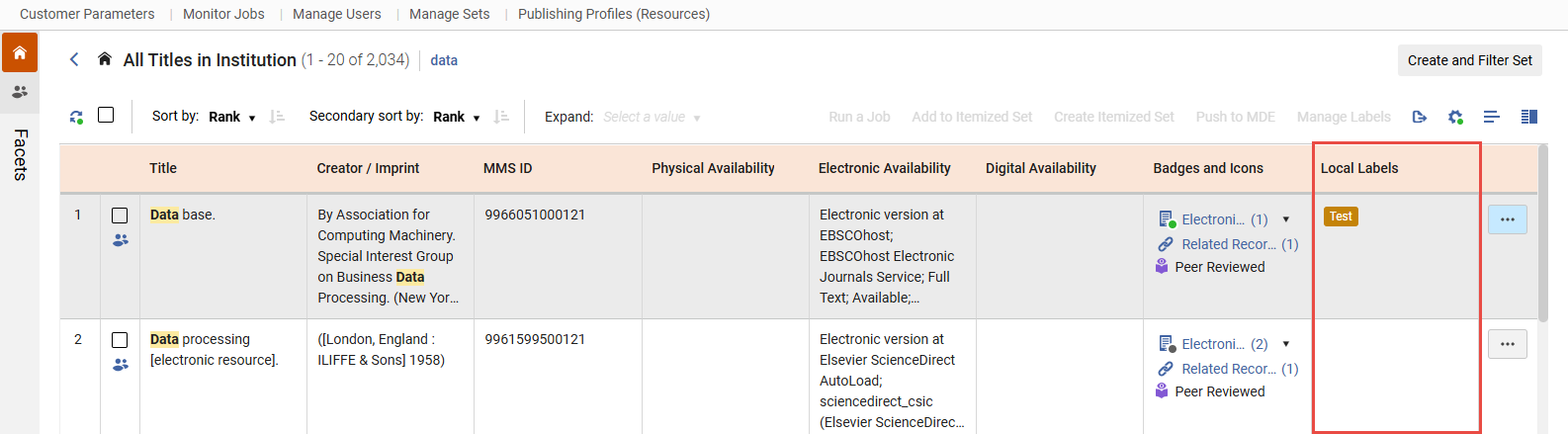 ローカルラベル列 - テーブル ビュー
検索結果のサムネイル
Alma attempts to display a thumbnail image for titles (either for digital titles only, or for all title types - see Customizing the Thumbnail Display).タイトルにデジタルファイルがある場合、そのファイルのサムネイルが表示されます。If the title has no digital inventory, Alma attempts to acquire a thumbnail image of the cover using the title's ISSN/ISBN/LCCN.サムネイルが利用できない場合、資料タイプの一般的な画像(本、ビデオ、音楽など)が表示されます。
Institution, Community, and Network Search Scopes
所属機関からの結果が機関スコープに表示されます。The Community scope includes results for records in the Community Zone; these are records that are available to all Alma institutions (see Introduction to Resource Management).

所属機関がネットワーク ゾーンで作業する共同ネットワークのメンバーである場合、ネットワーク範囲は、すべてのタイトルや電子タイトルなどの関連する検索タイプでも使用できます。ネットワークタブには、ネットワークゾーンからの結果が含まれています。For more information regarding the Network scope, see Repository Search in Collaborative Network.

You can ask Ex Libris to enable a feature that enables you to display electronic resources available to your institution from your Network Zone in the Institution tab; see Combining Institution and Network Zone Search Results.
結合されたスコープで検索する場合、一部の一括アクションは使用できません。
Search Result Icons
表示しているタブによっては、検索結果の横に次のアイコンが表示される場合があります。リンクされたレコードは、ターゲットレコード(コミュニティゾーンまたはネットワークゾーン)が更新されると更新されます。
| タブ | アイコン | 記録条件 | Select to Open the Item In | |||||||
|---|---|---|---|---|---|---|---|---|---|---|
| 機関 | 検索結果にレコードが見つかりません | 機関で定義されていません | 該当なし | |||||||
| 目録管理グループによる制限 | 該当なし | |||||||||
| アイコンなし | リンク解除 | 該当なし | ||||||||

|
レコードが抑制されているか、デジタル表現が非アクティブです。 When a record is suppressed, only the Library staff can see it.The record does not appear in the Primo search results, and students cannot see and cannot request it.For details, see Suppressing Alma Records from Primo. 次の表は、抑制されている所蔵とコンテンツのリポジトリ検索で使用する対象について説明しています。
|
該当なし | ||||||||

|
査読済み すべてのタイトル、電子タイトル、電子ポートフォリオ、電子コレクション、物的タイトル、物的アイテム、デジタルタイトル、デジタルファイル、またはコレクション検索を実行すると、次を含むコミュニティゾーンMARC 21書誌レコードにこのアイコンが表示されます: 500 __ $ a査読/査読済み |
該当なし | ||||||||

|
オープンアクセス すべてのタイトル、電子タイトル、電子ポートフォリオ、または電子コレクション検索を実行すると、次を含むMARC 21書誌レコードに対してこのアイコンが表示されます: 506 0_ $ f無制限のオンラインアクセス$ 2スター |
該当なし | ||||||||

|
コミュニティゾーンレコードにリンク済み | コミュニティタブ | ||||||||

|
ネットワークゾーンレコードにリンクされています | ネットワークタブ | ||||||||

|
所蔵を確約Items or Titles marked as Committed to Retain cannot be withdrawn (removed). | 該当なし | ||||||||

|
このレコードは、AI の助けを借りて作成または強化されました。 | 該当なし | ||||||||
| コミュニティ | 検索結果にレコードが見つかりません | コミュニティゾーンで定義されていません | 該当なし | |||||||
|
|
査読済み すべてのタイトル、電子タイトル、電子ポートフォリオ、電子コレクション、物的タイトル、物的アイテム、デジタルタイトル、デジタルファイル、またはコレクション検索を実行すると、次を含むMARC 21書誌レコードにこのアイコンが表示されます: 500 __ $ a査読/査読済み |
該当なし | ||||||||
|
|
オープンアクセス [すべてのタイトル]、[電子タイトル]、[電子ポートフォリオ]、または[電子コレクション検索]を実行すると、次を含むMARC 21書誌レコードに対してこのアイコンが表示されます: 506 0_ $ f無制限のオンラインアクセス$ 2スター |
該当なし | ||||||||
| アイコンなし | ネットワークゾーンのレコードにリンクされています と 目録管理グループによる制限 |
該当なし | ||||||||

|
ネットワークゾーンのレコードにリンクされています と 機関の記録にリンクされていません と 目録管理グループによる制限なし 注:このアイコンは、機関レコードが上記のネットワークゾーンレコードにリンクされている場合にも表示されます。 |
ネットワークタブ | ||||||||

|
機関の記録にリンク The icon is black  if the collection is active but the portfolios in the collection are not. For electronic collections of type 'Database', this icon always appears black in the Community tab, since a database does not have portfolios.The correct indication for electronic collections of type 'Database' is in the Institution tab. |
機関タブ | ||||||||
| ネットワークゾーンのレコードにリンクされています と 機関の記録にリンク See notes above. |
最後に追加されたリンク。 | |||||||||
|
|
このレコードは、AI の助けを借りて作成または強化されました。 | 該当なし | ||||||||
| ネットワーク | 検索結果にレコードが見つかりません | ネットワークゾーンで定義されていません | 該当なし | |||||||
|
|
査読済み すべてのタイトル、電子タイトル、電子ポートフォリオ、電子コレクション、物的タイトル、物的アイテム、デジタルタイトル、デジタルファイル、またはコレクション検索を実行すると、次を含むコミュニティゾーンMARC 21書誌レコードにこのアイコンが表示されます: 500 __ $ a査読/査読済み |
該当なし | ||||||||
|
|
オープンアクセス すべてのタイトル、電子タイトル、電子ポートフォリオ、または電子コレクション検索を実行すると、次を含むMARC 21書誌レコードに対してこのアイコンが表示されます: 506 0_ $ f無制限のオンラインアクセス$ 2スター |
該当なし | ||||||||
| アイコンなし | コミュニティゾーンレコードにリンクされていません と 機関の記録にリンクされていません |
該当なし | ||||||||

|
コミュニティゾーンレコードにリンク | コミュニティタブ | ||||||||

|
機関の記録にリンク | 機関タブ | ||||||||
|
|
所蔵を確約Titles marked as Committed to Retain cannot be withdrawn (removed). In the case of network zone records, the retention policy is determined based on the configuration specified in the Network Zone table.When attempting to delete a bibliographic record that is linked to the Community Zone, the removal of the linked record from the local institution is restricted based on the specific configuration set by that institution.ローカル拡張フィールドは保持フィールドとして使用できません。ローカル拡張機能ではなく機関ゾーンで使用されるフィールドは、保持フィールドとして使用できます。 |
該当なし | ||||||||
|
|
このレコードは、AI の助けを借りて作成または強化されました。 | 該当なし |
Viewing Inventory and Collection Information
In title search results, inventory and other information appear in sections in the details pane, as well as tabs below each search result in the list view.These can include:
-
物理的目録
-
電子目録
-
デジタル目録
-
タイトルが属するコレクション
-
Held by (consortium members only; see Repository Search when Using a Network Zone for more information)
In the list view, each tab displays an icon, the tab name, and the number of results associated with the tab in parentheses.Inventory tabs are color-coded to help users scan the results quickly.If a title does not contain a specific type of inventory or is not a part of a collection, the corresponding tab does not appear.
All the record's information is available in all the title searches that are relevant for it.While users can view all inventory types for a title, physical searches only return titles with physical holdings, electronic searches only include titles with electronic inventory, and digital searches only include titles with digital representations.Physical, electronic, and digital title searches offer search options based on data specific to their inventory type.
For details on what information is included on each tab, see the Search Results Tabs table below.
Features dependent on specific inventory information (such as Library scope in the Physical Titles search or the Usage type facet in the Digital Titles search) remain exclusive to their respective searches.
Almaは、検索結果の画面右側にナビゲーション スマートリンクを表示します。これらのリンクを使用すると、所蔵、アイテム、ポートフォリオなど、レコードに関連する情報にすばやくアクセスできます。For more information on smart links, see Using Navigation Links.
| タブ | 説明 |
|---|---|
|
物理的
|
タイトル所蔵情報を表示します。
A green dot appears in the tab header if there are holdings and at least one of the holdings has an item in place.所蔵があり、いずれにもアイテムが配置されていない場合は、グレーの点が表示されます。The number that appears next to the Physical tab header identifies the number of holdings records in that tab.The number displayed is a combination of both real holdings and "virtual" holdings, which represent items in a temporary location.
所蔵レコードにフィールド866 $aまたは$zが含まれている場合を除き、資料の有無が時系列Iおよび/または列挙Aに従って表示されます。所蔵レコードに866が含まれている場合、時系列や列挙に基づいた資料の有無の代わりに、概要所蔵情報が表示されます。
物的所蔵テーブルには以下が含まれます:
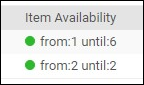
[アイテム利用可否]列に表示されるデータは、次の方法で決定されます:
これらの条件が存在しない場合、アイテムの可利用可否に灰色のドットが表示されます。
$zは検出ツールでのみ表示されます。
|
| 電子 | 電子ポートフォリオと電子コレクションの情報を表示します。 目録があり、少なくとも1つのリソースが有効な場合、タブヘッダーに緑色のドットが表示されます。A gray dot appears if there is inventory but none of the resource is active. 電子ポートフォリオの場合、テーブルには次の内容が含まれます。
電子コレクションの場合、テーブルには以下が含まれます。
|
|
デジタル
|
タイトルのデジタル目録を表示します。
デジタル表現テーブルには以下が含まれます。
|
| コレクション | Displays collections that the titles is assigned to.Includes the collection name and a link for each collection to the Collection Resource Editor.This tab also displays a row action button, which allows users to remove the title from the collection or replace the collection (depending on their assigned roles). |

Using Navigation Links
Almaは、検索結果の画面右側にナビゲーション スマートリンクを表示します。これらのリンクを使用すると、所蔵、アイテム、ポートフォリオなど、レコードに関連する情報にすばやくアクセスできます。
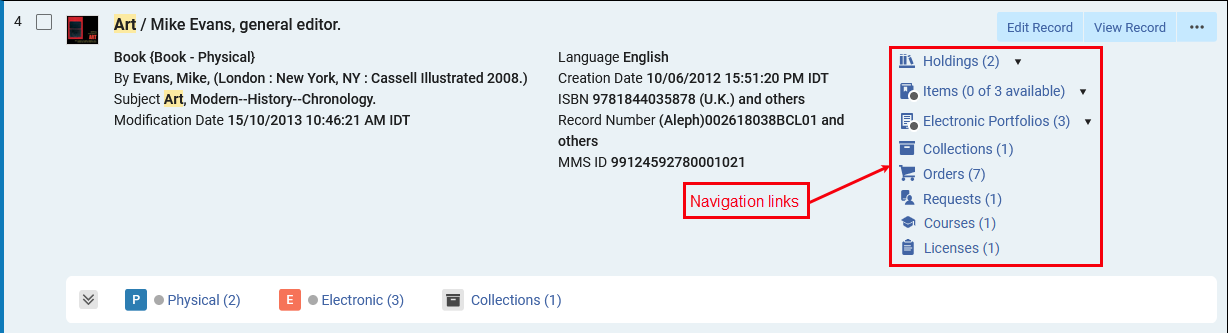
The navigation links can include both standard hyperlinks and smart links.Standard hyperlinks perform a single action (for example, open a list of orders, courses, licenses, or requests in a sliding panel, or the Collections section in the details pane), depending on the user's roles and privileges - if a user doesn't have the privileges required to perform the action, the navigation link appears as a read-only icon.The display of the links can be customized from the gear icon () and selecting Records Customization.In Badges and Icons (Third column), select the links to hide or display.These links also appear in the Table view ( ).The link counters are included in search exports to Excel, enabling users to easily identify records with related entities in their exported files.
Smart links can perform multiple actions for a specific entity (for example, open its section in the details pane, the full list in a sliding panel, or navigate to a new search).スマートリンクは次の2つの方法のいずれかで動作します。
-
Selecting the link takes you to your favorite resource (such as a section in the right pane or a full list in a sliding panel).各スマートリンクのシングルクリックアクションをカスタマイズできます。
-
Selecting the arrow icon next to the smart link opens a navigation window, which offers all actions available for that smart link.From this window, you can select a link to perform the action or star an action to set it as the favorite (single-click) action for this smart link.
The following image shows the arrow icon and the resulting navigation window that appears when you select it.
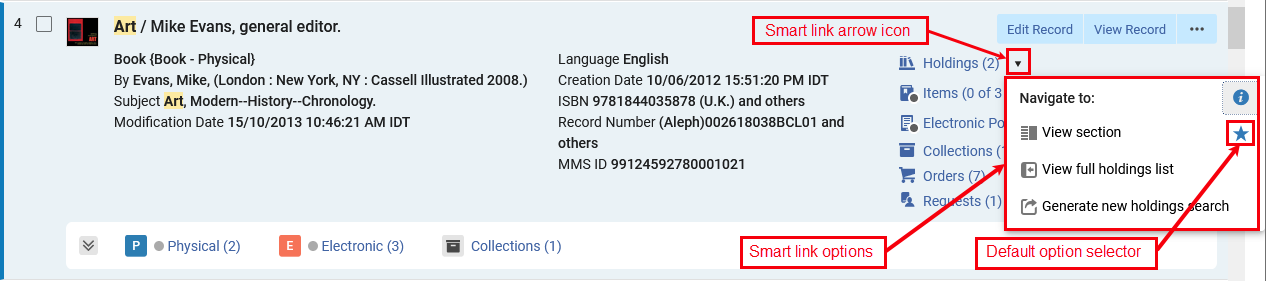
The navigation window can offer the following actions for smart links:
-
View section— Open the details pane and navigate to the relevant section (Holdings, Items, Electronic Portfolios, or Electronic Collections).
-
View full list— Open the full list of items, holdings, electronic portfolios or electronic collections in a sliding panel.
-
Generate a new search— Navigates to a new search for the relevant entities by the bibliographic record's MMS ID.
星のアイコンは、そのスマートリンクに使用されるデフォルトのアクションを指定します。In the example above, the View section action is selected, so the Holdings section appears whenever you select the Holdings link from a search result.デフォルトのアクションを変更するには、使用するオプションの上にマウスを移動し、星型のアイコンを選択します。
スマートリンクはリスト表示とテーブル表示で利用できます。分割ビューでは、Alma はナビゲーションリンクをアイコンとして表示し、矢印アイコンは表示されません。Selecting a navigation icon takes you to the default action set for that link.
Performing Record Actions on the Repository Search Results Page
リポジトリ検索結果の使用中に検索結果に対して実行できるアクションの説明については、下のテーブルを参照してください。
これらのアクションは、リスト表示とテーブル表示では行アクションとして表示され、分割表示またはフル表示では選択した検索結果の詳細ペインに表示されます。For more information, see The Details Pane.
| 検索タイプ | アクション | 説明 |
|---|---|---|
| すべてのタイトル、物的タイトル、電子タイトル、デジタルタイトル | The results for a titles search include bibliographic records that may have physical, electronic, and/or digital inventory, and the actions for each record vary according to the record type.Unique actions available only in specific context are listed below. | |
| レコードを編集 | 書誌レコードを編集します。Opens the MD Editor (see Working with Records). 検索結果には、別のメンバーがレコードを編集しているためにロックされている可能性のあるレコードが含まれます。ロックされたレコードは、ロックされていることを示すことなく検索結果に表示されます。レコードがロックされているというメッセージは、MDエディタでレコードを開いたときにのみ表示されます。Select Edit Record from the search results to open the record in the MD Editor. ロック中の表記 この表記は、レコードの公開下書きがあり、あなた以外の人が作業していることを示しています。ロックしているオペレータがMDエディタでリリースまたは保存してリリースを実行するか、working_copy_lock_timeoutパラメータの設定期限が切れるまで、このレコードを編集することはできません。working_copy_lock_timeoutのデフォルト設定は1時間です。See working_copy_lock_timeout for more information. |
|
| レコードを表示する | スライドパネルで書誌レコードのレコード表示を開きます。 | |
| オーダー | 発注書を作成します。Opens the PO Line Owner and Type page in a sliding panel (see Creating PO Lines). | |
| リクエスト | タイトルでフルフィルメントリクエストを開始します。Opens the Create Request page in a sliding panel (see Creating a Request). リクエストを作成ページから、リクエストタイプドロップダウンリストの一時的に移動またはユーザーのデジタル化リクエストなど、物的タイトルのリクエストを選択することができます。 |
|
| リソース共有リクエスト | タイトルでリソースシェア取寄せリクエストを開始します。Opens the Resource Sharing Borrowing Request page (see Adding a Resource Sharing Borrowing Task from a Search).このアクションは、リソース共有図書館の範囲内でフルフィルメントサービスオペレーターまたはフルフィルメントサービスマネージャーのいずれかの役職がある場合にのみ表示されます。 | |
| 文書配信 | このタイトルのリソースリクエストを開始します。Opens the Create Request page in a slidin panel (see Creating a Request). | |
| リーディングリストに追加 | リーディングリストが割り当てられている場合、このオプションを使用して、割り当てられたリーディングリストにタイトルを追加します。See Managing Reading Lists for more information. | |
| MDEにプッシュする | Use this option to push the record to Metadata Editor to reference and work with it there.See Pushing Records to Metadata Editor. | |
| 所蔵を追加 | Select to add new holdings.MDエディタが開き、このオプションを選択した書誌レコードに関連する新しい所蔵レコードを追加できます。添付されている書誌レコードが開かないため、新しい所蔵レコードの作成が完了したときに書誌レコードを解除する追加の手順はありません。 | |
|
見る |
このタイトルに関連付けられている電子サービスを表示します。これにより、Alma Link Resolver Electronic Servicesページが開きます。 To view more than a maximum of 25 entries, enable the enable_view_it_show_all_results customer parameter to show all entries.このパラメータを有効にすると、表示機能ですべて表示を使ってすべてのリソースを表示することができます。 For more information regarding the Alma Link Resolver Electronic Services page, see Link Resolver for Institutions Using Distributed Electronic Resources. To enable direct linking to electronic services via Alma Link Resolver Electronic Services, see Configuring Direct Linking. |
|
|
コレクションに追加 |
タイトルをコレクションに追加します。このアクションは、コレクションが設定されている場合にのみ表示されます。For more information refer to Managing Collections. |
|
| リマインダーを追加 | 以下の情報を入力して、書誌レコードのリマインダーを作成および編集します。
For more information, see Working with Reminders. |
|
| 表現物を追加 | 表現物を追加[表現の詳細]ページを開きます。For more information, see Managing Digital Resources. | |
| 割り当てを解除する | 書誌レコードが別のスタッフユーザーに割り当てられている場合は、リリースします。If you want to remove all bibliographic record assignments for a particular staff user, see MD Editor Menu and Toolbar Options.このアクションは、ロールカタログマネージャーがいる場合にのみ表示されます。 | |
| ローカルポートフォリオを追加 | Opens the New Portfolio form in a sliding panel. | |
| ディスカバリーで表示 | Use this option to open the title in Primo's Full Display page. このオプションは、Primo VEがインストールされている場合にのみ表示されます。 |
|
| サービスページを表示 | このオプションを使用して、Primoの[サービス]ページでタイトルを開きます。 このオプションは、Summon over Almaがインストールされている場合にのみ表示されます。 |
|
| リンク済みデータ | リンクされた典拠レコードから生成された URI情報などのリンクされたデータをスライド パネルで表示します。See Using Linked Data from the Repository Search Results below for more information. | |
| タスクを見る | BIBFRAME インスタンスレコードを表示して、ユーザーがスライドパネル内でリンクされた作品の詳細ページに移動できるようにします。In the sliding panel users have the ability to view instances and further details regarding the Work. | |
| 物的タイトル | 物理的な出版情報 | レコードの物的目録ごとに出版情報を表示します。次の情報を含む公開情報ページを開きます(一般システム、リポジトリ、カタログ管理者、およびデポジット管理者のみ利用可能):
Learn about debugging publishing information in the Debugging Publishing Information video (1:52 mins). |
| 電子タイトル | 電子出版情報 | レコードの電子目録別に出版情報を表示します。以下の情報を提供する公開情報ページを開きます(一般システム、リポジトリ、およびカタログ管理者のみ利用可能):
Learn about debugging publishing information in the Debugging Publishing Information video (1:52 mins). If the institution is publishing at the campus/symbol level, in addition to the record ID you also need to specify the campus/symbol for which you want to see the publishing information. |
| デジタルタイトル | デジタル出版情報 | レコードのデジタル目録別に出版情報を表示します。次の情報を提供する公開情報ページを開きます(一般システム、リポジトリ、カタログ管理者、およびデポジット管理者のみ利用可能):
Learn about debugging publishing information in the Debugging Publishing Information video (1:52 mins). 機関がキャンパス/シンボル レベルで公開している場合は、レコード ID に加えて、公開情報を表示するキャンパス/シンボルも指定する必要があります。 |
|
コミュニティ検索範囲 |
The community search scope is available in the All Titles and Electronic Titles searches. |
|
|
レコードを編集 |
メタデータエディタでコミュニティレコードを開き、コミュニティレコード自体を編集したり、ローカル拡張フィールドを追加したりします。 See Community Zone Contribution Guidelines and Contributing to the Community Zone – Bibliographic Records for more details on editing community records. |
|
|
MDEにプッシュする |
Use this option to push the record to Metadata Editor to reference and work with it there.See Pushing Records to Metadata Editor. |
|
|
レコードを表示する |
スライドパネルで書誌レコードのレコード表示を開きます。 |
|
|
オーダー |
発注書を作成します。Opens the PO Line Owner and Type page (see Creating PO Lines). 複数のURL(856 $ uフィールド)を含む電子リソース(書誌/タイトルレベルの検索結果から)を注文すると、Almaは各URLのポートフォリオを作成します。 |
|
|
リソース共有リクエスト |
タイトルでリソースシェア取寄せリクエストを開始します。Opens the Resource Sharing Borrowing Request page (see Adding a Resource Sharing Borrowing Task from a Search).このアクションは、リソース共有図書館の範囲内でフルフィルメントサービスオペレーターまたはフルフィルメントサービスマネージャーのいずれかの役職がある場合にのみ表示されます。 |
|
|
リンク |
既存のコミュニティレコードにリンクされた新しいローカルレコードを作成します。 |
|
|
目録にコピーする |
Copy the community record to a new local record without linking the records, or unlink local record from the community record. |
|
|
ネットワークにコピー |
レコードをリンクせずにコミュニティレコードを新しいネットワークレコードにコピーするか、ネットワークレコードとコミュニティ レコードのリンクを解除します。 |
|
|
ローカルポートフォリオを追加 |
スライドパネルで新しいポートフォリオ フォームを開きます。 |
|
|
ネットワーク検索範囲(コンソーシアムメンバー) |
ネットワーク検索範囲は、共有カタログを持つコンソーシアムのメンバーが、すべてのタイトルと電子タイトルの検索で利用できます。 |
|
|
レコードを編集 |
メタデータエディタでネットワークレコードを開き、ネットワークレコード自体を編集するか、ローカル拡張フィールドを追加します。 |
|
|
MDEにプッシュする |
Use this option to push the record to Metadata Editor to reference and work with it there.See Pushing Records to Metadata Editor. |
|
|
レコードを表示する |
スライドパネルで書誌レコードのレコード表示を開きます。 |
|
|
オーダー |
発注書を作成します。Opens the PO Line Owner and Type page (see Creating PO Lines). 複数のURL(856 $ uフィールド)を含む電子リソース(書誌/タイトルレベルの検索結果から)を注文すると、Almaは各URLのポートフォリオを作成します。 |
|
|
リソース共有リクエスト |
タイトルでリソースシェア取寄せリクエストを開始します。Opens the Resource Sharing Borrowing Request page (see Adding a Resource Sharing Borrowing Task from a Search).このアクションは、リソース共有図書館の範囲内でフルフィルメントサービスオペレーターまたはフルフィルメントサービスマネージャーのいずれかの役職がある場合にのみ表示されます。 |
|
|
リンク |
既存のネットワークレコードにリンクされた新しいローカルレコードを作成します。 |
|
|
目録にコピーする |
Copy the network record to a new local record without linking the records, or unlink local record from the network record. |
|
|
リマインダーを追加 |
以下の情報を入力して、書誌レコードのリマインダーを作成および編集します。
For more information, see Working with Reminders. |
|
|
ローカルポートフォリオを追加 |
スライドパネルで新しいポートフォリオ フォームを開きます。 |
|
|
リンク済みデータ |
リンクされた典拠レコードから生成された URI情報などのリンクされたデータをスライド パネルで表示します。See Using Linked Data from the Repository Search Results below for more information. |
|
| 物的所蔵 | アイテムを追加 | 現在のページの上部に表示されるスライドペインで、アイテム エディタを開き、所蔵レコードの新しい物理アイテムを作成します。 |
| テンプレートからアイテムを追加する | テンプレートを使用して、所蔵レコードに 1 つ以上の物理的なアイテムを追加します。 | |
| 所蔵を表示する | 現在のページの上部に開くスライドペインでレコードを表示します。 | |
| タイトルを表示 | 現在のページの上部に開くスライドペインで、書誌レコードの詳細ペインを開きます。 | |
| ホールディングを編集 | メタデータエディタでレコードを編集します。 | |
| MDEにプッシュする | Pushes the selected record the the Metadata Editor in order to work with it later. | |
| 再リンク | 所蔵レコードをある書誌レコードから別の書誌レコードに移動します。 | |
| アイテムを表示する | 現在のページの上部に表示されるスライドペインで、レコードのアイテムのリストを開きます。 | |
| 発注明細(POL)を関連付ける | 注文明細をレコードに関連付けます。 | |
| 新規所蔵を追加 | 選択した所蔵レコードの書誌レコードの新しい所蔵レコードを開きます。 | |
| 所蔵を削除する | レコードを削除します。 | |
詳細パネル
The Details pane displays information about the currently selected record, and provides a number of convenient features for processing the record and its inventory.It is divided into sections for enhanced navigation and usability, appearing when relevant and collapsible by the user - sections are further described below.
|
Sections: |
詳細ペインセクション
|
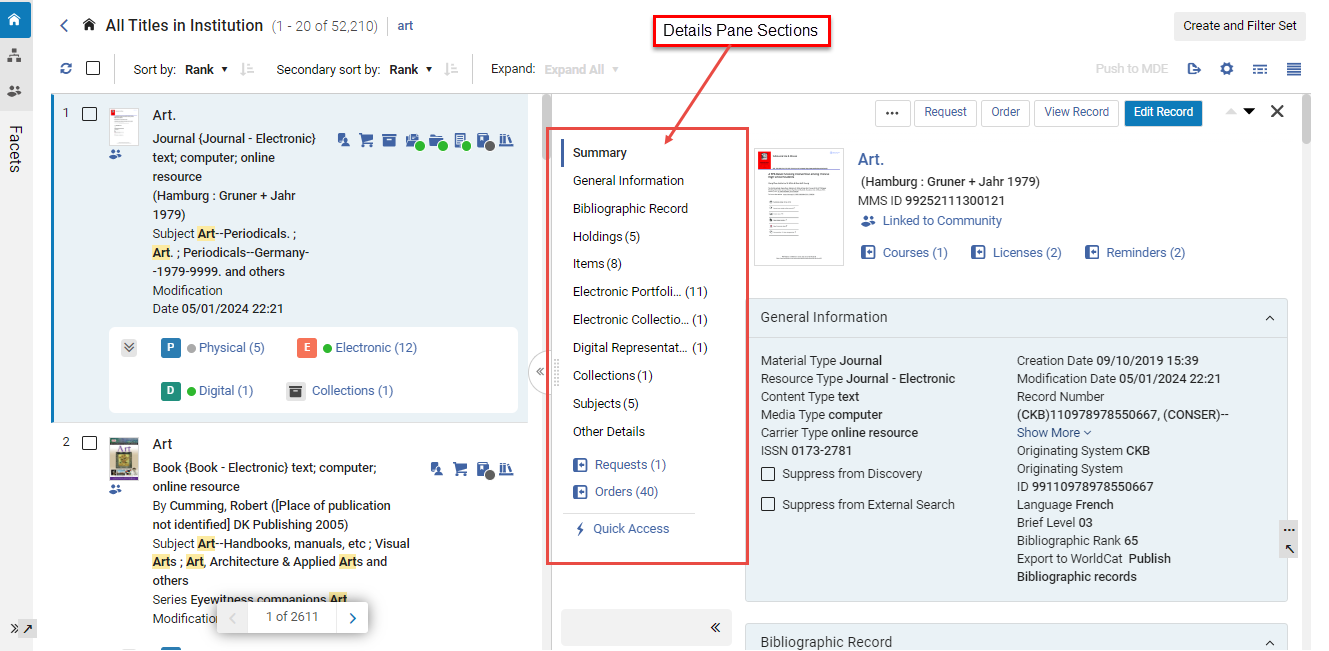
アクションを実行
Users can perform a series of actions directly from the details pane toolbar.
表示されるアクションは、検索タイプとユーザーの役職によって異なります。すべてのアクションがすべてのユーザーに表示されるわけではありません。
For detailed information on the actions, see Performing Record Actions on the Repository Search Results Page.
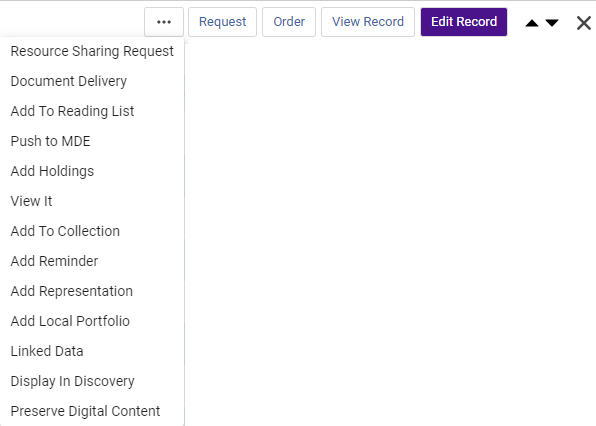
前へ/次へボタン
Users can seamlessly navigate between bibliographic records of search result items by utilizing the Previous ( ) and Next (
 ) buttons in the toolbar - in both the split view and the full view.
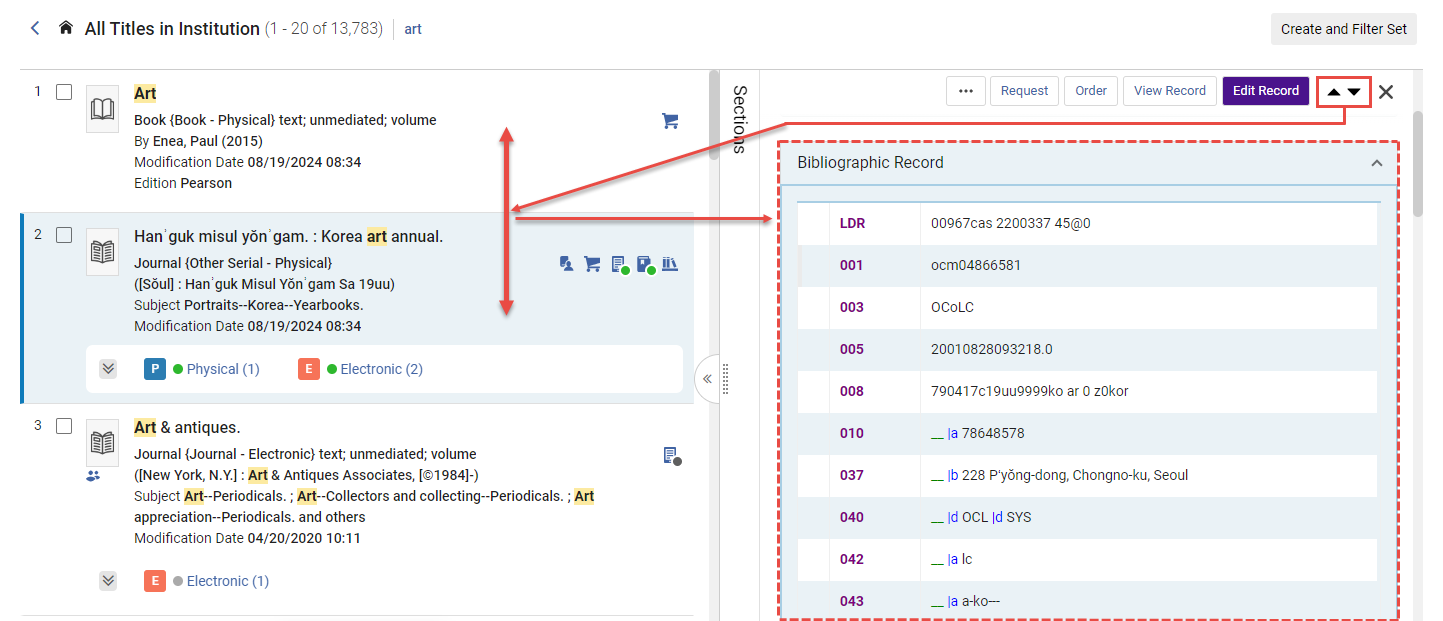
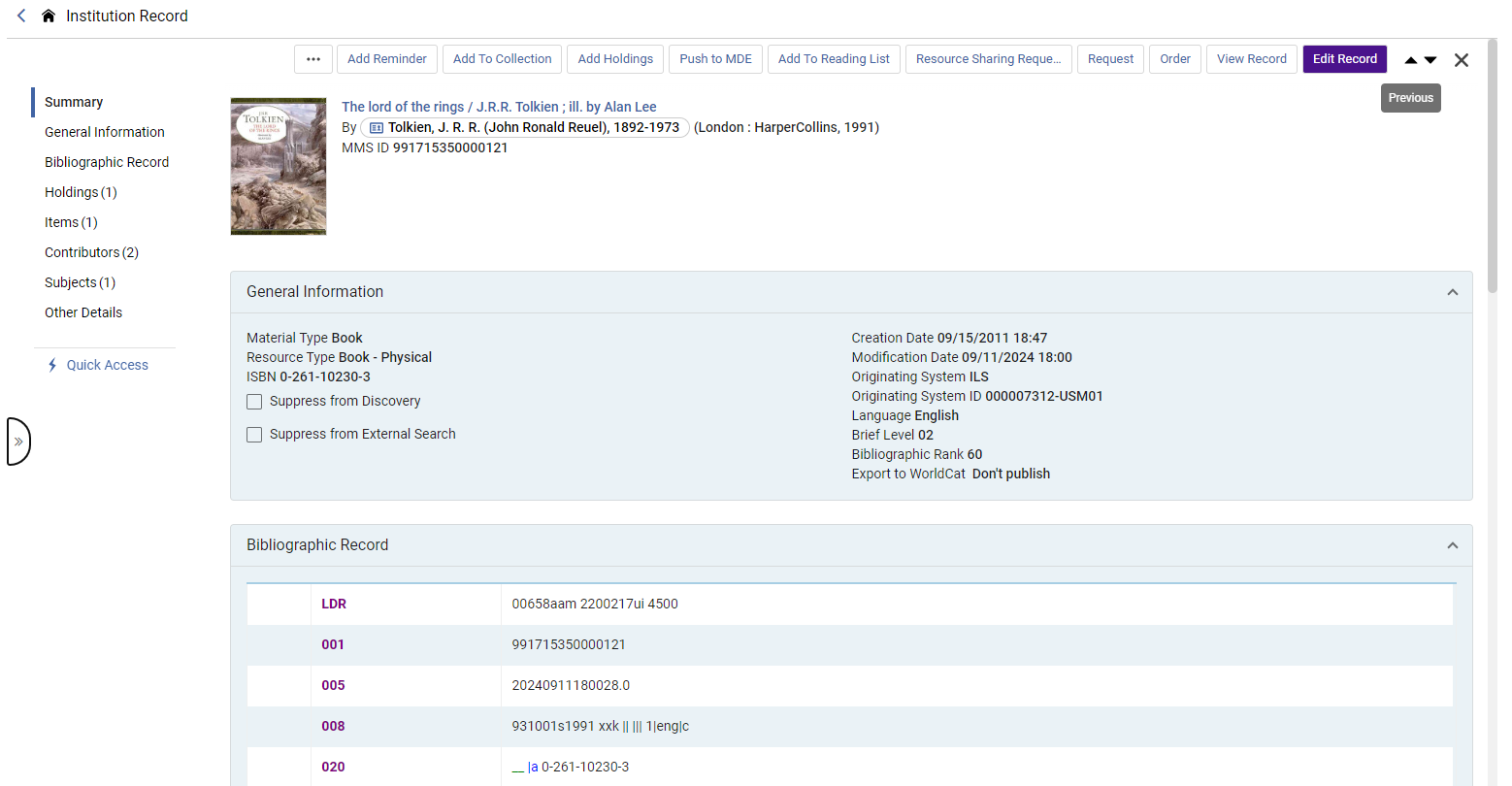
メタデータセクション
概要
レコードのタイトル、作成者、インプリント、MMS ID 情報に加え、関連するレコード、コース、ライセンス (該当する場合) へのリンクが含まれます。
レコードがリンクされたコミュニティ レコード、またはコンソーシアム メンバーのネットワーク レコードである場合は、レコードのコミュニティ/ネットワーク ビューへのリンクもここに提供されます。
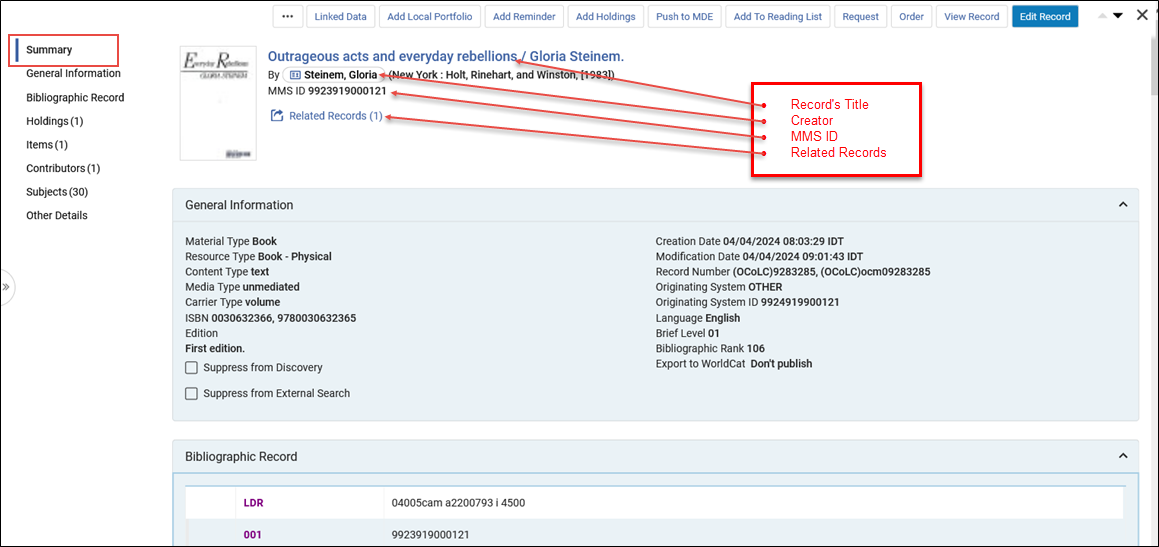
一般情報
The General Information section includes essential metadata that librarians may need to access easily.
Librarians with the appropriate roles and privileges can suppress the record using the checkboxes in this section.For more information, see Suppress from Discovery.
書誌レコード
完全な書誌レコードを表示し、図書館員が検索結果から直接確認できるようにします。レコード間の便利な上下矢印ナビゲーションにより、図書館員は検索結果を簡単に比較し、作業する正しいレコードを識別できます。
The Bibliographic Records are color-coded for easy review of fields and subfields.
RDF/XML セクションはデフォルトで無効になっています。For users who use BIBFRAME and prefer the RDF/XML view, the section can be enabled from the customization wheel > User Customization > Sections Customization > select Instance RDF/XML.
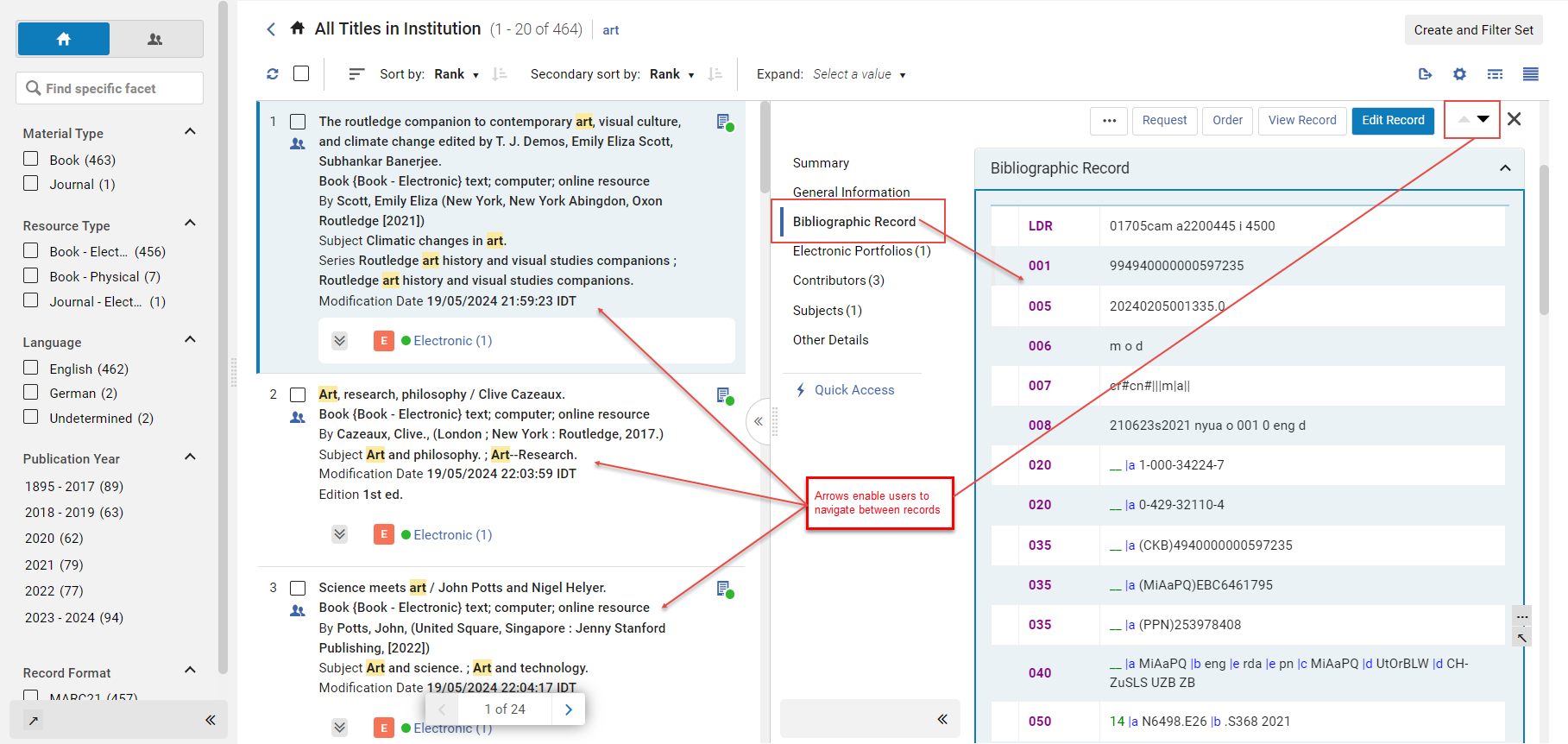
目録セクション
目録セクションにはレコードの目録が表示されるため、図書館員は検索から直接確認してアクションを実行できます。このセクションには以下が含まれます:
- タイプ別(所蔵、アイテム、電子ポートフォリオ、電子コレクション、表現)の目録リスト。レコードに関連付けられている各タイプのエンティティの数が表示されます。
- 各タイプの最初の5つのエンティティを表示し、必要に応じてページネーションを使用して残りのエンティティを確認できます。
- 検索およびナビゲーション機能。
- Excel へのエクスポート機能。
- タイトル検索から直接、在庫に対して行アクションを実行する機能。
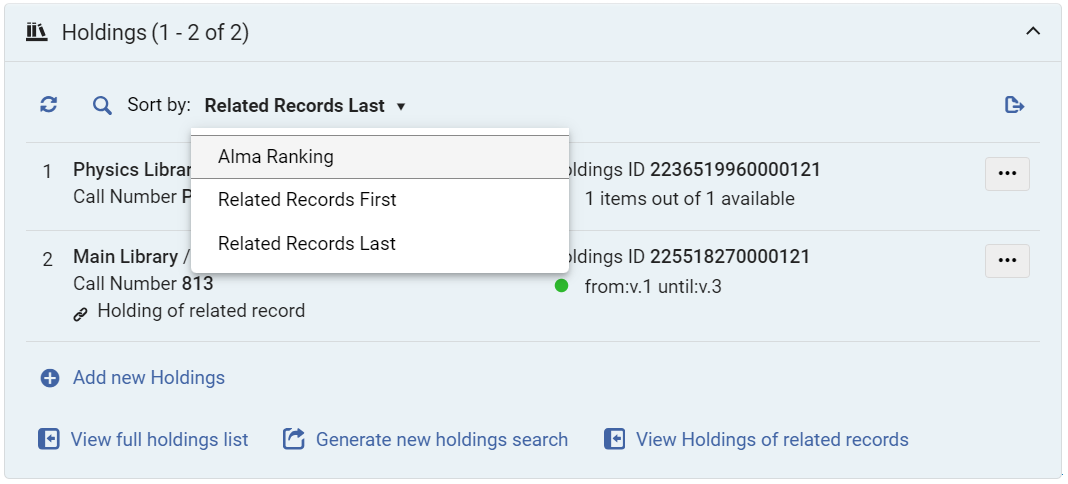
Holdings
The Holdings section includes a list of all the title's Holdings records as well as the option to:
- Search by
:
- 請求記号
- [図書館]
- ロケーション
- 所蔵を次の基準で並べ替えます (この設定は、結果リストの所蔵セクションと所蔵タブの両方に記憶されます)。
- Alma ランキング
- 最初の関連レコード
- 最後の関連レコード
- Export the holdings to Excel
— For more information, see Export to Excel.
- 新しい所蔵レコードを追加します - 新しい所蔵レコードを含むメタデータ エディターを開きます。
- スライパネルで全所蔵リストを表示
- 書誌レコードのMMS IDで新しい所蔵検索を生成します
The following actions are available from the row actions button, according to the user's roles and privileges () - for more information on these actions, see Working with Holdings Records:
- Edit— Edit the holdings on the MD Editor page.
- View Holdings— Open the full holdings details, enabling the user to view the metadata record and related items.
- Relink— Relink the holdings record to a bibliographic record in the MD Editor in split view.
- View Items— View the items that are associated with the holdings record on the List of Items page.For more information, see Working with the List of Items.
- Push to MDE— Push the holdings to the MD Editor page in order to work with it later.
- Associate a PO Line— Associate a PO line with the holdings.
- Add Item— Add a physical item to this holdings record.For more information, see Adding a Physical Item to an Existing Title.
- Add Item from Template— Add item records from a template.For more information, see Working with Item Templates.
- Delete— Delete empty holdings records.これが書誌レコードの最後の所蔵レコードである場合、他の目録がない場合にどのように処理するかを決定するよう、確定前に求められます。Note: You cannot delete Holdings records that contain items.
アイテム
The Items section includes a list of all items of the bibliographic record as well as the option to:
- Search by
:
- バーコード
- 請求記号
- 説明
- 次の基準でアイテムを昇順/降順で並べ替えます。
- 図書館/排架場所
- 説明
- 一時的な排架場所
- ステータス
- プロセスタイプ
- 受入日
- Export the items to Excel
— For more information, see Export to Excel.
- Select the Barcode to open the physical item editor in a sliding panel in view/edit mode according to the user's permissions.
- スライドパネルで所蔵レコードを表示する場所を選択します。
- スライドパネルで完全なアイテム リストを表示します。
- 書誌レコードの MMS ID で新しいアイテム検索を生成します。
The following actions are available from the row actions button, according to the user's roles and privileges () - for more information on these actions, see Working with Items:
- Edit Item— Edit the item in the Physical Item Editor sliding panel.
- Duplicate— Duplicate the item using the Physical Item Editor sliding panel.
- Change Location— Submit a permanent or temporary move item request.
- Work Order— Create a work order for the item.For more information, see Creating a Work Order Request.
- Withdraw— Delete the item - if this is the last item of the holdings record, you are prompted to decide how to treat the holdings and bibliographic record (if it has no other inventory) before confirming.
- Toggle Missing Status— Toggle the item between Item in place and Missing.
- View Holdings— Open the full holdings details, enabling the user to view the metadata record and related items.
- View holdings' items list— View the List of Items that belong to the same holdings record as this item.
Electronic Portfolios
The Electronic Portfolios section contains the following information:
- Indication of the electronic portfolio availability based on portfolio and service status, indicating whether it's accessible to patrons.This availability is also added to the Excel created when exporting the electronic portfolio.
- Select the Active/Inactive status toggle to update the status (if you don't have permissions, the toggle is view-only).
- Select Portfolio ID to open the Electronic Portfolio Editor in view/edit mode according to the user's permissions.For more information, see Editing a Portfolio Using the Electronic Portfolio Editor.
- Select Service Type to open the Electronic Service Editor in view/edit mode according to the user's permissions.For more information, see Modifying an Electronic Service.
- Select Collection Name to open the Electronic Collection Editor in view/edit mode according to the user's permissions.For more information, see Modifying an Electronic Collection.
- Export the portfolios to Excel
— For more information, see Export to Excel.
- Add a Local Portfolio to the title.
- スライドパネルでポートフォリオの全リストを表示します。
- 書誌レコードのMMS IDで新しいポートフォリオ検索を生成します。
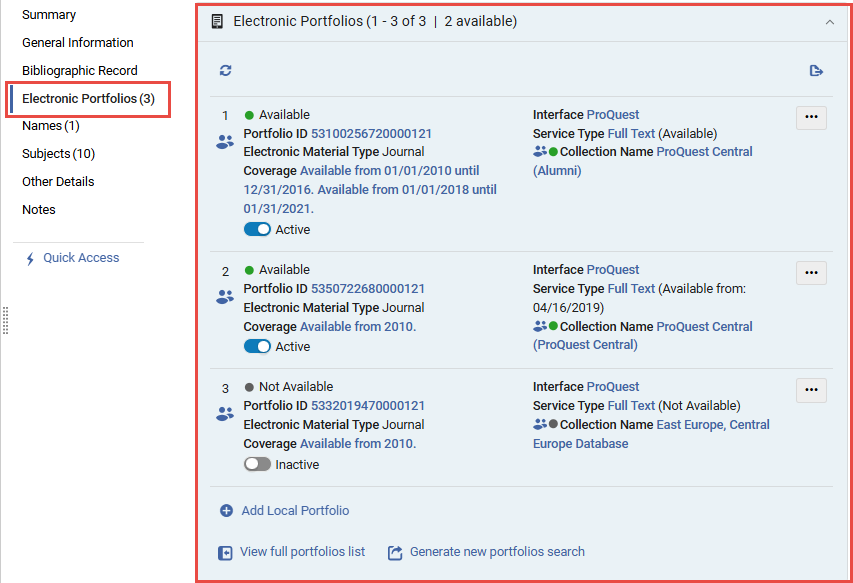
The following actions are available from the row actions button, according to the user's roles and privileges () - for more information on these actions, see Managing Electronic Resources:
- Edit Portfolio— Opens the Electronic Portfolio Editor to edit the portfolio record.For more information, see Editing a Portfolio Using the Electronic Portfolio Editor.
- Link to Community— Link the portfolio to the Community Zone.For more information, see Link to Community.
- Create E-Activation Task— Create an electronic activation task for the resource.For more information, see Create E-Activation Task.
- Order / Additional Order— Open the PO Line Owner and Type page to initiate a purchase order (see Creating PO Lines).これには、すでにローカルで有効化されている電子コレクションからポートフォリオを発注する機能が含まれます。For more information, see Order.
- Test Access— Test the access to an electronic portfolio.For more information, see Test Access.
- Delete Portfolio— Delete a local portfolio or a portfolio that is linked to the Community Zone.If this is the last portfolio on the bibliographic record, you are prompted to decide how to treat it if it has no other inventory before confirming.
- Report To Ex Libris— Send a portfolio update, add, remove, or coverage request to Ex Libris.For more information, see Report To Ex Libris.
- Make Available/Not Available— Activate or Deactivate the portfolio (this can also be done using the portfolio status toggle).
Electronic Collections
The Electronic Collections section contains the following information:
- Select Collection ID to open the Electronic Collection Editor in view/edit mode according to the user's permissions.For more information, see Modifying an Electronic Collection.
- Select Service Type to open the Electronic Service Editor in view/edit mode according to the user's permissions.For more information, see Modifying an Electronic Service.
- Select Portfolio List to view the collection's portfolio list in a sliding panel (for collections that contain electronic portfolios).
- Export the electronic collections to Excel
— For more information, see Export to Excel.
- 書誌レコードのMMS IDで新しい電子コレクション検索を生成します。
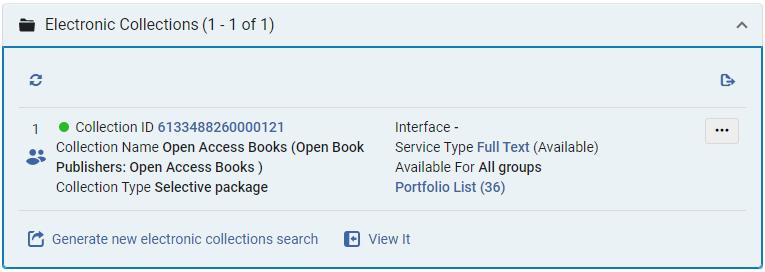
The following actions are available from the row actions button, depending on the collection type and according to the user's roles and privileges ().For more information on these actions, see Managing Electronic Resources:
- Edit Electronic Collection— Opens the Electronic Collection Editor to edit the portfolio record.For more information, see Modifying an Electronic Collection.
- Edit Service— Opens the Electronic Service Editor.For more information, see Modifying an Electronic Service.
- Create E-Activation Task— Create an electronic activation task for the resource.For more information, see Create E-Activation Task.
- Order / Additional Order— Open the PO Line Owner and Type page to initiate a purchase order (see Creating PO Lines).
- Delete Electronic Collection— Delete the electronic collection.これが書誌レコードの最後の電子コレクションである場合、他の目録がない場合にどのように処理するかを決定するよう、確定前に求められます。コレクションにポートフォリオがある場合は、[ポートフォリオの削除]バックグラウンドプロセスがトリガーされます。
- Publishing Information— View the publishing information for the collection in a sliding panel.
- Edit Full Text Portfolios— Opens the Service Editor Portfolios tab in a sliding panel.
- Report To Ex Libris— Send a portfolio update, add, remove, or coverage request to Ex Libris.For more information, see Report To Ex Libris.
デジタル表現
The Representations section contains the following information:
- 表現IDを選択すると、スライドパネルでデジタル表現リソースエディタが開きます。
- Select Viewer to open the representation in a digital viewer in a new browser tab.
- Select Files to display the files of the representation in the Digital Representation Resource Editor in a sliding panel.
- Export the representations to Excel
— For more information, see Export to Excel.
- Select Add representation to open the Representation Details page in a sliding panel.
- Select View full representations list to display the representations in the Digital Resource Editor's Representations tab in a sliding panel.
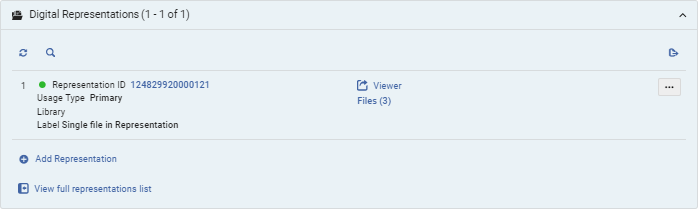
For more information, see Editing Representation Metadata and Content
The following actions are available from the row actions button, depending on the collection type and according to the user's roles and privileges ():
- Edit — open the Digital Representation Resource Editor in edit mode.
- View — open the Digital Representation Resource Editor in view mode.
コレクション
Shows any collections that the title belongs to, if exists.The Collections section contains the following information:
- Select Collection ID to open the Collection Resource Editor in a sliding panel.
- Export the collections to Excel
— For more information, see Export to Excel.
- Whether the collection is a logical collection (where the title list is managed automatically).
- Add to collection — opens the list of collections in a sliding panel.Select a collection to add the title to it.
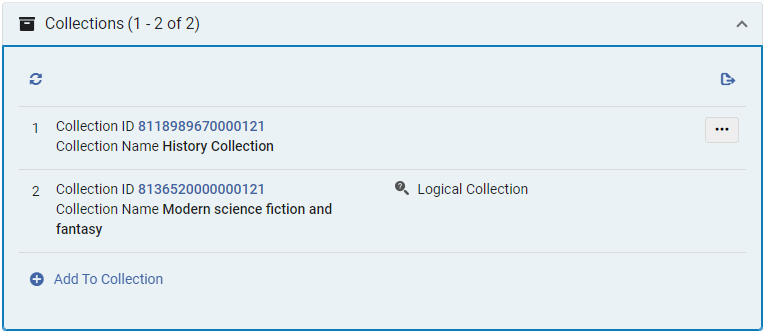
For collections that are not logical collections, the following actions are available from the row actions button according to the user's roles and privileges ():
- 削除 - コレクションからタイトルを削除します。
- 置き換え - スライドパネルでコレクション検索を開き、タイトルを移動するコレクションを選択します。
Enhanced Navigation and Linked Open Data Sections
タイトル検索におけるリンク付きオープンデータおよびナビゲーション機能は、図書館員がリンクされた典拠レコード、名称に関する情報、同一主題の他のタイトルなど、外部リソースや自館のカタログ内にある関連情報へ容易にアクセスできるようにすることを目的としています。
コンソーシアム向け
ネットワークで作業する場合、ナビゲーションとリンクされたオープン データはレコードの位置に応じて派生されるため、次のようになります:
- ネットワーク レコードの場合、リンクされた典拠レコードの情報はネットワークから取得され、同じ寄稿者または件名にリンクされたレコードの検索はネットワーク カタログで実行されます。
- メンバーが管理するローカルレコードの場合、リンクされた典拠レコードの情報はローカルカタログから取得され、同じ名前または件名にリンクされたレコードの検索も機関のカタログで実行されます。
名前セクション
タイトル検索では、作成者と名前の書誌見出しを使用して、次のような情報を図書館員に明確に表示します。
- 外部リソースからのリンクされたデータ(利用可能な場合)を含む情報カード。
- 外部リソースとローカル カタログ (利用可能な場合) の両方からの詳細情報を含む寄稿者ページへのリンク。
- Information on linked authority records and headings, if they exist, selecting Search Heading opens the linked authority record in a sliding panel.
- 名前のインデックスに関連するその他のリソースをカタログで検索するための簡単なナビゲーション:
- 書誌見出しが典拠レコードにリンクされている場合、検索では同じ典拠レコードにリンクされた見出しを持つ書誌レコードが検索されます。
- 書誌見出しが典拠レコードにリンクされていない場合、検索では同じテキストを含む、同じタイプと語彙の見出しを持つ書誌レコードが検索されます。
- Search Name— triggers a Names equals search on the normalized value of the bibliographic heading, in the "Names" index.
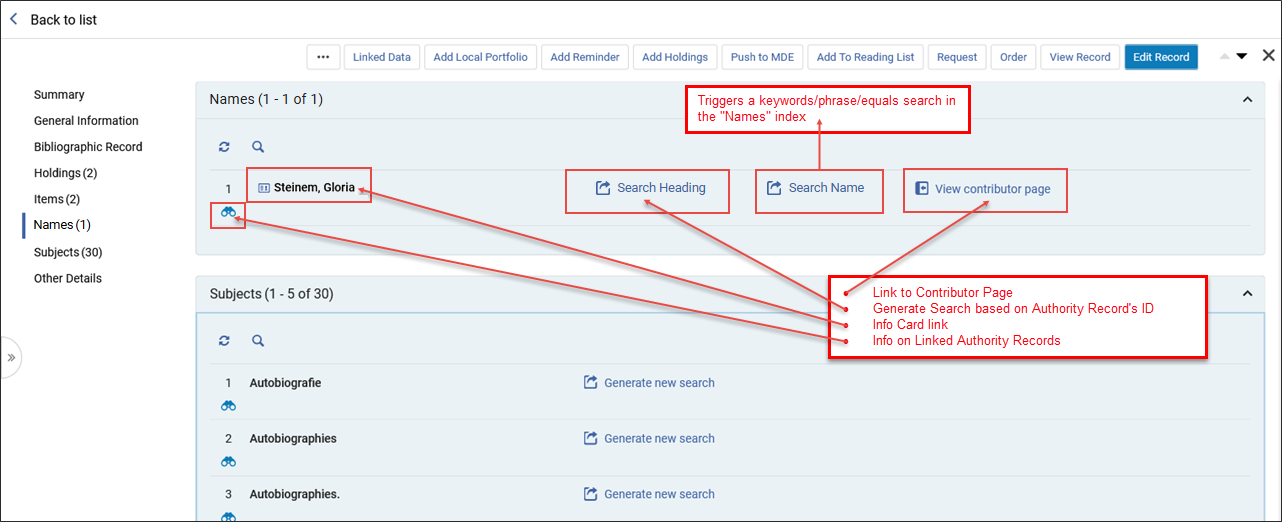
|
Linked Data Info Card リンクデータ情報カードは、人物に関する詳細な情報を提供します。米国議会図書館名称機関とWikidataとを組み合わせています。If an info card is available (determined by the linked authority record), the contributor's name includes an additional oval and card icon (
情報カード - ポップアップ
Info cards and Names pages are only shown if the record is linked to an authority for which Alma has relevant information to display. The Info Card link is displayed in the following scenarios:
ÂIn future releases, this will be expanded to other vocabularies. リンク データ情報カードは、次の 2 つの場所に表示されます:
リンク データ情報カードへのリンクは、概要セクションと名前セクションから同じように機能します。 When selecting the card icon a popup window appears displaying information pertaining to the heading, taken from Wikidata and LCNAMES. Users are presented with a link to Wikidata within the Linked Data Info Card.Upon selecting the Wikidata link, a new tab in the browser opens with the relevant Wikidata entry. リンクデータ情報カードの表示
Wikidata ページが新しいブラウザ タブに表示されます
The Search Heading link can be accessed from:
Info Card - Names Section - Search Heading
View Contributor Page When available, the Contributor Page displays detailed information from both external resources and the local catalog.ページはスライドパネルに表示されます。 寄稿者ページを見るリンクは次のシナリオで表示されます。
The Contributor Page link can be accessed from the N ames section.
寄稿者ページへのアクセス
寄稿者ページでは、ユーザーは次のことができます:
寄稿者ページ
|
 ).名前をクリックすると、LC Name Authority と Wikidata から取得した情報を含むポップアップウィンドウを表示できます。それ以外の場合は、平文が表示されます。
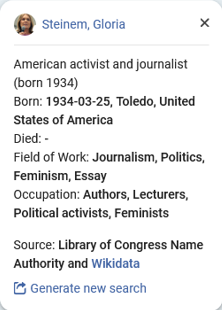
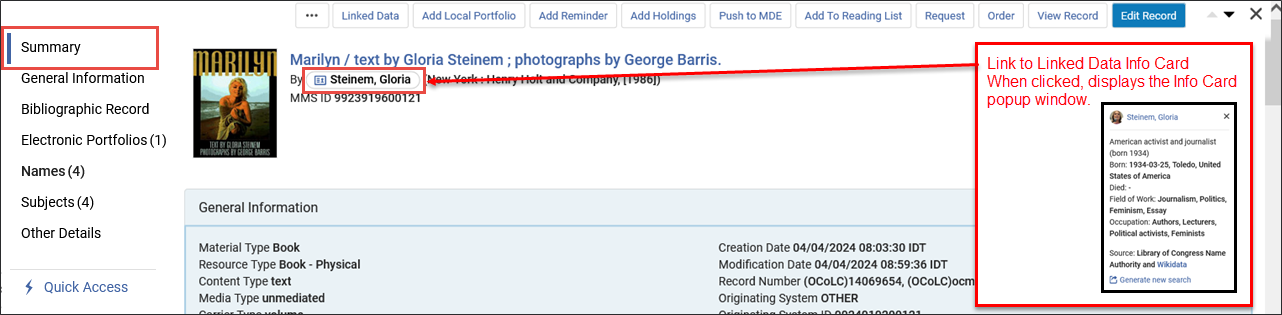
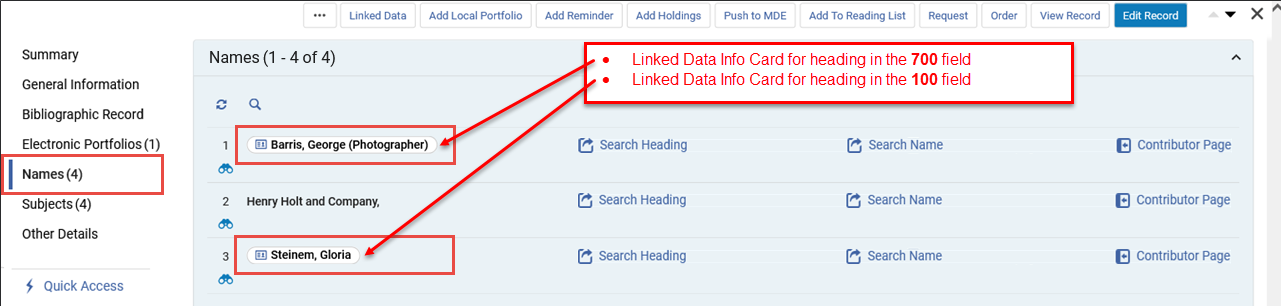
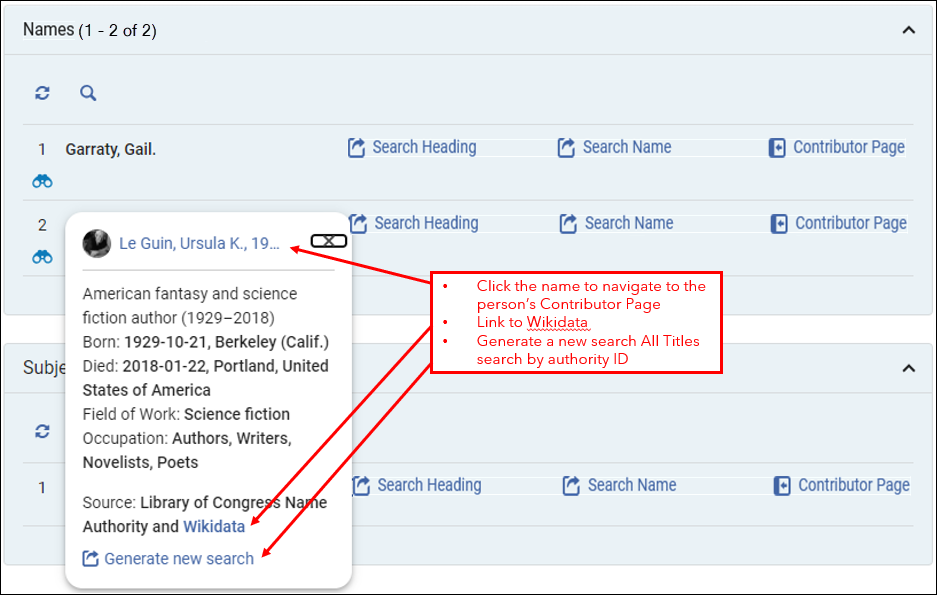
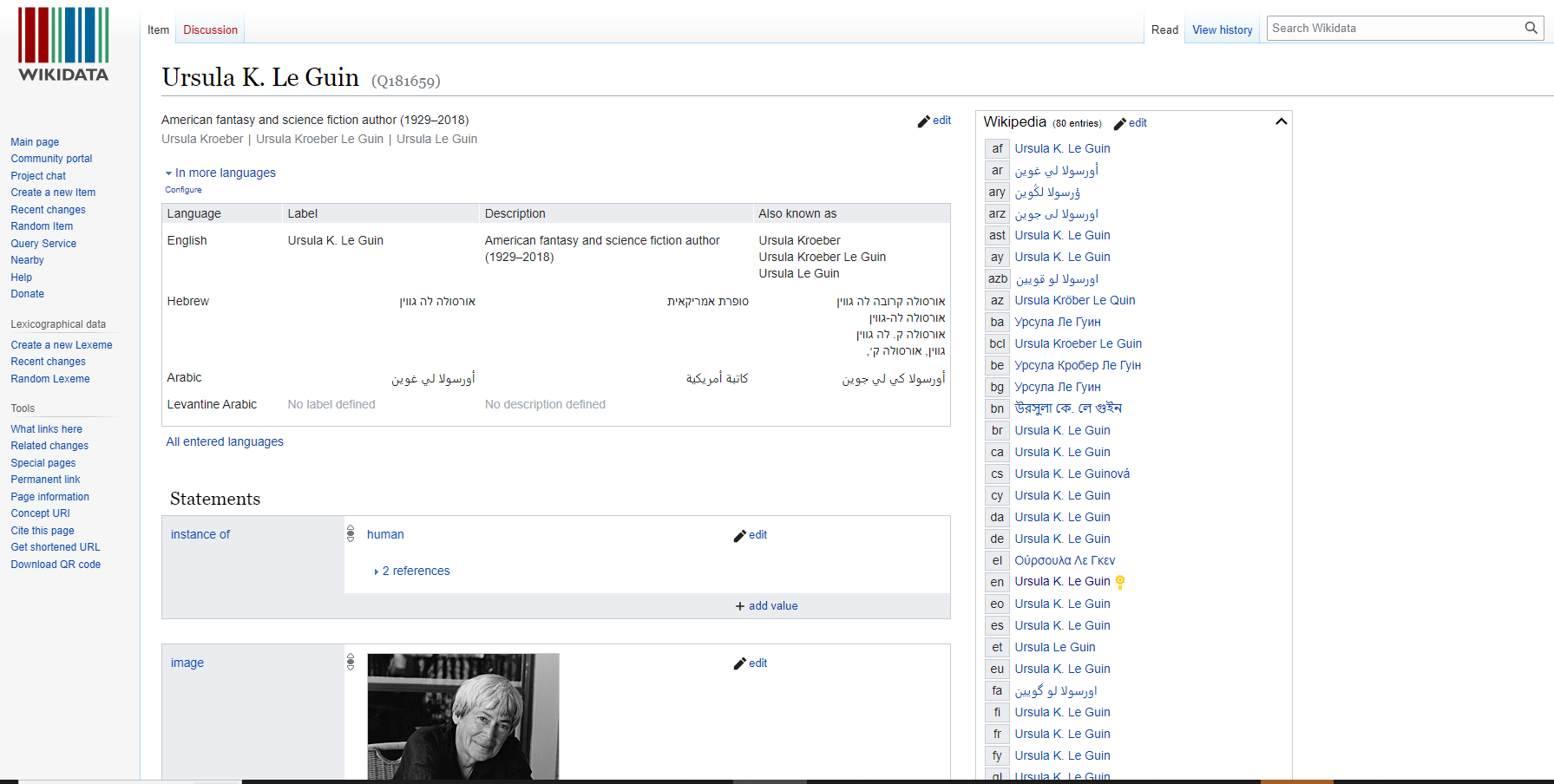
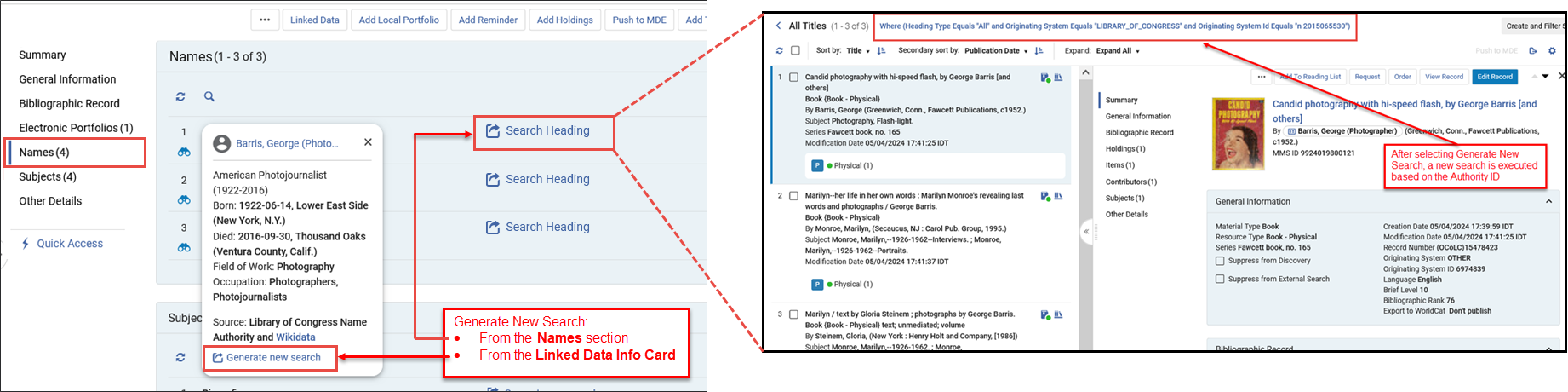
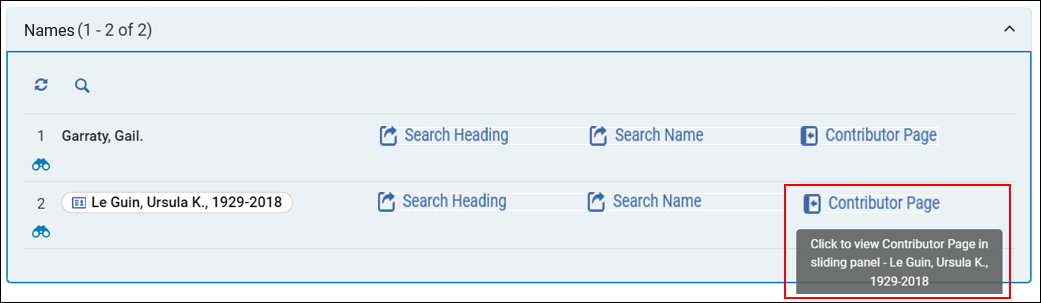
 ) button to exit the full Contributor Page and return to the search results.
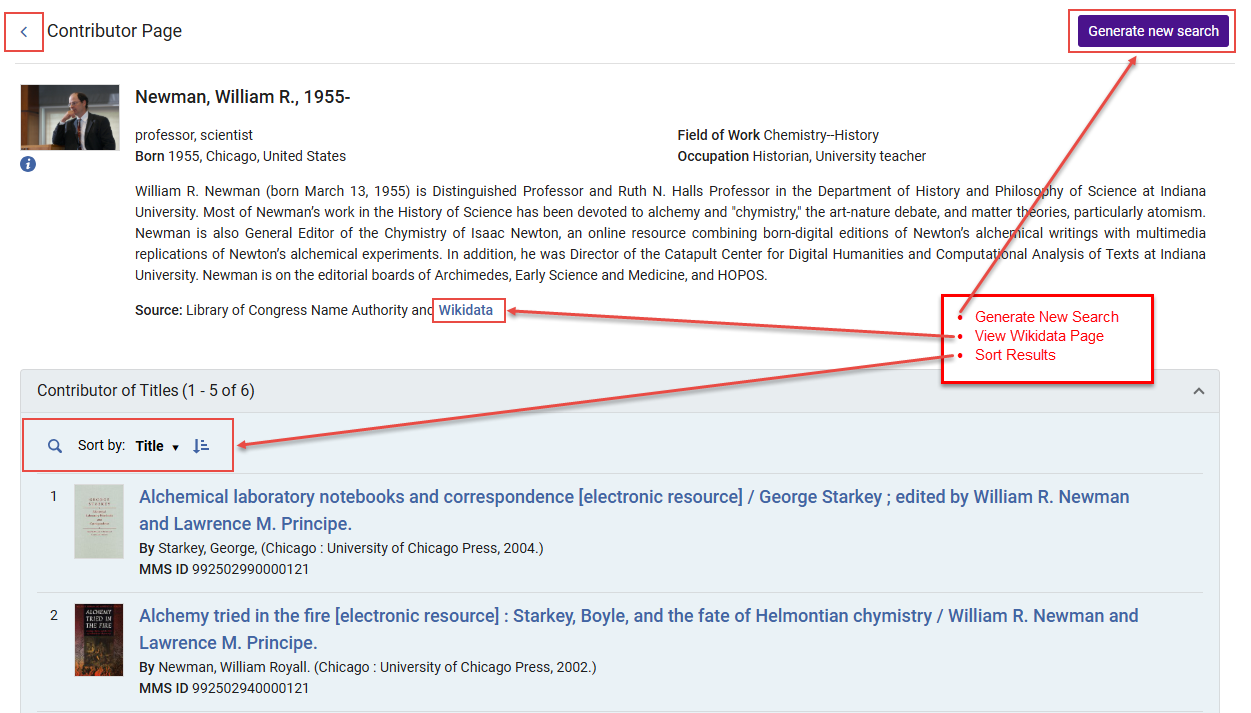
Notes Section
The Notes section enables catalogers to quickly review notes in all types of Title (All, Physical, Electronic, Digital), as well as Physical Holdings search results, assisting users to identify records requiring attention, without needing to open the Metadata Editor.Only users with cataloging privileges can see the Notes section.これらの権限を持たないユーザーは、ノートが存在することを示す表示を見ることができません。They also cannot see the notes in the customization of records, tables, and sections.
Behavior for Consortia and Community Zone institutions:
Consortia
- When a note is added to a Network Zone (NZ) record by a member or NZ staff, it is visible and manageable across institutions in the NZ search scope.Both the NZ institution and other member institutions display a note indication when searching in the network scope, and the notes section is accessible.
Community Zone
- コミュニティゾーン(CZ)貢献者として定義されていない機関の場合、ノートの表示とセクションは表示されません。ユーザーがCZレコードにメモを追加すると、同じ機関内の他のユーザーだけでなく、他機関のユーザーもコミュニティゾーンのスコープで検索する際にそのメモを閲覧できます。
For more information on existing Notes functionality in the Metadata Editor, see Navigating the Metadata Editor Page.
メモセクションの機能は次のとおりです。
- 詳細(作成者、日付、内容)を含むメモの表示
- 追加日、更新日、メモによる並べ替え(昇順または降順)
- 作成者、更新者、メモの内容による検索オプション
- 追加機能には、更新、Excel へのエクスポート、レイアウトオプション (リストまたはメモ表示)、ページ区切り (1ページあたり最大5つのメモ) などがあります。
- Only notes that the user has permission to view in the MetadataEditor are visible in the search results.If a record is locked for editing or the user lacks access to open it in the Metadata Editor, the notes section is not displayed.
ノートを削除する既存の権限を持つユーザーは、MDEインターフェースと同様に、ノートを更新することもできます。ノートがアップデートされると、更新日と更新目録者がノートセクションとメタデータエディターに表示されます。
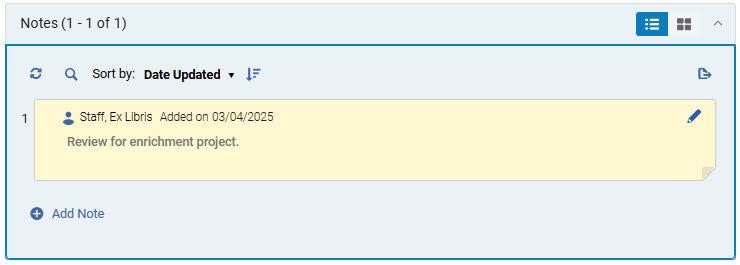
主題セクション
右側のペインには、主題の新しいセクションが追加され、次のような主題の書誌標目がはっきりと表示されます:
- 全部または部分的にリンクされた典拠レコードに関する情報(存在する場合) - 双眼鏡アイコンをクリックすると、リンクされた典拠レコードがスライドパネルに表示されます。
- 類似のリソースをカタログで検索するための簡単なナビゲーション:
- Search Heading— triggers a search in the Heading Information search index:
- 書誌見出しが典拠レコードにリンクされている場合、検索では同じ典拠レコードにリンクされた見出しを持つ書誌レコードが検索されます。
- 書誌見出しが典拠レコードにリンクされていない場合、検索では同じテキストを含む、同じタイプと語彙の見出しを持つ書誌レコードが検索されます。
- Search Subject— triggers a Subjects equals search on the normalized value of the bibliographic heading, in the Subjects index.
- Search Heading— triggers a search in the Heading Information search index:

その他詳細
The Other Details section contains the following information:
These fields are included in the search export to Excel.For more information, see Export to Excel.
- 貸出数
- Number of In House Uses — Number of times item has been scanned in without it being in process or on loan.
- Year-To-Date Loans — Completed Loans.This only concerns loans for the current year.
- Completed Requests — Number of times this item has been requested.
- リンク リゾルバの使用状況 (アクセス) - ユーザーが電子サービスにアクセスした回数を示すカウンター。
- Link Resolver Usage (Appearance) — Counter that indicates how many times patrons were shown electronic service.
- 最終貸出日
- 最終組織内利用日
- コース
- ライセンス
- 発注
- 関連レコード
- リマインダー
- リクエスト
- 目録タイプに応じた出版情報
- 物理的インベントリに関する情報を公開中
- 電子インベントリに関する情報を公開中
- デジタルインベントリに関する出版情報
- コレクションインベントリに関する出版情報
クイック アクセス
The Quick Access module gives you quicker access to specific actions, fields or sections inside the details pane.
For more information, see Quick Access Module.
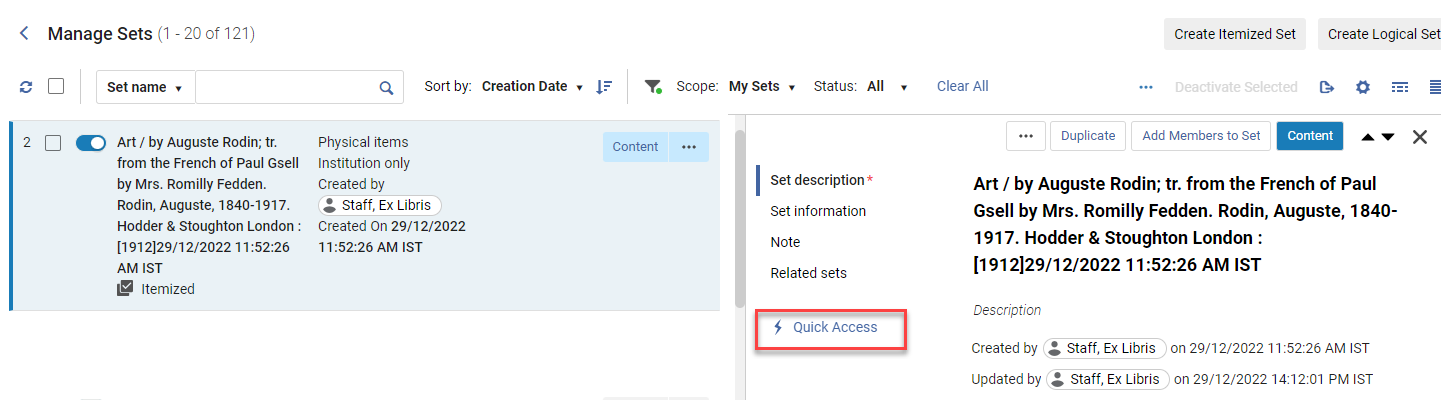
ザ・リソース・タイプのフィールド
ダブリンコアの場合、リソースタイプフィールドは、LDRおよび008またはdc:typeまたはdcterms:typeフィールドなどの既存の書誌フィールドに基づいて構築されます。[リソースタイプ]フィールドは、[資料タイプ]フィールドを補完します(置き換えはしません)。
[リソースタイプ]フィールドは検索可能で、ファセットとして使用でき、アナリティックスに抽出されます。資料タイプフィールドよりもはるかに詳細です。その結果、詳細なレポートを作成する便利な手段になります。
[リソースタイプ]フィールドとその作成基準の詳細については、次の表を参照してください。
- Rules Used to Create the Resource Type Field – MARC 21/KORMARC and UNIMARC
- Rules Used to Create the Resource Type Field – CNMARC
- Rules Used to Create the Resource Type Field – Dublin Core
これらのテーブルの順序は、リソースタイプフィールドを作成するためにルールが最初から最後までどのように処理されるかに固有です。条件が満たされるとすぐに、テーブルは参照されなくなります。その結果、書誌レコードが複数のリソースタイプの条件を満たしている場合、表に表示されている最初のリソースタイプが使用されます。
レコードが保存またはインデックス付けされると、リソースタイプフィールドの情報が検索結果に表示されます。
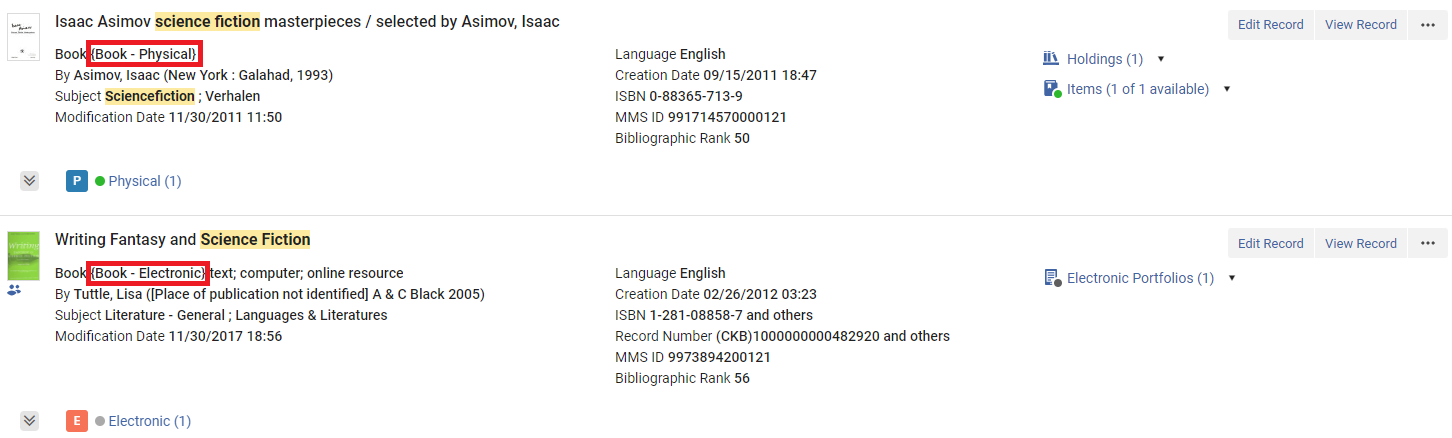
リソースタイプは、詳細検索のファセットおよびオプションとしても使用できます。
| 資料タイプ | MARC 21 / KORMARC | UNIMARC |
|---|---|---|
|
この表では、次の表記法が使用されます。
|
||
| 図書 - (物的) | LDR pos。06 = a AND LDR pos。7 = m AND 008 pos。23!= a、b、c、o、f、q、s | LDR pos。6 = a AND LDR pos。7 = m |
| 図書 (電子) | LDR pos。06 = a AND LDR pos。7 = m AND 008 pos。23 = o、q、s | LDR pos。6 = l AND LDR pos。7 = m |
| その他の資料 - 電子 | LDR pos。06 = m | LDR pos。6 = l |
|
地図 – マイクロフィルム |
LDR pos。06 = e AND LDR pos。7 = m、s AND 008 pos。29 = a AND 008 pos。25!= e |
|
|
地図 – マイクロフィッシュ |
LDR pos。06 = e AND LDR pos。7 = m、s AND 008 pos。29 = b AND 008 pos。25!= e |
|
| 地図 - 物的 | LDR pos。06 = e AND LDR pos。7 = m、s AND 008 pos。29!= a、b、c、o、f、q、s AND 008 pos。25!= e | LDR pos。6 = e、f AND LDR pos。7 = m |
|
地図 - ミクロオペーク |
LDR pos。06 = e AND LDR pos。7 = m、s AND 008 pos。29 = c AND 008 pos。25!= e |
|
| マイクロフォーム | LDR pos。06 = !e AND 008 pos.23 = a、b、c | LDR pos。6 = a AND 106 $ a = t |
| 混合資料 | LDR pos。06 = p AND LDR pos.7 = c | |
| 図書 (点字) - 物的 | LDR pos。06 = a AND LDR pos。7 = m AND 008 pos。23 = f | LDR pos。6 = a、b AND LDR pos。7 = m AND 106 $ a / 0 = f |
| 逐次刊行物 (点字) - 物的 | LDR pos。06 = a AND LDR pos。7 = i、s AND 008 pos。23 = f | LDR pos。6 = a、b AND LDR pos。7 = s AND 106 $ a / 0 = f |
| 地図 (点字) - 物的 | LDR pos。06 = e AND LDR pos。7 = m AND 008 pos。29 = f | LDR pos。6 = e、f AND LDR pos。7 = m AND 106 $ a / 0 = f |
| 音楽 (点字) - 物的 | LDR pos。06 = c AND LDR pos。7 = m AND 008 pos。23 = f | LDR pos。6 = c、dおよびLDR pos。7 = m AND 106 $ a / 0 = f |
| アトラス - 物的 | LDR pos。06 = e AND LDR pos。7 = m AND 008 pos。29!= a、b、c、o、f、q、s AND 008 pos。25 = e | LDR pos。6 = e、f AND 121 $ a / 8 = c |
| アトラス - 電子 | LDR pos。06 = e AND LDR pos。7 = m AND 008 pos。29 = o,s,q AND 008 pos.25 = e | LDR pos。6 = e, f AND 121 $a/8 = c AND 106 $a/0 = s |
| アトラス – マイクロフィルム | LDR pos。06 = e AND LDR pos。7 = m、s AND 008 pos。29 = a AND 008 pos。25 = e | |
| アトラス – マイクロフィッシュ | LDR pos。06 = e AND LDR pos。7 = m、s AND 008 pos。29 = b AND 008 pos.25 = e | |
| アトラス - ミクロオペーク | LDR pos。06 = e AND LDR pos。7 = m、s AND 008 pos。29 = c AND 008 pos.25 = e | |
| 地図 - 電子 | LDR pos。06 = e AND LDR pos。7 = m AND 008 pos。29 = o、s、q AND 008 pos。25!= e | (LDR pos。6 l AND 120 $ a / 0 = a、b)OR(LDR pos。6 = e、f AND 106 $ a / 0 = s) |
| 新聞 - 物的 | LDR pos。06 = a AND LDR pos。7 = i、s AND 008 pos。06!= d AND 008 pos。21 = n AND 008 pos。23!= a、b、c、o、f、q、s | LDR pos。6 = a AND LDR pos。7 = s AND 110 $ a / 0 = c |
| 新聞 (刊行終了) - 物的 | LDR pos。06 = a AND LDR pos.7 = i、s AND 008 pos。06 = d AND 008 pos。21 = n AND 008 pos。23!= a、b、c、f、o、q、s | |
| 新聞 - 電子 | LDR pos。06 = a AND LDR pos。7 = i、s AND 008 pos。06!= d AND 008 pos。21 = n AND 008 pos。23 = o、q、s | LDR pos。6 = l AND LDR pos。7 = s AND 110 $ a / 0 = c |
| 新聞 (刊行終了) - 電子 | LDR pos。06 = a AND LDR pos。7 = i、s AND 008 pos。06 = d AND 008 pos。21 = n AND 008 pos。23 = o、q、s | |
| ジャーナル - 物的 | LDR pos。06 = a AND LDR pos。7 = i、s AND 008 pos。06!= d AND 008 pos。21 = p AND 008 pos。23!= a、b、c、o、f、q、s | LDR pos。6 = a AND LDR pos。7 = s |
| ジャーナル (刊行終了) - 物的 | LDR pos。06 = a AND LDR pos。7 = i、s AND 008 pos。06 = d AND 008 pos。21 = p AND 008 pos。23!= a、b、c、o、f、q、s | |
| ジャーナル - 電子 | LDR pos。06 = a AND LDR pos。7 = i、s AND 008 pos。06!= d AND 008 pos。21 = p AND 008 pos。23 = o、q、s | LDR pos。6 = l AND LDR pos。7 = s |
| ジャーナル (刊行終了) - 電子 | LDR pos。06 = a AND LDR pos。7 = i、s AND 008 pos。06 = d AND 008 pos。21 = p AND 008 pos。23 = o、q、s | |
| その他の逐次刊行物 - 物的 | LDR pos。06 = a AND LDR pos。7 = i、s AND 008 pos。06!= d AND 008 pos。21!= n、p AND 008 pos。23!= a、b、c、o、f、q、s | LDR pos。6 = a AND LDR pos。7 = s AND 110 $ a / 0 = b、e |
| その他の逐次刊行物 (刊行終了) - 物的 | LDR pos。06 = a AND LDR pos。7 = i、s AND 008 pos。06 = d AND 008 pos。21 != n,p AND 008 pos.23!= a、b、c、o、f、q、s | |
| その他の逐次刊行物 - 電子 | LDR pos。06 = a AND LDR pos。7 = i、s AND 008 pos。06!= d AND 008 pos。21!= n、p AND 008 pos。23 = o、q、s | LDR pos。6 = l AND LDR pos。7 = s AND 110 $ a / 0 = b、e |
| その他の逐次刊行物 (刊行終了) - 電子 | LDR pos。06 = a AND LDR pos。7 = i、s AND 008 pos。06 = d AND 008 pos。21!= n、p AND 008 pos。23 = o、q、s | |
| Serial component part – Physical | LDR pos。06 = a AND LDR pos。7 = b AND 008 pos。23!= a、b、c、o、f、q、s | |
| 逐次刊行物の構成部分 - 電子 | LDR pos。06 = a AND LDR pos。7 = b AND 008 pos。23 = o,f,q,s | |
| 手稿 - 物的 | 音楽とテキストの原稿: LDR pos。06 = d、t AND LDR pos。7 = m AND 008 pos。23!= a、b、c、o、f、q、s 地図原稿: LDR pos。06 = f AND LDR pos。7 = m AND 008 pos。29!= a、b、c、o、f、q、s |
音楽とテキストの原稿: LDR pos。6 = b |
| 手稿 - 電子 | 音楽とテキストの原稿: LDR pos。06 = d、t AND LDR pos。7 = m AND 008 pos。23 = o、s、q 地図原稿: LDR pos。06 = f AND LDR pos。7 = m AND 008 pos。29 = o、s、q |
音楽とテキストの原稿: LDR pos。6 = b AND LDR pos。7 = m AND 106 $ a / 0 = s |
| 楽譜 - 物的 | LDR pos。06 = c AND LDR pos。7 = m AND 008 pos。23!= a、b、c、o、f、q、s | LDR pos。6 = c |
| 楽譜 - 電子 | LDR pos。06 = c AND LDR pos。7 = m AND 008 pos。23 = o、q、s | LDR pos。6 = c AND 106 $ a / 0 = s |
| オーディオ音楽 - 物的 | LDR pos。06 = j AND LDR pos。7 = m AND 008 pos。23!= a、b、c、o、f、q、s | LDR pos。6 = j |
| オーディオ資料 (音楽) - 電子 | LDR pos。06 = j AND LDR pos。7 = m AND 008 pos。23 = o、q、s | LDR pos。6 = j AND 106 $ a / 0 = s |
| オーディオ資料 (音楽以外) - 物的 | LDR pos。06 = i AND LDR pos。7 = m AND 008 pos。23!= a、b、c、o、f、q、s | LDR pos。6 = i |
| オーディオ資料 (非音楽) - 電子 | LDR pos。06 = i AND LDR pos。7 = m AND 008 pos。23 = o、q、s | LDR pos。6 = i AND 106 $ a / 0 = s |
| 投影メディア - 物的 | LDR pos。06 = g AND LDR pos。7 = m AND 008 pos。33 = d,f,i,m,p,s,t,v AND 008 pos.29!= a、b、c、o、f、q、s | LDR pos。6 = g |
| 投影メディア - 電子 | LDR pos。06 = g AND LDR pos。7 = m AND 008 pos。33 = d,f,i,m,p,s,t,v AND 008 pos.29 = o、s、q | LDR pos。6 = g AND 106 $ a / 0 = s |
| 静止画像 (非投影) - 物的 | LDR pos。06 = k AND LDR pos。7 = m AND 008 pos。33 = a、c、i、k、l、n、o AND 008 pos。29!= a、b、c、o、f、q、s | LDR pos。6 = k |
| 静止画像 (非投影) - 電子 | LDR pos。06 = k AND LDR pos。7 = m AND 008 pos。33 = a、c、i、k、l、n、o AND 008 pos。29 = o、q、s | LDR pos。6 = k AND 106 $ a / 0 = s |
| キット - 物的 | LDR pos。06 = o AND 008 pos。33 = b AND 008 pos。29!= a、b、c、o、f、q、s | LDR pos。6 = m |
| 3次元工芸品・実物 - 物的 | LDR pos。06 = r AND 008 pos。33 = r、w AND 008 pos。29!= o、q、s | LDR pos。6 = r |
| コレクション | LDR pos。06 = a AND LDR pos。7 = c | |
| 音楽 - コンポーネントパート | LDR pos。06 = c、d、j AND LDR pos。7 = a | |
| 地図 - コンポーネントパート | LDR pos。06 = e AND LDR pos。7 = a | |
|
手稿 - コンポーネントパート |
地図原稿:
LDR pos。06 = f AND LDR pos。7 = a
|
|
| 投影メディア - コンポーネントパート | LDR pos。06 = g AND LDR pos。7 = a | |
| オーディオ資料 (音楽以外) - コンポーネントパート | LDR pos。06 = i AND LDR pos。7 = a | |
| 静止画像 (非投影) - コンポーネントパート | LDR pos。06 = k AND LDR pos。7 = a | |
| キット - コンポーネントパート | LDR pos。06 = o AND LDR pos。7 = a | |
| モノグラフの構成部分 - 物的 | LDR pos。06 = a AND LDR pos。7 = a AND 008 pos。23!= a、b、c、o、f、q、s | |
| モノグラフの構成部分 - 電子 | LDR pos。06 = a AND LDR pos。7 = a AND 008 pos。23 = o、q、s | |
| 分析(コンポーネントパーツ) | LDR pos。7 = a | |
| 未定義 | 定義されたカテゴリにないすべてのもの。このカテゴリは、制御フィールドの間違いを見つけるためのチェックリストとして機能します。 | 定義されたカテゴリにないすべてのもの。このカテゴリは、制御フィールドの間違いを見つけるためのチェックリストとして機能します。 |
| 資料タイプ | CNMARC |
|---|---|
|
この表では、次の表記法が使用されます。
|
|
| マイクロフォーム | 130あります |
| 貴重 – 物的 | LDR pos。09 = r |
| 静止画像 (非投影) - 電子 | LDR pos。06 = k AND LDR pos。7 = m AND 135 |
| 静止画像 (非投影) - 物的 | LDR pos。06 = k AND LDR pos。7 = m |
| アトラス - 電子 | LDR pos。06 = e AND LDR pos。7 = m AND 124 $ b = a ANDは135 |
| アトラス - 物的 | LDR pos。06 = e AND LDR pos。7 = m AND 124 $ b = a AND 106 $ a = r |
| 地図 - 電子 | LDR pos。06 = e AND LDR pos。7 = m AND 135 |
| 地図 - 物的 | LDR pos。06 = e AND LDR pos。7 = m AND 106 $ a = d、r |
| オーディオ資料 (音楽) - 電子 | LDR pos。06 = j AND LDR pos。7 = m AND 135 |
| オーディオ音楽 - 物的 | LDR pos。06 = j AND LDR pos。7 = m AND 125 |
| オーディオ資料 (非音楽) - 電子 | LDR pos。06 = i AND LDR pos。7 = m AND 135 |
| オーディオ資料 (音楽以外) - 物的 | LDR pos。06 = i AND LDR pos。7 = m AND 125 |
| 手稿 - 電子 | 音楽とテキストの原稿: LDR pos。06 = b、d AND LDR pos。7 = m AND 135 |
| 手稿 - 物的 | 音楽とテキストの原稿: LDR pos。06 = b、d AND LDR pos。7 = m AND 106 $ a = h |
| 図書 (電子) | LDR pos。06 = a AND LDR pos。7 = m AND 135 |
| 図書 - (物的) | LDR pos。06 = a AND LDR pos。7 = m AND 106 $ a = d、g、j、r |
| 手稿 - 電子 | 地図原稿: LDR pos。06 = f AND LDR pos。7 = m AND 135 |
| 手稿 - 物的 | 地図原稿: LDR pos。06 = f AND LDR pos。7 = m |
| 楽譜 - 電子 | LDR pos。06 = c AND LDR pos。7 = m AND 125 pos。0 = a、b、c、d、e、g、m、u、x、z AND は135 |
| 楽譜 - 物的 | LDR pos。06 = c AND LDR pos。7 = m AND 125 pos。0 = a、b、c、d、e、g、m、u、x、z |
| 投影メディア - 電子 | LDR pos。06 = g AND LDR pos。7 = m AND 135 |
| 投影メディア - 物的 | LDR pos。06 = g AND LDR pos。7 = m |
| 貴重 – 物的 | LDR pos。06 = v AND LDR pos。7 = m |
| 摩擦 – 物的 | LDR pos。06 = u AND LDR pos。7 = m |
| ジャーナル - 電子 | LDR pos。06 = a AND LDR pos。7 = s AND 110 pos。0 = ANDは135 |
| ジャーナル - 物的 | LDR pos。06 = a AND LDR pos。7 = s AND 110 pos。0 = a |
| 新聞 - 電子 | LDR pos。06 = a AND LDR pos。7 = s AND 110 pos。0 = c AND 135 |
| 新聞 - 物的 | LDR pos。06 = a AND LDR pos。7 = s AND 106 $ a = e |
| その他の逐次刊行物 - 電子 | LDR pos。06 = a AND LDR pos。7 = s AND 110 pos。0 = z AND 135 |
| その他の逐次刊行物 - 物的 | LDR pos。06 = a AND LDR pos。7 = s AND 110 pos。0 = z AND 106 $ a = d、r |
| 3次元工芸品・実物 - 物的 | LDR pos。06 = r |
| その他の資料 - 電子 | LDR pos。06 = l |
| コレクション | LDR pos。06 = a AND LDR pos。7 = c |
| 分析(コンポーネントパーツ) | LDR pos。7 = a |
| 未定義 | 定義されたカテゴリにないすべてのもの。このカテゴリは、制御フィールドの間違いを見つけるためのチェックリストとして機能します。 |
| 資料タイプ | Dublin Core |
|---|---|
| 図書 (デジタル) | テキスト |
| コンピュータファイル - デジタル これは、dc:typeまたはdcterms:typeが存在するがマッピングと一致しない場合のデフォルトのリソースタイプです。 |
データセット/ソフトウェア |
| ジャーナル (デジタル) | |
| 地図 (デジタル) | |
| 混合資料 - デジタル | イベント/ InteractiveResource / インタラクティブリソース/サービス |
| 音楽 - デジタル | サウンド |
| 視覚資料 - デジタル | 画像/動画/動画/静止画/静止画 |
| 3次元工芸品・実物 - デジタル | PhysicalObject / 物的オブジェクト |
|
レコードにdc:typeまたはdcterms:typeが存在しない場合、リソースタイプまたはファセットは表示されません。
|
|
Material Types in Search Results
The following bibliographic material types are identified in Alma's search results:
- 書籍
- ジャーナル
- コンピュータファイル
- 地図
- 音楽レコード
- 視覚資料
- 混合資料
Bibliographic material types are identified using the MARC 21 format for bibliographic data (described in the Scope of the Bibliographic Format table and the Fields that Identify the Bibliographic Material Type table, both below).
| 書誌フォーマットの適用範囲 |
|---|
|
書誌データ用MARC 21フォーマットは、印刷物および原稿のテキスト資料、コンピューターファイル、地図、音楽、雑誌、視覚資料、混合資料に関する書誌情報のキャリアです。書誌データには通常、タイトル、名前、主題、注記、出版物データ、およびアイテムの物的な説明に関する情報が含まれます。 The Alma Bibliographic Formats described below are built according to the official Bibliographic Formats in MARC as described at https://www.loc.gov/marc/bibliograph...e/bdintro.html. 書誌フォーマットには、次のタイプの資料のデータ要素が含まれています。
|
これらの資料タイプは、下の書誌資料タイプを識別するフィールドで強調表示されている書誌フィールドから識別されます。
| LDR位置6 | LDR位置7 | Alma書誌資料 | Alma資料タイプ |
|---|---|---|---|
| a | a c d m | BK | 図書 |
| t | BK | 図書 | |
| a | b i s | CR | ジャーナル |
| c d i j | MU | 音楽 | |
| e f | MP | 地図 | |
| g k r o | VM | 視覚資料 | |
| m | CF | コンピュータファイル | |
| p | MX | 混合資料 | |
| <デフォルト> | BK | 書籍 |
Page tags: article:topicproduct:almacontent:Documentationlang:englishleft anchored searchleft match search
