
Peer to Peer Resource Sharing
This page describes the workflow for peer to peer based resource sharing including the management of borrowing requests such as rota management and managing the request after receiving, returning items to the lender, shipping items, etc. This page also covers the lending workflow for peer to peer resource sharing including creation and shipping of lending requests, checking in physical items, handling renewals and recalls, digital requests, etc. For more information on resource sharing including locating items for resource sharing, working with resource sharing partners, managing borrowing and lending requests and contributing to the resource sharing directory, see Resource Sharing.
Peer to Peer Resource Sharing - Borrowing
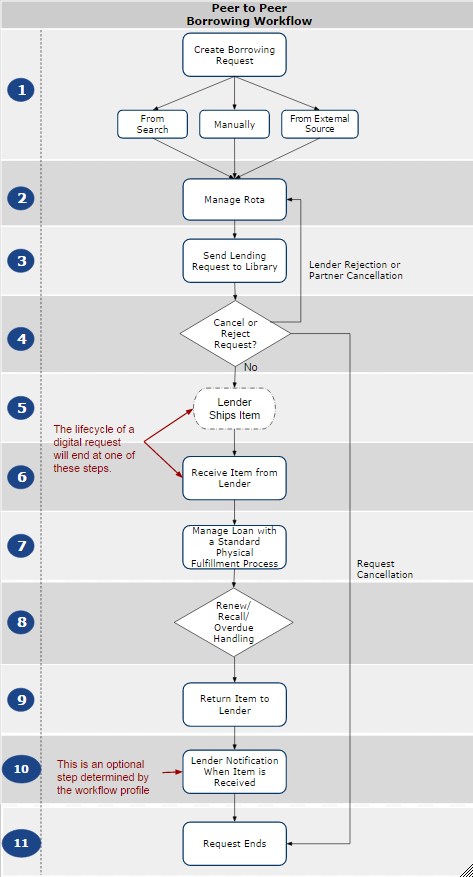
Creating a Resource Sharing Borrowing Request
This section refers to step 1 of the Peer to Peer Borrowing Workflow diagram.
このセクションでは、ピアツーピアプロセスを使用してリソースシェアリクエストを送信するためのサンプルワークフローについて説明します。For a step-by-step procedure for creating borrowing requests, see Managing Resource Sharing Borrowing Requests.
-
Alma - The request may be created from:
-
ローカル検索

-
ネットワークゾーン検索(該当する場合)

-
空白のフォーム
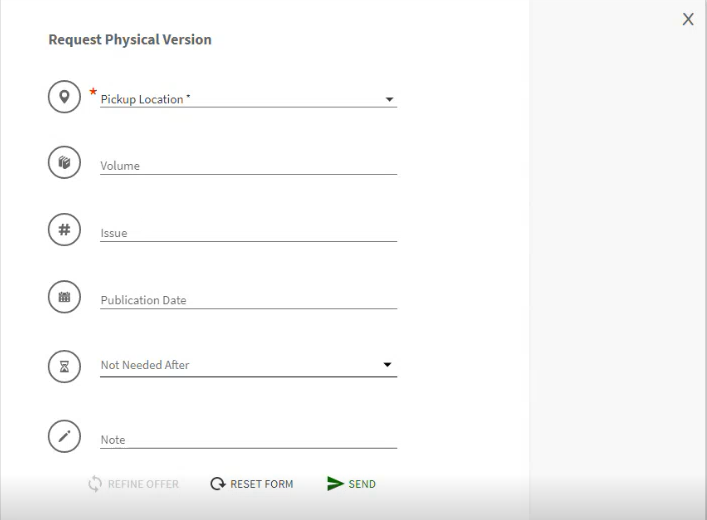
-
外部ソースから
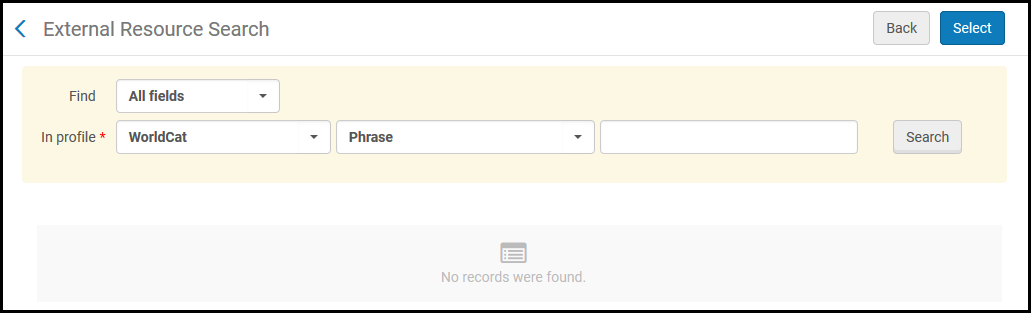
-
-
Primo - A borrowing request may be created from:
-
[取得する]パネル
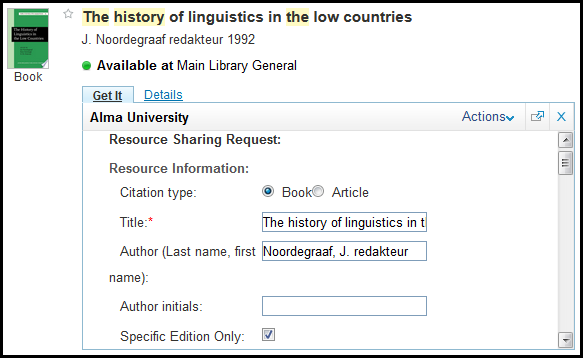
- 空白のフォーム
-
引用リンカー
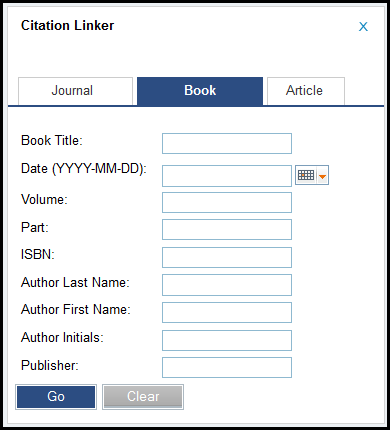
図書館のポリシーで許可されている場合は、リクエストに空白のフォームを使用するのではなく、引用リンカーを使用することをお勧めします。
For more information on using the Citation Linker, see Citation Linker.
-
-
Other discovery platforms- A discovery system can send an OpenURL with a borrowing request to Alma.For more information on mapping the URL, see Mapping the OpenURL Form to the Resource Sharing Request.
-
A customized local form (via an API)-A form may be created by the institution using the borrowing request API.For more information, see the Developer Network.
勤務表管理
This section refers to step 2 of the Peer to Peer Borrowing Workflow diagram.
勤務表テンプレートを使用すると、パートナーを1つずつ手動で追加する代わりに、パートナーグループをリクエストにすばやく添付できます。For more information, see Resource Sharing Partners and ROTAs.
- 勤務表の作成 - アイテムの利用可否を検索するコレクションのパートナーのリストを定義します
Rota may be created manually using the Add Partners or Add Rotas buttons on the request.
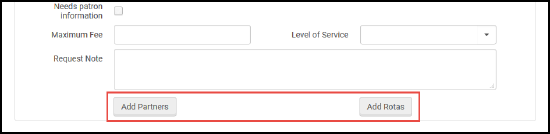
- Rota may be created automatically using the rota assignment rules and the rota templates.
-
勤務表を確認します(見つけるプロセスとも呼ばれます) - 潜在的な貸し手に関連性があることを確認します。検証に適合しないパートナーは、勤務表から自動的に削除されます。検証は、次のようなさまざまな属性で実行できます。
- パートナーはリクエストされたアイテムを持っているか?
- アイテムは現在入手可能か?
-
アイテムはリソースシェアリクエストに使用できるか?
アイテムの利用可否とリソースシェアの適格性の検証は、パートナーが別のAlma機関である場合にのみ関連します。
For more information on the locate process, see Locating Items.
リソースシェアリクエストの送信
This section refers to step 3 of the Peer to Peer Borrowing Workflow diagram.
The send process may be executed automatically, using the sending borrowing request rules, or manually, using the Send button on the task list.
送信アクションによってトリガーされる実際のステップは、パートナータイプ(ISO、NCIP、Eメールなど)によります。
リソースシェアリクエストのキャンセル
This section refers to step 4 of the Peer to Peer Borrowing Workflow diagram.
借り手は、貸し手に既に送信されているリクエストのキャンセルを行うことがあります。リクエストは次のとおりである必要があります。
- アクティブ
- 貸与されていない
- 配送されてない
- Allowed in the workflow profile
リクエストは次の3つの方法でキャンセルできます。
-
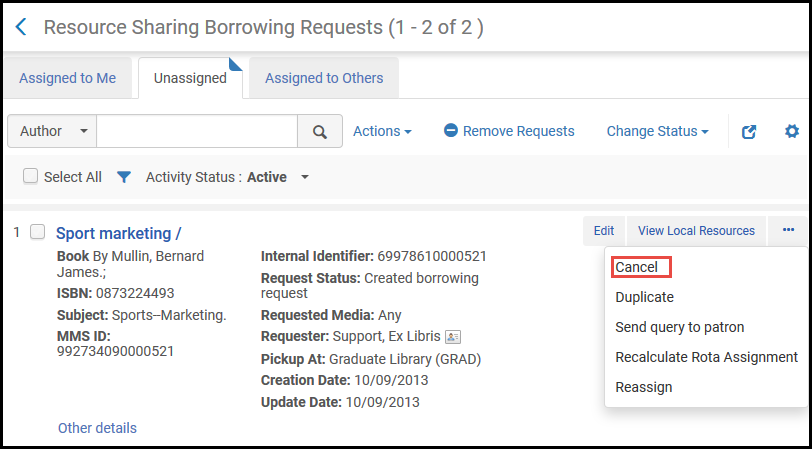
行アクションからリクエストをキャンセルできます。このオプションは、リクエストを完全にキャンセルします。現在のパートナーが削除されます。保留中のパートナーもすべて削除されるので、リクエストが別のパートナーに移動することはありません。
-
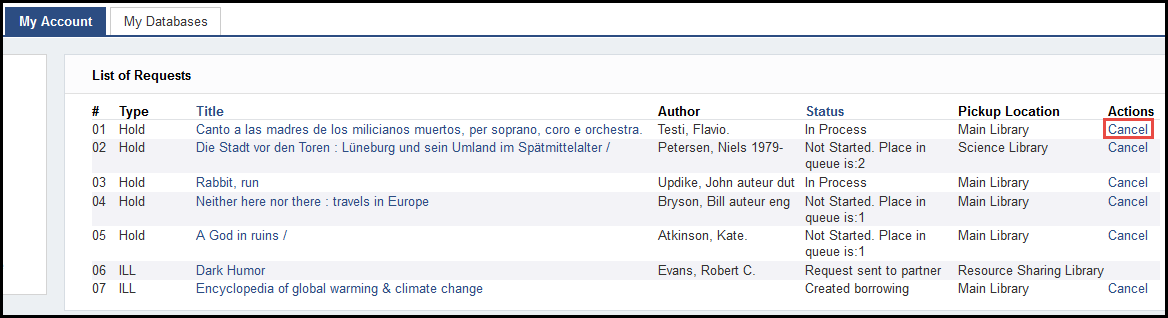
Primoからリクエストをキャンセルできます。このオプションは、リクエストを完全にキャンセルします。
-
リクエストを編集し、[勤務表]タブを選択します。パートナーの横にある[キャンセル]を選択します。このオプションは、このパートナーのみをキャンセルし、リクエストはアクティブのままになります。A cancellation message is sent to the partner and if there are more partners, the next partner in the rota is activated.
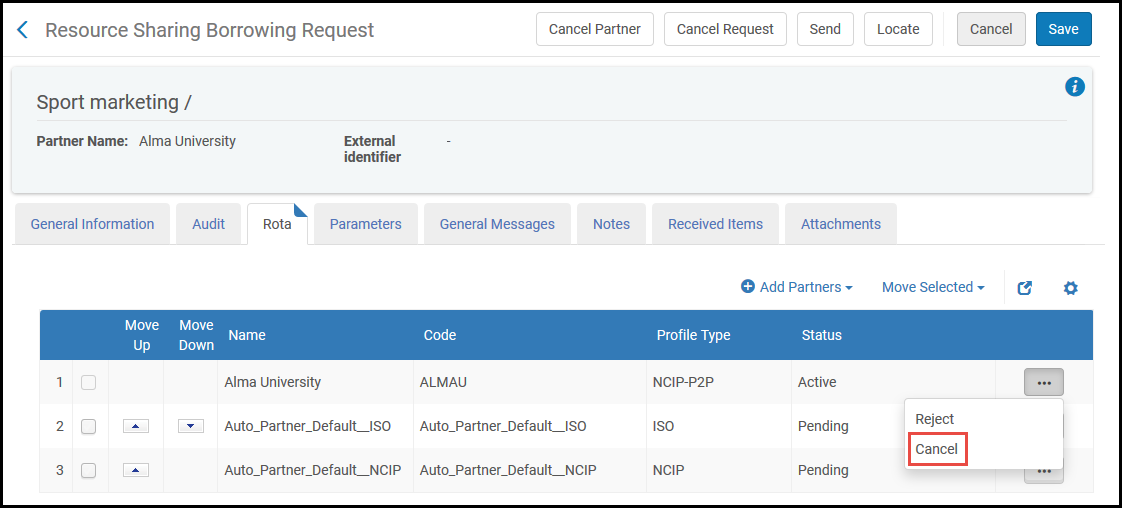
リクエストをキャンセルすると、パートナーの設定に従って送信されるメッセージが生成されます。リクエストが完全にキャンセルされると、ワークフロープロファイルに従ってステータスが変更されます。
キャンセルされたアイテムが取り置き棚にある場合、取り置きリクエストはキャンセルされ、貸出リクエストは完了としてマークされます。
図書館がアイテムを受領したが、ユーザーがまだアイテムを受け取っていない場合、ユーザーは取り置きリクエストをキャンセルできますが、貸出リクエストはアクティブのままになります。
リソースシェアリクエストの拒否
This section refers to step 4 of the Peer to Peer Borrowing Workflow diagram.
リクエストの拒否は、貸し手にリクエストを満たす意思がないことを示すために、貸し手によって開始されます。
リクエストがアクティブで、アイテムが配送されていない場合、拒否できます。
リソースシェアリクエストからのアイテム受入
リソースシェアアイテムを受け取るのは、次のいずれかの役職でなければなりません。
- フルフィルメントサービスオペレータ(リソースシェア図書館用)
- フルフィルメントサービス管理者(リソースシェア図書館用)
This section refers to step 6 of the Peer to Peer Borrowing Workflow diagram.
以下のシステムコンポーネントは、アイテムが貸し手から受領されたときに利用されます
- 自動的に抑制される一時的なBIBレコード
- 一時取り置き
- 一時的なアイテム
- 一時的なアイテムにリンクされた取り置きリクエスト
これらのコンポーネントは、リクエストが作成されたときに実際に作成されますが、オペレータが最初に使用するのは受入時です。
Receiving Physical Resource Sharing Requests
An item may be received in the following places: Receive Items, Scan In Items, and the Receive link on the task list.リソースシェアアイテム受入のための専用インターフェイスであるため、[受領アイテム]ページを使用することを強くお勧めします。デジタルアイテムのレシートを示す、期日、アイテムポリシー、ロケーションをセットするなどの追加オプションを提供します。アイテムを受領すると、一時的なバーコードがアイテムに添付されます。その後、アイテムは、受領または通過のために取置き棚に移動します。
[受け取りアイテム]ページで、受け取ったリソースシェアアイテムのリストを表示できます。
You can receive resource sharing items only when you are at a resource sharing library circulation desk; see Library/Desk Selector in The Persistent Menu.
To view received items:
-
On the Received Items page (Fulfillment > Resource Sharing > Receiving Items), select a format for the received items in the Received format field that you want to view (Digital, Physical, or Physical non-returnable), regardless of which method you use to receive resource sharing materials.
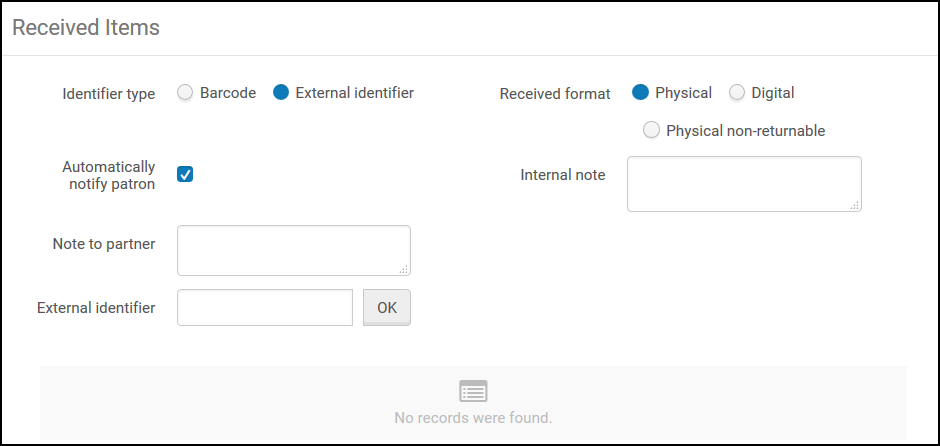
- 受け取ったアイテムを識別する識別子タイプを選択します。
- バーコード
- 外部識別子
- Clear the Automatically notify patron check box to prevent Alma from sending a notification email to the requesting patron when the item arrives at the resource sharing library.This can be useful for Resource Sharing Borrowing Requests with the format Physical non-returnable, when the receive operation is used to notify Alma that an item has already been supplied directly to the patron, so that no additional item ready for collection notification to the patron is required.デフォルトでは、このチェックボックスが選択されています。
- When the Automatically notify patron check box is selected, the On Hold Shelf letter is the letter type generated for the notification.
- この通知は、冊子リソースにのみ関連しています。
-
必要に応じて、次のフィールドのいずれかまたは両方にノートを追加します。このノートは次のフォーマットで表示されます。
<Name of partner><Note text>
- Internal note: A note that appears only on the side from which it is sent (that is, when configuring a note from the borrower, the note appears only in the list of borrowing requests.貸し手からノートを設定する場合、ノートはILL(受付)のリストにのみ表示)。These notes do not appear on the History tab, and are to be used for notes not intended to be publicized (that is, they are not sent to the peer partner).An example of a note would be a borrower writing,This lender has historically been difficult to deal with.
- パートナーへのノート:パートナーに送信されるノート。This note appears in the Notes tab of both the sender of the note and the receiver of the note, and on the request's History tab (i.e.–Only in reading room).
- バーコードまたは外部識別子フィールドに受け取ったリソースのバーコードまたは外部識別子を入力し、OKを選択します。表示されるフィールドは、ステップ2で実行した識別子のタイプの選択に対応しています。
受け取ったフォーマットとして冊子を選択した場合、ダイアログボックスが開き、アイテムの受け取り情報を設定します。
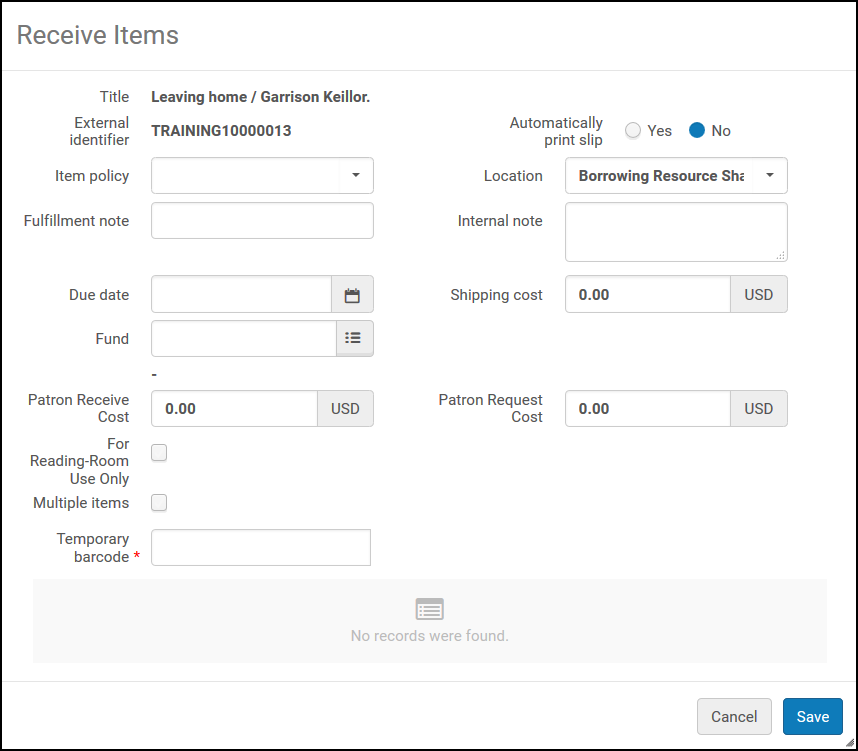
次の表の説明に従って、ダイアログボックスのフィールドでフィールドを設定します。
The values of the Item policy and Location fields are populated with the values of the Temporary Item Creation Rule for the item (see Configuring Temporary Item Creation Rules).ルールが設定されていない場合、アイテムポリシーフィールドは空で、ロケーションフィールドには、図書館と機関のデフォルト設定に基づいて、アイテムの現在のロケーションが含まれます。
受け取ったフォーマットとしてデジタルを選択した場合、ページの下部に受け取ったアイテムが表示されます。
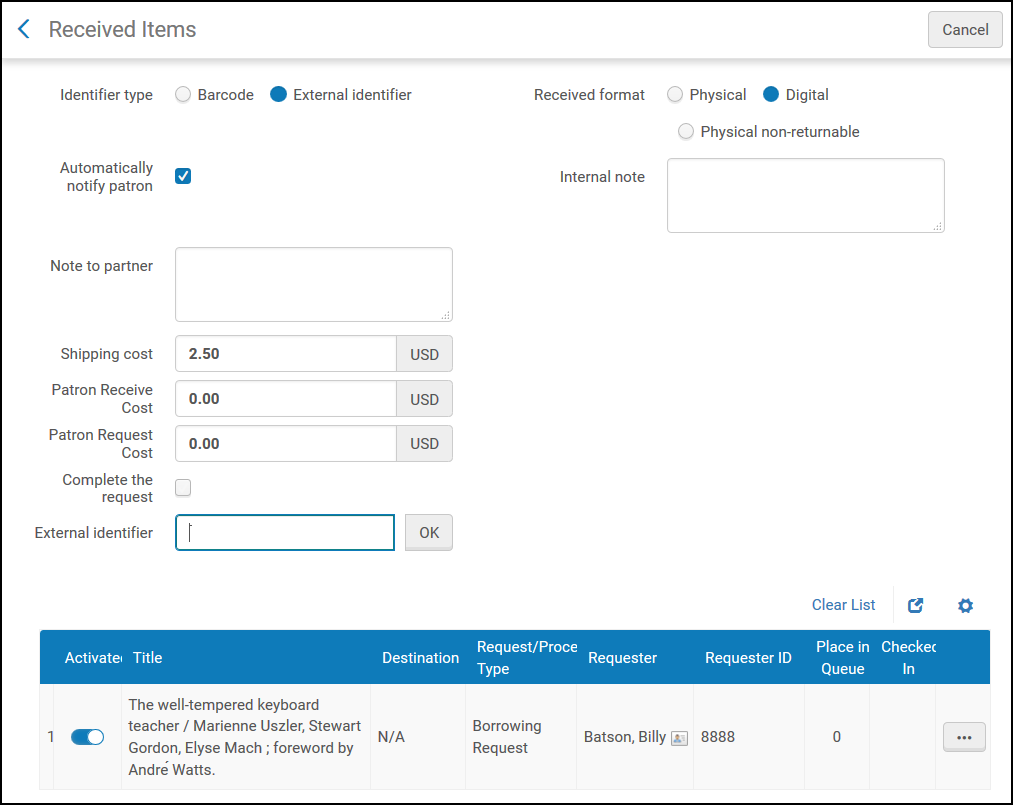
リクエストを完了し、リクエストを完了するを選択して、リクエストを終了としてマークします。このオプションを選択しない場合、リソースのステータスは、図書館によってデジタル受け取りされたものとして、リソースシェア取寄せリクエストリストにリスト表示されます。
- 冊子返却不可のリクエストを処理する場合、リクエストの完了を選択してアイテムのステータスをリクエスト完了に変更し、リクエストに完了のマークを付けます。リクエストを完了するを選択しない場合、リソースのステータスは[リソースシェア取寄せリクエスト]ページに図書館により冊子が受け取られましたと表示されます。スリップを自動的に印刷するがはいに設定されている場合、冊子および冊子返却不可アイテムに対して、受け取りスリップレター(コード:ReceivingSlipLetter)が印刷されます。For more information on the receive slip, see Configuring Alma Letters.
- If the lender is an ISO or NCIP partner, the request's status is updated and the Received message is sent.
アイテムが2回スキャンされると、アイテムがリストに追加され、最初の受け取りからのデータが表示されますが、追加のアクションは実行されません。これは、受け取り用のアイテムが2回スキャンされた場合の間違いを防ぐためです。これが行われないと、返却ステップがすぐに実行されてしまいます。
To handle a non-deliverable item and enable it for delivery:
[受け取りアイテム]ページで、過去の日付またはアイテムを配送できない日付のいずれかに期日が入力された場合、[アイテムをユーザーに貸すことができません - 期日が不十分です]というメッセージが表示されます。
以下のうちの1つを入力してください:
- キャンセルを選択して、[受け取りアイテム]ページに戻り、期日を変更します。期日を修正すると、アイテムが[リソースシェア取寄せリクエスト]ページに図書館で冊子受け取りステータスで表示されます。
- OKを選択して、不十分な期日をそのままにします。アイテムは、リソースシェア取寄せリクエストページにステータスが受け取り済み - 貸与不可と表示されます。これは、アイテムがリソースシェア取寄せ図書館によって受け取られたが、貸与できないことを示します。
Receiving Multiple Items for a Single Request
1回の取寄せリクエストで複数のアイテムを受け取り、返却できます。部分的な受け取りも可能ですが、すべてのアイテムがスキャンされると、受け取りまたは返却操作は完了したと見なされます。リクエストがまだアクティブなステータスの場合、元の受け取り後にアイテムをリクエストに追加できます。手動受け取りは、取寄せタスクリストの行アクションとアイテムを受け取るインターフェイスから実行できます。A manual return can be done from Return Items, the Returns tab in Patron Services and Scan in Items.
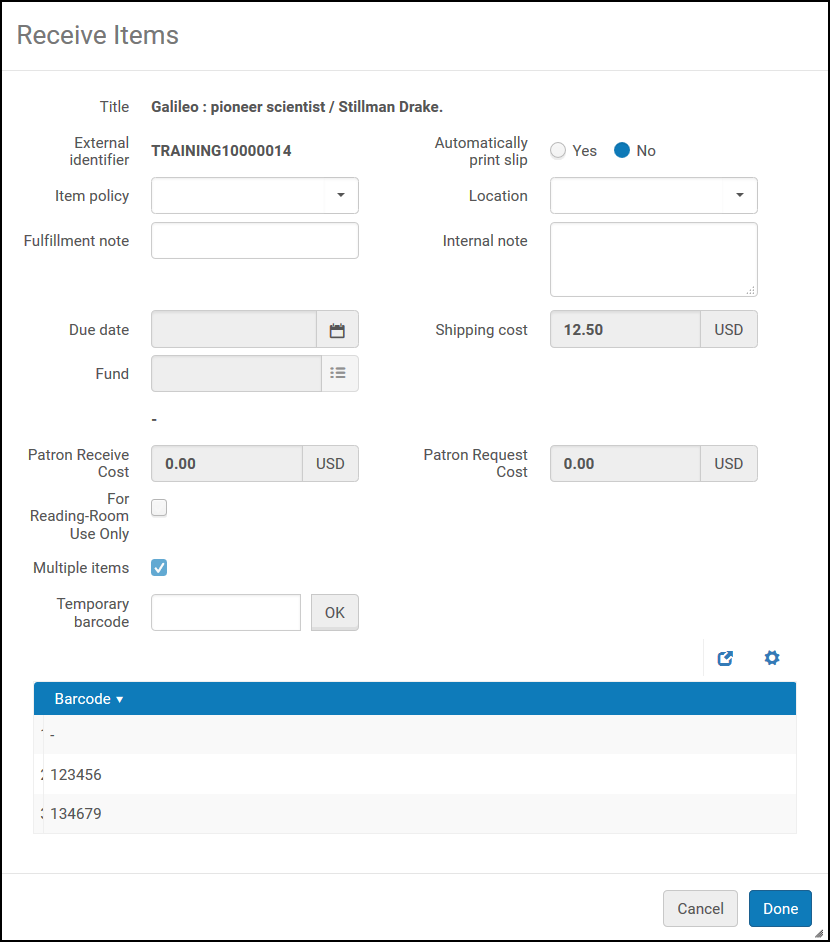
[アイテムを受け取る]画面では、受け取りインターフェイスで[冊子フォーマット]が選択されている場合にのみ、複数アイテムチェックボックスが表示されます。チェックボックスを選択すると、各アイテムがスキャンされて受け入れられるため、バーコードフィールドがクリアされます。Select Done to indicate that all parts of the request have been scanned, and send a hold shelf notification to the patron.完了を選択すると、入力されたバーコードで次の検証がトリガーされます。
- 空のバーコードがない
- バーコードが重複していない
- バーコードがすでに使用されていない(リポジトリ内)
リクエストでまだいくつか行方不明なアイテムがある場合、部分的に受け取ったリクエストを示すために受け取りが行われる場合があります。追加のアイテムが受け取られたときに、リクエストがまだ返されておらず、複数オプションが選択されている場合、それらをメインリクエストに追加できます。
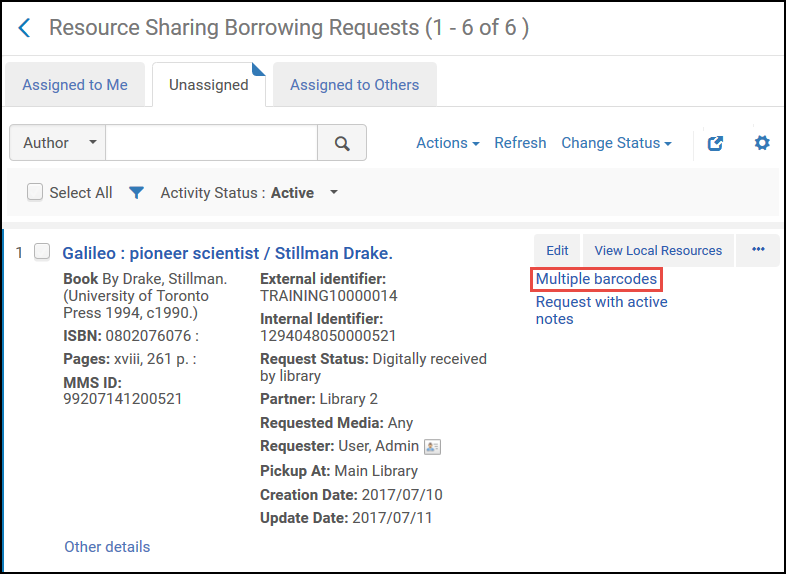
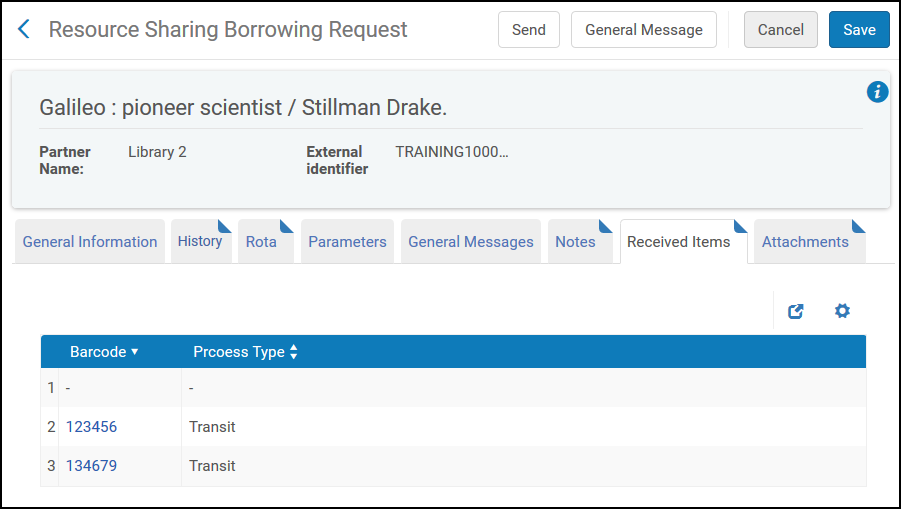
複数のアイテムが発送または受け取られた場合、取寄せリクエストリストには複数のバーコードへのリンクがあります。リンクを選択すると、受け取りアイテムタブへのリクエストが開きます。
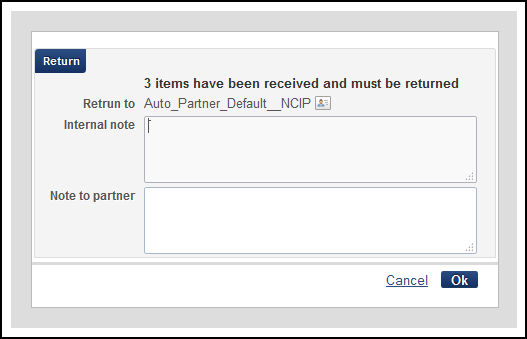
[返却]アクションを選択すると、[返却]ポップアップウィンドウに、これがマルチアイテムリクエストであることが示されます。
To add items to a request after the original receive:
- On the Received Items page (Fulfillment > Resource Sharing > Receiving Items), enter the External Identifier and select OK.リクエストがすでに受け取られていることを示すポップアップが表示されます。
-
[確認]を選択してください。バーコードを入力するポップアップが表示されます。バーコードを1つずつ入力し、各バーコードの後にOKを選択します。(See Receive Multiple Items above.)
元の受け取り後にポップアップにアクセスする場合、複数のアイテムのチェックボックス、期日および費用は表示のみで、元の受け取りから値を取得します。
- すべてのバーコードを入力し、完了を選択します。
複数アイテムリクエストには、次の動作が適用されます。
- アイテムのいずれかが貸与されると、リクエストのステータスはユーザーへの貸与に変わります。
- 取り置きリクエストをキャンセルすると、特定の取り置きリクエストのみがキャンセルされます。親取寄せリクエストは、すべてのアイテムがキャンセルされた場合にのみキャンセルされます。
- 貸し手から受け取ったメッセージをアップデートしてリコールすると、親リクエストの下のすべての貸与がアップデートされます。
- 貸与に適用される更新手数料は1件分だけです。
- In Primo, only one item will appear for the request on the Requests List of the My Account tab.
For more information, see Resource Sharing Requests with Multiple Items and More Information About Receiving Multiple Resource Sharing Items (Borrower).
Receiving Digital Resource Sharing Requests
When a lender sends a digital request, it is automatically forwarded to the patron, depending on the Send Borrower Document Delivery rules (see Advanced Resource Sharing Configurations).If the lender filled shipping terms of use (see Delivering Digitized Items Using the Document Delivery Page), then the digital resource is not automatically forwarded and the request remains in the Shipped Digitally status, waiting for manual processing.
借り手は、デジタルで受け取ったリソースをリクエストしているユーザーと自動的に共有するか、図書館スタッフの処理を待ってからリクエストしているユーザーに転送するかを決定するルールを設定できます。たとえば、アクセシビリティの向上を必要とする、リクエスト元のために、ドキュメントのアクセシビリティを向上させるために処理が必要になる場合があります。See Advanced Resource Sharing Configuration for more information.
貸出機関は、リクエストにユーザーのEメールアドレスが含まれている場合、デジタルリクエストをユーザーに手動送信できます。
If the borrowing and receiving libraries are both Alma libraries, the lender can trigger a direct email to the patron with a link to the digitized resource even if the request did not include the patron email address.
The lender may send an email with the digitized resource attached .取寄せ側のオペレータはデジタルアイテムを確認し、それをユーザーに送信し、同時にリクエストをクローズします。ユーザーへのファイルの送信は、「ファイルのアップロード」アクションを使用して行われます。このアクションにより、ファイルがAlmaクラウドストレージにアップロードされ、ファイルをユーザーに送信することもできます。The patron will receive an email with a secured link to the resource, and will have to authenticate before gaining access to the resource.The file will remain in the Alma storage for a configurable period of time (default 30 days).
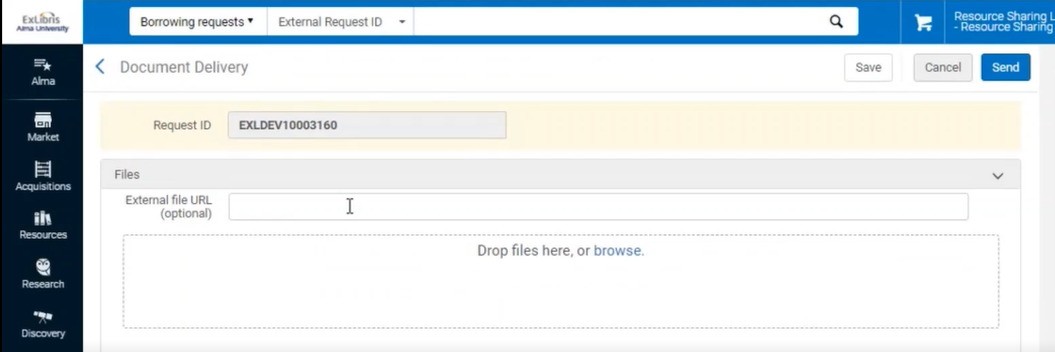
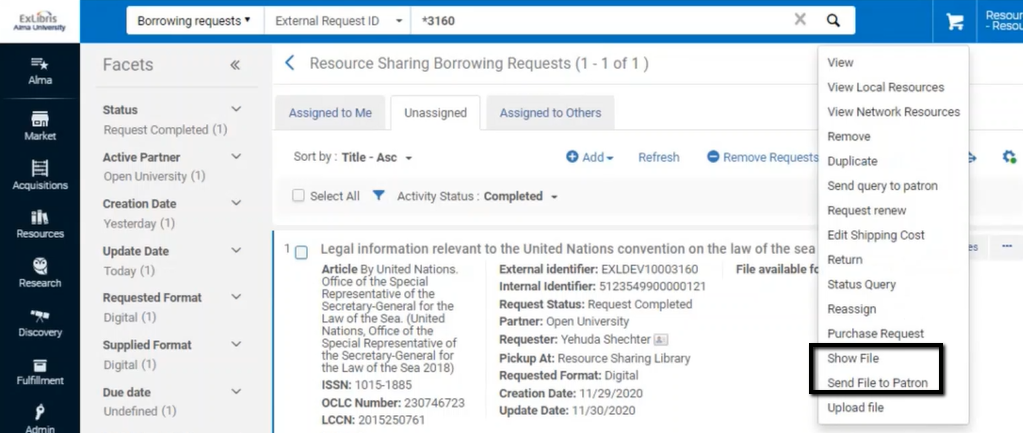
スタッフは、「ファイルの表示」および「ファイルをユーザーに送信」アクションを使用して、ファイルを表示し、再送信することもできます。
For videos on digital document delivery of resource sharing requests, see More Information About Digital Fulfillment of Resource Sharing Requests video (18:43 min.) and More Information on Article Requesting in Alma Resource Sharing(16:54 min)
The Document Delivery Notification Letter also supports social login options.For more information, click here.
Managing a Resource Sharing Loaned Item after Receival
This section refers to step 7 of the Peer to Peer Borrowing Workflow diagram.
Once a requested item has been received, the Borrower Receive Email letter is sent to the lending institution if it is an email partner.その後、アイテムはレギュラーのフルフィルメントアイテムとして処理されます。これは、標準の取り置き棚のアイテムリストに追加され、アクティブな取り置き棚または期限切れのタスクリストに表示されます。ユーザー貸与は、ユーザーサービスの管理を通じて実行されます。ユーザーの返却は、[ユーザーサービスの管理]または[返却アイテム]ページからも実行できます。
貸し手へのリソースシェアアイテムの返却
This section refers to step 9 of the Peer to Peer Borrowing Workflow diagram.
返却は、スキャンインアイテムインターフェイスまたはタスクリストの返却アクションから行うことができます。一時BIBレコード、一時取り置き、一時的なアイテムがシステムから削除されます。返却されたアイテムは、その後、貸出機関に返却されます。貸出機関がISOパートナーである場合、返されたISOメッセージがパートナーに送信されます。If the lending institution is an email partner, the Borrower Return Email letter is sent.その後、リクエストを終了して完了としてラベル付けするか、貸し手からの応答を待つ間、リクエストを開いたままにできます。The behavior is dependent on the Lender Check In action of the partner's lending workflow profile.See workflow profile configuration and More Information About Resource Sharing Workflow Profiles.If the resource sharing material is returned at a circ desk that doesn't serve the Resource Sharing library and needs to go in Transit to the Resource Sharing library for handling the return to the lending partner, the request will be in status Returned by patron.
The Resource Sharing Return Slip Letter is printed when returning a borrowing item to the lender.For more information, see Configuring Alma Letters.
In addition to the Peer-to-Peer workflow, Broker-Based Resource Sharing defines the workflow for borrowing requests that interact with a broker system.
Peer to Peer Resource Sharing - Lending
リソースシェア図書館は、借入と貸付の両方のプロセスを管理できます。以下のワークフローは、リソースシェア貸出プロセスの概要を示します。現在、ピアツーピア共有に使用されているプロトコルは、ISOまたはNCIPです。ISOとNCIPプロトコルの詳細については、デベロッパーネットワークを参照してください。For information on the borrowing process, see Peer-to-Peer Resource Sharing - Borrowing.
For more information on resource sharing, see the Resource Sharing video (1 hour 12:31 min.).It is also recommended that you watch the detailed Ask the Expert sessions on resource sharing.
Lending Workflow
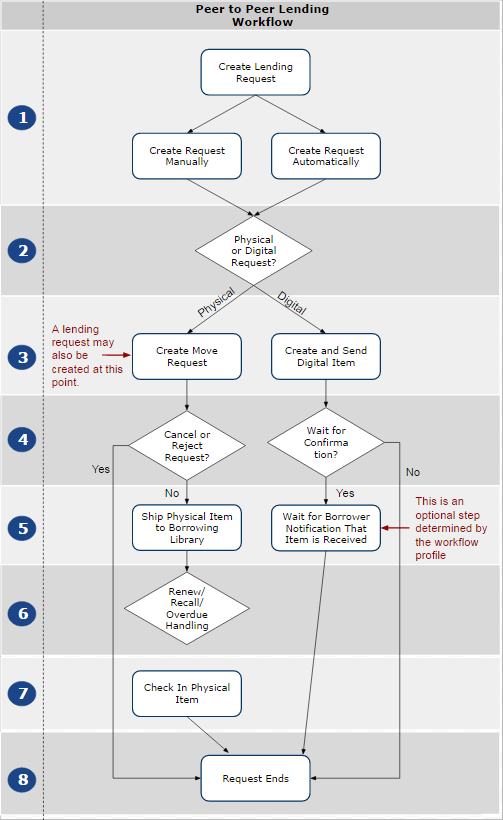
Creating a Resource Sharing Lending Request
This section refers to step 1 of the Peer to Peer Lending Workflow diagram.
-
Create Lending Request Manually - Add a lending request, either manually (see Adding a Resource Sharing Lending Task Manually) or using search (see Adding a Resource Sharing Lending Task From a Search).
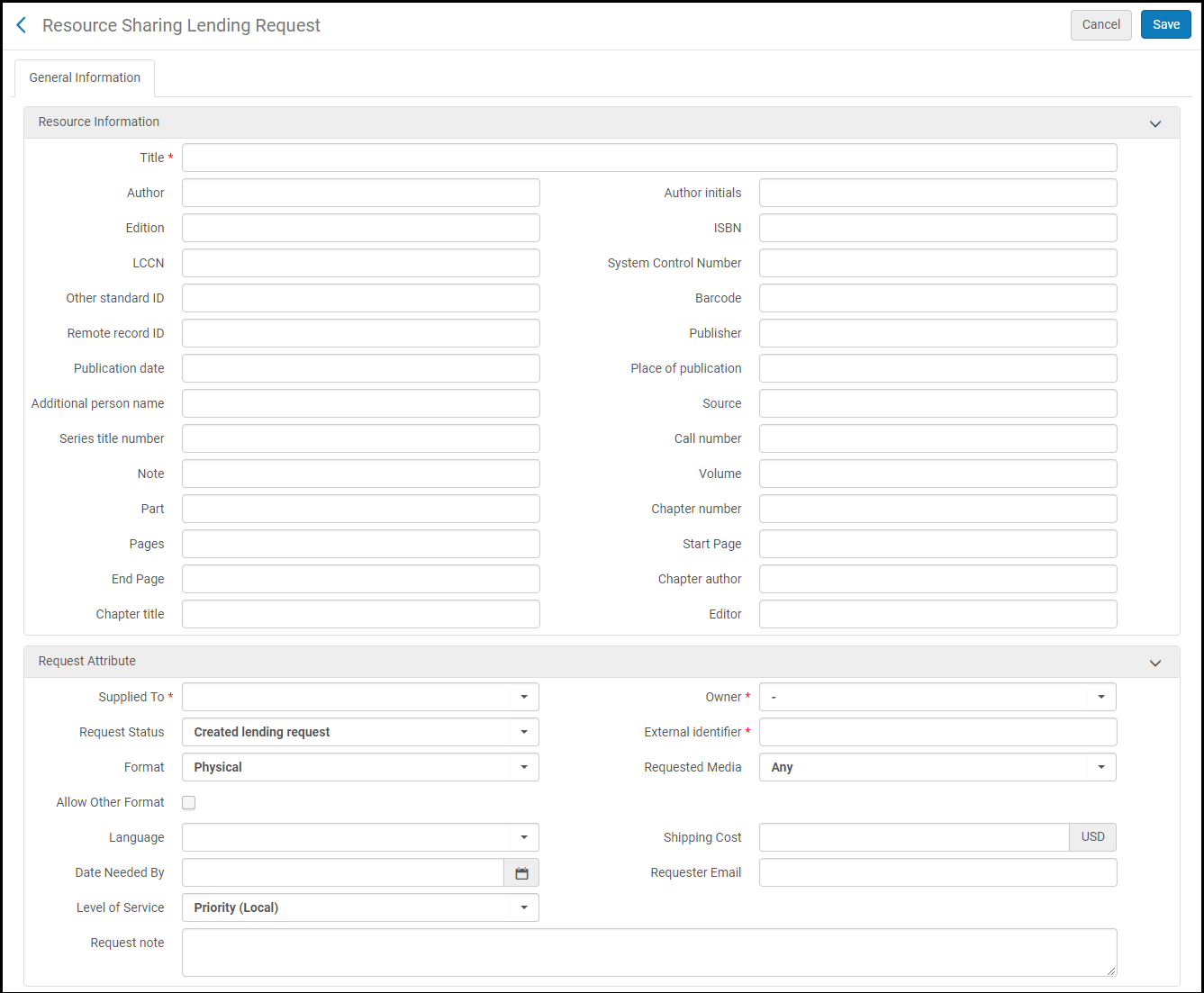
- ILL(受付)を自動的に作成 - ISO、NCIPピアツーピア、またはSLNPメッセージから。
- リクエストは、アイテムのスキャン時に配送時に作成される場合もあります。
Physical Request
Create Move Requests
This section refers to step 3 of the Peer to Peer Lending Workflow diagram.
Use the Create Move Request action to assign physical requests that have not yet shipped to the relevant library.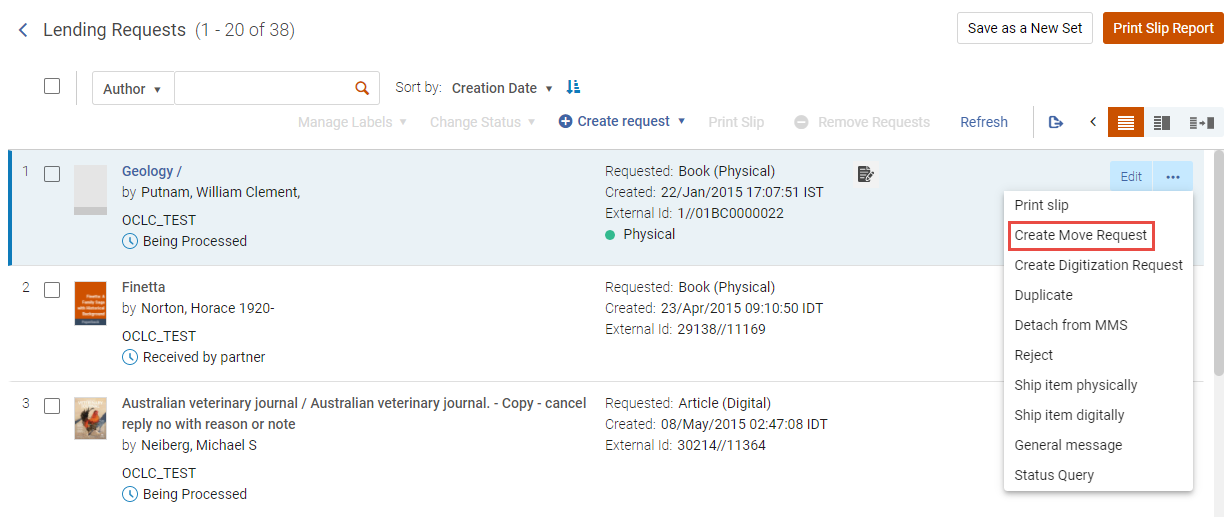
Selecting this action displays a window with the following information and options:
- 場所 – 取り置きしている図書館の名前
-
利用可否 – このフィールドには2つのオプションがあります。
- If the record does not have a summary holding, the number of items and how many of them are available for the resource sharing process displays
- If the record has a summary holding, the availability field displays the summary holding
 indicates that a record is suppressed.
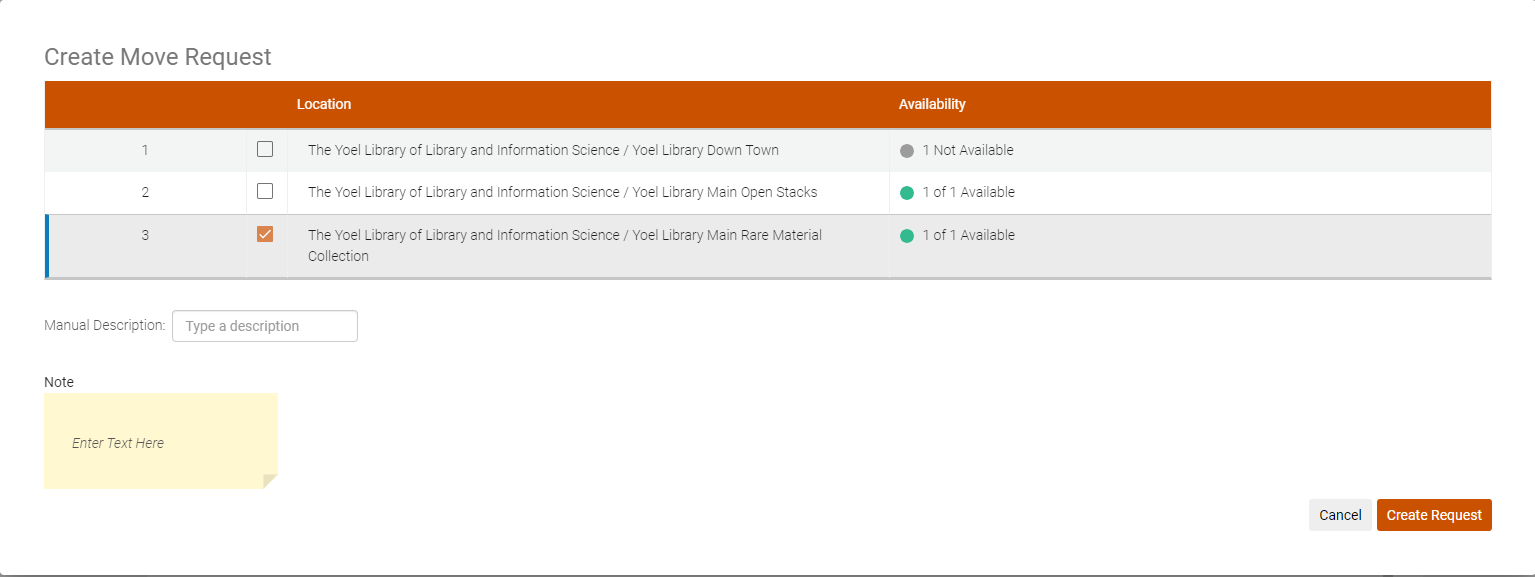
図書館を選択しない場合は、最も適切な図書館が自動的に選択されます。
When selecting Create Request, a move request is created for the item, and the status updates to Being Processed.アイテムは常に、移動リクエストを作成したリソース共有する図書館に配送されます。
For requested resources that are multi-volume or serial resources (i.e., they include issue/volume/description, etc.), the request form contains the following:
- New Request Specific Item checkbox (unchecked by default).
- チェックボックスがオフの場合、手動説明 フィールドが表示されます。
このフィールドは必須であり、リクエストのメモフィールドに示されているように、ユーザーがリクエストした情報が入力されます。
チェックボックスをオンにすると、年、巻、説明のドロップダウンリストが表示されます。説明は、リクエストを満たすために必要であるため必須です (現在選択されている取り置きに基づく)。年と巻は、説明フィールドの値を絞り込むのに役立ちます。
Shipping Items
This section refers to step 5 of the Peer to Peer Lending Workflow diagram.
The physical item is sent to the borrowing institution, where it is received by the resource sharing partner (see Shipping Resource Sharing Lending Request Resources).This may be done through the Shipping Items page or from the action on the request in the Lending Request Task List.
リソースシェアアイテムを発送するのは、次のいずれかの役職でなければなりません。
- フルフィルメントサービスオペレータ(リソースシェア図書館用)
- フルフィルメントサービス管理者(リソースシェア図書館用)
Ship a Single Item
Almaは、リソースシェアリクエストが配送される前に次のステップを実行します。
- リソースシェアリクエストが以前に作成されていない場合、リクエストが作成され、リソース共有パートナーにリンクされます。
- アイテムは、セットアップしたパートナー設定に基づいて一時的なロケーションに移動されます。
- アイテムは冊子配送済みとしてマークされ、Almaでは使用できません。
一緒に配送される複数のアイテムの期日と配送コストを同時にアップデートできます。
You can ship items on the Shipping Items page (Fulfillment > Resource Sharing > Shipping Items).
- ISOまたはNCIP対応のリソースシェア図書館には、配送先住所タイプが必須です。ISO/NCIPリクエストが送信されると、リクエストの配送先住所として使用されます。貸出機関は、デジタルで発送する場合、この住所に発送します。For more information about configuring the shipping address, see Managing Institution/Library Contact Information.
- システムは、貸与中、取り置き棚中、受入中などの処理中の配送アイテムをブロックします。
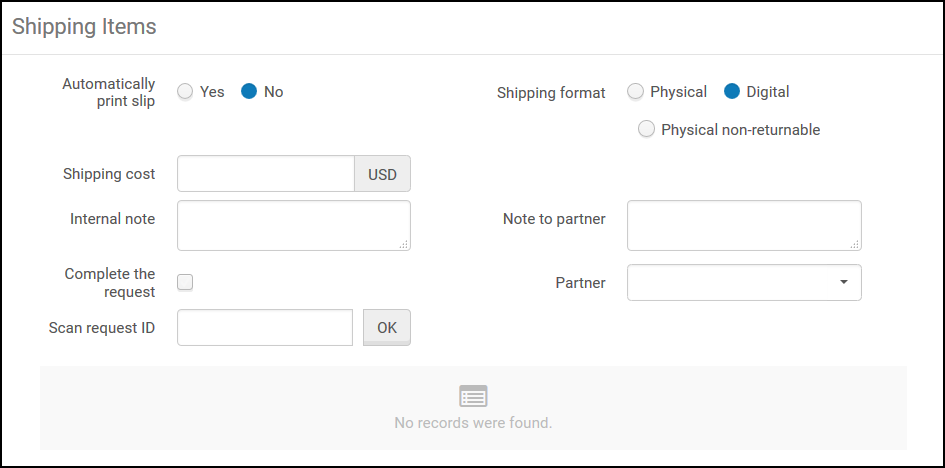
[配送アイテム]ページに表示されるフィールドは、選択した配送フォーマットによって異なります。
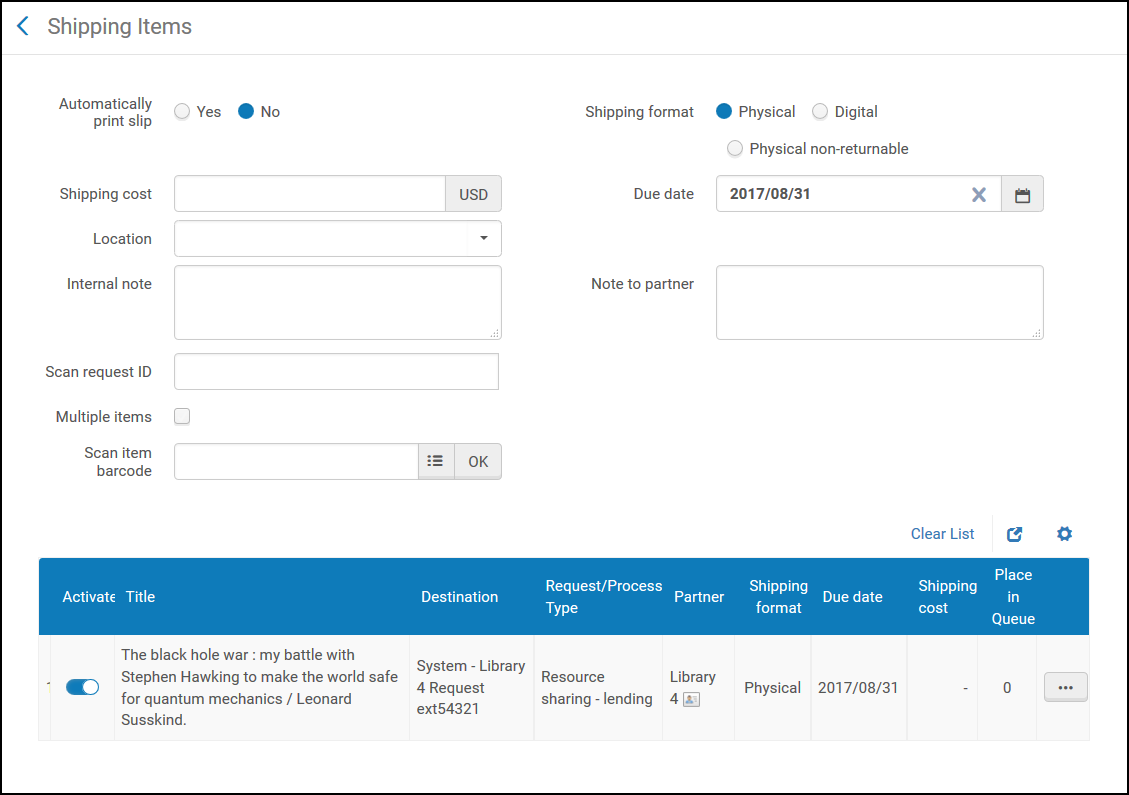
アイテムの配送時にILL(受付)が作成されていない場合、自動的にILL(受付)を作成するオプションがあります。これにより、貸し手のリクエストを手動で管理する図書館が、1つのアクションで2つのステップを実行できます。In order to accomplish this, turn on the Automatic Creation attribute for the resource sharing library (see Configuring Parameters of a Resource Sharing Library).これにより、冊子リクエストの配送アイテムページにパートナーフィールドが表示されます。リクエストIDは必須です。The partner field is also mandatory if the request ID entered does not exist.パートナーフィールドを空白のままにしようとすると、エラーメッセージが表示されます。リクエストが以前に作成されていない場合、パートナーの選択は必須です。パートナーを選択すると、新しいポップアップウィンドウがシステムにILL(受付)が存在しないことを警告します。新しいリクエストが作成されます。The pop-up window optionally may be turned off in the customer parameters (see Configuring Other Settings).新しいILL(受付)が作成され、配送済みとしてマークされます。
For more information about lender workflow optimization, see the Lender Workflow Optimization video (3:11 min.).
For more information about shipping items, see the Set Due Date and Shipping Costs at Ship Time video (5:13 min.).
To set a due date and shipping cost for shipping multiple items from a lending institution:
-
On the Shipping Items page, in the Automatically Print Slip field, select Yes(the default is No).このフィールドで選択されたオプションは、セッション中、ユーザーに対して常に提示されます。This option automatically sends a print a Resource Sharing Shipping Slip Letter when shipping an item.スキャンリクエストIDフィールドとアイテムのバーコードをスキャンフィールドで指定されたアイテムについて、配送印刷スリップが送信されます。スリップには、配送されるアイテムに固有の情報が含まれています。For information about configuring the Resource Sharing Shipping Slip letter, see Configuring Alma Letters.
You can manually print a shipping slip by selecting the Print Slip link on the Resource Sharing Lending Requests Task List page (see the Print Slip description in the Request Sharing Lending Requests Task List Links table in Managing Resource Sharing Lending Requests).
- 配送フォーマットフィールドで、リクエストの配送フォーマットを選択します。
- 配送コストフィールドに、アイテムの配送コストを入力します。
- 期日フィールドに、配送アイテム期日を入力します。このフィールドは、配送フォーマット = 冊子の場合にのみ表示されます。
- リソースシェアILL(受付)を配送する場合、ロケーションフィールドで、配送するアイテムの一時的なロケーションを指定します。ロケーションフィールドに表示されるオプションは、図書館のロケーションです(常設メニューの現在地:フィールドに表示)。
When specifying a location and entering the item's barcode in the Scan item barcode field, the request's status changes to Shipped Physically.
このフィールドは、配送フォーマット = 冊子の場合のみ表示され、次のいずれかに該当する場合にのみ有効になります。
- You are at a resource sharing library circulation desk; see Library/Desk Selector in The Persistent Menu.
- スキャンリクエストIDフィールドにILL(受付)の外部IDを入力しました。
- [リソースシェア貸出タスクリスト]ページの配送アイテムリンクを使用して、[配送アイテム]ページにアクセスしました。
- 必要に応じて、次のフィールドのいずれかまたは両方にノートを追加します。このノートは次のフォーマットで表示されます。
<Name of partner><Note text>
- 内部ノート:送信元の側にのみ表示されるノート(つまり、借り手からノートを設定する場合、ノートは取寄せリクエストのリストにのみ表示されます。貸し手からノートを設定する場合、ノートはILL(受付)のリストにのみ表示)。These notes do not appear on the History tab, and are to be used for notes not intended to be publicized (that is, they are not sent to the peer partner).An example of a note would be a borrower writing,This lender has historically been difficult to deal with.
- パートナーへのノート:パートナーに送信されるノート。This note appears in the Notes tab of both the sender of the note and the receiver of the note, and on the request's History tab (i.e.–Only in reading room).For ISO requests, this note appears in the ISO message in the Attachments tab.
- アイテムのバーコードをスキャンフィールドに、アイテムのバーコードを入力します。This field is only displayed when Shipping format = Physical.When shipping an itemless request, leave this field blank.(New for February 2026) If the item does not have a barcode, it can be shipped by selecting it from the pickup list.You can add the Item ID column to the scanned items list by selecting Item ID in the customization menu (see New Layout).
- リクエストを完了するチェックボックスをオンにして、アイテムのステータスをリクエスト完了に変更し、リクエストに完了のマークを付けます。このチェックボックスは、配送フォーマット = デジタルまたは冊子返却不可の場合にのみ表示されます。
- スキャンリクエストIDフィールドに、アイテムの外部識別番号を入力します。
- アイテムバーコードのスキャンまたはリクエストIDのスキャンフィールドの横にあるOKを選択します。アイテムが配置され、ページの下部に表示されます。
配送するすべての資料について、ステップ7(資料のバーコードの入力)とステップ9(資料の外部識別番号の入力)を繰り返します。アイテムはページ下部のテーブルに表示され、設定された配送コストと期日が各アイテムに適用されます。
資料が2回スキャンされると、その資料はリストに追加され、最初の配送のデータが表示されますが、追加のアクションは実行されません。これは、配送するアイテムを2回スキャンする際のミスを防ぐためです。
Ship Multiple Items for a Single Request
For more information about shipping multiple items for lending requests, see the Shipping Lending Requests with Multiple Items video (1:42 min.).
ILL(受付)では、単一のリクエストに関連付けられた複数のアイテムを配送できます。ILL(受付)に対して複数の移動リクエストがすでに作成されている場合、またはリクエストが既に配送されており、さらにアイテムが配送されている場合、Almaは自動的にILL(受付)を複数アイテムリクエストとしてマークします。それ以外の場合、複数のアイテムの追加は、アイテムを借り手に配送するプロセスによって行われます。これは、配送インターフェイスまたはILL(受付)タスクリストの配送アイテム行アクションから実行できます。
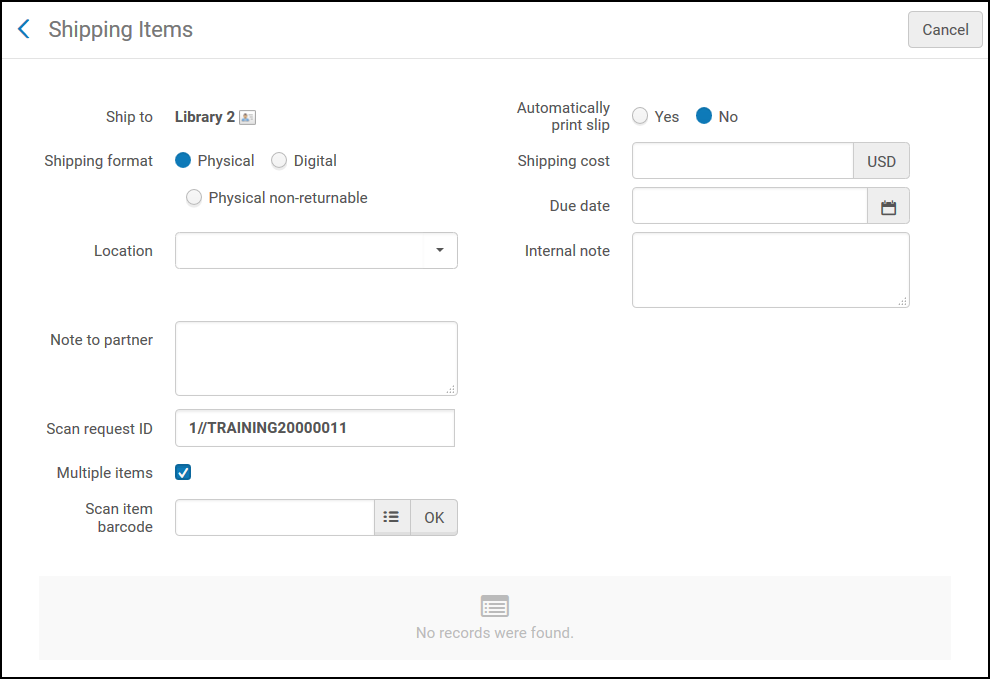
After checking the Multiple items check box and scanning the first item's barcode, the multi-item window is displayed.(New for February 2026) If the item does not have a barcode, it can instead be shipped using the Item ID.You can add the Item ID column to the scanned items list by selecting Item ID in the customization menu (seeNew Layout).
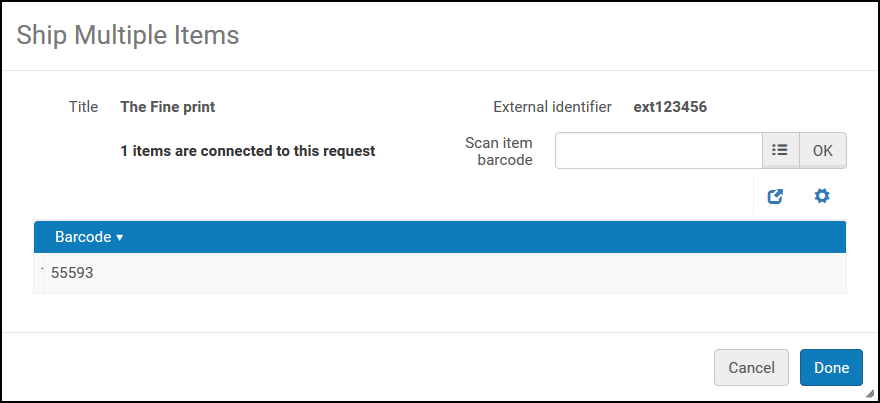
各アイテムについて、バーコードがスキャンされます。すべてのアイテムが完了し、完了を選択します。ILL(受付)のステータスが冊子配送済みに変わり、バーコードが複数のバーコードとして表示されます。
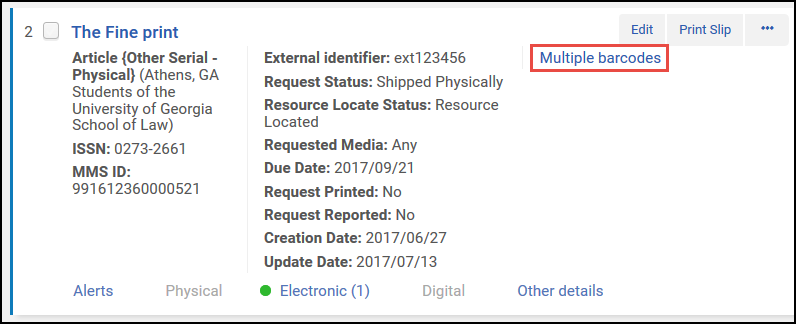
[複数のバーコード]リンクを選択すると、新しいタブ[アイテム]へのILL(受付)が開きます。
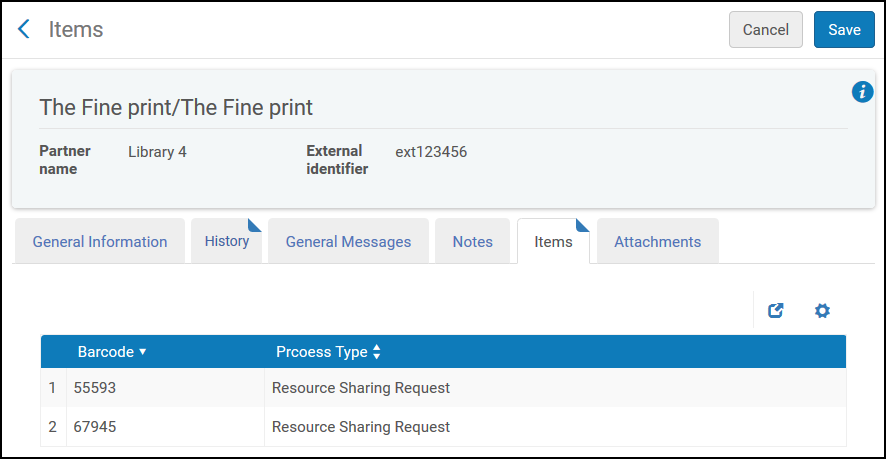
When shipping to an ISO partner or an NCIP peer-to-peer partner, a shipped message is transmitted.When the borrowing institution receives the message, the message is recorded in the History tab of the borrowing request.取寄せリクエストのステータスが物理配送に変更されます。
Renew/Recall/Overdue Handling
This section refers to step 6 of the Peer to Peer Lending Workflow diagram.
配送されたアイテムの更新は、借り手のリクエストの結果として行われます。更新アクションは手動または自動で実行できます。ユーザーまたはユーザー代理のスタッフのリクエストによってトリガーされる場合があります。
Almaは、期日が過ぎて延滞リクエストとなったISOおよびEメールのILL(受付)を自動的にマークします。
ワークフロープロファイルでリコール機能が有効になっている場合、配送されたアイテムは自動的にリコールされる場合があります。For email and SLNP partners, the Lending Recall Email Letter will be sent.ISOパートナーの場合、ISOメッセージが送信されます。
Recalls can also be automatically cancelled if the cancel recall function has been enabled in the workflow profile.For email partners, the Lending Recall Email Letter will be sent.ISOパートナーの場合、ISOメッセージが送信されます。
冊子アイテムのチェックイン
This section refers to step 7 of the Peer to Peer Lending Workflow diagram.
Upon receipt of the item from the borrowing institution, the item or the external request ID is scanned into Alma (see Scanning Items).スキャンプロセスにより、返却されたアイテムを送信する必要があるロケーションが通知されます。
デジタルリクエスト
デジタルアイテムを作成して送信する
This section refers to step 3 of the Peer to Peer Lending Workflow diagram.
Use the Create Digitization Request action to assign digital requests that were not yet delivered to the relevant library.
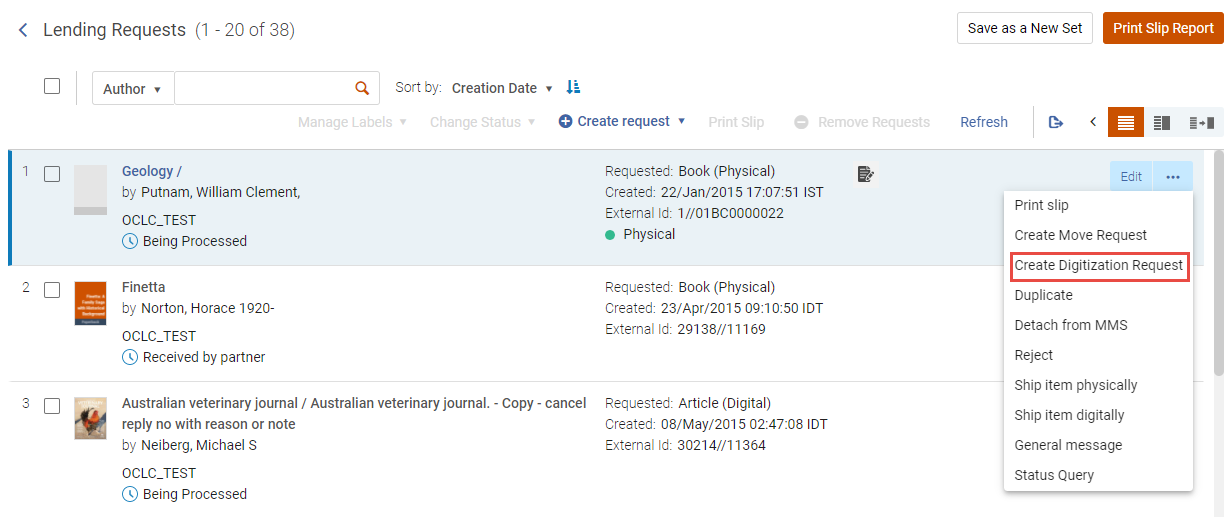
アクションを選択すると、次のオプションが表示されます。
- リクエストを満たすことができるオプションの取り置き、アイテムの数、およびリソース共有プロセスと取り置き状況の要約に使用できる取り置きの数。
- Managing Department - for shipping a digital resource, the Managing Department drop-down list is displayed, enabling the user to select which digitization department receives the digitization request.リクエストを管理できる部門が1つしかない場合は、管理部門にその部門が自動的に入力されます。複数の値が存在する場合、rs_default_digitization_department顧客パラメータがあれば、そこからデフォルト値が取得されます。
- メモを追加するオプション。
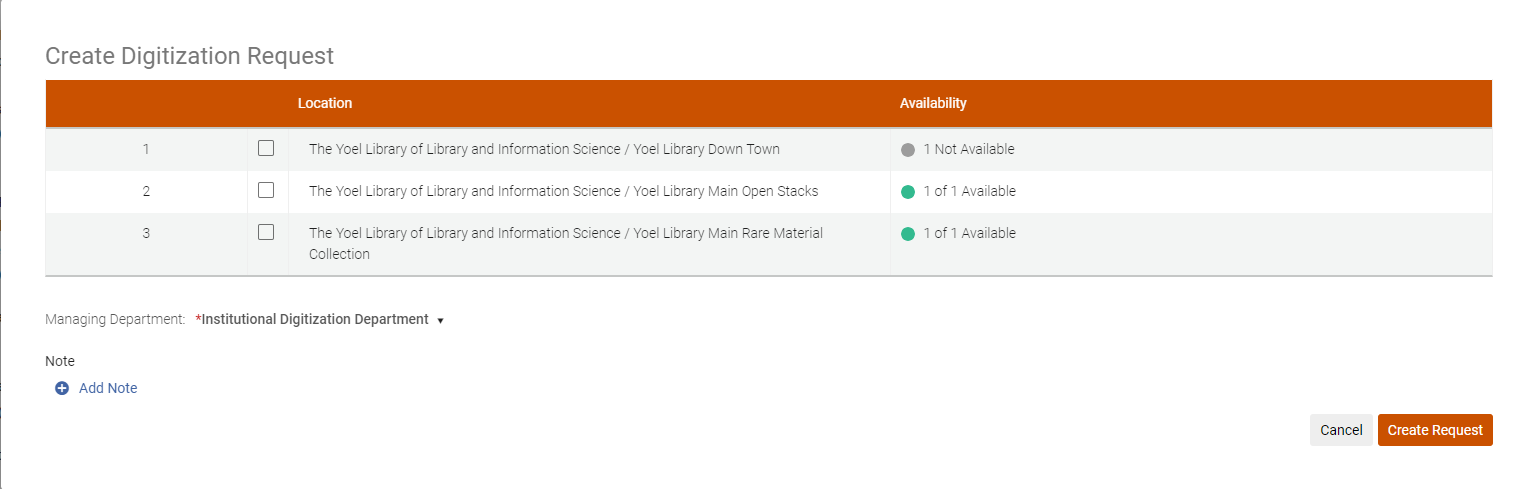
図書館を選択しない場合は、最も適切な図書館が自動的に選択されます。
When selecting Create Request, a digitization request is created for the item, and the status updates to Being Processed.選択されたデジタル化部門がデジタル化リクエストを処理します。
For requested resources that are multi-volume or serial resources (i.e., they include issue/volume/description, etc.), the request form contains the following:
- 'Request Specific Item' checkbox (unchecked by default)
- チェックボックスをオフにすると、手動説明フィールドが表示されます。
このフィールドは必須であり、リクエストのメモフィールドに示されているように、ユーザーがリクエストした情報が入力されます。
チェックボックスをオンにすると、年、巻、説明のドロップダウンリストが表示されます。説明は、リクエストを満たすために必要であるため必須です (現在選択されている取り置きに基づく)。年と巻は、説明フィールドの値を絞り込むのに役立ちます。
アイテムが受領されたという借り手の通知を待つ
This section refers to step 5 of the Peer to Peer Lending Workflow diagram.
選択したワークフローオプションによっては、デジタルアイテムが受領されたという借入機関からの応答が受領されるまで、リクエストがクローズステータスに変更されない場合があります。
