
貸出リクエストの編集
貸出リクエストを編集し、リクエストに添付されているパートナー、ノート、付属物を表示および管理します。
このページでは、詳細ペインまたは完全なリクエストフォームでの編集や、勤務表タブでのパートナーの管理など、Alma での借入リクエストの編集の概要を説明します。For more information on resource sharing including locating items for resource sharing, working with resource sharing partners, managing borrowing and lending requests and contributing to the resource sharing directory, see Resource Sharing.
借入リクエストが借入リクエストタスクリストに表示されると、その詳細を表示でき、現在のステータスで編集が許可されている場合は、必要に応じて編集できます。リクエスト行に編集ボタンがある場合、現在編集可能です。代わりに表示ボタンがある場合は、開いて詳細を表示できますが、編集することはできません。
リクエストのステータスが次のいずれかである場合、表示が表示されます。
- パートナーにアイテムを返却しました
- リクエストが完了しました-リクエストは取り置き棚に到達する前に配送またはキャンセルされました。
- デジタル配信
- パートナーによってキャンセルされました
- キャンセルがリクエストされました
Otherwise,Edit appears.
This page only relates to requests that can currently be edited.(Editing refers to adding or modifying the parameters of a borrowing request, such as bibliographic information or information about the request.メモ、ラベル、添付ファイルはいつでもリクエストに追加できます。)

For information about searching for specific borrowing requests and working with the Borrowing Requests task list, see Managing Resource Sharing Borrowing Requests.
Editing a Borrowing Request in the Details Pane
詳細ペインで、既存の借用リクエストに関する多くの詳細を確認したり、リクエストの一部を編集したりできます。
- 借入リクエストページ([フルフィルメント]>[リソースシェア]>[借入リクエスト])のタスクリストで、リクエストを選択します。詳細ペインが開きます。
- Edit any of the fields in the Request form and Request costs sections, as required.含まれているフィールドを編集した後、各リージョンで保存を選択します。

Opening the Full Request Form for Editing
必要に応じて、借入リクエストフォーム全体にアクセスして編集することができます。
- On the Borrowing Requests page (Fulfillment > Resource Sharing > Borrowing Requests), locate the request you want to edit.
- In the request's row, select Edit(or, select the row, and then, in the Details pane, select Edit).The Resource Sharing Borrowing Request page opens in a sliding panel, with the General Information tab selected.
- 必要に応じてフィールドを変更します。For a description of the fields, see the Resource Information Fields table in Adding a New Book or Journal Article and the Borrowing-Request Attribute Field table in Creating a Borrowing Request.
- On the Rota tab, modify the list of partners in the request's rota as required.For additional information, see Managing Partners in a Request's Rota below.
- On the Parameters tab, modify parameters as needed.The parameters displayed are those selected for the partner during the partner configuration process (see Resource Sharing Partners).
- ノートタブで、必要に応じてノートを追加および編集します。For more information about this tab, see Notes Tab.ステータスがリクエストの完了の借入リクエストを含む、すべての借入リクエストに対してメモを追加できます。
-
付属物タブで、必要に応じて付属物を追加および編集します。For more information about this tab, see Attachments Tab.添付ファイルは、リクエストの完了のステータスを持つものを含む、すべての借入リクエストに追加できます。
- 保存を選択して変更を保存し、フォームを閉じます。
Managing Partners in a Request's Rota Tab
優先順位を変更したり、特定のパートナーを追加または削除したり、アクティブなパートナーをキャンセルまたは拒否したりすることで、取寄せリクエストの勤務表のパートナーのリストを変更できます。これらのアクションは、取寄せリクエストの勤務表タブで実行され、現在の勤務表のパートナーのリストも表示されます。
If you add an ARTEmail partner to the rota list, you may also have to add parameters for the partner in the Parameters tab.
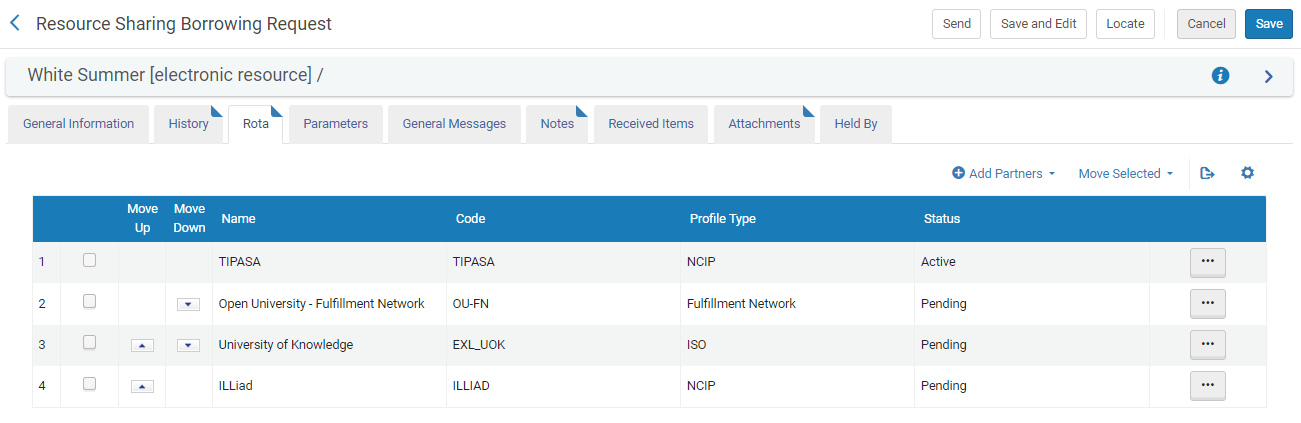
勤務表にパートナーを追加する
カレンダーの勤務表タブでは、パートナーを手動で追加できます。
- パートナーの追加を選択します。A partner-selection box opens.
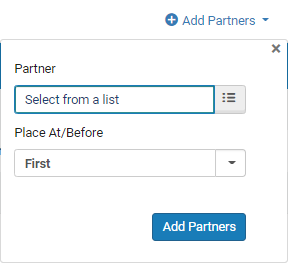
- パートナーでリストから選択を選択します。[リソース共有パートナーリスト]ページが開き、利用可能なリソース共有パートナーのリストが表示されます。
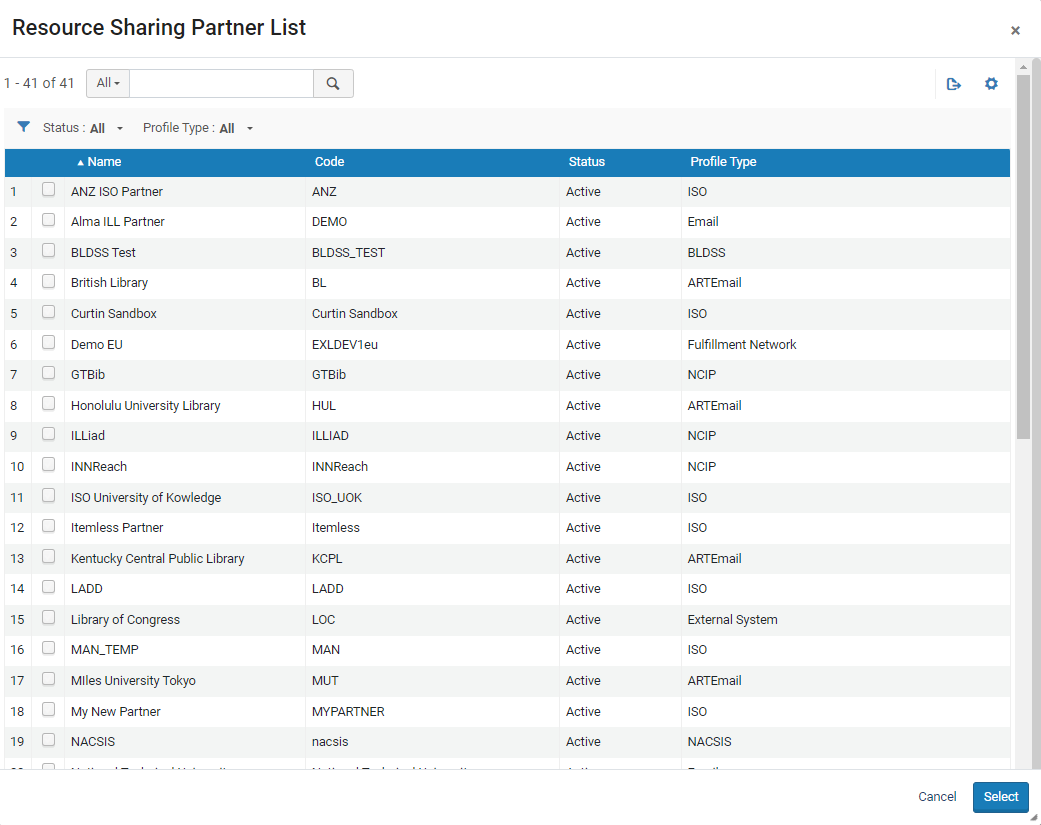 リソース共有パートナーリストページ
- 勤務表に追加するパートナーのチェックボックスを選択してから、選択を選択します。選択したパートナーがパートナーフィールドに追加されます。
- の中にここ/前に配置ドロップダウン リストで、次のように、パートナーをパートナー リストに配置する優先度レベルを選択します。
- First- Place the selected partners at the top of the list.
- Last- Place the selected partners at the bottom of the list.
- パートナー名 : 選択したパートナーをこのパートナーの上に配置します (その名前は既にリストにあります)。
- パートナーの追加を選択します。The selected partners are added to the list in the Rota tab.
勤務表の順序の変更
You can change the order of priority of Pending partners at any time.A Pending partner can only be moved to the top of the list, replacing the Active partner, when the request is in either Created Borrowing Request or Ready to Be Sent status.Under all other circumstances, rota partners must be in Pending status to be repositioned.
パートナーは、リスト内で個別またはグループで上下に移動できます。
-
[上へ移動] および [下へ移動] 矢印を使用します。
- 移動するパートナーのチェックボックスを選択します。
- 選択を移動を選択します。配置選択ボックスが開きます。
- の中にここ/前に配置フィールドで、パートナーを配置する優先レベルを次のように選択します。
- First- Place the selected partners at the top of the list.
- Last- Place the selected partners at the bottom of the list.
- パートナー名 : 選択したパートナーをこのパートナーの上に配置します (その名前は既にリストにあります)。
- 選択を移動を選択します。選択したパートナーが移動されます。
勤務表からパートナーを排除する
パートナーは、削除、拒否、キャンセルなど、さまざまな方法で勤務表から除外できます。
リストからのパートナーの削除
パートナーが保留中であるか、以前はアクティブ パートナーであったがキャンセルされたか、または要求を拒否したために現在アクティブ パートナーではない場合、そのパートナーはリストから簡単に削除できます。
- From the row actions, select Remove for the partner.
パートナーによる拒否
パートナーが以前にアクティブなパートナーであったが、要求を拒否した場合、そのパートナーは勤務表から削除されます。それにもかかわらず、ステータスとともにリストに表示されたままになります。却下、手動で削除しない限り。それにもかかわらず、手動で削除しない限り、ステータスが [拒否済み] でリストに表示されたままになります。
場合によっては、パートナーによる取寄せリクエストの拒否がAlmaに自動的に登録されます。In other cases, the active partner informs you that it is rejecting the request, and you must manually change its rota status to Rejected.
The "Reject' action should be used only when the borrower has received a confirmation from the lender that the request has been rejected on the lender's side, for example, in a case where an email was sent from the lender, and the borrowing request needs to be manually updated regarding this.If the borrower would like to initiate a cancellation of the request, then the Cancel action should be used instead.
The active partner can also be rejected from the row actions of the borrowing request in the Borrowing Requests page (Fulfillment > Resource Sharing > Borrowing Requests), in the row actions of the request; see Managing Borrowing Requests.
[勤務表] タブで取寄せリクエストを手動で却下としてマークするには:
- アクティブパートナーの行アクションから、選択拒絶 .拒否は、アクティブ パートナーのアクションの行から選択できます。のリクエストを拒否ボックスが開きます。[リクエストを拒否] ボックスが表示されます。
- を選択拒否理由 .拒否理由を選択します。
- Optionally, enter an Internal note and/or a Note to partner, and select Notify user as required.
- OKを選択します。アクティブなパートナーは拒否され、勤務表の次のパートナーがアクティブ化されます (利用可能な場合)。パートナーへのノート:パートナーに送信されるノート。[パートナーへのメモ] チェックボックスを選択した場合、パートナーはメモを受け取ります。選択した場合ユーザーに通知、拒否の通知がユーザーに送信されます。ユーザーに通知することを選択した場合、ユーザーは拒否の通知を受け取ります。
有効なパートナーをキャンセルする
When a partner is the active partner, you can manually cancel that partner if you do not want to borrow the requested item from it.この場合、パートナーは勤務表から削除されますが、手動で削除されるまで、ステータスが [キャンセル] でリストに表示されたままになります。
- アクティブパートナーの行アクションから、選択キャンセル .アクティブなパートナーの行のアクションからキャンセルを選択します。あキャンセルのリクエストボックスが開きます。リクエストのキャンセル用のボックスが表示されます。You can also cancel the active partner by selecting Cancel Partner from the options at the top of the page.The Cancel Partner option does not appear if the partner has not enabled cancellation in its workflow profile.
- Select a Cancellation reason.
- オプションで、キャンセルについて .必要に応じて、キャンセルのメモを追加します。
- [確認]を選択してください。The active partner is cancelled, a cancellation message is sent to it, and the next partner on the rota is activated, if available.If the partner is an email partner, the Ful Cancel Email Letter is sent to the partner (see Configuring Alma Letters); if the partner is an ISO partner, an ISO message is sent.
