
取寄せリクエストの作成
手動で、検索から、または外部リソースから取寄せリクエストを作成します。
このページでは、手動での借入リクエストの作成、検索または外部ソースからの借入リクエストの作成、借入リクエストのローカルリソースの表示、借入リクエストの編集など、Alma での借入リクエストの作成の概要を説明します。For more information on resource sharing including locating items for resource sharing, working with resource sharing partners, managing borrowing and lending requests and contributing to the resource sharing directory, see Resource Sharing.
リソース共有(RS)の借用リクエストは、図書館間相互貸借(ILL)を介して、機関の一部ではない図書館から本やその他の資料を借入するためにAlmaを介して行われる要求です。これらのリクエストはデジタルで貸出図書館に送信され、リクエストされたリソースが借用図書館に到着するまでのほとんどの処理は通常自動的に処理されるため、図書館のスタッフは特別な処理が必要な場合にのみ関与する必要があります。
新しい借用リクエストは、さまざまな方法で作成できます。所属機関が Primo ディスカバリーシステムを採用している場合、利用者はそのシステムを使用して、独自に借入要求を作成できます。ほとんどの場合、これらの借用リクエストは、貸出図書館に送信される前に図書館スタッフによる処理を必要としません。For information about handling existing borrowing requests, see Managing Borrowing Requests.
Almaで直接借入リクエストを作成する必要がある場合、それを行うには2つの主な方法があります。
- Locating the resource through the Alma search mechanism, and creating a borrowing request from the bibliographic record (More actions
 > Resource sharing request); see Searching in Alma
- 以下で説明するように、[RSBorrowingRequests]ページで新しいリクエストを作成します。
新しいリクエストを作成したら、必要に応じて関連するフィールドに入力できます。If the request was created from the results of a search, some of the fields are filled in by the system.さらに、システムで拡張統合プロファイルがアクティブになっている場合、一部のフィールドが自動入力される場合があります。
新しい借入リクエストの作成
リソースに関する情報を手動で入力するか、検索を実行して検索結果からリソースを選択することにより、借入リクエストを作成できます。検索は、所属機関の所蔵、所属機関が属するネットワークまたはコミュニティ内、または大英図書館や米国議会図書館などの外部ソースで実行できます。
Manually Adding a Borrowing Request
空白の借用リクエストフォームにリソースに関する情報を入力することにより、借用リクエストを手動で作成できます。
- On the Borrowing Requests page (Fulfillment > Resource Sharing > Borrowing Requests), select Create Request > Manually and then select the type of resource –Book or Article.A blank Resource Sharing Borrowing Request form opens in a sliding panel.
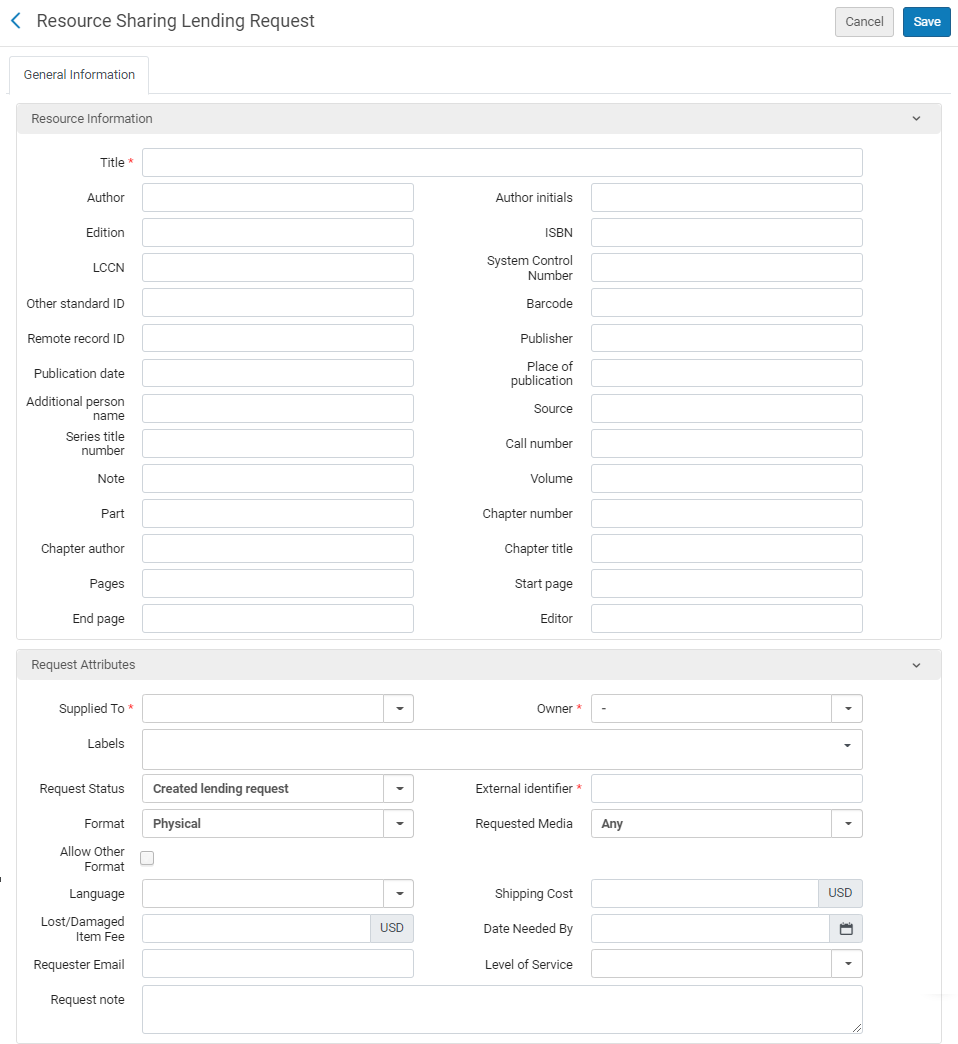 Resource Sharing Borrowing Request Page (Book)
- リソース情報領域で、関連するフィールドに情報を入力します。For more information on these fields, see Adding a New Book or Journal Article.
If an augmentation-integration profile is active, and you fill in the PMID and/or the DOI fields, and then save the request, the following fields are auto-populated.If you filled them in manually before you saved the request, they are overwritten.Note that once these fields are auto-populated, they cannot be edited.
記事\章タイトル
ジャーナルタイトル
著者
巻
号
ISSN
ページ数
開始ページ
終了ページ
出版日
- 以下に説明するように、「リクエスト属性」領域で、関連するフィールドに必要な情報を入力します。
Borrowing-Request Attribute Fields フィールド 説明 特別エディションのみ Checking this check box implies that the user wants the specified edition only, and no other.
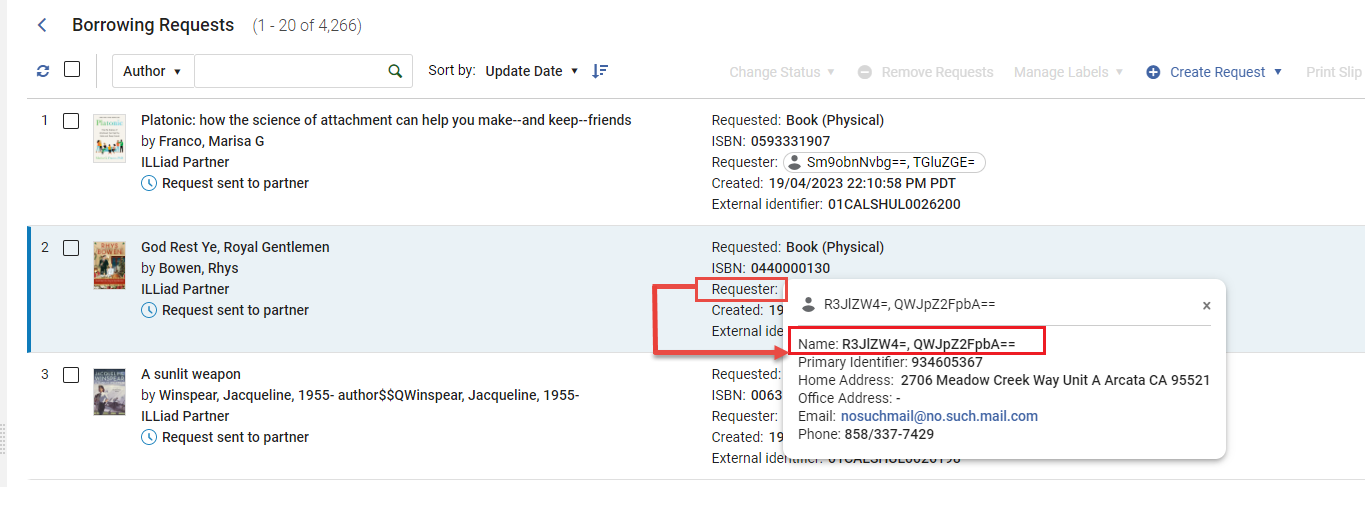
依頼者(必須) アイテムをリクエストしているユーザー。 When creating a request from a citation, this value is pre-filled by the citation_rs_default_requester parameter; see Configuring Other Settings.所有者フィールドは、ここで選択したユーザーに応じて変わります。以下の注を参照してください。The user that is defined in this field becomes linkable (name appears in blue) in the Borrowing Requests task list.ユーザーが貸出リクエストタスクリストを表示し、依頼者フィールドのリスト内の名前を選択すると、ユーザーの詳細が表示され、そこで必要な編集を行うことができます。
ラベル 1つ以上のラベル(単一単語の識別子)をリクエストに追加します。 ラベルフィールドを選択して、既存のラベルのリストを表示します。ラベルの1つを選択してリクエストに添付するか、入力を開始して新しいラベルを作成します。
For additional information about labels, see New Layout 2022.
所有者 リクエストを処理するリソースシェア図書館。The displayed libraries are configured as resource sharing libraries in the General Configuration menu (see Managing an Institution and Its Libraries). - When creating a request from a citation, this value is pre-filled by the citation_rs_default_owner parameter; see Configuring Other Settings.
- リソースシェア図書館に割り当てられた依頼者を選択すると、図書館がこのフィールドに表示されます。依頼者が複数のリソースシェア図書館に割り当てられている場合、それらのいずれかを選択します。If the user is not assigned to a resource sharing library, the Owner is the value configured in ill_item_creation_lib_code(see Configuring Other Settings).To assign a resource sharing library to a user, see Quick User Management Page Fields.You can create relationships between resource sharing libraries to enable the libraries to supply items for each other (see Configuring Fulfillment Services Between Libraries Within an Institution).
リクエストステータス The status of the request; see Request Status. リクエストされたフォーマット Format of the requested item –Digital,Physical, or Physical non-returnable.
For more information about sending resource sharing items directly to a patron, see the Inter-Library Loans Personal Delivery video (10:51 mins).リクエストされた媒体 リクエストを提供する媒体のタイプ。The values that display in the drop-down field are those configured with a value of True on the Requested Media Definition Mapping Table page (see Configuring Requested Media Definitions). When a request is submitted with a requested media type that was added to the out-of-the-box options (see Configuring Additional Requested Media) and the request is sent to an ISO partner, the partner receives the requested media information in the Request Note field.他のフォーマットを許可する リクエストされたフォーマットが利用できない場合、ユーザーは別のフォーマットでアイテムを受け取る意思があるか。 パートナー The first partner configured in a request's rota (see Requests in Alma).Select Add Partners to add a partner to the request's rota, and select Add Rotas to add a rota template (group of partners).For details on adding partners, see To add partners below.For details on adding rota templates, see To add rota below. - For details on configuring partners, see Resource Sharing Partners.
- For details on configuring rota templates, see Configuring Rota Templates.
アイテムの作成ロケーション 非NCIPパートナーが選択されている場合にのみ表示されます。一時的なアイテムが作成されるロケーション。 外部識別子 外部システムによって提供される識別文字列。識別子がパートナーに送信されます。 - NCIPまたはISOパートナーを選択すると、値を手動で入力できます
- ARTEmailパートナーが選択されると、値が自動的に生成されます。この値のフォーマットはrs_external_id_prefixパラメータによって決定されます。See Configuring Other Settings for details.
リクエストの作成後、キャンセルまたは拒否されたものを含む、すべてのステータスタイプの取寄せリクエストの内部識別子の値が表示されます。外部識別子がない場合(キャンセルまたは拒否されたリクエストなど)、リクエストの内部識別子でリクエストを検索できます。This value corresponds to the External Identifier value when the request displays on the Resource Sharing Lending Requests Task List page (see Managing Resource Sharing Lending Requests).希望する送信方法 希望するアイテム送信方法: - アリエル
- Eメール
- ファックス
- FTP
- オデッセイ
必要期限 アイテムを配送する必要がある日付。その日までにアイテムが配送されない場合、リクエストはキャンセルされます。 If date needed by is enabled on RS requests, the requests will also be affected.ユーザーの不要になったリクエストの自動キャンセルを防止したい場合、リクエストフォームからフィールドを削除できます。
配送先 アイテムを配送するロケーション。リクエストのARTEmailパートナーがアドレスの追加をサポートしている場合に表示されます。 次から選択してください。- 図書館に配送 - 受け取りロケーションフィールドに示されている図書館に配送します。You can create relationships between libraries to enable the libraries to deliver items to each other (see Configuring Fulfillment Relationships).
- 代替住所 - 代替住所フィールドに示された住所に配送します。フォーマット値がデジタルの場合、このフィールドにはEメールアドレスが含まれます。The Alternative address option displays only if rs_support_add_service is set to True on the Customer Parameters Mapping Table (see Configuring Other Settings).
リクエストされた受け取りロケーション The libraries appearing in this field are configured with the Deliver to option on the Organizational Units Relations Setup page (see Configuring Fulfillment Relationships). If personal delivery is configured for the specified patron, the Personal Delivery option displays with the Home Address and/or Work Address sub-options, as configured on the patron's User Details page (see Adding User Contact Information).When creating a request from a citation, this value is pre-filled by the citation_rs_default_requested_pickup_location parameter; see Configuring Other Settings.When pre-filled,For Reading-Room Use Only is selected by default.このフィールドは、デジタル取寄せリクエストを行う場合でも必須です。リーディングルームでのみ使用可 リーディングルームへのアクセスを制限するか。選択すると、実際の受け取りロケーションフィールドが表示され、受け取ったアイテムは実際のロケーションから入手できます。 When creating a request from a citation,Actual Pickup Location is pre-filled by the citation_rs_default_actual_pickup_location parameter; see Configuring Other Settings.See the Restricting Resource Requests to a Reading Room video (2:02 mins) for details about library-level invoices.配送コスト リクエストの配送コスト通貨は機関のデフォルト通貨です。 If a shipping cost borrower rule is configured, it is applied to the shipping cost of the request (see Configuring Shipping Cost Borrower Rules).配送コストには、貸し手から配送メッセージで送信された値、または借入側 (ルールを実行) の受信操作によって入力された値が設定されます。予算 資金に取寄せリクエストを割り当てることができます。リクエストに割り当てるオプションとして利用できるのは、リソースシェア資金タイプに関連付けられている資金のみです。For more information, see Borrowing Requests Associated with Funds.現在、この機能を使用するすべてのオペレータに資金元帳ビューア役職を追加する必要があります。これは今後のリリースで修正される予定です。ユーザーリクエストコスト The patron request cost is the resource sharing request fee defined in the relevant policy (see Adding Fulfillment Policies).この時点で値を変更することで上書きできます。 通貨は機関のデフォルト通貨です。このフィールドに値が入力され、その後支払いが行われると、そのフィールドのそれ以降の入力は無効になります。ユーザー受け取りコスト The patron receive cost is the resource sharing receive fee defined in the relevant policy (see Adding Fulfillment Policies).この時点で値を変更することで上書きできます。 通貨は機関のデフォルト通貨です。このフィールドに値が入力され、その後支払いが行われると、そのフィールドのそれ以降の入力は無効になります。代替住所 配送先の値が代替住所の場合にのみ表示されます。 フォーマットの値が冊子である場合、使用可能なオプションは住所です。別の住所を使用を選択して、郵便住所フィールドを表示し、新しい住所を設定します。フォーマットの値がデジタルの場合、使用可能なオプションはEメールアドレスです。別のEメールを使用を選択してEメールアドレスフィールドを表示し、新しいEメールアドレスを設定します。支払い意思あり ユーザーがアイテムの代金を支払う意思があるか 著作権規約に同意する ユーザーが著作権条件に同意する場合に選択します。
ユーザー情報が必要です ユーザーに関する詳細情報が必要か リクエストノート 必要に応じてノートを入力します。 When a request is submitted with a requested media type that was added to the out-of-the-box options (see Configuring Additional Requested Media) and the request is sent to an ISO partner, the partner receives the requested media information in this field.See also Active and Inactive Notes.依頼者ノート 依頼者によって追加された特別なノート。 最大手数料 ユーザーが支払う意志のある最高の罰金。 サービスのレベル リクエストされた配送速度。To configure the available options, see Configuring Levels of Service. For a description of the fields' display in Primo, see Citation Linker. - ARTEmail パートナーを選択する場合は、パラメータタブでパラメータを設定します。The parameters displayed are those selected for the partner during the partner configuration process (see Resource Sharing Partners).
- To add partners to a request's rota:
- リクエストの勤務表に個々のパートナーを追加するには、パートナーを追加を選択します。[リソース共有パートナーリスト]ページが表示され、利用可能なリソース共有パートナーのリストが表示されます。
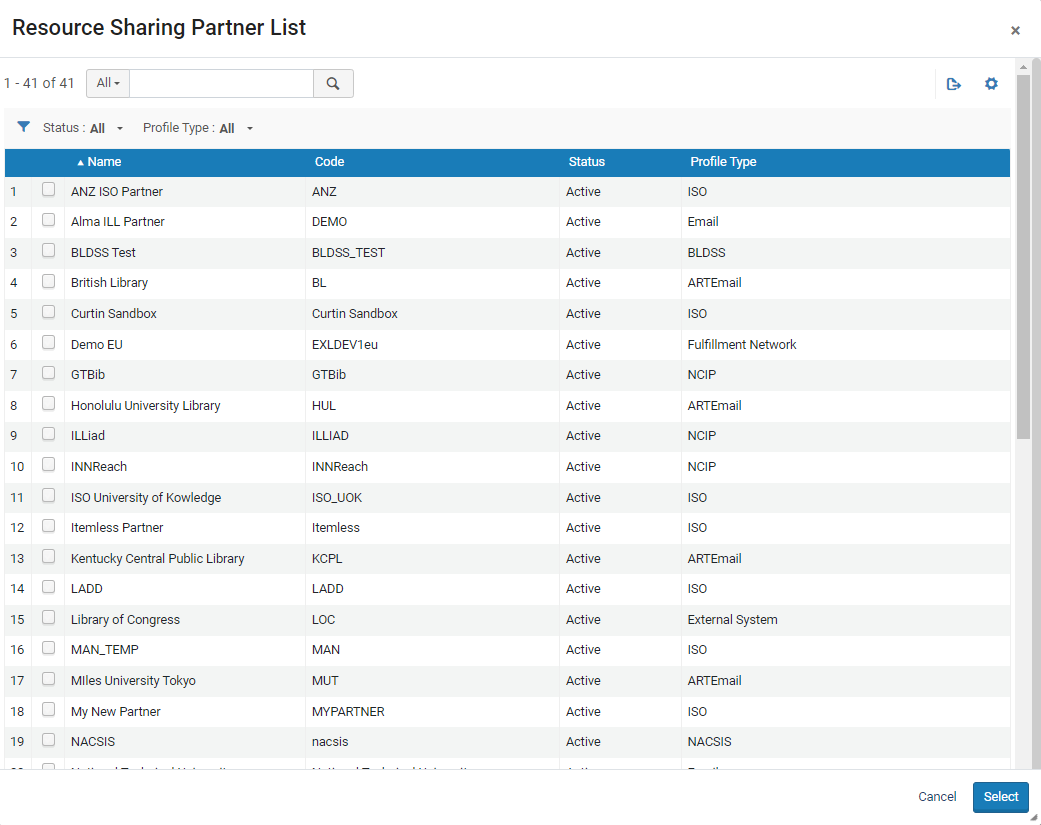 リソース共有パートナーリストページ
- パートナーのチェックボックスを選択してリクエストの勤務表に追加し、選択を選択します。ロケーションプロファイルに関連付けたパートナーを選択すると、リソースシェア取寄せリクエストページに、リソースの検索リンクとともにリクエストが表示されます。リンクを選択して、取寄せリクエストの検索リソースリクエストを送信します。Alma searches the request's partners to verify that they have the resource.Partners that do not have the resource are removed from the request's rota.For details on associating a partner with a locate profile, see the procedure in Resource Sharing Partners.
- リクエストの勤務表に個々のパートナーを追加するには、パートナーを追加を選択します。[リソース共有パートナーリスト]ページが表示され、利用可能なリソース共有パートナーのリストが表示されます。
- To add rota templates: You can configure rotas to be used either in the order in which they are listed (Ordered) or in a random order (Non-ordered), using Fulfillment Configuration (see Configuring Rota Templates).
- 勤務表を追加を選択して、勤務表テンプレートをリクエストに追加します。勤務表テンプレートページが表示され、使用可能な勤務表テンプレートのリストが表示されます。
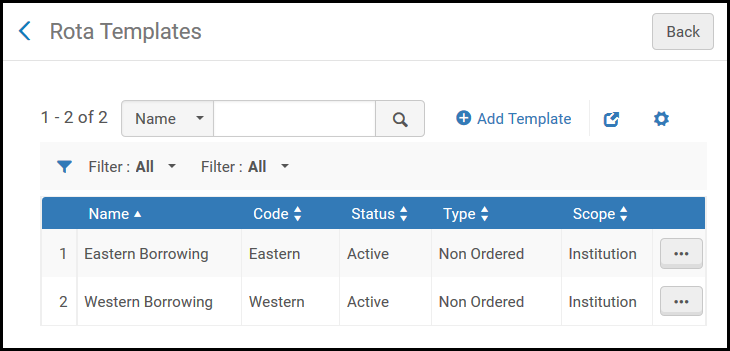
勤務表テンプレートページ - リクエストに追加する勤務表テンプレートのチェックボックスを選択し、選択を選択します。Almaは、リクエストが満たされるまで、リスト内の個々のパートナーにリクエストを送信します。
- 勤務表を追加を選択して、勤務表テンプレートをリクエストに追加します。勤務表テンプレートページが表示され、使用可能な勤務表テンプレートのリストが表示されます。
- 以下のうちの1つを入力してください:
- 保存してリクエストを保存し、フォームを閉じます
- Locate to save the request, close the form, and initiate the process of locating a lender;Locate only appears if partners and/or rota are attached to the request
- Send to send a request message to the partner according to the selected parameters;Send only appears if there is an active partner to which the request can be sent, and the Automatically activate locate profile option is not selected when configuring a resource sharing library (see Configuring Parameters of a Resource Sharing Library)
- Save and Edit to save the request, keep the form open, and add tabs to it in which you can add more details to the request (see Editing a Borrowing Request)
-
If a locally held resource matches the resource that you requested, a warning message appears when you try to save the resource-sharing borrowing request; see Viewing Local Resources for a Borrowing Request below.
-
アイテムは、デフォルトのレコードフォーマットで目録に追加されます。複数のレコードフォーマット(UNIMARCなど)をサポートするようにシステムを設定するか、デフォルトのフォーマットを設定するには、Ex Librisサポートにお問い合わせください。
- リソースシェア図書館への貸出を無効化したISOまたはNCIPピアツーピア貸出パートナーにILL(依頼)が送信された場合、ILL(受付)のステータスは借り手のリクエストを拒否に設定されます。取寄せリクエストのステータスはパートナーによって拒否されましたに変更されます。For more information on inactivating a resource sharing library, see Configuring Parameters of a Resource Sharing Library.
- By default, an expired patron can create a borrowing request.This can by changed by setting the check_for_expired_account parameter to true.For more information, see Configuring Other Settings (User Management).When a request is created for the expired patron, an override warning is displayed to the user.
- Configure a Resource Sharing Borrowing Request rule for the specified resource sharing library (see Configuring Fulfillment Units, Policies, and Terms of Use)
- Modify the Allow Resource Sharing Requesting Policy of the library and/or institution default terms of use (see Adding Fulfillment Policies)
設定されたジョブ表割当ルールに基づいてリクエストに勤務表を添付するには、勤務表割り当ての再計算リンクを選択して、設定されたルールに従って勤務表をリクエストに添付します。For details on configuring rules for a rota, see Configuring Rota Assignment Rules.
検索からの借入リクエストの追加
機関、ネットワーク、またはコミュニティリポジトリのリストから必要なリソースの書誌レコードをコピーすることにより、新しいRS借用タスクを作成できます。そうすることで、書誌情報を手動で入力する手間を省くことができ、アイテムに関する正しい情報を確実に入手できます。
- On the Borrowing Requests page (Fulfillment > Resource Sharing > Borrowing Requests), select Create Request > From Search.スライドパネルにリポジトリ検索ページが開きます。
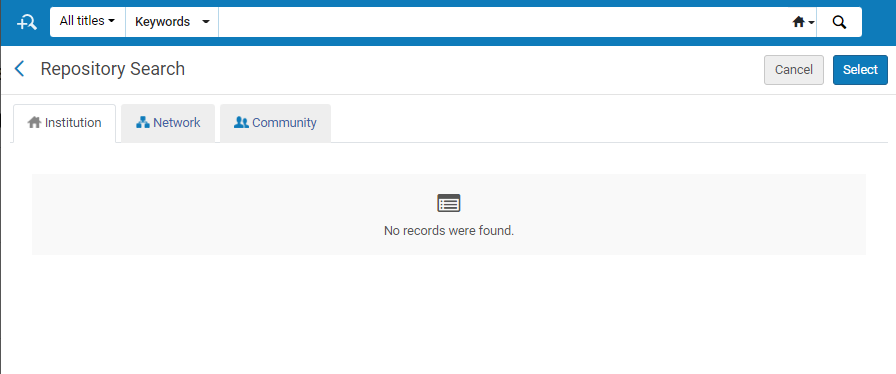 検索ページ:検索から追加
- Search for the item (see Searching in Alma).
- You can select only All titles in the Find box.
- ネットワークゾーンの検索から取寄せリクエストを追加すると、リポジトリ検索ページに取り置きフィールドが表示されます。このフィールドの値は、指定されたリソースを含むネットワーク内のロケーションを示します。
- 必要な項目のチェックボックスを選択し、選択を選択します。The Request Attributes section of the Resource Sharing Borrowing Request page opens in the sliding panel.
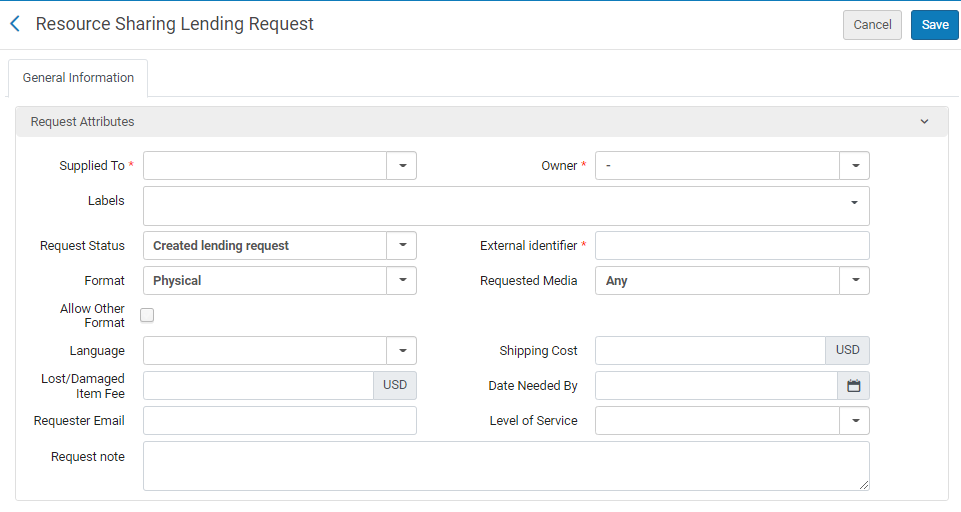 リソースシェア借入リクエストページ - リクエスト属性セクション
- 次のテーブルの説明に従って、リクエスト情報を入力または変更します。
Borrowing Request Attribute Fields フィールド 説明 依頼者 タイトルをリクエストするユーザー。 ラベル 1つ以上のラベル(単一単語の識別子)をリクエストに追加します。 ラベルフィールドを選択して、既存のラベルのリストを表示します。ラベルの1つを選択してリクエストに添付するか、入力を開始して新しいラベルを作成します。
For additional information about labels, see New Layout 2022.
リクエストステータス リクエストのステータスを選択します。以下から選択します。 - スタッフによってキャンセルされました
- 取寄せリクエストを作成
- パートナーによって紛失と宣言されました
- 図書館がデジタル受け取り
- 期限切れ
- 外部取得
- 貸し手チェックイン
- ユーザーへのアイテムの貸出
- 見つかりません
- プロセス内で検索する
- 仲介ユーザー更新
- Overdue request – The request's due date arrived.
- 承認保留中
- 図書館によって冊子として受け取られました
- 送信準備完了
- パートナーによってリコールされました
- 受け取り - 貸出不可
- パートナーによって拒否されました
- 更新リクエストは受け取られませんでした
- 更新リクエスト
- パートナーによって更新されました
- パートナーに破損アイテムをリポート
- パートナーに紛失アイテムをリポート
- リクエストは受け取られました
- リクエストが完了しました - リクエストは取り置き棚に到達する前に配送またはキャンセルされました。
- パートナーにリクエストが送信されました
- ユーザーによって返却されました
- パートナーにアイテムを返却しました
- デジタル配信
- 冊子で発送
- キャンセル回答を待機中
- 提供予定
このフィールドの値は、[リソースシェア取寄せリクエスト]ページのリクエストステータスとして表示されます。
リクエストされたフォーマット リクエストのフォーマットを選択します。 - デジタル
- 冊子
- 冊子返却不可
リクエストされた媒体 リクエストを提供する媒体のタイプ。The values that display in the drop-down field are those configured with a value of True on the Requested Media Definition Mapping Table page (see Configuring Requested Media Definitions). When a request is submitted with a requested media type that was added to the out-of-the-box options (see Configuring Additional Requested Media) and the request is sent to an ISO partner, the partner receives the requested media information in the Request Note field.
他のフォーマットを許可する チェックボックスをオンにすると、リクエストされたフォーマットが利用できない場合、ユーザーは別のフォーマットでアイテムを受け取ることができます。 希望する送信方法 アイテムの送信方法を選択します。次のオプションから選択します。 - アリエル
- Eメール
- ファックス
- FTP
- オデッセイ
必要期限 カレンダーダイアログボックスからアイテムが必要期限を選択します。 配送先 アイテムの配送先のロケーション。リクエストのARTEmailパートナーがアドレスの追加をサポートしているときに表示されます。 選択する場所:
- 図書館に配送 - 受け取りロケーションフィールドに示されている図書館に配送します。
You can create relationships between libraries to enable the libraries to deliver items to each other (see Configuring Fulfillment Relationships).
- 代替住所 - 代替住所フィールドに示された住所に配送します。フォーマット値がデジタルの場合、このフィールドにはEメールアドレスが含まれます。The Alternative address option displays only if rs_support_add_service is set to True on the Customer Parameters Mapping Table (see Configuring Other Settings).
リクエストされた受け取りロケーション 受け取りするアイテムのロケーションを選択します。The default value is the value selected in the Default Pickup Location field on the Organization Unit Details page (see Configuring Fulfillment Relationships). The values displayed in the drop down list are the libraries that are configured with the Deliver to option on the Organizational Units Relations Setup page (see Configuring Fulfillment Relationships).
If personal delivery is configured for the specified patron, the Personal Delivery option displays with the Home Address and/or Work Address sub-options, as configured on the patron's User Details page (see Adding User Contact Information).
このフィールドは、デジタル取寄せリクエストを行う場合でも必須であることに注意してください。
著作権ステータス 著作権ステータスを選択するか、ドロップダウンリストの右側にある著作権の計算ステータスを選択します Selecting Calculate Copyright Status automatically activates the digitization and copyright rules (see Configuring Digitization and Copyright Rules) and applies the calculated value to the request.計算された値は、このページから上書きされます。
Primoからデジタルでリクエストされたリクエストが送信された場合にも、同じデジタル化と著作権のルールが自動的に適用されることに注意してください。どちらの場合でも、手動の著作権の承認が必要であるとルールが判断した場合、リクエストを貸し手に送信することはできません。
This Copyrights Status option appears only if rs_borrower_copyright_management is set to True on the Customer Parameters Mapping Table (see Configuring Other Settings).
If the request is set to No copyright restriction, the request is sent with Copyright compliance set to US:CCL.
If the request is set to Copyright approved, the request is sent with Copyright compliance set to US:CCG.
A request that is set to Copyright not approved cannot be sent.
このフィールドは、デジタルフォーマットでリクエストされたリクエストにのみ適用されます。
配送コスト リクエストの配送コストを入力します。表示される通貨は、機関のデフォルト通貨です。 If a shipping cost borrower rule is configured, it is applied to the shipping cost of the request (see Configuring Shipping Cost Borrower Rules).
資金 受入資金に取寄せリクエストを割り当てることができます。アクティブなリソースシェア図書館で使用が許可されているアクティブなリソースシェア資金のみがオプションとして利用できます。For more information, see Assigning Borrowing Requests to Funds. 支払い意思あり ユーザーがアイテムの代金を支払う意思がある場合に選択します。 著作権規約に同意する ユーザーが著作権条件に同意する場合に選択します。 ユーザー情報が必要です ユーザーに関する詳細情報が必要であることを示す場合に選択します。 リクエストノート リクエストのノートを入力します。リクエストを編集するとき、このフィールドには配送アイテムのノートが含まれます。これは、NCIPソースシステムによってNCIPメッセージの配送ノートとしてAlmaに送信されます。配送ノートは次のフォーマットで表示されます。 ||配送ノート||<text of shipping note>||配送ノート||発送ノートはOCLCナビゲーターなどのNCIP実行者により、リソース自体、依頼者、リクエストされたロケーションや受け取りロケーションに関する情報など、発送されたアイテムに関する追加情報で図書館システムをアップデートするために使用されます。
When a request is submitted with a requested media type that was added to the out-of-the-box options (see Configuring Additional Requested Media) and the request is sent to an ISO partner, the partner receives the requested media information in this field.最大手数料 取寄せユーザーがアイテムの支払いを希望する最大手数料。 -
Select Add Partners to add a partner to the request's rota.See To add partners above.
- Select Add Rotas to add a rota template (group of partners).To add rota above.
- 以下のうちの1つを入力してください:
- Locate to save the request, close the form, and initiate the process of locating a lender;Locate only appears if partners and/or rota are attached to the request
- Send to save the request, close the form, and send a message to the partner according to the selected parameters;Send appears only if there is an active partner to which the request can be sent, and the Automatically activate locate profile option is not selected when configuring a resource sharing library (see Configuring Parameters of a Resource Sharing Library)
- Save and Edit to save the request, keep the form open, and add tabs to it in which you can add more details to the request (see Editing a Borrowing Request)
- 保存してリクエストを保存し、フォームを閉じます
If a locally held resource matches the resource that you requested, a warning message appears when you try to save the resource-sharing borrowing request; see Viewing Local Resources for a Borrowing Request below.
Adding a Request From an External Resource
外部システム(つまり、Almaおよび現在の機関の外部)で目録化されたリソースの取寄せリクエストを作成できます。この機能を使用すると、オペレータは既存のレコードを使用して、リクエストの説明を手動で入力する代わりに、目録レコードまたは別の機関を使用して必要なリソースを説明できます。外部でロケーションプロファイルを使用してリソースを検索できます。
- [借入リクエスト]ページ([フルフィルメント]>[リソースシェア]>[借入リクエスト])で、[リクエストの作成]>[外部リソースから]を選択します。スライドパネルに[外部リソース検索]ページが開きます。
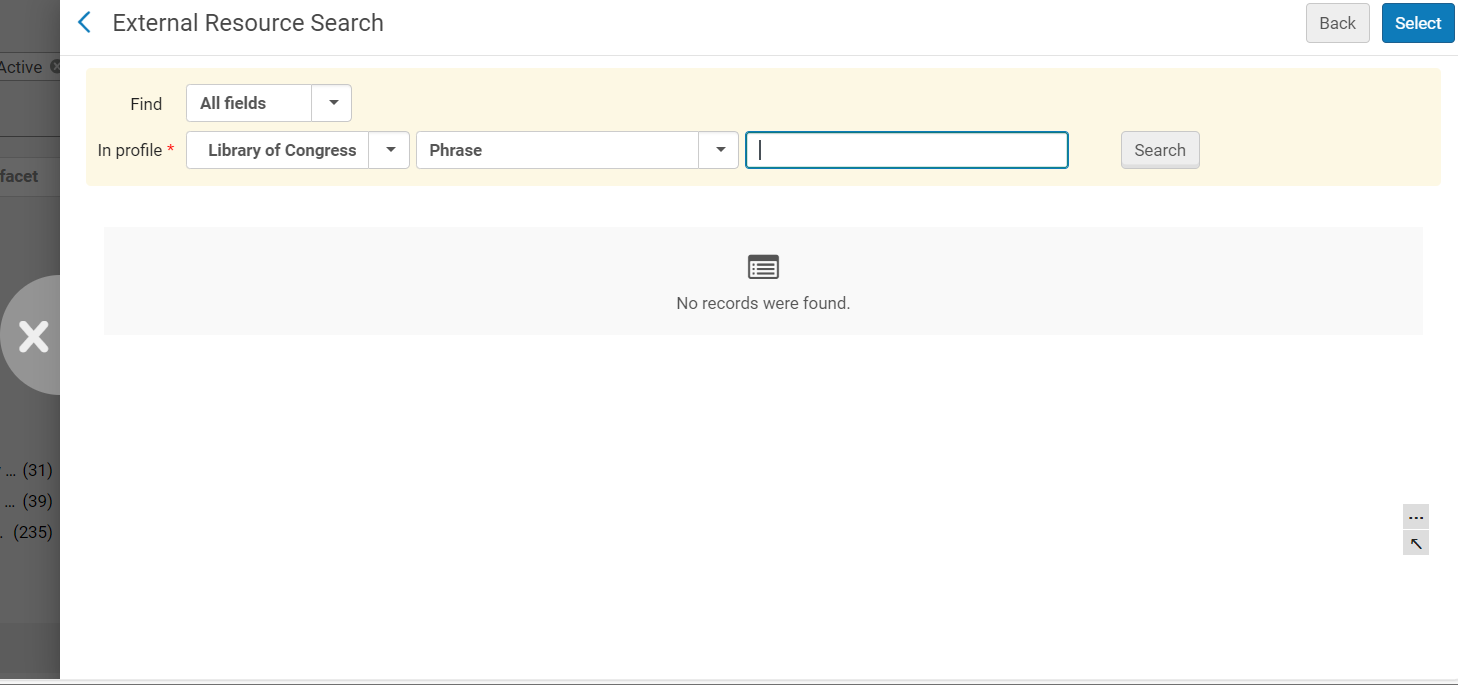 外部リソースの検索ページ
- In the Find field, select the fields of each catalog record to include in the search:All fields, or just ISBN or ISSN.
- プロファイル内フィールドで、条件を検索する外部プロファイルを選択します。The displayed list of profiles includes the external search profiles configured on the External Search Profile List page; see Configuring External Search Profiles.
- If you selected All fields in the Find field, in the next field, select whether you want to search for an exact phrase or keywords.ISBN または ISSN を選択した場合、このフィールドは使用できません。
- Select Search.The search is performed, and the results display on the page.
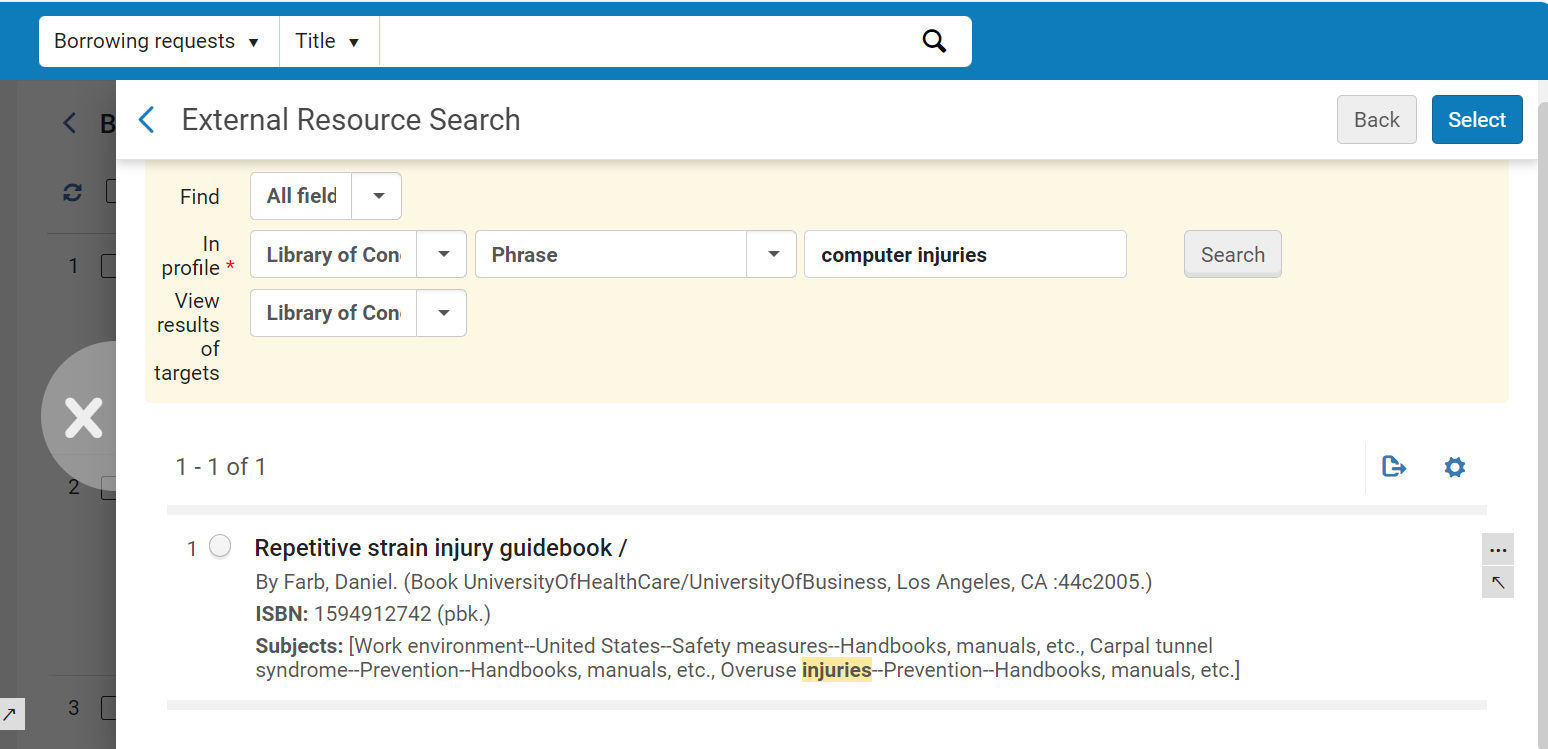 外部リソースを見つけるページ - 検索結果
- 借入リクエストを作成するリソースを選択し、選択を選択します。[リソースシェア借入リクエスト]ページが開きます。
- 上で説明したように、一般情報タブとパラメータータブの両方でフィールドを構成します。
- 以下のうちの1つを入力してください:
- 保存してリクエストを保存し、フォームを閉じます
- Locate to save the request, close the form, and initiate the process of locating a lender;Locate only appears if partners and/or rota are attached to the request
- Send to save the request, close the form, and send a message to the partner according to the selected parameters;Send appears only if there is an active partner to which the request can be sent, and the Automatically activate locate profile option is not selected when configuring a resource sharing library (see Configuring Parameters of a Resource Sharing Library)
- Save and Edit to save the request, keep the form open, and add tabs to it in which you can add more details to the request (see Editing a Borrowing Request)
If a locally held resource matches the resource that you requested, a warning message appears when you try to save the resource-sharing borrowing request; see Viewing Local Resources for a Borrowing Request below.
リソースシェア図書館への貸出を無効化したISOまたはNCIPピアツーピア貸出パートナーにILL(依頼)が送信された場合、ILL(受付)のステータスは借り手のリクエストを拒否に設定されます。取寄せリクエストのステータスはパートナーによって拒否されましたに変更されます。For more information on inactivating a resource sharing library, see Configuring Parameters of a Resource Sharing Library.
借入リクエストのローカルリソースの表示
ローカルリソースが存在するが、いずれにせよリソース共有リクエストを作成している場合、リクエストを保存すると、自己所有権の警告メッセージが表示されます。この警告メッセージからローカルリソースを表示できます。これを選択した場合は、一致するローカルリソースにローカル保留リクエストを配置することを決定できます。この場合、作成していたリソース共有借入リクエストは作成されません。または、いずれの場合も借入リクエストを作成します。
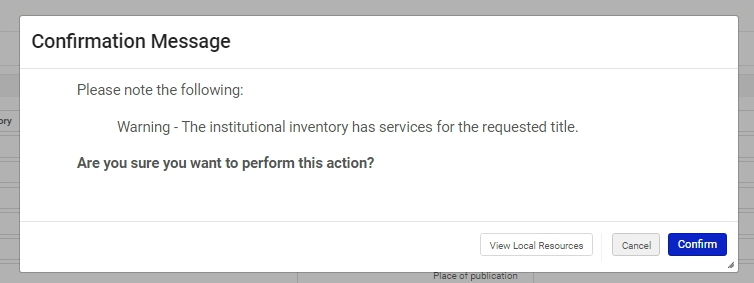
このメッセージが表示されたときに、借入リクエストを作成する場合は、確認を選択します。警告メッセージが閉じ、リクエストが作成されます。それ以外の場合は、次のようにします。
- Select View Local Resources.A listing of the local resource opens.
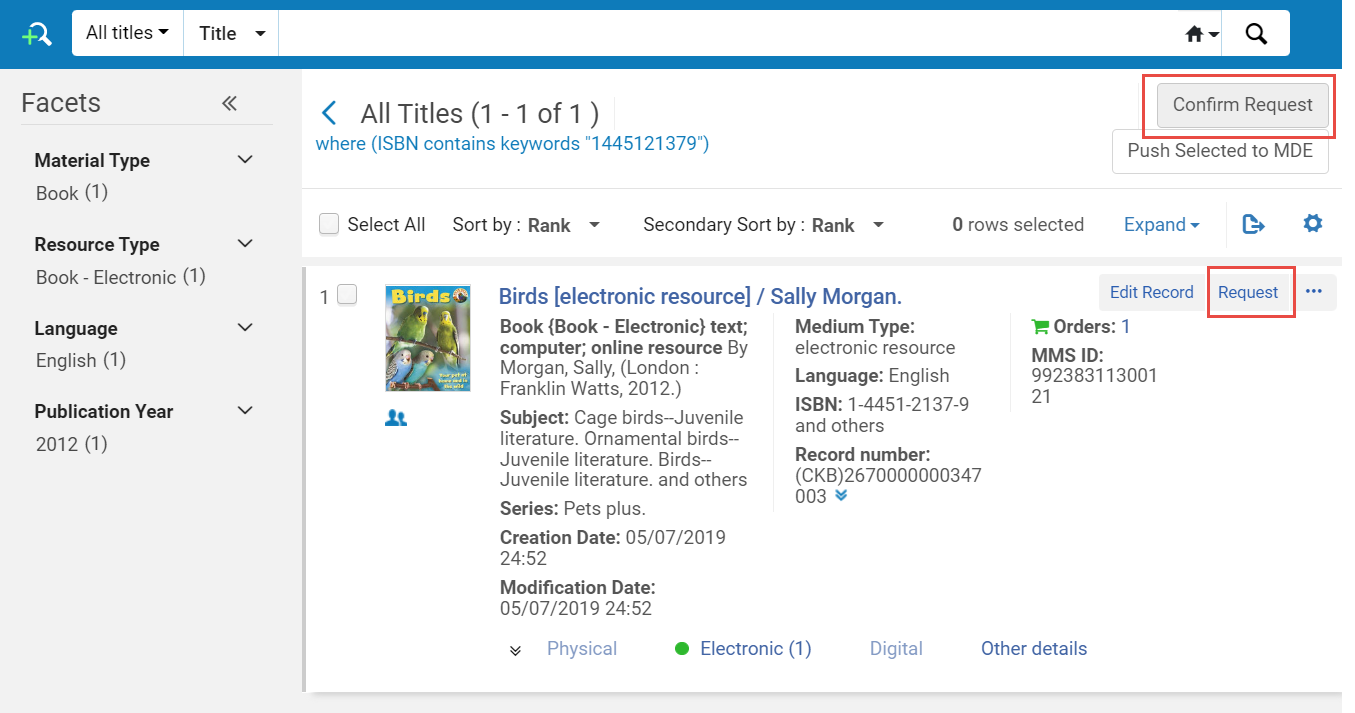 ローカルリソースリスト
- 以下のうち一つを実行して下さい:
- 借入リクエストを中止し、代わりにローカルの保留リクエストを作成するには、リクエストを選択します。A Create Request form opens.送信を選択して、ローカルの保留リクエストを作成します。
- ローカル保留リクエストを発行するのではなく、借入リクエストの作成を続行するには、リクエストの確認を選択します。リソース共有借入リクエストが作成されます。
