取寄せリクエストの管理
リソースシェア取寄せリクエストのジョブ
This page explains how to find specific borrowing requests in Alma that require your attention, and the various actions you can take during the management process of each borrowing request.これには、処理が必要な取寄せリクエストの検索、リクエストパラメータの表示、リクエストの削除、ラベルの管理などが含まれます。また、タスク割り当ての管理、利用者へのクエリや一般メッセージの送信、リクエストの拒否/再提供、取寄せリクエストの変換、期限切れの借入リソースの管理、一括スリップの印刷も含まれます。For more information on resource sharing including locating items for resource sharing, working with resource sharing partners, working with borrowing and lending requests and contributing to the resource sharing directory, see Resource Sharing.
For information on accessing resource sharing requests in Rapido, see Managing Rapido Borrowing Requests.
- フルフィルメントサービスオペレータ(リソースシェア図書館の範囲内)
- フルフィルメントサービス管理者(リソースシェア図書館の範囲内)
既存のリソース共有借入リクエストのワークフローは、借入リクエストタスクリスト(フルフィルメント>リソースシェア>リクエストの借入)で管理できます。この記事では、注意が必要な特定の借入リクエストを見つける方法と、各借入リクエストの管理プロセス中に実行できるさまざまなアクションについて説明します。
ほとんどのシステムでは、ほとんどの借入リクエストは、将来の貸出図書館に到着するまで自動的に処理されますが、さまざまな理由で手動でのアクションが必要なものもあります。通常、これらはステータスやその他のプロパティで識別できます。
処理が必要なリクエストの検索
You can use the facets filtering system, the sort feature, and the secondary search to help you find the tasks you need to work with.二次検索は、リソース共有タスクリストの特別な機能です。さらに、永続メニューの[タスクリスト]オプションにある事前定義されたフィルターの1つから[借入リクエスト]ページを開くことができます。
ファセットを使用した借入リクエストのフィルタリング
ページの左側にあるファセットを使用して結果をフィルタ処理できます。ファセットには以下が含まれます。
-
Labels – Labels that are attached to requests
-
アクティブパートナー–リクエスト勤務表のアクティブパートナー
-
Activity Status – Active or Completed (You can remove a specific status from the display of Active records in the task list by enabling the row in the Borrowing Requests Inactive Filters - see Configuring Borrowing Request Inactive Filters.)
-
ステータス–貸出リクエストのステータス。
The following statuses indicate that the final step in the request is completed.これらのステータスのリクエストは削除される場合があります。
-
パートナーによるキャンセル
-
ユーザーによるキャンセル
-
スタッフによるキャンセル
-
図書館がデジタルで受入
-
期限切れ
-
リクエスト完了 - これは削除前の最終ステータスであり、手動で設定できます。リクエストがISOパートナーに対するものである場合、ステータスがリクエスト完了に切り替わる前にパートナーからの応答が必要です。
以下は、リクエストプロセスの非最終(処理中)ステータスです。
-
Conditional – Appears only when Conditional is enabled in the borrowing workflow profile.See Adding Workflow Profiles.
-
貸出リクエストを作成
-
破損 連絡済み-取寄せワークフロープロファイルで破損 連絡済みが有効になっている場合にのみ表示されます。See Adding Workflow Profiles.
-
パートナーによって紛失と宣言されました
-
第三者にエクスポート済み
-
外部取得
-
貸し手チェックイン
-
ユーザーへのアイテムの貸出
-
見つかりません
-
プロセス内で検索する
-
紛失 連絡済み-取寄せワークフロープロファイルで紛失 連絡済みが有効になっている場合にのみ表示されます。See Adding Workflow Profiles.
-
仲介ユーザー更新
-
延滞リクエスト
-
承認保留中
-
図書館によって冊子として受け取られました
-
送信準備完了
-
パートナーによってリコールされました
-
受け取り - 貸出不可
-
パートナーによって拒否されました
-
更新リクエストは受け取られませんでした
-
更新リクエスト
-
パートナーによって更新されました
-
破損したアイテムをパートナーにリポートする-破損 連絡済みと同じ意味です。
-
紛失したアイテムをパートナーにリポートする-紛失したアイテムと同じ意味です。
-
リクエストは受け取られました
-
パートナーにリクエストが送信されました
-
ユーザーによって返却されました
-
パートナーにアイテムを返却しました
-
デジタル配信
-
冊子で発送
-
キャンセル回答を待機中
-
提供予定
-
-
作成日–リクエストが作成された日付。可能性のある値:
-
今日–現在の日付に作成されたリクエスト
-
2~3日前–現在の日付の2~3日前に作成されたリクエスト(今日と昨日を除く)
-
4~7日前–現在の日付の4~7日前に作成されたリクエスト(つまり、上記の3つのオプションを除く)
-
8~30日前–現在の日付の8日前から1か月前に作成されたリクエスト(つまり、上記の4つのオプションを除く)
-
それ以前–現在の日付の1か月以上前に作成されたリクエスト
-
-
アップデート日–リクエストがアップデートされた日付。可能な値は、作成日ファセットの値と同じです。
-
リクエストされたフォーマット–リクエストされたアイテムのフォーマット。Options are:Digital,Physical, and Physical non-returnable
-
提供されたフォーマット–リクエストされたアイテムが提供されたフォーマット。Options are:Digital,Physical,Physical non-returnable and Undefined
-
期日–アイテムの配送期限。可能な値は、作成日ファセットの値と同じです。
-
関心がなくなった日付–依頼者がアイテムにもはや関心がないことを示した日付
-
ユーザー情報が必要–ユーザーが必須情報を提供していないリクエスト
-
General Messages – Requests which contain general messages of Type = Received.You can dismiss and activate general messages from the request's General Messages tab (see Sending a General Message With a Resource Sharing Request).
-
所有図書館–リクエストされたリソースを所有する図書館
-
パートナーからのメモ–貸出機関からのメモ付きのリクエスト
-
Pickup Location –Libraries, reading rooms, and personal delivery are all included in the facet
-
サービスのレベル-リクエストに割り当てられたサービスのレベル
-
ユーザーグループ - 依頼者のユーザーグループ
-
Assignee – The staff person to whom the request is assigned (including "Unassigned")
-
イベント名– Alma による要求の更新をサポートするブローカーシステム(BLDSS など)によって要求に添付されるステータス
二次検索
二次検索機能を使用すると、現在のリクエストリストで特定の条件を満たすリクエストを検索できます。For example, you could search for a particular author's name in order to find all the requests in the list related to books by that author, and hide all the other requests in the list.
Unlike the primary search feature, which is always available in the persistent search box (see Alma User Interface), the secondary search does not cancel previously selected facets.
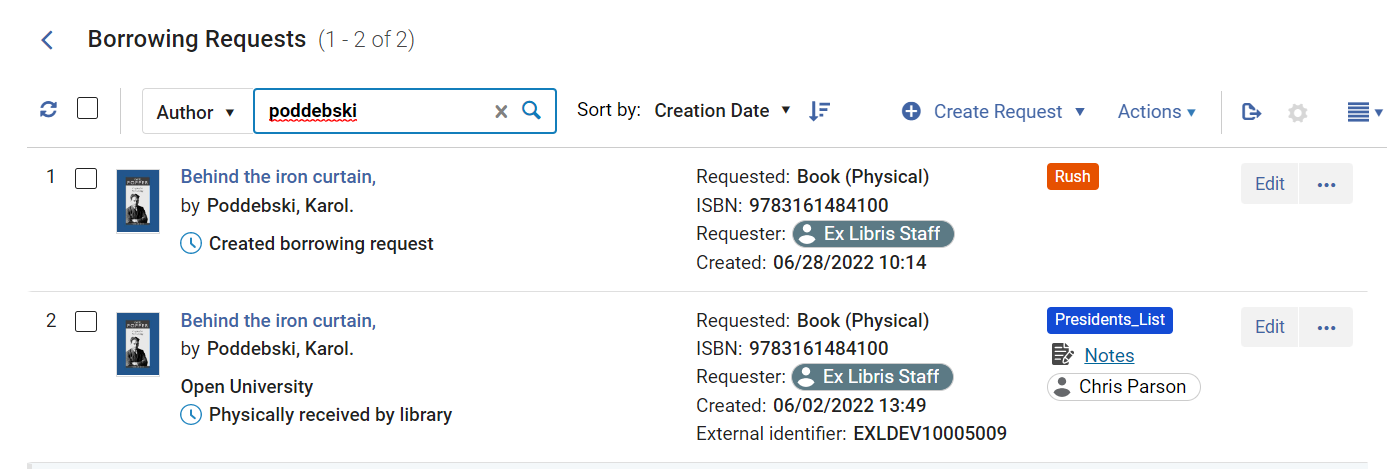
- リクエストリストの上部にある二次検索コントロールのドロップダウンリストで、検索するフィールドを選択します。
- テキストボックスに、検索するテキストを入力します。
- Press Enter or select
 .The search is performed; the request list is updated as required so that only those requests that meet the search requirements appear in it.
- In the secondary-search controls, select the x.
事前定義されたタスクリストフィルター
You can select any of the following tasks in the Tasks List ( ) in the persistent menu (see Tasks in the Task List) to open the Borrowing Requests page with a preset filter:
- 取寄せリクエスト - 新規 - パートナー無し
- 取寄せリクエスト - 延滞
- パートナーによってキャンセルされた貸出リクエスト
- リコールされた取寄せリクエスト
- ユーザーによって返却された取寄せリクエスト
- 有効な一般メッセージ付き取寄せリクエスト
- 有効な注記付き取寄せリクエスト
リクエストのパラメータの表示
既存の借入リクエストの完全なリクエストフォームを表示できます。ステータスによっては、リクエストを編集できる場合もあります。To view the form, select View or Edit(whichever appears).フォームがスライドパネルで開きます。For additional information, see Editing a Borrowing Request.
リクエストのステータスが次のいずれかである場合、表示が表示されます。
- パートナーにアイテムを返却しました
- リクエストが完了しました-リクエストは取り置き棚に到達する前に配送またはキャンセルされました。
- デジタル配信
- パートナーによりキャンセルされました
- キャンセルがリクエストされました
Otherwise,Edit appears.
貸出リクエストのワークフローアクション
既存の借入リクエストに対してアクションを実行し、ステータスを変更し、タスクリストから削除し、ラベルを管理することで、既存の借入リクエストを管理できます。
Performing an Action
リクエストのその他のアクションメニューから、個々の借入リクエストに対してアクションを実行できます。使用可能なオプションは、リクエストのタイプとそのステータスによって異なります。
- Optionally configure the parameter check_patron_duplicate_borrowing_requests; see Configuring Other Settings.
- 次の表の説明に従って、選択したリクエストに対して実行するアクションを選択します。
リソースシェア取寄せリクエストページリンク
リンク 説明 アサイン先 Assign a task to a user (see Managing Task Assignments below). キャンセル リクエストのキャンセル次の場合にのみ表示されます。 - リクエストはまだアクティブである
- リクエストは貸出のステータスを持っていない
- リクエストは配送されていない
- パートナーが存在しないか、設定されているアクティブなパートナーがキャンセル機能をサポートしている
When canceling a request, the request's status becomes Canceled by staff.
Primoの[マイアカウント]タブでリクエストを削除することもできます。When doing so, the borrowing request's status becomes Canceled.Primoでキャンセルされたアイテムが取り置き棚にある場合:
- 取り置きリクエストはキャンセルされます
- アイテムは期限切れの取り置き棚に移動します
- リクエストは[完了]としてマークされます
For details on the Primo My Account tab, see My Account.
リクエストがキャンセルされると、メッセージがユーザーに送信されます。レターは、フルフィルメントキャンセルリクエストレター(Eメール)またはキャンセルリクエストレター(SMS)形式です。To configure the message, see Configuring Alma Letters.
リコールをキャンセル 貸出リコールのEメール通知を受け取った利用者は、リコールをキャンセルできます。これにより、期日はリコール前の元の日付に戻ります。Cancel Recall is available if the request partner's lending workflow profile has a Cancel Recall action active.
ユーザーに貸出 ユーザーが冊子返却不可アイテムを受入したことを示し、リクエストを完了します。 条件付き返信 貸し手からISOメッセージが送信されると、取寄せリクエストが条件付きステータスに変わり、返信日フィールドが表示されます。このアクションを選択すると、貸し手が指定した条件に応じてはいまたはいいえを選択するウィンドウが表示されます。回答がはいの場合、リクエストのステータスは送信済みに変わり、返信日フィールドはクリアされます。回答がいいえの場合、ステータスはパートナーにより拒否に変わり、勤務表内の次のパートナーに進みます。 破損したアイテム 貸し手に電子メールまたはメッセージを送信し、ステータスを破損 連絡済みに設定します。次の場合にのみ表示されます。
- 電子メール(電子メールが送信される)または ISO パートナー(メッセージが送信される)の場合。
- リクエストが図書館によって受入され(「冊子返却不可」としてではなく)、まだパートナーに返されていない場合
- 取寄せワークフロープロファイルで破損 連絡済みが有効になっている場合。See Adding Workflow Profiles.
重複 既存のリクエストに基づいて新しいリクエストを作成します。その後、[リソースシェア取寄せリクエスト]ページで必要に応じてリクエストを変更できます。For details on the displayed fields on this page, see the Resource Information Fields table in Adding a New Book or Journal Article and Request Attribute Field table in Creating a Borrowing Request.
リソースシェア取寄せリクエストを複製すると、次のフィールドの値が新しいリクエストにコピーされます。
- タイトル
- ISSN、ISBN(メタデータフィールド)
- 著者
- 依頼者
- 所有者
- リクエストステータス
- リクエストされたフォーマット
- 配送先
- リクエストノート
発送コストを編集する これにより、ユーザーは、詳細ペインまたは借入リクエストの完全な編集フォームを開かなくても、配送料を更新できます。このオプションは、完了したリクエストにも使用できます。 外部取得 GetItNowサービスを使用してリクエストを送信します。See Sending a Request for a CCC GetItNow Resource. 一般メッセージ Send a general message with a borrowing request to a lender (see Sending a General Message With a Resource Sharing Request). リソースを見つける 取寄せを見つけるプロセスを手動でアクティブにします。このアクションは、リクエストにパートナーまたは勤務表が割り当てられている場合にのみ表示されます。See Borrowing Locate Process. 紛失 貸し手にメッセージまたは電子メールを送信し、ステータスを紛失 連絡済みに設定します。次の場合にのみ表示されます。 - 電子メール(電子メールが送信される)または ISO パートナー(メッセージが送信される)の場合。
- リクエストが図書館によって受入され(「冊子返却不可」としてではなく)、まだパートナーに返されていない場合
- 取寄せワークフロープロファイルで紛失 連絡済みが有効になっている場合。See Adding Workflow Profiles.
If the rs_use_tou_for_lost_item parameter is enabled (Configuration > Fulfillment > Other Settings) fines and fees will be added to the patron, based on the loan terms of use.See Managing Lost Loans for more information.
購入リクエスト
貸出リクエストの情報を使用して購入リクエストを作成できます。取寄せリクエストが非アクティブの場合、購入リクエストフォームに直接移動します。取寄せリクエストがアクティブな場合、取寄せリクエストをキャンセルするか、購入リクエストとともに取寄せリクエストをアクティブのままにするかを選択するウィンドウが表示されます。
購入リクエストのリクエスターフィールドには、次のように入力されます。
- If the resource sharing request is canceled, the field is populated with the requester from the original borrowing resource sharing request.
- リソースシェアリクエストが非アクティブであるか、アクティブのままである場合、依頼者フィールドにはログインしているユーザーのIDが入力されます。
You can also create a resource sharing request from a purchase request as described in Working with Purchase Requests.
リクエストを再アクティブ化 取寄せリクエストの再開は、次の場合に表示されます。
- The Operator has the Reactivate privilege in the scope of the owner of the request.
- アクティブなパートナーが存在する場合は、取寄せワークフローに再有効化ステップがある必要があります。
- ステータスは、CANCELLED、REQUEST_COMPLETED、CANCELLED_BY_PATRON、CANCEL_REQUESTED、REJECTED、EXPORT_TO_THIRD_PARTYのいずれかです。
このオプションを選択すると、完了したピアツーピアのリソースシェアリクエストが再アクティブ化されます。一時的なアイテムは、プロセスのステータスがリソースシェア内に設定された以前のバーコードを使用して再作成されます。アイテムの図書館とロケーションは、アイテムが最初に作成されたときと同じ値に設定されます。アイテムがまだ貸出になっていない場合、取り置きリクエストが再開されます。
When reactivating, two options appear on the confirmation window:Reactivate loan and Send general message.貸出が開始されていない場合、リクエストのステータスはリクエスト再開です 。リクエストの元の外部IDは維持されます。
勤務表割り当てを再計算する To attach a rota to a request based on configured rota assignment rules, select the Recalculate Rota Assignment link to attach the rota to the request according to the configured rules (see Configuring Rota Assignment Rules).This process also performs a locate process automatically if the Automatically activate locate profile option is selected for this resource sharing library (see Configuring Parameters of a Resource Sharing Library). リリース割り当て Remove the assignment of the task and leave it unassigned (see Managing Task Assignments) below. 勤務表割り当てを削除して再計算する 一回のアクションですべてのパートナーを削除し、再計算して、新しい勤務表を作成します。
If request was already sent to a partner and you select this option, the partner is not removed from the rota and it remains the active partner.残りの勤務表のみが削除されます。
リコール そのリソースに対してローカル取り置きリクエストが送信されたときに、配送されたアイテムを呼び出します。リコール機能は、ISOパートナーとEメールパートナーの両方に適用できます。 リクエストされたリソースに、リモート貸出ユーザーに配送されたコピーとローカルのユーザーに貸出されたコピーの両方がある場合、最初にどの貸出をリコールするかを設定できます。The parameter that controls this choice,rs_prefer_recall_method, defaults to False(see Configuring Other Settings).Trueに変更すると、ローカルに貸出されたコピーではなく、配送されたアイテムが最初にリコールされます。
Recalls are supported if the borrowing workflow profile includes the Recall item action (see Configuring Workflow Profiles).In that case, borrowing requests display a new action,Recall.
For more information about the recalling resource sharing requests, see the Resource Sharing Request Recalls video (7:33 mins).
処理を開始する (RECEIVE) Select a receiving format and enter a temporary barcode to enable receiving the resource (see Resource Sharing Partners).If the generate_resource_sharing_temp_barcode configuration setting is set to true, the temporary barcode is displayed automatically (see Configuring Other Settings). See Receiving Items.
拒否 Mark a request rejected by the lending institution as Rejected (see Rejecting a Borrowing Request).拒否は、ワークフローオプションの拒否が有効になっている場合にのみ表示されます。When rejecting a lending request you must enter a reason.理由は仮借図書館に転送されるため、以下の一般的な理由セットが使用されます。 In Use On Loan
InProcess
紛失
NonC irculating
Not Owned
OnOrder
Volume Issue Not Yet Available
At Bindry
欠けています
Not On Shelf
On Reserve
Poor Condition
Costs Exceeds Limit
料金
Prepayment Required
LacksCopyright Compliance
Not Found As Cited
Locations Not Found
OnHold
Policy Problem
Mandatory Messaging Not Supported
Expiry Not Supported
Requested Delivery Services NotSupported
Preferred Delivery Time Not Possible
削除 リクエストを削除します。Appears only when the request's status is one of the following: - パートナーにアイテムを返却しました
- リクエストが完了しました-リクエストは取り置き棚に到達する前に配送またはキャンセルされました。
- デジタル配信
- パートナーによりキャンセルされました
- キャンセルがリクエストされました
更新 リソースシェア取寄せリクエストを更新します。ダイアログボックスが表示されます。ここで、リクエストの期日を入力し、必要に応じて、ノートを[内部ノート]フィールドまたは[パートナーへのノート]フィールドに入力します。For details on these fields, see step 3 in Rejecting a Borrowing Request.The request status is changed to Renewed by Partner.For more information, see Managing Borrowing Renewals. This option appears when Staff renewal is selected for lending requests in the Resource Sharing Lending Workflow Profile (see Configuring Workflow Profiles).
リクエストが更新されると、メッセージがユーザーに送信され、更新手数料が請求される場合があります。レターは、Ful取寄せ情報レターです。To configure the message, see Configuring Alma Letters.A resource sharing renew fee is set as part of a fulfillment policy; see Adding Fulfillment Policies
For more information about requesting renewal of a borrowing request, see the ISO ILL: Request Renewal video (10:06 mins).
Request Renew 次の条件で、リソースシェア取寄せリクエストを更新します。
- スタッフ更新が有効になっているリソースシェア貸出ワークフロープロファイルが存在する。
- パートナーはフルフィルメントネットワークの一部ではありません。
- アイテムは到着済である。
- アイテムは返却されていない。
ダイアログボックスが表示され、リクエストの期日とリクエストのノートタブページに表示されるオプションのノートを入力します。
リソースシェア貸出ワークフロープロファイルで更新回答およびスタッフ更新オプションが選択されている場合、リクエストステータスはリクエスト更新に変更されます。For details on workflow profiles, see Configuring Workflow Profiles.
リクエストが更新されると、メッセージがユーザーに送信され、更新手数料が請求される場合があります。レターは、Ful取寄せ情報レターです。To configure the message, see Configuring Alma Letters.A resource sharing renew fee is set as part of a fulfillment policy; see Adding Fulfillment Policies.
ワークフロープロファイルで更新回答が選択されていない場合、リクエストはリクエスト更新リンクを選択した後に自動的に更新されます。リクエストのステータスはパートナーによって更新であり、更新リンクは表示されません。このオプションは、受入ステータスのリクエストに対して表示されます。
ユーザーのEメールを再送信する ドキュメント配送を伴うデジタルリクエストの場合、ユーザーにEメールが再送信される場合があります。 Resupply Request
For Rapid ILL document deliveries, after a request is completed, Alma enables you to request a new copy of the original request in case it was not properly received.This action reopens the request on the borrower's side for RapidILL requests once the request is complete.
このアクションは1回のみ使用でき、貸出図書館がリクエストを送信してから7日間有効です。
See Resupplying a Request for more information.
返却 リクエストが図書館によって受入され(「冊子返却不可」としてではなく)、パートナーにまだ返されていない場合に表示されます。If the borrowing Workflow Profile for the partner includes the Lender check in option, the request status is changed to Returned item to partner (see Configuring Workflow Profiles).If the resource sharing material is returned at a circ desk that is not at the Resource Sharing library and needs to go in Transit to the Resource Sharing library for handling the return to the lending partner, the request will be in status Returned by patron. The Resource Sharing Return Slip Letter is printed when returning a borrowing item to the lender.For more information, see Configuring Alma Letters.
For more information about the returning items to the lender, see the ISO ILL: Lender Checked-in Message video (8:35 mins).
送信 ARTEmailまたはISOパートナーが設定されている場合にのみ表示されます。Opens the Resource Sharing Borrowing Parameters page, where you configure details to be sent to the partner (see Sending a Borrowing Request).The parameters displayed are those selected for the partner during the partner configuration process (see Resource Sharing Requests). ユーザーにEメールを送信 このアクションを使用して、借用タスクリストリクエストからパートナーに直接電子メールを送信します。This option eases workflows, such as when a borrowing library wants to ask a question or for any type of messages such as a thank you note.これらのメッセージは、将来の参照のためにリクエストに保存されます。
Correspondence can be initiated using the Send email to partner action or from the Start Communication button on the Communications tab (see Communicating with Partners).
Send Query to Patron Display the query types configured on the Patron Query Types Code Table page (see Configuring Patron Query Types).The Email Message dialog box appears, enabling you to select the email template you want to use for the query.ダイアログボックスには、ユーザーへのクエリレター(QueryToPatronLetter)に含めるフリーテキストノートである[ユーザーへのノート]フィールドも含まれています。[ユーザーへのクエリ]のテンプレートタイプが1つしかない場合、ダイアログボックスが表示され、ユーザーへのノートフィールドのみが入力可能になります。For additional information on this option, see Sending a Query to the Patron, below. For details on system behavior when selecting this option, see Configuring Patron Queries.
ステータスクエリ 取寄せ機関にステータスのアップデートをリクエストします。これはISOパートナーにのみ適用されます。
The returned lender ISO status is recorded in a note.各ISOステータスは、次のAlmaリクエストステータスに対応しています。
- Not supplied - Rejected the borrower request, Locate failed, Expired
- Pending - Created lending request, Being processed, Will Supply, Non expiring
- In Process - Staff renewal, Renewal response
- Cancel Pending - Cancel reply
- Canceled - Canceled
- 配送済み - 冊子で配送、デジタル配信
- Received - Received by partner, Renewal Accepted (Lending request that was renewed)
- 更新保留中-更新リクエスト、ユーザー更新
- 延滞 - 延滞リクエスト
- 返却 - パートナーによって返却済み
- チェックイン済み-貸し手チェックイン、リクエスト完了
- リコール - リコールされたアイテム
- 紛失 - 紛失
- 不明 - 破損、その他すべて
ローカルリソースの表示 Opens a local search for resources matching the requested item.If the resource is found locally, you can add a local hold-request on the matching local resource.そうするには: - In the search results, in the item's listing, select More actions(
 ) >Request.スライドパネルに[リクエストの作成]ページが開きます。
- 送信を選択します。ローカルの保留リクエストが作成されます。
ネットワークリソースの表示 リクエストされたアイテムに一致するリソースのネットワークゾーン検索を開きます。クエリを自動的に作成できない場合(たとえば、OCLCフィールドで見つけるがリクエストに存在しない場合)、クエリは、タグ抑制がfalseの単一の条件で実行されます。See Adding Network Partners to Resource Sharing Rota.
リクエストのステータスの変更
借入リクエストが処理されると、それに応じてステータスが自動的に変更されます。必要に応じて、ステータスを手動で変更することもできます。さらに、1回のアクションで複数のリクエストのステータスを変更できます。
リクエストのステータスが紛失したアイテムをパートナーにリポートするや破損したアイテムをパートナーにリポートするから完了に変更されると、一時的なアイテムは削除され、貸出はクローズされます。
- [借入リクエスト]ページ([フルフィルメント]>[リソースシェア]>[借入リクエスト])で、管理するリクエストのチェックボックスを選択します。The Actions options become available.
-
ステータスを変更を選択します。ステータスの変更ボックスが開きます。
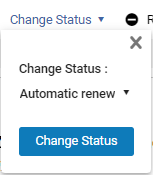
- ステータスのドロップダウンリストを選択します。(That is, select Automatic renew, the first option in this list.)
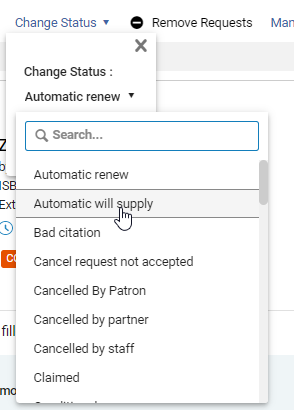
- 必要なステータスを選択します。ドロップダウンリストが閉じ、選択内容が表示されます。
- ステータスを変更を選択します。選択したリクエストのステータスが変更されます。
リクエストの削除
完了した借入リクエストは、タスクリストから削除できます。ある場合、それらは分析でのみ表示できます。
Requests that are not Completed cannot be removed.
- [借入リクエスト]ページ([フルフィルメント]>[リソースシェア]>[借入リクエスト])で、削除するリクエストのチェックボックスを選択します。The Actions options become available.
- Select Remove Requests.リクエストが削除されます。
ラベルの管理
Labels can be attached to, or removed from, individual requests or multiple selected requests; see New Layout 2022.
Communicating with Partners
このアクションを使用して、借用タスクリクエストからパートナーに直接電子メールを送信します。This option eases workflows, such as when a borrowing library wants to ask a question or for any type of messages such as a thank you note.これらのメッセージは、将来の参照のためにリクエストに保存されます。
Correspondence can be initiated using the Send email to partner action or from the Start Communication button on the Communications tab.
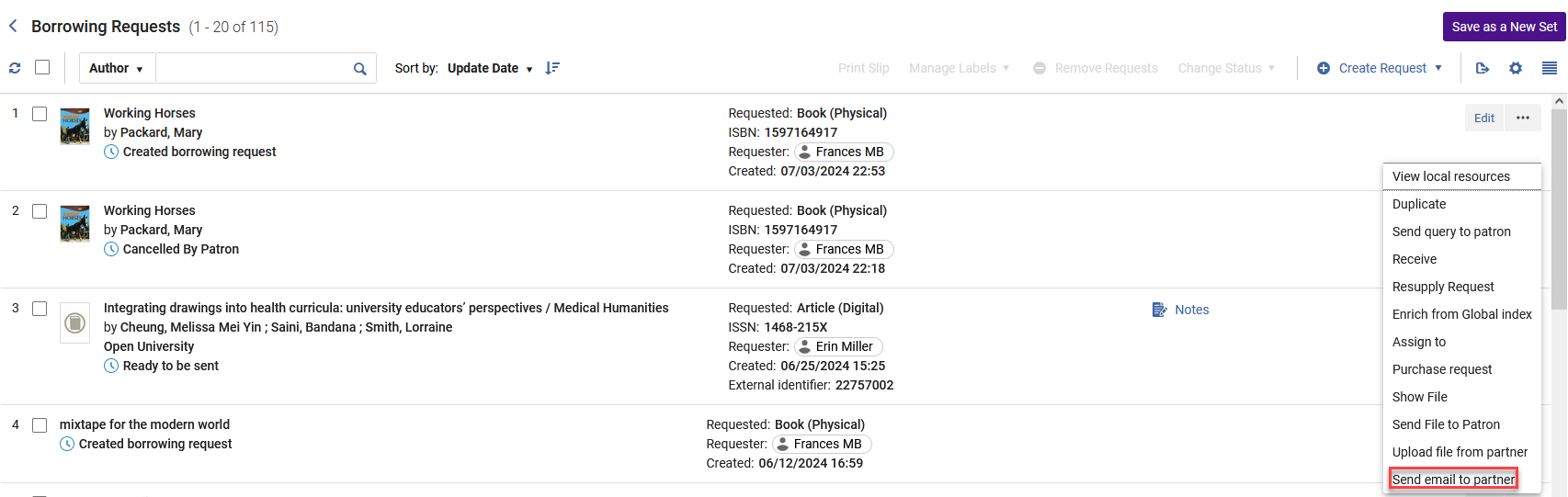
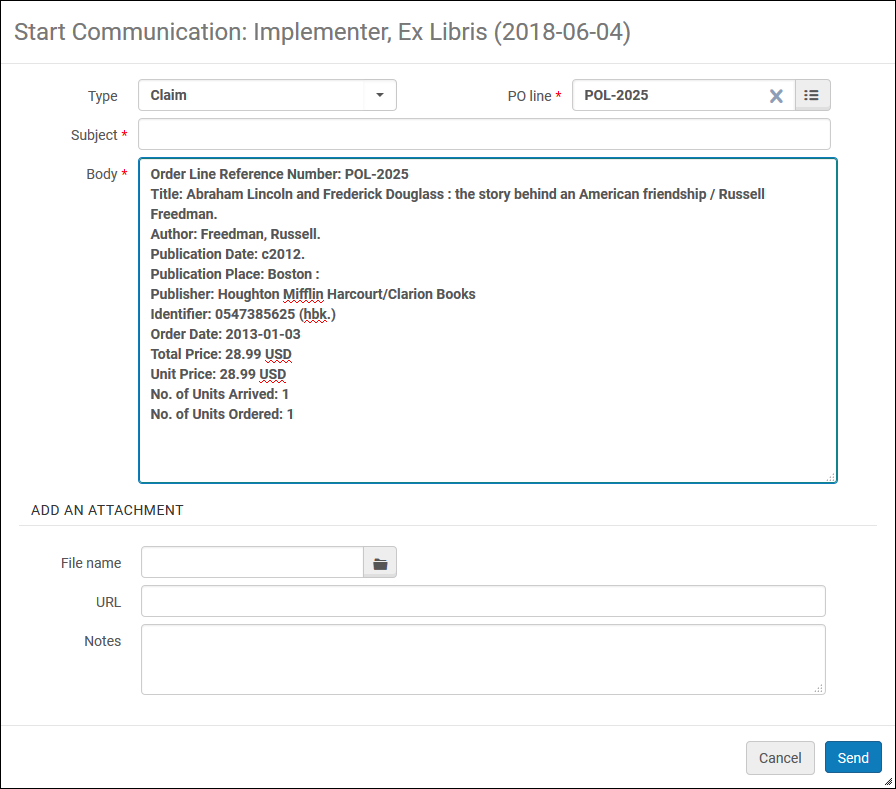
Selecting the Send email to partner action or the Start Communication button opens the Send email to partner form.
The From address is derived from the resource sharing library's preferred email shipping address.Acceptable To email addresses are the partner's preferred email shipping address or from the Rapid contact record email.ILL(受付)の場合、電子メールアドレスはリソース共有リクエストの連絡先電子メールアドレスから取得されます。
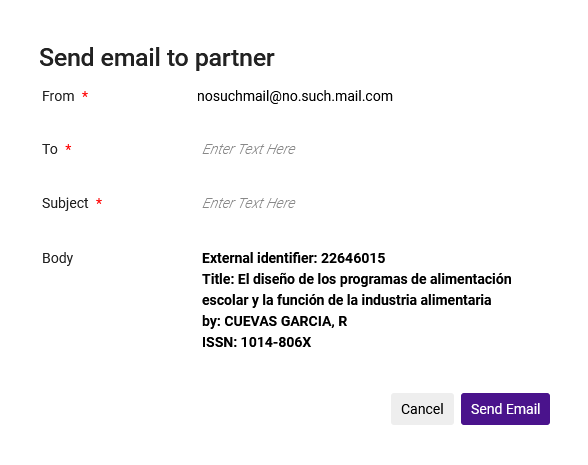
メール送信を選択すると、パートナーはリソース共有カンバセーションレターを受信し、リクエストに通信に関する通知が追加されます。これにより、このリクエストにパートナーとのやり取りが含まれていることが示されます。

通信ログは、通信タブからアクセスできます。
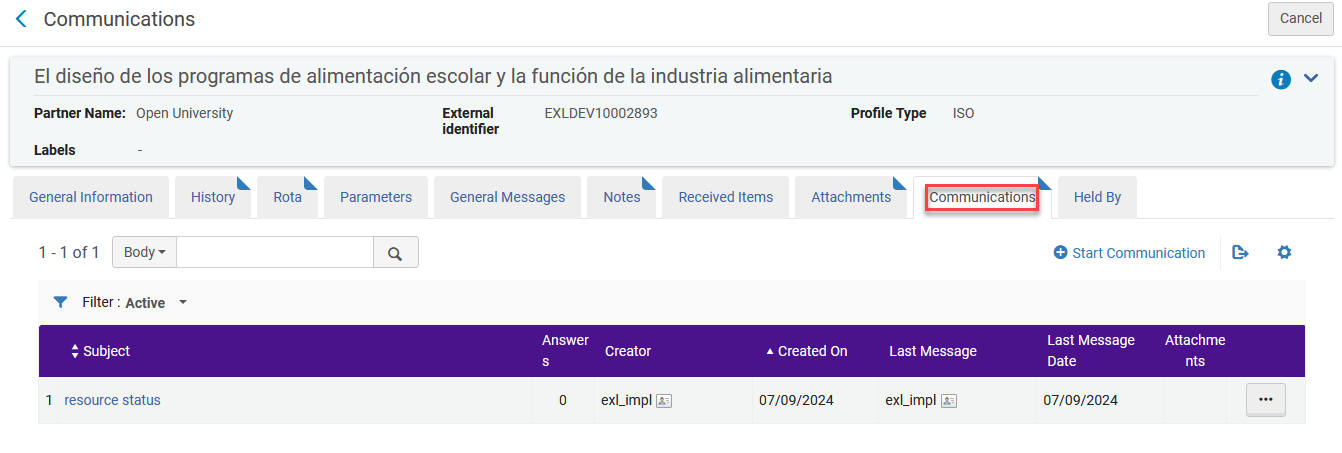
以下の操作が可能です:
- 通信全体を表示するために通信を編集する。
- 別の通信を送信するために通信に返答する。Each reply increases the counter in the CommunicationsAnswers column.
- 通信に対するパートナーの返答を貼り付けるために返答を追加する。
- 通信を閉じる。注: 通信を閉じると、リクエストから通信インジケータを削除しますが、通信は、全てのまたは閉鎖したフィルターの下の通信タブからアクセス可能のままです。

タスク割り当ての管理
A borrowing request can be assigned to a user, whether it is already assigned to a different user or is currently unassigned.A user with the Fulfillment Services Manager role can manage all request assignments.他のユーザーは、割り当てられていないタスクの割り当て、または自分に割り当てられているタスクの再割り当てのみに制限される場合があります。
- On the Borrowing Requests page (Fulfillment > Resource Sharing > Borrowing Requests), select Assign for the relevant task.割り当て先ダイアログボックスが開きます。
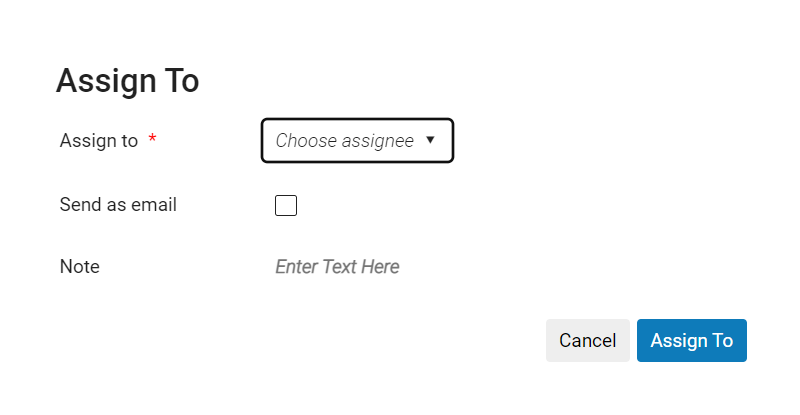 割り当てダイアログボックス
- 割り当て先ドロップダウンリストから、オペレータを選択します。オペレータのリストには、フルフィルメントサービスオペレータの役職を持つユーザーのみが含まれます。
- Eメールとして送信チェックボックスをオンにして、新しい割り当てをオペレータに通知します。
- ノートフィールドに、必要に応じてノートを入力します。The field is limited to 1,000 characters.
- 割り当て先を選択します。選択したユーザーにリクエストが割り当てられます。
- 借入リクエストページ(フルフィルメント>リソースシェア>借入リクエスト)で、関連するタスクの割り当ての解除を選択します。割り当てが削除され、タスクの割り当てが解除されます。
ユーザーへのクエリの送信
When you select Send query to patron from the More actions menu, depending on the configured patron-query template/type settings (see Configuring Patron Queries), the query is either sent automatically, or you are given the opportunity to select the appropriate template/type and, in certain cases, to edit the body of the message before it is sent.
クエリテンプレートが事前に選択されている場合
If there is only one patron-query template or type available for the current context, this template/type is automatically selected.システム設定に応じて、メッセージの本文を編集できる場合とできない場合があります。
- クエリを利用者に送信を選択しますAn Email Message dialog box appears.
-
If you are using patron-query templates, and Edit if Single is set to true, when you select Send query to patron, the Email Message dialog box below opens.主題フィールドは、リクエストの外部識別子を(存在する場合)を含みます。対象フィールドには、リクエストされたリソースに関連するテキストが含まれています。
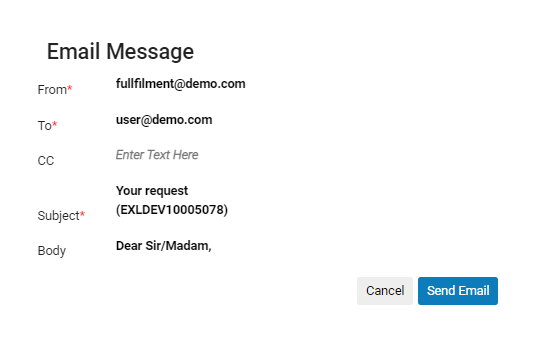 Email Message dialog box when using patron-query templates
必要に応じて、フィールドを選択して変更します。必要に応じて、選択すると本文フィールドが拡大します。Note that the Body field may contain text that should be modified before the message is sent, for example Query to patron: [ please enter your query here ].
メールメッセージダイアログボックスで選択された(および下にスクロールされた)本文フィールドWhen you have finished editing the message, select Send Email to send the message to the patron. - If you are using patron-query templates, and Edit if Single is set to false, when you select Send query to patron, the query is sent immediately.
- If you are using patron-query types, when you select Send query to patron, the query is sent immediately.
クエリテンプレートを選択する必要がある場合
現在のコンテキストに複数の利用者クエリテンプレートまたはタイプがある場合は、使用するテンプレート/タイプを選択する必要があります。システム設定に応じて、メッセージの本文を編集できる場合とできない場合があります。
- クエリを利用者に送信を選択しますAn Email Message dialog box appears.
- Under Email template, select the template you want to use.
- 以下のうち一つを実行して下さい:
- システムが利用者クエリテンプレートを使用している場合、メッセージを送信する前にメッセージの内容を編集する場合は、編集用に開くを選択します。The message opens for editing (see above).必要に応じてメッセージを編集します。
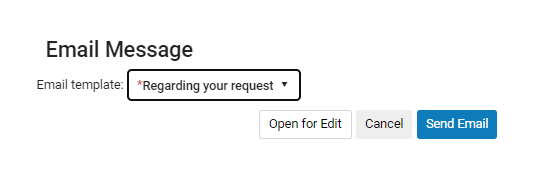 利用者クエリテンプレートが使用されていて、テンプレートが選択されている場合のメールメッセージダイアログボックス
- システムが利用者クエリタイプを使用している場合、メッセージにメモを追加する場合は、利用者へのメモでここにテキストを入力を選択し、追加するメモを入力します。
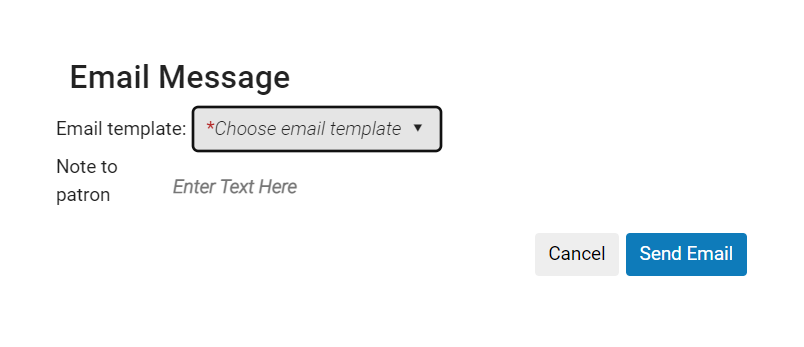 Email Message dialog box when patron-query types are in use
- システムが利用者クエリテンプレートを使用している場合、メッセージを送信する前にメッセージの内容を編集する場合は、編集用に開くを選択します。The message opens for editing (see above).必要に応じてメッセージを編集します。
- メールを送信を選択します。メッセージが送信されます。
Sending a General Message With a Borrowing Request
借用リクエストを含む一般的なメッセージを送信できます。The message appears in the request's Details panel in the General messages section, as well as in its General Messages tab when you select Edit or View to open the full form of the request.
General messages sent by the lender are also visible in the Details panel and in the General Messages tab.

一般メッセージは、次の場合にのみ送信できます。
- 借入リクエストは、ISO、電子メール、またはNCIP-P2P要求です。
- 借入リクエストはすでに送信されています
追加で一般メッセージファセットがあります。これにより、アクティブな一般メッセージを含むリクエストでフィルタ処理できます。
- [借入リクエスト]ページ([フルフィルメント]>[リソースシェア]>[借入リクエスト])で、ISO、電子メール、または NCIP-P2P リクエストを見つけます。
- その他のアクションメニューから、一般メッセージを選択します。一般メッセージダイアログボックスが表示されます。
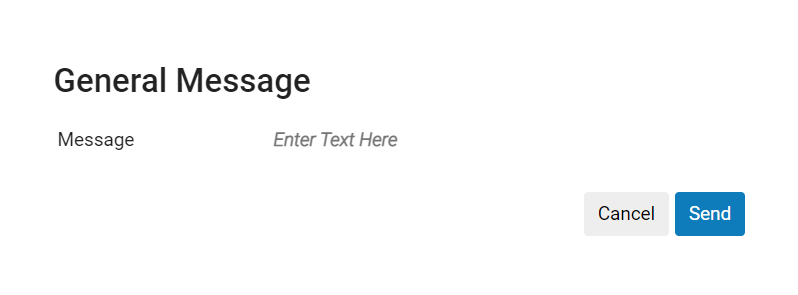 一般メッセージダイアログボックス
- メッセージフィールドで、メッセージを入力し、送信を選択します。
- 送信を選択します。メッセージは貸し手に送信されます。リクエストは1,000文字に制限されています。
Viewing Borrowing Request Actions
The History tab displays the actions taken on resource-sharing borrowing requests, such as changing the request's status or adding a shipping cost.The History tab is available on the full borrowing-request form.
履歴タブは、フルモードまたは簡易モードで表示できます。簡易モードで表示するラインのタイプを設定できます。
- [借入リクエスト]ページ([フルフィルメント]>[リソースシェア]>[借入リクエスト])で、リクエストの編集または表示(使用可能な方)を選択します。リソースシェア取寄せリクエストページリンクが表示されます。
- 履歴タブを選択します。The History tab displays the list of actions performed on the borrowing request.Select Full view mode to display all records for the request.Select Brief to display only those enabled in the configuration page Brief Audit Fields (see Configuring Brief Audit Fields).
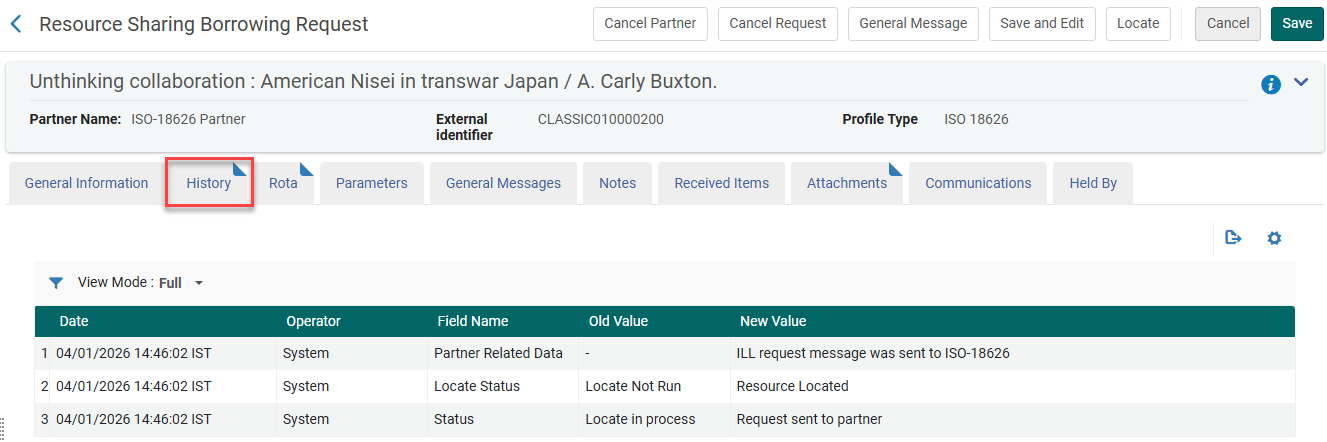
[オペレータ]列は、マネージャーと管理者のみに表示されます。See Configuring Users' Ability to View Operator Details.
取寄せリクエストを拒否する
貸出機関によって拒否された取寄せリクエストを拒否します。リクエストはさまざまな理由で拒否されます。たとえば、アイテムがすでに貸出中であるか、図書館で見つからない場合、貸出機関によって拒否され、貸出機関で拒否済みとしてマークできます。パートナーのタイプによっては、拒否が自動的に通知される場合があります。
You can manually reject a borrowing request in the Borrowing Requests page (as explained below), or in the Rota tab of the full request form (see Editing a Borrowing Request).
A lending workflow option,Reject, controls whether the manual reject action appears on the More actions menu of the request and on the Rota tab.このオプションはデフォルトで有効になっているため、拒否オプションを使用できます。If this workflow option is disabled, the Reject action does not appear.拒否アクションを非表示にすることは、貸し手から送信されたメッセージとして拒否が受入されることが予想される ISO リクエストでは特に便利です。
貸し手がリクエストを拒否すると、勤務表の次のパートナーがアクティブになります。The request may be sent to the next partner automatically, depending on the Sending Borrowing Request Rules set up by the institution.
rs_keep_rejected_request_active customer-parameter は、ジョブ表の最後のパートナーによって拒否された後でも、リクエストがアクティブなステータスのままであるかどうかを判別します。パラメータがデフォルトのなしに設定されている場合、リクエストは完了し、アクティブなリクエスト列に表示されません。Almaはユーザーにキャンセルメッセージを送信します。パラメータが取寄せまたは両方に設定されている場合、リクエストはアクティブなリクエスト列に留まるため、スタッフ司書はリクエストを処理するオプションを使用できます。この設定では、Almaがキャンセルメッセージをユーザーに送信することはありません。この機能は、パラメータが変更された後に発生する拒否にのみ適用されます。For more information, see Configuring Other Settings (Fulfillment).
- [借入リクエスト]ページ([フルフィルメント]>[リソースシェア]>[借入リクエスト])で、リクエストのその他のアクションメニューの拒否を選択します。リクエストを拒否するダイアログボックスが開きます。
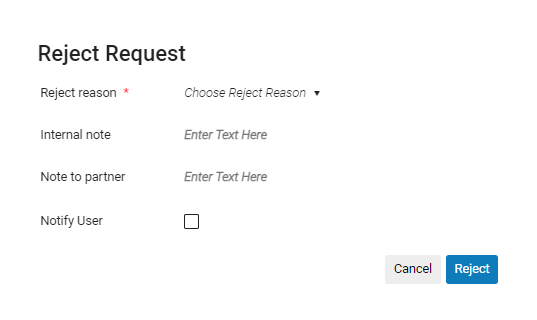 リクエストを拒否するダイアログボックスが開きます。
- 拒否の理由フィールドで、拒否の理由を選択します。
- Optionally, add a note in either or both of the following fields: This note appears in the following format:<Name of partner><Note text>.The fields are limited to 1,000 characters.
- 内部メモ:借用側にのみ表示されるメモ。これらのメモはメモタブに表示されますが、履歴タブには表示されず、ピアパートナーに送信されません。そのようなメモの例は、「この貸し手は過去にも対処するのが困難でした」です。
- パートナーへのメモ:パートナーに送信されるノート。These notes appear in both the Notes tab and the History tab.そのようなメモの例は次のとおりです。「ご協力いただきありがとうございます。本がバインダリから戻ってきたらお知らせください。」
- 必要に応じて、ユーザーに通知を選択して、拒否を通知する通知を要求している利用者に送信します。
- 拒否を選択します。リクエストの引用ステータスが借り手リクエストの拒否に変わり、リクエストのメモタブに拒否の理由と拒否メモが表示されます。The Full Cancel Request Letter is also sent.
[メモ]、[履歴]、および[Rota]タブを表示するには、[借入リクエスト]ページ([フルフィルメント]>[リソースシェア]>[借入リクエスト])で、リクエストの[編集]または[表示](使用可能な方)を選択します。完全なリクエストフォーム(リソース共有借入リクエストページ)がスライドパネルで開きます。
Resupplying a Request
If there is a problem with a request that has been digitally supplied via Rapid ILL, you can request a new copy from the lender.
このアクションは1回のみ使用でき、貸出図書館がリクエストを送信してから7日間有効です。
-
取り寄せリクエストページで、アクションメニューから再提供リクエストを選択します。
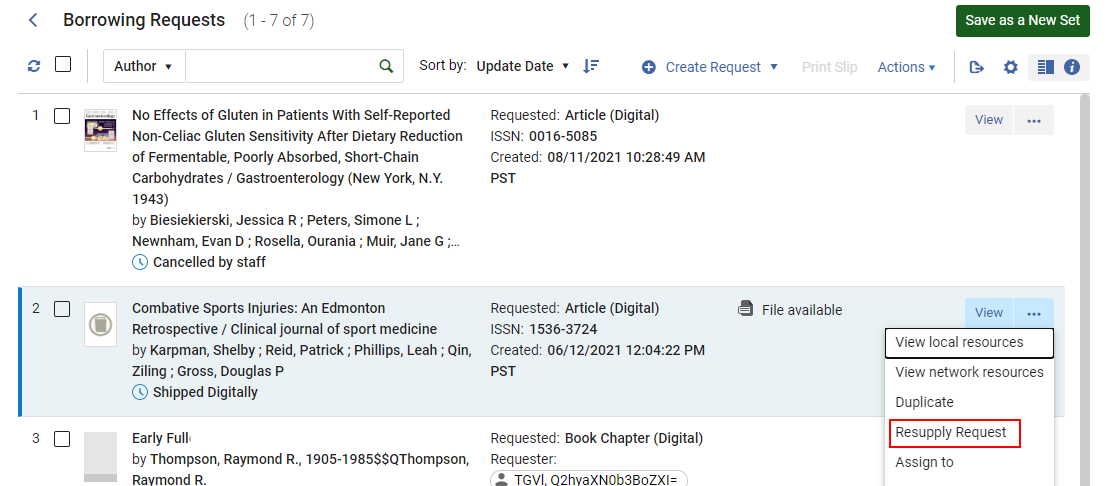 再提供リクエストアクション
- Enter a Reason for resupplying the request.
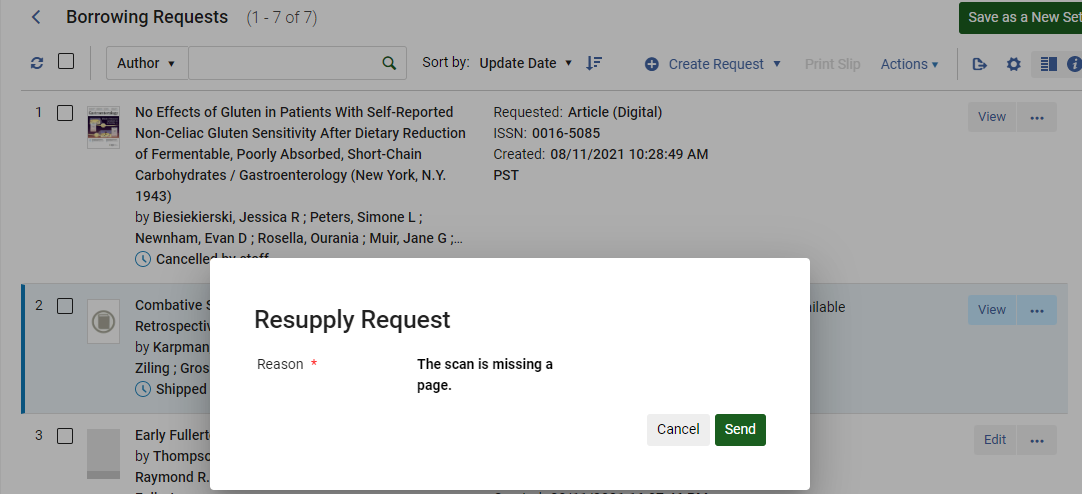 再提供リクエストの理由
-
The status updates to Request sent to partner.

-
その後、貸し手はアラートと、リクエストを再提供するためのメモを受け取ります。
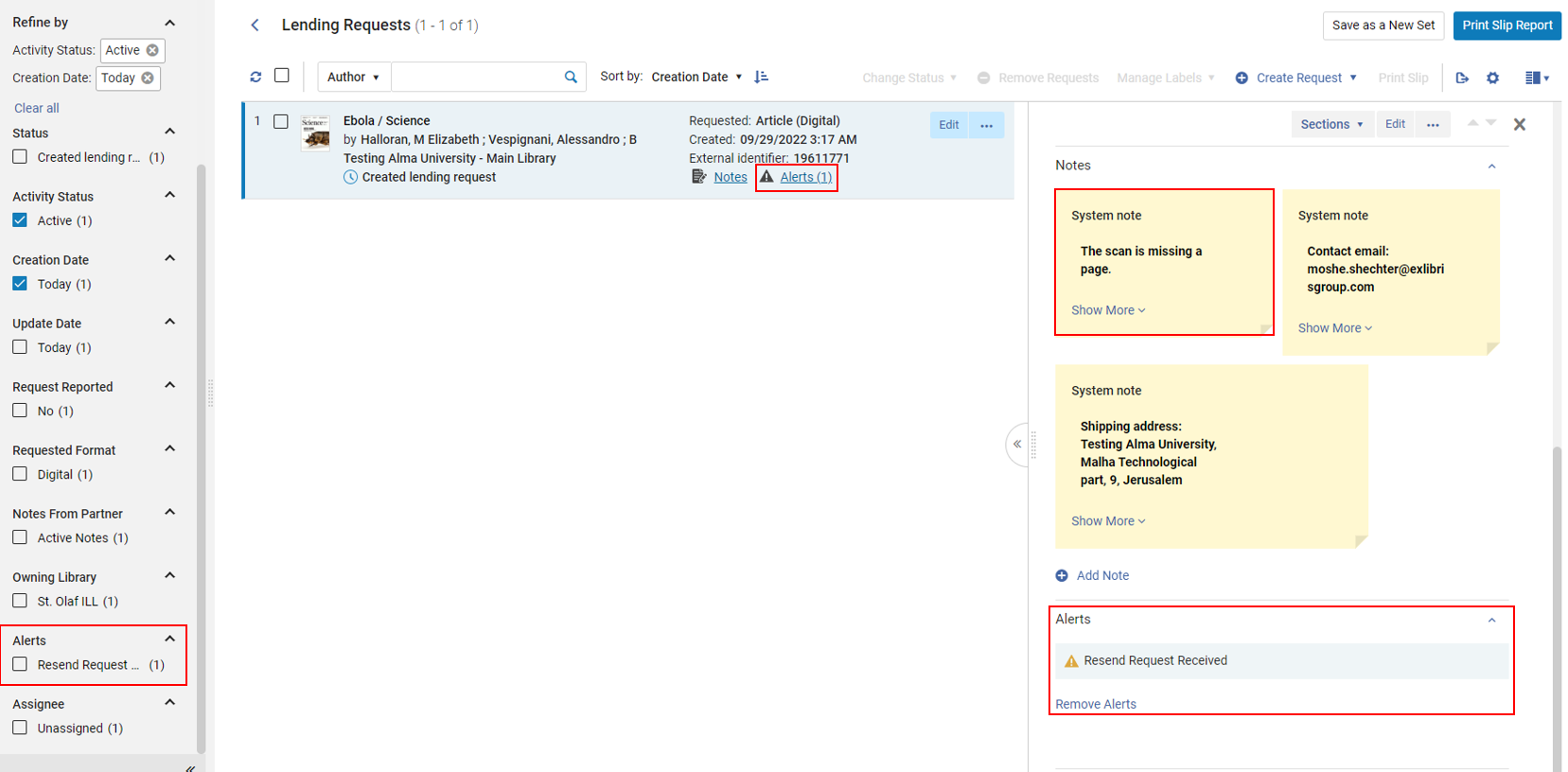
See also Resupply Request.
貸出リクエストの作成
You can convert a request type placed by a user by using the Convert Request Type action from the available actions for the request.このアクションは次のステータスで使用できます:
- リクエストが作成されました
- 送信準備完了
- 見つかりません
- 拒否されました
- 再送信する
- 期限切れ
- リコール
- 承認保留中
- 拒否
- 引用が間違っています
- ローカル所蔵
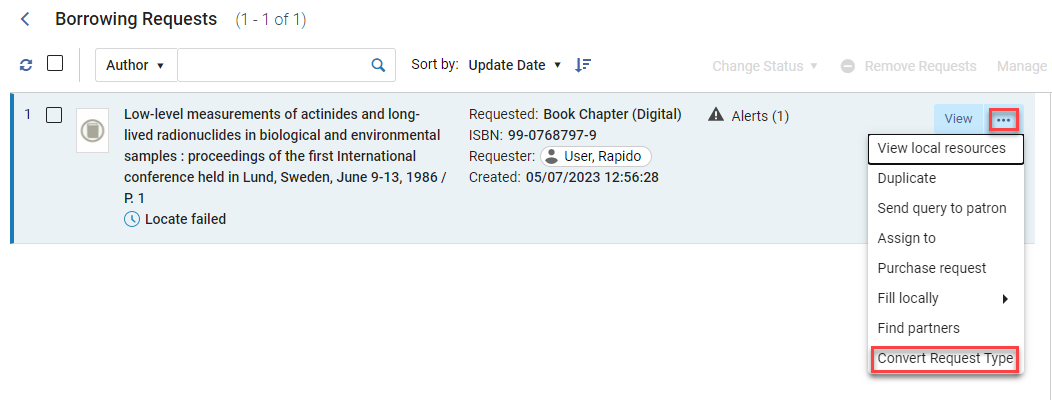
このアクションを選択すると、変換するリクエストの種類を選択し、必要な情報 (本の章に変換する場合では、ページ番号や章番号など) を追加できます。
![「リクエストタイプの変換]ボックスの[変換先]オプションのドロップダウンリスト。](images/convert_request_type_options.png)
変換されると、リクエストタイプの変更が履歴に記録され、貸出リクエストパートナーが再計算されます。
Additionally, when converting a request type, the Owner and Requested Pickup Location fields are editable.
If the Owner only contains one option, the field is not editable.
延滞借入リクエストの管理
If Alma receives an overdue message from the lender, it automatically marks the relevant ISO borrowing request as Overdue Request.When using ISO, overdue messages are sent by the lender, and Alma automatically updates the borrower's request status based on this message.非ISOリクエストの場合、リクエストのステータスを手動で期限切れリクエストに変更できます。
伝票の一括印刷
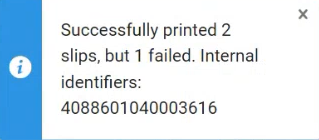
The Print Slip bulk action enables the library staff to reprint received or returned slips in bulk.When multiple borrowing requests are selected, selecting Print Slip reprints all the slips.
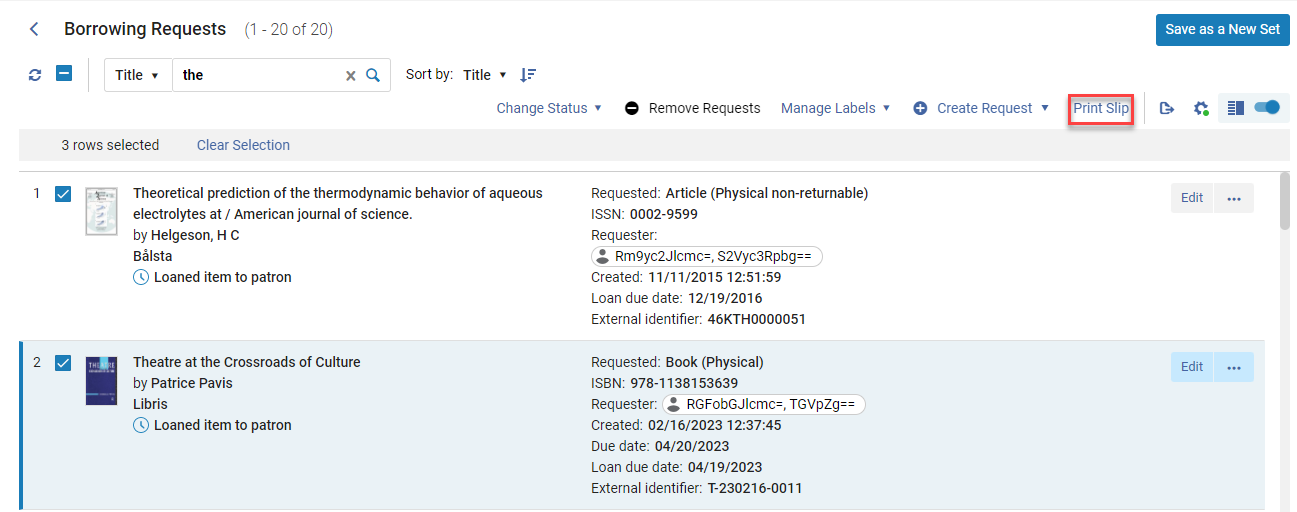
受け付けられなかった申請については、印刷伝票は印刷されません。受信したがまだ返信されていない要求については、リソース共有受信伝票が印刷されます。返送されたリクエストについては、リソース共有返送伝票が印刷されます。When multiple items are selected, all slips that were received/returned are printed, and a message appears indicating which slips were printed successfully and which slips could not be printed.