
Configuring Libraries
This page describes how to configure libraries for fulfillment including services between libraries in an institution, transit time rules, resource sharing, etc. For links to all the main fulfillment documentation pages see Fulfillment.
機関内の図書館間のフルフィルメントサービスの設定
- 一般システム管理者
- フルフィルメント アドミン
Watch the Managing Libraries and Locations video.
フルフィルメント関係は、ある図書館が同じ機関内の別の図書館に対して実行できるサービスを定義します。For general information on working with fulfillment networks see Fulfillment Networks.
You configure fulfillment relationships on the Organizational Units Relationships Setup page (Configuration Menu > General > Libraries > Relationships).
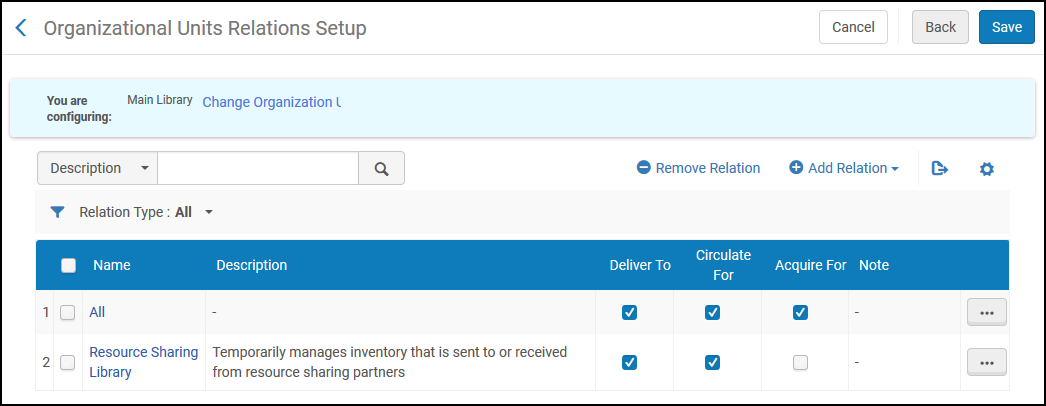
このページでは、次のアクションを実行できます。
- Adding Organizational Unit Relationships (see Adding Organizational Unit Relationships)
- Editing Organizational Unit Relationships (select Edit from the row actions list)
- 組織単位の関係の削除(行アクションリストから削除を選択)
Adding Library Relationships
組織単位の関係を追加できます。
- On the Organizational Units Relationships Setup page (Configuration Menu > General > Libraries > Relationships), select Add Relation.[図書館関係の追加]ダイアログボックスが表示されます。
図書館関係の追加ダイアログボックス 関連アセットを作成する際に [図書館] のドロップダウンリストで [すべて] を選択した場合、この選択は、関連アセットの作成時にのみ適用されます。 - 図書館ドロップダウンリストから、設定する図書館からサービスを受け取る図書館を選択します。
- 設定している図書館が上で選択した図書館に提供できるサービスを選択します。
- Acquire for(available on both the library and institution levels) – The library that you are configuring is able to acquire items for the specified library.This means that you can create a PO Line with the library that you are configuring as PO Line Owner, and the ordered items can be for the specified library.
- 貸出・返却(図書館レベルでのみ使用可能)–設定している図書館は、指定された図書館のアイテムをチェックインおよびチェックアウトできます。このオプションが選択されておらず、別の図書館によって貸出または返却が試行された場合、アクションのブロックが適用される場合があります。For more information on block preferences, see Configuring Block Preferences.
- Deliver to(available on the library level only) – The library that you are configuring is able to deliver requested items to the specified library.
- Supply from(available on the library level only) – The library that you are configuring is able to supply items to the resource sharing library.The libraries for which you configure a Supply from relationship display in the Availability information for lending requests on the Resource Sharing Lending Requests Task List page (see Managing Resource Sharing Lending Requests), and on the Manage Resource Options page when managing fulfillment options for a request (see Managing Fulfillment Options).
これらのサービスオプションのいずれかに対してすべてを選択すると、設定されている図書館/機関がすべての図書館にサービスを提供するか、機関内のすべての図書館からサービスを受入できます。If All is selected for a service but an individual library has a different value, the library's selection will take precedence. - 追加して閉じるを選択して、ダイアログボックスを閉じます。定義した関係は、[組織単位の関係のセットアップ]ページの図書館の関係にリスト表示されます。
Configuring Transit Time Rules
- 一般システム管理者
- フルフィルメント アドミン
Transit-time rules enable Alma to calculate expected delivery times for fulfillment requests.アイテムのリクエストが受信されると、リクエストされたアイテムのロケーション、受け取りロケーション、場合によってはアイテムの資料タイプ(たとえば、特大サイズのアイテムをある図書館から別の図書館へ移動する場合、平均サイズのものよりも時間がかかる場合があります)にもとづいて移動時間を考慮するために、フルフィルメント通過時間ルールの確認が行われます。Alma uses the transit-time rules to find the copy of the requested item that can be expected to arrive at the required pickup location the soonest (see also Pickup at Shelf and How does Alma 'choose' the copy that will fulfill a request?).
通過時間ルールのいずれも満たされない場合の配送時間を定義する、デフォルトの通過時間ルールがあります。このデフォルトのルールは変更可能ですが、すぐに使用できるように12時間の配送時間にセットされています。新しい通過時間ルールを定義する場合、ルール適用時のシナリオの推定到着時間(ETA)を計算することにより、ルールをテストできます。詳細については、以下のリソースの推定到着時間を計算するにはを参照してください。
各通過時間ルールは、有効または無効にすることができます。デフォルトでは、新しいルールはそれぞれ有効になっています。
See the following Knowledge Article regarding a scenario in which transit rules will not be considered:Alma Requesting is randomly choosing unavailable items instead of available items
通過時間ルールページ(設定メニュー>フルフィルメント> 図書館管理>通過時間)から通過時間ルールの設定を行います。
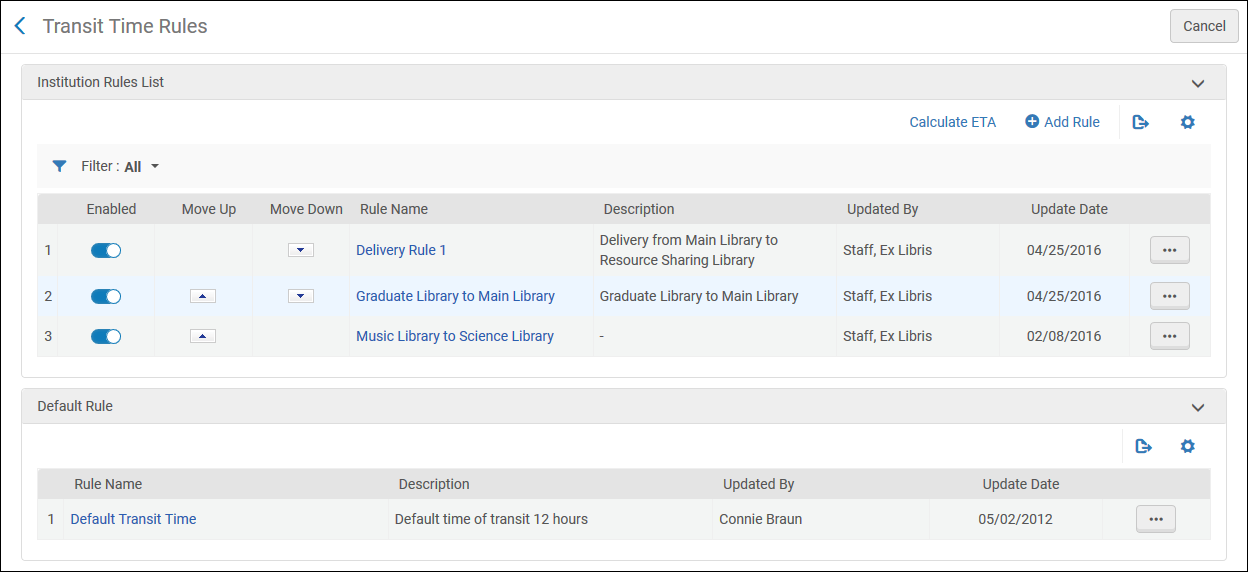
このページでは、次のアクションを実行できます。
- Adding a transit-time rule (see Adding a Transit Time Rule)
- Editing a transit-time rule (select Edit from the row actions list)
- 通過時間ルールの削除(行アクションリストから削除を選択)
- Editing the default transit-time rule (select Edit from the row actions list for the default rule)
- 通過時間ルールの有効化または無効化
- 通過時間ルールを優先順に上下に移動します。Almaは、入力パラメータが満たされる最初の(有効な)ルールを適用するため、ルールのリスト内のルールのオーダーは重要です。
- Calculating the ETA for a Resource (see Calculating the Estimated Time of Arrival For a Resource)
Adding a Transit Time Rule
新しい通過時間ルール(有効化または無効化)を追加できます。デフォルトでは、新しいルールはそれぞれ有効になっています。
The calculated delivery time gives an estimate of when a requested item will arrive at the pickup location.This estimate can have an effect on how and when the service is provided to the requesting patron.場合によっては、特定の時間または日付以降、ユーザーがサービスに興味を示さない場合があります。このような場合、配送時間が長くなると、特定のフルフィルメントオプションが完全になくなる可能性があります。
リクエストされた冊子アイテムの資料タイプとアイテムのソース(差出人)のロケーションも、配送速度に影響を与える可能性があるため、特定のリクエストで利用可能なフルフィルメントシナリオを制限する場合があります。
- [通過時間ルール]ページ([設定メニュー]> [フルフィルメント]> [図書館管理]> [通過時間])で、ルールの追加を選択します。[通過時間ルールエディタ]ページが表示されます。既存の通過時間ルールのコピーを作成する場合は、アクションメニューから複製を選択します。ルールをコピーしたら、必要に応じて変更できます。
通過時間ルールエディタページ - 通過時間ルールエディタセクションで、新しいルールの名前(必須)と説明(オプション)を指定します。
- 入力パラメータセクションで、オペレータを指定し、次のパラメータの値を入力します。
- From – The source organization unit –that is, the library or institution from which the item will be transferred.キーボードのCtrlキーを押しながら関連する値を選択することにより、複数のソース組織単位を追加してルールに含めることができます。
- To – The destination –that is, the library to which the item will be delivered.宛先ドロップダウンリストには、ソースのロケーションと配送先関係を持つ図書館のみが含まれます。For details on fulfillment relationships, see Configuring Fulfillment Relationships.キーボードのCtrlキーを押しながら関連する値を選択することにより、ルールに複数の宛先を追加できます。
- 資料タイプ–配送するアイテムのタイプを選択します。
- アイテムのロケーション-アイテムの振替元のロケーション内の物理的なロケーションを選択します。
- 開始時間-アイテムがソースのロケーションから指定された宛先に発送される時間を入力します。For example, if it takes longer to move around items in the morning than in the afternoon, then you can have a rule with ‘Start Time After 12:00' and another with ‘Start Time Before 12:00'.スキャンインされたアイテムは通過中の時間が分かっていますが、リクエストを満たすために最も近いアイテムを計算するためにシステムが使用できるスキャンイン時間は分かっていません。Therefore, when the system calculates the closest copy that can be used to fulfill a request (see Pickup at Shelf) it uses a rule with no start time, i.e. the Start Time is set to ‘At *'.
- From – The source organization unit –that is, the library or institution from which the item will be transferred.
- 出力パラメータセクションで:
- Delivery time (in hours)- Time that it will take to deliver the item when the specified input parameters are fulfilled.
- Use for Hold Request Pickup Calculation – Select this checkbox for the rule to be considered for selecting the best copy to fulfill a request (see Pickup at Shelf).The checkbox is displayed only when the From and To library fields are configured, and the Material Type field is set to Any.By default, the checkbox is not selected.(New for February 2026) When this checkbox is selected, the Do not use for Transit Time Calculation checkbox appears.このチェックボックスを選択すると、次のようになります:
- The rule is only used for calculating the selected item for fulfilling the request (see Pickup at Shelf), and not for calculating an estimate of when a requested item will arrive at the pickup location
- からフィールドは場所レベルで設定できます。
- When a hold request is created, and the resource to fulfill the request is not available in the selected pickup location, Alma matches resources to the request using additional parameters, as follows:
- Alma attempts to locate resources belonging to another library on the same campus as the pickup location.
If no resources are found on the same campus, multiple resources exist in different locations on the campus, or no campuses have been defined, Alma checks the Transit Time Rules for which the Use for Hold Request Pickup Calculation checkbox has been selected.If a rule exists for this resource and the Use for Hold Request Pickup Calculation checkbox is selected, Alma chooses this resource.
- If multiple resources have a transit-time rule, then the resource with the shortest transit time is selected.
From and To libraries are the only input parameters in the transit-time rule that are considered for the location calculation.
- [保存]を選択します。定義したルールは、[通過時間ルール]ページのルールリストの下部にリストされます。
Calculating the Estimated Time of Arrival For a Resource
あるロケーションから別のロケーションに振替されるリソースのETAを計算できます。ETAは、リソースが宛先のロケーションに到着する時間数を示し、ソースおよび宛先のロケーションに対して定義されている通過時間ルールに基づくものです。定義された通過時間ルールのいずれも満たされない場合は、デフォルトの通過時間ルールが適用されます。ETAの計算は、定義されたルールのテストに役立ちます。
- [通過時間ルール]ページ([設定メニュー]> [フルフィルメント]> [図書館管理]> [通過時間])で、ETAの計算を選択します。[ETA計算]ページが表示されます。
ETA計算ページ - 通過時間 - 入力セクションで、計算の入力パラメータを入力します。See step 3 in Adding a Transit Time Rule for details on the input parameters.
- ETAを計算するを選択します。計算されたETAは、配送時間フィールドに表示されます。
Configuring Reshelve-Without-Transit Rules
- 一般システム管理者
- フルフィルメント アドミン
各ルールは有効または無効にできます。デフォルトでは、新しいルールはそれぞれ有効になっています。
You configure reshelve-without-transit rules from the Reshelve Without Transit Rules page (Configuration Menu > Fulfillment > Library Management > Reshelve Without Transit Rules).
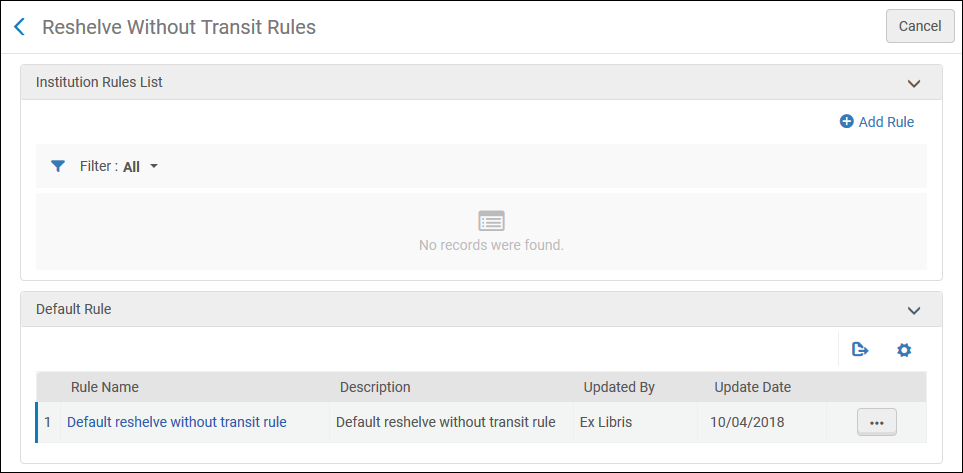
このページでは、次のアクションを実行できます。
- Adding a reshelve-without-transit rule (see Adding a Reshelve-Without-Transit Rule)
- Editing a reshelve-without-transit rule (select Edit from the row actions list)
- 通過なしで棚へ戻すルールの削除(行アクションリストから削除を選択)
- Editing the default reshelve-without-transit rule (select Edit from the row actions list for the default rule)
- Enabling or disabling a reshelve-without-transit rule
- 通過なしで棚へ戻すルールを優先順に上下に移動します。Almaは、入力パラメータが満たされる最初の(有効な)ルールを適用するため、ルールのリスト内のルールのオーダーは重要です。
Adding a Reshelve-Without-Transit Rule
You can add a new reshelve-without-transit rule, which can be either enabled or disabled.デフォルトでは、新しいルールはそれぞれ有効になっています。
- On the Transit Time Rules page (Configuration Menu > Fulfillment > Library Management > Reshelve Without Transit Rules), select Add Rule.The Reshelve Without Transit Rules Editor page appears.If you want to create a copy of an existing reshelve-without-transit rule, select Duplicate from the row actions menu.ルールをコピーしたら、必要に応じて変更できます。
通過ルールなしで棚へ戻すルールエディタページ In the Reshelve Without Transit Rules Editor section, specify a name (required) and description (optional) for the new rule.
入力パラメータセクションで、オペレータを指定し、次のパラメータの値を入力します。すべての入力パラメータについて、複数選択できます。
From Library – The source –that is, the library from which the item is sent.オペレータ(In ListまたはNot In List)およびこの機関の1つ以上の図書館を選択します。
From Department- Select the operator (In List or Not In List) and the department.差出人図書館で1つの図書館を選択すると、その図書館内のすべての部署が表示されます。差出人図書館で図書館が選択されていない場合、機関内のすべての部署が表示されます。差出人図書館で複数の図書館が選択されている場合、フィールドは無効になり、部署を選択できません。
From Desk- Select the operator (In List or Not In List) and the desk.If one library is selected in From Library, all circulation desks within that library are displayed.差出人図書館で2つ以上の図書館が選択されている場合、フィールドは無効になり、受付を選択できません。
To Library – The destination –that is, the library to which the item is delivered.オペレータ(In ListまたはNot In List)およびこの機関の1つ以上の図書館を選択します。
To Location – This field is disabled by default.宛先図書館フィールドで単一の図書館が選択されている場合は、オペレータ(In ListまたはNot In List)および選択した図書館の1つ以上のロケーションを選択します。
出力パラメータセクションで、次のパラメータを指定します。
Reshelve Without Transit – Select True to set the rule to reshelve an item without transit when the specified input parameters are fulfilled.Select False for all items to reshelve with transit.
Time to reshelve (hours) – Specify the period of time in hours (or portions of hours, such as 10.5) that is allotted to place an item back on the shelf after it has been returned.During this time, Alma and Primo will indicate to patrons and librarians that the status of the item is available and awaiting reshelving.When this period of time expires, the status will show that the item is in place on the shelf.
Watch the Reshelving Items Time video (2:07 min).
- 保存を選択します。定義したルールは、[通過ルールなしで棚へ戻す]ページのルールリストの下部にリスト表示されます。
アイテムが所有図書館以外のロケーションにスキャンされると、Almaはこれらのルールをチェックします。アイテムの現在のロケーションとその宛先の間に通過関係がない場合、アイテムは通過中に設定されます。それ以外の場合は、配置済みのアイテムにセットされます。
Configuring Parameters of a Resource Sharing Library
- 一般システム管理者
機関内またはキャンパス内の図書館は、ユーザーが別のロケーションでリソースをチェックインまたはチェックアウトしたり、アイテムを相互に送信したり、相互に代わってアイテムを取得(購入)したりできる関係を持つように設定できます。ある図書館が他の機関の図書館に対して(機関内だけでなく)これを行うように設定されている場合、リソースシェア図書館と呼ばれます。
See Configuring Parameters of a Resource Sharing Library for more information.
See Adding a Library for more information about configuring libraries.
Configuring SIP2 Bin Rules
- 一般システム管理者
- フルフィルメント アドミン
You can configure rules that determine the sort bin for each item returned via a SIP2 (self-check) machine.SIP2 is the Standard Interchange Protocol v2, which provides a standard interface between a library's automated circulation system and a self-check machine.ソートビンは、返却アイテムを配置するビン(SIP2マシン内の冊子バケット)を決定するプロトコルのフィールドです。宛先図書館や請求番号など、さまざまな値に基づいたルールに従ってフィールドをセットできます。
For more information on self-check machines, see https://developers.exlibrisgroup.com/alma/integrations/selfcheck.
[SIP2ビン設定ルール]ページ([設定メニュー]> [フルフィルメント]> [図書館管理]> [SIP2ビン設定])から、マシンビンのセルフチェックの使用ルールを設定します。
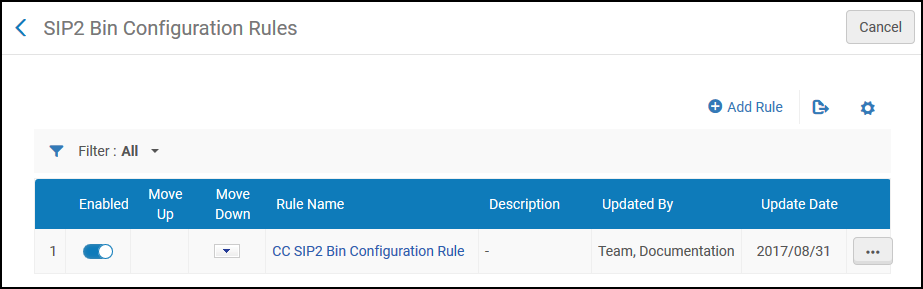
このページでは、次のアクションを実行できます。
- Adding a SIP2 bin configuration rule (see Adding a SIP2 Bin Configuration Rule)
- Editing a SIP2 bin configuration rule (select Edit from the row actions list)
- SIP2ビン設定ルールの削除(行アクションリストから削除を選択)
- SIP2ビン設定ルールの有効化または無効化
Adding a SIP2 Bin Configuration Rule
SIP2ビン設定ルールを追加できます。
- [SIP2ビン設定ルール]ページ([設定メニュー]> [フルフィルメント]> [図書館管理]> [SIP2ビン設定])で、ルールを追加を選択します。[SIP2ビン設定]ページが表示されます。SIP2ビン設定ルールのコピーを作成する場合は、行アクションリストから重複を選択します。ルールをコピーしたら、必要に応じて変更できます。
- 上部の入力パラメータセクションで、SIP2ビン設定ルールの名前と説明を入力します。
- In the lower Input Parameters section, specify the components of the input parameter (Name,Operator, and Value).A set of input parameters may look like this:Destination Library=ArtLibrary.
使用可能な名前フィールドの値(つまり、SIP2ビン設定ルールをいつ有効にするかを決定する基準)およびそれぞれの値について、次の表で説明します。
SIP2ビン設定ルール-入力パラメータ値 名前 値 宛先の図書館 機関内の図書館。For details on adding a library, see Configuring the Institution and Its Libraries. 宛先の貸出・返却受付 貸出・返却受付For details on configuring circulation desks, see Configuring Circulation Desks. 宛先のサービスユニット ワークオーダー部署やデジタル化部署など、機関内の部署。For details on configuring work order departments, see Configuring Work Order Departments. 請求番号から The call number from which you specify the rule to take effect when the item's call number is numerically greater than the indicated value. リクエストされている リソースがリクエストされたかを示します(はいまたはいいえ)。 Lexicographical From call number The call number from which you specify the rule to take effect when the item's call number is lexicographically (in other words, alphabetically) greater than the indicated value.たとえば、辞書式オーダーでは2> 10> 1です。 辞書式の請求番号 The call number from which you specify the rule to take effect when the item's call number is lexicographically (in other words, alphabetically) less than the indicated value.For example, 1 < 10 < 2 in lexicographic order. 棚に戻すアイテムのロケーション アイテムを棚へ戻す機関内の図書館。For details on adding a library, see Configuring Libraries. セルフチェック貸出・返却受付 セルフチェックを実行する貸出・返却受付。For details on associating a self-check machine with a circulation desk, see Self-Check Machines. 請求番号 The call number from which you specify the rule to take effect when the item's call number is numerically less than the indicated value. - パラメータを追加を選択します。入力パラメータのセットが、SIP2ビン設定ルールのパラメータのリストに追加されます。
- 前の2つのステップを繰り返して、ルールに必要なパラメータをすべて追加します。ルールを適用するには、すべての入力パラメータが満たされている必要があります。
- 出力パラメータセクションで、ビン番号(セルフチェックマシンがアイテムを配置するビンの番号)を入力します。ここの番号が、SIP2マシンで設定されたビンの番号と一致することを確認してください。
- 新しいルールを保存するために保存を選択します。ルールが[SIP2ビン設定ルールページ]ページに表示されます。
- 複数のルールを定義した場合は、上へ移動する/下へ移動する矢印を使用してルールのオーダーを設定します。ルールのオーダーは重要です。システムが最初の(最初の)適切な有効なルールを適用するためです。
